8 min read
When a touchscreen all-in-one for reception no longer fits
See when a touchscreen all-in-one for reception can handle a printer and scanner, and when a clinic needs a serviceable terminal.
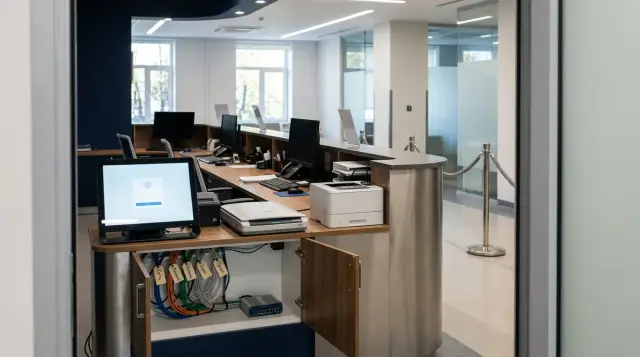
A touchscreen all-in-one suits a reception desk as long as it remains a regular computer on a desk and the printer and scanner can be replaced independently. Once a clinic wants to hide cables, secure peripherals, restrict visitor access, withstand frequent disinfection, and replace a failed component without closing the desk, it needs more than an all-in-one. It needs a purpose-built terminal.
People often draw this line based on screen size or enclosure price. That is a mistake. I have seen expensive kiosks that had to be dismantled to replace a cheap scanner power supply, and simple all-in-ones that worked for years without trouble. Patient flow, installation, peripheral devices, and the maintenance process determine the choice. A touchscreen alone says nothing about whether a workstation is ready for a real reception area.
An all-in-one remains a good choice for a regular workstation
A touchscreen all-in-one makes sense where an employee is always behind the counter, the equipment sits on an accessible worktop, and visitors cannot reach the ports. In this setup, the display, computer, camera, and speakers share one enclosure, while the printer and scanner remain separate desktop devices. A failure in one device does not turn the entire counter into a construction project.
This design has practical benefits. There are fewer computer cases on the desk, the work surface is easier to wipe, an employee can confirm an action with a touch, and a standard keyboard remains available for longer entries. Staff can move an all-in-one to the next desk and connect it to a prepared set of peripherals. For a small clinic with several identical stations, that often matters more than a custom metal enclosure.
But the word "touchscreen" must not replace testing the software. A medical information system may use small controls, tables, and dialog boxes designed for a mouse. Reception staff still type names, addresses, document numbers, and notes on a keyboard. Touch is useful for short, repeated actions, but it rarely replaces conventional input devices at an employee workstation.
An all-in-one is justified when all four conditions apply:
- every device sits inside an area controlled by the employee;
- the printer and scanner use standard connections and can be replaced separately;
- cables can be inspected, labeled, and unplugged without dismantling furniture;
- acceptable downtime equals the time needed for an ordinary device swap.
If even one condition fails regularly, the clinic should discuss a terminal as a separate engineered product instead of looking for an all-in-one with a thicker stand.
A terminal begins with its enclosure and access model
A complete terminal differs because its enclosure controls access, placement, and maintenance for every component, not because it has a touchscreen. Its display may have the same diagonal size and its processor may match an office computer. The difference sits around them: a lockable service area, protected cable runs, peripheral mounts, ventilation, power entry points, and a clear way for a technician to open the enclosure.
This matters at an open counter. A visitor may lean on a panel, pull a charging cable, spill water, or put a bag over the paper output. Children find an exposed cable faster than any engineer. When ports face the public area, staff protect a regular all-in-one with furniture, cover plates, and improvised fasteners. The clinic ends up building a terminal anyway, but without a drawing or clear responsibility for the result.
Service access should be separate from user access. A receptionist opens the printer tray, removes a paper jam, and wipes the scanner glass. A technician reaches networking equipment, the power supply, USB connections, and fasteners. A visitor reaches none of them. A design separates roles badly if changing a roll or a pack of paper exposes mains cables.
Check stability separately. The mount must tolerate an ordinary press on the edge of the screen without making the counter sway, and an extended tray must not block the aisle. A floor-standing enclosure needs an assessment of its base and the route used by cleaning equipment. A desktop stand needs a worktop that can carry both its weight and the turning force from a touch. A VESA line in a display specification does not settle these questions.
A clinic needs a terminal when the enclosure becomes part of its controls. It does more than decorate a computer. It determines who can reach the equipment, what staff can replace on site, and which area remains closed during operation.
Peripherals determine the architecture before the processor does
List every printer, scanner, and identification device before choosing the computer. At reception, peripherals cause more operational surprises than processor performance. One "printer" can mean an A4 laser printer, a ticket printer, a label printer, or several devices with different supplies and paper paths.
The same applies to scanners. A flatbed scanner handles worn documents and unusually shaped sheets gently, but takes up desk space. A sheet-fed scanner processes separate pages faster, but can damage a worn document and needs free space at both its input and output. An identity document scanner often has its own glass, illumination, driver, and restrictions on document position. Calling all of these devices a "document scanner" is not enough for a procurement specification.
Record five facts for each device:
- physical dimensions with covers and trays open;
- power requirements, data connector, and supplied cable length;
- driver, operating system architecture, and the way the application receives an image;
- actions an employee takes to clear a jam, clean the device, and replace supplies;
- the maximum time allowed to replace the device.
The last item changes the design more than the others. If a spare printer must be working in ten minutes, it cannot sit behind a panel that requires two kinds of tools and removal of the display. If a scanner uses a custom retaining frame, the clinic must keep a compatible replacement or a spare module with that frame. A universal shelf is often more useful than an enclosure cut for one model.
Do not forget the ports. A picture showing two USB ports does not mean two dependable connections in operation. The keyboard, mouse, reader, camera, security token, service drive, or a managed uninterruptible power supply may need connections too. A passive hub may not provide enough power for a scanner, while an arbitrary powered hub introduces another power supply that someone must secure and maintain.
I prefer to count independent failure chains instead of ports. If the printer, scanner, and reader all depend on one cheap hub, a hub failure stops all three devices. A sound design keeps critical peripherals on direct connections or uses a maintainable industrial unit with a spare close at hand.
Cables and power expose a poorly designed counter
A cable plan should let a technician find and replace a failed connection without guessing. Wires almost always look tidy on a new counter. A year later, there is a scanner extension, a new network adapter, a charging lead, a backup printer, and evidence of visits by three different contractors. Design for that future counter.
Give every cable a start, an end, a label, and an approved route. Power and signal lines must not pull tight when the display turns or a service door opens. A plug must not act as a mechanical stop. Leave a service loop where a component slides out, but do not create a bundle next to a vent. A cable duct must open again instead of relying on single-use adhesive.
Size the power arrangement for the devices and for the recovery scenario. An all-in-one, a printer with a heater, a scanner, a network device, and an extra display have different startup and running loads. Choose an uninterruptible power supply after measuring the load, not by counting sockets on its case. Laser printers are often connected outside the UPS when its manufacturer restricts that type of load. Check the documentation for the specific models instead of treating this as a universal rule.
Put a one-page connection map inside the service compartment. It might look like this:
PWR-01  розетка -> ИБП -> моноблок
PWR-02  розетка -> принтер A4
USB-01  моноблок, порт 1 -> сканер документов
USB-02  моноблок, порт 2 -> считыватель
LAN-01  розетка сети 14B -> моноблок
SPARE   свободный канал для временной замены
This is not paperwork for a report. With this map, the technician on duty immediately knows what each cable will disconnect and can restore the original arrangement after a repair. Add photographs of the open compartment after acceptance and update them whenever the layout changes.
If a person cannot trace a cable visually or by its label, staff will start testing connections by pulling plugs. At reception, that quickly turns a local scanner fault into a disconnected printer, lost network access, and a growing queue.
Test drivers along the real document path
A successful driver installation does not prove compatibility. A complete trip through the medical application does. A scanner may appear correctly in the device manager and work in its test utility, yet fail to send an image to the required window. A printer may produce a test page while selecting the wrong tray, margins, or label size from the working application.
Test with the same user profile, security restrictions, and network policies that the clinic will use. An administrator login hides many problems: a driver may save settings for only one user, the application may lack permission to write a temporary file, the scanning service may not start after an update, or the device may get a different name when moved to another port. Testing under a receptionist account usually costs less than troubleshooting on the first morning after launch.
For an inventory of connected peripherals in Windows, save the result of this PowerShell command:
Get-PnpDevice -PresentOnly |
  Where-Object { $_.Class -in 'Printer','Image' } |
  Select-Object Class,FriendlyName,Status,InstanceId
A typical result contains the columns Class, FriendlyName, Status, and InstanceId. Some scanners appear under another class, so the command does not replace a manual check. It does record the instance identifier and helps reveal a device or port change. Save the output for a known working station and compare it after modifications.
The test itself must repeat the job, not a supplier demonstration. Open a test patient record, scan both sides of a document, check rotation and legibility, cancel an incorrect image, print a document from the required form, create a jam safely, and restore operation without administrator rights. Then restart the computer and repeat a short cycle.
Updates are part of compatibility too. The clinic must know who approves a new driver version, where the tested installer is stored, and how staff can restore the working version. If a terminal cannot connect to a backup printer without searching the internet for a driver, the recovery plan exists only on paper.
Hygiene depends on materials and small gaps
A workstation tolerates cleaning only when the manufacturer of each exposed material permits the chosen chemical and procedure. A "medical" label on a display does not automatically permit staff to soak its bezel, ports, printer, and scanner. A reception desk is not always part of the patient environment defined for medical electrical equipment, but its surfaces are still wiped often, sometimes hurriedly and by different employees.
Ask for cleaning instructions for the screen, enclosure plastics, seals, and scanner glass. Check the chemical concentration, contact time, and application method. Staff usually apply liquid to a wipe unless the instructions expressly allow spraying the device. Pay close attention to touchscreen edges, gaps around buttons, ventilation openings, and the paper output area.
A terminal enclosure has fewer exposed connections but more seams and doors. A poorly finished edge collects dirt, while a deep printer recess makes its inner surface hard to wipe. An enclosure that fits too closely traps heat and paper dust. A smooth front panel alone does not prove that the station is easy to maintain.
Write a procedure with concrete actions: who signs out, what they switch off, what they use to wipe each surface, how long they wait before switching on, and where they record damage. Test it on the mock-up. An employee wearing gloves should be able to open the necessary cover without touching the mains compartment, and a wipe should not catch on sharp edges or exposed fasteners.
The touchscreen also needs configuration. Disable operating system gestures that can move an employee out of the working application, set the long-press delay, and check for false touches after damp cleaning. If droplets activate controls, a sign saying "do not touch" will not fix it. Change the procedure, settings, or panel type.
Do not promise "complete disinfection" without a confirmed list of materials and chemicals. An honest specification identifies the exposed surfaces, approved cleaning agents, and parts that cleaners must keep dry.
Measure downtime at the service desk, not at the device
Workstation reliability is the time it takes to return the reception position to service. Buyers often compare warranty periods for an all-in-one and a terminal, although a warranty sentence does not create the queue. The queue grows while an employee cannot open a record, capture a document, and issue the required paper.
Group faults by their effects. When touch input fails, a receptionist may continue with a mouse. When a printer fails, staff may route some jobs to a neighboring device. Loss of network access or power stops the entire path. This classification shows which spares belong on site and which can wait at a warehouse.
I use a simple question: can one trained technician return the position to service within the agreed time without calling a furniture installer or removing working components? If the answer depends on which screw is hidden behind the display, the design is not ready. A terminal needs a documented opening sequence, safe isolation steps, the weight of a replaceable module, and required tools. An all-in-one needs a fast way to install a spare computer and restore its settings.
A useful replacement plan includes more than serial numbers. It records the spare's location, the responsible employee, a tested system image, domain connection steps, print settings, touchscreen calibration, and a post-repair test. Nobody should keep a password on paper inside the enclosure, but the service contact and workstation number belong there.
Run a practice failure before acceptance. Disconnect the scanner without telling the employee the cause and time the path from the report to recovery. Then replace the all-in-one or computer module. This test quickly finds unlabeled cables, a missing driver, a locked storeroom, and instructions understood only by their author.
A special terminal justifies its complicated enclosure only when that construction reduces downtime. If attractive integration makes replacement slower, the clinic has paid for another point of failure.
Security begins with screen visibility and signing out
Data protection at reception depends mainly on display placement, user accounts, and application behavior. A closed enclosure cannot help if a visitor can read the previous patient's record or an employee leaves a session open. A regular all-in-one can work acceptably when the counter blocks sight lines, permissions are restricted, and the session locks automatically.
Look at the station from the queue, the aisle, and the neighboring desk. A privacy filter does not always solve the problem. It reduces brightness and does not block a direct view. Turning the display and adjusting partition height usually produce a more predictable result. A patient-facing display should receive only the content intended for the patient, not a mirrored copy of the receptionist's desktop.
Ports inside the enclosure need a policy too. A physical cover reduces casual access, but a technician still needs a clear service route. An operating system rule that disables external storage must not block an approved scanner or reader. Test such rules against the exact peripheral model before a large deployment.
Separate three things that people often confuse: a self-service kiosk, a protected employee workstation, and a furniture enclosure around a regular computer. A kiosk restricts its user interface and restores a known state after each visitor. An employee workstation provides access to several systems and requires an individual account. An enclosure restricts only physical access. Buying one does not create the properties of the other two.
If the device faces visitors and they scan documents themselves, it needs a separate privacy process: delete temporary images, close the session, return a document left behind, prevent one visitor from seeing another's record, and provide help with a jam. That is a strong boundary in favor of a complete terminal with a controlled application and peripherals.
Procurement should specify replaceable parts, not an attractive rendering
The technical specification should describe maintenance outcomes and interfaces instead of fitting the clinic to a picture of one enclosure. State the dimensions of the accessible area, directions in which covers open, the peripheral list, the expected operating cycles, approved cleaning agents, cable duct requirements, and the maximum replacement time for every critical component.
Ask the supplier to show the counter with the actual printer and scanner models. Staff must load paper without removing a panel, documents must pass through the scanner without bending against a wall, and a technician must be able to replace a cable while the display remains installed. A full-size cardboard mock-up sometimes finds more problems than a three-dimensional rendering: there is nowhere to put a passport, the tray hits the partition, or a door opens into the seated employee's knee.
When comparing offers, separate the cost of the computer, enclosure, mounts, peripherals, spare modules, installation, and service. This shows where a special design actually provides manageable maintenance and where someone has put a regular all-in-one in an expensive shell. Specify how long compatible replacements will remain available, but do not accept that promise without part numbers or compatibility rules.
For a project with local-origin requirements, check the manufacturer's documents and supply chain separately. GSE manufactures M200 Series touchscreen all-in-ones in Kazakhstan and provides system integration with round-the-clock technical support and a nationwide service network, so a clinic can discuss this configuration as one workstation without assigning terminal-enclosure properties to the all-in-one itself.
Acceptance should follow a measurable scenario. An employee signs in with their account, scans typical and damaged documents, prints from the working system, changes paper, cleans exposed surfaces, locks the session, and reports a simulated fault. A technician completes the replacement within the agreed time. Record every issue before replication instead of calling it an operating characteristic after installation.
A separate maintenance contract makes sense when a supplier is responsible for an integrated enclosure, wiring, and modules that the internal IT team cannot remove in an ordinary way. If the enclosure contains standard, accessible devices, the clinic can keep them in its existing service process. Actual repairability draws this boundary, not the product name on the invoice.
Six observable signs lead to the decision
Choose a touchscreen all-in-one when an employee controls the workstation, standard peripherals sit freely on the desk, cables are accessible only from the staff side, and replacing a device does not require dismantling the counter. This option costs less and is usually easier to keep in reserve because the clinic stores a compatible all-in-one, printer, or scanner as separate units.
Choose a complete terminal when visitors use the screen themselves, equipment must be fixed firmly, power and data connectors must be covered, the counter has strict appearance and size limits, and service staff need to replace a module through a separate door. A terminal also makes sense under round-the-clock traffic, when every accidental disconnection and each extra minute of repair has visible consequences.
Do not use patient numbers as the only threshold. A hundred visitors handled by two employees behind a closed counter may cause no problem for ordinary equipment. Ten self-service users in an open lobby can find every weakness in a cable, tray, and interface in one day. Look at the number of physical interactions, access to components, and the cost of an outage.
Before placing the order, install a mock-up at one position and collect facts for several weeks: how often staff load paper, where documents jam, which cables employees touch, whether cleaning gets in the way, and how long recovery takes after a fault. Do not disguise a temporary assembly as the final installation. Its purpose is to reveal the paths taken by hands, paper, and the service technician.
If the mock-up works without a closed enclosure and no special requirements emerge, an all-in-one remains the honest choice. If the clinic starts adding locks, covers, custom brackets, internal extensions, and separate instructions for each failure, it has crossed the boundary. Stop the improvised integration and order a terminal whose access, peripherals, and maintenance were designed together.
Frequently asked questions
Can a printer and scanner connect directly to a touchscreen all-in-one?
Yes, if the all-in-one has enough suitable ports, available power, and tested drivers. Connect critical devices directly rather than placing all of them behind one arbitrary USB hub.
Does a touchscreen replace the keyboard at reception?
Usually not. Touch works well for short, repeated actions, but staff enter names, addresses, and notes faster and more accurately with a regular keyboard.
How does a terminal differ from an all-in-one inside an enclosure?
A terminal is designed as one maintainable workstation. It controls access to ports, peripheral mounts, cable routing, and component replacement. A box around an all-in-one provides only some of these properties when nobody has designed the service process.
Which document scanner is best for a reception desk?
The documents and workload determine the choice. A flatbed handles damaged pages gently, a sheet-fed model processes separate sheets faster, and identity documents may require a dedicated device with a tested driver.
Does a receptionist workstation need its own UPS?
Choose a UPS after inventorying the load and required runtime. The all-in-one, network equipment, and scanner often share protection, while the printer connection must follow the restrictions of the specific UPS and printer.
Can the printer be hidden inside the counter?
Yes, if an employee can load paper and clear an ordinary jam without tools, while a technician can replace the device without removing the display. The enclosure must leave ventilation, the paper path, and connectors unobstructed.
How do we test scanner compatibility with the medical system?
Move a document through the working form under a receptionist account, save both sides, cancel an incorrect image, and repeat after a restart. A manufacturer's test utility does not prove compatibility with the medical application.
When does reception need a separate maintenance contract?
It is needed when internal IT cannot service the integrated enclosure, wiring, and modules. The contract should state recovery time, spare parts, and responsibility boundaries, not only the warranty period.
Is a regular all-in-one suitable for patient self-registration?
Rarely without further integration. Self-service requires a restricted interface, automatic session closure, protection for temporary images, and an enclosure that covers connectors and peripherals.
How can a clinic tell it has outgrown a regular all-in-one?
It has crossed the line when staff add locks, covers, special mounts, and a complicated repair process. If the same changes appear at every station, design one maintainable terminal instead.