8 min read
An AutoCAD workstation for real Inventor workloads
See how an AutoCAD workstation divides work across the CPU, RAM, SSD, and GPU when opening assemblies, regenerating, rotating, and printing.
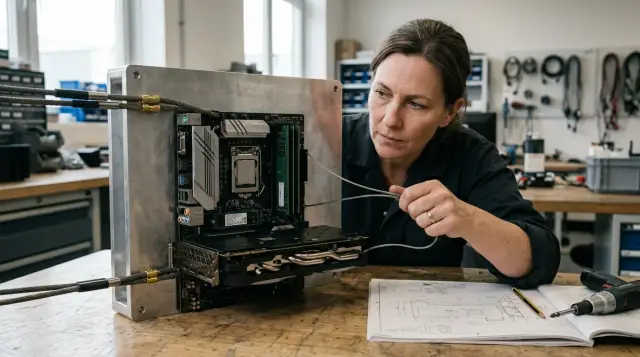
Fast CAD response does not come from the most expensive component in the computer. It comes from removing the bottleneck in a specific operation. Drawing regeneration may be waiting for one fast CPU core, a large assembly may run out of memory, and stuttering while rotating a model usually points to the graphics card, its driver, or display settings. A specification without a working file and a set of measurements tells you less than most people think.
I have seen workstations with powerful graphics cards take an age to rebuild a drawing, while more modest computers rotated the same model without trouble. Brand magic did not explain the difference. One buyer spent money on a component that barely participated in the slow operation. The other matched the processor, memory, storage, and graphics to the actual workload.
Measure response by operation, not overall power
Evaluate a workstation by the time and fluidity of four repeatable actions: opening an assembly, rotating a model, regenerating a drawing, and sending a sheet to print. A broad complaint such as "AutoCAD is slow" mixes separate processing paths and leads to random hardware purchases.
Opening an assembly makes the system read many files, unpack and parse data, resolve references, build the model's internal state, and place it in memory. Storage, CPU, RAM capacity, and project location all take part. If the files are on a network share, network latency and throughput become part of the result.
Rotating an open model mainly tests the graphics path. The application prepares geometry, the graphics card draws frames, the driver manages the exchange, and the resolution and visual style determine the work required for each frame. Too little video memory or use of the wrong graphics adapter can cause stutter even when system memory is available.
Regeneration is different from merely refreshing the picture. AutoCAD recalculates how objects are represented, their visibility, linetypes, and other dependent data. Autodesk's hardware support documentation explicitly says processor speed matters more than core count for AutoCAD because the application mainly uses one core. The other cores are not useless: Windows, background applications, and some graphics and compute tasks use them. Still, a processor with many slow cores rarely rescues a long REGENALL.
Printing combines job preparation with an external output path. AutoCAD regenerates the required views, applies plot style tables, processes transparency, raster underlays, and geometry, and then the driver creates data for a device or file. After that point, the delay may sit in the print spooler, driver, network, or printer itself. A new graphics card will not fix a queue on a network multifunction printer.
You need two metrics. Completion time measures the delay of a finite operation such as opening or regeneration. Fluidity measures how consistently the model reacts to mouse movement. The average frame rate may look acceptable while half-second pauses still wreck the working experience. One metric cannot replace the other.
High CPU speed cuts recalculation time
For most interactive AutoCAD actions and many Inventor modeling operations, the best CPU sustains strong single-core performance without overheating. The frequency in the product name offers only a clue. Core architecture, sustained frequency under a lengthy load, power limits, and cooling also matter.
The official AutoCAD 2026 requirements recommend a processor with a base frequency of at least 3 GHz and a turbo frequency of at least 4 GHz. Autodesk separately states that AutoCAD mainly uses one core. That is more useful than marketing comparisons based on total thread count, but the figures are not a linear formula. A 5 GHz processor need not be 25 percent faster than a 4 GHz model. Different generations complete different amounts of work per clock, and complete workstations do not all sustain their advertised turbo speed equally well.
Frequency is especially visible during REGEN and REGENALL, rebuilding a parametric part, updating dependencies, creating projected views, and running commands that modify one model in sequence. During such an operation, one logical processor is often much busier than the others. That is a normal sign of a serial section, not a Windows fault.
You still need additional cores, but buy them after securing sufficient core speed. They provide room for email, a browser, the document management system, antivirus scans, and a second application running alongside CAD. Rendering, some types of analysis, and certain newer graphics paths can also distribute their work. For a designer who spends most of the day drafting and modeling, a workstation with 8 or 12 fast modern cores usually makes more sense than a server CPU with dozens of cores at a low frequency.
Test the processor after the system has warmed up. A short first test may finish before the frequency falls, while a long regeneration series exposes the cooling limit. Run the same operation five times, discard the first result because of caching, and compare the median of the rest. At the same time, use Task Manager to inspect frequency and utilization by logical processor. Check temperature through the workstation maker's own utility if one is provided.
If one core is heavily loaded, memory is not full, the disk is nearly idle, and the operation still takes a long time, a faster processor will help. If the frequency drops sharply after a minute, fix the cooling or power profile first. Replacing the CPU without removing that constraint gives the same pause on a more expensive part.
Memory sets the assembly size limit
More RAM rarely speeds up a file that already fits entirely in memory, but a shortage of RAM can make a large assembly dramatically slower. The effect has a threshold. Before it, the system works normally. Beyond it, Windows moves memory pages to storage more often, and delays become orders of magnitude longer than RAM access.
For Inventor 2026, Autodesk lists a minimum of 16 GB for assemblies with fewer than 500 parts, recommends 32 GB in general, and recommends 64 GB or more for complex models and large assemblies, typically those with more than 1,000 parts. Part count is a rough guide. A thousand simple fasteners and a thousand complex adaptive components impose very different loads. Derived parts, model states, patterns, constraints, imported geometry, and open drawings can change memory use more than the number shown in the browser tree.
Count the whole working day, not one file immediately after a restart. Inventor, AutoCAD, a browser full of technical documentation, a corporate messenger, a PDF viewer, and antivirus software share the same physical memory. On a workstation with 32 GB installed, the comfortable limit is below 32 GB because Windows and background processes have already taken their share.
In Task Manager, do not look only at the memory column for Inventor. On the Performance tab, inspect total utilization, available memory, and the Committed figure. If committed memory approaches its limit and the disk becomes busy while you switch windows or return to the assembly, the system is probably reading pages from the page file. A typical symptom looks like this: the model rotates normally after opening, but the first command after returning from another application freezes, and later commands run faster.
Do not disable the page file in pursuit of speed. The popular advice comes from a desire to prevent Windows from touching storage, but it removes the safety net instead of the cause. When physical memory runs out, the application may fail to allocate memory, quit, or leave too little address space for a large operation. Keep a system-managed page file on an SSD and install enough RAM for the normal peak with some headroom.
Module speed and channel count affect memory bandwidth, but choose capacity first. Fast 32 GB memory cannot replace 64 GB when the working set occupies 45 GB. Once capacity is sufficient, install a compatible matched set, preserve the platform's intended channel count, and avoid building a configuration from unrelated modules with different profiles.
Inventor Express Mode changes the amount of data loaded in the first place. Autodesk Help explains that Load Express opens a large assembly from stored component graphics instead of immediately loading all component data. Autodesk reports 3 to 5 times faster opening for large assemblies, but also warns that the advantage declines as more components are loaded. It is a useful working mode for viewing and some edits, not proof that the computer always has enough memory.
An SSD removes input delays, not geometry calculations
A fast local NVMe SSD has its largest effect on application startup, opening many files, loading references, saving, the page file, and temporary data. Once the model is in memory, storage barely participates in ordinary view rotation and does not shorten a pure CPU geometry calculation.
That is why replacing an old hard disk with an SSD feels like a huge upgrade, while moving from a good SATA SSD to the fastest NVMe drive often makes a much smaller CAD difference. The first change removes mechanical delays across thousands of small requests. The second raises sequential throughput, which a complex project open operation cannot always use fully.
Opening an Inventor assembly is not the same as copying one large archive. The program accesses many part and subassembly files, checks relationships, and performs calculations between reads. The slowest section of the chain limits the gain. If the processor is busy parsing data, twice the SSD speed goes unused. If files come from a high-latency network share, the workstation's local drive does not determine the time of each request at all.
Separate the local and network tests. Use the standard Pack and Go feature to copy the complete project set, with dependencies intact, to a local SSD, and open it after restarting the application. Then repeat from the normal working location. A large difference points to the network, storage server, synchronization, or file scanning rather than a shortage of compute power in the workstation.
Do not blame the network after one slow launch. The first run may populate application, Windows, and storage caches. Repeat a series from the same initial state, record the median, and check whether antivirus software is spending time scanning every file. Change antivirus exclusions only under the organization's security policy and with approval, not as universal advice copied from a forum.
A practical storage layout is simple. Keep the operating system, applications, active local projects, caches, and page file on an SSD. Put archives and shared data wherever company processes require them. Leave free space because a nearly full drive handles temporary files and write maintenance poorly. RAID 0 in a workstation for an attractive sequential read figure rarely justifies the risk of project loss and the harder recovery process.
The graphics card controls the view, not all of CAD
The graphics card directly affects rotation, panning, zooming, visual styles, antialiasing, and screen output, but it is not a universal accelerator for regeneration or assembly opening. Its contribution grows with visible geometry complexity, monitor resolution, and the cost of the chosen display style.
Autodesk says AutoCAD hardware acceleration moves many graphics operations from the CPU to the GPU, including zoom, pan, orbit, on-screen regeneration, materials, lighting, and view rendering. AutoCAD 2026 recommends 8 GB of video memory, 106 GB/s bandwidth, and DirectX 12. Its Fast visual styles require Feature Level 12_0. Inventor 2026 also recommends 8 GB and 106 GB/s, with DirectX 11 compliance. These are version-specific requirements, not a reason to buy a card by VRAM capacity alone.
Video memory holds geometry, frame buffers, textures, and other display data. When VRAM runs short, the driver may have to move data through system memory, which can cause stutter. Low VRAM usage does not prove the card is underpowered. The model may instead be limited by geometry preparation on the CPU or by a large number of separate objects and draw calls.
Check the configuration before buying anything. The GRAPHICSCONFIG command in AutoCAD shows whether hardware acceleration is enabled, which adapter and driver were detected, and whether the required effects are available. On a system with integrated and discrete graphics, the application sometimes starts on the power-saving adapter. Updating to a driver recommended by the manufacturer is often more useful than replacing a working card. If the problem persists, Autodesk recommends testing a certified driver.
Certification does not mean an uncertified card is slow, and it does not guarantee the desired frame rate on your project. Autodesk and hardware makers test functions and driver combinations. For an organization where designer downtime and graphics errors are expensive, a tested combination reduces risk. For a light 2D workload, an expensive professional card may make almost no difference to command times.
You can check the bottleneck in a few minutes. Open a representative heavy model, set the normal resolution and display style, and perform the same orbit. Compare hardware acceleration, two approved driver versions, and a simpler style. If simplifying the view removes the stutter, the graphics path or amount of displayed geometry is relevant. If pauses coincide with model calculations, investigate the processor and dependencies.
Buying the largest graphics card "for the future" is usually the wrong choice. Select a card that supports the required DirectX version, has enough VRAM for normal models and monitors, uses a suitable driver, and fits the workstation's power and cooling capacity. The remaining budget often provides more benefit in a fast CPU and sufficient memory.
Opening an assembly tests the whole data path
You cannot honestly blame slow assembly opening on storage alone because Inventor reads files, finds references, processes the structure, allocates memory, and prepares a graphics representation. Any section of that chain can delay the ready model.
First separate search time from computation time. Long pauses before progress appears, missing-reference prompts, and a clear difference between a network location and a local copy point to data location. Heavy use of one core with moderate disk activity points to parsing or computation. Memory rising to its limit alongside disk activity looks like paging. Stutter only when moving the view after opening points to graphics.
Project structure can matter more than a new workstation. Broken paths, references across a slow branch-office link, thousands of unique small files, heavy imported components, and enabled adaptivity make the application do more work. A hardware upgrade shortens each operation but does not remove unnecessary dependencies. If equally equipped computers open the same project at different speeds, compare paths, application versions, add-ins, drivers, and file inspection policies.
Levels of detail, representations, and component suppression reduce the working set when the designer does not need the entire assembly. Express Mode speeds initial opening by using stored graphics, while commands that need component data require a full load. These modes suit different actions. Measuring Load Express on one workstation and Load Full on another says nothing useful about the hardware.
Prepare three datasets for procurement: a normal assembly, a heavy assembly near the top of the working range, and a troublesome project that draws complaints from the team. Remove confidential data or use an approved internal test set. Measure a cold open after restarting the application separately from a repeated open. The first is closer to the start of a work session, while the second reveals the effect of caches.
Record the loading mode, file location, and project version with the result. A lone figure such as "38 seconds" has no value without those conditions. A month later, another engineer will not be able to repeat the test, and a supplier may accidentally demonstrate an easier case.
One command can measure drawing regeneration
REGENALL time is a good measure of serial AutoCAD recalculation when you run it on the same file with the same settings. It does not represent the entire workload, but it beats a subjective claim that one machine "feels faster" and depends little on the user's dexterity.
The AutoLISP command below times REGENALL with the built-in MILLISECS counter and prints the seconds on the command line. Save the text in an LSP file permitted by company policy, load it with APPLOAD, and run TREGEN. The code does not change the geometry, but you should still verify it under your organization's rules before using it on a production project.
(defun c:TREGEN (/ t0)
  (setq t0 (getvar "MILLISECS"))
  (command "_.REGENALL")
  (princ
    (strcat
      "\nREGENALL: "
      (rtos (/ (- (getvar "MILLISECS") t0) 1000.0) 2 2)
      " s"))
  (princ))
The result has a simple form:
REGENALL: 2.34 s
Run TREGEN six times after opening the file. Keep the first result separate because it may include cache population. Take the median of the other five, not the best figure. Before comparing machines, close background tasks that run unpredictably, keep the same visual style, and confirm that both workstations are connected to power and use the same power profile.
The test answers one narrow question: how quickly this AutoCAD version on this system regenerates this DWG. It does not measure rotation fluidity, Inventor opening, or PDF output. Do not turn one convenient number into an overall workstation score.
If a new processor cuts TREGEN time while users complain about assembly opening, the purchase solved the wrong problem. If TREGEN remains the same but rotation becomes fluid, the graphics upgrade worked. Breaking down the result this way lets you justify a budget without arguing over component brands.
Printing separates sheet preparation from the queue
You can improve printing only after finding where the pause occurs: before the job is created, while a PDF is generated, or after submission to the queue. Those stages use different resources and need different fixes.
For the test, print one saved sheet with an unchanged configuration. First, choose a local PDF target and measure from confirmation of the PLOT command until the completed file appears. Then send the same sheet to the physical device and separately note when the job appears in the queue and when the first page emerges.
If the local PDF is slow, inspect sheet complexity: transparency, high-resolution raster underlays, hatches, clipped viewports, unusual fonts, and plot style tables. The processor prepares the data, memory holds the working set, and the PDF driver processes the output. A graphics card that rotates the model smoothly may change almost nothing.
If the PDF finishes quickly but the job is slow to appear in the network queue, investigate the driver, print server, name resolution, and network. If the job appears in the queue immediately but the device stays silent, the workstation has finished its part. The queue, printer memory, page-description processing, and device condition lie outside it.
Compare identical drivers and quality settings. Different versions may rasterize transparency and fonts differently, so two workstations can produce jobs of different sizes. A driver update sometimes cures the delay and sometimes creates a new one. For workplaces with a repeatable process, the approved system image should specify the driver version.
Printing rarely justifies a separate expensive workstation configuration. Fix the file, output profile, and infrastructure first. A faster processor makes sense when measurements prove that complex sheet preparation consistently consumes the time and the operation occurs often enough.
Size a balanced workstation for the hardest routine project
Build the configuration around the heaviest project the team opens regularly, not a rare demonstration file or the average document. You need headroom for model growth and background programs, but unmeasured headroom quickly turns into expensive unused capacity.
For primarily 2D AutoCAD work, the usual priorities are a fast modern CPU, 32 GB of RAM, a dependable SSD, and a graphics card that supports the required DirectX level, resolution, and a certified or otherwise tested driver. Choose 64 GB when real measurements show high overall memory use, large drawing sets remain open together, or Inventor runs alongside AutoCAD throughout the day.
For Inventor with regular large assemblies, a sensible starting point is strong single-core performance, 64 GB of RAM with room to expand, a local NVMe SSD, and a graphics card with sufficient VRAM. Assemblies below an arbitrary part-count boundary may work perfectly with 32 GB. Peak working set, component complexity, and loading mode should decide, not one count of parts.
For a mixed AutoCAD and Inventor workstation, do not divide the budget equally among four specification lines. Eliminate insufficient memory first, secure strong core performance next, and then choose graphics for the models and monitors. The SSD should be good and dependable, but paying for record sequential speed does not compensate for a slow network or complex geometry.
Some requirements do not appear on a stopwatch: a stable driver, cooling under sustained load, memory expansion, a clearly managed system image, warranty service, and access to replacement components. A designer loses more time to random crashes and a week-long repair than to a fraction of a second between two similar processors.
GSE.kz can build and integrate an AutoCAD and Inventor workstation configuration with local manufacturing and ongoing technical support in mind. The technical specification still needs your files, software versions, loading modes, and four measurable operations. Without them, the supplier receives a wish list instead of a verifiable workload.
Set acceptance thresholds before ordering: allowable open time for the normal and heavy assemblies, median TREGEN time, no visible pause during a defined orbit, and time to create the reference PDF. Acceptance then answers the question that justified buying the workstation. If a threshold is missed, the resource log and separated tests identify the component or external stage that needs correction.
Frequently asked questions
What matters more for AutoCAD, CPU speed or core count?
High single-core performance matters more for regeneration and many interactive commands. Extra cores help with background programs, rendering, and certain parallel tasks, but dozens of slow cores do not replace one fast core.
How much RAM does Inventor need?
A sensible starting point for ordinary work is 32 GB, while regular complex assemblies often need 64 GB. Watch peak total memory use on your own projects because part count alone misses adaptivity, imported geometry, and drawings open at the same time.
Will an NVMe SSD make model rotation faster?
Usually not once the model is loaded into RAM and video memory. An NVMe SSD reduces waits during startup, opening, saving, and paging, while rotation fluidity more often depends on the graphics card, driver, CPU geometry preparation, and view settings.
Does AutoCAD require a professional graphics card?
Not for every 2D drawing. A professional card and tested driver make sense when certification, stability in complex views, and predictable support matter, but you should still compare them with your file at the normal display resolution.
Why does Inventor open an assembly slowly from a fast SSD?
Opening is more than one read operation: Inventor finds references, parses the structure, computes dependencies, allocates memory, and prepares graphics. The bottleneck may be one CPU core, insufficient RAM, a network path, antivirus scanning, or the project structure.
Will 64 GB of RAM help if only 20 GB is in use now?
Adding memory by itself will barely speed up the current operation while the installed capacity is sufficient. The reserve makes sense for larger assemblies and concurrent applications, but with that measurement you should test whether the CPU or graphics deserves the budget.
Why is AutoCAD slow with a powerful graphics card?
The application may be using the integrated adapter, running a troublesome driver, or waiting for a serial CPU calculation. Check GRAPHICSCONFIG, the active adapter, hardware acceleration, and resource use during the exact pause.
Which is faster for CAD, high base speed or turbo speed?
The frequency that the complete workstation sustains through your series of operations is what counts. A brief high turbo figure looks good in a specification, but weak cooling or a strict power limit can reduce it after only a few regenerations.
Can I choose a workstation from Autodesk system requirements?
The requirements provide a sound starting point for compatibility and component class, but they cannot predict timing on your project. Add opening, TREGEN, rotation, and reference print tests on the same software versions.
Can a laptop handle large Inventor assemblies?
Yes, if it has enough RAM and can sustain CPU and GPU performance without overheating. Test it on mains power and under a lengthy load because a thin chassis often reduces frequency sooner than a desktop workstation.