7 min read
Zero Trust in the Corporate Network: First Steps Without a Full Overhaul
Zero Trust in the corporate network: first steps without a full overhaul — MFA, conditional access, segmentation and device control, plus a short checklist.
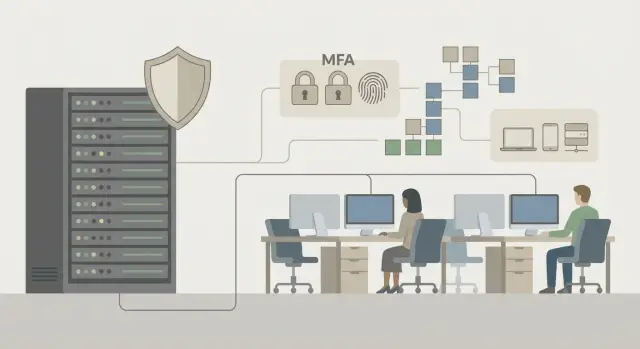
Why Zero Trust became necessary
Zero Trust appeared as a response to a simple reality: you can no longer assume everything inside the perimeter is safe. Employees work from home, connect from personal phones, use cloud services, and access to resources increasingly happens outside the office network.
In the past, many companies relied on VPNs and a single "entrance" to the network: once inside, everything was taken for granted. Today attacks often start with a person or their device, not by breaking into a server. The most common scenarios are phishing, leaked passwords, and infected laptops. One convincing fake email is enough for an attacker to get a real account that looks like a normal employee.
Everyday oversights make things worse: shared accounts, access "just in case," admin consoles without proper control, old VPN configurations used for years. As a result, a single mistake can become a wide-open door: one compromised entry can grant access to many systems.
Set a pragmatic goal at the start. Zero Trust is not a "rebuild everything in a month" project but a way to reduce risk step by step. A realistic first outcome usually looks like this:
- a stolen password alone no longer grants access
- suspicious sign-in attempts are blocked by clear rules
- unknown or unsafe devices don't get access to sensitive data
Example: an accountant opens a malicious attachment; the malware tries to access email and file storage. Zero Trust limits the damage because access is checked every time, not just once "at the network entrance."
Zero Trust in simple terms: what changes
Zero Trust is not a new box to buy or a single year-long project. It's an access rule: by default we trust no one and verify every request again, even if the person is already in the office or connected via VPN.
The key change is simple: access is granted not to a user in general but to a specific action at a specific moment. The system looks not only at the login and password but also at the context around the request.
Checks usually rely on three things: who is signing in (identity and permissions, and whether MFA is enabled), from which device (corporate or personal, and its security posture), and in what context (where and when the sign-in occurs, which resource is requested, and whether there are risk signals).
Zero Trust doesn't mean "deny everything to everyone." In practice you start with the most common and riskiest points: email, remote access, admin accounts, financial systems.
You'll know you're on the right path when permanent access rights shrink and temporary and conditional access grows. New sign-ins will more often require confirmation (for example, MFA), and suspicious attempts will be blocked or sent for additional verification.
Example: an employee signs into the CRM from their office PC — quick pass. The same sign-in from a personal laptop at night from another country — a second factor is requested and access may be limited until the device is checked.
Quick start: what to consider before configuring policies
Before turning on policies, build a simple "access map." This reduces the risk that MFA or new restrictions will stop departments from working. It's important to understand what you are protecting and who has access.
Start by inventorying what the business literally can't run without for a day: corporate email, file storage, accounting and bank client, CRM, admin consoles, remote access, application servers and databases.
Next, describe how people and systems sign in to these resources. A basic structure is enough: user groups (employees, IT admins, managers, contractors), types of accounts (personal and service), sign-in channels (office, VPN, remote work, mobile networks), device types (desktops, laptops, smartphones, terminals, shared workstations), and where the "source of truth" for accounts is (AD/Entra, local databases, separate applications).
Do a minimal measurement so you stop guessing. Often you'll find the accounting team already has MFA while admin panels do not, or the sales team uses a single shared CRM login.
At the start check at least four things: where sign-in is password-only, where shared accounts and password handoffs exist, whether sign-in and activity logs are enabled (and where they are stored), and which service accounts have overly broad rights.
If your corporate device estate is reasonably standardized (same workstations and servers across branches), mark that as a plus. It makes it easier later to introduce device control and uniform access rules.
A 60–90 day rollout plan
A 60–90 day plan usually works best: you move from the riskiest items to wider coverage, and each change can be rolled back without panic. That way Zero Trust becomes a set of clear steps, not a full rebuild.
Weeks 1–2: close the most dangerous entry points
Start with MFA where a compromise would cause the most damage: admin accounts, executives' email, VPN, remote consoles, financial systems. Plan a fallback sign-in method (for example, recovery codes) and support for employees new to MFA.
Weeks 3–6: sign-in rules and device requirements
Then enable conditional access: different rules for different roles and situations. For example, accounting may sign in only from corporate devices, while contractors can sign in only during working hours and have no access to internal segments.
At the same time, introduce basic device requirements: full-disk encryption, screen password or biometrics, current updates, ban on obsolete OS versions. Start in "report-only" mode to see how many devices fail checks.
Weeks 7–12: segmentation and movement control
After sorting sign-ins and device posture, move to network segmentation and least-privilege access. If an account or laptop is compromised, the attacker shouldn't be able to "walk" across the whole network. Isolate servers, workstations, guest Wi-Fi and critical services.
Then enable monitoring and agree on incident response: what counts as an incident, who is responsible, response time targets, and immediate actions (session revocation, account lockout, device isolation).
Phase 1: MFA without disrupting work
MFA delivers fast results: even if a password leaks, access remains blocked. But turning on MFA for everyone at once causes a surge in support requests and downtime.
Start with accounts where risk and cost of compromise are highest: admins and privileged roles, corporate email and cloud services, remote access (VPN, RDP, VDI), financial and accounting systems, and network equipment consoles.
The choice of second factor affects convenience and support. An authenticator app usually offers the best balance of cost and usability. A hardware token suits employees without smartphones or very sensitive roles. SMS is a temporary compromise: it can be used to start quickly but should be phased out for more reliable methods.
Resistance is lower when people understand what's changing and when. A short pilot of 10–20 users from different departments works well, followed by a 2–4 week migration window with clear prompts and reminders. In offices with managed workstations, sign-in to email and remote access should add only about 5–10 seconds.
To avoid blocking work, prepare at least:
- recovery codes for emergency sign-in
- a second factor stored on a backup device (if allowed)
- a recovery procedure (who verifies identity and within what time)
- logging of support requests to spot recurring issues
If you have enabled MFA for admins and key systems without overloading support, you have a ready base for the next steps.
Phase 2: conditional access and sign-in policies
Conditional access is the set of rules "at the entrance": who, from where and from which device can get into systems. It's often the fastest way to reduce risk without long projects.
Start with a couple of simple rules and roll them out gradually, first to a pilot group. Basic: block sign-ins without MFA to all cloud services and remote access. Next, require a "trusted device" for sensitive apps like financial systems, executives' email or admin consoles.
A set of rules that often shows effect in the first weeks:
- require MFA for sign-ins from outside the corporate network or on first sign-in from a new device
- allow critical systems only from managed devices
- limit admin access by time and geography (working hours and the countries where staff actually operate)
- put contractors under a separate policy with stricter conditions and minimal permissions
Geographic and time restrictions are not about "controlling people" but about protecting against stolen credentials. If an account is used at night from another country, the system should stop the sign-in or request extra verification.
Make exceptions only in a controlled way. A normal practice: exceptions are issued by request, have an expiry (for example, 7 days) and are logged. Example: a contractor needs access to a test server for two days — you grant access only for that period and only from their work laptop, and record who approved it.
If you run your own infrastructure and have servers in a datacenter (common for larger orgs in Kazakhstan), these rules are especially useful for admin console access and key services. They reduce the chance that one stolen password leads to a full compromise.
Phase 3: device control and basic hygiene
Zero Trust quickly fails if devices without basic protection are allowed on the network. The goal here is simple: allow access to work services only from computers and laptops that meet clear minimum requirements.
Minimum device requirements
Start with conditions that are easy to check and explain. Usually require that the device has:
- a password or biometric sign-in (no shared accounts)
- disk encryption
- automatic screen lock after a few minutes
- up-to-date OS and enabled protection (antivirus/Defender)
Document rules in writing: what is mandatory, what is recommended, and what happens if a device fails checks (for example, access limited to webmail without file downloads).
Updates and protection: how to verify
The problem is often not "no antivirus" but that it's disabled or its signatures are outdated. Same with OS updates: critical patches must be installed. Minimum checks should include OS version, date of last updates, protection status, and whether encryption is enabled.
Don't ban BYOD (personal devices) outright. Separate scenarios: personal devices get limited access (webmail and calendar), while internal systems are accessible only from managed corporate devices.
Don't argue with old PCs. If they can't be updated quickly, give them a corridor: a separate segment, access only to necessary services and a replacement plan. When buying new corporate machines, include security and support requirements for the device lifecycle.
Phase 4: segmentation and least-privilege access
Segmentation ensures that a compromise of one account or PC doesn't open the whole infrastructure. Start dividing zones and granting only what's truly necessary.
Begin with the places attackers hit most often: servers and shared storage, accounting and financial systems, RDP and admin consoles, guest Wi‑Fi and contractor access.
Then apply least-privilege: access is not "to the network" but "to a service." Allow a specific service and port only from the required zone and only for the right group. For example, accounting needs access to the accounting system and email but not admin panels or the development segment.
Quick measures that don't require redoing the whole network include: creating VLANs for critical groups and servers, blocking inter-segment traffic by default and opening only exceptions, forbidding RDP/SSH from "anywhere" and allowing it only from admin nodes, and separating guest Wi‑Fi from corporate resources.
For production and medical systems stability is paramount. Take small steps: first inventory communications (who talks to whom), then put the firewall in monitoring mode, and only then apply careful restrictions. Example: in a clinic the diagnostic equipment segment stays isolated and connects only to the storage server and specialists' workstations.
When procuring new servers or workstations, plan their segment and applicable policies in advance to reduce chaos and keep rules consistent.
Logs and monitoring: what to track in practice
Zero Trust quickly raises the question: how do you know policies work and an attack isn't happening quietly? Start with a few events that give the most value, and agree in advance who and how will respond.
At the start, four categories matter most: sign-ins (successful and failed), MFA failures, appearance of new or "unknown" devices, and changes in privileges (added to admin groups, new roles granted, policy bypasses). These signals catch both account compromises and admin mistakes.
To avoid alert fatigue, keep a short set of alerts and make them operational:
- many failed sign-ins for one account or from one IP
- MFA failures or a burst of MFA requests in a short time
- sign-in from a new device or a sudden change in geography/time
- privilege escalation (added to admins, granted privileged role)
- disabling or weakening access policies (for example, an exclusion added to a rule)
Assign process owners. Usually the first level reviews alerts and logs (security team or on-call admin), the second level investigates incidents (senior admin, security specialist), and the IT manager approves rules and exceptions. Predefine response times: critical events within 15–30 minutes, non-critical during business hours.
A regular review rhythm helps catch "quiet" issues without constant alarm: weekly review of sign-ins and frequent MFA failures for top accounts and new devices, monthly audit of access rights and policy exceptions with justifications.
Common mistakes when implementing Zero Trust
The main mistake is trying to switch on Zero Trust "with one button" for everyone. Without a pilot you won't see where sign-ins break, which user groups suffer most, and which rules cause false blocks.
Common issues stem from several causes:
- exceptions issued "for a week" that then remain forever and become new holes
- MFA enabled but old sign-in methods left open: legacy authentication, mail protocols, or service accounts without protection
- conditional access configured too strictly from day one: blocking business travel, home internet, or even corporate VPN without clear rules
- segmentation done "for the report" without analyzing real traffic flows (who needs what and why)
- no recovery process, leaving support overwhelmed after policy changes
A good test: imagine an employee changed their phone and can't pass MFA. If they must wait half a day to get back to work, people will look for workarounds.
A practical approach: pilot with one group, a short list of exceptions with an owner and expiry date, and a clear "how to regain access" procedure for users and support.
Short checklist: readiness for the first stage
Before you call the project launched, check a few indicators. They show you've reduced the most common risks even if there's more to do.
Start with accounts. If critical systems (email, VPN, admin consoles, financial services) are still password-only, that's the main hole. Check privileged roles separately: admins and cloud subscription owners should be protected first.
Next — sign-in context. Conditional access doesn't have to be everywhere immediately, but it should cover main scenarios: sign-ins from outside the office, sign-ins from unknown devices, and sign-ins to admin interfaces.
Practical minimum to start:
- MFA enabled for admins and everyone working with critical systems
- 2–3 sign-in policies in place (for example, blocking legacy protocols and extra checks for risky sign-ins)
- a list of corporate devices and clear basic requirements (updates, screen password, encryption where possible)
- remote connections and admin access restricted (only via approved methods and on a need-to-work basis)
- sign-in and change logs enabled and a person assigned to handle alerts and incidents
If in doubt, test a real case: an employee lost the phone used for email. Can you quickly revoke sessions, block sign-ins from unknown devices and see this in the logs? If yes, you have confidently passed the first stage.
Example scenario: rollout in a mid-sized company
Imagine a company with 300 employees: a head office, 3 branches, and many remote workers. Contractors need access to specific systems, and common services include email, file storage and VPN. The goal is to start without stopping operations.
A typical first 60–90 days looks like:
- Weeks 1–2: enable MFA for email and VPN, first for IT and executives, then company-wide. Add backup sign-in methods and a short instruction to reduce support requests.
- Weeks 3–5: introduce role-based conditional access. Accounting can access financial systems only from corporate devices and from the country of operation. Contractors get access only during working hours and only to needed apps.
- Weeks 6–8: enable device posture checks. Corporate laptops must meet minimums: full-disk encryption, screen password, updates and antivirus. BYOD goes to a separate mode: web-only access to email and files without downloads.
Then add basic segmentation. This is not "redraw the whole network" but separate the most valuable assets: servers and admin access in a dedicated zone, accounting and financial databases separate from the general office, guest Wi‑Fi and visitor devices isolated from corporate.
In 2–3 months the effect is usually visible. Successful phishing-based attacks drop because a single password is no longer enough. Suspicious sign-ins are detected faster using conditional access rules (unusual location, time, device). IT can investigate incidents more easily because there are clear boundaries: who, from where and from which device attempted access.
Next steps: how to lock changes in
After initial settings, make Zero Trust a habit, not a one-time action. Pick 2–3 systems with the highest risk (email, remote access, financial systems) and solidify rules there first. It's easier to see impact and avoid breaking department workflows.
A pilot and clear communication are essential. If employees learn about new rules only when they are blocked, they'll look for workarounds and support will be flooded.
Also consider standardizing endpoints and servers: identical models and a clear hardware lifecycle greatly simplify device control and unified policies. If you're renewing equipment or planning infrastructure projects, GSE.kz (gse.kz) offers lines of computers, workstations and servers made in Kazakhstan, plus system integration and support services — convenient when you need to enforce consistent security across all branches.
Frequently asked questions
What is Zero Trust in simple terms?
Zero Trust is an approach in which the system verifies every request for a resource instead of treating a user as safe after they log into the network. It considers the account, MFA, device, and sign-in conditions.
Do you need to give up VPNs with Zero Trust?
A typical VPN gives a user access to the internal network, while Zero Trust limits access to specific services and conditions. You can keep the VPN, but it needs MFA, device controls, and rules for different roles.
Where should you start when implementing Zero Trust?
Start with MFA for administrators, corporate email, VPNs, and financial systems. A stolen password will no longer be enough to sign in, and this step does not require rebuilding the entire network.
How can you enable MFA without disrupting employees' work?
A pilot with 10-20 employees from different departments helps identify issues before a broad rollout. Prepare recovery codes, clear instructions, and a fast way to verify identity when someone changes phones.
What should you do about employees' personal devices?
Use separate rules for employees' personal devices. For example, allow webmail and calendar access, but block internal systems, file downloads, and admin access until the device meets company requirements.
What requirements should you set for corporate devices?
First, enable observation mode and see which devices do not meet the rules. Then require a password or biometrics, disk encryption, current updates, and active security protection.
What is conditional access?
These are rules that consider the sign-in context: the user's role, MFA, device, time, country, and application. For example, an accountant can open a financial system only from a managed work laptop.
How can you start network segmentation without a complete rebuild?
Separate servers, workstations, guest Wi-Fi, financial systems, and admin access into distinct zones. Block communication between zones by default, and allow only the services needed by the appropriate groups.
Which events should you monitor in logs?
First, track successful and failed sign-ins, MFA denials, new devices, role changes, and policy exceptions. Assign someone to review critical signals within 15-30 minutes.
What mistakes are most common when implementing Zero Trust?
Do not enable strict rules for everyone at once or leave temporary exceptions without an expiration date. Review legacy sign-in methods, service accounts, and the access recovery process, or employees will start looking for workarounds.
