7 min read
Zero-touch PC provisioning: Automating workstation setup
Zero-touch PC provisioning enables preparing dozens of workstations in hours: templates, policies, compliance checks, and an implementation example.
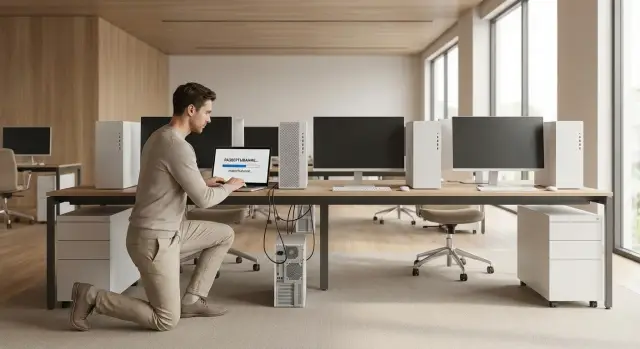
Why move away from manual installation and setup
Manual PC preparation almost always becomes a marathon. One computer can take an hour or two to configure, but when there are dozens, time disappears not only on installing the OS. Add waiting for updates, reboots, finding drivers and checking that everything works, and the timeline easily stretches into days.
Most time is usually eaten up by repetitive small tasks: creating accounts, joining the domain, assigning permissions, installing corporate applications, configuring email and printers, enabling disk encryption and antivirus, and verifying security policies. If even one step is missed, fixing it later almost always takes more time than doing it right the first time.
In mass deployments the common failures are those that depend on specific hardware and environment: network and GPU drivers, BIOS versions, network boot, conflicting app versions, unexpected prompts for manual confirmation. As a result, instead of “50 PCs installed over the weekend” you get “10 ready, 40 waiting while someone finds the cause.”
Configuration drift between employees creates risks that are not obvious on day one. Support becomes harder (the same problem gets different fixes), security weakens (some machines keep local admins or have policies disabled), and instability grows because of different drivers and software versions. And during audits it becomes hard to prove compliance.
Zero-touch provisioning helps remove uncertainty. You define the standard in advance and get the same result on every device, whether it’s a new batch of workstations or equipment returned from repair. This is especially useful when hardware is purchased in series—like desktop PCs or all‑in‑ones from a local vendor such as GSE.kz—and each workstation must boot “from a template.”
Zero-touch in plain terms
Zero-touch PC provisioning means a new computer reaches the required state without manual engineer actions: it’s powered on, connected to the network, the user signs in, and the installation and setup continue automatically. The user receives a workstation that looks and behaves the same as colleagues’ machines.
It’s important to distinguish “zero-touch” from remote manual work. If a technician connects and clicks installers, changes settings, tweaks drivers or manually adds the PC to groups, that’s not zero-touch. Zero-touch begins where human actions are replaced by rules and automation: the standard is described in advance and the system applies it automatically.
Typically several tasks are automated at once: OS installation, application installation and updates, applying security policies, joining a domain or directory, configuring access (network drives, printers, VPN), creating accounts and permissions. It’s also important to automatically verify that the device meets the standard.
Four parties are usually involved: IT handles deployment and support, InfoSec sets security requirements, business app owners agree on versions and app settings, and the service desk accepts devices into operation and issues them under clear rules.
Example: on Monday 30 new PCs arrive for sales. Instead of manual OS and app installs on each device, employees turn on the computers and within 30–60 minutes the workstations are ready: email configured, required programs installed, policies applied and configurations consistent.
What to prepare before you start: people, network, standards
Zero-touch doesn’t start with a “Deploy” button but with agreements. If you don’t describe what a “correct” workstation should be, automation will simply multiply chaos.
First, lock down the standard: OS version, mandatory applications, browser settings, disk encryption, update parameters, a set of shortcuts, rules for local administrators. The standard should be approved not only by IT but also by InfoSec and those responsible for audits.
Next, map the hardware. A list of PC models, network adapters, Wi‑Fi modules, storage, docking stations and peripherals is needed to prepare drivers in advance and avoid getting stuck on a basic “no network after install.” If you purchase a batch of identical devices (for example, desktop PCs or all‑in‑ones of the same series), maintaining the standard is much easier.
Pay special attention to the network. Devices must be able to access deployment services, user directory, updates and protection tools without manual steps. Check segmentation, DNS, proxy, certificates and firewall rules. Plan how new machines start from a clean state: by cable, Wi‑Fi, or via a separate "provisioning zone."
Rather than creating a single monolithic image for everyone, split workstation profiles in advance. Usually 3–4 types are enough: general office staff, engineering workstations, accounting and finance, and kiosk or terminal scenarios.
Also agree on compliance checks up front: which parameters are verified, how often, who receives reports and what counts as deviation (for example, disabled updates or an extra local administrator). Without this the standard won’t hold.
Templates and base image: how to build a reference
A “reference” (base image) is a tested starting point that makes results predictable: the same settings, policies and mandatory components. The fewer manual steps after powering on, the greater the effect.
The main rule is simple: include in the image only what everyone always needs. Anything that depends on the user’s role is better installed later via policies and automated deployments.
Typically the base image includes the OS with current critical updates as of the build date, drivers for specific models (especially network), basic security components (encryption, protection, firewall), the device management agent, corporate certificates and minimal shared network settings.
Office suites “just in case,” rare utilities, printers assigned by room and specific plugins are better handled per group. This keeps the image lighter, easier to update and less likely to break.
Don’t change image versions too often, but don't delay critical updates either. A practical cadence is scheduled updates (for example, quarterly) and ad‑hoc fixes when requirements change: a new VPN client, an important security policy or drivers for a new batch of devices.
To avoid the reference living in one admin’s head, document it briefly: name and version, supported models, included components, items installed later, owner and test/verification steps (5–10 points).
Remember regional settings: interface language, keyboard layouts, date format and time zone. In Kazakhstan you often need RU/KZ keyboard layouts and the Asia/Almaty time zone to avoid scheduling and logging errors.
Sometimes separate images for different form factors are justified. For example, classic desktops and touch all‑in‑ones (like L200 and M200 lines) may need different screen, audio and touch drivers. That’s easier than building a universal image and later wondering why some functions don’t work.
Policies and configurations: making all PCs identical
The essence of zero-touch is a predictable result: every employee gets a workstation with the same rules, settings and software. This is achieved with policies and configurations applied automatically.
It’s convenient to separate settings by level: device (security, encryption, updates), user (environment, access, network resources), applications (installation and settings), and role (accounting vs engineering). This makes changes easier to test and reduces the blast radius of mistakes.
Core security requirements should be enforced as a mandatory standard. These usually include password/lock rules, disk encryption and recovery key protection, firewall, limiting local admin rights, and minimum auditing and logs.
For applications use a simple logic: a mandatory package (office, browser, protection tools, corporate clients) and everything else installed on request from an approved catalog. This reduces the risk of a "zoo" of versions and conflicts.
Plan updates deliberately: when patches are applied, maintenance windows, and how reboots are handled. For branches and remote users keep consistent standards but adapt schedules and caching to connection quality.
In practice the best approach is a single owner of the standard and a clear rule: new requirements are tested on a pilot group before being rolled out to everyone.
Step‑by‑step rollout scenario
Agree in advance what "ready" means. It’s not just an installed OS but a device with correct drivers, required settings and apps, and a clear association to a department.
A typical scenario looks like:
-
Define the workstation standard and acceptance criteria. Record OS version, required updates, base app set, restrictions and test criteria (encryption, password, protection).
-
Configure automatic OS and driver installation. Prepare a base image or an unattended install script that runs without engineer intervention. This is especially handy for typical models.
-
Add policies and app installations. Policies are applied at first boot (Wi‑Fi/VPN, access, restrictions, security). Apps are installed silently and managed: office suite, corporate clients, print drivers, role apps.
-
Register the device and bind it to a profile. On first boot the PC should enroll, get a name by rules and be assigned to a department or role so the correct policies and apps apply.
-
Perform final checks and issue to the user. Do a short acceptance by checklist and record the result as a note or report.
Keep the acceptance checklist short: OS activated and updated, drivers error‑free, security policies applied, required apps launch, device visible in inventory and linked to a profile.
Compliance checks and reporting
Automation only pays off when you are sure every issued PC truly meets the standard. Build compliance checks into the process as strictly as the installation: checks at issuance and regular scheduled audits.
What to check and why
Keep the check list short but mandatory. Usually a few groups are enough: OS and key app versions, applied policies and basic settings, disk encryption and protection status, updates and patches (including the date of last install), and the management/inventory agent status. If the agent is stopped you quickly become "blind".
Tie checks to the standard: what’s normal, what exceptions are allowed, who approves them and for how long.
How to log deviations and present reports
If a parameter deviates from the standard, that deviation should become a task, not just a table row. Record at minimum: device, what’s wrong, when discovered, priority and responsible party (IT or InfoSec). Reports are easier when separated by audience: IT needs root causes and trends, InfoSec needs encryption coverage, update status and critical violations.
If a PC drifts from the standard, follow a simple order: attempt automatic remediation (policy, script, profile reapply), then escalate to the responsible group, and only as a last resort reimage from the reference. For fleets purchased in batches (for example, local production PCs and servers from GSE.kz) it’s useful to have a single configuration passport and regularly compare actual state against it.
Workstation lifecycle: from issuance to decommission
Zero‑touch doesn’t end at installation. The biggest workload reduction appears when a workstation is treated as an inventoried object from issuance to disposal.
Start with clear issuance rules: which devices are assigned to whom and how that is reflected in inventory. Different roles may require different configs (e.g., accounting gets dual monitors, contact center uses all‑in‑ones, engineers get more powerful stations). In the device record store serial number, model, department, owner, standard profile and issuance date. Then it’s easier to answer “who has which PC” and “why is it configured differently?”.
To make "arrive‑get‑work" realistic, prepare roles and templates in advance. On the employee’s start date, issue the device and the system applies policies, apps and access based on their account.
Typical lifecycle: issue by role, operate with centralized updates, replace while preserving profile, reassign to another standard, decommission with secure wipe.
For remote and branch users delivery and network are critical. Devices can be shipped sealed: the employee turns it on at home or in a branch, connects to the internet, and setup completes automatically. This works best with a standardized hardware line and predictable profiles—e.g., when the organization uses standard PCs and servers from a local vendor such as GSE.kz and pre‑agreed configurations.
Before decommissioning or reassigning, always perform a guaranteed wipe and verify keys, tokens and corporate profiles are removed.
Example: preparing 120 workstations from a template
Scenario: prepare 120 workstations for an office with three user profiles. Profile 1 — “Office”: email, browser, office suite, corporate messenger. Profile 2 — “Accounting”: plus specialized software, printers and e‑signatures. Profile 3 — “Engineer”: design tools and elevated permissions for specific utilities, but not broad local admin rights.
To finish within a week, plan around a short pilot and rapid replication. If devices arrive as a single batch it’s easier to control drivers and compatibility.
A sample week plan:
- Day 1: pilot on 10 PCs (3–4 per profile), record issues and corrections.
- Day 2: refine the image and policies, handle exceptions for special apps and printers.
- Day 3: roll out to 50 PCs, train the support team.
- Day 4: roll out remaining 60 PCs, check compliance and clear the backlog.
- Day 5: spot checks, metrics report and targeted tweaks for specific departments.
Solve typical problems with rules rather than manual fixes. Distribute printers by groups (department/floor/branch), stage special apps in a separate step for their profile, and grant rights through roles (app or folder access instead of blanket local admin rights).
Measure results with simple metrics: average time to prepare one PC without an engineer, share of devices passing checks on the first attempt, number of support requests in the first days and count of manual exceptions with reasons.
If some devices are already in use, they don’t all need reimaging immediately. Often they are brought to the standard by catch‑up policies and installs, while full reinstallation is done during replacement or after a major failure.
Common mistakes and how to avoid them
The main reason for failure is simple: trying to speed up manual installation without a clear standard. Zero‑touch works when there is a clear standard and rules for deviations.
A frequent mistake is multiplying manual exceptions. A couple of departments get special app sets, different local settings and admin passwords. A month later nobody remembers the differences and support is constantly firefighting. The fix is a base standard (for everyone) and roles (what differs for accounting, engineers, etc.), with issuance strictly by role.
Another trap is an outdated image. It initially works perfectly, but OS and driver updates later cause conflicts and deployment breaks at the worst time. You need an image update calendar and a small test group before mass issuance.
Drivers and peripherals are often underestimated: printers, scanners, tokens, Wi‑Fi and docking stations. Preparation stalls at the support desk. The more heterogeneous the fleet, the worse the problem. If the organization uses typical models (for example, desktop PCs and all‑in‑ones from a single vendor), managing drivers is simpler.
Quick practical measures that help:
- No standard owner — appoint a responsible person and a change approval process.
- “Secret” local tweaks — forbid local reconfiguration without a request.
- Image updates happen “when remembered” — create a calendar and a short test suite.
- Verify peripherals on the issuance day — build a matrix of devices and test them in advance.
- Formal compliance checks are superficial — verify what affects operation and security.
Good control gives a quick answer: is the PC ready for issuance and does it meet the standard or not.
Short checklist before launch
Before mass launch check agreements, not tools. If there’s no unified standard, automation will just speed up chaos: resulting in different settings, rights and software versions.
First, define what a “correct” PC is for each role. Usually 2–4 profiles suffice: office worker, accounting, engineer, manager. For each profile list apps, access, security settings and restrictions (for example, no local admin rights).
Next, ensure the reference image is alive. The base OS image must be up to date and have an update schedule: who updates, how often, and how compatibility is tested. Otherwise in a month you’ll be manually tweaking machines again after installation.
Quick control checklist:
- Approved workstation standard and user profiles, with an owner for the standard and process.
- Current base image and an update calendar (patches, drivers, app versions).
- Security policies applied automatically: passwords, encryption, firewall, rights, locks.
- App installation rules: mandatory list, who approves exceptions, and license management.
- Compliance reporting and remediation process: who gets reports, fix deadlines, and what is critical.
Next steps: how to move to practical implementation
Start simple: agree which workstation types you really need. Usually 3–5 profiles are enough (office worker, accounting, engineer, operator, manager). For each profile define the software set, access rights, peripherals and update windows.
Then launch via a pilot: a small group (10–20 users) and one profile. The pilot’s goal isn’t speed but to create and validate the standard and solidify the rules.
A practical plan:
- Define workstation profiles and minimum requirements (apps, access, peripherals, update windows).
- Choose a pilot group and freeze the reference: image, policies, issuance and acceptance procedures.
- Prepare deployment infrastructure: image storage, who issues devices, and inventory practices.
- Align device purchases to a single template to reduce exceptions and manual fixes.
- Set up compliance checks: define what’s normal and who receives deviation reports.
If you’re renewing the fleet, prefer devices that are easy to support with a single standard. For example, standard office PCs and all‑in‑ones from GSE series L200 and M200 are convenient to adopt as a typical fleet, and consider GSE S200 servers for image storage and deployment infrastructure.
Finally: appoint an owner of the standard. Without one, different settings and manual exceptions will reappear in a few months.
Frequently asked questions
What exactly counts as zero-touch PC provisioning?
This is the automatic preparation of a workstation without manual actions by an engineer: you turn the PC on, and it installs the OS, drivers, required applications and applies policies by itself. If a specialist connects remotely and "clicks through" settings, that's not zero-touch — that's manual remote configuration.
When does zero-touch pay off, and when is it overkill?
It usually makes sense if you prepare **10–20 or more devices per month**, frequently reinstall PCs after repairs/reassignments, or have branches. If devices are one-offs with unique configurations each time, start with partial automation: a standard, policies, and silent app installs.
Where to start: which standards should be defined before automation?
Define the “ready PC” as a short standard: - OS version and language/layout/time zone - mandatory applications and versions - security requirements: encryption, password/lock, firewall, no local admins - update and reboot rules - acceptance criteria (a 5–10 point checklist) Most importantly, the standard must be agreed by IT and InfoSec; otherwise automation will quickly replicate inconsistency.
Which is better: a single master image or installing everything via policies?
The base image is a starting point that should contain only what everyone always needs: OS with critical updates, essential network drivers, management agents and baseline security. Role-specific software should be deployed later via policies and automated installs so the image stays lean and stable. In short: image for common essentials, policies for role differences.
How to avoid getting stuck on drivers and mixed hardware during mass deployment?
Create an inventory matrix: PC models, network/Wi‑Fi adapters, storage, docking stations, printers and tokens. Practical minimum: - prepare network drivers in advance (otherwise installation may stop without connectivity) - have separate profiles/images for notably different devices (e.g., classic PCs vs. touch all-in-ones) - test on 3–5 units of each model before mass rollout The more standardized the fleet (one device series), the more stable zero-touch will be.
What network and infrastructure requirements are needed for zero-touch?
A clean device must be able to reach deployment and management services without manual steps: - working DNS and certificates (if used) - access to update and installer repositories - a clear initial connection method (ethernet, Wi‑Fi, or a provisioning zone) - firewall/proxy rules so no unexpected manual confirmations appear Test these on one new out-of-the-box device before launch.
How to properly integrate security (InfoSec) requirements into zero-touch?
Make security a mandatory policy layer applied at the device level: - disk encryption and safe storage of recovery keys - firewall and basic restrictions - no permanent local administrators - minimum audit and logging Then add role-specific rules (accounting vs engineering), but keep baseline security uniform for everyone.
How to organize user roles (office, accounting, engineering) without creating many exceptions?
Keep 3–5 profiles and apply differences by rules: - a mandatory software package for all - profile-specific apps only for the groups that need them - printers assigned by department/floor/branch - privileges granted via roles and resource access rather than giving local admin rights "just in case" This avoids a zoo of configurations and simplifies support.
How to monitor compliance with the standard and keep manageability?
Make compliance checks part of the process: - acceptance check at issuance (encryption, updates, management agent, required apps) - scheduled regular checks - deviations become tasks: what is wrong, priority, responsible party, deadline Start with a small metric set: percentage of devices passing on the first try and number of manual interventions.
How to run a safe pilot without sabotaging mass deployment?
A pilot is the best way to catch issues before mass rollout: - take 10 devices: 3–4 per profile - record observations and root causes (driver, network, privileges, app version) - update image/policies and retest - only then scale If something fails in the pilot, mass rollout will be far more painful.
