7 min read
Workstation for Video Editing: Export Speed and Stability Tests
Workstation for video editing: how to assemble a test package from real sources and fairly compare configurations by export time and stability.
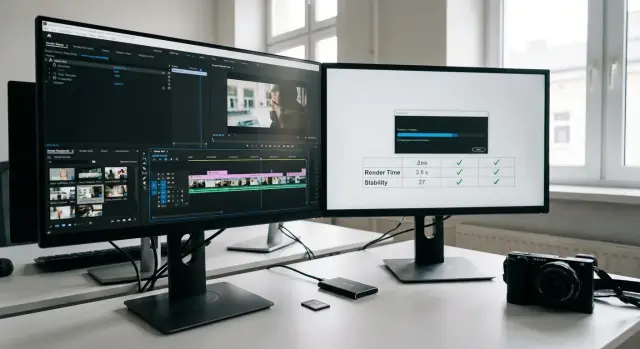
Why a press office should measure export speed and stability
Press offices rarely have "lab" tasks. Usually the work is short social clips, event recap videos, titles and subtitles, interview cuts and urgent edits "for yesterday." On those days what matters isn't the spec-sheet power but how quickly you get a finished file and whether you can reproduce the result without surprises.
Subjective impressions of speed are often misleading. One PC may feel fast on a simple project but slow down sharply on color grading, denoising, or multicam edits. Another may play the timeline smoothly but export slower because of the codec, render settings, or lack of VRAM. Without measurements it's easy to overpay for something that doesn't speed up your real work.
For a team choosing a workstation for video editing, export speed is important, but predictability is even more so. If a project usually renders in 18 minutes but sometimes 18, sometimes 45, and sometimes crashes at 92% — planning deadlines breaks down. Stability is not just "not freezing." It's no crashes, correct drivers, identical results on repeated exports and reasonable temperatures under sustained load.
A good test gives clear answers, not impressions: how long a typical clip takes to export with your settings and codecs, how smoothly the timeline runs with real layers and effects, whether crashes or artifacts appear, and whether results repeat from run to run.
Once numbers and observations are collected, the decision moves from "which CPU is better" to a clear comparison against your tasks and schedule.
What to compare in configurations besides the CPU model
Many people focus only on the CPU when choosing an editing workstation. In practice, two machines with similar CPUs can behave differently: one may export faster, the other may freeze more often on the timeline or crash on long jobs.
The CPU matters, but its role depends on the scenario. It has more impact on effects without GPU acceleration, encoding in some codecs and parallel tasks (editing plus graphics, media uploads, archive work). So a test should check not only export but real project work: timeline scrubbing, response to enabling effects, and preview speed.
The GPU often delivers decisive gains where acceleration is enabled: denoising, stabilization, color grading, scaling, working in 10-bit and high resolutions. Look separately at the hardware encoder (H.264/H.265): in a press office it can noticeably reduce preparation time, but sometimes it affects quality or stability due to drivers.
RAM and storage affect "smoothness" and predictability. Lack of RAM causes swapping to disk and sudden stalls on long projects. SSDs matter not just for speed but also for where cache and media are stored: if the cache is on a slow drive, export might be acceptable but timeline work miserable.
Drivers and software versions are part of the configuration too. Comparing two PCs with different GPU driver versions or different acceleration settings means you’re comparing randomness, not hardware.
To avoid confusion, record a consistent "stand spec" for all runs: editing software and codec versions, acceleration settings (CPU/GPU/hardware encoder), GPU model and driver version, power mode, RAM amount and whether XMP/EXPO is enabled, which drives hold media and cache, OS version and update mode during testing.
Simple example: two PCs export a one-minute clip nearly identically, but one shows rare freezes when denoising and using the hardware encoder. That signals you should compare the CPU+GPU+driver+project settings bundle, not CPU vs CPU.
How to build a test package from real sources
A test is meaningful only if it resembles your actual work. For a press office that’s usually a mix of event footage, interviews, social cuts and screen recordings. Use the same test package on each candidate workstation to compare export time and project behavior.
Take materials from the last month and pick 10–30 clips that commonly appear in your tasks. Don’t look for perfect shots. Typical material matters: varied light, noise, motion and common shooting mistakes.
To avoid a test that’s "too easy," add variety. A typical mix includes:
- camera and smartphone files (H.264 and H.265), plus at least one smartphone clip with variable frame rate;
- 1080p and 4K, and 25/30/60 fps material;
- a screen recording of a presentation or software with lots of small text;
- speech, music and 2–3 simultaneous audio tracks;
- a couple of "problem" cases: one long clip (20–40 minutes) and one with obvious clipping or desync.
Organize materials so results are repeatable. Put everything in one test folder with subfolders (Video, Audio, Screen, Problems). Rename files so the source and parameters are visible, for example: "event_4k60_h265_camA_01".
Example: the media team collected 18 clips from two events, three interviews, two screen recordings and a one-hour conference recording. That set quickly shows where a PC starts to "struggle" and where it holds up.
A reference project and rules to keep the test fair
To compare editing workstations you must eliminate randomness. Use one reference project that opens and behaves identically on every PC.
Build the project the way you actually edit: for example, a 2-minute cut from 4–6 clips, a few simple transitions, titles and lower thirds, a logo in the corner, basic color correction and light denoising on one segment. Don’t add rarely used effects, otherwise the test will answer niche questions instead of daily needs.
Rules that must not change
Agree that only the hardware changes during the test. Everything else is fixed:
- the same edit (timeline length, transitions, titles, logo, color);
- identical storage locations (where sources, project, cache and previews live);
- identical cache settings (on/off, path, size);
- one software version and the same set of plugins (or none).
This makes the test repeatable and the results comparable.
Two modes and two export presets
If you use proxies in your workflow, test in two modes: without proxies and with proxies. Ensure proxies are created using one preset and stored in a predetermined location.
Set two export presets and don’t change them:
- for social media — H.264, 1080p, fixed bitrate (same on all rigs);
- for archive — a heavier option (for example, 4K or ProRes/DNxHR, as you use internally).
Put a short instruction in one file: where the media is, which project to open, which two exports to run and where to record times and errors. Then any staffer can run the test without participating in setup.
Step-by-step run: export, timeline checks, recording results
The idea is simple: repeat the same scenario on different PCs and get numbers you can trust. This compares not only speed but how predictable each workstation is under load.
Preparation
Often the difference is made by software versions and background processes, not hardware. Before starting, bring test rigs to the same state:
- install identical versions of the editing app, codecs and drivers;
- clear media cache (and render cache if needed) and reboot PCs;
- disable unnecessary autostarts and background tasks;
- ensure project and sources reside on the same type of drive;
- check power and cooling (same profiles, normal airflow).
The run
Follow the template exactly. Import the test package, open the reference project and don’t change it.
First evaluate live performance: timeline scrubbing, quick jumps between markers, playback of a heavy section, and reaction to enabling/disabling effects. Then move to exports.
Export each preset three times in a row. The first run sometimes "warms up" cache and disks, so repetitions matter. Don’t change settings between runs.
What to record
A minimal useful set:
- time for each of the three exports per preset (in seconds) and the average/median;
- errors and failures: crashes, freezes, loss of UI responsiveness;
- output problems: dropped frames, audio sync issues, strange color;
- temperatures and signs of throttling, plus fan noise and behavior;
- logs: app crash reports, system events, export presets.
Save the project folder, export presets and logs in a separate archive. This helps repeat checks after updates, repairs or before ordering a batch of identical PCs.
How to calculate and compare results
Agree in advance what you record and how you calculate results. Otherwise one config might “win” due to a lucky run but prove flaky in real work.
Look beyond seconds. Also record behavior under load: CPU and GPU usage during export, peak temperatures, clock frequencies under load (to spot throttling), and the presence of errors.
Do three runs of the same export. For comparison use the median and the spread, not the best of three. The median shows the typical time and the spread reveals instability (e.g., 6:10, 6:12, 7:05). If one run is much worse, check temperatures and clocks: throttling or an unstable driver may be the cause.
You can estimate cost simply: price of the config divided by "minutes of video you export per minute of time" in your settings. That turns the "cheaper or faster" debate into clear numbers and converts saved time into hours per week.
Summarize results on one page for management: CPU and GPU, RAM, drives, median export time, spread, max temperature, notes on failures, and price.
Stability checks: catching rare failures before purchase
Export speed is easy to measure in a short run. Rare crashes, freezes and "black frames" usually show up at the worst moment — when the deadline is today. So test stability as strictly as render time.
Start with a long run on real sources: continuous export for 60–120 minutes in the format you deliver most often (e.g., 4K H.264 or ProRes). If an error happens once an hour, a short test won't reveal it.
Then run a "memory stress" test on a heavy project: many clips, titles, graphics, transitions, denoising and a couple of complex effects. This setup often exposes RAM, VRAM, overheating or power issues. A good sign is the project playing through without falling apart and previews not getting stuck on loading.
Check drivers consistently and don’t change them mid-series:
- runs 1–2: fixed driver set, identical settings and codecs;
- run 3: update the GPU (and chipset if needed) driver and repeat the test;
- compare not only times but artifacts, freezes and export errors.
Evaluate a failure by repeatability and impact. If a crash reproduces at the same spot, that’s a strong signal. If it’s "once a day and unexplained," check recoverability: autosave, project integrity and whether media caches break.
Record results in a comparable way: date, software and driver versions, temperature (if available), project parameters, failure point (step, timecode, action), error text or code, log/screenshot, time to failure, repeatability and "mitigation."
Common mistakes when comparing editing PCs
The worst outcome is buying a new workstation that isn’t faster in real tasks or starts failing on long export queues. Often the fault isn’t the hardware but how the comparison was done.
Main trap — different export conditions. If one PC is rendering H.264 and another HEVC, or if presets, bitrate or hardware acceleration settings differ, the times aren't comparable. The same goes for software updates: a minor update can change GPU, cache and codec behavior.
Another frequent mistake is "moving" drives. Today media and cache are on fast NVMe, tomorrow they’re on a network drive or a slower SSD. You end up measuring the drive, not the CPU/GPU. Decide in advance where sources, cache and exports live and don’t change that between runs.
What makes a test unfair:
- background syncs, antivirus scans and updates running;
- proxies and originals mixed without a rule;
- comparing a single export or the "best" time;
- not saving project and export settings after the test;
- focusing only on the stopwatch and ignoring errors, dropped frames and freezes.
Also watch for "quiet" problems: noise, overheating and throttling. Short clips may look fine while a 30–60 minute render shows falling clocks, longer export times and occasional driver failures. If the second run suddenly gets loud, temperatures stay high and the third run is much slower than the first, that’s more important than a record time on a single run.
Quick checklist before choosing a workstation
Fix one principle: you compare not "hardware in a vacuum" but your typical tasks. Otherwise one config will win on short clips but choke on long assemblies.
A minimal set that usually reflects press office work well:
- three typical projects of ~5, 15 and 60 minutes (news, report, long recap);
- a source folder with phones, cameras, screen recordings, archive clips, logos and titles;
- two everyday export presets;
- reference test rules: identical software versions, plugins and project settings;
- a clear place for results (a table or report template).
Export each preset at least three times and take the median. Separately run a stability test: 60+ minutes of continuous load (long export or heavy playback with effects). The goal is to catch rare failures before purchase, not during an urgent release.
In the final table include not only export times but columns for "crashes", "codec errors", "freezes", "temperature and noise" and short notes about what was done. That way each workstation is compared fairly for speed and reliability, independent of brand or vendor.
Example scenario: a media team with tight deadlines
Imagine a media team: 2 editors and 1 designer. They share an archive on network storage and deadlines are tied to events: a delegation visit, a service launch, urgent statements. Here predictability matters as much as speed. If a PC crashes during edits, time is spent restoring projects instead of editing.
A typical day: morning — a quick teaser (short clip with titles). During the day urgent footage arrives from phone and camera, requiring mixing different frame rates, denoising and a few transitions. Evening — a report with graphics from the designer, logos and subtitles. The workstation must handle quick edits and a long export without surprises.
To make the test realistic, distribute roles:
- Editor A runs exports per the test rules and records time and behavior (freezes, errors, speed drops);
- Editor B repeats the same run on a different config and checks if results match after reboot;
- Designer ensures the reference project: matching presets, fonts, plugin versions and settings.
After a few days of runs bottlenecks usually become visible. If a new GPU barely speeds up exports, the limit may be the CPU or codec. If the timeline stutters while exports are fine, the GPU or RAM may be at fault. If everything lags with a shared archive, check the disk, network and cache. If failures appear only on long tasks, investigate overheating, power or unstable drivers.
Next steps: from test to selection and purchase
Assemble the test package and run it on your current PCs. That gives an honest baseline: export times, where stalls occur and how often errors happen. Even with weak current machines you’ll see what impedes work.
Then set the press office priorities: export speed, quiet operation, reliability under deadlines, upgrade paths. Without written priorities the choice quickly becomes a debate about "the most powerful CPU."
When priorities and baseline are ready, request 2–3 configurations and run the same test under identical rules. In the vendor request state that you evaluate not only export time but stability (errors, crashes, overheating, noise, clock drops).
Ask vendors to provide: a results table (times per preset and number of failures), a description of settings (software versions, drivers, codecs, acceleration) and a final specification so identical PCs can be ordered later.
Also plan support. For a media team downtime costs more than the price difference between similar configs. If a workstation is down for days you pay not just for hardware but for missed publications.
If you need supply and integration under organizational requirements, consider solutions from GSE.kz. This is a Kazakh manufacturer and system integrator with local production, domestic producer status and ISO certifications, plus a service network and 24/7 technical support — useful when you need fast servicing of a fleet of workstations and consistent configurations for a press office.
Frequently asked questions
Why should a press office measure export speed if "everything seems to work"?
Because for a press office what matters is not "how it feels" but predictable delivery on time. Measurements show how long exports actually take with your codecs and settings and help reveal instability when export times fluctuate or the export fails on long jobs.
What metrics should we record during the test besides render time?
Record export time in seconds, repeatability (median of three runs), and any failures: crashes, freezes, codec errors and artifacts in the output file. Also note temperatures and signs of throttling, since these often explain sudden slowdowns on the second or third run.
Which export presets are best for comparing workstations?
Create two presets you actually use daily: a "fast" one for social media and a heavier one for archive/internal storage. The important thing is not to change presets between machines, otherwise you’ll be comparing settings rather than hardware.
What needs to be "frozen" in settings so the test is fair?
Only the hardware should change; everything else must be fixed: the editing software version, drivers, GPU-acceleration settings, locations for media and cache, power profile and the same plugins. If one PC uses a different driver or cache, results become random and not comparable.
Do we need to test proxies if we almost always use them?
If you normally use proxies, test in both modes: without proxies and with proxies created by the same preset. This reveals where the bottleneck is: one PC may be fast on proxies but unstable or slow on originals, which matters for urgent edits.
Why do we need three export runs instead of one?
Use the median of three identical exports and look at the spread, not the best time. A large spread usually signals overheating, throttling, background processes or driver/codec issues — things that will break deadlines in real work.
How do we check stability and catch rare crashes before buying a PC?
Run a long continuous test on your real sources: a 60–120 minute export in the format you deliver most often. That kind of run is much more likely to expose overheating, driver errors, unstable memory and failures that appear near the end of a long job.
What to do if the same project sometimes exports in 18 minutes and sometimes in 45?
First rule out randomness: check that software and driver versions and presets match and that cache was cleared before the series. If conditions are identical, investigate the GPU+driver+acceleration chain, overheating, or disk locations for media and cache — these often cause "floating" export times and failures.
Which components affect editing and export most besides the CPU?
Besides CPU, pay attention to GPU (including VRAM and hardware encoder), RAM size, and where media and cache are stored (SSD/NVMe). Often the bottleneck is not the CPU model but insufficient memory, a slow cache drive, or an unstable video driver under prolonged load.
Why consider support and service separately when choosing a workstation?
Support matters because a non-working workstation in a press office costs more than the price difference between similar configurations. If you need consistent builds, fast repairs and predictable deliveries, consider a supplier who can provide identical configurations and service.
What are the next steps to move from testing to procurement?
Start by assembling a test package and running it on your current PCs. That gives a baseline: how long exports take, where stalls happen and how often errors occur. Even if your current machines are weak, you’ll see what actually slows you down. From there, set priorities (export speed, silence, reliability, upgradeability), request 2–3 candidate configurations and run the same test under identical rules. Ask vendors for a results table (times per preset and number of failures), a description of settings (software versions, drivers, codecs, acceleration) and a final spec so identical PCs can be ordered later. Also consider local support: for example, GSE.kz is a Kazakh manufacturer and integrator with local production, certification and a service network — useful when you need fast support and consistent fleet configurations.
