8 min read
Workstation requirements matrix by role: CPU, RAM, SSD
A workstation requirements matrix helps map roles to profiles and translate them into CPU, RAM, SSD, monitor specs and lifespan.
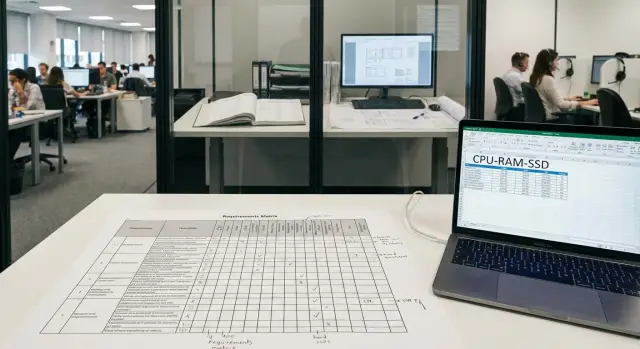
What a requirements matrix is and why it saves headaches
A workstation requirements matrix is a simple table that links employee roles to clear workstation standards: what CPU is needed, how much RAM, which SSD, what monitor and how long that setup should last. Not “which brand to buy”, but “what should reliably work every day”.
It's useful because one-off purchases almost always become a lottery. Today you buy “what was available”, tomorrow new hires arrive, the day after software updates, and suddenly some people start complaining: some machines lag, others run smoothly, and budgets become unpredictable.
A matrix usually addresses three common pains: constant complaints ("Excel freezes", "video in the call center stutters"), overspending (buying extra power "just in case") and a configuration chaos (dozens of different builds, different power supplies, different monitors — harder support and spare parts management).
Benefits are clear:
- IT gets device classes and fewer exceptions.
- Procurement receives transparent requirements that are easy to compare between suppliers.
- Team leads understand why "identical" PCs don't fit everyone and what they are actually paying for.
The output is a set of role-based profiles (for example, office, accounting, engineering, contact center) and minimum standards for each profile: baseline configuration, recommended, and "heavy-duty". The matrix also specifies lifespan: how many years the workstation should handle typical tasks without painful upgrades.
For example, if a company has an accounting team working with heavy spreadsheets and several engineers using CAD, the matrix helps pre-split requirements and buy exactly what is needed. In Kazakhstan this is especially helpful when planning purchases with standardized configurations and later support, where it's important to know in advance what will be serviced for the full lifecycle.
Describe the work first, not the PC specs
The most common mistake is to start with "give everyone an i5 and 16 GB". That buys specs, not solutions. It's better to first describe what a person does every day, and only then translate that into CPU, RAM, SSD and monitors.
Start from the role, not the job title. "Manager" can be a simple office user or someone who spends the whole day in CRM, video calls and large spreadsheets. The role answers "what scenarios and what load", while the job title is often just a line in the headcount.
Record scenarios in plain language: email and browser, 1С, calls and headset, video conferencing, CAD, working with photos or video. These hint at resources: CAD and graphics pull CPU, memory and sometimes GPU, while 1С often relies on a fast disk and multitasking capability.
Then specify load: how many tabs, documents, databases, windows are open at once, and what happens at the peak (for example, month‑end closing in accounting). The same "Excel" scenario can be light or heavy.
For each role it's useful to fill out a short "passport". Five points are enough: which apps and web services are used daily, how many parallel tasks in a normal hour and at peak, how many monitors and what resolution are needed, whether there is remote or shift work (hot desks), and what the physical conditions are (dust, noise, tight cabinets, cooling limits).
Example: a contact-center operator and an accountant both sit "at a PC", but the operator needs a headset, quiet operation and two monitors for CRM and scripts, while the accountant relies on 1С, large reports and month‑end peaks. Once roles are described, translating them into hardware parameters is straightforward.
How to convert tasks into CPU, RAM, SSD and monitor with simple rules
A good matrix starts not with brands and models, but with questions: how many programs run simultaneously, are there heavy files, how many hours a day does the person actually use the PC.
CPU: orient to load type, not to "most powerful"
The CPU matters where there are constant calculations, conversions, archiving, many tabs and calls at the same time. For regular office tasks, a modern platform and a clear buffer for 2–3 years matter more than "maximum cores".
Practical guidelines:
- Email, browser, documents, accounting systems: usually 4–6 cores on a current platform are enough.
- Calls + CRM + many tabs and windows: you need a performance buffer to avoid hiccups in peak hours.
- Integrated graphics is acceptable almost always unless there is 3D/CAD/video work and multiple 4K monitors.
- A buffer is particularly important where there are seasonal peaks: month‑end, reporting, mass operations.
RAM and SSD: these are often the bottleneck
RAM affects how quickly windows switch and how confidently multiple apps stay open. For most employees, a practical minimum today is 16 GB. Moving to 32–64 GB makes sense when heavy spreadsheets, large databases, virtual machines or engineering apps run concurrently.
SSD is simpler: HDDs are almost always unnecessary because they noticeably slow system and app startup. Size should reflect real files: offices often manage with 512 GB, while those working with large projects and local archives often need 1 TB. If intense write endurance matters (constant dumps, caches, temp files), check the SSD endurance rating in advance and choose a higher class.
Monitor: productivity starts with comfort
The monitor affects speed as much as hardware because it reduces constant switching and errors.
- 24" and Full HD — baseline for documents and CRM.
- 27" and 2K — more comfortable for spreadsheets, reports and multitasking.
- Two screens are justified when someone constantly compares data (e.g., report vs source) or works in multiple systems.
- Ergonomics matter more than "style": height adjustment, a solid stand and correct seating reduce fatigue.
Example: a contact‑center operator with CRM and calls usually benefits from 16–32 GB RAM, a fast SSD and two monitors, even with a midrange CPU. An engineer working in CAD more often hits CPU limits and (often) discrete graphics, so they need 32–64 GB RAM and a large SSD for projects.
Base profiles: office, accounting, contact center, engineering
A matrix usually starts with four basic profiles. They cover most employees and help agree on standards instead of arguing about brands and frequencies.
Office: documents, browser, video calls
The office profile covers email, documents, dozens of browser tabs and regular Teams/Zoom calls. The main risk here is not a weak CPU but lack of memory when the browser loads everything and the system slows down.
Practical guideline: 4–6 CPU cores, 16 GB RAM, SSD from 256–512 GB. The monitor often gives more benefit than upgrading the tower: some people are fine with 24", while a manager working with spreadsheets and email may prefer two screens.
Accounting: 1С and peak loads
Accounting has similar tasks to the office but with heavy 1С databases, reporting and seasonal peaks (month‑end, quarter‑end, year‑end). Here a buffer is needed so that work at peak times doesn’t turn into waiting.
Typically: 6–8 CPU cores, 16–32 GB RAM and a 512 GB SSD or larger. If the database and exchanges are networked, add requirements for stable connectivity and reliability, but the workstation still needs to handle large spreadsheets and parallel operations comfortably.
Contact center: downtime costs more than hardware
Contact centers rarely need maximum power, but require stability, fast boot, a headset and easy replacement if something breaks. Often it's better to have identical configurations and several spare PCs than to try to squeeze every bit of performance.
Guideline: 4–6 CPU cores, 8–16 GB RAM, 256 GB SSD. Fix port requirements early (USB for headsets) and consider two monitors if the operator runs CRM and telephony simultaneously.
Engineering: CAD, 3D and graphics cards
Engineering workstations quickly split into subtypes: 2D drafting, 3D modeling, rendering, simulation. In the matrix it's important to state whether a discrete GPU is needed, the required minimum VRAM, RAM reserve and expansion capability, and monitor requirements (size, resolution, color accuracy).
To avoid bloating the table, engineers are usually specified by: software type (2D/3D/render), typical project sizes, need for discrete GPU and minimum video memory, RAM headroom and possibility to expand, and monitor requirements (size, resolution, color).
Three tiers within each profile: minimum, comfortable, heavy-duty
Each profile (e.g., "office" or "engineer") almost always needs three tiers. This avoids arguing over each purchase and keeps budgets under control. The matrix defines what is considered normal and what is an exception.
Minimum: works without slowdowns on a typical day
"Minimum" ensures the employee can perform standard tasks without waiting or freezing. Here the focus is on real‑day checks: how many browser tabs, whether there's a single monitor, remote desktop use, and how many files are open at once.
Minimum often suits temporary desks, shift workers, simple processes and machines that should live long but without high expectations.
Comfortable and heavy‑duty: buffer for peaks
"Comfort" (recommended) provides a buffer for 2–3 years: software versions update, reports grow, tabs and video calls increase. This is a sensible baseline for permanent staff to avoid upgrades every six months.
"Heavy‑duty" is for peaks: month‑end closings, mass contact center events, complex 3D models for engineers, simultaneous work with large spreadsheets and several apps. It protects outcomes during the busiest weeks.
To keep exceptions from becoming the norm, define in advance: who can request heavy‑duty gear and for what reasons, how need is validated (task examples, load, project timelines), how long the boosted configuration is issued for, what happens after the peak (revert to "comfort", redistribution), and how such cases are tracked in inventory and update plans.
Step-by-step: assemble a matrix in 1–2 weeks
You can build a matrix in 1–2 weeks if you start from real scenarios, not hardware. The goal is simple: agree on clear profiles and parameters that are later easy to procure and support.
Start with short interviews and observations. Take 10–15 employees from different roles and ask them to show a typical day: which apps are open, how many browser tabs, whether there are video calls, use of 1С, CAD, large spreadsheets, multiple monitors. Separately ask where it "lags" and when the person loses time.
Turn scenarios into profiles, and profiles into tiers. Don't aim for perfection: usually 4–6 profiles (office, accounting, contact center, engineering, etc.) and 2–3 tiers inside each (minimum, comfort, heavy) are enough. Tier selection should be based on load, not job title.
A 10‑workday plan could look like:
- Days 1–2: gather scenarios and quick measurements (open apps, typical files, number of monitors).
- Days 3–4: group scenarios into profiles and tiers, describe "what the user does" in one sentence.
- Days 5–6: assign CPU/RAM/SSD and monitor using simple rules (for example, "spreadsheets + 1С + 2 monitors" = more RAM and fast SSD).
- Days 7–8: test on 3–5 real desks and adjust (where the buffer is excessive or insufficient).
- Days 9–10: agree with InfoSec and procurement, lock it as a standard (what can change and what cannot).
Record constraints as well: InfoSec requirements for encryption, ports, supported OS, monitor types. If you buy prebuilt workstations or order standardized builds from a manufacturer, ensure parameters can be repeated in batches.
How to set lifespan and an update plan without surprises
Set PC lifespan explicitly per profile and tier in the matrix. Then procurement, support and user expectations align.
For quiet office work, 4–5 years is a realistic horizon: email, documents, browsing, video calls. For heavily used workstations where downtime is costly, plan for 3 years: drives degrade, thermal load increases and repairs start consuming time.
Lifespan is influenced more by conditions than just CPU/RAM/SSD:
- shift work and long hours (8/12/24h)
- dust, cramped cabinets, poor ventilation, overheating
- constant heavy apps, lots of tabs and video conferencing
- frequent moves (rearrangements, business trips, relocations)
- continuity requirements (contact centers, critical accounting processes)
Make replacement plans in waves so the fleet doesn't age at once. A practical approach: split identical profiles into 3–5 groups and replace one group each year. This smooths the budget, simplifies spare parts stock, and avoids mass support incidents.
Example: a company has 120 office seats and 40 contact‑center seats. Office is split into 4 waves of 30 PCs and updated every 4 years. The contact center is split into 3 waves and updated every 3 years because gear runs two shifts and downtime is expensive.
To keep the plan realistic, add repairability criteria: availability of common parts (SSD, PSUs, fans), a single platform per profile (fewer model variations), and easy access to replace drives and memory without rare parts.
Common mistakes when standardizing workstations
The most common mistake is choosing a single "universal" PC for everyone. Offices end up with overly powerful machines while engineers or analysts get configurations that constantly hit limits. That leads to overspending or complaints about slowness, and both erode trust in the standard.
Another issue is sizing needs by averages. Workdays are rarely "average": accountants have month‑end peaks, finance has seasonal reports, contact centers have busy periods, engineers have builds and tests. If the matrix ignores peak loads, everything looks fine on paper but staff lose time exactly when it matters.
People often skimp on RAM and SSD. That almost always comes back as downtime: the system uses a pagefile heavily, apps open slower, and multitasking (browser + email + Excel/CRM) turns into waiting. With SSDs, a "minimum capacity" is quickly eaten by updates, caches and local databases, and the PC noticeably slows down.
Ignoring monitors and peripherals is another mistake. Half of "computer is uncomfortable" complaints are actually about a small screen, low resolution, or poor keyboard/headset. If someone works 8 hours with spreadsheets or client cards, monitor and headset matter as much as CPU.
Check the usual failure points that break a standard:
- standardized only the tower and forgot monitors, docks, headsets
- didn't fix what apps and how many tabs/windows count as normal
- didn't describe the "heavy‑duty" mode (month‑end, concurrent calls, big files)
- left the configuration corridor too wide, so procurement becomes a lottery again
- didn't set lifespan by profile and criteria for replacement (e.g., growing software demands)
Simple example: everyone was given identical "office" PCs. Mid‑quarter accountants close the period and work in the accounting system, Excel and with scans. With 8 GB RAM everything starts lagging, and the initial saving turns into lost hours and tense approvals for upgrades.
Quick checklist: review your matrix in 5 minutes
Open your workstation requirements matrix and answer these questions quickly. If any answer is vague, the matrix will drift in procurement, support and hiring.
- Each role has a profile and a clear load tier: minimum, comfort and heavy.
- Each profile lists default parameters: CPU (class/generation), RAM (GB), SSD (capacity and type), monitor (diagonal/resolution) and basic peripherals.
- There are rules for exceptions: which reasons are valid (new software or increased tasks) and who approves upgrades.
- Lifespan is described plainly: how many years until replacement and what happens mid‑cycle (e.g., add RAM).
- Compatibility headroom is checked: is there enough power for OS and key app updates, and are ports/connectors standardized for your monitors and docks.
After the check mark the "red zones" and assign an owner. Usually this is not IT alone but an "IT + function lead" pair to agree on real workload.
Small example: profiles exist, but accounting has no monitor spec. As a result some people use 21.5" Full HD, others 27" 2K, and complaints are about eye strain and spreadsheet errors rather than speed. Adding one standard (for example, 27" 2K for the "comfort" tier) reduces support noise and simplifies procurement.
Example: mapping employees to profiles in a real company
A 200‑person company wanted order in procurement and support: departments bought PCs ad hoc and complaints were the same — "it's slow", "not enough space", "eyes get tired".
They started with short 15‑minute interviews with department heads and a couple of typical users. They asked about a real day: which apps are open together, browser tab counts, 1С, CRM, video calls, graphics work, and how many years they expected not to change the workstation.
People were grouped into 4 profiles and two tiers inside each: "Standard" (normal work without waiting) and "Intensive" (peaks, many windows, heavy files).
Distribution looked like this:
- Office (email, browser, documents, video calls): 110 people
- Accounting (1С, e‑document flow, reports, several databases): 35 people
- Contact center (CRM, headset, many windows, shifts): 30 people
- Engineers (CAD/GIS, large projects, sometimes GPU): 25 people
The matrix translated into clear rules. For example, the office "Standard" profile had 16 GB RAM and an SSD, while accounting and contact center "Intensive" often added memory (up to 32 GB) because RAM shortage caused freezes when 1С/CRM and a browser ran together.
Two fixes removed most complaints: a unified rule for two monitors where people compare data, and a minimum SSD size with headroom for updates and caches (otherwise "disk C full" emerges within a year). For monitors they agreed: where there are many tables and tickets, 24–27" with the same resolution prevents windows and interfaces from "misaligning".
As a result procurement and support started speaking the same language: "Accounting‑Intensive profile" instead of "just put something more powerful". Comparing vendor offers became easier because requirements were described by load and clear tiers.
Next steps: lock the standard and move to typical configurations
When profiles and tiers are agreed, lock them so the matrix becomes a working tool, not a file on a shelf. The best practice is one table, one owner, and clear update rules.
Place the matrix in a table where rows are roles and tiers (minimum, comfort, heavy) and columns are CPU (class/generation), RAM (GB), SSD (GB and type), monitor (diagonal/resolution), plus lifespan and a "headroom" column. Add a row for mandatory parameters: OS, encryption, ports, Wi‑Fi, webcam and headset requirements for contact centers.
Don't roll out the standard company‑wide immediately. Pilot 10–20 workstations from different profiles. Let people test for 1–2 weeks and collect factual feedback: does the typical software lag, is memory enough at peak, is the monitor comfortable, any driver or peripheral issues.
Implementation steps:
- appoint an owner for the matrix (IT or jointly with procurement) and a review cadence, e.g., every six months
- tie the matrix to requests and tender documentation: "profile + tier", avoiding debates for each purchase
- after the pilot adjust 2–3 parameters and approve version 1.0 in a regulation
- prepare 3–5 typical configurations mapped to the matrix for quick ordering
- agree support rules: what changes under warranty, what you keep as spare parts, response times
If predictable supply, repeatable configurations and nationwide repair matter, discuss this with a local manufacturer or integrator in advance. For example, GSE.kz (GSE) produces desktop PCs, all‑in‑ones, workstations and servers in Kazakhstan and provides system integration and support services — useful when you want to lock profiles and repeat them in batches without a model zoo.
Frequently asked questions
What is a workstation requirements matrix?
A requirements matrix links real work tasks to the PC configuration, monitor, and replacement cycle. It helps you procure the right equipment for each role instead of choosing one model for everyone.
Where should you start when creating a matrix?
Start with scenarios: which programs employees keep open, whether they work with video calls, large spreadsheets, 1C, CAD, or CRM. Then assess the workload on a normal day and during peak periods.
Can you buy identical PCs for all employees?
No. Office employees often only need 4-6 cores, 16 GB of RAM, and an SSD, while engineers working on 3D projects may need a discrete graphics card, 32-64 GB of memory, and a large drive.
What configuration suits a typical office employee?
For email, browsing, documents, and video calls, 4-6 cores, 16 GB of RAM, and a 256-512 GB SSD are usually sufficient. If an employee constantly works with spreadsheets and multiple systems, consider a second monitor.
What should you plan for accounting teams using 1C?
Accounting teams usually need headroom for 1C, reports, and period closing: a 6-8-core processor, 16-32 GB of RAM, and an SSD starting at 512 GB. Also check network stability if the database and data exchanges run through a server.
What requirements does a contact center need?
For a contact center, stability, fast startup, and easy replacement of a failed PC matter more than maximum power. Often, 4-6 cores, 8-16 GB of RAM, and a 256 GB SSD are enough, but specify headset ports and the need for two monitors in advance.
When does an engineer need a discrete graphics card?
First, divide engineers by task: 2D drafting, 3D modeling, rendering, or simulations. Heavy 3D workloads usually require a more powerful CPU, 32-64 GB of RAM, a large SSD, and a discrete graphics card with a suitable amount of video memory.
How do minimum, comfortable, and heavy-duty tiers differ?
The minimum covers a typical workday without noticeable delays. The comfortable level provides headroom for software growth and increased workloads for 2-3 years, while the heavy-duty tier is needed for confirmed peaks, large files, or resource-intensive tasks.
How long should you plan to keep work PCs?
For light office tasks, organizations often plan for 4-5 years. It is more sensible to refresh workstations used in shifts, under heavy load, or where downtime is costly about every 3 years.
How do you validate the matrix before a large-scale purchase?
Run a pilot on 10-20 workstations from different profiles and collect feedback after 1-2 weeks of use. Check the speed of typical software, available free space, monitor usability, and peripheral compatibility, then approve the procurement standard.
