8 min read
Workstation for Scientific Computing in a University: Choosing CPU, RAM and Drives
Workstation for scientific computing in a university: how to choose CPU, RAM and SSD/HDD for MATLAB, Python, CFD and big data.
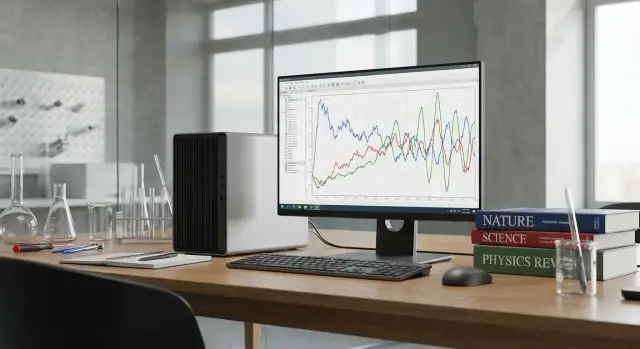
What universities actually face with scientific computations
In departments and labs, work usually comes in "waves": calm data processing for a paper one week, and the week before a grant deadline when everyone urgently needs resources. In those moments it becomes clear that a workstation for scientific computing in a university is not just a slightly more powerful office PC, but a different class of equipment.
Common tasks combine heavy computation and large datasets, for example:
- numerical modeling (finite element methods, differential equations)
- signal and image processing (medical, remote sensing)
- machine learning on tabular data and text
- analysis of large tables and logs in Python/R/MATLAB
- working with GIS and scientific databases
An office PC often “breaks” not because it's utterly weak, but because it hits typical bottlenecks. The CPU runs at 100% for hours, RAM is insufficient for matrices and caches, and the disk slows down when reading large files, saving results, or creating temporary data. Add concurrent runs: a student runs one job, a PhD student another, and a lecturer prepares a demo.
Universities also have constraints. Budgets are usually fixed per procurement cycle, delivery timing matters for the semester start, and procurement rules often require formal specs and proof of origin. Support is critical: if a workstation is down due to a minor failure, the whole group's work stops.
So when choosing, think not only about "maximum specs" but also about predictable supply and service. A local manufacturer and integrator like GSE.kz can be helpful where transparent component lists, procurement compliance, and clear on-site support matter.
Typical workload profiles: what hits CPU, RAM and disk
Universities often buy one "universal" machine and then wonder why it flies on some tasks and crawls on others. Different scientific packages and workflows stress CPU, RAM and storage differently. For a workstation for scientific computing in a university it helps to first categorize tasks by profile.
Interactive work (MATLAB, Python, Jupyter) usually runs in short cycles: you tweak parameters, plot, run code again. Responsiveness matters here. A high single-core frequency and fast data load often make the biggest difference, because many operations remain single-threaded or are hard to parallelize.
The other end is long batch runs: overnight optimizations, parameter sweeps, many independent runs. Here more cores and stable cooling win; frequency matters less than parallelism.
There is also a "sneaky" profile: small datasets but many iterations (e.g., numerical methods with thousands of steps, model calibration, MCMC). In this mode the CPU is busy almost constantly, and memory and disk are secondary — you pay for computation rather than RAM.
When datasets are large (tables, logs, images, meshes), constraints change. If data doesn't fit in RAM, the system reads from disk and speed drops sharply. Even a fast SSD can't replace sufficient memory.
A short guide to common bottlenecks:
- Interactive debugging and exploration — prioritize single-core speed and a fast SSD
- Long parallel runs — prioritize number of cores and limits for power/cooling
- Large datasets — prioritize RAM size, then NVMe speed
- Frequent read/write (caches, temp files) — prioritize a fast disk and correct storage layout
Identify the lab's primary profile and component choice becomes much simpler and more cost-effective.
CPU: how to choose a processor for scientific packages
Start with a simple question: do your jobs run as one long task or do you run many tasks in parallel? This determines whether single-core frequency or core count is more important.
High single-core frequency gives better responsiveness in interactive work: data prep, script debugging, plotting, and small calculations in MATLAB, Python, R. If researchers constantly tweak parameters and inspect results, faster cores often feel better than an extra 8–12 cores.
Many cores are useful when:
- the workload parallelizes (multi-threaded linear algebra libraries, some CFD and FEM tasks)
- several experiments are run simultaneously (batch jobs, multiple users in turn)
- heavy background processes run alongside (virtualization, containers, compilation, data processing)
Speed depends on more than "cores and GHz." Cache (L3) helps when data is repeatedly reused and fits closer to the cores. The memory controller and number of memory channels matter for memory-bandwidth-bound tasks: large matrices, numerical methods, big-table processing. In such cases a CPU with better memory throughput can be faster, even at similar frequencies.
Choose ECC memory when runs are long and costly: multi-day jobs, calculations for publications, or projects demanding reproducibility. ECC doesn't speed up calculations but reduces the risk of rare memory errors that can ruin results or interrupt long runs.
Also consider heat and noise. A powerful CPU under sustained load needs proper cooling and a case with good airflow, or frequencies will drop and performance will fluctuate. In labs where tasks run for hours, a quiet, stable workstation is often preferable to a configuration that is extremely powerful but noisy and thermally constrained.
When procuring workstations, check whether the chosen platform supports the required RAM capacity and memory modes. Integrators like GSE.kz usually discuss these details when tailoring configurations for specific packages and datasets.
RAM: how much memory for models and large tables
RAM often matters more than it seems. If a model or dataset doesn't fit in memory, the system swaps to disk and even a fast CPU slows dramatically. For a workstation for scientific computing in a university, having extra RAM is usually more useful than a small increase in CPU speed.
Minimum to start — 32 GB: enough for typical Python/MATLAB work with moderate datasets, basic statistics, small simulations, and several apps open. A comfortable buffer for 2–3 years often begins at 64 GB, especially if you hold large tables, multidimensional arrays, or run several projects concurrently.
Guidelines by single-user workstation:
- 32 GB: teaching tasks, small datasets, light models.
- 64 GB: regular work with large tables, medium simulations, frequent parallelism.
- 128 GB and up: large matrices, CFD/FEA, in-memory data processing, many concurrent runs.
Signs of insufficient RAM are common: constant disk activity during simple actions, long pauses when switching windows, a sharp slowdown after a calculation starts, "out of memory" errors, and freezes when plotting large graphs.
Don't lose performance to single-channel operation. Practical rule: install RAM as matched pairs (2x32 instead of 1x64) to enable dual-channel. This noticeably helps array-heavy tasks.
ECC memory reduces the risk of silent errors and is useful for long runs (a day or more), thesis-level experiments, and sensitive financial or medical data. If runs are short and results are easy to re-check, ECC may not be worth the extra cost, but for servers and critical projects it is usually justified.
If the machine runs virtual machines or multiple users, size RAM for summed needs: 64 GB can quickly become the minimum, and 128 GB often becomes standard. For example, two VMs at 24 GB plus the host OS and tools already require 64–80 GB of real RAM.
Storage: NVMe, SSD, HDD and where speed is lost
Storage is often the "quiet" bottleneck. The model is built and the script is running, but everything stalls when loading data, writing temporary files, or caching results. For a workstation for scientific computing in a university this is especially noticeable when one computer serves varied scenarios: from table processing to large-array computations.
NVMe SSD as the primary drive
The easiest win is an NVMe SSD for the OS, projects and active datasets. It speeds up package launches, library installs, working with many small files (typical for Python environments), and read/write operations during runs.
A separate fast drive for scratch makes sense when software writes a lot of temporary data: intermediate matrices, caches, checkpointing results, or image processing. If temp files dominate I/O, a second NVMe reduces contention with the system and active project data and delivers steadier performance.
A practical layout that usually works:
- NVMe 1: OS, software, active projects
- NVMe 2 (optional): scratch, cache, temporary directories
- Large SSD or HDD: archive of raw data and finished projects
- Backups: separate device or department server
HDD, RAID, backups and network storage
HDDs are fine for archives and infrequent access, but random-access-heavy tasks suffer. Large SATA SSDs cost more but are much nicer for semi-active datasets.
RAID is primarily about reliability, not speed: it protects from a disk failure but doesn't replace backups. Speed drops often stem from a full disk, swapping due to insufficient RAM, or constant temp file writes to the system partition.
If the same datasets are needed by multiple people, store them on a department network share: easier version control, access control, and avoiding multiple copies on workstations. Keep local NVMe for what must be fast. For such setups universities often choose workstations and servers from local producers and integrators like GSE.kz to simplify fleet support and storage/backup setup.
Is a GPU necessary if the main goal is scientific computing?
A GPU is not always needed. It gives a large boost only where your code and libraries can actually run on the GPU. If most tasks run on the CPU (many R workflows, some MATLAB scripts, classical numerical methods without acceleration), a GPU will sit idle and money is better spent on CPU, RAM and a fast NVMe.
If your stack supports GPU (e.g., neural network training, some Python computations via CUDA libraries, certain MATLAB functions), the balance shifts. The CPU becomes the data feeder: prepping batches, unpacking data, and launching kernels. RAM is important to keep datasets and intermediate results without constant disk reads. For a workstation for scientific computing in a university this often means: prefer slightly fewer CPU cores but more memory and a faster SSD.
What matters in a GPU
In many scientific tasks VRAM size matters more than raw clock speeds or marketing tiers. If models or matrices don't fit in VRAM you'll hit errors or large slowdowns due to constant data transfers.
Practical rule: buy a GPU only when you have a confirmed use case. Check in advance:
- which libraries/functions use the GPU
- how much video memory typical models need
- whether system RAM is enough to feed the GPU
- whether fast NVMe is available for datasets
- who will maintain drivers and CUDA versions
Compatibility is the real risk
The most common issue is not "not enough power" but mismatched driver, CUDA and library versions. This is especially obvious in universities where different projects require different dependencies. If you add a GPU for compute, pin versions and plan updates. An experienced integrator like GSE.kz helps when several workstations share a common software stack.
Step-by-step configuration selection for a lab
When choosing a workstation for scientific computing in a university, start with the lab's real tasks rather than price or brand. The same budget can buy many cores but yield slow performance due to lack of RAM or inadequate storage.
A practical sequence that usually gives the best result:
-
Make a short list of 3–5 key programs and types of computations. Example: MATLAB for modeling, Python for data processing, ANSYS/COMSOL for numerical tasks, R for statistics. Specify what you actually do: matrices, optimization, simulations, model training.
-
Estimate how much data and "working state" really lives in memory. Measure the size of a typical dataset, number of model parameters, and how many copies of data appear during processing (often x2–x4). If people work ad hoc, ask for a few example projects and measure peak RAM usage.
-
Determine usage mode: single run per workstation or a queue of tasks. If a machine serves 5–10 people in turn, responsiveness and fast switching matter (RAM and disk). If long overnight runs are common, prioritize stable cooling and CPU headroom.
-
Create three hardware tiers: baseline (just runs), comfortable (no waiting), and future-proof (2–3 years). Distinguish upgradable parts (RAM, drives) from hard-to-replace parts (CPU, motherboard).
-
Check the "hardware details" that solve most issues: PSU quality and capacity, noise and cooling efficiency, space for additional SSD/HDD, availability of service support and warranty-preserving expansion options. For universities these often matter more than a 10% raw performance gain.
If procurement is centralized, standardize 1–2 builds (e.g., based on workstations and servers from a local vendor like GSE.kz) and buy extra RAM/drives tailored to specific labs.
Common mistakes when buying workstations for universities
The most frequent procurement mistake is to look only at CPU model and core count. The result is a formally powerful workstation that hits memory or disk limits on the first large dataset.
Mistakes that most often hurt speed and stability
It usually looks like this:
- Buy a fast CPU but install little RAM and a basic drive, so runs stall on I/O and swapping.
- Skimp on SSD capacity: projects, environments, package caches and temp files quickly fill space.
- Choose weak cooling and PSU: under load the system throttles, or random failures occur.
- Mix memory modules from different series and speeds: the system falls back to a slower mode and loses dual-channel benefits.
- No backup plan: a single drive becomes a single point of failure for research data.
A good check is to ask the lab where raw data and projects live and how big a typical run is. For example, an image analysis group might keep 1–2 TB datasets and each run writes tens of GB of temporary files. On a small SSD space runs out unnoticed, and on a slow disk experiment time increases dramatically.
For multi-year purchases, budget for expandability: RAM slots, a second NVMe slot and free PCIe lanes. A common effective plan is: buy a slightly stronger CPU, install 128 GB RAM and 1–2 TB NVMe now, and then add another 128 GB and a second SSD as needed. In Kazakhstan this is convenient through a local manufacturer and integrator (like GSE.kz) to ensure compatibility and delivery timing for the academic calendar.
Quick checklist before purchase
Before ordering a workstation for scientific computing in a university, gather the basics on one page. This saves weeks of approvals and prevents buying a "mediocre" PC that chokes on your actual tasks.
What to confirm in advance
Start with the software list and exact versions to be installed in the lab: MATLAB (and toolboxes), Python (NumPy, Pandas, SciPy), COMSOL, ANSYS, SPSS, CAD, and database/file formats. Plugins matter too because they often change memory and disk requirements.
Next estimate concurrency: how many people or tasks will run simultaneously on one machine. One user with one model vs. five students running jobs simultaneously are different requirements for CPU cores, RAM and drive speed.
To avoid wrong RAM sizing, calculate the working dataset (the largest project) and add a safety margin. Practically, aim for at least 1.5× the estimated need. If tests show you need 64 GB exactly, targeting 96–128 GB is often wiser than dealing with swap later.
Treat disks separately: a fast NVMe is needed for active projects, caches and temp directories, not for "files in general." Otherwise even a powerful CPU will sit idle waiting for reads and writes.
Where and how to store data
Decide in advance what stays local and what goes to a server or NAS, and define backup policies: who is responsible and how many days of versions to keep.
Quick pre-payment checks:
- Software and versions agreed with instructors and engineers (not just "MATLAB").
- Expected simultaneous users/tasks on one station are clear.
- RAM chosen for the heaviest project + 1.5× margin.
- NVMe allocated for active projects and temporary files, not left to chance.
- Storage and backup plan approved (local, server, NAS).
If procurement uses standard SKUs, ask the supplier to confirm availability and upgrade paths (e.g., add RAM or a second NVMe without replacing the platform).
Example scenario: workstation for a lab of 5–10 people
Imagine a typical department: 5–10 users taking turns running MATLAB and Python (NumPy/SciPy, scikit-learn), doing regressions, solving systems, running small simulations and storing 1–5 TB datasets (measurements, images, experiment results). Bottlenecks vary: daytime responsiveness for loading projects and data, nighttime long CPU runs.
A practical build for such a lab looks like: a modern multi-core CPU (focus on 12–24 productive cores and good single-thread frequencies), 128 GB RAM as a safe minimum for simultaneous sessions and large tables, and two-tier storage. Primary — a fast NVMe 1–2 TB for OS, environments, temp files and active projects. Secondary — 4–8 TB drives for datasets and archives. If read speed for big arrays matters, choose SSDs for the second tier; if capacity and price matter more, HDDs are acceptable but runs will wait on disk.
If budget is tight, allocate funds by the principle "buy what you can't avoid first":
- CPU + motherboard (and cooling): 35–45% (determines most run speeds)
- RAM: 25–35% (to avoid swapping and major slowdowns)
- Drives: 15–25% (NVMe is mandatory; second drive sized to data needs)
- Rest: 10–15% (case, PSU, warranty, extra ports)
Before purchase ask instructors and lab staff briefly, otherwise the build will be "average" and inconvenient:
- Heaviest tasks: linear algebra, optimization, simulations, image processing?
- Maximum dataset size and yearly growth?
- Peak number of concurrent users?
- Is a single long run or fast interactive iteration more important?
- Where are raw data and backups stored (on the PC, separate storage, network)?
To avoid replacing the whole workstation in a year, choose a platform with room for upgrades: RAM slots, an extra NVMe and free PCIe lanes. A cost-effective plan is: buy a slightly overprovisioned CPU, fit 128 GB RAM and 1–2 TB NVMe now, then add more RAM and a second SSD later. In Kazakhstan this is convenient via a local producer/integrator (e.g., GSE.kz) to coordinate compatibility and delivery with the academic schedule.
Next steps: finalize the choice and get running
To avoid debates about "the most powerful PC," specify measurable requirements. For a workstation for scientific computing in a university it's better to describe packages, data and target runtimes than brand or maxed-out specs.
Use clear statements in the technical requirements to avoid exotic options:
- Main packages and versions (e.g., MATLAB, Python, R, ANSYS, COMSOL) and typical run scenarios.
- Minimum RAM and ability to expand without replacing the platform.
- Type and size of system drive (NVMe) plus separate storage for projects and datasets.
- Reliability requirements: ECC if needed, acceptable noise level, warranty and repair time.
- Constraints on case and power (for classrooms, labs or racks).
Don't buy for the whole department at once. Pilot 1–2 configurations and test them on real data and scripts: one big table project and one long computation to compare data prep time, run time and stability.
To get honest pilot results agree on test rules:
- Same dataset and library versions.
- Measure time to result and memory usage.
- Test concurrent runs (multiple students running jobs at once).
- Collect logs of errors and hangs over 1–2 weeks.
The often-forgotten third step is a support plan. Who diagnoses failures, is there a spare PSU or SSD, what response times are acceptable during the semester, and how are drivers and OS images updated?
If you need help at this stage, involve GSE.kz: they can select workstations and servers for your packages and data, perform system integration (including lab infrastructure and storage), and provide 24/7 technical support and service in Kazakhstan. This helps get the fleet running quickly and avoids being left alone with downtime during the semester.
Frequently asked questions
Where should I start when choosing a workstation for a university?
First, gather 3-5 real-world scenarios: software, data sizes, run durations, and the number of simultaneous users. They will show what limits performance: CPU, RAM, or disk.
What matters more for scientific computing: clock speed or core count?
For interactive work in Python, MATLAB, and R, high per-core frequency is usually more important. For overnight runs, independent experiments, and highly parallelizable tasks, choose more cores and good cooling.
How much RAM does a scientific workstation need?
32 GB is enough for teaching tasks and small datasets. For regular work with large tables and simulations, 64 GB is a better choice, while large matrices, CFD, FEA, or several concurrent runs usually require 128 GB or more.
Why is it better to install memory in pairs?
Install matching modules in pairs, for example 2x32 GB instead of 1x64 GB. This enables dual-channel mode, which processes arrays and large tables faster.
How can I tell that a workstation does not have enough RAM?
If there is not enough RAM for the data, the system moves part of the workload to disk. You may see long pauses, high drive activity, out-of-memory errors, and noticeable slowdowns after a calculation starts.
Why do I need an NVMe SSD for computing tasks?
Use an NVMe SSD for the operating system, software, active projects, cache, and temporary files. It speeds up data loading and frequent read/write operations, but it does not replace sufficient RAM.
Do I need a separate drive for temporary files?
A separate NVMe is useful if software frequently creates temporary matrices, cache files, or intermediate results. It keeps these operations separate from the system drive and makes performance more consistent.
Is a graphics card needed for scientific computing?
Buy a GPU only for confirmed workloads: neural network training, CUDA libraries, or software features with GPU support. For typical CPU-based computing, the budget is usually better spent on the processor, memory, and NVMe storage.
When should I choose ECC memory?
ECC is useful for calculations that run for several days, publication projects, and data that is difficult to verify again. It does not speed up computations, but it reduces the risk of rare memory errors.
What mistakes are most common when purchasing workstations?
Do not focus only on the processor model. Check spare RAM slots, space for a second NVMe drive, cooling, the power supply, backups, and service turnaround times. When purchasing several machines, it is useful to first test 1-2 configurations with the laboratory's real scripts and data.
