8 min read
Workstation for CAD/CAE: how to choose for GIS and 3D without mistakes
Workstation for CAD/CAE: what matters in CPU/GPU, RAM, storage and cooling so you don't overpay and avoid common mistakes.
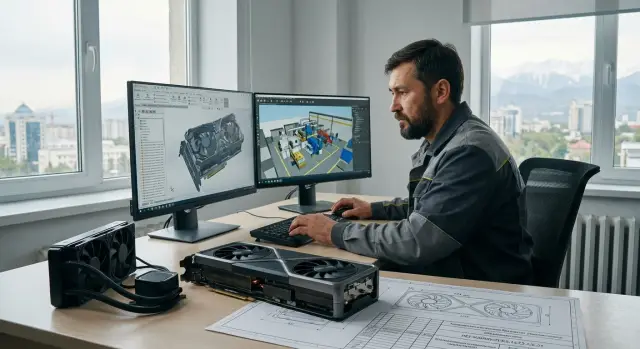
Where to start: what tasks do you actually solve
CAD/CAE, GIS and 3D load a computer in different ways. In drafting and modeling, fast single or dual cores and general responsiveness matter more. In calculations (CAE) the load usually shifts to many CPU cores and a large amount of RAM. In 3D and visualization much depends on the GPU, but not always: scene preparation, importing, geometry calculations and parts of rendering can be limited by CPU and memory. GIS brings its own specifics: large layers, caches, data operations and active disk usage.
The first step is to honestly describe your typical day. Not "sometimes I render," but which projects and which programs you use most often. This matters more than buying the "most powerful" PC: you can overpay for features you rarely use and still hit a bottleneck where you lose hours.
You can usually tell you're hitting hardware limits by simple symptoms: the interface stutters when rotating a model, scenes take too long to open or save, "out of memory" errors appear, a calculation or render blocks work, and under load the computer is noisy, hot and gradually slows down.
Before buying, it's useful to make a short "task passport." One page is enough:
- main programs and their versions (CAD, solver, renderer, GIS)
- typical project size: file weight, number of parts/polygons, number of layers
- what's more important: viewport responsiveness, calculation speed, render speed
- what runs in parallel: browser, mail, several heavy apps
Example: an engineer works on assemblies in CAD, occasionally runs calculations, and outsources visualization. In that case the workstation should be fast and stable for daily tasks, and overpaying for a top-tier GPU often brings little benefit. Conversely, if a designer spins heavy scenes and renders daily, priorities will be different.
If equipment is bought for an organization, plan support and service in advance. In Kazakhstan downtime at a workstation often costs more than the difference between configurations.
CPU: how to choose a processor for CAD, calculations and rendering
The processor often determines whether a workstation feels "alive" in everyday work or "thinks" on every action. In CAD and GIS many operations are limited not by core count but by single-core speed.
For modeling, single-core performance matters more
Drafting, sketches, simple part operations and many CAD commands run on one or a few threads. So prioritize single-thread performance: modern architecture, high frequency and reasonable power limits matter more than just "+8 cores."
Simple example: an engineer opens an assembly, moves components, recalculates dependencies and constantly makes small changes. In such tasks a CPU with fewer but faster cores often feels snappier than a many-core but slower one.
For calculations and rendering, multithreading matters
CAE, ray tracing, final renders, batch conversions and some simulations parallelize well. CPUs with more cores and threads win here, but only if the rest of the system (memory, storage) keeps up.
Practical guidelines:
- if 70–80% of your time is modeling and drafting, choose high frequency and a moderate core count
- if calculations and rendering regularly run for hours, add cores but don't sacrifice frequency too much
- a large cache (especially L3) helps with big datasets but does not replace high single-thread speed
- stability under sustained load matters more than peak numbers: if the CPU throttles from heat, real speed drops
Server CPUs: when they make sense and when they don't
Server processors are sensible when you need lots of memory, higher reliability and round-the-clock load, for example for heavy calculations or an engineering mini-server. For a typical CAD/CAE workstation they often lose on responsiveness due to lower frequencies.
Don't overpay for "extra" cores if projects rarely go into long calculations or rendering, core scaling is poor in your software, and interface responsiveness matters more.
When choosing a workstation for specific projects, ask the supplier to explain the logic: which operations are single-threaded, which are multithreaded and how that affects CPU choice. System integrators like GSE.kz usually have experience in these scenarios and understand where extra cores truly add value and where they are just wasted expense.
GPU: what to look for in 3D, visualization and large scenes
The graphics card determines how smoothly a 3D scene rotates, how orbiting, object selection and visual modes behave. For CAD/CAE and GIS it's not only about "powerful cores" but also VRAM size, stable drivers and compatibility with your software.
VRAM size or GPU speed: which matters more
If you work with large assemblies, heavy textures, point clouds or multiple viewports, you're more likely to hit VRAM limits. When video memory runs out you get hitches, stalls and sudden performance drops.
GPU speed matters when the task is closer to "pure graphics": active viewport work, shadows, antialiasing, high frame rates, and GPU rendering (if you actually use it). In practice you usually choose sufficient VRAM first and then the class and performance of the chip.
Rough VRAM guidelines:
- 8–12 GB: typical 3D scenes and medium assemblies, basic visualization
- 16 GB: large assemblies, heavy view modes, multiple 4K monitors
- 24 GB and up: very large scenes, complex materials, large point clouds
Professional or gaming cards
Professional GPUs are valued for predictability: more stable drivers, fewer surprises in CAD and renderers, correct handling of large scenes and buffers. Gaming cards often give better price-to-performance but require more attention to drivers and settings.
Example: for a GIS project with heavy layers and 3D visuals, a fast card with small VRAM may perform fine in an empty scene but start to choke when layers, textures and shadows are enabled. A card with more VRAM often provides smoother behavior even with lower peak FPS.
When choosing a GPU for a workstation pay attention to things that cause real project problems: a stable driver branch for your OS and software, required APIs/modes, enough ports for 2–4 monitors (including 4K), cooling and noise during long loads, and proper power delivery without dubious adapters.
If ordering a configuration from an integrator, ask them to test your exact software/driver/monitor setup. This is often more important than a "+10%" difference in benchmarks.
RAM: capacity, speed and how to know it's insufficient
RAM in engineering tasks works like a desktop workspace: the more room you have, the less often the system has to clear and reload data. But the benefit from 16, 32 or 64 GB depends on what you do: 2D drafting, large assemblies, calculations or heavy GIS maps.
16 GB can still be a tolerable minimum for small projects if you don't run many browser tabs and messengers. 32 GB is often a comfortable starting point for mixed work (CAD + mail + browser + model viewer). 64 GB is justified when you regularly open large assemblies, run several heavy apps simultaneously or run calculations/visualizations that can consume memory quickly. For CAD/CAE workstations this is often the safest level if you don't want to hit limits within a year.
You can tell RAM is insufficient more easily by system behavior than by specs. Common signs: projects take noticeably longer to open despite a fast disk; switching between windows stutters; during calculations the system feels sluggish; after hours of work performance drops and only closing programs or rebooting helps; disk activity spikes even for simple actions (swap).
For speed and configuration: two sticks are better than one (dual-channel), and a stable setting is better than the "fastest on paper" RAM that behaves unpredictably.
When choosing capacity, don't go "barely enough"—leave headroom for parallel work. If budget is tight, pick a platform with easy upgrade options. Often it's wiser to start with 32 GB (2x16) and free slots than to buy 64 GB upfront and lose flexibility.
Drives and storage: NVMe, capacities and data safety
Storage affects perceived speed more than you might expect. Opening large assemblies, loading textures, rebuilding caches, importing point clouds and saving projects depend not only on CPU and RAM but on how fast the system reads and writes data.
NVMe SSD is almost always the best choice for a CAD/CAE workstation: high throughput and low latency are especially noticeable in GIS and 3D where projects include many files and software constantly reads and writes small blocks.
A good practice is to split drive roles. This reduces chaos, lowers the risk of filling the system drive with temporary files, and makes maintenance easier:
- Drive 1 (NVMe): OS, programs, drivers
- Drive 2 (NVMe or fast SSD): projects and working data
- Separate place: cache (render, simulations, previews), temporary files
- Separate storage: archive and sharing
Why this matters: when cache and temp files are written to the same drive as the project and OS, you get stutters, long saves and errors from overfilling.
For reliability look beyond capacity. SSDs have write endurance, and in workloads with active caches endurance is consumed faster. Cooling matters too: NVMe drives can overheat under sustained load and throttle. If the case is cramped or lacks airflow, performance will "float" even though short tests look fine.
A second drive is needed if projects are large, caches are heavy or you want to separate loads. RAID is useful for availability (to continue working after a drive failure) but not a substitute for backups.
A practical backup strategy usually looks like this: a working copy on the PC, scheduled automatic copies to separate storage, keeping versions for at least 7–14 days and periodically testing file restoration.
If you build workstations and infrastructure for such workloads, it's convenient when one vendor covers both hardware and integration. At GSE.kz this is a strength: besides computers and servers, the company does system integration and support, so storage and data protection can be planned up front rather than "bolted on" after purchase.
Cooling, case and power: stability under sustained load
For CAD/CAE and 3D it's not only peak power that matters but how long the station can hold it without overheating. A common situation: the first minutes are fast, then frequencies drop, fans howl and a render or calculation takes noticeably longer.
"Quiet PC" and "fast PC" always require balance. A completely silent system often means higher temperatures. For engineering work a better goal is different: quiet in the office, but no throttling under load.
Air or liquid cooling
Air cooling is typically simpler, cheaper to maintain and more predictable. Liquid cooling can be quieter at similar temperatures but adds complexity: pump, tubing, degradation over time. For workstations that run daily and must be serviceable by IT, quality air cooling is often more reliable.
Watch CPU and GPU temperatures. If the processor or GPU hits limits, frequencies drop and you lose performance exactly when you need it. This is especially noticeable on long tasks: FEA/CFD, batch rendering, processing large GIS layers.
Practical guidelines for case and cooling:
- at least 2–3 case fans with good intake and exhaust
- tower CPU cooler or a tested AIO from a vendor with service
- neat cable management so airflow isn't blocked
- dust filters on intake fans
- room for a future GPU and extra drives
Dust and maintenance matter even in ordinary offices. Clogged filters and radiators can add several degrees, enough to cause frequency drops.
Take a PSU with headroom, especially if you may upgrade the GPU or add drives. A quality PSU holds voltage more stably and reduces the risk of odd crashes under render load. Vendors like GSE.kz typically run stress tests so a station is stable not just on paper but in real work.
Step-by-step selection for your projects
Start not from hardware but from your real files. Look at the last month's history and pick 3–5 typical projects: "normal," "heavy" and one "edge case." Note what you do: modeling, assemblies, calculations, visualization, point clouds, large GIS maps.
Then find what slows you most. You can often tell without benchmarks:
- if viewport rotation and shadows stutter, it's often the GPU
- if dependencies rebuild slowly and drawings update slowly, CPU matters more
- if everything slows after opening several apps and files, it's likely RAM
- if opening, saving and caching slow down, check the drive
A working order for selection that usually works:
- describe 3–5 projects: scene size, part count, data volume, render or calculation frequency
- identify the primary bottleneck and the secondary one (e.g., RAM then storage)
- set two target levels: minimal workable and comfortable
- add headroom for 2–3 years: project growth, new software versions, parallel tasks
- check constraints: budget, noise, size, procurement and service requirements
Phrase a "comfortable" goal in simple terms: the scene rotates without stutters; calculations don't run overnight; CAD, GIS and a browser can be open together without constant swapping. This turns workstation selection into a set of clear criteria.
Before finalizing, check compatibility: driver versions, GPU requirements (especially if software targets specific lines), required monitor ports, 10GbE (if needed), licensing dongles, RAID or encryption.
If procuring for an organization, discuss support and platform lifetime in advance. For example, with GSE.kz you can rely on local assembly and service so the configuration is not only fast but maintainable in real conditions.
Common mistakes when choosing a workstation
Most errors come from imbalance: "maxing out" one parameter and forgetting balance. The result is a machine that looks powerful on paper but hits limits in memory, storage or cooling.
Mistakes that hurt performance most
One frequent scenario: buying a powerful GPU but leaving 16 GB of RAM. In small drawings this may be fine, but in large assemblies, textured scenes or parallel work (CAD + browser + mail) the system starts swapping. Pauses, viewport hiccups and long saves appear.
The opposite extreme is chasing core count when most work is single-threaded: rebuilds, model updates and many CAD operations. Many cores shine in calculations and rendering but not everywhere.
A third mistake is skimping on storage. A slow SSD or HDD for projects makes opening, autosaving and cache heavy tasks painful. It's better to split roles: fast NVMe for OS and active projects and separate storage for archive and backups.
Fourth: ignoring cooling. Under long load CPU and GPU can throttle: frequencies fall and performance becomes worse than a more modest but well-cooled build. This often shows up after 10–20 minutes of work.
Fifth: choosing a PSU "to the limit." Headroom is needed for peak draw, stability and future upgrades.
And a separate point: not checking specific CAD/CAE module requirements and driver compatibility. Sometimes a plugin or solver works properly only with certain driver branches or card families.
Example: an engineer runs a GIS project with large raster layers while also building a 3D model. A strong GPU with little RAM and a single slow disk won't speed things up—the system will be limited by memory and storage. In such cases describe typical scenes and data volumes and choose components accordingly. If buying a ready station from a vendor like GSE.kz, ask them to run your files or a similar scenario—this quickly reveals the weak link.
Quick checklist before purchase
Before ordering, list what you run daily on one sheet. Not "3D and calculations" but specific programs and the actions that slow you most.
Pick 3 key programs and their heaviest tasks. For example: "Revit: 500 MB model and coordination," "ANSYS: 8–12 hour run," "ArcGIS: layers with heavy attributes." This shows whether CPU frequency, core count, RAM or VRAM is most important.
Then run through this short list:
- programs and peak loads: what exactly makes the system slow (opening project, rebuild, simulation, render)
- RAM: current minimum and headroom for 1–2 years (often +50–100% over "just enough")
- GPU: VRAM for your scenes and number of monitors (2–4 displays, 4K, 10-bit if needed)
- storage: NVMe for system and active projects plus separate archive/backups
- reliability: cooling and PSU headroom, noise and form factor requirements
And ask the often-missed questions. Where will the PC be located: open office or separate room? Is it dusty or hot in summer? Will it run overnight? Then prioritize thermal headroom over a "just enough" spec.
Mini test: if your typical project doubles in size, the system should still open it without constant swapping and the GPU should not hit VRAM limits during normal rotation. If in doubt, add RAM and VRAM and choose calmer cooling.
Also check service: repair times, spare part availability, support. Vendors with local assembly and service networks, like GSE.kz, typically make this easier than buying parts piecemeal with no single point of responsibility.
Example selection and next steps
Typical case: a design engineer works in CAD most of the day, runs CAE calculations 1–2 times a week, and before delivery does visualizations and heavy 3D scenes. A common mistake is assembling a build with an imbalance—e.g., a very strong GPU but little RAM and a weak CPU, causing slowdowns in everyday work.
A compromise configuration for this profile often looks like:
- a CPU with strong per-core performance and 8–16 cores for comfort in modeling and multithreaded tasks
- a GPU sized for your scenes and renderer with VRAM headroom but without overpaying for unused extremes
- 64 GB RAM as a practical starting point for mixed tasks, expandable to 128 GB
- two NVMe drives: one for OS and programs, the other for projects and cache to avoid storage bottlenecks
- cooling and a PSU with headroom so there is no throttling or unexpected reboots under load
If projects grow and downtime is costly, choose a platform that can be expanded without replacing the whole PC: extra RAM slots, PSU headroom, space for drives and good case ventilation. Often it's better to invest in a stronger foundation now than to replace many components and migrate environments later.
When is a workstation better, and when is a rack server preferable? A workstation is more convenient if interactivity, local graphics, peripherals and quiet at the desk matter. A rack server makes sense if you need round-the-clock computation, want to share resources between engineers, or separate heavy calculations from workstations.
Before buying take these steps:
- list programs and typical projects (model sizes, scenes, meshes, render times)
- identify the current bottleneck: CPU, GPU, memory or storage
- agree on reliability, noise, maintenance and repair timelines
- budget for project growth for at least 12–18 months
If you need a turnkey option, discuss configuration with an integrator and service beforehand. GSE.kz manufactures computers, servers and workstations in Kazakhstan and can assemble a CAD/CAE workstation for your tasks and help with deployment and ongoing support so the system remains balanced and predictable under load.
Frequently asked questions
Where should I start when choosing a CAD/CAE workstation?
Start by describing 3-5 typical and demanding projects: the software you use, file sizes, number of parts or layers, and calculation and rendering times. This makes it easier to identify what is limiting your work: the processor, graphics card, memory, or storage.
What matters more for CAD: CPU clock speed or core count?
For most CAD operations, high single-core speed matters more. If you often run calculations, simulations, or final renders, choose a processor with more cores, but do not sacrifice responsiveness in everyday work.
How much RAM do I need for CAD, GIS, and 3D?
For combined CAD work, a browser, and email, 32 GB is a sensible starting point. If you regularly open large assemblies, heavy GIS data, visualizations, or calculations, 64 GB usually makes work noticeably smoother.
How much video memory do I need for 3D and GIS?
In most cases, the first priority is having enough VRAM. 8-12 GB is sufficient for typical 3D scenes and mid-sized assemblies, 16 GB is better for large models and multiple 4K monitors, and very demanding scenes and point clouds may require 24 GB or more.
Do I need a professional graphics card, or will a gaming card work?
A professional card usually provides more predictable drivers and compatibility with engineering software. A gaming card may offer better value if your software and its drivers work with it reliably. Check your specific software version and project types.
Why does a workstation need an NVMe SSD?
An NVMe SSD speeds up opening and saving projects, importing data, and working with caches and temporary files. A good setup is one NVMe drive for the operating system and applications, plus a second fast drive for active projects and cache.
How can I tell that a workstation does not have enough RAM?
The system usually starts accessing the disk heavily, takes a long time to switch between windows, slows down after several hours of work, and displays out-of-memory errors. Closing applications or rebooting helps temporarily, but adding RAM solves the problem.
Why does a workstation need powerful cooling?
If performance drops after 10-20 minutes of calculation or rendering while the fans run at maximum speed, overheating is likely. At high temperatures, CPUs and GPUs reduce their clock speeds, so a quality case, fans, and cooling affect real-world performance.
What mistakes are most common when selecting components?
A common mistake is installing a powerful GPU while keeping 16 GB of RAM or a slow drive. It is also unwise to buy the maximum number of cores for single-threaded tasks or cut costs on the power supply, cooling, and compatible drivers.
How can I plan for future upgrades?
Choose a platform with room to grow: free RAM slots, space for storage drives, sufficient power supply capacity, and proper airflow. Allowing for project growth over the next 12-18 months usually costs less than replacing half the computer early.
