8 min read
Workstation for an Analyst and a Developer: How to Choose
Workstation for an analyst and developer: how to choose CPU, RAM, SSD and GPU for IDEs, VMs and BI so you don’t overpay and keep headroom for growth.
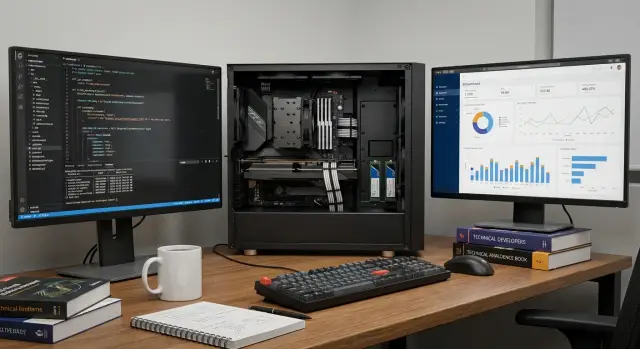
Where to start: what loads do IDEs, VMs and BI put on a workstation
The right choice doesn’t begin with a brand or the “fastest CPU”, but with your typical workday. A workstation should reliably handle the tasks you do regularly, not occasional checks.
Broadly, workloads can be split into light tasks and those that most often make the system “lag”. Light tasks usually include a code editor, a browser with several tabs, simple database queries and small dashboards. Things that slow work down include builds and tests (especially parallel ones), heavy IDE indexing, multiple containers or virtual machines, large BI data models that require in-memory processing, large memory-intensive exports and active work with local databases.
A “fast CPU” doesn’t always fix the problem because the bottleneck is often not the CPU. For example, builds can be limited by disk performance if a project constantly reads and writes thousands of small files. BI frequently hits RAM limits: when a dataset doesn’t fit into memory, swapping begins and everything suddenly slows.
Roles also differ in needs. Frontend work is often sensitive to single-core speed and a fast SSD (packages, builds, hot reload). Backend usually benefits from more cores and RAM (tests, multiple services, local databases). Data engineers and analysts often run into memory and storage subsystem limits (tables, caches, local computations), and sometimes GPU if they train models.
You can detect the bottleneck by simple signs during slowdowns:
- CPU sits near 100% and the interface freezes — computing power is lacking.
- RAM is almost full while the disk is very active even without your input — memory is insufficient and the system is swapping.
- RAM is free, CPU is moderate, but projects take long to open and builds are slow — often a slow SSD is to blame.
- VMs or containers consume resources even at idle — allocated CPU/RAM are set too high.
Example: a developer runs an IDE, two containers, a local DB and a BI dashboard to check data. If switching between windows stutters and the disk indicator is almost constantly active, adding cores will help less than moving to a faster SSD and increasing RAM.
Main components and what they deliver
A development and analytics workstation rarely hits one single limit. Usually a combination matters: CPU for builds and computations, memory for parallel work, a fast disk for projects and local databases, and sometimes a GPU for graphics or AI.
CPU serves two different roles. High frequency and strong cores matter for IDE responsiveness, compiling small projects, running tests and interactive work where responsiveness counts. Core count helps when you build projects concurrently, run multiple services, start a couple of VMs and compute in parallel. If heavy parallelism is rare, paying top dollar for maximum cores often isn’t worth it.
RAM provides breathing room when many tasks run at once. Limited memory works until the first large project, IDE update or another VM starts. Headroom is more important than saving: when RAM runs out the system writes data to disk and everything slows, even with a fast SSD.
SSD affects system boot, opening projects, indexing, local DBs and build speed (especially with many small files). NVMe almost always makes work feel snappier. But if tasks are simple and there’s only one project, a regular SSD will be fine. Often it’s wiser to get a larger SSD than the fastest tiny one.
GPU isn’t necessary for everyone. For BI, CPU and RAM are usually more important; a GPU becomes critical if you work with 3D, heavy graphics, multiple 4K monitors or model training using CUDA. Otherwise an expensive GPU is usually just an extra cost.
Before buying, quickly check a few points: whether you need CPU frequency or cores more, how many tasks you run in parallel (which determines RAM), the SSD capacity required for projects and data, if there’s a real GPU need, and whether ports and networking are sufficient. People often remember network and ports too late. If data sits on a server or network storage, 10G networking can be more useful than another CPU tier. If you regularly connect external drives, tokens, cameras or a second monitor, lack of ports becomes an everyday annoyance. Discuss these scenarios in advance with an integrator or support—when selecting workstations and servers, for example, with GSE.kz.
IDE and builds: choosing CPU, RAM and SSD
If your main work is IDE, builds and tests, performance usually depends on CPU, memory and disk speed rather than the GPU. It’s easier to build a cost-effective workstation here.
IDEs load the system not only with compilation. Indexing, code completion, static analysis, linters, local databases (for integration tests) and a browser with dozens of tabs create many small read/write operations. So a “fast CPU” without a decent SSD and sufficient RAM has limited effect.
CPU: for 1–2 projects and for a monorepo
For 1–2 medium projects, 6–8 performant cores (12–16 threads) with high frequency are often enough. This shortens build time and reduces IDE stutters during indexing.
If you work with a heavy monorepo, frequent builds, parallel tests and several local services, 12–16 cores usually fit better. Here multithreading headroom matters: builds and tests run in parallel while the system remains responsive.
RAM and SSD: where real speed appears
A simple memory guideline: 16 GB is the bare minimum. You’ll hit swapping quickly if IDE, browser and a couple of tools (Docker, messengers, DBs) are open. 32 GB generally provides comfortable daily work. 64 GB makes sense if you run heavy test environments, local databases or multiple IDEs and projects simultaneously.
Prefer NVMe for SSDs. A practical minimum often starts at 1 TB, because dependencies, IDE caches and build artifacts use space fast. To avoid chaos, separate storage by purpose: keep the OS and applications separate from project repositories, and put caches, build artifacts, temporary test files and local DBs on a different volume.
A second drive is justified when projects and builds are large and constant: you reduce disk contention and simplify maintenance. For example, a developer running two services and local DB tests might keep OS and IDE on one NVMe and repositories and caches on a second. As a result both builds and code search run more stably without unexpected slowdowns.
Virtualization and containers: common misjudgments
The main mistake when choosing a PC for VMs and containers is thinking frequency is everything. In practice RAM and disk speed are the typical limits: when memory is low the system starts heavy disk writes and even a powerful CPU is idle.
For RAM estimate from the math: guest OS + services inside + host reserve. As a guideline: 2–3 VMs for tests and small dev environments usually need 32 GB RAM, 64 GB is more comfortable. For 6–10 VMs (a couple of environments, test contours, several DBs) 64 GB often becomes a minimum and people aim for 128 GB. Containers (Docker, local Kubernetes) sometimes consume less per service, but many services quickly match VMs in total consumption. WSL is typically lighter than classic VMs, but heavy projects and databases also increase appetite quickly.
CPU needs cores and threads. A couple of VMs or several containers plus an IDE and browser create parallel load, so 8–12 strong cores often beat fewer cores with slightly higher frequency.
Disk choice for virtualization is the most frequently wrong decision. Images, snapshots and build caches grow fast. If you have 3 VMs of 60–80 GB each and keep 2–3 snapshots, one “zoo” can easily reach 500–800 GB. A realistic minimum for these tasks is a 1 TB SSD, and if you have many VMs or local databases, 2 TB is better. Not only rated speed matters but also fast random operations; otherwise VM startup and disk operations will feel sluggish.
Signs it’s time to add RAM or change the disk:
- VMs freeze when switching even though CPU is not loaded.
- Fans are noisy while the system constantly writes to disk.
- VM, build or test startup times grew noticeably after project growth.
- Snapshots accumulate and free space is continuously low.
- Containers start slowly and local databases respond with delays.
When selecting a workstation for these scenarios, provision RAM headroom and separate storage for images from the start. Practically this is cheaper than later migrating VMs and reinstalling environments. Vendors and integrators like GSE.kz can pre-agree configurations by VM counts and task types so you don’t overpay or live with constant shortages of memory or disk.
BI and analytics: performance, memory and monitors
In BI the bottleneck is often a combination: memory for the model, CPU for calculations and disk for paging and cache. So build the configuration for your data type, not for “just in case”.
BI tools load CPU when you build complex measures, run aggregations, apply filters and refresh models. RAM becomes critical when you keep large tables in memory, join sources and work with multiple reports at once. GPU can help in specific cases (many visualizations, hardware acceleration in some apps), but in most office BI tasks it isn’t the main limiter.
Large tables: what really helps
If a model doesn’t fit in memory, the system starts intensive disk IO and even a fast CPU won’t save you. A practical approach: first add RAM (this usually gives the most noticeable improvement), then consider CPU frequency and core count for calculations, and finally upgrade SSD to speed up data loads, cache and temporary files.
For disk capacity focus not on size alone but on speed and stability. A fast SSD reduces latency when refreshing datasets and working with intermediate files.
Local processing vs server-side: requirements differ
If calculations run on a server (DWH, BI server, remote desktop), your PC is about comfort: a good CPU for the interface, RAM with headroom for browser and office apps, and a reliable SSD. If heavy transforms and calculations happen locally, prioritize large RAM and a stronger CPU.
Offloading calculations to a server makes sense when refreshes take hours, models consistently don’t fit into memory, or one dataset must be computed for many users. In that case keep compute on the server (rack servers) and use the workstation for preparation, checking and visualization.
Monitors directly affect work speed. For BI it’s convenient when a table, filters and charts fit on screen without constant scrolling. Often one large high-resolution display or two identical monitors is better than the “most powerful” PC with a small screen.
Balance without overspending: where to save and where not to
The goal is simple: build a configuration with headroom for 2–3 years without buying the maximum on the shelf. For a workstation this usually means responsive IDEs, stable VMs and predictable BI performance without paying for rare peaks.
People often overspend on a top-tier CPU that pays off only in long builds and heavy parallel compiles, while everyday differences are modest. Another common overspend is an extra GPU: for IDE, SQL, dashboards and most BI tasks CPU and RAM are more important than a powerful GPU. Third, an excessively large SSD “for the future” can be wasteful; sometimes splitting into a fast system drive and a data drive is sufficient.
Things worth buying now because they are harder or more expensive to change later: a decent PSU and case (stability and headroom), adequate cooling (if the PC should run quietly for 8–10 hours), enough RAM for parallel tasks, and a reliable system SSD (often better to have a faster smaller SSD than a slower huge one).
Things that can often be added later: a second SSD for data, archive drives, sometimes RAM expansion (if slots are free) or a GPU if accelerated tasks appear later.
Simple example: a developer runs 2–3 VMs and Docker plus IDE and browser. Choosing a mid-range CPU but equipping the machine with extra RAM and a fast SSD usually feels faster than a costly CPU with modest memory.
Don’t forget total cost of ownership. Service matters as much as hardware: a day of downtime costs money. Choose a supplier with clear support and rapid repair or replacement, especially for offices and government bodies. GSE.kz, for example, advertises 24/7 support and a nationwide service network, which often becomes a deciding factor for corporate purchases.
Step-by-step selection algorithm
Selecting hardware is easier when you start from real tasks rather than “the most powerful”. Especially when one workstation runs IDE, builds, VMs and BI.
First collect inputs: which IDEs, how many projects, whether you use Docker or VMs, which BI tools, how many monitors and what resolution. Add constraints: budget, noise level, case size, warranty and support requirements.
Then follow steps and fix numbers, not impressions:
- Assess parallelism: what runs simultaneously. Example: IDE + documentation browser + 2 containers + background build + BI dashboard.
- Choose CPU by workload: frequent builds and heavy indexing need both frequency and a sufficient core count. If most work is single-threaded, don’t overpay for extra cores.
- Allocate RAM with headroom: calculate the base (OS, IDE, browser) and add per-VM/container consumption. A practical rule: keep 20–30% free memory on a typical day.
- Plan disks: a separate fast SSD for system and projects, and a second drive for data, VM images, caches and archives. This reduces drops when large files are read and written concurrently.
- Verify volumes: repositories, build artifacts, local DBs, datasets. Running “tight” often works for a month, then constant cleaning begins.
Be rational with the GPU and peripherals. For ordinary development basic graphics is enough. A GPU is needed for ML, CUDA workloads or many 4K displays. Monitors and a comfortable keyboard often provide more daily benefit than an extra 10% in raw performance.
Short example: if you run 2–3 test VMs and Power BI concurrently, it’s smarter to increase RAM and use a fast SSD first, then consider a more expensive CPU. Integrators like GSE.kz often have ready configurations for such roles.
Common mistakes when choosing a workstation
The most frequent issue: buying the “most powerful” CPU but then running out of memory. For IDEs, builds, a browser with dozens of tabs and several VMs it’s more important to have spare RAM than a few extra CPU percent. With too little RAM the system constantly swaps and everything slows.
Second pain point is storage. A small SSD fills with build caches, dependencies, Docker images and VM snapshots. You end up cleaning space instead of working. Worse is when people pick a single drive for everything: OS, projects, VMs and data. Then parallel operations interfere and a single failure risks losing everything.
Typical errors look like this:
- Buying a top CPU but skimping on RAM, then getting a slow IDE and VMs.
- Installing a minimal SSD and living in constant cleanup mode.
- Using one drive for system, projects and virtualization and later wondering about speed drops.
- Overspending on a GPU for BI when a fast disk and enough memory are more important.
- Ignoring noise, cooling and reliability and ending up with a hot loud machine in the office.
A less obvious mistake is lacking an upgrade plan and standards across the park. Today you buy “what was available”, and a year later the team has different connectors, RAM sizes and drives, turning support into a lottery.
Example: an analyst runs BI, Python notebooks and a browser while a nearby developer runs containers and a test VM. If both have one drive and little RAM, both will lag, even with expensive CPUs.
When picking workstations for an office, decide up front how many VMs are really needed, what volume of data is stored locally and how you’ll expand RAM and disks. Vendors like GSE.kz can account for this from the start: configure with proper cooling, two drives and clear headroom for growth.
Quick checklist before purchase
Spend 10 minutes and answer the following to avoid overspending or hitting memory/port limits in six months. Write numbers—they matter more than processor names:
- VMs and containers: how many simultaneously and how much RAM each needs. Add 20–30% margin for background services and updates.
- IDE and builds: how many active projects, how often builds/tests run, and how long a “clean” build takes now.
- Local data: how many gigabytes you keep on the workstation (repos, artifacts, datasets) and how that grows per year.
- Workspace: do you need 2+ monitors and what resolution (e.g., 2x 27" QHD or one 4K). Check video outputs (HDMI/DP).
- Corporate requirements: security and procurement standards, disk encryption, domain policy, and restrictions on non-standard components. Note required interfaces (USB-C, Wi‑Fi, card reader, 10G, etc.).
Example: a developer runs 2 VMs at 8 GB each and simultaneously starts an IDE and browser — RAM is the likely bottleneck, not the GPU. For an analyst with heavy datasets SSD capacity and read speed are critical.
If you buy equipment for an organization, confirm production and certification requirements. GSE.kz has domestic producer status and ISO certificates, which may matter for government procurement and corporate standards.
Practical example: three roles and straightforward configurations
Imagine a 12-person team: BI analysts build reports and models, backend devs constantly compile and run tests, and a data engineer runs pipelines and several environments. They need workstations but not identical, equally expensive machines for everyone.
Three tiers commonly cover needs (this approach applies to local build systems as well, including PCs and workstations manufactured in Kazakhstan):
- Basic ("to get work done"): 6–8 CPU cores, 32 GB RAM, 1 TB NVMe, integrated or simple discrete graphics. Suitable for BI analysts with typical dashboards and devs without heavy containers.
- Comfortable ("no waiting"): 8–12 CPU cores, 64 GB RAM, 1–2 TB NVMe, adequate cooling. Often the sweet spot for backend work (IDE + builds + tests) and BI with larger models and multiple sources.
- With headroom ("for peaks"): 12–16+ CPU cores, 128 GB RAM, 2 TB NVMe + second SSD for data, discrete GPU if needed (light ML or multiple 4K monitors). Usually for data engineers or those running 3–6 VMs and heavy local databases.
Reasonable headroom is different from overspending: you buy time. If daily gains (shorter builds, quicker tests, faster model refresh) are noticeable, it pays off. If you buy 128 GB for "just in case" but actual usage is 20–30 GB, it’s excessive.
What you can standardize across the team: fast NVMe, minimum 32 GB RAM, quiet cooling, identical ports and monitors. CPU and memory size should vary by role.
Verify the configuration in the first two weeks:
- Check peak CPU usage and how much RAM is actually used during the workday.
- Measure typical build and test run times (before and after).
- Assess whether SSD space is sufficient for ordinary projects and data.
- Confirm whether switching between IDE, browser and VMs still causes stutters.
- Collect short feedback: what annoys most (waiting, noise, heat, monitors).
Next steps: roll out quickly and avoid mistakes
To make the purchase truly speed up work, start with a short description of what currently slows things down. Different people may hit different limits: a dev suffers from builds and tests, an analyst from heavy models and reports, and DevOps from VMs and containers.
Turn inputs into a simple plan:
- List 5–7 typical tasks and where they slow (project build, starting 2–3 VMs, refreshing marts, rendering a dashboard).
- Agree on 2–3 profiles for the team (e.g., Dev, Dev+VM, BI) so you don’t select each seat from scratch.
- Create a short test plan and record times: clean build, test run, VM startup, opening a heavy BI report.
- Check compatibility in advance: monitor count, ports and docking stations, OS and encryption requirements.
- Budget for support and updates: a day of downtime from one failure often costs more than the configuration delta.
Measure speed by real workloads, not synthetic tests. Use a real repository, typical VM/container set and one heavy BI report. If after an upgrade the most frequent operations are 20–30% faster, the team will notice.
Plan service: who replaces a disk next day, how fast is a replacement, is there 24/7 support. For organizations where local production and supply transparency matter, consider GSE.kz as a manufacturer and integrator in Kazakhstan. If you have periodic heavy peaks (mass builds, model training, big calculations), it can be more cost-effective to offload some compute to servers in a data center and keep comfortable workstations on desks.
The final step is a 1–2 seat pilot. After a week of real work it becomes clear where the bottleneck was and you can scale the solution across the team.
Frequently asked questions
Where should I start when choosing a workstation if I don't know what I need?
Start by describing a typical day: which applications are open at the same time and what exactly slows down most often. Then, while the system is lagging, check which resource hits the limit: CPU, RAM, or disk. This approach leads to the right configuration faster than choosing by brand or “the most powerful CPU”.
When is a more powerful CPU really necessary, and when is it overkill?
If the CPU is at or near 100% during builds or test runs, you need a more powerful processor. If the CPU isn’t saturated but the system is sluggish, the cause is usually RAM (swapping) or the SSD. In practice, a noticeable improvement often comes from the combination “enough cores + lots of memory + fast NVMe”, not from a single expensive CPU.
How much RAM does a developer actually need: 32, 64 or 128 GB?
32 GB usually covers IDE, browser and a couple of containers without constant swapping. Choose 64 GB if you run VMs, local databases, heavy tests or BI models in memory concurrently. 16 GB is increasingly treated as the bare minimum and fills up quickly as projects and tools grow.
How can I tell if slowdowns are due to lack of memory rather than the CPU?
If RAM is nearly full during slowdowns and the disk is active even when you’re not doing anything, the system is swapping. Another common sign is freezing when switching between windows and a sharp drop in responsiveness when starting VMs, builds or updating a BI model. In such cases adding RAM usually helps faster than upgrading the CPU.
How important is an NVMe SSD and what capacity should I choose for development?
NVMe noticeably speeds up opening projects, IDE indexing, local databases and builds that touch thousands of small files. For very simple tasks with a single small project the difference may be less critical, but for development and virtualization NVMe is almost always felt. A practical minimum capacity is often 1 TB because caches, dependencies and images quickly consume space.
Why add a second SSD if I could just buy one large one?
Two drives help separate competing operations: keep the OS and applications on one drive, and repositories, caches, VM images and data on the other. This reduces performance drops when builds, tests and active VM writes happen at once. It's also easier to maintain and reduces the risk of losing everything if a single drive fails.
How to estimate a configuration for virtual machines and containers?
Estimate from needs: guest OS and services inside each VM plus host overhead. For 2–3 VMs used for tests and dev environments it’s reasonable to start at 32 GB, and 64 GB is more comfortable; if you run 6–10 VMs aim for 128 GB. For storage, allow space not only for images but also snapshots and caches, otherwise you’ll run out of free space unexpectedly.
What matters most for BI and analytics: CPU, RAM, SSD or GPU?
First add RAM if models or datasets don’t fit into memory and swapping starts. Then look at CPU if calculations and model updates are compute-bound, and after that upgrade the SSD to speed up cache and temporary files. In most BI scenarios GPU isn’t the main limiter, so memory, processor and disk are usually more important.
When does it make sense to buy a powerful GPU for a workstation?
A GPU makes sense when you have a specific need: ML with CUDA, heavy graphics, 3D work or multiple 4K monitors that require more rendering power. For IDEs, SQL and most BI reports an expensive GPU rarely speeds up daily work. If unsure, invest in RAM and NVMe first and add a GPU later if real load appears.
Which ports, network and support aspects should I confirm before buying to avoid regrets later?
If data sits on a server or NAS, network speed and stable ports can be more useful than a small CPU bump. Check how many monitors and which interfaces you need, whether USB is enough for tokens and external drives, and whether 10G is required. For offices, support and fast repairs matter—these details are easier to align in advance with an integrator when selecting configurations, for example with GSE.kz.
