8 min read
WMS development with MDT support: offline warehouse processes
WMS development with MDT support: how to design receiving, putaway, picking and inventory with offline mode and fast operations.
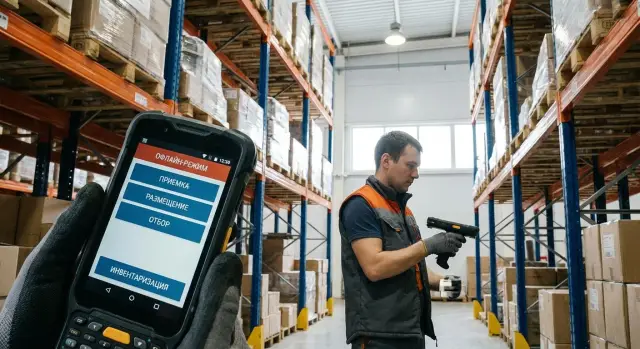
What you’re building: WMS with mobile data terminals (MDTs) and offline mode
A WMS paired with mobile data terminals (MDTs) solves a simple problem: make warehouse operations fast and verifiable. The WMS stores rules and documents (what was received, where it was stored, what was picked), and the MDT turns those rules into short steps right at the pallet or rack. More broadly, developing a WMS with MDT support is about data quality without slowing down people working in the warehouse area.
Offline mode is needed even with good Wi‑Fi. On the warehouse floor the network often drops in aisles, at gates, in freezers or near metal structures. There are also maintenance windows, access-point overloads and handovers between points. If the terminal blocks an action in that moment, you lose momentum and build a queue at receiving or shipping.
On an MDT a “fast operation” matters: one step should take 3–5 seconds. That means minimal text, large buttons, one scan instead of manual entry and a clear hint about what to do next. Typical example: a worker scans a box, the system immediately shows the item and expected quantity, then asks to scan the location.
Below are four processes where speed and accuracy decide everything: receiving, putaway, picking and inventory. In each process the same rule applies: when hands are busy and time is short, errors must be caught immediately, not at the end of the shift.
Warehouse model: zones, locations, items and barcodes
If you plan to develop a WMS with MDT support, start not with screens but with a simple, strict warehouse model. MDTs tolerate little: the operator must quickly understand where they are, what they hold and what the system expects.
It’s more convenient to describe the warehouse by zones because processes and rules differ per zone. Typical zones: receiving, buffer, storage, picking and shipping. For each zone define constraints in advance: can mixed goods be stored, is re-sorting allowed, is batch or serial number control required.
The key element of addressing is the location. The code should be short and readable for a person, not just for a database. It’s good when the code reveals where to look: aisle, section, level, position. And one rule is important: one physical marker on a rack = one barcode for the location, without alternatives or “temporary” stickers.
Practical rules for coding locations are simple: fixed length and one format across the warehouse, avoid similar symbols (0/O, 1/I), clear left-to-right logic (zone-aisle-section-level-position), and large printing so it can be scanned from distance.
Next are units of measure: unit, box, pallet. For the WMS these are different entities because receiving may be by pallet while picking is by unit. If the warehouse uses batches, expiry dates or serial numbers, add those fields to stock records. Otherwise inventory and complaint resolution quickly become guesswork.
Keep separate reference data: items, barcodes (including alternates), packaging, partners, and employees. A small example: the same item can have an EAN on the piece and an internal code on the box, and the MDT should understand both without unnecessary questions to the operator.
Roles and documents: to keep processes manageable
For predictable warehouse operations, split two layers in the WMS from the start: who performs an action (role) and in which “container” the action lives (document). Then even in offline mode the MDT knows what is allowed and what is read-only.
Roles: who is responsible for what
Roles are best defined as simple access rules tied to scan and confirm operations. In practice the following set is usually enough:
- Receiver: opens a receiving task, scans the delivery and records discrepancies.
- Warehouse operator: performs putaway and internal movements between locations.
- Picker: executes picks from tasks, confirming by scanning the item and the location.
- Inspector: performs quality or receiving checks, confirms seals and closes stages.
- Administrator: configures reference data, rights, zones, printers and rules.
This approach simplifies developing a WMS with MDT support: the device shows only the screens and buttons needed for a given role.
Documents, statuses and restrictions
A document is the “frame” where operations are recorded: delivery (receiving), movement, order (picking), inventory, write-off. Each document should have clear statuses so offline operations don’t turn into chaos: e.g., Draft, In progress, Under review, Closed.
On the MDT keep only quick actions that are confirmed by scans: add a fact line, change quantity within allowed tolerance, change destination location by rules, choose a discrepancy reason from a list. Dangerous changes are better handled in the office: manually changing item master data, backdating warehouse changes, deleting lines or reopening/closing documents.
Logs: who confirmed what
Logs are not “for controlling people” but for resolving disputes. Minimum to store: user, time, device, operation type, scanned codes (item, location, document), and quantity values before and after.
Example: a picker offline scanned location A-03-02 and an item, confirming 10 units. Later the network returned and another worker closed the order for 8. From logs you can see who confirmed 10 and when, and the system can send the document for review instead of silently changing records.
Offline-first architecture in plain words
Offline-first means the MDT doesn’t “wait for the network” to work. Receiving, putaway, picking and inventory must be as fast deep in the warehouse as near an access point. When connectivity returns, the device gently catches up with the server.
Local database on the MDT: what to store
On the MDT keep only what’s needed for fast operations and local checks: reference data and active tasks. Leave all “heavy” and rare data on the server.
Typically the device should store:
- item master (ID, name, barcodes, units)
- address data (zones, locations, availability statuses)
- current documents and user tasks (receiving, picking, count)
- validation rules (what can be scanned, which fields are mandatory)
- the “last known” stock state for hints, but not as the source of truth
Don’t pull full movement history, all warehouse balances or reports to the MDT. That slows searches, complicates updates and increases risk of leakage.
Operation queue and synchronization
Each action on the MDT is recorded as an operation in a queue: “received 10 pcs”, “moved to location A-01-02”, “picked line”, “counted location”. The queue is sent to the server in original order, with retries on errors. Important: an operation should be idempotent so repeated submission doesn’t duplicate results.
Syncs are usually triggered immediately after an operation if network is available, on a schedule (e.g., every 1–5 minutes), and when the app starts or connectivity is detected.
Security: the minimum required
For WMS development with MDT support include basics: authorization with short-lived tokens, operation signatures (who and when), encryption of the local database and transport. Keep the server in your own perimeter if needed, e.g., in a corporate data center on local equipment to meet control and transparency requirements.
Receiving process: a fast MDT scenario
Receiving on the MDT should work equally fast online and offline. The area is noisy, hands are busy and connectivity may drop. Keep the scenario short: minimal screens, maximum scans.
A fast action flow looks like this:
- choose the delivery (by number, QR or from an “awaiting receipt” list)
- scan the item (item barcode or supplier label)
- enter quantity (default 1, quick +1, +5, +10 buttons)
- choose a discrepancy reason if needed (damage, re-sort)
- confirm the line (save locally if offline)
It’s important that the MDT immediately shows a short hint: what was expected for this delivery and how much has already been received. That reduces gate disputes and speeds up training for new staff.
Keep checks on a single screen rather than turning receiving into a “quest.” The minimal set that prevents losses: wrong item (scan doesn’t match expected), surplus (record separately for later agreement), shortage (close with discrepancy so the document doesn’t hang), damage (tag status and print a quarantine label), duplicates (re-scan of the same serial or mark).
Ask for labeling and serial numbers only where truly needed. Good rule: for individual expensive items (servers, workstations) serial is required; for consumables received by the box, quantity per package is often enough. In offline mode perform local validations (serial format, uniqueness within the current delivery); global checks run during synchronization.
Printing labels is justified in two cases: when the product lacks a readable code for subsequent operations, and when you explicitly separate flows (quarantine, returns, re-sort). Otherwise printing at receiving slows the line and creates a queue at the printer.
Putaway: simplify location choice and reduce mistakes
Putaway often wastes time not because of heavy algorithms but because of small doubts: where to put it, is it allowed, is the spot free. The goal is simple: the operator does minimal actions and the system suggests a safe option and prevents mistakes.
Location selection rules that work in real warehouses
A good selection starts with basic filtering. First rule out clearly unsuitable places: no free volume, wrong temperature, compatibility ban (e.g., chemicals vs food), wrong zone. Then choose the “best” from the remainder: by ABC (fast-moving items closer to shipping), by height and weight, shelf fill level, and forklift route.
To keep the MDT from behaving like a “mini computer,” package rules into clear templates: “pallets to pallet locations,” “piece items to shelves,” “quarantine only to QC zone.” Templates are easier to explain to staff and simpler to maintain.
MDT scenario: three scans and done
The screen should present one action at a time with a large hint about what to scan:
- Scan the pallet or box (the system understands item, batch, quantity).
- The system suggests a location and you scan the rack location.
- Confirm putaway (button or auto-confirm if everything matches).
Handle exceptions on the spot. If the suggested location is occupied the MDT shows the reason and offers 2–3 alternatives. If “no space,” the operator can choose temporary placement in a buffer zone. If a scanned location is outside the allowed zone, the system states plainly: “This is the shipping zone, putaway is forbidden.”
To reduce manual entries use auto-suggestions: the system remembers typical links “item - zone - location type” and validates key restrictions offline using local reference data so work isn’t blocked.
Picking: speed without losing accuracy
Picking is where a WMS either saves minutes per order or consumes a shift with extra steps. With MDT + WMS the goal is simple: the worker performs minimal actions while the system silently checks the essentials.
Choose picking strategy to fit your warehouse and load. For small flows, pick-by-order works. When orders are numerous and similar, wave picking helps. Route-based picking improves travel speed. Large sites often use zone picking where each person handles their zone and passes containers along.
On the MDT keep the scenario short and repeatable:
- take a task (order, wave or route segment)
- scan the source location
- scan the item (barcode, DataMatrix, serial — whichever you use)
- enter or confirm quantity
- confirm the line and move to the next
Then invisible checks kick in that save you from re-sorting. If the wrong location is scanned, the MDT should block confirmation and show an error. If the wrong item is scanned, enforce a hard block. If quantity exceeds available or requested, offer a clear choice: forbid or allow only with a reason (e.g., “recount on site”) and log the event for later review.
Offline mode is critical here: the MDT must continue picking without network using a pre-downloaded task and local stock hints. To keep data consistent, devices commonly implement a “soft reserve” and send events (scan, quantity, time) at sync.
A short check before shipping reduces returns without lengthy inspections. For example, scan the container code on the pack and then quickly re-scan 3–5 items from the order (or all items for small orders). This catches the typical “took from the neighboring shelf” error before the gate.
Inventory: count fast and without chaos
Inventory in a WMS with MDT is valued not for pretty reports but for speed and control. Decide in advance which modes you need: full (infrequent and thorough), cycle (small daily counts), zone-based (e.g., only receiving or storage), or location-based (when there’s suspected error). All modes should feel the same simple way on the MDT.
The best approach on the floor is “location by location.” A person doesn’t think about documents; they close one control point and move on. On the MDT it looks like this:
- select a zone or route (so the MDT shows nearby locations)
- scan the location barcode
- scan items and enter quantities (or confirm one-by-one)
- close the location and proceed
Make “close location” an explicit action. After closing, the system records the result and who counted it. For speed, show short hints: last scanned item, expected item for that location, and a clear signal on a barcode error.
Discrepancies are inevitable but shouldn’t become local disputes. Simple rules help: quick recount button on the MDT, a short list of reasons plus free text, optional photo as evidence, and temporary location block if movements must stop until review.
Offline scenario is critical: results must not be lost if connectivity drops mid-aisle. Store operations on the device as an event queue (scan, quantity, close location) with time and user. When connectivity returns, data is sent to the server and the MDT receives confirmation. If a conflict arises (e.g., another user already counted the location), present simple choices: accept the newer count, send for review, or open a re-count task.
Fast MDT operations: UX that actually saves time
Speed on the floor usually fails not because of WMS logic but because people must constantly think, type and correct. In WMS development with MDT support, winners make input as scan-centric and predictable as possible, even when the device is offline.
A good MDT screen answers one question at a time. First “what is this?” (scan item), then “where from?” (source location), then “where to?” (destination), and only then quantity if it isn’t clear from context. Fewer fields mean fewer mistakes and faster hands.
Screen patterns that work in the warehouse zone
A few rules usually suffice:
- Large buttons and short labels, avoid tiny tables and long forms.
- Cursor always in the scan field; the keyboard opens only when needed.
- Auto-advance to next step after a successful scan.
- “Repeat last action” and a quick back step.
- Clear summary: what was done and what to do next.
Signals and hot actions
Operators need to understand an error faster than they can read it. Sound, vibration and color should distinguish success from stop without reading text, and messages should be simple: “Wrong location,” “Item not in this task,” “No connection, operation saved.”
Some actions mustn’t be hidden in menus: quick location-to-location moves, correcting a location on re-sort, unpacking a set, and printing or reprinting labels. For example, during picking the operator scans an item and the system immediately suggests appropriate packaging and shows a single “move to another location” button if there’s no local stock, saving the event to the queue until sync.
Synchronization and conflicts: what to do when the network “jumps”
Offline mode usually means one thing: the MDT keeps working fast and synchronization catches up later. To avoid breaking operations when the network fluctuates, follow a simple rule: each action on the MDT is a separate record in a local queue that can be safely retried to the server.
The key is stable identifiers and idempotency. For each operation (scan location, confirm putaway, decrement on pick, enter count) generate a unique operation_id and store it both on the device and server. If the network breaks and the device sends the same record twice, the server should detect the duplicate and reply with the same result without creating duplicate decrements or receipts. This is the foundation of WMS development with MDT support.
Conflicts will still happen. Typical cases:
- The same item was reduced twice in different shifts while both MDTs were offline.
- Two operations occupied the same location in parallel.
- An inventory changed stock while a pick was already confirmed later.
Decide conflict policies in advance and make them understandable to people. A combination often works: server-side priority for accounting balances, soft locks on critical objects (location, pallet, document) and manual review when the system detects risk. For example, if two operations try to occupy one spot, the server confirms the first and moves the second to “requires resolution.”
Observability is as important as logic. A supervisor needs a clear picture: how many operations are queued, how many aren’t sent, which errors repeat. Minimum signals: queue size per device, age of the oldest event, share of rejected operations, list of document conflicts and alerts for stuck synchronization.
Typical mistakes in WMS with MDT development
The main trap is that a WMS looks great in a browser but “dies” on the MDT. If the screen is crowded with fields, small text and constant tab-switching, people start bypassing the system: entering approximate values, skipping scans and making paper notes.
A common cause of errors is weak addressing. When zones and locations are described vaguely and rules are not enforced (where you can put or pick from), staff rely on memory. This increases re-sorts, creates “lost” stock and turns investigations into hours of work.
Offline mode is often implemented “as it comes”: operations are saved somewhere unclear, statuses aren’t visible and sync overwrites data. Decide in advance what constitutes a completed action on the device, when it’s sent to the server and how the user sees that everything was delivered.
Also don’t test only perfect cases. Warehouses always have partial receipts, missing inserts, returns, batch switches, picks without the right location and recounts “by fact.” If you don’t test these on the floor, the system will fail at the busiest hour.
Finally, many skimp on logs. A useful log is not just “error 500” but context: who, where, which document, what was scanned, stock before and after, and whether the device was offline.
If you want a quick way to reduce risks, follow five rules: one action = one screen and minimal manual input; mandatory scans for item and address (with clear exceptions); visible queue of offline operations and their status; tests on “dirty” scenarios with real storekeepers; and contextual logs for dispute resolution.
Checklist and next steps for rollout
Before go-live make sure the base data and warehouse rules are ready. Even the best WMS with MDT support will be blocked by disputed statuses, “gray” locations and manual workarounds.
Short readiness checklist
Check these items before the pilot:
- Reference data: items, packaging, batches or expiry dates (if needed), zones, locations, packaging types, users and roles.
- Statuses and restrictions: what can be done with an item in each state (received, in putaway, in picking, blocked, counted).
- Offline queue: which operations are allowed without network, how the queue is stored on the MDT and what counts as successful delivery.
- Scan control: where scanning is mandatory (item, location, pallet), which hints to show on error and how to prevent skipped scans.
- Logs: who did what and when, including cancellations, corrections and offline events.
Then run a small pilot. Its goal is not to implement everything but to prove people can work at real pace and data converges.
Build the pilot to be honest: one warehouse or one zone, 2–3 processes (e.g., receiving, putaway, picking), and 2 roles (warehouse operator and shift lead). Use real shifts and volumes, limit the number of MDTs and set a fixed observation window (e.g., 1–2 weeks). Pick metrics in advance: average operation time, scan error rate, share of offline operations, sync time and number of conflicts.
After the pilot move to scale: refine warehouse requirements (labeling, addressing, storage rules), then select infrastructure for load (servers, workstations, network, backup power, support). If you need help with infrastructure and integration for WMS, you can rely on the experience of GSE.kz (gse.kz) in system integration and server platforms, including 24/7 support.
Frequently asked questions
Where is the best place to start WMS development with MDT so you don’t get lost in details?
Start with a warehouse model: zones, addressable locations, units of measure (piece/box/pallet), compatibility rules and restrictions. If addressing and barcodes are done “haphazardly,” a polished MDT interface won’t save you — people will make mistakes and bypass controls.
Why do you need an offline mode if the warehouse has Wi‑Fi?
Offline mode prevents operations from stopping when connectivity drops at the gate, between aisles, in freezers, or during access-point handovers. A proper offline mode saves actions to a local queue on the device and syncs them later without data loss.
What speed of operations on an MDT is considered normal and how to achieve it?
A good target is 3–5 seconds per step: one question per screen, minimal text, large controls and the scanning field focused. Typical flow: scan the item, then scan the location, then a short confirmation without extra forms.
How to organize location addressing and their barcodes correctly?
Make the code short, keep a single format across the warehouse and make it human-readable, not just database-friendly. Avoid similar characters (0/O, 1/I) and use a left-to-right logic that helps a person find a place even without system prompts.
Which roles and permissions should be defined in WMS with MDT?
In the MDT it’s best to separate permissions by operations: receiving, putaway, picking, quality control, administration. That way the device shows only the actions a role needs, reducing the risk of accidental dangerous edits during fast work.
What is safe to allow on the MDT and what should be prohibited?
Keep only fast, scan-confirmed actions on the MDT: add a fact line, adjust quantities within allowed tolerances, select a discrepancy reason from a list. Risky operations — manual item changes, backdating, deleting lines — are better restricted to the office UI.
What data should realistically be stored locally on an MDT for an offline-first approach?
Store what is needed for quick on-site checks: items and barcodes, zones and locations, active tasks, and validation rules. Don’t push full stock balances, movement history or reports to devices — that slows searches and complicates updates.
How to synchronize offline operations without duplicates or losses?
Record each action as a separate operation with a unique identifier, send them to the server in the original order with retries on failure. The server must process operations idempotently so repeated sends don’t create duplicate issues.
How to resolve conflicts when two MDTs confirmed operations offline and data diverged?
Decide policies in advance: which side has priority, when manual review is required, and which objects get soft locks (location, pallet, document). If the system detects a risky situation, better mark the document for review than silently overwrite data.
Which logs are mandatory in a WMS with MDT and why are they useful?
At minimum, log the user, time, device, operation type, scanned codes and quantity values before/after. These logs help quickly investigate disputes and sync conflicts and show where the process breaks so you can adjust rules or the interface.
