8 min read
Windows pilot update rings: rollout by models
Windows pilot update rings: how to group devices by model, detect driver failures, pause and safely roll back updates.
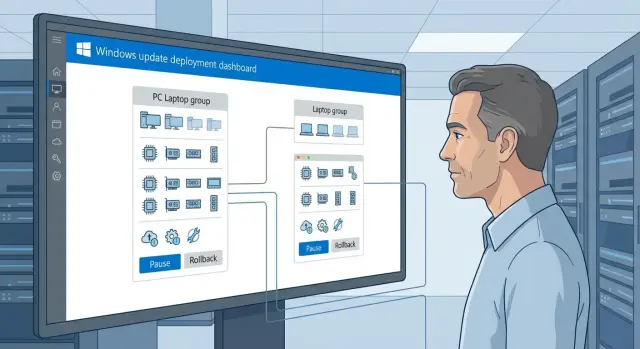
Why split Windows updates by model and hardware
The same Windows update can pass unnoticed on some machines and break others. The reason is almost always hardware differences: chipset, GPU, network adapter, storage, BIOS/UEFI version and even board revision. Windows updates follow general rules, while drivers and firmware vary across a fleet.
Most "bad" stories are not about Windows itself but about how an update interacts with drivers and low-level system components. A rollout by hardware profile gives a simple win: risks become visible on a small group, and you don't stop the whole organization from working.
Common symptoms that usually point to a driver or firmware problem:
- blue screens or reboot loops right after installation;
- Wi‑Fi or network gone, VPN won't connect, driver rolled back to a "basic" version;
- black screen, flicker, noticeable drop in graphics performance;
- issues with sound, camera, scanner, smart card, printer;
- BitLocker errors, failures on sleep/resume.
When you build pilot rings by model, downtime risk reduces in two ways. First, you get an early warning specifically for the configurations used by most employees or critical for the business. Second, diagnosis is faster: if a failure repeats on one model, it's easier to find the common factor (a specific driver, BIOS version, hardware batch) and stop the wave only where needed.
For the scheme to work, roles matter. IT sets ring rules, success criteria and deployment windows. Support logs incidents consistently (model, symptoms, time, driver version) and quickly separates a mass failure from an isolated one. Business application owners confirm that key apps and peripherals survived the update, especially on specialized workplaces.
If the fleet is mixed (office PCs, AIOs, workstations and servers, including locally produced equipment), grouping by hardware profile helps avoid "averaging" risks and keeps updates under control.
What are deployment rings and hardware profiles
Deployment rings are predefined waves of update installation that go from a small, controlled set of devices to the main estate. The logic is simple: test on a small number of machines first, then expand coverage, and only after that install everywhere.
In practice it's convenient to keep 3–4 rings and separate rules for critical devices. A common setup: pilot (IT and a few tolerant users), early wave (some departments where speed matters), broad wave (the bulk of workplaces) and special rules for critical scenarios like accounting during reporting periods, medical equipment, cash desks and control rooms.
A hardware profile is more than the "brand of a laptop." It's a set of attributes that actually affect update risk: model and revision, CPU and chipset, GPU, network adapter (including Wi‑Fi), storage type, BIOS/UEFI version and key drivers. Two visually identical PCs can behave differently if, for example, their network card or graphics differ.
Consider what type of updates you deploy: monthly quality updates, feature updates, separate driver and firmware updates. Often it's not "Windows itself" that breaks but the specific combination "update + driver," causing loss of sound, network or printing even after a clean install.
Define the acceptable risk for each ring in advance: what counts as a tolerable issue (e.g., a single printing failure) and what halts the wave (loss of network, BSOD, VPN failure). Then the pilot works as insurance, not a formality.
If the fleet contains different workstation and server series, build hardware profiles by model and typical vendor configurations. For organizations in Kazakhstan this often means separate profiles for locally produced PC and server lines, including GSE models.
Device inventory: what to collect before rollout
Before starting pilot rings, tidy up your inventory. Without it you won't understand why an update went smoothly on some machines and broke sound or network on others.
Gather a minimal set of fields that help find common causes and quickly highlight risk groups:
- device model and board model (for example series and generation: L200/M200/S200 or your own lines);
- serial number and inventory tag (to avoid mixing up clones);
- BIOS/UEFI version and firmware date;
- Windows version (edition, build) and update channel;
- key drivers with versions (video, Wi‑Fi/LAN, audio, chipset, storage).
Add a criticality tag. It's not for reports but to order waves correctly. Tag cash desks and terminals, medical workplaces, classrooms, accounting, servers and specialized stands separately. If a device serves people directly (reception, admissions), avoid putting it into early waves even if the hardware is identical.
Identical configurations are often masked: equipment bought in different years may contain the same Wi‑Fi controller or GPU. Group not only by model name but by a "hardware fingerprint": CPU, device IDs, BIOS version, key driver versions. That will reveal that "different batches" actually behave the same.
To avoid manual inventory drift, update data automatically: regularly collect information from MDM/AD/scripts, track changes (driver updates, BIOS changes) as separate events, log component replacements in service records and do a quick inventory check before each wave.
With this data set it's easier to decide which devices to test first and to narrow the search when typical driver failures occur.
How to build hardware profiles and deployment groups
A deployment group should answer: "If the update breaks, how many identical devices will be affected and how fast will we notice it?" Therefore group by hardware and role rather than by department.
Start with basic rules. Keep devices that are as similar as possible in one group and split differences into subgroups. Consider model and generation, CPU platform (Intel/AMD and generation), graphics type and driver stack, network and peripheral drivers, and device purpose when software and policies differ significantly.
Mixed fleets of Windows 10 and 11 should not be in the same wave even if hardware is identical. Different update branches and support timelines carry different risks. Practical order: split by OS and edition (Enterprise/Pro) first, then create hardware groups within each branch. If update policies differ (deferrals, reboot windows) treat them separately, otherwise it will be hard to know what influenced results.
Separate devices with nonstandard drivers or special peripherals: EDR agents, USB tokens, specialized scanners, rare printers, integration systems and kiosks. Give them a separate group even if they share the same model, because a failure may be caused by the combination "driver + service + policy" rather than Windows itself.
For rare configurations follow one of these approaches: if there are many and they are important — create a small separate ring and test early; if there are few but critical — use manual control and update only after successful waves on mass profiles; if unique and without replacement — predefine rollback windows and verify quick recovery of the previous driver.
Example: if the fleet consists of standard office PCs and touch AIOs (like L200 and M200 lines), keep them in different hardware groups. AIOs often show touch-driver and GPU nuances that are best caught separately.
Step-by-step rollout plan by rings and models
A rollout plan by model ensures updates don't break work for everyone at once. Pilots should include not only the bravest users but real device types present in the fleet.
Assemble the pilot so it has representatives of each important model and each special case: different GPUs, Wi‑Fi modules, docking stations, touch screens. If you have desktops, AIOs and servers of various series, the pilot should include devices of every type.
Rollout steps
Follow the same scenario without improvisation:
- Form the pilot: 3–10 devices per model, plus 1–2 critical roles (accounting, reception, dispatch).
- Assign an update window and a short communication plan: when it will be installed, what the user will see, where to report issues.
- Record a baseline before start: Windows version, key driver versions, BIOS/UEFI, encryption status, available disk space.
- Update the pilot and observe for 3–7 days without expanding the wave, even if things "seem fine."
- Expand rings by percentages (for example 5% -> 20% -> 50% -> 100%) and according to preagreed stop-conditions.
Metrics and stop-conditions
To make the go/no-go decision objective, choose simple metrics in advance:
- rise in blue screens or reboot loops;
- loss of network or Bluetooth, printing issues;
- repeated Device Manager errors for the same driver;
- noticeable slowdown in boot time or general performance;
- number of support requests per 100 devices.
If a stop-condition triggers, do not expand the wave. Pause, identify models where the issue repeats and prepare a targeted rollback or block the update for those specific groups.
How to log driver failures and find patterns
In pilot rings the main risk is usually not the update itself but how it interacts with specific drivers on specific models. Agree in advance what counts as a failure, where to log it and which fields are mandatory.
What counts as a signal
Collect not only BSODs but also "quiet" problems users report as "everything got slow" or "printing stopped." Keep a short set of signals per wave:
- BSOD: frequency, Stop code, mention of a driver file (often *.sys);
- application crashes: app name and faulting module;
- network: VPN drops, Wi‑Fi/network disappearance, address acquisition errors, sharp speed drops;
- printing: stuck queues, inability to print to certain printer models;
- devices: loss of camera, touchscreen, Bluetooth, sound after reboot.
How to distinguish driver vs application: if the problem recurs across different programs, appears after sleep/reboot, affects a device completely (network, sound, input), and system events mention system components or *.sys, the driver is likely at fault. If only one app crashes while devices and other programs work, it's probably the app or its plugins.
How to file an incident
To find patterns later, tickets must be tied to hardware and driver version. Minimal fields that are realistically filled:
- device model and hardware profile (e.g., batch/series: L200, M200, S200);
- Windows version (10/11), build number and update installation date;
- problematic driver version (vendor, date, version);
- symptom and code: Stop code for BSOD, Event ID (for example 1001 BugCheck, 219 Kernel-PnP);
- steps before failure and frequency: "after sleep", "after second reboot", "once a day".
Simple example: in a pilot group of several M200 AIOs some users lose touch input after an update. If tickets consistently list the same hardware profile, input-driver version and appearance time immediately after the update, you quickly see the chain "model + driver + update". The response becomes targeted: pause the wave for that model, test an alternative driver version and roll back only where needed.
Pause and rollback: how to do it safely and calmly
A pause is needed not because "everything is irretrievably broken" but to avoid multiplying the issue across the fleet. The main rule: decide by data, not impressions. If the update affected only a pilot ring, you have already limited the damage.
Common triggers to pause immediately:
- noticeable spike in support requests on one topic within 1–2 days;
- repeating BSODs with the same code on one model or one driver;
- mass network degradation (Wi‑Fi, VPN, 802.1X, printing);
- drop in disk or graphics performance after the update;
- failure of critical software repeating on identical hardware.
Next choose an action. Sometimes stopping just the current ring is enough. If failures appear on one hardware profile, narrow the scope: exclude that model, a specific BIOS revision or a driver set. Often it's enough to lock the driver version temporarily and continue rollout for the rest so the organization isn't blocked.
Prepare rollback before the first wave. Verify devices have system protection or another recovery method, that backups restore correctly, and that disk encryption (e.g., BitLocker) won't block recovery. This is especially important for identical batches of PCs or workstations where a driver error repeats serially.
A rollback plan should be short and preagreed:
- timing: when the rollback decision is made and how long the maintenance window lasts;
- responsibilities: who pauses, who performs rollback, who accepts results;
- communications: a brief notice to users and support about the change;
- control: list of devices in rollback and success criteria (BSOD gone, network stable);
- post-check: 24–48 hours monitoring and targeted driver updates if needed.
Common mistakes in hardware-profile rollouts
The most common problem: the pilot looks like "we tested on 50 PCs" but those 50 were the same model with identical drivers. The update goes fine, and in the next wave a different line shows black screens, lost sound or broken Wi‑Fi.
Another trap is scheduling two risks on the same day: deploying a cumulative Windows update and simultaneously mass-updating drivers. If failures follow, you won't know the cause. Separate changes over time and record exactly what was changed.
A further mistake is running a rollout with no boundaries: no stop-conditions, no success criteria, no observation period. Then the team decides by feelings rather than data.
Several rules that usually save you:
- the pilot must include all key hardware profiles, including rare models and different driver versions;
- do OS updates and major driver updates in separate windows;
- define metrics and stop-conditions before start;
- check BIOS/UEFI and firmware when they affect power, networking, key storage or stability;
- ensure rollback plan includes verification of business applications and security policies.
Another frequent oversight is ignoring firmware. For example, on some workstations an update may change power management behavior and a system may start putting the network adapter to sleep. This can surface only on a specific board revision or BIOS version.
Finally, rollback is not "revert the update and forget." After rollback verify critical apps launch, antivirus and disk encryption work, and policies haven't returned to a conflicted state. This is crucial in an environment with mixed device classes where desktops, AIOs and servers coexist.
Short checklist before start and after each wave
A checklist prevents small oversights that lead to mass downtime. Keep it consistent for every wave.
Before start
Before the first wave be sure you know exactly what you're updating and where the risks are:
- inventory is current: model, CPU, chipset, GPU, Wi‑Fi, BIOS/UEFI version, current Windows build;
- backups and recovery plan exist (for critical groups a tested procedure, not just "a backup is enabled somewhere");
- list of critical models and roles compiled: accounting, cash desks, terminals, medical devices, classrooms;
- stop-factors defined: domain logon failure, VPN drop, mass BSOD, loss of network.
During the pilot and each wave
During the pilot don't "install and forget"; quickly spot repeating issues:
- collect a short daily report: how many updated, how many rolled back, how many in error;
- record driver versions for problem devices (video, network, storage) to see what changed;
- watch for identical symptoms on one model (e.g., Wi‑Fi drops after sleep on a specific series);
- note exceptions: who should not receive the update yet and why, so they are not lost.
Before expanding to the next group
Expand by hardware profile only when the situation is clear:
- no repeating incidents on one model or there is a known workaround;
- error rate below the preagreed threshold (for example no more than 1–2% problematic devices in the wave);
- list of models on pause and a plan for them.
Pause and rollback
Rollback should be routine, not heroic:
- assign a person (and a backup) who decides on pause/rollback;
- set time limits: how long to wait for a fix and when to roll back;
- define how to verify the result: required build, driver version, key apps working.
After a wave
After finishing a wave consolidate results to avoid repeating mistakes:
- update the profile baseline (which Windows build and which drivers are considered normal);
- record lessons: which models required pauses, which drivers conflicted;
- update documentation on hardware profiles and exception rules.
Example scenario: update, driver failure and targeted rollback
Fleet: 420 PCs on Windows 10 and 11. Four main models: office desktops, two batches of AIOs, designer workstations and laptops for field staff. Some workstations share the same discrete GPU, and laptops share an identical Wi‑Fi module. Printing uses a single shared driver across several printer models.
Rollout uses pilot rings split by hardware profile. The pilot includes 5–10% of devices from each model plus 1–2 critical roles: the secretary who prints contracts all day and an on‑call engineer who works via VPN.
A day after installing a cumulative update pilots start showing identical complaints from laptops: Wi‑Fi drops after sleep. Meanwhile, a different symptom appears in accounting at one spot and on a different model.
Actions:
- Confirm the pattern: same model, same Wi‑Fi driver, same update version.
- Stop the wave only for the laptop group, not the whole fleet.
- On affected laptops roll back the update and block the problematic driver while investigating.
- Create an exception: laptops remain on the previous version, other models continue receiving the update.
The rollback is targeted: office desktops and AIOs continue on schedule if they show no symptoms. After 3–7 days, when Microsoft or the vendor releases a fix or updated driver, retry on a small subgroup of laptops.
Record the result centrally: KB or build number, affected model and driver identifier, how many devices were impacted, actions taken and next check date. This saves time when the same issue appears in a future wave.
Next steps: embed the process and simplify support
To make pilot rings an ongoing practice, formalize them: clear roles, a regular cadence and a single source of truth for devices. Then each update requires less manual work and causes fewer headaches.
Maintain a hardware profile map: which models, which critical drivers, owners and incident history. It doesn’t need to be perfect — it must be updated after each wave and purchase.
A quarterly ring calendar is useful: pilot windows, expansion windows and mass deployment, plus buffer time for pause and rollback. This lets the business know in advance when changes may occur and prevents IT from making last‑minute decisions.
Set a standard you won’t break without cause:
- minimum hardware and driver version requirements for Windows 10 and 11;
- list of supported models and typical configurations (RAM, disk, GPU, network adapters);
- exemption rules: who approves them and for how long;
- a single approved source for driver installation.
When procuring, consider rollout from the start. If a team ends up with 5–6 variants for one role (different Wi‑Fi modules, different GPUs), you get 5–6 risk sets. Prefer bulk purchases and keep consistent profiles for critical teams.
For organizations in Kazakhstan, standardizing workstations and servers and clear vendor support is an added benefit. If you use equipment and integration from GSE.kz (gse.kz), it helps to preagree typical profiles, driver requirements and 24/7 support procedures so incidents go to the right team faster and don't become mass outages.
Frequently asked questions
Why not just deploy Windows updates to all computers at once?
Because the same update can interact differently with drivers and firmware across configurations. Rolling out to everyone at once risks a mass outage caused by a failure on a popular model or a specific driver version.
How many deployment rings does an organization really need?
Typically 3–4 rings are enough: a pilot (IT and a small group), an early wave, a broad wave, and special rules for critical workstations. This gives time to detect recurring issues and stop the rollout before the main estate is affected.
What exactly should be in a hardware profile to make it useful?
A hardware profile is the set of attributes that affect post-update risk: model and revision, CPU and chipset, GPU, network adapters, storage type, BIOS/UEFI version and key driver versions. «Same model» without these details often hides different boards and controllers, and therefore different failure causes.
Which data must be collected in inventory before starting rollout?
Minimum: device model, serial/inventory number, BIOS/UEFI version, Windows edition and build, and versions of key drivers (video, network, chipset, storage, audio). This is usually enough to quickly spot common factors and identify at-risk groups.
How to build a pilot so it really catches problems?
Include representatives of every important model and every special case: different GPUs, Wi‑Fi modules, docking stations, touchscreens and uncommon peripherals. Practical guideline — several devices per profile so an issue appears reproducibly rather than as a one-off.
By which metrics should we decide to stop a wave?
Set simple stop-conditions in advance and monitor recurrence by model and driver. Mass BSODs, loss of network/VPN, or identical device errors in Device Manager are reasons to pause the wave for that specific profile rather than continuing "on a hunch."
How to quickly tell driver issues apart from application issues after an update?
If the issue affects the whole device (network, audio, input), appears after reboot/sleep and system events mention system components or a *.sys file, a driver or firmware is the likely cause. If only one application crashes while everything else works, the app or its plugins are the probable culprit.
Which fields in a support ticket help find patterns?
Ticket fields should link incidents to hardware and driver versions. Record device model and profile, Windows version and update date, problem driver version, symptom and event codes. When the same fields repeat across tickets for one model, you can quickly identify the update–driver–hardware chain.
How to safely pause and roll back if an update goes wrong?
Pause first and narrow the scope to affected profiles rather than rolling back the entire estate. Prepare rollback steps beforehand: verify restoration works, check disk encryption impact and have a clear, short sequence to revert a build or driver without chaos.
What mistakes most often break a rollout by hardware profiles?
Avoid changing OS updates and major driver updates in the same window — otherwise you won’t know which change caused failures. Also avoid pilots that only cover a single model; include all key profiles, especially in mixed estates with different series of desktops, AIOs and servers (for example, L200/M200/S200 lines).
