8 min read
Scaling Windows for Spreadsheets: a Screen Without Fatigue
Windows scaling for spreadsheets: how to choose monitor diagonal and resolution and set scaling to reduce input errors and eye fatigue.
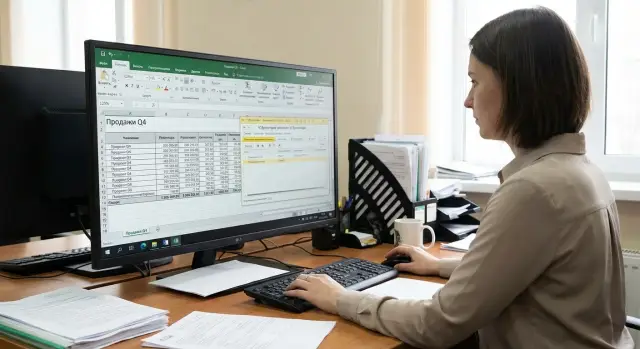
Why the screen affects mistakes and fatigue
When you spend the day working with registers and spreadsheets, you’re not looking at a “pretty picture” but at small numbers, codes, dates and statuses. If text is too small or the interface looks “blurry,” the brain spends energy recognizing characters instead of processing meaning. By evening this turns into eye fatigue and irritation, even when the tasks were ordinary.
The problem is often not your eyesight or a “habit,” but the combination of diagonal, resolution and scaling. At too high a resolution on a small screen everything becomes miniature. With poor scaling some windows and fonts start to blur, especially in older accounting programs. As a result you read more slowly and double‑check yourself more often: is that a 3 or an 8, a 0 or an O?
Input mistakes also happen sooner when you constantly strain your eyes and aim. Missing small buttons with the mouse, choosing the wrong row in a table, missing a minus sign, adding an extra zero, shifting columns — these are typical consequences of inappropriate scaling. When hurried, people rely on the overall shape of a word or digits, and a tiny or fuzzy font breaks that cue.
Accounting systems and Excel differ from “regular office work” because data density and accuracy matter. You often compare values row by row, switch quickly between fields, and keep multiple windows and filters on the screen. So Windows scaling for spreadsheets affects not only comfort but also work quality.
Common signs of the problem are obvious: you squint or lean closer to the screen, get headaches or a gritty feeling in your eyes by evening, miss clicks on buttons and checkboxes more often, and confuse similar digits and symbols. Another signal is increasing the window or zoom only in one program because “everything else is too small.”
Good news: in most cases this is solved by choosing the right screen and carefully adjusting scaling, without complex gear or costly upgrades.
Three key things: diagonal, resolution, scaling
If you spend the day in registers and tables, comfort is mostly determined by three parameters: diagonal, resolution and scaling. They’re easy to mix up, but the difference is crucial, especially when the goal is fewer mouse misses and fewer numeric errors.
Diagonal is the physical screen size (for example, 24 or 27 inches). Resolution is how many pixels fit on it (for example, 1920×1080 or 2560×1440). Pixel density (PPI) shows how small elements will appear at the same diagonal: the higher the resolution on the same size, the smaller the fonts and buttons.
Here’s the catch: two 27" monitors can feel different. 27" at 1080p usually gives larger elements and less eye strain, but less workspace. 27" at 1440p shows more rows and columns, but without proper scaling the text can become too small.
Windows scaling and an app’s zoom are not the same. Windows scaling enlarges the system interface and most programs (menus, panels, dialogs). An app’s zoom changes only the content inside its window (for example, Excel zoom) and leaves system buttons unchanged. For table work it’s usually better to set Windows scaling first, then fine‑tune the app zoom.
Common options in practice:
- 100% — maximum screen space, but small text at high resolution.
- 125% — often the calmest compromise for 24–27".
- 150% — useful if your eyes tire or you sit farther from the screen.
Example: an accountant uses an accounting system and Excel side by side. On a 27" 1440p display at 100% digits in rows look crisp but too small, and the hand misses input fields more often. At 125% fields become more noticeable, and in Excel you can keep 100% or set 110% to preserve table width while avoiding squinting.
Understanding your tasks and workspace constraints
Before choosing diagonal, resolution and scaling, honestly assess how you work with registers every day. Some people type numbers into narrow fields for hours; others mostly review reports and compare rows. That determines what matters more: a large readable interface or more space on the screen.
If you do a lot of manual entry, look at the element sizes in your accounting system. Problems start where the grid is too dense, rows are thin and input fields are small. On such an interface a small font increases mouse misses, numeric errors and eye fatigue. Scaling should help, not turn the window into an unreadable mess.
Decide separately how many windows you keep open. When an accounting system, Excel and, say, mail or a messenger are open at once, screen requirements change. If you mostly work in a single large window, larger elements matter more. If you routinely keep two or three windows, width and font clarity are more important so columns don’t get “eaten.”
Quick self‑check (5 minutes)
Answer five questions (write them down): how many hours a day do you look at tables, and how much of that is data entry; are fields and fonts in your accounting system small (is it comfortable to read from your usual distance); how many windows do you really keep open (1, 2 or 3); what is the eye‑to‑screen distance at your workspace (usually 50–80 cm); do you have enough desk depth to push the monitor back without hitting a wall.
Example
If you sit close because the desk is short and work with tiny fields, plan for a larger interface (higher scaling, not the smallest font). If the desk is deep and you often need two windows side by side, the screen area and comfortable column width are more important.
Once you have those answers, picking a monitor and settings becomes easier. You’re less likely to buy something that’s “too small” or “too clunky.”
How to choose diagonal and resolution for registers and tables
For registers, accounting systems and Excel readability of small text and data density matter more than a “pretty” image. The right diagonal/resolution combo reduces mouse misses, numeric errors and eye fatigue, while Windows scaling makes the interface comfortable.
24" at 1080p works if you sit close and tables are simple: 8–12 columns, large fonts, few windows side by side. But for dense registers with many columns and small fields it’s often a compromise: either “too small” or “too little fits.” On 24" 1080p many people raise scaling and lose useful space.
27" at 1440p is the most common balance for tables and registers. You can fit noticeably more text than 1080p while keeping it readable without excessive scaling. It’s a good choice for accounting, inventory lists and long contractor lists.
32" with 4K makes sense when you need to see a lot at once: wide reports, pivot tables, two windows side by side (for example, accounting system and Excel). Remember: with 4K you almost always need 125–150% scaling, otherwise elements are too small. Check in advance how your applications behave at higher DPI.
The question “one big screen or two monitors” is often down to habit. One large screen is convenient if you work in a single window and keep everything nearby. Two monitors help when you constantly cross‑check documents, move rows and compare reports. A second screen often reduces switching and copying errors.
A laptop as the primary screen is usually not ideal for registers: little space, small fonts, and the neck tilts down. If a laptop is unavoidable, an external 27" 1440p monitor often brings the fastest comfort improvement.
Recommended scaling options for typical screens
Correct Windows scaling is especially noticeable in tables: if numbers are tiny your eyes tire faster and you miss cells and buttons. With good settings you can read rows for eight hours without strain and hit targets with the cursor on the first try.
For 1080p (1920×1080) it’s often easiest to start at 100%. On 23–24" that gives a familiar text size and fewer surprises in old accounting apps: fewer interface elements getting out of place. If the 24" is placed farther away or your eyes tire by lunchtime, switch to 125%.
Starter guidelines by screen:
- 24" 1080p: 100% or 125% (if too small)
- 27" 1440p (2560×1440): most often 125%
- 32" 1440p: 100% or 125% (depends on distance)
- 27" 4K (3840×2160): usually 150% or 175%
- 32" 4K: often 125% or 150%
With 4K you almost always need higher scaling. Otherwise text becomes too small even though there is more workspace, which quickly leads you to squint and move closer to the monitor.
Signs that the chosen size works: main text is readable without leaning in; you don’t constantly change Excel zoom; clicks on small buttons and checkboxes are accurate; by the end of the day you don’t feel a gritty sensation in your eyes.
If fonts look blurry, first check the recommended scaling in Windows and enable font smoothing (ClearType). If only one application is blurry, try high‑DPI compatibility settings for that app; the system scaling can remain at the comfortable value.
Step‑by‑step Windows scaling setup
Follow a simple rule: set the monitor’s native resolution first, then change scaling. If you do it the other way around you can easily end up with blurry fonts and “jumping” elements.
Open Settings -> System -> Display. Under “Scale and layout” check two items: “Display resolution” and “Scale.”
-
Set the native resolution. Windows usually marks it as “(Recommended).” On a non‑native resolution tables can look odd: thin lines, fuzzy numbers, extra “grain.”
-
Choose the recommended scale and check readability. For registers you must clearly distinguish similar symbols (for example, 8 and 0, 1 and 7) and read without squinting. Open a typical Excel file or a table in your accounting system and look at the real font sizes you work with (often 10–12 pt).
-
Compare the practice, not the percentages. A good scale is the one where you read rows without leaning in, hit fields reliably with the mouse, and your eyes don’t “float” by the end of the day.
If you don’t want to change system scaling (for example, you like how much fits on the screen), try the softer option: in the same display settings change the "Text size" only. Increasing text often reduces fatigue without breaking table density.
Then check apps individually. In Excel the sheet zoom in the bottom‑right is handy: don’t keep it at 80–90% for the sake of fitting things — raise it to a comfortable level and adjust column widths. In browsers make sure page zoom is at 100% unless you intentionally changed it; an accidental 110–125% can mislead you into changing system settings for the wrong reason.
Final check is simple: open the accounting system and Excel side by side, enter 5–10 test rows and work for 10 minutes. If you want to push the monitor back or lean forward, go back to Display and try another scale (for example, 125% instead of 100% or 150% instead of 125%).
If an app is blurry: DPI and compatibility fixes
A common case is setting 125% or 150% and then seeing the accounting system, an old bank client or some windows become “blurry.” Older apps that don’t handle high DPI properly often leave scaling to the system and appear fuzzy.
Do a quick check first. Some programs pick up DPI only at launch, and sometimes you need to sign out and in again. If the issue appeared after a Windows update or a monitor change, this is especially important.
If blur persists, try per‑application compatibility settings (do this selectively): close the program; open the shortcut or .exe properties and go to the Compatibility tab; click “Change high DPI settings”; enable “Override high DPI scaling behavior” and test the options “Application” and “System (Enhanced)” in turn. After each change restart the program and evaluate not only clarity but usability: font sizes, column widths and whether the interface gets cut off.
Important: sometimes it’s better not to change compatibility. If fixing the blur breaks buttons, crops fields or makes some windows unclickable, revert and use a milder scale (for example, 125% instead of 150%). As a last resort you can try a different resolution if the monitor and workflow allow it, but always start from the native resolution.
In remote sessions (RDP) scaling can be applied on both ends. If blur appears only in the remote desktop, check connection settings and restart the session. Clarity may depend on the resolution and scaling selected for the remote screen.
Common mistakes when choosing and configuring
Fatigue and mistakes usually stem not from “bad eyesight” but from a few wrong choices when buying and setting up. Fixing them is often easier than it seems.
The first pitfall is buying a 4K monitor and leaving scaling at 100%. Fonts and digits in registers become tiny, you lean forward and miss cells. For accounting and Excel readability matters more than “paper‑sharp detail.”
The second mistake is adjusting only Windows scaling and forgetting app settings. Excel, the browser and the accounting system may each have their own zoom and font size. As a result Windows looks fine but tables remain too small (or too large).
The third mistake is using a non‑native resolution. For example, setting 1920×1080 on a 27" 1440p monitor makes the image soft, letters seem to “float,” and eyes tire faster. Always start with the native resolution, then tune scaling and fonts.
The fourth mistake is making scaling too large “just in case.” Reading becomes comfortable but useful space shrinks: columns don’t fit, scrolling increases, and you lose track of rows. For tables balance font size and visible data.
The fifth is using two monitors with different scales and not testing window behavior. When dragging an app between screens fonts can change or become blurry. This is especially visible in older accounting software.
After buying and configuring, do a short check: native resolution on each monitor; Windows scaling tuned for comfortable reading, not “to make everything fit”; proper zoom and font sizes in Excel and the browser; you can work a couple of hours without leaning in; dragging windows between monitors doesn’t blur text.
A simple example: an accountant opens the accounting system on the left monitor and Excel on the right. If one screen is 125% and the other 150%, numbers and rows look different and the hand starts making mistakes in identical input fields. It’s better to choose perceptually similar settings and lock them across workstations.
Quick checklist before purchase and after setup
To make scaling actually reduce fatigue, you need to not only choose a monitor but test it with real tasks. Ten minutes is enough if the test resembles your workday.
10‑minute test (in store or on a new monitor)
Take a familiar Excel file or open a demo register and perform a short sequence of actions without rushing. Read 20–30 rows in a row and note whether you have to “peer” at numbers. Make 10–15 data entries (dates, amounts, IIN/BIN) and check for cursor misses. Find a row by document number and verify sums across two columns as in a normal reconciliation. Notice how many rows fit without scrolling and whether key columns fit without constant horizontal scrolling. Click on tiny UI elements (arrows, checkboxes, drop‑downs) to check click accuracy.
If you make more extra clicks or confuse adjacent rows, a slightly larger scale (for example from 100% to 125%) or a different diagonal/resolution combo usually helps.
Post‑setup quality control at home or office
Right after setting scaling and restarting apps do a quick validation to avoid surprises later. Compare font readability in tables and input fields — they should be equally comfortable. Restart the PC and reopen the accounting system: did blur appear? Check 2–3 key windows (register, document card, print form): scaling should not break layout. Make sure the cursor and row highlight are visible, especially on gray tables.
Rule of thumb: if your eyes noticeably tire within 10 minutes or you start double‑checking numbers more often, tweak the settings immediately rather than “getting used to it.”
Example scenario: accounting system plus Excel
A typical accounting day often looks like this: the accounting system register is open on the left, Excel for reconciliations and exports on the right. Common mistakes are simple: wrong row, missed minus sign, entered a number in the wrong field. Almost always this ties back to small text, tight rows and constant refocusing.
Moving from a 24" Full HD (1920×1080) to a 27" 1440p (2560×1440) changes the main thing: you can fit more columns and rows without horizontal scrolling. The text doesn’t have to get smaller if you set Windows scaling correctly.
A good starting point for 27" 1440p is 125%. The perceived text size often matches 24" 1080p at 100%, while usable area is larger. This reduces switching: you minimize window collapsing, keep context, and find the right cell faster.
To use two windows together try this layout: the accounting system takes 60–70% width (fields and statuses matter), Excel uses the remaining 30–40% (checking sums and formulas). In Excel freeze the top row and first column so headers stay visible while scrolling.
Settings to start with:
- Windows: 125% scaling (raise to 150% if text is still small)
- Excel: sheet zoom 90–110% and font at least 11–12 pt
- Row height: slightly larger than default to hit cells easier
- ClearType enabled if letters “flicker”
You’ll know it helped when there are fewer end‑of‑day corrections, fewer pauses before typing, and less need to look down at the keyboard. If staff check rows faster without squinting or excessive scrolling, the configuration worked.
Next steps: lock settings and update workstations
Once you find a comfortable scale and font sizes, don’t leave it only on one PC. The same register looks different on different screens, which increases input errors and fatigue.
Make a short plan and apply it on 2–3 typical workstations — this is faster than troubleshooting complaints like “it was fine yesterday, today everything is tiny” after a Windows or app update.
A typical workflow: fix the baseline (diagonal, resolution, Windows scaling, and key app font sizes), test with real tasks (accounting system + Excel, print forms, search, long inputs), then agree on standards for the department (same monitors and scaling for similar roles — operators, accounting, cashiers). Allow some headroom so new UI versions don’t immediately eat up screen space. Save and document settings so a new PC is configured in 10 minutes, not “as it happens.”
If you plan a full workstation refresh, collect inputs for selection: distance to screen (cm), which apps are open all day, how many windows you keep, single or dual monitors, and frequently printed forms.
When you need a turnkey selection for accounting systems (monitor, workstation, compatibility, support), involve the vendor and system integrator — for example GSE.kz (gse.kz) — to standardize equipment and avoid inconsistent settings.
Frequently asked questions
Why do I tire faster and make more mistakes in spreadsheets with the “wrong” screen?
Most often the issue is that interface elements are too small or slightly blurry. The brain spends effort recognizing characters instead of understanding content, so you tire faster and check numbers and rows more often.
What signs indicate that the scaling and text size don't fit me?
If you squint, lean toward the monitor, get headaches or a gritty feeling in your eyes by evening, or clicks on small buttons and checkboxes become less accurate, the scaling is likely uncomfortable. Another sign is increasing the window or zoom only in one program because “everything else is too small.”
What matters more for registers: diagonal, resolution or Windows scaling?
Diagonal is the physical screen size, resolution is how many pixels fit on it, and Windows scaling determines how large the interface and fonts appear. High resolution on a small screen often makes everything too tiny, which then has to be corrected with scaling.
Where should I begin to avoid blurry fonts?
Start by setting the monitor's native resolution, which Windows usually marks as “recommended,” then choose scaling. This helps keep text crisp and avoids blurry fonts.
How is Windows scaling different from zoom in Excel or accounting software?
Windows scaling enlarges the system interface and most apps (menus, panels, dialogs). The app zoom changes only the content inside the window, so for accounting systems and tables it's usually better to set Windows scaling first and then adjust the app's zoom if needed.
Which diagonal and resolution are commonly chosen for accounting and registers?
A common comfortable choice for registers and Excel is 27" with 2560×1440: you can fit more columns and rows, and at 125% text usually stays readable. 24" with 1920×1080 works when you sit closer and tables are simple, while 32" with 4K makes sense when you need to see a lot at once and are ready to use higher scaling.
Why do I almost always need 125–150% on 4K and why is that okay?
On 4K at 100% elements are usually too small and make you squint and miss with the mouse. It's normal to use 125–150% (or higher) so text is readable; then you regain usable space by arranging windows and tuning table layouts.
What to do if the accounting program becomes “blurry” after 125% or 150%?
First restart the program and, if needed, sign out and back in — some apps apply DPI only on launch. If blur remains, try per-application high-DPI compatibility in the app's properties and test options like “Application” or “System (Enhanced)”. Check that the UI doesn't break afterward.
Can two monitors with different scaling cause errors and discomfort?
Yes. Different scalings and pixel densities can change size and clarity when you drag an app between screens. Older programs are especially sensitive. To reduce issues, keep displays similar in perceived size and avoid mixing very different scalings unless necessary.
How to quickly test in a store or office that the monitor and scaling suit me?
Open a typical table or register and perform real actions: read a few dozen lines, enter 10–15 values, and click small UI elements. If after 10 minutes you want to move closer or notice more misses and rechecks, change the scaling or the diagonal/resolution combo.
