6 min read
Windows licensing in VDI: options and procurement mistakes
Windows licensing in VDI: options for thin clients and remote users, common procurement mistakes and a quick checklist.
What's the licensing problem with Windows in VDI
Windows licensing for VDI is easy to get confused about: the familiar logic "you buy a PC — Windows is covered" doesn't hold. A virtual desktop runs in a data center, while the user connects from another device. So the main question becomes: are you licensing the access device or the user's right to connect to Windows in a virtual environment?
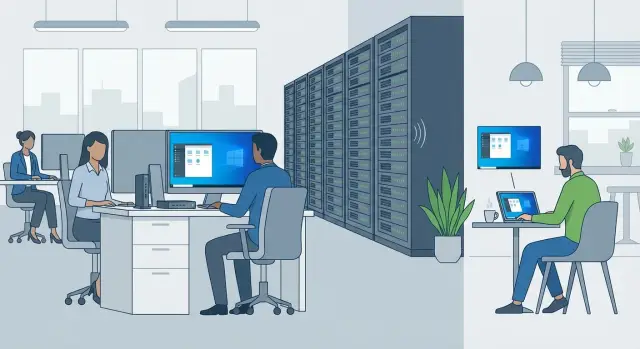
VDI differs from both a regular PC and simple "remote access." On a physical computer Windows is installed on a specific machine and rights are usually tied to that hardware. In VDI Windows runs on a server, and connections can come from thin clients, old office PCs, employee laptops or personal devices. The same virtual desktop can serve different endpoints — and that breaks the usual procurement assumptions.
The most common mistake is buying "something for Windows" that doesn't match the real scenario. For example, an organization buys thin clients and assumes that because they don't have a full Windows install, no licenses are needed. Or conversely: they buy user licenses while access actually happens from shared devices in a classroom, call center or shift area. As a result, licenses are either insufficient or partly redundant.
Disputes usually arise between IT and procurement: IT talks about access to virtual desktops and infrastructure, while procurement asks for a simple number — "how many Windows licenses?" To choose a scheme (including options like VDA and Software Assurance) you need at least basic input: what devices will be used to connect, is access tied to people or to shift-based workplaces, is remote access required, are there compliance or audit requirements, and how ready are you for an audit.
Errors in calculation lead to two extremes: overspending or compliance risks when rights to access Windows in VDI are not covered. A typical scenario: a company issues 80 thin clients in the office and allows 40 employees to connect from personal laptops, but counts licensing only for the office devices. On paper everything "adds up," but actual connections exceed the purchased rights.
How VDI is arranged and why it affects licensing
VDI (Virtual Desktop Infrastructure) means a Windows desktop runs as a virtual machine in a data center. The user sees the familiar interface and apps but works in a remote environment.
There are two basic virtual desktop types:
- Persistent (personal): a virtual machine is assigned to a user, and settings and applications are preserved.
- Non-persistent (pooled): a user gets a desktop from a pool and changes are typically reset after logout.
The model choice affects access planning, profile storage and updates. It's easy to miscount licenses because the groups of users and endpoints change.
Where Windows actually runs
The key point: Windows executes on servers in the data center, while the user's device (thin client, laptop, home PC) typically only displays the screen and sends input.
A typical architecture includes a hypervisor with virtual machines, a connection broker, image and profile storage, network and security tools (for example, MFA and segmentation). This architecture simplifies management and security but breaks the assumption that "Windows is licensed on the PC." In VDI, the question is instead: which device or which user has the right to access the remote Windows.
Why the type of access device changes the rules
For licensing it's critical where connections originate from:
- corporate PC with a proper Windows base license;
- thin client without a full Windows OS;
- personal device (BYOD).
Simple example: an office buys thin clients and also allows access from home. If you count licenses only by the number of virtual machines in the pool, you may miss requirements related to access devices and remote use rights to Windows. That leads to "surprises" during audits or procurement approvals.
Key Windows licensing options for VDI
Licensing in VDI differs from the "buy a PC with Windows and work" scheme. It's important not only where the OS runs but who connects and from which devices.
Windows OEM on a physical PC almost never covers access to VDI. OEM is tied to a specific device and gives the right to run Windows locally. When Windows runs as a virtual machine in a data center, access rights are usually covered by other licenses.
Windows Enterprise and Software Assurance
The most common corporate route is Windows Enterprise with active Software Assurance (SA). SA usually grants virtualization rights and legal access to a virtual desktop (depending on the chosen model — device- or user-based). When SA expires, many continue using VDI out of inertia, although access rights may no longer be covered.
VDA: when you need it
Windows VDA (subscription) is required where a device doesn't "qualify" for Windows Enterprise with SA. Typical cases: thin clients without appropriate base Windows, BYOD, some contractor and temporary user scenarios. VDA is essentially purchased as the right to access Windows in a virtual environment — either per device or per user.
In practice you'll often see:
- Windows Enterprise with SA for employees using corporate PCs;
- Windows VDA for thin clients, BYOD and external users;
- a combination: SA for office PCs + VDA for remote access, if parts of the workforce use different endpoints.
The key choice is user-based or device-based licensing. Device-based is usually beneficial when a device is used in shifts (reception desk, shared workstation). User-based is more convenient when one employee connects from multiple devices: office PC, laptop, home PC.
Thin clients: common mistakes
Thin clients are often seen as "just a screen and keyboard," and that's where mistakes begin. In VDI it's not important where the virtual desktop runs, but from which device it is accessed.
Three typical setups
Common deployment patterns are:
-
A device without Windows (or with a lightweight OS). The thin client itself may not require a Windows OS license, but access to the virtual Windows still needs proper coverage.
-
A device with Windows Pro and active Software Assurance. This works well for workplaces that sometimes run locally and sometimes connect to VDI. Important: it must be active SA, not just Windows Pro.
-
Shared terminals in high-traffic areas (shift workstations, reception, call center). Here licensing is usually counted per device since users rotate and the terminal is tied to a place.
The choice between device-based and user-based typically hinges on whether the workplace or the employee is fixed.
Peripherals: don't overcomplicate
Monitors, scanners, printers and card readers by themselves do not create additional Windows license requirements. The licensed object is the access point (device or user), not the set of peripherals. In practice it's more important that USB redirection, printing and scanning work correctly in VDI — that's an architecture and policy issue.
Example: a clinic reception uses a terminal with a scanner and printer, shared by six employees per shift. It's usually logical to license the terminal, not each person who uses it for 20 minutes.
If you run the project with a system integrator, agree in advance which devices are shared and which are personal. That often saves weeks of procurement negotiations.
Remote users and BYOD: main traps
Remote work often breaks calculations because in VDI the access device matters. A home PC, personal laptop or tablet may lack required rights, making access to the virtual desktop a compliance risk.
The main BYOD trap is counting "by number of virtual machines" or "by office devices" without accounting for real endpoints. Another frequent failure: contractors and temporary staff connect from their own devices for short periods and are assumed to be covered by standard licenses.
To avoid mistakes, agree on a simple inventory: who connects, from which devices, from where, and who verifies if a device is corporate or personal. Branch offices can follow the same rules but different processes — and that's where devices and user groups most often fall through the cracks.
How to choose a licensing scheme: a practical sequence
Mistakes are almost inevitable if you start with "how many virtual desktops." Start with who can access them.
-
Define user categories: permanent staff, contractors, temporary personnel. Note shift work separately.
-
List access devices: thin clients, office PCs, laptops, home devices (BYOD), terminals in lobbies and production areas.
-
Choose an accounting model: per user or per device. For hybrid work it's often simpler to go per user, while shift workplaces are usually better per device.
-
Check Windows coverage: do corporate PCs have active Software Assurance or is VDA required? This is where people often assume coverage exists but audits show only part of the estate is covered.
-
Document rules in writing: include them in procurement requirements and in an access registry (who may connect, from which devices, who keeps the register and how new users are added).
Mini scenario to validate logic
Suppose you have 120 office employees, 40 of them regularly work from home on their laptops, and there are 15 contractors for 2 months. If you count by device you'll quickly get stuck with BYOD and temporary connections. If you count by user it's easier to control rights, but you must be clear on who counts as a user and how you revoke contractor access at contract end.
Data you can't do without for correct licensing
Most errors start from incomplete input data. Minimum data to collect beforehand:
- total number of users who may work via VDI and how many connect concurrently (these are different numbers);
- presence of shared workplaces (shifts, lobby terminals, registry desk, operator stations);
- device inventory (model, OS, where used — office, production, branch);
- who needs remote access and BYOD usage;
- who owns the accounting (usually a joint area: HR, IT and procurement).
Even correctly purchased licenses stop matching reality over time if there's no process: hires, dismissals, moves, device issuance and role changes.
Typical procurement and approval mistakes
Most VDI problems start not with hardware but with interpreting rights. People often assume: "we bought servers and a VDI platform — everything is covered." But auditors and vendors look at who and from which device accesses the Windows desktop.
Common mistakes:
- thinking thin clients eliminate the need for access licenses;
- counting only the server side (hosts, hypervisor, storage) and forgetting user and device rights;
- confusing VDI with RDS and budgeting the wrong licenses and assumptions;
- choosing device-based licensing where people connect from multiple endpoints, or user-based where work is shift-based;
- not defining BYOD and contractor rules.
Short example: an organization deploys VDI in a central data center and buys thin clients for branches. A month later they add seasonal operators and an IT contractor for a couple of weeks. If you don't account for such peaks and whether personal laptops are allowed, the purchase will fail during approval.
Example scenario: mixed workplaces and remote work
Imagine a clinic. The reception has high patient flow, doctors work in rooms on shifts, and some specialists occasionally connect from home.
Inside VDI it's one virtual PC, but for licensing it matters which devices people use.
For the reception desk it's usually logical to license per device: terminals and thin clients are fixed and used by rotating shifts.
For doctors the picture is mixed. If a doctor has a corporate laptop and only connects from it, the model can rely on device-based rights (depending on corporate coverage). But once a second access method appears (home PC, personal laptop), it's usually safer to license by user: one doctor — access from multiple devices.
Quick checklist before procurement
Pause for 10 minutes before approving the specification and check three things.
1) What connects to VDI
Collect an actual list of access devices and counts: corporate PCs and laptops, thin clients, lobby terminals, personal devices (BYOD). Even one "forgotten" device class can change the licensing model.
2) Who may connect
Agree user categories and the owner of the rules: permanent staff, contractors, temporary personnel, training classes, shift medical staff, administrators. The vague phrase "access as needed" without defined roles usually ends with remote access appearing quietly and licenses not being updated.
3) How this is reflected in the licensing model
Ensure the chosen scheme is explicitly stated in the specification and tied to the scenario: "per device" or "per user", corporate or personal, office or remote. Pay special attention to BYOD and contractors — the most common area of underestimation.
Next steps: prepare procurement without surprises
Before procurement remove guesses. In VDI a small assumption like "allow access from personal laptops" quickly turns into a different licensing model and budget.
Create a short "reality map" and align it with IT and security: who works in VDI, from which devices, where access comes from (company network only or also home and travel), which applications are critical, and how you define a "user" (named or by shift).
Then ask the vendor to explain the chosen scheme in plain terms: what exactly you pay for (device or user), what rights that gives, and what changes if BYOD appears or the contractor pool grows. It's valuable to plan a pilot not as a formality but to test assumptions: real peaks in concurrent sessions, the share of personal devices, and groups with special rights.
And don't forget infrastructure. VDI often hits limits in servers, storage and network, and downtime can cost more than licenses. If you need a single supplier, it can be convenient to run the project through a system integrator who handles architecture, hardware and support. For example, GSE.kz as a server manufacturer and system integrator in Kazakhstan can help align VDI infrastructure requirements with the chosen access model and ongoing support.
When inputs are collected, Windows licensing in VDI stops being an argument and becomes a calculation you can confidently defend to the procurement committee.
Frequently asked questions
What is VDI, and why does it require separate Windows rights?
In VDI, Windows runs as a virtual machine in a data center, and the user connects to it from another device. That means you need to consider not only the number of virtual desktops, but also the users and access devices.
Does a Windows OEM license cover access to a virtual desktop?
Usually not. An OEM license is tied to a specific physical PC and grants the right to run Windows locally. Accessing Windows in a virtual environment requires rights that specifically cover that scenario.
Is a license required if a thin client operates without Windows?
A thin client can run without Windows, but that does not remove the need for rights to access virtual Windows. For these devices, Windows VDA or another arrangement that matches the access terms is often considered.
When is Windows Enterprise with Software Assurance appropriate?
Windows Enterprise with active Software Assurance is often used for corporate PCs when employees need rights to virtual desktops. Simply having Windows Pro without active SA usually does not resolve VDI access rights.
When is Windows VDA required?
VDA is generally used for devices without eligible base Windows, personal devices, thin clients, and certain external users. It is chosen when you need to license the right to connect to Windows running in VDI.
Which is more cost-effective for VDI: per-user or per-device licensing?
The per-user model is convenient when one employee connects from several devices, such as from the office and home. The per-device model is more often suited to shared terminals used by different employees in shifts.
How should employee-owned devices be accounted for in VDI?
BYOD needs to be accounted for separately. A personal laptop or home PC may not have corporate rights, so licenses designed only for office devices often do not cover that access.
What information should be collected before calculating VDI licensing?
Start by listing every group: employees, contractors, and temporary staff. Then record which devices they use to connect and from where, including home devices and shared terminals.
Do scanners, printers, and monitors need to be licensed in VDI?
No. A monitor, scanner, or printer does not create a separate licensing requirement. It is important to identify the access device or user, and verify USB, printing, and scanning functionality in the VDI settings.
What mistakes are most common when purchasing licenses for VDI?
The most common mistake is counting only virtual machines or servers and forgetting the access points. Problems also arise when thin clients, BYOD, contractors, and shared shift workstations are left out of the calculation.
