8 min read
Windows Kiosk Mode: Assigned Access, Shells, and Updates Without Downtime
We explain Windows kiosk mode: Assigned Access, kiosk shells and update strategies that avoid downtime, plus a decision matrix covering UX, security and administration.
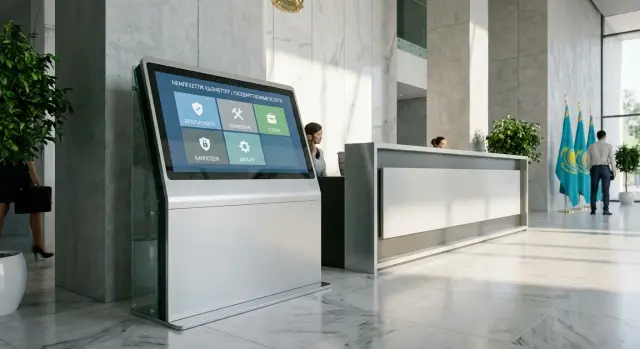
What you solve when you enable kiosk mode
Windows kiosk mode is a setup where a device behaves like a terminal rather than a regular PC. The user sees only the required screen or application and cannot accidentally open extra windows, change settings or break the intended workflow. Normally a kiosk always returns to a predictable state: it powers on, shows the interface, completes the request and becomes ready again.
This is most needed where many people use a device daily: payment terminals, e-queues, building navigation, clinic registration desks, bank self-service kiosks, or campus info kiosks. The goal is the same: minimal actions, minimal mistakes, maximum repeatability.
You need to look at three things at once: UX, security and administration.
- If you only build a usable screen but leave escape routes (hotkeys, browser menus, USB), the kiosk quickly becomes a regular PC.
- If you only apply strict restrictions but the interface freezes or stalls after a timeout, people will go to an operator.
- If you don’t plan management, any failure or update becomes a site visit and downtime.
Usually several approaches are compared. The basic option is Windows Assigned Access (one app or a limited set). The second class is kiosk shells (launchers) that handle startup, navigation, locks and often monitoring. And almost always there’s a third layer: centralized policy and configuration management (GPO/MDM) to configure a fleet consistently and control changes.
Example: an info kiosk in a lobby shows a map and office lookup, automatically resets to the main screen after a minute, doesn’t allow access to the desktop and updates overnight so it’s ready in the morning without surprises. Requirements like that guide the choice of Windows kiosk mode implementation.
UX requirements: how a kiosk should behave
Kiosk UX is predictable behavior in any situation: a person approaches, taps, gets a result and leaves. First decide whether it’s one short scenario (for example, issuing a ticket) or several scenarios and roles (visitor, staff, admin). The more scenarios, the more critical simple navigation and strict boundaries: a user must not reach service areas.
The interface must match the actual hardware. A touchscreen implies one set of rules; touch plus keyboard and mouse another. If there’s a scanner, printer, card reader or QR reader, design clear statuses: what is happening now and what to do next (scan succeeded, printing started, take your receipt). Always include timeouts and auto-reset so the next person doesn’t see someone else’s data.
When the network is lost the kiosk should not die with an obscure error. Decide in advance what works offline: show help, save a draft, accept a queue request, open a preloaded map. A “no connection” screen should speak plainly and offer 1–2 actions (retry, call staff), while the system keeps trying to recover.
Accessibility often determines project success: large buttons, high contrast, simple language and minimal text. If the audience is multilingual, place language switching on the first screen and apply it only for the session.
Speed matters not as “fast” but as “ready.” Define acceptable time from power-on to the working screen and avoid long preparations after reboot.
Before choosing a solution, write down five things:
- How a user session starts and ends, and after how many seconds auto-reset occurs.
- Which input devices and peripherals are mandatory and which statuses must be shown.
- What the kiosk does without network and how the error screen looks.
- Rules for language, fonts, contrast and hints.
- What time from “reboot -> ready” is considered normal.
Security requirements: from kiosk escape to data
Kiosks usually have physical public access. The threat model is simple: someone may plug in a USB, reboot the device, try to reach the desktop or settings, or view/copy data left on disk.
The first decision is which applications are allowed at all. The fewer, the better: a single app (browser or client) is safer than a list. But sometimes you need a print agent, scanner agent or remote support tool. Everything else must be denied: installing software, running PowerShell/cmd, or opening File Explorer.
Next—protect against exiting kiosk mode. Close paths through Start, Control Panel and system dialogs, and think through key combinations. In practice people try Alt+Tab, Win, Ctrl+Alt+Del and accessibility tools.
Decide data handling in advance: what the kiosk may store and what it must not. For example, a clinic info kiosk may display schedules but must not save entered full names or document numbers.
Minimal rules that cover most risks:
- Cache and temp files are cleared on a schedule or at session end;
- Logs are written without personal data and with size limits;
- USB storage is blocked by default;
- The kiosk account has no admin rights;
- Autologin runs only into a dedicated kiosk account, not a staff account.
If the kiosk is joined to a domain, separate policies: one for kiosk accounts and another for service admins. This reduces the chance that an update or new policy accidentally opens extra capabilities.
Administration requirements: managing a fleet
Administering kiosks is often more important than the kiosk mode setup itself. With five devices you can manage manually. With 50 or 500, every small task becomes downtime and queues.
Decide which remote actions must be possible without going on site. The minimum usually includes: reboot, force-app restart, change configuration (URL, modes, schedule), collect logs and take state snapshots. Without that you’re troubleshooting blind and too late.
Next—who manages policies and how. Separate responsibilities: IT security sets restrictions, operations handle changes, and the service owner approves UX. Common tools are domain GPO, Intune/MDM or local configs for single devices. It’s critical to have a single source of truth: one place that shows which version of settings is applied.
Monitoring should be practical. Check that you can see:
- online/offline and reason (power, network, hang);
- free disk space and cache growth;
- kiosk app status (running, crashed, restarting);
- update status and last reboot time;
- attempts to exit kiosk mode and login errors.
Finally, lifecycle. You need templates for replication, a clear replacement procedure and secure decommissioning (wipe keys, credentials and local data). When kiosks are numerous, treat the park as a system rather than separate PCs: unified images, maintenance procedures and a control panel save weeks during incidents.
Windows Assigned Access: strengths and weaknesses
Windows Assigned Access is the built-in way to set kiosk mode when a device needs one clear scenario: sign in, open the required app and prevent the user from reaching the normal desktop.
It is best for simple terminals and info kiosks tied to a single application (a portal browser, e-queue client, registration form, catalogue viewer) where predictability matters more than flexibility.
Modes are generally:
- “Classic” Assigned Access: one app for one kiosk account.
- Multi-App kiosk: several allowed apps and a limited set of system elements (for example, if you need a PDF viewer or a print utility in addition to the main window).
Typically you create a local kiosk account with autologin. The shell is constrained: unnecessary elements are hidden, hotkeys blocked and settings access disabled. After a crash or reboot the goal is the same—return to the specified app rather than leaving the user with half a desktop.
Strengths of Assigned Access:
- Fast start without third-party tools.
- Predictable UX: harder to break the scenario.
- Better security by restricting access.
- Easier to standardize a fleet of identical kiosks.
Operational limits appear in practice:
- Complex peripheral scenarios (scanners, nonstandard printers, driver service windows) sometimes need more freedom.
- If you want a custom launcher, branded menu, fine-grained lock rules and timed return to home, built-in options may be insufficient.
- Windows and app updates need planning: reboots and install dialogs can kick a kiosk out of mode if there’s no maintenance plan.
Assigned Access is the right choice when you want minimal variability, a single scenario and simple administration. If you need flexible UI, complex hardware integration or strict post-update behavior, consider a kiosk shell or a hybrid approach.
Kiosk shells: when a separate launcher is needed
A kiosk shell (launcher) replaces the usual Windows desktop with a single screen that starts right after sign-in and guides the user through the intended scenario. You either swap the shell (start the launcher instead of Explorer) or run it on top of Windows and tightly lock access to taskbar, Explorer and settings.
A lightweight shell over Windows fits when the UI is simple and you want minimal system changes. A full kiosk launcher is justified when the kiosk is more than one app: you need a menu, 2–3 services, a home button, app restart on crash and protection from attempts to reach the system.
When a shell is truly useful
A shell usually wins on UX if you need multiple apps, clear navigation, a branded home screen with hints, a timeout and auto-return, and different modes for staff and visitors (for example, a service PIN). It also centralizes peripheral management (receipt printer, scanner, card reader).
Example: a public touch all-in-one displays help, prints a ticket and opens a web form. One Assigned Access app is often insufficient because you need navigation, Back and Home buttons, a return timer and auto-recovery after a crash.
Risks people forget
Shells have a cost: Windows and driver updates can break compatibility, support becomes dependent on the launcher vendor, and the launcher itself brings its own updates, logging and procedures.
A simple test: can you keep users in the intended scenario and quickly restore operation if an app crashes? If the answer is “no” or there are multiple apps, a dedicated launcher usually causes fewer operational problems than a patchwork of manual restrictions.
Updates without downtime: the basic scheme
A kiosk is valuable because it’s always available. Updates must be regular but scheduled so a screen doesn’t reboot during service hours or show unexpected dialogs. For Windows kiosk mode this means: updates are part of operations, not a one-time setup.
Maintenance windows and groups
Start with a schedule. Split the fleet into groups and assign different maintenance windows: night, weekends or short agreed slots. That prevents a wave of simultaneous reboots and lets you detect problems on the first group faster.
Separate update streams because they affect kiosks differently: Windows OS (reboots and sign-in behavior), drivers and firmware (touch, network, printer), the kiosk app or browser (white screen, UX bugs), and antivirus/signature updates (blocks or performance issues).
Rollback and test environment
Define in advance what qualifies as a failure: kiosk won’t start, no network, touch not working, required screen won’t open. For those cases you need a simple rollback: revert the app to the previous version, undo a problematic OS update or quickly restore an image.
A typical testing scheme:
- pilot group of 3–5 devices in production;
- success criteria (start within N seconds, network available, printing works);
- a 24–72 hour incident-free period;
- phased rollout to other groups;
- lock the version if stable.
Reliability and recovery: make the kiosk self-healing
A good kiosk mode is not only about locking down the system, but also enabling the device to return to a working state after an app hang, network failure or update. The goal is to avoid site visits for small issues.
A minimal set usually includes three things: autostart, automatic restart and a watchdog. Autostart runs after signing into the kiosk account, restart acts when the app is unresponsive, and the watchdog monitors heartbeat and restarts the app.
Practical setup:
- Auto-login to a dedicated kiosk account + app autostart (Assigned Access or Task Scheduler).
- A watchdog service or scheduled task that checks the window/process/heartbeat and restarts the app.
- Scheduled automatic reboots (for example, nightly) and reboots on critical failures.
- Timeouts and network self-recovery (reconnect attempts, restart network service).
- A protected admin mode for support access (password, token or physical key).
If a kiosk hangs, recovery should not require manual intervention. For example, a clinic kiosk may freeze because of unstable Wi‑Fi: the watchdog restarts the browser/app and, if the problem repeats, triggers a reboot and returns the user to the home screen.
Keep configuration identical across devices: app version, allowed components, network parameters, unified policies and accounts. Then replacing or reinstalling a device takes hours, not days.
Logs and remote diagnostics should be planned in advance. Typically collect Windows events (reboots, app errors, sign-ins), app logs and error codes, availability metrics (ping/HTTP checks, response times), build version and last update date.
Also prepare an offline fallback screen with a clear message, support number and brief instructions. This lowers complaints and helps staff quickly identify whether the issue is network, app or device.
Decision matrix: Assigned Access vs shell vs hybrid
If you need Windows kiosk mode, the choice usually comes down to three options: built-in Assigned Access, a separate kiosk shell (launcher) or a hybrid approach.
Quick matrix (typical ratings)
| Option | UX (1–5) | Security (1–5) | Administration (1–5) | Total cost of ownership | Main risks |
|---|---|---|---|---|---|
| Assigned Access (single profile) | 3 | 4 | 4 | Low | UI limits, harder to support multi-mode scenarios |
| Kiosk shell (launcher) | 5 | 3–5 | 3–4 | Medium/High | Vendor dependency, launcher bugs can break UX |
| Hybrid (Assigned Access + shell/agent) | 4–5 | 4–5 | 4 | Medium | Can overcomplicate, requires disciplined change control |
Ratings are illustrative: a shell’s security can be 3 or 5 depending on how it blocks system screens, hotkeys and peripheral access.
Deciding questions:
- One app or several (browser + printing + scanning + payments)?
- Is a custom UI needed (branding, strict navigation, timeouts, return to home)?
- Who will support the fleet: 5 devices or 500, and is 24/7 support available?
- How critical is downtime: can you update at night?
Practical takeaways:
- One clear scenario (queue ticketing, single web page): Assigned Access is often the best basic choice — simpler and cheaper.
- Complex UX (multiple apps, hints, peripherals, offline mode): a separate shell is usually justified.
- Banks and government often need stricter control and auditing; schools value simplicity and fast recovery; healthcare requires reliable peripheral support and preventing accidental exits.
To avoid overcomplication, start with the minimum that meets requirements and add a shell only where built-in Windows restrictions truly fall short.
Example scenario: a public info kiosk
Imagine an info kiosk in a clinic or service center: people come every 10–20 seconds, often in a hurry, some have poor vision or don’t know where to go. The kiosk has two main tasks: show directions (office, floor, counter) and issue a ticket for the e-queue. Also, quick language switching (e.g., Kazakh/Russian) without restarting the app is usually needed.
Constraints are strict. A user must not reach the desktop, settings, browser menus, File Explorer or the sign-in screen. At the same time the interface must resist rough handling: repeated taps, attempts to plug in a flash drive, power interruptions. If there’s a ticket printer, ensure it prints only tickets and that the printer driver cannot hang the UI.
A hybrid approach often works: Assigned Access locks everything down and ensures autostart, while an internal kiosk shell provides clear navigation (large buttons, return timer, blocking unwanted gestures and hotkeys). Also verify no context menus, blocked user switching and no workarounds via the on-screen keyboard.
Plan updates at night: fixed window, automatic reboot and a check that the kiosk reopens the kiosk app. If an update fails, you must be able to quickly roll back to a working version.
On a pilot measure:
- Time from power-on to ready screen.
- Average touch response time (the “not laggy” feeling).
- Incident counts per week: hung, navigated to wrong place, failed to print.
- Time to recover to “serving again.”
- Share of calls to staff due to unclear UI.
Start the pilot with 3–5 devices at one site. Launch the basic scenario (navigation + ticketing), then add printing, a second language and update rules. After 1–2 weeks lock the settings as the standard and scale.
Common mistakes and pitfalls
The most common problem is enabling kiosk mode without making it resilient. On day one everything looks fine; after a month unexpected windows appear, updates disrupt visitors and admins learn about failures too late.
A typical error is allowing too much in the app. For example, a kiosk uses a browser and a user gets to settings, downloads or the address bar. Then they download a file, open File Explorer and escape the scenario. If UX requires web content, verify there’s no path to system dialogs, context menus or external apps.
Second pitfall—no restart and maintenance plan. Windows, driver and browser updates can arrive during business hours. The result: reboots in the middle of a queue, getting stuck on update screens, or a peripheral module breaking. Without maintenance windows and a clear “update -> reboot -> verify” flow, downtime is likely.
Third mistake—weakening security for convenience: a shared admin password, open USB ports or allowing an external keyboard to invoke system screens. That turns a kiosk into a public PC.
Peripherals are another pain point. Receipt printers, scanners, card readers and touch panels depend on specific drivers. Updates can change their behavior or break them. Keep a tested set of drivers and a short test routine: print, scan, input, network.
Finally, lack of monitoring. If you only learn about problems from visitor complaints, you will always react late. At minimum capture: device offline, app not running, stuck on sign-in, low disk space.
Quick checklist before launch and after updates
Run the kiosk through the same scenario each time: power on to return to home screen. This list helps catch problems before users do.
UX (how the screen behaves)
- Start: power on — within 30–60 seconds the required screen opens with no extra windows.
- Navigation: large buttons, clear labels, no tiny elements or hidden gestures.
- Return: a “Home” button and/or auto-return timeout.
- Errors: simple messages and an obvious way back when network or service is unavailable.
- Input: on-screen keyboard appears where needed and doesn’t cover critical fields.
Security, administration and reliability
- Restrictions: only required apps and settings are allowed (no Start, Explorer or system windows).
- Ports and devices: unnecessary USB devices are blocked and boot from external media is disabled.
- Data: cache, temp files and user data are cleared per rules.
- Updates: devices are grouped (pilot and main), maintenance windows exist and rollback is possible.
- Monitoring: kiosk state, OS/app version and last successful start are visible.
- Auto-recovery: after reboot the kiosk returns to working state without manual sign-in.
- Watchdog: if the app hangs or moves to background, it is restarted.
- Recovery plan: test the “nothing works” scenario (local account, image, service media).
- Procedures: responsible parties assigned, a change control process and update acceptance rules are in place.
If you supply terminals or info kiosks as part of a project, agree in advance who owns hardware, OS, kiosk policies and the app. Then updates go smoothly and downtime stays low.
Next steps: from choice to deployment
Once the decision matrix is filled, move quickly to a working prototype. Otherwise Windows kiosk mode remains a set of unchecked settings: untested with the target peripherals, network and the people who will support the kiosks.
Gather a short package of requirements and decisions to agree with security, operations and the service owner. Record which screens and scenarios are mandatory, what counts as a failure, who may access the device locally and how you will update the system without user downtime.
Minimal rollout plan
- Approve the chosen option (Assigned Access, shell or hybrid) against UX, security and admin requirements.
- Plan a pilot of 5–20 devices: success criteria, maintenance window, rollback procedure and a rule to proceed when ready.
- Lock hardware and peripheral standards to avoid random incompatibilities.
- Appoint monitoring and support owners: who sees incidents, who goes on site and how downtime is measured.
Pilot: what to test before scaling
For a lobby info kiosk check not only “does the screen work” but also recovery after power loss, behavior during network loss, blocking of system shortcuts and time to return to a working state.
If the project includes hardware supply and integration, it can be easier to start with a partner that covers the full cycle — from device selection to support. For example, GSE.kz (gse.kz) manufactures computers, all‑in‑ones and servers in Kazakhstan and provides system integration, which is convenient when you need a standardized kiosk fleet and ongoing support.
Frequently asked questions
Why enable kiosk mode in Windows at all — how is it better than a regular PC?
Kiosk mode makes a device behave like a terminal: it shows only the needed screen or application and always returns to a predictable state. This reduces user errors, simplifies support and protects the system from accidental actions.
How do I know if Assigned Access is enough or a kiosk shell is needed?
If the scenario is single and simple (one web page, e-queue, catalog), Windows Assigned Access is usually enough. If you need a menu, several services, a branded home screen, a home-timeout or automatic recovery, a kiosk shell or a hybrid approach is usually more convenient.
Which UX requirements are most important for an info kiosk?
Start by mapping the session: how a user starts work, how it ends and after how many seconds the session should auto-reset. Then check that the UI matches the hardware (touchscreen, keyboard, scanner, printer) and that any errors show simple messages and do not lead into system windows.
Should USB be blocked, and what if the port is needed for maintenance?
By default, block USB storage and autorun so visitors cannot launch their files or tools. If USB is needed for service, provide it through a separate admin mode and a restricted list of allowed devices rather than opening the port for everyone.
Why create a dedicated kiosk account?
A separate kiosk account without admin rights is a basic rule: it limits the impact of any action and simplifies control. Keep admin access only for service accounts and separate policies for them so changes don’t leak into the kiosk profile.
What routes most often allow exiting kiosk mode?
Start with the minimum: block access to the desktop and settings, disable system hotkeys and turn off unnecessary system dialogs. Then test escape routes live: keyboard shortcuts, context menus, the on-screen keyboard and any windows that a browser or peripheral driver can open.
How to handle cache, temporary files and logs on a kiosk?
A kiosk must not leave personal data between visitors. Clear cache and temp files at session end or on a schedule. Logs are useful but should avoid personal data and be size-limited so they don’t fill the disk or collect unnecessary information.
How to update Windows and apps so kiosks don’t go offline during the day?
Set maintenance windows and update devices in groups, starting with a pilot. After updates the kiosk must automatically return to its working screen and must not show installation dialogs to users. Keep a rollback plan to the previous app or configuration version for emergencies.
How to make a kiosk self-recover from hangs or network loss?
Implement autostart, automatic app restarts and a watchdog that detects a hung app or lost heartbeat and brings it back. If the issue repeats, trigger a controlled reboot and ensure the kiosk returns to the working scenario without human intervention.
What to provide for managing a fleet of kiosks (50+ devices)?
At a minimum: remote reboot, forced app restart, config change, log collection and visibility of online/offline status. For large fleets, agree who is responsible for hardware, OS, kiosk policy and the app; if you need turnkey delivery, providers like GSE.kz often cover hardware plus integration and support.
