8 min read
Windows Event Forwarding: agentless Windows event collection — step by step
Windows Event Forwarding helps collect security and system events on a single server: subscriptions, filters, sizing, storage and incident analysis.
Why collect events in one place
On individual workstations and servers events often "disappear" not because they never happened but because they are hard to find. Logs get full and are cleared "to free space", some devices are offline, and during an incident the needed machine may already have been reinstalled or its disk replaced.
The most useful traces usually get lost: successful and failed logons, permission changes, service and scheduler starts, PowerShell and script execution, software installations, Defender events, driver errors, reboots and unexpected shutdowns. On servers you also see authentication errors, service failures, access attempts to shares and suspicious configuration changes.
Local logs are inconvenient for investigations for a simple reason: you need to build a picture from dozens of machines. Even if everything is enabled on every endpoint, manually matching times, users, hosts and sequences is hard and slow. Local logs are also easy to "spoil" accidentally or intentionally.
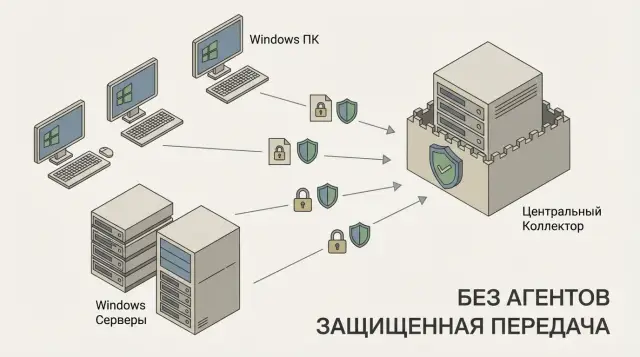
Agentless in the context of Windows Event Forwarding means no separate collector agent is installed on endpoints. Built-in Windows components and Group Policy are used. This matters when you cannot add third-party software, want fewer update points and compatibility risks, or have strict change control requirements.
Centralized collection solves several tasks at once:
- Audit: see who did what, from which machine and when.
- Response: find root cause and scope quickly, not just the first visible symptom.
- Reporting: prove compliance with rules (for example, access and change controls).
- Analytics: detect recurring failures and suspicious event chains.
What WEF is and how it works
Windows Event Forwarding (WEF) is a built-in Windows method to send event log entries from many computers to a single server without installing agents. Events are generated on sources (workstations and servers) and collected and stored centrally on a collector.
The model has three parts: the event source reads the required logs, a subscription describes what to send and from where, and the collector accepts events and writes them into its logs. A subscription is a set of rules: which computers participate, which events match the filter and how often to pull them.
Commonly forwarded logs are Security, System and Application. In practice, Security is needed for logons, account and policy changes; System for driver problems, service issues and reboots; Application for app failures and .NET errors. Specialized logs (for example, PowerShell or Defender) are often added depending on needs.
Technically WEF relies on standard Windows components: the Windows Event Log service, Windows Event Collector on the server, and a transport over WinRM (WS-Management). WEF fits well in a domain environment: clients are configured by policy and access is controlled by familiar rights and groups.
It's important to understand WEF's limits. WEF is not a SIEM or "magic analytics"—it's primarily transport and basic normalization of event format. It doesn't replace correlation, detection rules and user-friendly reports. But it provides a reliable foundation: collect the needed events in one place, then decide how and where to store them long term and how to investigate incidents.
Preparation: requirements, network and permissions
To make Windows Event Forwarding stable, first check Windows versions, domain setup, network and rights. Most WEF problems stem not from subscriptions but from the surrounding infrastructure.
Version-wise: it's easiest to host the collector on Windows Server (2016/2019/2022) and use sources like Windows 10/11 workstations and servers. WEF exists on older systems too, but you may hit legacy policies, cipher and log size limits—it's better to aim for a modern OS pool.
Network: what must be reachable
WEF is sensitive to basic network hygiene. Before a pilot, check:
- DNS: sources must reliably resolve the collector name and vice versa.
- Time: sync via AD/NTP, otherwise Kerberos and signing will fail.
- WinRM reachability: sources must connect to the collector over HTTP/HTTPS (typically 5985/5986 depending on configuration).
- Firewalls: rules should be consistent for needed subnets.
- Bandwidth: narrow links between sites and the collector will quickly show queues.
Accounts and permissions
In a domain environment the source computer account is usually used for sending events, and the collector needs permission to accept and write them to its log.
Practical minimum:
- Collector: Windows Event Collector service enabled and WinRM configured.
- Sources: permission to send (via GPO) and access to read required logs.
- Operator/SOC: view and export rights only, without admin privileges on hosts.
Where to place the collector depends on priorities. If quick analysis and SIEM integration matter, place it closer to SOC/SIEM to avoid moving large volumes across the network. If isolation matters, put the collector in a separate zone with limited admin access. If you need reliable authentication, keep it near domain controllers but be sure to tightly control access to the collector itself.
Step by step: setting up the collector server
The collector server is the endpoint where events from all machines will converge. In WEF you first enable reception and the communication channel, then create subscriptions and filters.
Start with basic role initialization on Windows Server:
wecutil qc
winrm quickconfig
The first command enables the Windows Event Collector service and opens necessary firewall rules. The second configures WinRM, which is used to deliver events.
Next check channel security. In a domain Kerberos is usually sufficient (no cleartext passwords on the wire), but insecure options should be disabled:
- Ensure WinRM does not accept unencrypted connections or Basic auth.
- Restrict WinRM access to required subnets or computer groups.
- If the collector is in a separate segment or there are untrusted networks, use WinRM over HTTPS with a certificate.
Prepare the log where forwarded events will be written. By default Forwarded Events is used and is fine for a pilot. If you want to separate streams (for example, security separate from system) create separate logs and set sensible sizes so they don't grow uncontrollably.
Before large-scale roll-out, test reception on 1–2 machines: for instance, one workstation and one server.
Quick checks:
- On the collector the Windows Event Collector service is running and set to auto-start.
- From a test machine run
Test-WSMan <collector_name>. - In Event Viewer on the collector new entries appear in Forwarded Events after client setup.
If this stage is stable, you can connect clients via GPO and create subscriptions.
Step by step: connecting clients via GPO
The easiest way to connect clients to WEF is through Group Policy: you define settings once and machines will start sending events automatically. Start with a pilot group (for example, 20–50 PCs from one department) and expand only after stability is proven.
First enable remote management that WEF depends on. In GPO, configure WinRM (service and auto-start) and firewall rules for WinRM. Without these clients can't talk to the collector even if the subscription is configured correctly.
Then enable the forwarding mechanism. In the policy set the collector address via the Client Subscription Manager parameter. Specify the collector URL (usually HTTP/HTTPS on WinRM) and optionally multiple collectors for redundancy. Think about delivery mode: for critical events choose lower latency, for noisy logs choose a more economical mode to avoid extra network and disk load.
For phased rollout, create a separate OU or security group for the pilot and link the GPO only to it. That makes rollback easier without impacting everyone.
Verify a client started sending events:
- On the client run
gpupdate /forceand ensure WinRM service is running. - On the client check that subscription parameters applied (via gpresult or policy sections).
- On the collector open Forwarded Events and confirm entries from pilot machines.
- In Event Viewer on the collector check subscription status and accepted event counters.
If events don't arrive, common causes are firewall rules, DNS (client can't resolve the collector), or permissions: the computer or account isn't allowed to publish events to the collector.
WEF subscriptions: types and basic design
A WEF subscription is a rule: which events to collect, from which computers, how often and into which log on the collector. The more carefully you design subscriptions from the start, the easier storage and investigations will be.
Collector-initiated vs Source-initiated: which to pick
Collector-initiated means the collector polls sources. This works in small environments where machines are always online and the list of sources rarely changes. The downside is the list must be maintained manually, which becomes impractical in large networks.
Source-initiated means sources subscribe to the collector themselves (usually via GPO). In a domain this is usually the best option: laptops, new PCs and rebuilt servers will all connect automatically if they land in the right OU or group.
Split subscriptions by purpose
One big "all events from all machines" subscription usually ends in noise and full disks. It's more practical to create multiple subscriptions by purpose and source. For example: workstations, servers, domain controllers, specific roles (RDS, file servers, application servers). This lets you apply different filters, retention and investigation priorities.
Which logs and levels to start with
A safe starting minimum: Security and System. Add logs by server role (for example AD or DNS) as needed.
For levels, focus on your goal: for reliable monitoring Critical, Error and Warning are usually enough. Add Information selectively when you need to catch a particular scenario. Otherwise volumes will explode.
Names and documentation to avoid confusion
In six months a clear name and short description will be invaluable. Useful template: WEF-<role>-<logs>-<levels>-v<version>. Example: WEF-Workstations-SecuritySystem-CritErrWarn-v1.
Keep a simple table (even in a wiki): subscription purpose, sources, channels, levels, key Event IDs, expected volume, owner and change date. This saves hours during an incident when you need to know why certain events are present or missing.
Filters and selection: collect what you need, not everything
First decide the questions you want to answer, then enable collection. Otherwise you'll end up with tonnes of noise and important events will be lost in the clutter.
You can filter by log (Security, System, etc.), Event ID, Provider, Level, keywords and sometimes by data inside the event (for example username or process). In practice Event ID and Provider are sufficient most of the time; finer logic is added selectively.
XPath filters: simple examples
WEF subscription filters are expressed in XPath.
cQueryListe
  cQuery Id="0" Path="Security"e
    cSelect Path="Security"e*[System[(EventID=4624 or EventID=4625)]]c/Selecte
  c/Querye
c/QueryListe
The example above will collect successful and failed logons (4624/4625). To narrow to a specific provider:
cSelect Path="Security"e*[System[Provider[@Name='Microsoft-Windows-Security-Auditing'] and (EventID=4625)]]c/Selecte
How not to collect irrelevant data
Some events stream constantly and rarely help without context. Either don't collect them or move them to a separate subscription enabled only when needed. Frequent noisy events include massive successful logons (4624) on terminal servers, service churn events, network events on gateways and proxies, and repeated application errors that are already known.
A good approach is separate subscriptions for noisy sources (for example RDP servers and critical services) and separate ones for quiet-but-important signals. That lets you tune filters without breaking overall collection.
Volumes and performance: how to estimate and avoid overload
The main mistake with WEF is enabling everything and being surprised that the collector, network and disk become bottlenecks. It's better to estimate volume beforehand and validate it with real data.
A rough model:
- Estimate average EPS (events per second) for a workstation and for a server during business hours and peak.
- Take average event size (often 0.5–2 KB; security events can be larger).
- Multiply: EPS x size x host count, convert to MB/hour and GB/day.
- Add 30–50% headroom for peaks (updates, mass logins, failures).
Four things mostly affect load: delivery mode (more frequent sends and less batching increase requests), filter quality (wider filters mean more noise), noisy sources (auditing files/processes), and rare heavy peaks. One misconfigured audit on a group of servers can produce more events than the rest of the estate.
Validate with data: collect one day and review hourly peaks, then one week to see Monday, nights, update windows and unexpected spikes.
Signs of overload and first mitigations:
- Events arrive delayed by minutes or hours.
- Queues and buffers grow and clients drop events.
- Collector hits disk I/O or CPU limits.
- Log quickly reaches size limits and starts overwriting.
First narrow filters (remove noisy Event IDs), then change delivery mode to a more economical option, and only after that scale the collector or split subscriptions to multiple collectors.
Storage and retention: prevent logs from eating the disk
Plan storage before launching WEF: the first days may be quiet, then volumes grow due to updates, mass logins and application errors.
Where to store logs: simplest is local on the collector server. It's faster and easier to support but risks a disk filling at an inconvenient time. Another option is a dedicated storage server or separate volume to offload disk load and enable backups.
Retention policy
Retention is a combination of time and size limits. The goal: keep enough to investigate incidents but not everything forever.
Common controls:
- maximum log sizes on the collector and overwrite policy
- separate logs per subscription to avoid one big dump
- hot retention window (for example 7–30 days) and archive retention (for example 90–180 days)
- regular free-space monitoring and alerts
Archive and integrity
Export closed log segments on a schedule, record a hash and store it with metadata (date, source, subscription). This proves logs weren't altered and speeds up investigation: you open the required range instead of scanning the entire store.
Control access: not every admin should read security logs. Grant read rights only to investigators; keep subscription and log-cleanup rights in a small group. Separate roles: some administer WEF, others analyze events, and any cleanup or policy change should be logged.
Investigation example: from alert to conclusion
Scenario
SOC receives an alert: at night a successful logon occurred on a file server using an accountant's account, although that user usually works daytime. Signs of reconnaissance and attempts to persist follow. With WEF the required logs are already centralized, so you don't need to connect to each host in turn.
Start with the basic questions: who logged in, from where, what they accessed and what they did immediately after. Note exact time (including timezone), account name, workstation name and IP.
Events that usually give quick answers:
- Security 4624 (successful logon) and 4625 (failed logon) to check password guessing and logon type
- Security 4648 (logon with explicit credentials) if other creds were used
- Security 4672 (special privileges) to understand access level
- Security 4688 (process creation) to see if PowerShell, cmd, wmic and similar tools were run
- System 7045 (service installation) as a common persistence method
Then link the chain by time: take a window +/- 10 minutes around 4624 and inspect adjacent events on the same host. If WEF collects 4688 you will quickly see what ran right after the logon (for example powershell.exe with parameters) and which commands were executed. If there were connections to other servers, go to them and search for new 4624s with the same account and originating IP.
What to record in the incident ticket
To make conclusions verifiable, record not only what happened but the evidence:
- timeline: key events with timestamps and EventRecordID
- subject binding: user, host, IP, logon type
- commands and artifacts: process command line, service names, scheduled tasks, file paths
- scope: other hosts affected by the same indicators
- outcome and actions: what was confirmed, what blocked, and what filters or subscriptions were adjusted
This format makes handover to the next shift quick and helps use findings to improve WEF subscription selection.
Common mistakes and pitfalls when deploying
The most common issue is enabling everything. Useful events drown in noise, disk and server resources are consumed by things no one looks at.
Usually this happens for two reasons: a subscription is too broad (for example whole Security or System without filters), and nobody estimated volumes. Start with a small set of events for specific scenarios (logons, group changes, service starts, audit errors) and expand later.
Second trap: permissions and WinRM. A subscription may look active and clients listed, but events don't arrive or are delayed. Frequent causes: WinRM is not enabled or configured on clients, traffic is blocked by firewalls, computer accounts lack rights to read logs, or the client is not covered by the right GPO.
Another mistake is one giant subscription. It seems convenient initially but investigations become needle-in-a-haystack. Better separate by purpose: security, system stability, and critical roles (DC, app servers).
Finally, retention and monitoring. If you don't set log sizes and retention, you'll find out when the collector disk fills and data is lost. Particularly annoying when you need last week's logs and they've already been overwritten.
Safe, short approach to changes:
- Start with a pilot of 10–20 hosts and measure daily volume.
- Make changes in small steps: one filter or one subscription at a time.
- Keep a reference of settings (filter descriptions, source lists, expected events).
- Verify delivery: events arrived and are searchable.
- Plan rollback: decide in advance what to disable first if overloaded.
Quick checks and next steps
When WEF is configured, most problems are not in subscriptions but in basics: network, time, permissions and how the client applied GPO. Before expanding coverage, run a short checklist.
Launch mini-checklist
Check clients resolve the collector name (DNS) and can reach it via WinRM. Ensure time on clients and the collector is synchronized: noticeable skew causes gaps and "jumping" timelines.
Then confirm the GPO applied on a machine and that the collector is receiving the expected streams. If events don't arrive, start from the simplest: correct OU, no conflicting GPO, and necessary firewall rules open.
Data quality and operations checklist
When events come in, check data quality so centralized collection doesn't turn into noise:
- Filters: only required channels and levels are collected.
- Gaps: no missing important sources (DC, file servers, RDS).
- Duplicates: the same event doesn't appear twice due to overlapping subscriptions.
- Noise: exclude events that add volume without value.
- Retention: collector logs don't overflow and overwrite important data.
Define operational rules in advance: hot retention days, what is archived, who can change filters and who accesses logs. Also set up disk and log growth monitoring so filling a disk isn't a surprise.
Next steps usually are: add more sources starting with the most critical, split subscriptions by server role, formalize the incident handling process (who looks, which events, within what timeframes).
If you plan a full rollout or an upgrade of server-side storage and processing, it's often useful to combine this with system integration and support. For example, GSE.kz (gse.kz) acts as a server vendor and system integrator, which helps deliver infrastructure and managed support in one service.
Frequently asked questions
Why collect Windows events in one place if each PC already has its own logs?
Because local logs are easy to lose: they are cleaned up to free space, some machines are offline, and during an incident a device may have been reinstalled or its disk replaced. Centralization provides a single timeline across users and hosts, speeds up investigations, and reduces the risk of accidental or intentional tampering with logs on endpoints.
What is WEF and why is it called agentless?
WEF (Windows Event Forwarding) is a built-in Windows mechanism to forward selected events to a collector server without installing a separate agent on workstations and servers. Clients send chosen events over WinRM and the collector stores them, commonly in the Forwarded Events log.
Which logs should be forwarded first: Security, System or Application?
For a start, Security and System are usually enough. Security covers logons, account and permission changes; System shows driver failures, service issues, reboots and shutdowns. Add Application when you need to catch app and .NET failures.
Which to choose: Source-initiated or Collector-initiated subscriptions?
Almost always choose Source-initiated: sources subscribe to the collector (typically via GPO) and connect automatically after reinstall or when a new PC appears in the OU. Collector-initiated is useful only in small networks with a stable, manually maintained list of machines.
Why don’t events arrive at the collector and where should I start troubleshooting?
Start by checking DNS and time sync, then verify WinRM reachability to the collector and firewall rules. Next ensure the GPO actually applied on the client and that the computer account has permission to publish events. Most issues are network, time or permissions, not the filter itself.
How not to drown in noise and avoid collecting “everything”?
Filter by Event ID, Provider and level (Critical, Error, Warning) and enable Information only for specific scenarios. If you forward the entire Security log without filtering you'll quickly get noise, delivery delays and full disks, and important signals will become harder to spot.
How to estimate log volume and know if the collector will handle the load?
The most practical approach is a pilot on a small group to measure actual flow: events per day and hourly peaks. Then size disk and network capacity and add headroom for updates, mass logins and incidents. A single noisy audit can produce more volume than the rest of your estate.
How to configure storage and retention so logs don’t fill the disk?
Set clear maximum log sizes and overwrite policies, and split streams into separate logs or subscriptions so you don't have one big dump. Define hot retention and archive periods and monitor free space regularly; otherwise you'll learn about the problem when logs are already overwritten.
Who should get which permissions on the collector to avoid security risks?
Grant SOC/analysts rights to view and export logs, but not to change subscriptions or clear logs. Keep WEF administration, filter changes and any actions that affect log completeness in a small, audited group so investigators can answer why data is missing.
Which events help most in a typical investigation (logon, PowerShell, persistence)?
Commonly start with 4624/4625 to see who logged in and from where, then use 4648 and 4672 for credential context and privileges, and look at 4688, 7045 and nearby events in the time window. The value of WEF is that you can quickly build an action chain across multiple hosts without visiting each machine.
