8 min read
Wi‑Fi diagnostics software for offices: an engineer’s toolkit and tasks
Wi‑Fi diagnostics software for office: an engineer’s toolkit to analyze roaming, interference and low speeds. Comparison of tools for spectrum, heatmap, capture and reporting.
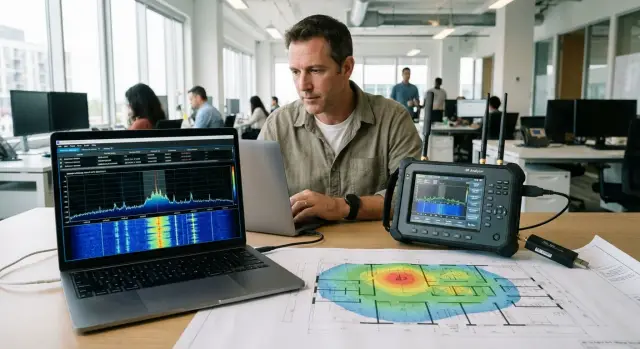
What Wi‑Fi office problems are you really trying to catch
Complaints about office Wi‑Fi usually sound the same: “slow”, “drops”, “doesn't work in the meeting room”. But those symptoms have different causes. If you don't separate them right away, you'll easily waste time on measurements that prove nothing.
Roaming issues are most noticeable when moving: call and video drops while walking, freezes when moving between rooms, long “reconnects”, strange behavior only on some devices. Interference appears in waves: sometimes fine, sometimes suddenly worse, especially at the same hours or only in the 2.4 GHz band. Throughput problems usually look like “everyone is squeezed”: many users see speed drops, latency increases, and AP load goes through the roof.
One app is almost never enough. A heatmap will show coverage and the big picture, but won't prove why a client doesn't roam. A 802.11 packet capture will explain who is “blocking” whom on the network, but without a map you won't know exactly where the weak spot is. The spectrum helps to see non‑Wi‑Fi interference that looks like a “mystery” in ordinary Wi‑Fi metrics.
Keep measurement limitations in mind beforehand. A proper capture often requires an adapter that supports monitor mode and the right channels and bandwidth. Spectral analysis may require separate hardware: an AP‑built analyzer or an external sensor. A phone Wi‑Fi scanner is usually insufficient in contentious cases.
Before a site visit, ask the client:
- whether there is a floor plan and whether walls, furniture or partitions have changed;
- how many users and which device types are predominant (laptops, phones, terminals);
- where the critical zones are (meeting rooms, cash desks, wards, classrooms);
- when the problem is worst and how many people it affects;
- which services are most important (calls, CRM, VPN, video).
A simple guideline: if the connection drops only in the corridor while moving, it’s more often about roaming and settings than “weak internet”. If everyone’s 2.4 GHz speed drops at lunch, look for interference and overload first, not random AP replacement.
Four tasks and four classes of tools: spectrum, heatmap, capture, report
It's more convenient to choose Wi‑Fi diagnostic tools by tasks rather than by brand. In office practice they almost always fit into four classes: spectral analysis, coverage survey (heatmap), 802.11 packet capture and reporting.
Spectrum analyzer is needed when you suspect interference that a Wi‑Fi scanner doesn't see. A scanner shows networks, channels, bandwidth, signal level, and airtime usage by 802.11. But it won't tell you that a channel is crowded by, for example, an analog camera, a faulty power supply, or a signal from another radio device. Spectrum shows energy across the band and helps distinguish Wi‑Fi from non‑Wi‑Fi sources.
Heatmap tools are needed when it's important to see the whole picture: where coverage really exists, where there are SNR drops, and where the signal is too strong and clients “stick”. If the problem is local (one office, one meeting room), point checks and a short walk often suffice without a full survey.
802.11 packet capture is required when the dispute is about roaming and the cause isn't obvious. It provides evidence: who initiated roaming, whether there were deauth/disassoc frames, how authentication proceeded, whether there were retries, which MCS and channel width were actually used. Without capture the discussion often becomes “it seems the AP is to blame.”
To have decisions accepted without arguments, a report should record at minimum:
- symptoms and where they occur (plan, zones, time);
- key metrics (RSSI, SNR, channel utilization, retry rate);
- detected interference and its indicators;
- confirmation of roaming or drops via captures;
- concrete recommendations (channels, powers, settings, AP relocation).
Quick triage by symptoms: roaming, interference, low speed
When the complaint is “Wi‑Fi is bad”, it's important to narrow down causes in 10–15 minutes and choose the first tool. There's usually a lot of data, but start with what most quickly confirms a hypothesis.
Roaming: drops while moving
If the connection drops when moving between rooms, the problem is often not “weak signal” but late handover. A client may “stick” to the old AP, ignore a stronger one, or hop between 2.4/5/6 GHz due to band steering settings.
First step — check roaming events and timing: when the client decided to leave, what blocked it, were there authentication failures. If logically everything should roam but it doesn't in reality, then you need a 802.11 capture to see deauth/disassoc frames, retries and pauses.
Interference: “works then doesn’t”
Interference often looks like chaotic drops: fine in the morning, bad at lunch, worse near the kitchen. Causes can be broadband noise, impulsive sources (nearby equipment), and overlapping channels from neighboring networks.
If you suspect an “invisible enemy”, start with a spectrum analyzer. It shows not only Wi‑Fi but also foreign signals. If the noise looks like competition from neighboring APs, start with a channel and airtime review instead.
Low speed: “connected but slow”
Key clues here are RSSI and SNR, falling MCS, many retries and high channel utilization. It can be slow even with a strong signal if the air is congested or error‑prone.
Quick first steps by symptom:
- drops while walking — roaming events, then 802.11 capture;
- time/place specific drops — spectrum, then channel checks;
- full bars but slow — retry/MCS/airtime stats, then capture;
- “doesn't work in the corner” — point RSSI/SNR checks, then heatmap.
For reporting it's most important to link symptoms with measurements: what exactly got worse and what change will fix it. In survey projects and office infrastructures this approach usually matters more than “pretty graphs”.
Basic measurements without complicated setup
For a quick office check you don't need to start with complex profiles and fine calibration. It's enough to collect a few basic numbers in the same spot and repeat them in 5–10 typical points: workstations, meeting rooms, corridor, near elevators.
In any decent scanner check four things: signal, noise, channel and utilization. If at least one of them is unstable, other metrics will mislead.
The minimum to record at each point:
- RSSI and SNR (both preferred): good RSSI without decent SNR often means interference or high noise;
- channel width and actual channel: 80 MHz in a crowded office often reduces stability;
- channel utilization: high utilization explains latency even with good signal;
- noise level: helps distinguish “poor coverage” from “dirty air”;
- basic link speed (PHY/data rate) to set expectations for throughput.
Then look at quality, not just the bars. High retry rate and fluctuating data rate often feel like “slow” even if RSSI looks fine. Remember the difference: PHY rate is the radio link speed, and real TCP/UDP throughput is always lower. If PHY is high but throughput is low, retries, airtime congestion or roaming issues are often to blame.
How to distinguish coverage from capacity: coverage problems lower RSSI and SNR. Capacity problems may show normal RSSI but increased airtime utilization, latency and retries.
Keep field notes so you don't lose context: point and time (and approximate number of people nearby), client model and band 2.4/5/6 GHz, which AP and bandwidth the client connected to, what the user was doing (call, file upload, speed test) and what changed after a step (switched to 5 GHz, disconnected VPN, moved 5 meters). These notes often form the basis of a clear report even before deep traffic analysis.
Spectral analysis: catching interference and not guessing
If Wi‑Fi speed and stability fluctuate while AP logs look normal, non‑Wi‑Fi interference is often to blame. Spectrum analysis shows the real air picture and helps quickly choose channel and bandwidth.
In offices, common culprits are devices that operate in the same bands or “noise” near APs. Typical sources: Bluetooth headsets and peripherals, microwave ovens in kitchens, wireless cameras and video senders, USB 3.0 cables and docking stations near an AP, cheap unshielded power supplies and chargers.
On the spectrum it's useful to distinguish problem types: constant peaks (stable transmitter), broadband noise (often from electronics and cables), impulsive spikes (microwave, elevator, arcing contact), and frequency‑sweeping patterns (some video devices and unstable sources).
AP/controller built‑in spectrum is usually enough to quickly decide: “channel is constantly busy” or “noise appears periodically”, and tie that to a location. A separate analyzer is needed when interference is brief and rare, when exact signal shape matters, or when you need evidence for a third party (e.g., a tenant with equipment).
Record results so you can come back to them: frequency or band and width, time (and observation duration), place (floor, meeting room, what it stood near), a screenshot or photo of the spectrum, and what happened to Wi‑Fi at that moment (retries increase, call dropped, etc.).
Heatmap survey: what to collect and how not to spoil the run
A heatmap is not always required. But it's almost mandatory if the office is complex: many meeting rooms, long corridors, varied materials (glass, metal, dense partitions), and complaints like “it's bad here but fine next door”. Without a proper map diagnosis quickly becomes an argument.
Surveying starts not with Wi‑Fi but with the plan. Check scale, orientation and currency. Moved furniture, cabinets and glass partitions can change the picture more than you think. Then fix conditions in advance: which SSIDs and bands to measure, typical network load, and whether AP powers are the same.
Which maps to collect
Usually 4–5 layers suffice:
- signal level (RSSI) by 2.4 and 5 GHz bands;
- noise and SNR to tell “weak signal” from “dirty air”;
- overlap and zones where a client has nothing to hold on to during roaming;
- channel map to see neighbor networks and self‑interference;
- capacity assessment if complaints occur during peak hours rather than “always”.
Example from practice: a row of meeting rooms may show high signal but low SNR due to interference from wireless presentation devices or neighboring networks. You can't tell that by eye; the map shows it immediately.
Mistakes that spoil a heatmap
Most failures are methodological: wrong plan scale (a 10% error already breaks conclusions), missed zones (storerooms, kitchens, corridor corners, elevator areas), different AP power and channel widths not recorded, mixing several SSIDs in one survey when clients actually use different networks.
A sufficient result is when maps clearly indicate where to move APs, where to change channels or widths, and where the issue is not coverage but noise or overload.
802.11 packet capture: when you can’t prove the issue without it
Spectrum and heatmap show what’s happening in the air and with coverage. But when you need to know why a client dropped, why roaming took 5–10 seconds, or why an AP “kicks” devices, a 802.11 capture is often indispensable. It's the most direct way to see causes and sequence of events.
What to prepare so a capture is useful
A random capture usually produces junk. Basic conditions are required:
- a Wi‑Fi adapter that supports monitor mode (and the needed bands), not just passive listening;
- the correct channel and bandwidth (20/40/80 MHz), otherwise you’ll capture the wrong traffic;
- a clear observation point: near the problem zone or the client, otherwise frames may be lost;
- synchronized clocks on the laptop and time stamps so you can align with controller or AP logs.
What issues are analyzed by frames
Capture helps untangle complex cases: roaming with 802.11k/v/r (you can see whether network hints were present and how the client used them), deauth/disassoc (who initiated and why), AP or client channel hops, WPA/WPA2/WPA3 handshake errors and repeated key establishment attempts.
In frames it's useful to look not only at the actual drop but also at the quality of exchanges before it: rising retransmissions, dropping data rates, QoS/WMM issues (for example, voice starts stuttering), and what happens around roaming at the DHCP/DNS level. Often the radio handover itself is quick, while delays come from address renewal or slow DNS.
A separate part of the work is security and permissions. Before collecting traffic, agree on the work window and file access rules. Prefer to anonymize data: avoid storing real device names, hide user identifiers, and keep only diagnostically important fragments.
Example scenario: connection drops while walking the corridor
Typical complaint: a call in a messenger is fine in the office, but walking down the corridor toward the meeting room the audio starts to “float”, then the call drops. The user assumes this is the internet. Your task is to determine whether it’s roaming, interference or simply poor signal.
Keep the action plan short and repeatable:
- walk the route and see which AP the client attaches to and where the switch occurs;
- take point measurements in 2–3 spots: signal and SNR, plus basic speed metrics;
- capture 802.11 frames at the problem point and catch the moment of drop;
- check roaming and radio settings: channel widths, powers, channel overlaps, and whether SSID parameters are identical on APs.
Simple causes often emerge. For example, one AP may be set to too wide a channel, and in the corridor noise from neighbors increases. Or the AP in the meeting room has reduced power so the client clings to a distant AP longer than it should. Sometimes it’s mundane: equipment nearby causing interference visible on the spectrum.
To get buy‑in from IT and the business, phrase findings as “symptom — evidence — action”: where it drops and how to reproduce, what measurements show (SNR, retries, moment of roaming), what to fix (channel/width, power, radio plan, roaming thresholds) and how to verify the result.
How to compare tools by tasks, not by names
When choosing a toolkit for office Wi‑Fi diagnostics, start from four tasks: find interference, understand coverage, prove cause with 802.11 frames and produce a report that will be accepted.
| Task | What it gives | Pros | Cons | Hardware requirements |
|---|---|---|---|---|
| Spectrum | Sees non‑Wi‑Fi interference and band energy | Quickly finds noise, microwaves, wireless cameras | Doesn't explain roaming or protocol errors | Often requires analyzer/adapter, 2.4/5/6 GHz support |
| Heatmap (survey) | Coverage map, SNR, speed estimate | Clear for business, helps plan APs | Highly dependent on correct surveying and floor plan | Laptop/tablet, sometimes external Wi‑Fi adapter |
| Capture (802.11) | Evidence: reasons for drops, roam, retries | Shows “why”, not just “it seems so” | Requires skill, right channel and monitor mode | Adapter with monitor mode, WPA2/WPA3 handling (without decryption) |
| Report | Document for changes and procurement | Repeatability and a standard format | A poor template turns work into screenshots | Export to PDF/DOCX, consistent metrics |
Compare tools by practical criteria: deployment speed (start in 5–10 minutes or hour‑long prep), repeatability (same metrics and presets), team training (how many steps to result without a “guru”), and report quality (clear conclusions, list of changes, attached measurements).
In corporate environments check 5/6 GHz support, correct WPA2/WPA3 handling and multi‑engineer project features (shared templates, measurement history).
Free utilities often suffice for a one‑off confirmation of signal level and channel usage. Paid suites are justified when you need repeatable surveys, multi‑floor heatmaps, roaming analysis via captures and a report that can be handed to security or management without long explanations.
Common engineer mistakes during a Wi‑Fi survey
The main trap is looking only at RSSI and drawing conclusions. In reality SNR and channel utilization matter more. You can have “-55 dBm” and still experience drops due to noise, interference or constant retransmissions.
Heatmaps are easy to spoil. If two people walk the same route at different speeds, hold the laptop at different heights and turn the device differently relative to APs, the map will be pretty but useless. After that they start “fixing” nonexistent coverage holes.
With 802.11 captures engineers often err on radio details. A capture on the correct frequency but the wrong bandwidth (for example, the network uses 80 MHz and you listen on 20 MHz) may miss key frames. Another common mistake is starting a capture on a channel where the SSID is visible while the client is actually communicating on another channel due to roaming.
Roaming is often explained by a single cause, while there are several. Example: an employee walks down a corridor and the call drops. One might blame the controller, but the problem can be the client driver (too aggressive or too “lazy” roaming), too low a min data rate, incorrect AP power, or a radio design where overlap zones are too large or too small.
To make results repeatable and defensible, record at least a “photo of settings” before measurements: channels and widths (20/40/80/160), radio power, min data rate and roaming policies, list of SSIDs and security parameters, client model and driver version.
Checklist: what to check in 60–90 minutes to avoid returning twice
To make a diagnosis successful in one visit, gather inputs in advance. Without them you'll see “bad signal” but won't know what exactly breaks the connection.
Before the visit ask for: a floor plan (at least a schematic with rooms), a list of SSIDs and who uses them, peak hours (for example 10:30–12:00), and 2–3 critical scenarios (Teams calls, access to 1С, warehouse terminals). This sets the route and priorities.
On site start with a short walkthrough and choose 5–10 control points: reception, meeting rooms, corridor, dense seating area, far office. At each point check channels and widths, noise level and a basic view of neighboring networks. If you see “perfect RSSI” but low speed, interference, channel width, airtime or roaming errors are almost always to blame.
Practical minimum in 60–90 minutes:
- quick walk‑through: where complaints occur most often;
- 5–10 points: signal, noise, airtime, channels, bandwidth;
- roaming route: walk with a real user device and mark the drop point;
- one meaningful 802.11 capture at the problem spot: the moment of drop or freeze, not “just 5 minutes of traffic”;
- materials for the report: key graphs, map of problem zones, list of fixes.
In the report record not “bad” but “what to change”: narrow 2.4 GHz to 20 MHz, separate channels between neighboring APs, equalize powers, adjust roaming thresholds, remove the interference source (microwave, wireless HDMI). Such a set of artifacts lets you return with a solution, not a discussion.
Next steps: how to lock the result and move to changes
After measurements it's important not just to “find the problem” but to carry it through to network changes. Data alone rarely convinces. What convinces is the chain “symptom — confirmation — concrete step”.
How to prepare a report so the work actually gets done
The report should read like a short story: what hurts, how it's confirmed, what exactly to change. A convenient format is one problem per block:
- problem and where it appears (floor, zone, time, device type);
- evidence (heatmap, spectrum, client metrics, capture fragments);
- recommendation (a specific action and where to apply it);
- expected effect (what will improve and how to check it);
- risks and limitations (impact on neighboring zones, client compatibility, downtime).
Attach the raw materials so network engineers have no question “why this decision”: maps (RSSI, SNR, channel load), spectrum screenshots with timestamps, 2–3 802.11 capture fragments (roaming, retries, deauth), list of AP/controller settings and firmware versions (channels, width, power, band steering, min RSSI).
Which steps usually bring the best result
If the connection drops in a corridor and captures show late roaming and many retries, “adding another AP” is not always the best first move. Start with quick reversible fixes: revise channels and widths, equalize powers, tweak roaming thresholds and disable controversial accelerators during a pilot. Then run a pilot in one zone and compare before/after using the same walking scenarios and client devices.
When the problem affects many floors or a WLAN modernization is needed together with a monitoring server or PCs, involve a systems integrator. In Kazakhstan such work is performed by GSE.kz: as a vendor and integrator with its own service network and 24/7 support. This helps to lock the result documentarily and plan changes and purchasing based on measurements rather than guesses.
Frequently asked questions
Where should I start if users just say “Wi‑Fi is bad”?
Start by clarifying the symptom: disconnects while moving usually point to roaming, “works sometimes” to interference, and “everyone is slow” to overload and lack of capacity. The first quick step is almost always to check basic client and AP metrics, and then dig into spectrum, maps or captures.
What does a regular Wi‑Fi scanner actually provide and what can it not do?
A scanner shows Wi‑Fi parameters: channels, bandwidth, signal level, sometimes airtime usage and link speed. It doesn’t see non‑Wi‑Fi noise and cannot prove protocol‑level causes of disconnects, so in disputed cases it is usually insufficient.
Why can signal be “full” but the connection still be slow and drop?
Because the bars mainly reflect RSSI, while stability and speed are often broken by poor SNR, high channel utilization and retransmissions. You can have a strong signal but still see latency and disconnects due to noise, interference or channel congestion.
When do you need a spectrum analyzer instead of just Wi‑Fi measurements?
When issues appear in waves by time or place, especially in one band, and AP logs look normal. Spectrum shows energy in the band and helps distinguish neighbor Wi‑Fi competition from non‑Wi‑Fi sources like impulsive noise near equipment.
In which cases is it better not to start changes without a heatmap survey?
When you need a full picture of the office: coverage holes, low SNR zones and overlaps that make clients “stick” to the wrong AP. For one meeting room point measurements may be enough, but for several areas or floors a map usually saves time and reduces disputes.
What mistakes most often ruin a heatmap and make it useless?
Mostly due to wrong plans and methodology: incorrect scale, missed zones, different measurement conditions, mixing SSIDs or changing power/bandwidth without recording. The result is a pretty map that leads to wrong conclusions and unnecessary AP moves.
Why capture 802.11 frames at all if there are controller logs and signal measurements?
When you need to prove the cause of a disconnect or long roaming: who initiated deauth/disassoc, how authentication proceeded, how many retries there were and what happened immediately before the drop. Capture provides the event sequence and replaces “it seems the AP is guilty” with facts.
What should be prepared so a 802.11 capture actually helps and doesn’t turn into noise?
You need a Wi‑Fi adapter that supports monitor mode and the required bands, and the correct channel and bandwidth, otherwise you will miss important frames. Choose an observation point near the problem area and decide which moment you are catching instead of just recording “10 minutes of traffic”.
What minimum metrics should I collect in the field if time is short?
In several control points immediately record RSSI and SNR, noise level, channel and bandwidth, plus airtime utilization and basic link speed. These data, collected at the same time under the same conditions, usually quickly show whether it’s coverage, interference or capacity.
How to present results so that decisions are actually made and changes applied, not just “we'll think about it”?
A short, clear report where each problem has the chain “symptom — measurement — action” usually gets things done faster than any charts. If rollout, multi‑floor WLAN design or documented handover is needed, involve a systems integrator; GSE.kz in Kazakhstan performs such work and can support changes 24/7.
