5 min read
Why PCs with the Same Specifications Perform Differently
Explaining why PCs with identical specifications can behave differently: firmware, SSDs, thermal issues, component revisions, and what to check before procurement.
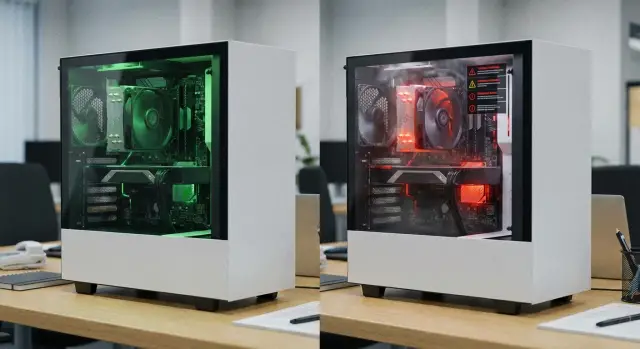
Why PCs with the same specifications can perform differently
On paper two computers can look identical: the same processor, the same amount of RAM, an SSD of the same capacity. In practice, that’s not enough. System behavior is often determined by things missing from a short spec: the BIOS version, drive firmware, power settings, cooling quality, motherboard revision and even the environment where the PC is used.
Because of this, differences usually become noticeable not in synthetic tests but during an ordinary workday. One PC boots quickly, installs updates without trouble, stays quiet and responsive. Another, with the same listed specs, takes longer to reach the desktop, stutters when several programs are opened, or starts to run hotter after a couple of hours.
The first symptoms often seem minor: short freezes, slow sign-in, fans that spin up under light office load, occasional update failures. But it’s precisely these small things that create the impression that you’re dealing with two different machines despite identical specs.
What a spec sheet doesn’t show
A specification only reveals the surface. It won’t tell you which controller is inside the SSD, which board revision arrived in a shipment, what microcode the CPU uses, or how cooling is configured.
Even within a single model there can be differences. A vendor may keep the same commercial name but change the memory supplier, update the board, replace the network controller or release a new BIOS version. For an end user this sounds irrelevant, but those details affect boot, sleep/resume, USB behavior, network stability, thermals and performance under load.
The same applies to storage. A 512 GB SSD isn’t necessarily the same quality across units. Two drives that look identical externally can have different controllers, memory types, cache sizes and firmware. One may retain steady responsiveness all day; another may start to degrade after updates, large file copies or prolonged background writes.
So an identical line in a spec sheet does not guarantee identical behavior. This is especially evident in batches for offices, schools or public institutions, where part of a shipment behaves well while another part starts to overheat, make noise or lag after a few weeks.
How firmware changes system behavior
BIOS or UEFI matters more than it seems. Even with identical CPU, RAM and SSD, different firmware versions can change boot, sleep behavior, fan curves, power consumption and stability under load.
On one PC memory may run conservatively, while on another a more aggressive profile is enabled. One system resumes from sleep cleanly; another sometimes hangs. Some machines run cooler and quieter but at the cost of higher temperatures and faster performance throttling. Formally they are the same configuration, but in practice their behavior diverges.
Common factors include:
- BIOS version and CPU microcode;
- memory profile and RAM frequency;
- power-saving and boost modes;
- fan settings;
- security options like TPM and Secure Boot.
It’s especially important to align firmware across a batch. If part of the shipment comes with one BIOS version and another part with a different one, the same system image doesn’t guarantee uniform behavior. In large deployments this quickly turns into a steady stream of small, costly issues: some machines won’t sleep correctly, some are noisier, some have unstable peripherals.
A telling detail: a single demo unit rarely represents the whole series. It may come from a different batch, already be updated, or simply have been assembled later. Conclusions are better drawn from several devices from the shipment rather than from one machine.
Why SSD affects more than just boot time
When people talk about storage, they usually remember only Windows startup. In reality, the SSD affects almost everything a user notices throughout the day: how fast documents open, how a browser behaves with dozens of tabs, how updates, backups and antivirus scans perform, and how temporary files are handled.
This is where the gap between a drive that looks good in benchmarks and one that is reliable in everyday use becomes obvious. One SSD will keep a steady response. Another may feel fast at first but then start to "hesitate" during program installs, file copies and background tasks.
The causes are often internal: a weak controller, small cache, memory characteristics or an unlucky firmware. In an office this is easy to spot. On one PC the accounting program opens without pauses; on another there are delays when logging in, searching or saving, even though CPU and RAM are the same.
Some signs of a weak or unstable SSD are:
- sharp drops in throughput after a few minutes of writes;
- hangs without high CPU usage;
- very long updates or program installations;
- read errors, disk-check failures or hangs after sleep;
- excessive heat in a cramped chassis.
Temperature matters here too. If an SSD overheats, it will throttle to avoid damage. The user won’t see a warning about overheating, they’ll just experience slow response. During acceptance testing you should look not only at capacity but at the exact model, firmware and behavior under real workloads.
What overheating does in everyday use
Overheating is often underrated because many checks are short and done in a cool room. Problems usually show up later, after the system has been running for several hours with documents, a browser, video calls, updates and background tasks.
When the CPU, SSD or RAM gets too hot, the computer protects itself. Frequencies drop, noise increases, programs respond worse, and occasional freezes or reboots can occur. Sometimes it all looks like "random" failures, but the cause is straightforward: the system is too hot.
The difference is especially noticeable in small cases, all-in-ones, PCs placed in closed cabinets, dusty environments and racks with tightly packed equipment. One PC sits on an open desk and runs smoothly; another is tucked against a wall or in a niche and starts throttling within an hour. The spec is the same, conditions differ, and so does the result.
Don’t check only the temperature at the moment of failure. It’s far more useful to inspect basics: are all fans spinning, are vents clogged with dust, is airflow blocked, is the cooling configured too quietly, has thermal paste dried out? These small details often explain why one PC is stable while another is not.
Why revisions and batches matter
A revision is an internal version of a product or component. Externally two PCs may look identical, but inside they may have different chips, a new controller, an updated board or a different cooling solution.
For one or two machines this might go unnoticed. In a batch the difference becomes obvious quickly. Some machines boot a bit slower, some run hotter, some require different drivers or behave differently after updates. Formally everything matches the spec, but the fleet becomes less predictable.
The batch also matters. If a shipment is assembled from multiple warehouse lots or production windows, different versions of components can end up in the same project. Then problems appear only on some devices, not all. Without tracking serial numbers and revisions, finding the cause becomes much harder.
During acceptance it’s useful to record a few details: BIOS version, SSD model and markings, memory vendor, board revision and serial number ranges. This saves time when a fault affects only part of the devices. Instead of blindly checking the entire fleet, you can quickly link the issue to a specific drive revision or board batch.
How to troubleshoot step by step
If two visually identical PCs behave differently, don’t guess. In most cases you can find the cause quickly by following an ordered approach.
Start by checking the basics: BIOS version, driver set, system image and power settings. Often you’ll discover that the machines are only superficially similar and already differ internally.
Next, inspect storage and temperatures. SMART checks reveal errors, wear and warnings for an SSD. Then put the PCs under a normal workload: a browser with several tabs, office apps, a video call, file copies and background updates. At this stage not only throughput numbers matter, but also CPU and SSD temperatures and fan behavior.
A typical workflow is:
- compare BIOS versions, drivers and the system image;
- check drive SMART data and temperatures under normal load;
- compare power modes and cooling settings;
- run the same task set on all PCs;
- record serial numbers, batches and component revisions.
Many skip the last step, which is a mistake. If you don’t record which machine had the problem and how it differed, you’ll have to start diagnostic work from scratch later.
Mistakes in procurement and acceptance
Many issues start before equipment is put into service. The most common mistake is focusing only on three lines: CPU, RAM and SSD capacity. That approach is handy for price comparisons but doesn’t help predict real-world uniformity.
A second mistake is mixing different batches and treating them as identical. For a small office this may be tolerable, but for schools, medical facilities, banks or government bodies it quickly becomes an extra support burden.
A third error is too-short testing. A PC can boot and pass a quick test but begin failing after several hours, when the chassis and drives reach operating temperature and normal background load appears.
Another common slip-up is updating only part of the devices. If half the batch runs a new BIOS and drivers and the other half remains on older versions, differences in behavior are almost inevitable.
For large purchases it’s useful to keep a simple log: serial numbers, batches, BIOS versions, SSD firmware, component replacements and recurring failures. Without this record a problematic series is easily lost among the working machines.
A real-world example
Imagine a typical scenario. A department receives a new batch of office PCs. On paper all is the same: one CPU, the same amount of RAM, identical SSD capacity and a single Windows image.
At first everything seems fine. Then complaints appear. A few machines take noticeably longer to install updates, some are noisier in normal use, and a couple become sluggish at the end of a long shift.
Diagnosis shows multiple causes. Some PCs have a different SSD model that behaves poorly under prolonged writes. During updates and background tasks it runs hotter and struggles to sustain performance. At the same time several machines have a different BIOS version, which changes fan behavior and power settings.
After aligning firmware, adjusting power settings and replacing some drives, the fleet’s behavior evens out. Updates take similar time across machines, noise drops and complaints decrease. This example shows that the issue is rarely “weak hardware” per se, but small differences that don’t appear in a short spec sheet.
What to check before deploying a batch
Before putting equipment into service, run a short but realistic check. It’s almost always cheaper than troubleshooting dozens of workstations later.
Things worth checking:
- are BIOS and SSD firmware versions consistent;
- do key component models and revisions match;
- is the system image, drivers and power configuration identical;
- how do temperatures behave not in a 5-minute test but after at least an hour of normal use;
- are serial numbers, batches and service replacements tracked.
For large rollouts it helps to choose a reference machine. Record its component list, firmware, settings and normal temperatures. Then compare other PCs not just by eye but against that reference.
This approach is especially useful where repeatability, build transparency and predictable support matter. In large deployments it significantly reduces diagnostic time and the number of disputes after rollout.
Next steps
The main conclusion is simple: when choosing PCs, don’t rely only on the component list. It’s important to know how a system behaves in real use and how consistently that behavior repeats from machine to machine.
Set critical requirements up front. For one project that might mean a single BIOS version and identical SSDs; for another it could be quiet operation, stability under sustained load or suitability for hot environments. If these things aren’t agreed before purchase, a shipment can meet the paperwork but still produce inconsistent results in operation.
During a pilot, test at least a few machines in the real environment for 20–30 minutes or longer: cold boot, sleep and wake, updates, file operations, video calls, temperature and noise. Such tests quickly reveal what a spec sheet cannot.
If a project requires unified batches, version control and clear post-delivery support, consider the vendor’s lifecycle practices. For example, GSE.kz makes it easier to track revisions, firmware versions and service history because the company manufactures equipment in Kazakhstan and provides ongoing support. That matters for large deployments where predictability is as important as nominal specs.
The sooner you move from the mindset “same CPU and same RAM” to “same behavior and same stability,” the fewer surprises you’ll have after deployment.
Frequently asked questions
Why do two PCs with identical specifications perform differently?
No. The processor, memory capacity, and SSD capacity describe only part of the system. The BIOS version, drive model, power settings, and cooling can noticeably affect responsiveness and stability.
Can the BIOS affect PC speed and stability?
Yes. The BIOS controls startup, sleep, fans, power, and component compatibility. Different BIOS versions on machines from the same batch often cause differences in noise, heat, or waking from sleep.
Why can 512 GB SSDs differ in quality?
Capacity does not reveal the SSD controller, memory type, cache, or firmware. One drive maintains fast responsiveness during long writes, while another slows down during updates and file copying.
How can you identify a problematic SSD?
Open the drive's SMART data and check for errors, temperature, and warnings. In everyday use, the issue often appears as lengthy updates, pauses when saving files, or freezes without high CPU usage.
What happens to a PC when it overheats?
At high temperatures, the processor and SSD reduce their speed to protect themselves. Users may notice sluggish applications, loud fans, occasional freezes, or restarts.
What is a computer revision, and why should you consider it?
A revision is the internal version of a board or component. The manufacturer may keep the model name but install a different controller, memory, or cooling system, causing some devices to behave differently.
Where should you start when checking two PCs that behave differently?
First, compare BIOS versions, drivers, system images, and power settings. Then check SMART data, temperatures under normal load, SSD models, serial numbers, and board revisions.
Is it enough to turn on a PC and run a quick test?
No. A quick check does not show how the computer performs after an hour of video calls, updates, browsing, and file copying. Give several machines the same normal workload and compare the results.
What should you record when accepting a batch of computers?
Record serial numbers, BIOS versions, SSD firmware, memory models, and board revisions. This log helps quickly link a recurring failure to a specific batch of components.
How do you prepare a large batch of PCs for deployment?
Choose one reference machine, configure it, and record its components, firmware, drivers, and power modes. Before deployment, compare the other PCs with this reference and check sleep, updates, temperature, and noise.
