8 min read
VESA Monitor Mounts: Cable Order for 200+ Workstations
VESA monitor mounts help bring order to 200+ workstations: unified mounting, cable standards, port and power allowances, and clear acceptance criteria.
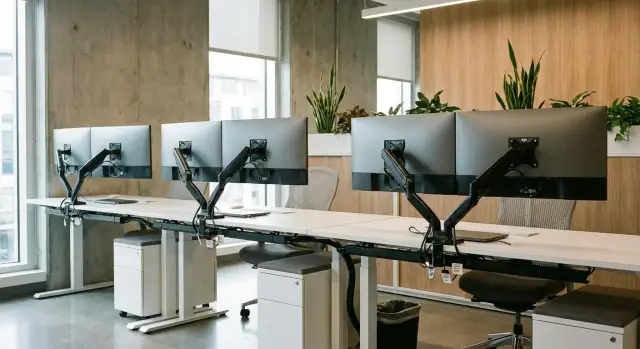
Why chaos starts at 200+ workstations without a standard
A stray cable on one desk is just annoying. On 200+ desks the same little things turn into hours of downtime. One person can’t connect a second monitor because they have the “wrong” adapter, another waits for a new bracket because the old one doesn’t fit the desk, and a third loses half a day while IT figures out what’s actually installed.
The problem is a “zoo” of models for mounts, cables and adapters. Each kit has its own screws, lengths and load limits. The warehouse inflates, and the needed tiny part still isn’t at hand. At the same time the risk of damage grows: a cable is taut, power runs through a questionable adapter, the mount works loose over time.
Standardization (including a unified approach to VESA mounting) solves several problems at once: maintenance becomes predictable, moves and rearrangements follow a template, procurement is easier to plan, and the workstation looks neat and safe.
Before ordering hardware and cables, agree on basics: who approves the specification, who’s responsible for installation and acceptance, what budget is allocated for "bringing things up to standard" and what timelines are realistic. When moving a 60-seat team, mismatched mounts often cause surprises: half the desks have one tabletop thickness, the others another, and some clamps simply won’t fit. Knowing this in advance prevents launch delays.
VESA mount options and how to choose the right one
Confusion usually starts with different VESA sizes on monitors. Offices mostly see 75x75 and 100x100. Before buying, check not only the hole spacing but also the mating surface: on some models the mounting area is recessed and requires spacer sleeves or a bracket plate of the right shape.
By mounting type people usually pick one of three scenarios:
- Desk clamp: convenient for typical desks, requires no drilling and is easier to reconfigure.
- Wall bracket: good where desks are narrow or you need to free desktop space, but it ties the station to the wall.
- Multi-monitor stand: suited for control rooms and call centers where symmetry and a common cable route are important.
Look at limits, not just price: rated load with margin, height and reach range, tilt and rotation (including portrait mode if you actually need it).
For large fleets (200+ seats) quick-release is often justified: a monitor can be swapped in minutes without disassembling the module. A rotation limiter is useful where desks are close and a screen might hit a partition or a neighbor. Protective pads and stops save tabletop edges and casings when a user moves the monitor abruptly or the clamp presses on the desk edge.
Unified workplace specification: what to include
A unified specification is a single document used for procurement, assembly and acceptance. For 200+ seats it saves hours of approvals and answers the main question: “How should this be set up?” Start from workplace types, not brands.
Usually 4–5 profiles suffice: operator (stable setup), manager (frequent meetings, laptop and dock), engineer (2 monitors, more ports), reception (compact and tidy on display). For each profile define a base kit: monitor(s), PC or laptop with dock, keyboard and mouse, headset, camera (if needed), plus small items like a mat or stand.
Also fix requirements for adjustments and safety. For the mount specify height, rotation, weight margin and a clear VESA standard. For the workstation overall set simple rules: cables are not taut, power bricks are not on the floor, nothing obstructs feet or cleaning.
To keep the standard alive, describe permitted replacements without approval: for example, a monitor model may be replaced if diagonal and VESA match, a PC if it offers the same set of ports, a mount if it covers the same load and adjustment range.
Minimum to include in the spec:
- workplace profiles and quantities
- equipment list per profile
- ergonomics and safety requirements
- allowed equivalents and replacement rules
- acceptance criteria (what is checked on site)
If you procure PCs and monitors from a local manufacturer and integrator like GSE.kz, it’s practical to lock some parameters in a standard configuration so batches match in mounts and ports.
Preparing desks and rooms for a unified mount
Before buying mounts and starting installation, check whether desks and the layout are ready. On 200+ seats any small issue repeats hundreds of times: somewhere the clamp won’t fit, somewhere the monitor hits a partition, somewhere the mount starts to wobble because the tabletop is thin.
Start with clamp points. The clamp needs clear access to the desk edge, without metal skirts, trays or crossbars right under the clamp area. If the desktop is thin or made of soft material, plan reinforcement (e.g., a support plate), otherwise the mount will sag and loosen over time.
Verify layout before marking: set offsets from walls, partitions and windows so a mounted monitor can move without hitting obstacles. Leave enough room in aisles for a user to turn the screen without bumping a neighbor.
Think about maintenance. Screws and cable exit areas must be accessible. If the mount covers the desk edge, cleaning and minor retightening become constant headaches.
It’s easier to work from one installation template. Fix:
- base distance from the mount to the desk edge and to the side edge
- drilling zones (if the base is bolted) and forbidden zones (reinforcements, metal parts)
- minimum clearance to wall/partition at maximum reach
- base orientation (where the hinge faces, where the clamp should be)
Example: if desks in a room sit flush against the wall, shift them uniformly 8–10 cm away from the wall before marking mount points. Otherwise some mounts will be “squeezed” and perform poorly from day one.
Cable standards: types and lengths without extra tails
At 200+ workstations cables become a zoo for two reasons: different connector types on monitors and PCs, and random lengths bought “whatever was available”. A standard starts with a simple rule: define one cable kit and one or two allowed lengths per workplace type.
Minimum kit by workplace type
For a typical single-monitor workstation a fixed kit is enough: power for the PC or all-in-one, a video cable and USB (if peripherals connect via a hub or dock).
Practical rules:
- Video: DisplayPort as primary, HDMI as backup.
- USB-C: use where a single-cable laptop or dock connection is genuinely needed.
- Power: uniform mains cords and a consistent quality class for extension leads.
- USB: one standard cable to peripherals or one cable to a hub.
Length rule: short, but with margin
A cable shouldn’t lie in coils, but must allow the full travel of the mount. Choose lengths so the cable reaches the under-desk attachment point with a small movement allowance for monitor up/down and rotation. Often two lengths are enough across the whole office: a “short” one for PCs under the desk and a “long” one for PCs in a pedestal or beside the desk.
Power bricks and extension reels should not hang by their cords. Anchor them under the desk (rail, hook-and-loop, ties) while leaving access to the power switch and fuse. If you have many identical workplaces, include this in procurement together with the hardware.
Labeling and storage: so cables don’t get lost
At 200+ desks cables don’t go missing because they’re stolen, but because no one knows what a cable in a box is or where it came from. Two rules solve half the problems: label both ends and have a clear storage system.
Label each cable on both ends. A sticker on one end often ends up under the desk or inside a channel, while the other end remains nameless. To prevent wear, use heat-shrink with printing or laminated labels — don’t write with a marker on smooth PVC.
A label can include a short scheme:
- workstation ID (e.g., WS-143)
- line type (PWR, DP/HDMI, LAN, USB)
- length (2.0m, 3.0m)
- replacement date or installer initials (optional)
Color coding speeds up installation and troubleshooting. The key is uniform rules: power separate, video separate, network separate, peripherals separate. Use color tags, heat-shrink at connectors or same-color hook-and-loop. Don’t mix approaches between floors or teams.
To keep labeling alive, maintain a single set of consumables: hook-and-loop instead of zip ties where moves happen, under-desk clips, mount-mounted cable clamps, short grommets for desk exits.
Organize storage like a mini-warehouse, not a “everything in one box”: separate by type and length, store in clear bags with labels and introduce simple issuance and return records. Keep a 10–20% buffer of the most-used items so replacements don’t force random adapters and proliferate converters.
Cable routing on the mount and under the desk
Even the best mount won’t help if cables hang in loops and catch on hands, feet and chair wheels. Good routing is done once and then makes maintenance and moves easier.
On the mount secure the cable at two points: at the monitor exit and near the base of the stand. The cable must not rub on hinges or enter metal moving zones. Use built-in channels or clips if present. If not, use soft hook-and-loop straps rather than plastic ties so the insulation isn’t pinched.
Leave a service loop for monitor movement: raise and lower through the full travel and turn left/right without tension. Usually 10–15 cm of free arc behind the monitor is enough. Stash excess under the desk, not on the mount.
Separate power and signal lines: power on one side, video and USB on the other. Under the desk bring everything to one point (tray or box) and then bundle to the outlet and to the PC.
To avoid sagging to the floor:
- lift extensions and power bricks into an under-desk tray
- use a vertical cable channel or braid from the desk edge to the floor
- keep the lowest point of the bundle above the seated person’s knee
- route loops at least 15–20 cm away from chair legs
Example: when relocating 30 stations in a team where cables are gathered into a single vertical bundle and hidden in a tray, technicians don’t need to untangle nests. They remove two hook-and-loop straps and move the workstation without damaging cables.
Port and power allowances: to avoid adapter proliferation
When hundreds of stations each have differing port sets, adapters and chargers multiply quickly. Fix a default for most seats and a few exceptions for special roles.
Ports: minimum and sensible spare
The minimum should cover “laptop or PC + monitor + peripherals.” Spare capacity lets you replace models without rewiring everything.
- Video: 1 primary (HDMI or DisplayPort) + 1 backup
- USB: at least 2 ports for mouse/keyboard and tokens, preferably 2 more on the front or desk surface
- Network: RJ-45 in place even if Wi‑Fi is used
- Audio: either a USB headset or a dedicated audio jack, but not both "just in case"
- Charging: a single charging standard for laptops (e.g., USB-C PD) if the fleet allows
A dock or USB-C monitor is worthwhile when many laptops and frequent seat swaps occur. It’s not cost-effective where most stations are fixed and laptops are rare: you pay for unused features and add another failure point.
Power and adapters: allowed and forbidden
Set clear rules for power: how many outlets per station and where UPS is critical. In call centers or cashier areas a UPS often makes sense; for regular office seats a quality extension lead is usually enough.
Make adapter rules strict:
- allow only approved, certified adapters of 1–2 types kept in warehouse
- prohibit chains of two or more adapters and any anonymous converters
- if an adapter is needed permanently, treat it as a sign to change the cable or port standard rather than "add another"
On integrated projects this is usually the most cost-effective rule: removing exceptions is cheaper than servicing them for years.
Step-by-step plan to implement the standard for 200+ workstations
Start simple: document what you have, then buy. On large sites chaos arises not from people but from a mix of models, mounts and cables.
-
Inventory. Create a spreadsheet by zone: monitor models and VESA support (100x100, 75x75), ports (HDMI, DP, USB-C), which cables are actually used and which sit “just in case.” Also note where power is lacking or circuits are overloaded.
-
Choose a standard. Approve 1–2 mount models for typical desks and tasks (standard, reinforced, height-adjustable). At the same time define the cable set: 2–3 standard lengths instead of a dozen, plus a clear port and power allowance (e.g., DP + HDMI at each station if the monitor fleet is mixed).
-
Pilot 10–20 seats. Pick one area, assemble to the standard, route cables, and test scenarios (laptop + monitor, PC + two monitors). Collect issues: where a cable is short, where a mount interferes, where a port is missing.
-
Mass rollout by zones. Do it in batches: one floor or one department at a time. At each station perform acceptance with photos (“as it should be” top view and under the desk) — this reduces disputes and repeat trips.
-
Maintain the standard. Assign process owners: who issues mounts and cables from the warehouse, who replaces on failure, who writes off old items. Keep a small on-site buffer (e.g., 3–5% of the fleet). In large organizations it’s often practical to pair with an integrator for service: GSE.kz offers 24/7 support and a service network that helps keep a unified standard after deployment.
Typical mistakes that bring back the chaos
A common story: you tidy up, but after a few months some desks have different mounts again, cables hang in loops, and adapters multiply. It’s usually not "careless people" but gaps in the standard and procurement.
First mistake — buying mounts “on sale” without checking VESA and monitor weight. Some models are 75x75, others 100x100, and some are heavier than expected. Result: installation turns into a list of exceptions.
Second — buying cables with too much slack “just in case.” Long tails become tangles, catch on chairs and drawers, and put connectors under strain. After a couple of moves you get play, cracked connectors and signal loss.
Third — no labeling. When cables aren’t labeled at both ends, any relocation becomes a guessing game.
Another trap — mixing HDMI and DP without rules. Today you install a monitor with HDMI, tomorrow a laptop uses DP, the day after someone adds an adapter, and suddenly the desired resolution or refresh rate won’t work.
Check for “permitted exceptions” that grow:
- mounts without unified acceptance for VESA, load and desk type
- cables longer than needed for the mount’s full travel
- missing labels on both cable ends and on power bricks
- free choice of HDMI/DP without a set rule
- no allowance for spare ports and power, which leads to random adapter purchases
Example: when moving a 40-seat team without labeling, 5–10 cables and several adapters usually go missing, and some monitors end up working only on one input. With labeling and fixed cable types, it’s an ordinary relocation.
Short acceptance checklist for each workstation
A checklist helps accept a station in 2–3 minutes and catch small issues that become constant support tickets. It’s convenient if one responsible person does the acceptance and records results by station number.
Before testing set the monitor in the extreme positions of the mount (up/down, forward/back, rotate left/right) and simulate normal use.
- Mount installed securely: no play, screws tightened, screen doesn’t droop.
- Cables have slack: in any mount position there is no tension and connectors aren’t being pulled.
- Labels are readable on both ends and match the workstation ID.
- Under the desk tidy: no hanging loops, power bricks secured or placed so they won’t be hit.
- Ports and power accessible: required connectors are easy to reach, no forced adapters, extension not overloaded.
If any item fails, fix it on site. On a large office this is cheaper than later disassembling 200 identical “small problems.”
Case study: a move without a week of chaos
A 60-seat team moved floors while replacing 20 monitors. Previously such moves took weeks: some mounts didn’t fit, cables were different lengths, and adapters and extension cords ended up scattered.
They approved a standard in advance: one type of VESA mount for common sizes (75x75 and 100x100), one cable kit per station and a clear port and power allowance. On the monitor swap day they didn’t touch mounts: they removed the old screen, fitted the new one and tightened the same four screws.
The biggest speed gain came from typified and labeled cables. When stations were moved row-by-row the kit looked identical: right length, same connectors, a backup port on the dock or PC, and a prechecked extension (if allowed by the standard).
Before the move they prepared:
- boxes for monitors and trays for fasteners by row
- consumables (hook-and-loop, clips, spare VESA screws)
- a crew with role divisions: teardown, move, install, check
- acceptance per checklist: image, network, audio, charging, tidy routing
After the move they logged deviations in a short register: where a nonstandard item was used (e.g., longer cable), who approved it and when to return to the standard. This prevents “temporary fixes” from becoming new norms.
Next steps: how to lock the standard and keep it
The standard must be simple and verifiable. The most practical format is one page: which VESA-compatible mounts are allowed, what cable types and lengths we use, how we label and the acceptance checklist. If you can print and hang it in the staging area, the format is right.
Don’t buy for the whole office at once. Pilot 10–20 desks in different conditions: by a window, against a wall, in open space and in a private office. Small issues pop up: a cable is too short, the mount exit is awkward, a power brick hits a trunking.
A support cycle looks like this:
- Approve the one-page standard and short acceptance checklist.
- Build a pilot and adjust based on findings.
- Appoint a warehouse owner for cables and mounts and an owner for deviations control.
- Procure as complete workstation kits, not scattered items.
- Quarterly spot-check 10 stations and update the standard.
To prevent proliferation of exceptions, require that any deviation (different cable, adapter, nonstandard power) is recorded and has a deadline — it is either fixed or officially becomes the new norm.
If you plan a fleet refresh, design the workstation as a complete kit: PC or all-in-one, monitor, mount, cables, power and acceptance. For comprehensive projects in Kazakhstan some teams contract GSE.kz as a manufacturer and integrator: they provide PCs, all-in-ones and servers plus 24/7 technical support, which helps keep the standard alive beyond the paperwork.
Frequently asked questions
Why standardize mounts and cables if "it already works"?
A standard ensures the same problems are resolved the same way and quickly. When mounts, cables and adapters differ, IT wastes time figuring out “what’s installed here”, the warehouse balloons, and simple swaps become a quest. A unified specification makes maintenance predictable and reduces downtime.
How can I quickly tell if a VESA mount fits a specific monitor?
First check the mounting hole spacing on the monitor: most often 75x75 or 100x100. Then see whether the mount recess is flush — some models need spacer sleeves, otherwise the bracket won’t sit flat. Finally, compare the monitor weight to the mount’s rated capacity with a safety margin so the screen won’t droop over time.
What should we choose for the office: desk mount, wall bracket or multi-monitor stand?
A desk mount is the easiest to scale: it doesn’t require drilling and is easier to move during rearrangements. A wall bracket is useful when you need to free desk space but ties the station to the wall and complicates moves. A multi-monitor stand fits control rooms and call centers where symmetry and a common cable route matter.
What desk issues most often break the deployment plan for 200+ stations?
Unprepared desks often cause unexpected stops: a clamp won’t fit because of a skirt or tray, or a thin desktop flexes and the mount loosens. Check that the desk edge is accessible and plan reinforcement where the surface is thin or soft. It’s cheaper to prepare in advance than to retighten mounts on hundreds of desks later.
How to choose cable lengths so there’s neither tension nor excess slack?
Usually two lengths are enough for most positions: a short cable when the PC sits under the desk, and a longer one when the PC is in a pedestal or to the side. The cable must accommodate the mount’s full motion without tension, but shouldn’t form large loops under the desk. If you repeatedly need an extra meter, it means you should revisit power and mounting points rather than buying "just in case" cables.
Which video standard is better to standardize on: HDMI or DisplayPort?
A practical office default is DisplayPort as the primary standard and HDMI as the spare for compatibility. This simplifies procurement and avoids situations where the desired resolution or refresh rate fails because of a random adapter. If the monitor fleet is mixed, set a rule for which input is considered primary at each station.
Why label cables on both ends rather than just one?
Mark both ends, because one end is almost always hidden under the desk or in a channel while the other end remains “nameless.” A label should include the workstation ID, line type (PWR, DP/HDMI, LAN, USB) and length. Keep labeling rules identical across floors and teams so the system stays useful.
How to avoid a "zoo" of adapters and chargers in a large office?
Don’t encourage adapters — restrict them: allow only 1–2 verified types kept in stock and ban chains of multiple adapters. If an adapter is always needed, change the port or cable standard instead of supporting the exception for years. This reduces failures, “sometimes works” complaints and speeds up equipment swaps.
Is a quick-release mechanism on mounts useful in a typical office?
Quick-release makes sense when monitors are frequently swapped, spare screens exist, or rapid replacement without disassembly is required. In a stable office with rare changes it’s not mandatory, but it can pay off if IT regularly services large areas and wants to shorten on-site work time. Test it in a pilot because results depend on the mount model and user habits.
How to begin implementing a standard for 200+ workstations without missing deadlines?
Start with inventory and choose one or two standards, then run a pilot of 10–20 desks in different conditions to catch small issues before mass installation. Roll out by zones with acceptance using a checklist and record deviations so temporary fixes don’t become the new normal. If procurement and deployment are done as a kit through a manufacturer and integrator like GSE.kz, it’s easier to keep ports, mounts and support consistent across the park.
