7 min read
Vendor OS Image Audit: Checking Telemetry and Services
Audit a vendor OS image before acceptance: check services, scheduled tasks, autorun and network calls to remove unwanted components.
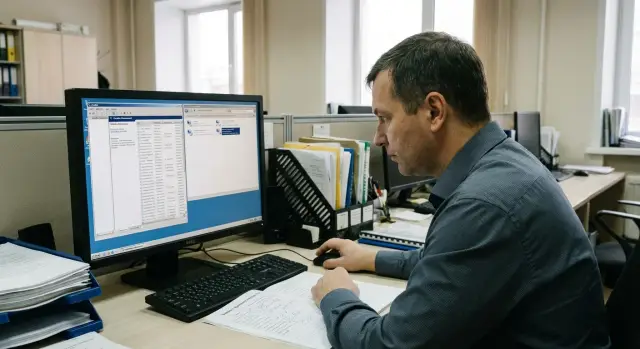
Why you should check the vendor OS image before acceptance
A vendor-provided OS image is a ready “golden” Windows installation deployed across a batch of PCs. In practice it often differs from expectations: it may contain “convenience” utilities, driver packs, monitoring agents, trial software or default settings the vendor applies to all devices.
The problem is that extra components usually run in the background. They consume resources, generate network traffic and add attack surface. That’s why you should audit the image before signing acceptance: you can stop the delivery, demand corrections or document deviations while you still have leverage.
Hidden autorun points are especially tricky: startup entries, services and scheduled tasks. Users don’t see them, but they may launch updaters, telemetry, remote management or helpers that go online without approval.
Common risks include:
- extra services and drivers with unclear purpose;
- unapproved management and monitoring agents;
- scheduled tasks that create regular background activity;
- telemetry and background calls to external addresses;
- autorun entries that reappear after updates or domain join.
Simple example: you accept 200 workstations, connect them to the network and see constant outbound connections. If that surfaces after acceptance, fixing it becomes a dispute, causes user downtime and may require reinstallation or rebuilding the image.
What to agree with the vendor in advance and record in writing
Before checks, agree what exactly you are accepting. Then the audit becomes a verification against the agreed specification, not a hunt for surprises.
Record basic OS parameters: version and edition (for example, Windows 10/11 Enterprise), language, architecture, licensing scheme and image build date. The date matters: it affects updates, components and scheduled tasks.
Request a list of preinstalled software and drivers with versions. “Drivers installed” is insufficient: the protocol should include names, versions and source (manufacturer package, corporate repository, OEM kit). This helps quickly filter out unwanted utilities and trace where extra services came from.
Also agree security settings: policies (local and domain, if applicable), disk encryption, antivirus/EDR and exception rules. If there are monitoring or remote-management agents, ask for their purpose, connection points and responsible parties.
It’s convenient to capture everything in one document:
- OS composition (version, edition, language, architecture, build date);
- list of software and drivers with versions;
- policies and protection tools (including encryption);
- responsibility for updates, activation and initial setup after delivery;
- allowed network communications (updates, activation, time sync), including time windows.
Example: you accept PCs for a school or government body and forbid any outbound connections except activation and updates for the first two hours after first power-on. Put that in writing; otherwise “unexpected” telemetry or a support agent becomes a disputed area rather than a breach.
Preparing a testbed and recording the baseline
You don’t need to deploy the whole batch. Choose 1–2 devices: one with the typical configuration and one with a difference (different disk, comms module, BIOS version). That makes it easier to spot deviations invisible on a single sample.
Build the testbed as an isolated environment: a test network without internet or with a controlled gateway so all traffic is visible. Create separate accounts: a normal user and an admin account for checks. Don’t use your personal domain account to avoid mixing your policies and agents into the results.
Before any actions, record the baseline. Ideally take a system snapshot or disk backup so you can roll back and repeat checks the same way.
For the report, capture basic installation fingerprints:
- hashes of the received image (if provided separately) and checksums of key files;
- OS build number, edition, language and installation date;
- list of installed updates;
- BIOS/UEFI version and driver pack versions.
Agree the final report format and acceptance criteria in advance. For example, stop-factors might be an unknown remote-management agent, undocumented telemetry or services opening ports without justification. This is especially important for government, banking or medical procurements.
Quick inspection: processes, autorun and installed components
The first hour of checks usually yields most findings. The goal is simple: see what starts by itself, what is running and what’s installed.
Start with autoruns. On Windows check not only the Task Manager "Startup" tab but also the Startup folders and Run/RunOnce registry entries (for the user and for the system). Helpers often hide under neutral names like Updater, Helper, Service Host but live in odd folders.
Then examine running processes. Three worrying signs: unknown publisher, unusual path (for example, run from AppData or Temp) and constant activity without an obvious reason. Compare names and paths with what was promised in the specification.
Keep a short checklist to avoid scattering effort:
- autorun (Startup, Run, RunOnce);
- processes (publisher, file path, CPU and network load);
- installed apps and components (verify against vendor list);
- browsers (extensions, background helpers, autorun);
- evidence capture (screenshots and exported lists).
Example: during acceptance for procurement you find the same “Helper” in autorun on many PCs. The path is in the user profile, no publisher is shown, and the software list doesn’t include it. Stop, record the artifacts and ask the vendor in writing: what is it, why is it needed and can it be removed safely?
Record every finding immediately: file name, path, date, version, hash (if used) and which device it was found on. This saves time in disputes and rechecks.
Services and drivers: what to check and warning signs
Services and drivers persist in the system and can run unnoticed. It’s important not only to list them but to understand what starts automatically, under which account and from where.
Collect basic service data: name, status, startup type and account (LocalSystem, NetworkService, a specific user). Many system services are normal. Be suspicious of entries with unclear names, missing descriptions or paths in Temp, ProgramData or user profiles.
Common red flags:
- a service starts automatically under LocalSystem and no one can explain why;
- the service binary is unsigned or the signature doesn’t match the expected publisher;
- a nonstandard path for the executable (not Windows or Program Files);
- the service immediately creates network connections after start;
- related scheduled tasks or autorun entries appear nearby.
Then check drivers and filters. Pay special attention to network (NDIS, WFP), disk and file-system filter drivers: they can intercept traffic or file operations. Any unknown kernel driver requires an explanation and provenance confirmation.
Quick Windows capture (minimum for protocol):
sc query type= service state= all
driverquery /v
pnputil /enum-drivers
Also look for remote-administration agents. If they’re needed (for support), agree who manages them, how access is disabled and how connections are logged. If there’s no answer, halt acceptance until clarified.
Scheduled tasks and policies: hidden autorun points
Scheduled tasks and policies often hide things not visible in the regular app list. Their job is to run actions without user involvement. Before acceptance check what starts at logon, on a schedule, on idle or after network connection.
In Task Scheduler open the Library and inspect Microsoft and third-party folders. Look at triggers, actions and the run account. Pay attention to tasks running as SYSTEM or with elevated rights.
Worrying signs:
- an action launches PowerShell, cmd, wscript, mshta or an unknown exe;
- the path points to Temp, AppData, Downloads or a user profile folder;
- arguments include network downloads, execution from a URL, base64 blobs or hidden modes;
- triggers on logon, idle, unlock or network connect;
- a task is hidden, undocumented or recently created without reason.
To export tasks for the protocol:
schtasks /query /fo LIST /v > tasks.txt
Then check policies. Even without a domain, local policies can enable telemetry, set update rules, add antivirus exclusions or allow app execution. Export applied policy results and compare with the agreed settings:
gpresult /r > gpresult.txt
Also compare security exceptions and application control rules. Any allowances for unknown publishers or paths in AppData/Temp usually require vendor explanation.
Telemetry and network calls: how to catch unwanted traffic
The goal is to know who the PC contacts right after first boot and which processes are responsible. Start with a clean experiment: connect the PC to a test network where all traffic is visible and not mixed with production infrastructure.
Collect the list of external addresses and domains contacted in the first 10–20 minutes. Simultaneously watch active connections (Resource Monitor, netstat) and DNS query logs on your DNS server.
Typical benign calls include time sync, license checks, updates and certificate revocation checks. Worrisome signs are continuous connections to unknown domains, frequent short calls every 1–5 minutes and traffic from a process that doesn’t need internet access.
Check three places where telemetry often hides:
- DNS and proxy settings (is a forced proxy or foreign DNS configured?);
- root certificate store (are extra root CAs added?);
- firewall rules and exceptions (are there "allow all apps" rules?).
Record the tuple: domain or IP, process, time, frequency and volume. For example: after logon an unknown service regularly sends outbound traffic to an external address unrelated to activation or updates. That’s grounds to demand an explanation and an option to disable it before accepting the batch.
Extra agents and remote management: how not to miss them
The worst finding is a hidden remote-management agent that continues to work after delivery. Look not only for obvious programs but also for things that start as a service, driver or task.
Check for RMM agents, inventory tools, remote-help software and unnecessary VPN clients. They often use neutral names (Support, Monitor, Update Service) and include their own services and autoupdate.
Quick signs to investigate further:
- a service described as “remote support” but no owner or contract;
- a new local admin or a “technical” account;
- tokens, keys, certificates or preconfigured connection profiles;
- enabled RDP or an installed VNC-like tool without customer request;
- regular outbound connections to unknown addresses, especially immediately after boot.
Then determine who can actually gain access. Check local users and groups, remote-login policies, service permissions and RDP settings. If the image includes SSH or server components on workstations, that must be separately justified.
Also inspect update tasks for third-party agents: they may run on a schedule as SYSTEM and pull modules from the network. Record where they connect and how they update.
A practical rule for acceptance: classify all agents into three categories — “disable” (doesn’t affect operation), “remove” (no purpose or owner), “agree” (needed for warranty, monitoring or integration but must have clear contacts, rights and procedures).
Common mistakes during an image audit and how to avoid them
The most common mistake is auditing the image on the production network. Then normal Windows, driver and office updates are easy to confuse with suspicious traffic and the results become disputable. Run the audit in an isolated environment: separate testbed, controlled internet access (or none) and predefined rules for allowed outbound traffic.
The second mistake is limiting checks to "Programs and Features." Extras often live deeper: services, drivers, scheduled tasks, browser extensions and autorun. Looking only at installed apps can miss an agent that runs as a service or a task that fires once a day.
Another risk is deleting a component on the spot without understanding dependencies. You may break printing, VPN, updates or logon. Safer approach:
- record the state first (versions, snapshots of settings);
- disable (not remove) and reboot;
- test basic scenarios (logon, network, domain, printing);
- then agree removal and image rebuild.
Disputes with vendors often drag on because artifacts are poorly recorded: exact versions, service names, file paths, task parameters, timestamps and network addresses. Without that evidence it’s hard to prove the issue was in the image and not introduced later.
Also don’t check only one device. Even with the same image different hardware models, SSD batches or driver sets can behave differently. Sample several devices from different boxes and configurations.
How to document results: report, risk levels and acceptance decision
The report isn’t for show — it lets the vendor reproduce the issue and fix the image, and lets you justify acceptance or refusal. Write facts: what you found, where it is, how it starts and what proves it.
A single uniform record format for each finding works well.
Finding record template
- Identifier and short name, e.g. "TelemetryService-X".
- Location: file path, service/driver/task name, registry branch.
- Start point: autorun, service, scheduled task, policy, driver.
- Observation: what it does (process, launch arguments, network calls, frequency).
- Evidence: exported lists, log excerpts, screenshot, pcap (if traffic captured).
Assign a risk level. Three levels are convenient: “acceptable” (documented and justified), “requires agreement” (possibly legitimate but needs an owner and purpose), “critical” (hidden execution, unexplained remote access, unexpected external connections, attempts to weaken protection).
Then state remediation requirements: what to remove, reconfigure or keep and why. Record the deadline and the vendor contact responsible.
Acceptance decision
Tie acceptance to clear criteria:
- no critical items;
- all “requires agreement” items resolved in writing or removed;
- a recheck performed with the same scenario and matching results.
Example: for a school batch you find a hidden updater task and two unknown outbound domains. That’s “critical” until explained. Attach logs and pcap, request a new image and re-run checks before signing acceptance.
Example: accepting a batch of PCs and checking the image over 1–2 days
Delivery: 200 PCs for a government or educational organization. The vendor deploys their OS image. Acceptance must ensure the image contains no extra services, autorun entries, agents or network activity you weren’t told about.
To avoid delaying the project, a sample of 5–10 devices is usually enough. Don’t take the first from the pallet; pick devices from different boxes and dates: different build dates, serials and, if possible, models. If there are multiple vendors or image variants (for teachers vs. classrooms), include each variant.
One-day plan (if the image is uniform and changes are typical):
- Keep 1–2 PCs offline: capture baseline (processes, services, autorun, tasks), record OS versions and installed components.
- Connect 2–3 PCs to a test segment: check which domains/addresses are contacted after logon and during 10–20 minutes idle.
- Reboot one PC 2–3 times: some extras appear only after the second start or after an update.
Findings often repeat: third-party updaters, manufacturer helpers, remote-support agents, telemetry services, tasks that periodically wake the PC and download something. Sometimes driver utilities are legitimate (touchscreen, power management) but pull extra components.
Talk to the vendor using facts: “here’s the service/task/process, here’s when it runs, here’s the network call, here’s why we don’t need it.” Ask them to remove it or justify it in writing (for warranty or driver management) and provide a configuration that disables unnecessary features.
After fixes recheck 1–2 devices from the sample and record the final state: list of allowed services/tasks, control values for the image (file hashes or software-list snapshot) and build date. This helps with disputes if the image changes mid-delivery.
Short checklist before signing acceptance
Before the final signature don’t just “look again” — preserve minimal evidence. That saves days of disputes if an extra agent, hidden task or unexpected network call shows up later.
Record in the protocol:
- conformity with declared specs (edition and version, build number, activation status, updates, language and timezone, key requirements from the spec);
- lists of "autorun points" (processes, autorun, services, drivers, scheduled tasks) with unknown items noted;
- network behavior in the first 30–60 minutes (domains/addresses and ports, which processes initiate connections, any regular outbound calls without justification);
- accounts and remote access (extra local admins, RDP enabled without agreement, saved passwords, third-party remote management and monitoring);
- final risk assessment (what is acceptable, what must be removed before deployment, what is a stop-factor).
The final decision can be: accept, accept with conditions (vendor removes components and rebuilds the image), or refuse. For public sector, education and healthcare it’s useful to require repeatability: the next delivered image must produce the same verification results.
What to do next: lock the image standard and control deliveries
Turn a one-off check into a standard. Otherwise, future deliveries may again arrive with an “enhanced” image that has extra components “for convenience.”
Start simply: assign an image owner (usually IT together with infosec) and formalize change rules. Decide how images are updated: who applies patches and drivers, where the master image is stored, how change logs are kept and what deviations are critical. A good rule: no additions without a request — no remote agents, optimizers, untracked VPN/proxy or any service with network activity.
Agree with infosec on acceptable telemetry: which events may be sent, to which domains/IPs/ports, when and how this is controlled. Also specify acceptance-stage network rules: e.g. no domain join and no internet access until approved.
To keep control manageable, use periodic sampling:
- check 1–2 devices from each delivery against your checklist;
- quarterly run network checks on a typical workstation;
- compare services, tasks and autoruns to the reference via reports, not by eye;
- log deviations and require vendor corrections.
If you regularly buy PCs and servers, repeated requirements for image and security usually pay off. In such projects the manufacturer or system integrator can own the reference image and produce documentation for acceptance. For example, GSE.kz (gse.kz) in addition to supplying workstations and servers also provides integration and support, which helps formalize a single image standard and reproducible checks.
A simple rule: if changes in the image cannot be explained and reproduced as a controlled package, it’s not an update — it’s a risk.
Frequently asked questions
Why check the OS image before signing acceptance, not after?
Because after signing the acceptance documents you have fewer levers: fixes turn into disputes, downtime and reinstallations. Before acceptance you can demand a rebuilt image, stop the delivery or record deviations as violations of the agreed specification.
What should I request from the vendor before auditing the image?
Agree and record in writing the Windows edition and version, language, architecture, licensing scheme and the image build date. Also request a precise list of preinstalled software and drivers with versions and source, plus security settings, disk encryption, antivirus/EDR and any management agents with their purpose and connection points.
How many computers from the batch are enough to find discrepancies?
At least two: one standard configuration and one with hardware differences (for example, a different SSD, communications module or BIOS/UEFI version). For large batches, sample several units from different boxes and serial/date ranges to catch disparities not visible on a single device.
How to prepare a testbed for the audit so results aren’t distorted?
Test in an isolated network without internet or with a controlled gateway so all traffic is observable. Don’t sign in with your personal domain account or join the device to the production domain before baseline checks, otherwise your policies and agents will mix into the picture.
What should be recorded at the start so you don’t argue with the vendor later?
Record the OS build, installation date, installed updates, BIOS/UEFI and driver versions, and, if the image was provided separately, its hash. Ideally take a disk snapshot or backup so you can repeat checks the same way and prove that issues were present in the image, not introduced later.
What to look at first: autorun, processes or installed programs?
Start with autorun points and current processes, because helpers and updaters most often hide there. Red flags: unknown publisher, execution from AppData/Temp, vague names and continuous activity without reason. Immediately compare such findings with the specification and record file paths, versions and start times.
Which services and drivers should raise concern during acceptance?
Check what starts automatically, which account it runs under and where the executable is located. Red flags include automatic start under LocalSystem with no clear owner, missing or mismatched digital signatures, nonstandard paths and network connections immediately after service start. Network and file-system filter drivers are especially sensitive because they can intercept traffic and file operations.
Why is it important to check Task Scheduler and local policies?
Scheduled tasks and policies often launch hidden updates, telemetry or scripts without user action. Watch for tasks that run PowerShell/cmd/wscript/mshta or an unknown exe, trigger on logon/idle/network connection, run as SYSTEM, or contain download/execution arguments. For policies, ensure there are no unexpected security exceptions or enabled settings you didn’t agree to.
How to quickly tell if the image contains extra telemetry or odd network traffic?
Do a clean boot in a test segment and monitor the first 10–20 minutes after logon: which domains and IPs are contacted, which processes initiate connections and how often. Normal traffic includes time sync, activation, updates and CRL checks. Suspicious activity is frequent short calls to unknown domains or traffic from processes that shouldn’t need internet access.
What to do if you find an unknown agent, remote management or extra connections?
Don’t delete immediately: first capture artifacts, disable the component and reboot to check basic functions so you don’t break dependencies. Then ask the vendor in writing for the component’s purpose, owner and how to disable it. If it’s an unmanaged remote-access agent or unexplained external connections, the safe option is to halt acceptance until the image is rebuilt.
