3 min read
VDI vs Physical PCs: Calculating Economics and Risks
VDI vs physical PCs: a clear TCO and risk calculation covering workloads, network, licenses and user profiles, with examples of where VDI is not suitable.
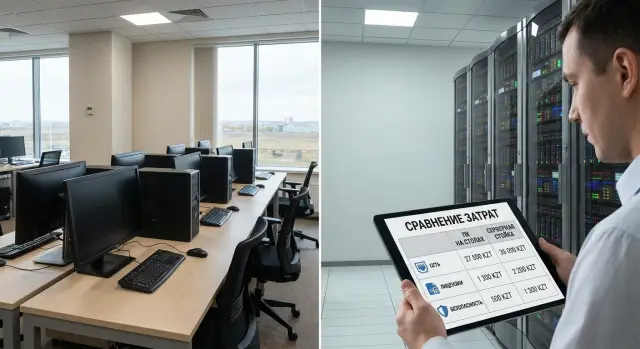
Start from the task, not the technology
You choose VDI or physical PCs to solve a specific pain, not because it’s “trendy”. Typical triggers are fleet refresh, a move to remote work, or tighter data control so files and access remain within the corporate boundary.
It’s more useful to compare scenarios than "VDI vs hardware". The same employee can be "office" in the morning (email, documents, 1C/CRM) and "field" during the day (unstable internet, business trips, peripherals). In the first case VDI brings manageability and standardization. In the second case it can easily add problems.
Disappointment usually comes from expectations. For example, when VDI is expected to be universal for everyone without checking network and peripherals. Or when people plan to “save on PCs” but forget server capacity, storage, redundancy, licenses and extra support. Another common failure is that critical apps (graphics, CAD, video, special USB devices) perform noticeably worse and users start bypassing the new solution.
To make an honest decision, by the end of this stage you should have four pillars:
- a list of user scenarios (roles, applications, where and how often they work);
- a cost model that can be turned into a TCO calculation;
- risks and constraints (network, licenses, security, peripherals);
- a pilot plan: who goes first, what we measure and which criteria define “success”.
What to count in the economics: TCO in plain words
When comparing VDI and physical PCs people often look only at purchase price. But TCO (total cost of ownership) is all costs over the lifetime of the solution, usually 3–5 years. Over that horizon “cheap now” often becomes more expensive due to support, downtime and upgrades.
What TCO consists of
It’s convenient to split costs into one-off (capital) and recurring (operational). If you miss even one big item, your calculation will be neat but useless.
Capital costs typically include endpoints (PCs or thin clients, monitors, peripherals), servers and storage for VDI (plus redundancy like N+1 and capacity margin), network (switches, Wi‑Fi, upgrading links to branches, QoS), licenses and initial setup (hypervisor, VDI/RDS, OS, antivirus), and server room engineering if done on your side (power, UPS, cooling).
Operational costs are what you pay each month: admins and service desk, warranty and post-warranty replacements, regular updates and subscriptions, and downtime (planned and unplanned).
Why use a 3–5 year horizon
VDI often needs bigger upfront investment (server side and licenses) but can reduce endpoint support and upgrade costs. Physical PCs are simpler and clearer at purchase, but are more expensive for mass replacements, branch work and on-site repairs.
To compare correctly, use the same timeframe and rules: partial fleet replacement in year 4, staff growth, rising app requirements. Otherwise you compare different realities.
How to estimate downtime cost
Downtime is not an abstraction. For accounting one hour can mean missing a period close; for a call center it’s lost calls; for a doctor it’s delayed appointments.
A basic estimate answers a few questions:
- how many people are not working;
- what is the cost per employee hour (salary + overheads);
- are there lost sales or penalties;
- how many downtime hours per year do you realistically expect;
- how much does reducing downtime cost (redundancy, 24/7 support).
Example: 40 operators are down for 1 hour and an "employee hour" costs 4,000 KZT. That already equals 160,000 KZT, without counting lost sales. With VDI the risk often shifts to the center: one failure can affect many sessions at once. So include redundancy and support from the start.
Workloads and applications: who fits VDI and who doesn’t
The decision usually hinges less on a formula and more on which applications and what workloads users have daily. If users mainly work with email, a browser, office documents, 1C and simple document workflows, VDI usually fits: workloads are predictable and graphics requirements are moderate.
Complexities begin where heavy graphics and low latency matter. CAD, 3D modelling, video editing, some analytics and visualization tasks often require GPUs and high throughput. You can implement this in VDI, but costs rise: you need GPUs, careful resource allocation and precise profile tuning. Without that, users see lag and IT gets a stream of complaints.
Another risk is seasonal peaks and unpredictable spikes. In VDI a bottleneck hits many users at once: if you don’t provision CPU, RAM and disk headroom, all sessions degrade simultaneously.
A quick check to spot questionable VDI cases:
- are there users with heavy graphics or specific peripherals (scanners, tokens, non-standard devices)?
- is minimal input latency critical (design, trading terminals, operator spots)?
- how often are there peaks and can they be planned in advance?
- what’s easier for you: buy additional PCs as needed or add server-side capacity (e.g., on S200 rack servers)?
Practice often leads to a mixed model: office roles move to VDI, engineers keep powerful physical workstations.
Network and links: requirements often underestimated
People remember the network too late in VDI projects. In VDI the "computer" lives in the data center and the user receives only screen, sound and input. So it’s not just bandwidth but link quality that matters.
User experience depends most on stability (no disconnects), latency and its jitter, packet loss, peak-hour throughput and predictable routing.
Head-office is usually easier: wired network, decent switches, load control. Branches reveal bottlenecks: shared internet links, VPN over an unstable provider, old routers. Remote employees add home Wi‑Fi and no guarantees of quality.
VDI can run on a small channel but doesn’t tolerate packet loss and latency spikes well. Typical scenario: accounting in HQ is fine, but in a branch the cursor “sticks”, audio in calls breaks, printing fails. The culprit is often Wi‑Fi or a saturated channel, but users blame “VDI”.
If VDI is critical, plan connectivity redundancy: two independent providers, automatic failover on the router, capacity margin for peak hours, QoS for voice and VDI traffic, and power backup for network equipment.
In integration projects across distributed networks (especially in Kazakhstan) the winner is often not "VDI itself" but a properly designed network for real branches and remote work.
Licenses and subscriptions: where costs hide
When debating VDI vs PCs people count servers and storage but leave licenses "for later". Later it turns out monthly fees and access rules change the final sum more than hardware.
First layer is the OS license and the right to run it virtually. The same "Windows for users" may have different rules depending on the connecting device: corporate PC, thin client, personal laptop or tablet. Sometimes some device types require separate access rights (or a different license type), and endpoint cost savings evaporate.
Items that usually add to the bill
Besides virtualization and hypervisor costs, expenses often appear in components without which VDI is inconvenient or insecure:
- RDS/VDI licenses and client access licenses;
- connection broker and security components (for example MFA and a gateway);
- profile and policy management (profiles, containerization, roaming);
- monitoring tools and vendor support;
- high availability (extra nodes, a second site).
Not every item is mandatory "by name", but for environments larger than a few dozen users they are almost always needed "in practice".
How to avoid surprises when scaling
Licensing usually scales "per person", not "per project". So moving from a pilot to production the bill can jump. Typical case: you started with 80 office users, then added a call center, contractors and remote sites. New device types and external access appear — and the licensing model changes.
Before costing, fix three things: who connects (employees, temps, contractors), from where (internal network or outside), and vendor licensing model (subscription or perpetual). Then your comparison will be honest and without unexpected rules.
Frequently asked questions
Where to start: VDI or regular PCs?
Start from roles and scenarios, not from the technology. If most employees have typical tasks (email, documents, 1C/CRM), need uniform settings and easy management — VDI often fits. If work is field-based, offline, over unstable internet or requires specific peripherals — physical PCs are usually simpler and more reliable. A practical option for many organizations is a hybrid: office roles in VDI, heavy and field roles on local workstations.
What exactly to include in TCO so the comparison is fair?
Use a 3–5 year horizon and apply the same comparison rules (equipment lifetime, staff growth, replacements in year 4, etc.). TCO typically includes: - one-off costs: endpoints, servers/storage for VDI, network, licenses, initial setup, redundancy, site engineering; - recurring costs: support and service desk, subscriptions and updates, warranty/post-warranty replacements, downtime. If you only compared the purchase price of PCs and servers — that’s not a full TCO.
How to quickly estimate downtime cost for VDI and PCs?
Use a simple fact-based calculation: - how many people are affected; - cost per employee-hour (salary + overheads); - any lost revenue or penalties; - how many downtime hours per year you realistically expect. With VDI the risk is often centralized: a host, storage or broker failure can stop many users at once. So include the cost of redundancy (N+1, spare capacity, support) from the start, not as an afterthought.
Which users usually don’t fit VDI?
VDI is less suitable when minimal input latency or heavy graphics are critical and no GPU is provided. Frequent red flags: - CAD/3D, video editing, complex visualization; - trading/operator desks where input reaction is crucial; - unpredictable load peaks without spare CPU/RAM/storage. VDI can handle these, but usually requires server GPUs, careful profiling and more expensive infrastructure.
Which network requirements are most often underestimated for VDI?
Speed matters, but quality matters more. For VDI you must pay attention to: - stable connections without disconnects; - latency and jitter; - packet loss; - behavior during peak hours. Typical problems occur in branches or remote work: internet exists but packet loss and jitter make the cursor «stick», audio drops, printing fails. If VDI is business-critical, plan redundant links, failover, QoS and power backup for network gear.
How to tell if peripherals and digital signatures will cause issues in VDI?
Check everything that isn’t a plain mouse and keyboard in advance: - digital signature tokens / smart cards; - scanners and MFPs with special drivers; - POS/medical devices; - webcams and telephony headsets. Best practice is to list devices by role and run them in a pilot under real conditions (office, branch, remote). If peripherals are unstable, users will quickly bypass the solution.
Where do license costs typically appear in VDI?
They usually hide in access rules and scaling. Common cost items: - VDI/RDS licenses and client access licenses; - rights to run an OS in a virtual environment and access from different device types (corporate, personal, thin client); - remote access and security components (MFA, gateway); - monitoring, vendor support, redundancy. Before estimating, fix who connects (employees/contractors), from where (internal/external), and the licensing model (subscription or perpetual).
Which is better: persistent or non-persistent virtual desktops?
A persistent desktop is like a personal PC: apps, settings and the user’s ‘mess’ are preserved. It’s convenient for accounting and users with many exceptions and rare software, but harder to support. A non-persistent desktop starts clean and pulls data/settings separately. This is usually better for typical roles (office, call center): less hands-on support and lower risk of a user «breaking» the environment. In practice, people mix both: typical roles non-persistent, special ones persistent.
How to run a VDI pilot correctly and what to measure?
Run a 2–4 week pilot with 15–30 users from various roles. The pilot should verify day-to-day work, not just whether VDI starts: - login times and application startup times; - session stability (including branches and remote users); - printing, scanning, digital signatures, telephony/headsets; - CPU/RAM/disk/GPU load and capacity headroom; - number of support tickets and reasons. Set success criteria and a rollback plan in advance — otherwise the pilot will only produce subjective impressions.
When is it better to choose a hybrid: some in VDI, some on physical PCs?
A hybrid is almost always more realistic than «everything in VDI». Typical split: - VDI: office roles with predictable tasks and standard peripherals; - physical PCs/workstations: heavy graphics, offline work, non-standard devices, roles where latency is costly. To prevent hybrid chaos, define rules for data storage, backups, updates and support. If you want a turnkey solution, a manufacturer/integrator like GSE.kz can cover endpoints, servers and deployment with SLA support.
