8 min read
Vandal-resistant PCs and monitors for the front office: specifications and tests
Vandal-resistant PCs and monitors for front offices: which specs, mounts and tests to include when equipment is in an open area.
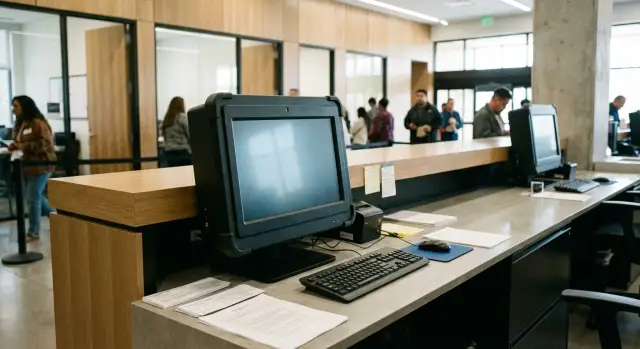
What to protect in an open area and why it matters
Front-office equipment fails more often than devices kept "inside" an office. It sits in plain view, gets touched, and is next to bags and documents while people hurry. Even without malicious intent there are more impacts, drops, spills and accidental cable tugs. A short downtime at a reception desk quickly creates a queue and complaints.
Split the risks into two practical classes. Vandalism covers intentional actions: hitting the screen, trying to remove the monitor, pulling out a cable or pouring liquid. Normal operation covers everyday wear: scratches, greasy fingers, accidental elbow knocks, coffee spills, or cleaning with strong chemicals. In a specification it's more useful to describe consequences (impact, drop, spill) rather than motives.
Typical priorities are: protect the screen and front panel (the most visible and costly damage), secure mounting, protect connectors and cables, resist spills and dust, and restrict access to ports and small accessories.
Anti-vandal requirements usually raise the price, but not only because of a "thicker case." Reinforced mounts, protective glass, sealing of key areas, serviceable design and spare parts add cost. The upside is predictable maintenance: replacing a module or cable on site is easier than swapping the whole device and stopping the counter.
Typical damage scenarios at a reception desk
Front-office equipment stands in a flow of people: queues form, children reach for screens, people pass by with bags, boxes or carts. Failures often come from repeated everyday situations rather than poor hardware.
Most common scenario — accidental knocks. A monitor is brushed by an elbow, bag, or folder, a phone bumps it during payment, keys or an ID badge are dropped on the desk. Even a light edge hit can crack the glass if the screen lacks proper protection or sits on a wobbly stand.
Second scenario — sudden, forceful actions. Not always malicious. People often act to "do it faster": twist the monitor excessively, yank it toward themselves, press a touch panel hard, or pull a cable "because it’s in the way." Mounts, connectors and stands suffer in these moments.
Third scenario — liquids. Cups of water, coffee or hand sanitizer are placed near the counter. Spills get into vents, buttons or ports, or run down cables. When a receipt printer or chargers are nearby, a single spill can cause cascading failures.
There are also slow, cumulative damages: dust and grime from an entry area, frequent wet cleaning around the desk, aggressive cleaners used on screens and panels, and micro-damage from constant friction and minor scratches.
A simple example: a weekday queue, a visitor with a backpack brushes the screen, and an employee wipes the panel with sanitizer every 20–30 minutes. If you account for this up front, your requirements won’t read "anti-vandalism" in general but will list the real risks you expect.
Chassis for a PC or all‑in‑one: construction, materials, weak spots
For the front office the chassis is as important as performance. Devices receive impacts from bags, table edge forces, people touching them, and sometimes attempts to pry or open them.
First, specify material and actual stiffness. A metal chassis generally withstands impacts better than plastic, especially around monitor mounts, the front edge and connector areas. Plastic is acceptable if it is thick, has no thin protruding "wings" and does not carry load. Ask the supplier to state metal thickness (or plastic class) and the device weight as indirect evidence of a sturdy build.
Inspect corners and bezels: cracks and looseness typically appear there after a few months. A good chassis does not creak under light pressure, panels don't wobble, and gaps are even. For an all-in-one, require a rigid frame around the display and a reinforced rear cover at the mount area.
Practical requirements for an open counter: minimize removable decorative covers and external clips, avoid protruding front lips and deep gaps that allow prying, recess or cover the power button and ports, and allow service access only via screws—preferably from the employee side (for example, from inside the counter).
Simple compromise: a technician should service the device, while a visitor should not be able to tell what to pry. For reception desks, choose all-in-ones or PCs in metal chassis with few external parts. You can ask manufacturers like GSE.kz in advance about chassis options and reinforced points for specific mounting.
Screen and front panel: impacts, scratches, touch
The device "face" — screen, bezel and buttons — suffers most in a front-office. People touch it, bump it with bags and folders, and abrasive particles from clothing can land on it. So the spec should describe front protection rather than use vague terms like "increased durability."
Start with the surface. Request tempered glass on the front or a factory replaceable protective layer (film or cover). Scratch resistance is best specified by a hardness measure (pencil hardness) so keys and rings do not matte the screen. Practical baseline: at least 6H, and for very busy locations consider 7H.
Impact resistance for the front is more convenient to specify as an IK rating (e.g., IK07–IK08). A protective bezel that protrudes slightly around the display also helps: small falling objects hit the bezel rather than the glass edge.
For touch screens add two requirements: the touch sensor must not degrade from point impacts, and it must be reliably usable in real conditions. For example, in clinics staff may wear thin gloves and the sensor must register touches without hard presses.
For bright halls request an anti-glare coating so information remains readable under overhead light and near windows.
Short set of spec phrases:
- Front surface: tempered glass or replaceable protective layer.
- Scratch resistance: pencil hardness ≥ 6H.
- Front panel impact resistance: IK rating ≥ IK07.
- Touch: glove support and uniform stable sensitivity.
- Bezel: raised lip to protect the glass edge.
Mounting and installation: so it can’t be ripped off or dropped
A good monitor or all-in-one can still be ruined if it can be pulled off easily. In the front office mounting is part of protection, not an "accessory."
The clearest basic solution is a VESA mount on a desk bracket fixed through the desktop (through-bolt) or anchored to a reinforced plate. Freestanding bases on heavy stands work where drilling is impossible but must be checked for wobble. A standard manufacturer stand is usually weaker and easier to shift, twist until it breaks, or tip over.
Use hidden access and anti-vandal fasteners (e.g., tamper pins). It is good when screw heads are covered and reachable only from the employee side. For swivel mounts include mechanical stops to prevent excessive rotation that could damage hinges.
Ask the supplier to demonstrate how the assembly behaves under a push. A simple criterion: after a strong hand press the monitor should not oscillate for a long time.
Sample installation spec lines:
- Mount type: VESA, desk bracket with through-bolt, or reinforced stand.
- Anti-vandal fasteners and hidden access from the visitor side.
- Rotation/tilt limiters (mechanical stops).
- Stability requirement: no prolonged oscillation after a push.
- For wall mounts: mounting height, protection from removal and a safety tether.
If you buy a full turnkey solution from a systems integrator, clarify in advance who is responsible for mounting and installation. This is often where savings are made and later paid for in repairs and downtime. For Kazakhstan it’s convenient when this is closed in one delivery and support loop, for example through GSE.kz.
Cables and connectors: protection from pulling and damage
Even sturdy equipment often fails because of small things: a visitor trips over a cable, a child pulls it, or an employee quickly moves the monitor and the connector breaks. In the spec be specific rather than writing "cables must be OK."
Main rule: visitors should not see or easily touch cabling. Route cables through the counter (bottom entry or grommet), lay them in a closed channel, and leave a neat service loop so nothing is tensioned when the monitor rotates.
Typical requirements:
- Hidden routing: cable channel or metal tray, no freely hanging sections.
- Power and video connectors secured (latch/screw) or accessed via a replaceable adapter easier to swap than repairing a port.
- Minimize front-facing ports: front USB/audio should be removed or covered.
- Strain relief: cable clamp/clip near the connector so a pull stresses the clamp, not the port.
- Sufficient length for service: cable not taut but without excess loose lengths to snag.
For acceptance add simple checks. Ask the installer to show that a light tug near the floor keeps the cable in the channel and does not loosen the connector, and that rotating the screen does not tension anything.
Mini test set before launch:
- "Floor tug" test: gently pull the cable near the floor and ensure it stays in the channel and the connector is not loose.
- "Rotation" test: rotate the monitor through its working range — the cable must not jam or disconnect.
- "Access" test: verify visitors cannot reach ports and connectors from the front.
- "Service" test: open the counter and replace a cable without dismantling half the furniture or risking fastener damage.
Peripherals and cleaning load: keyboard, mouse, spills
At reception the peripherals wear out fastest: keyboard, mouse, scanner and sometimes monitor buttons. Two things matter: peripherals must tolerate rough use and be easy and safe to clean quickly.
Wired models are usually better for open areas: harder to steal, no batteries and more stable under heavy usage. Specify that surfaces withstand regular disinfection (alcohol wipes, mild detergents) without stickiness, fading or character wear. Require splash protection for keyboards (drain channels or sealed designs) and cleaning instructions from the manufacturer.
Spec phrasing:
- Wired USB keyboard and mouse, cable length ≥ N m, reinforced cable entry (strain relief).
- Spill-resistant keyboard: drainage or membrane construction, cleanable per manufacturer instructions.
- Durable key legends (not stickers), key life ≥ N million actuations.
- Materials compatible with regular disinfecting, matte finish to avoid rapid scratches.
- Ability to secure peripherals to the desk (cable lock, tether or screw mount) and protection of ports against unplugging.
Antimicrobial coatings make sense in strict sanitary environments (clinics, reception in schools with younger children). In ordinary offices it's often an unnecessary budget item. More practical is resistance to cleaning agents and simple washability.
To avoid downtime, standardize peripheral models and keep 1–2 spare sets per point. At acceptance test a small water spill should not cause failure, cables should not pull out with a sharp tug, legends remain readable after several wipes and keys do not stick.
Not just vandalism: basic physical and IT protection
Even if the chassis and screen survive impacts, front-office faults often arise from small issues: a visitor pressed the power button, plugged in a USB drive, pulled a cable or accidentally accessed data. So include both mechanical and basic IT protections in the spec.
Start simple: limit access to things that can be pressed or plugged. Move power and Reset buttons out of reach (relocate, cover, or require a key/internal button to power on). Front USB and audio ports usually cause more harm than help: hide them behind covers or route them to a lockable internal compartment.
To prevent booting from USB and unnoticed connections, include:
- Disable USB boot in BIOS/UEFI and set BIOS password; disable unused ports.
- Physical port locks/covers and security seals after acceptance.
- Inventory control of issued peripherals and a rule that swaps only happen via an accountable person.
- Kiosk mode or restricted user account: minimal rights and access only to needed apps.
- Session auto-clean: logout on timeout, remove files/cache, restrict saving to the desktop.
Admins need minimal logging so incidents are visible. Require logging of power on/off, login attempts, USB device connections and critical application errors, with logs stored centrally or on a server.
If equipment is supplied by a systems integrator, ask how these settings will be applied and verified at acceptance to avoid relying on manual on-site configuration. When working through GSE.kz it makes sense to include these tasks in deployment and support.
Tests and acceptance: what to check before going live
For open areas specifications matter less than clear, repeatable checks at acceptance. In the spec ask for concrete tests and protocols rather than the vague term "anti-vandal."
Tests to request from the supplier
Request confirmation of basic mechanical strength: impact tests for screen and front panel, vibration tests (to ensure internal parts don't loosen), and verification of the mount's resistance to tugs and rocking. If using a wall or VESA mounting in a public area, require test results for the full node (monitor + bracket + fasteners), not only the device itself.
Also ask for surface resistance to abrasion and cleaning agents. Devices in lobbies are wiped several times a day; coatings that quickly haze or become sticky are unsuitable.
For entrance groups include checks for temperature and dust: drafts from doors, dry winter air and street dust. Even if the PC sits under the desk, fans and filters must tolerate the environment.
How to accept equipment on site
Start with a visual inspection and short field tests. These take 15–20 minutes and often catch issues before launch.
- Check play: the screen must not wobble on its mount or bracket; the chassis should not flex under pressure.
- Check fastenings: presence of locking elements, torque, and closed access points where required.
- Inspect cables: strain relief present and no connectors within visitors’ reach.
- Wipe a small inconspicuous area with the actual cleaning agent used by your cleaners and check for effects.
- Photograph condition (screen, corners, mounts, markings) and include photos in the acceptance report.
On documentation ask for the product datasheet, warranty terms and test protocols or a conformity statement. In the spec add: "provide test documentation for declared properties," without asking for excessive standards if they aren’t needed for procurement.
How to write the specification: step by step in simple terms
A good spec starts with the conditions where the device will operate. The more precisely you describe the place and risks, the fewer disputes at delivery and acceptance.
Five steps that give a clear spec
-
Describe the site: open counter or window, presence of queues, how close visitors get to devices, side and rear access. Add numbers: "up to 300 visitors per day," "counter 1 m from entrance."
-
List the risks: impact (elbow, bag), attempted removal of the monitor, cable pulls, spills, scratches, unauthorized connections.
-
Choose the form factor: "mini-PC + monitor on a bracket" (easier to service in parts) or "all-in-one" (fewer cables and access points). State what matters more: hidden cables or quick screen replacement.
-
Specify construction and serviceability: reinforced chassis without flimsy clips, protected front panel, mount secured against quick removal, restricted access to buttons and ports, and service access without full desk disassembly.
-
Add a "Tests and acceptance" block and minimal spare parts. Example: "check mount under load," "inspect for play," "verify operation after transport," plus spare power cables and fasteners.
If procurement is for a government body or large front-office, separately note on-site support and service requirements. Local vendors and integrators (for example GSE.kz) are often critical for acceptance and later replacements.
Common mistakes in requirements and procurement
The most common mistake is to write "anti-vandal" in the spec and stop there. The supplier will deliver normal equipment and there will be nothing measurable to dispute. Better to list measurable items: material and thickness, mount type, button and port protection, glass and bezel requirements.
The opposite error is to overload the spec with rare standards and tests no one can or will provide on schedule. Procurement stalls and devices are often installed "as-is." If you want a test, agree in advance how it will be evidenced: a test protocol, product certificate or acceptance checks on site.
Another frequent issue is choosing a slim, stylish monitor or all-in-one but forgetting the mount. In reception areas this ends with a wobbling screen, stripped screws or a fall. A solid bracket, VESA mount and restricted access to ports and buttons are more important than a thin bezel on paper.
Leaving ports and cables exposed and hoping visitors will be careful is also a common failure: bags snag, people tug out of curiosity and cleaners catch cables with trolleys.
Finally, many forget the replacement plan. In the spec include simple clauses:
- spare parts or replacement set at the site;
- replacement time (for example, within 24 hours);
- uniform models and power supplies;
- clear marking and serial-number tracking.
Example: at a government counter the desk works continuously and one broken screen can stop the queue. A replacement and service plan matters more than having the "most robust" chassis on paper.
Example scenario: a busy reception counter
Imagine a reception desk in a bank or public service center: visitors lean on the counter, place bags, and sometimes brush the monitor with an elbow. The monitor sits near the edge and cables run to a PC under the desk. Failures usually come from dense foot traffic and accidental knocks rather than deliberate damage.
What truly helps is not a single "impact-proof monitor" but a set of simple measures. A small lip on the desk edge (or a recessed pad for the monitor) reduces the risk of falling. A bracket fixed to the desk base prevents the device from sliding forward, and hidden cable routing through a channel removes the most common lever: a visitor catching a cable and pulling.
There is almost always a trade-off. A touch all-in-one is convenient when visitors need to sign or press on screen, but touch surfaces get more scratches and impacts. Separate PC and monitor are easier to replace piecemeal and hide the system unit, but more cables increase the risk of pulls.
Require serviceability: fasteners for brackets and access to connectors should be reachable only by staff, not visitors. This simplifies replacement and reduces the temptation to "see what happens if I pull."
At acceptance add short checks:
- Stability on the counter: a light shove must not shift or tip the monitor.
- Connector and cable fixation: no loose loops, plugs stay in place under a pull.
- Bezel and protective glass inspection: no play, sharp edges or gaps.
- Fastener access: visitors cannot reach screws or clips.
- "Bag scenario" test: a bag on the counter edge must not hit the screen or cables.
Next steps: checklist and how to choose a supplier
To avoid overpaying for unnecessary armour or getting fragile equipment for an open area, follow a simple plan: note risks on site, turn them into clear requirements and verifiable tests.
Walk the installation site and collect basic data: photos of the counter and waiting area, estimated foot traffic, how close people get, cable routes, outlet and network point locations. These small details often decide whether you need an all-in-one, a PC under the desk, or a VESA wall/desk mount.
Then use a quick checklist for the spec and acceptance:
- Chassis: material, absence of weak decorative panels, protected buttons.
- Screen: glass/cover type, scratch resistance, no bezel play.
- Mounting: VESA/stand, protection from loosening, hidden fasteners.
- Cables and ports: strain relief, routing to a channel, minimal front ports.
- Acceptance: list of tests (impact, rocking, tugging, spill) and who records results.
Also agree with IT and security on minimal locks: physical (locks/covers/seals) and IT (kiosk mode, disabled USB boot, BIOS passwords).
When choosing a supplier, ask for 2–3 configuration options matched to your risk profile and budget, plus clear service terms. If local delivery and support in Kazakhstan matter, say so in advance — for example, based on GSE L200 PCs or M200 all-in-ones with local spare parts and service.
Frequently asked questions
Why does equipment in the front office fail more often than in an office?
Front-office equipment is placed in the flow of people and is touched, bumped and used more often than devices inside an office. Even short downtime at a reception desk quickly leads to queues and complaints. Protecting devices reduces downtime and replacement costs.
How should I separate "vandalism" and normal use in the specification?
Describe consequences rather than motives: screen impact, attempted removal of a mount, cable being pulled out, liquid spill, dust ingress and frequent cleaning. This makes requirements testable at acceptance and helps the supplier understand what the device must withstand.
What screen and front-panel requirements actually work in an open area?
Require a protected front surface: tempered glass or a replaceable protective layer, plus a measurable scratch resistance (for example, pencil hardness ≥ 6H). For impact resistance use an IK class for the front panel and require that the bezel does not loosen or crack from light side hits.
What should be specified about the PC or all-in-one chassis for the front office?
Prefer designs where load-bearing elements around mounts and ports are metal. In the spec ask for the material, metal thickness or plastic class, and the device weight as an indirect sign of rigidity. Also require absence of fragile clips and easily pried decorative covers.
Which mounting should I specify so the monitor or all‑in‑one can’t be pulled off?
A basic reliable option is a VESA mount on a desk bracket fixed through the desktop or to a reinforced plate so the device cannot be pulled off in one tug. Add hidden access to fasteners from the visitor side, anti-vandal screws and mechanical stops to limit tilt/rotation so the screen cannot be forced and damaging the joints.
How to protect cables and connectors from being pulled and damaged?
Keep wiring out of visitors’ reach: route cables through the counter, use closed cable channels, and avoid loose hanging sections. Specify fixing for power and video connectors (clips or screws), strain relief at the connector, and minimal front-facing ports so users cannot easily damage or plug in unwanted devices.
What peripherals should I choose for a reception desk and what to require?
Wired peripherals are usually more practical: harder to steal, no batteries and simpler to maintain. Require materials and key legends that withstand regular disinfection, splash protection for keyboards (drain channels or membrane design) and strain-relieved cable entries so a tug does not pull out the connector.
What basic physical and IT protections should be included for the front office?
Limit physical access to buttons and ports: move or cover power/reset buttons and provide locks or plugs for front USB/audio. On the IT side require BIOS/UEFI passwords and disabled USB boot, locked/unneeded ports turned off, kiosk mode or limited accounts, and session timeout/cleanup to remove data after each user.
What must be checked when accepting equipment on site?
Ask for concrete checks rather than the vague term “anti-vandal.” Typical acceptance checks: no play on mount or chassis, connectors secure under a light tug, inspection of bezel and protective glass, a small-area cleaning test with the actual cleaning product. Record results and photos in the acceptance report to avoid later disputes.
Why is vandal-resistant design more expensive and how does it pay off?
Reinforcements add cost due to mounts, protective glass, sealing and service-friendly design, but they reduce downtime and unpredictable repair expenses. If local supply, spare parts and unified delivery/support in Kazakhstan are important, explicitly include them in the service requirements; GSE.kz usually handles such cases in supply and integration.
