8 min read
USB-C docking stations in corporate environments: no surprises
USB-C docking stations in corporate environments: how to pre-check Alt Mode, Power Delivery, drivers and compatibility with monitors and peripherals.
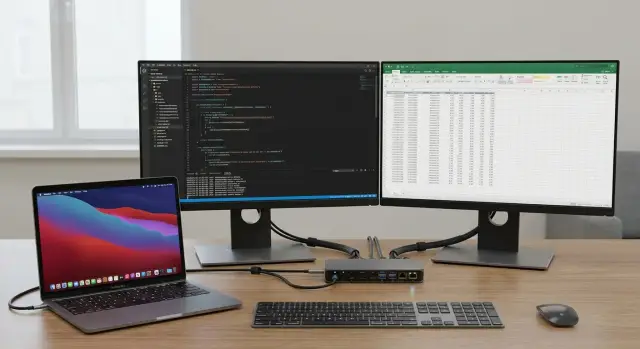
Common surprises with USB-C and docking stations
The same USB-C dock can work perfectly with one laptop and behave oddly with another. The reason is usually not a “bad dock” but that USB-C is a connector, not a guaranteed set of features. On one device the port supports video and charging, on another it only supports data. Sometimes video works only in a specific mode or only on one of the ports.
Typical complaints look the same:
- no image on the external monitor or it appears only after a reboot
- only one of two monitors works
- the laptop doesn't charge or charges much slower
- USB devices (mouse, keyboard, flash drives) disconnect intermittently
- network via the dock appears and disappears
A dock does not “create” the picture by itself. It negotiates operating modes with the laptop. If the port doesn't support the required video mode (for example, USB-C Alt Mode), if the cable is for charging only, if the power adapter is weaker than needed, or if IT policy forbids driver installation, the result will vary even with the same dock and monitor.
This is felt more in corporate environments than at home. At home you can find a working combination once and forget about it. In the office, standardization and support matter: different laptop models, different monitors, hot-desking, security restrictions and mandatory updates.
A practical example: a meeting room has a dock meant for two monitors, but some employees bring laptops whose USB-C outputs video to only one screen. Users blame the dock, while the correct action is to document compatible models and define the required scenario in advance (two monitors, 90–100 W charging, wired network).
If you deploy many workstations, it's better to run a short pilot on typical laptops and monitors and then lock in a standard. System integrators usually do this for corporate deliveries to avoid weeks of intermittent complaints later.
Alt Mode, USB4 and Thunderbolt: what really affects video
Alt Mode (alternative mode) is when a USB-C connector temporarily stops being “just USB” and starts sending a video signal directly, like DisplayPort or HDMI. For the user it looks simple: plug one cable into the dock and the monitor works. But this only happens if the laptop port and the dock support the same video mode.
Remember: USB-C is a connector form factor, not a promise of capabilities. Two identical-looking ports can behave differently. One may provide video and charging, the other only data. That's why office purchases often encounter “surprises” caused by some laptops lacking the needed support.
DisplayPort Alt Mode, HDMI Alt Mode, USB4 and Thunderbolt
For monitors, DisplayPort Alt Mode is most relevant. HDMI Alt Mode is less common, and many docks output HDMI by converting from DisplayPort.
USB4 and Thunderbolt usually offer more predictability for video and bandwidth, but they still don't automatically mean “two 4K monitors.” Specific modes and limits of the laptop, dock and monitors always matter.
If you need two monitors, you quickly run into MST (Multi-Stream Transport). MST lets one DisplayPort connection carry two streams for different screens, but there are conditions:
- MST must be supported by both the laptop (GPU and port) and the dock
- on macOS, MST for extending to two separate external displays often works differently than on Windows (mirroring or a single screen is common)
- at high resolutions and refresh rates (for example, 4K 60 Hz) available bandwidth may be insufficient
What to check in the specs so you don't guess
Don't be satisfied with the phrase “supports 2 monitors.” Look for specific video specs: DisplayPort version (e.g., DP 1.2 or DP 1.4), supported modes (4K 60 Hz, 1440p, etc.), MST support or an explicit statement about dual display via DP Alt Mode. Also note limitations when USB 3.x and video run simultaneously: sometimes bandwidth is shared with USB, reducing maximum video capability.
A common office scenario: everyone has identical docks, but some laptops' USB-C only supports USB 3.2 without DP Alt Mode. The dock then provides network and mouse, but the monitor stays silent. This is not a defect but a mismatch between port capabilities and expectations.
Charging through the dock: Power Delivery without mistakes
Power Delivery (PD) looks simple: plug one USB-C cable and the laptop charges. In practice, the difference between 65 W and 100 W often causes complaints.
65 W is usually enough for office tasks, but may be insufficient if the laptop is under heavy CPU load, drives two monitors, runs a video call and also charges a phone from the dock. You may see a charging indicator while the battery slowly discharges. 100 W gives more headroom, but is not guaranteed if the dock or cable doesn't support the required mode.
A common trap is the cable. For 100 W you need a USB-C cable rated for 5 A (typically with an e-marker). A random “charging” cable may limit power; a long or cheap cable can cause heating and instability (peripherals disconnecting, monitor flicker, network drops).
Before buying a batch check basic things:
- the laptop's original power adapter rating (65/90/100 W)
- how much PD the dock actually supplies (don't rely on “up to 100 W” in the description)
- whether you have a suitable cable and if it holds up under continuous load
- whether peripherals (phones, headsets) need separate charging
A separate power adapter for the dock is almost always necessary if you want two monitors, Ethernet, several USB devices and stable laptop charging at the same time. Bus-powered hubs are more suited to travel, not permanent workstations.
If the dock runs hot and devices drop under load, that's often a sign the power is at its limit. For office use it's better to plan a power margin and choose models rated for continuous operation without overheating.
Drivers and IT policies: Alt Mode versus DisplayLink
There are usually two ways a dock can provide video.
First — USB-C Alt Mode (most commonly DisplayPort Alt Mode): the image goes directly from the laptop's GPU and usually requires no drivers.
Second — DisplayLink: the dock creates a “virtual” graphics adapter that requires drivers.
Alt Mode is simpler for IT: fewer moving parts and fewer support tickets. But it has strict hardware limits: if the laptop can't output video over USB-C or has few video lanes, a second monitor may not appear or may be limited to a low resolution.
DisplayLink often helps when you need more screens or when laptop ports are unreliable. The cost of convenience is drivers, updates and security requirements. Some organizations forbid users to install drivers; updates must be distributed via managed channels.
What to clarify with IT before purchase
Check these items on a test kit (laptop + dock + 2 monitors), especially for a mixed fleet:
- whether installing DisplayLink drivers is allowed and how they will be distributed (MDM, SCCM, OS image)
- how often drivers can be updated and who rolls back updates if a monitor stops working afterward
- which OSes and builds are supported within the company (Windows, macOS, sometimes Linux) and any driver signing restrictions
- whether exceptions are needed in security controls (device control, DLP) for USB video devices
VDI, remote desktop and screen capture: expectations
If users work in VDI/Remote Desktop, align expectations in advance. DisplayLink can behave differently with screen capture, protected content and some applications. This is not always a “dock fault” — sometimes it’s how security policies or the image transfer work.
A good practice is to run typical scenarios and document what is considered normal: video calls, screen sharing, recording training, and working with two monitors.
Monitors and cables: how not to lose the second screen
Problems with the “second monitor” are often caused not by the dock, but by a combination of resolution and refresh rate, port versions, cables, and how the monitor reports itself to the system (EDID). As a result, a screen may not turn on, drop to 30 Hz, flicker or change resolution after sleep. This is especially visible when docks are paired with different monitors without a single standard.
The riskiest area is high modes. Configurations like 2×4K (especially at 60 Hz on both screens) quickly fail if the dock or laptop doesn't provide enough bandwidth or if one channel falls back to a lower mode because of cable issues. Similar issues occur with ultrawide monitors and 144 Hz: sometimes you get a picture but only at 60 Hz.
Look at the DisplayPort and HDMI versions on both ends. If the dock supports DP 1.4, the monitor expects DP 1.4, but an older cable or adapter sits between them, the system may fall back to safer modes. HDMI often suffers from port version limits on the monitor or cheap USB-C-to-HDMI adapters.
MST chains and monitors with built-in USB-C hubs add convenience but also variability: one monitor in the chain can change parameters and the order of screens can shift after sleep.
If modes “float,” EDID is often to blame: the laptop sometimes sees the monitor as 4K and sometimes as 1080p. Quick diagnostics include: check refresh rate (did it drop to 30 Hz instead of 60?), temporarily disable MST and test one monitor, replace the cable with a known-good short cable, remove adapters/extenders, and test a different monitor input (DP instead of HDMI).
To reduce surprises, exclude questionable adapters, long unmarked cables and combo adapters from the standard. Predefine 1–2 tested cable types (DP or HDMI of the required version) and one connection method for a typical workstation.
Peripherals via the dock: USB, network and audio without failures
In offices it's often the “small things” that surprise: the mouse lags, network drops after sleep, or the meeting-room headset suddenly appears as a different device.
USB ports: where conflicts start
A dock usually contains a USB hub. If you plug in a webcam, headset, flash drive and external drive at once, devices share bandwidth. This appears as audio interruptions, choppy video, and copy errors. Charging a phone from the dock can introduce brief reconnects.
For external storage, set expectations ahead: a USB-C port on the laptop doesn't guarantee the same speed through the dock. Test copying large files (20–50 GB) and watch for disconnections. If the company restricts USB storage, check how the dock exposes devices: sometimes it registers as a new USB controller and security rules apply differently.
Wired network and sleep: a typical failure point
Ethernet via the dock often “disappears” after sleep or when hot-desking. Causes are usually simple: power saving turns off the dock's network adapter and the system doesn't always bring the network back up before the user signs in. Network drives don't map, VPNs don't start, domain authentication can fail.
To reduce incidents, standardize pre-purchase checks: a stable ping for 10–15 minutes under load (video call + copying), a 5‑minute sleep and wake test (network should return without unplugging), test the headset and webcam in the chosen conferencing system, test camera and external-disk recording simultaneously, and confirm consistent device recognition across laptop models.
Audio and cameras in meeting rooms are best tested in realistic conditions: dock on the table, long cables, quick seat changes. If network, monitor or USB devices drop after sleep, this is usually fixed by power settings and choosing a more predictable dock model for the fleet.
How to test compatibility before procurement: step-by-step plan
Dock purchases often fail because of small details: some laptops’ USB-C is data-only, others support video, and some charge but cut monitor refresh rate. To avoid a lottery, verify compatibility before the tender using your own models and scenarios.
Start with a simple laptop matrix: model, year/generation, what the USB-C port supports (video Alt Mode, Power Delivery, Thunderbolt/USB4), OS and driver restrictions. Don’t rely on stickers or the word “USB-C” in spec sheets — look for precise wording.
Then follow this plan:
- Describe target scenarios: 1–2 monitors, 4K or 2K, 60 Hz, meeting rooms, hot-desking, VPN work.
- Pick 2–3 candidate docks and decide on standard cables (USB-C, HDMI/DP) so the test is fair.
- Run a pilot at real desks with different laptops, not a single “ideal” sample.
- Record results: what works reliably and what only works intermittently, and under which conditions.
- Publish rules: supported models and scenarios, forbidden combinations, and a support escalation process.
In the pilot test more than the picture. Minimum checks: video (second monitor, flicker, correct resolution and 60 Hz), charging under load (no discharge), network (Ethernet returns after sleep and reconnections), sleep/wake (USB and audio don’t disappear), calls (headset and camera selected correctly). For hot desks add a “five reconnects in a row” test. If network or the second screen fails after the third connection, it becomes a mass problem even if it “mostly works.”
Typical mistakes when deploying docks in an office
The most common cause of problems is simple: expectations don't match what specific laptops' USB-C ports actually do. As a result, one employee can use two monitors while another loses the second screen or charging.
Costliest mistakes include:
- buying docks without a list of compatible laptop models and clear video requirements (Alt Mode, Thunderbolt, USB4)
- cable chaos following “any USB-C will do"
- assuming “2×4K for everyone” without checking GPU, DP over USB-C and bandwidth limits
- betting on DisplayLink as a universal fix without coordinating with IT (drivers, updates, security rules)
- ignoring power: dock says 90–100 W but the laptop under load may draw more, causing slow discharge or instability
Some problems appear not immediately but after a week: sleep, wake, relocation, hot plugging. For example, someone connects to a meeting-room dock, goes to sleep, returns and one monitor is black until the cable is unplugged or the laptop rebooted.
Two simple rules help. First — standardize cables and monitors (marking, length, type). Second — run a short test plan before mass purchase: two monitors at required resolution, charging under load, sleep/wake, and reconnects.
If you buy turnkey workstations, it’s convenient to have a single supplier responsible for compatibility and support. In Kazakhstan this is especially important for government and quasi-government procurement, where local content and service requirements can be critical.
A quick checklist for IT, procurement and users
To keep docks from becoming a lottery, agree on a short checklist before purchase and share it with IT, procurement and users. It's cheaper than later trying to figure out “why the second monitor sometimes works.”
Start by confirming laptop compatibility: not every USB-C port can output video. The device spec should explicitly state DisplayPort Alt Mode or Thunderbolt/USB4. If it doesn't, video over a dock may only work via DisplayLink and its drivers.
Next, verify power. PD wattage should be chosen with load in mind: a laptop may charge at 65 W when idle but start discharging under load (video, VPN, multiple USB devices). For some models 90–100 W is appropriate.
Minimum questions before ordering a batch:
- is the port video mode confirmed (DP Alt Mode or Thunderbolt/USB4) for the corporate laptop model?
- what PD power is needed with headroom under load (65/90/100 W) and does the dock support it?
- how many monitors and which modes are planned (e.g., 2×1080p or 2×4K) and what outputs does the dock provide (HDMI/DP)?
- are drivers required (DisplayLink) and are they allowed and maintainable under IT policies?
- which cables and adapters are permitted: length, type (USB-C to DP/HDMI), ban on no‑name adapters?
Before mass rollout run a short pilot on 5–10 desks. Be sure to test network stability and speed, sleep/wake, webcam and headset, hot-plugging the dock and monitors. If your company uses standard builds and infrastructure provided and integrated by GSE.kz, run the pilot on those builds to avoid supporting many exceptions later.
Example scenario: hot desks and two monitors
Imagine an office with hot desks: in the morning an accountant with a 2019 laptop sits down, in the afternoon an analyst with a new ultrabook, and in the evening a guest plugs in at the meeting table. Each desk has two monitors, keyboard, mouse and network. All have USB-C ports, but “two screens with one cable” doesn't work the same everywhere.
It's more practical to split docks into two scenarios. One — a universal dock for most laptops: one external monitor plus peripherals and charging. Two — a “heavy” dock for two monitors and pre-validated laptop models, with clear limits on resolution and refresh rate.
Run a pilot on 10–15 desks. A week is usually enough if you agree in advance what to test: connecting two monitors (HDMI/DP), sleep/wake, reconnects, charging under load (browser, calls, presentations), network and domain/VPN access after hot user switch, peripheral stability and no USB dropouts, and user feedback about what breaks, when and on which laptop models.
Based on results publish a standard: lists of compatible docks and laptops, approved cables (length, type, labeling) and support rules (what the user does, what IT does, when to change a cable and when to swap a dock).
If some laptops can't handle two monitors, set honest options: one monitor + laptop screen as the second, lower resolution/refresh rate, dedicated “2-monitor guaranteed” desks, or a separate class of docks with drivers (only if IT can support them).
Next steps: lock the standard and simplify support
Formalize a unified corporate workstation standard. Agree not only on the dock model but also which laptop port is used, which cables are “correct,” how many monitors and what resolutions you must support in a typical scenario.
A good standard answers practical questions: which PC + dock combinations are allowed (USB-C Alt Mode, USB4/Thunderbolt or DisplayLink per IT policy), which monitors and cables are issued to users, what PD power is required (for example, 65 W for ultrabooks and 90–100 W for more powerful models), how to handle exceptions (adapters, old monitors, nonstandard laptops) and what a hot desk looks like (one cable to the laptop, two monitors, network, headset).
Before mass procurement include a pilot and acceptance criteria. For example: two monitors reliably wake from sleep, charging doesn't drop under load, network stays up during video calls, and OS updates don't break drivers (if DisplayLink is used). Test with real laptop models in your fleet and with those planned for purchase in the next year.
Support becomes easier if you prepare a service-desk package: a short user guide (how to connect, what to do with a black screen), typical tickets (no second monitor, no charging, no network) and a pool of spare docks and cables for quick swaps.
If you're planning a PC refresh, include dock compatibility in selection criteria alongside performance. In large projects it's useful to involve a system integrator: GSE.kz (gse.kz) can help assemble standardized workstations, select equipment and organize support at organizational scale.
Frequently asked questions
Why doesn't my monitor work through a USB-C dock?
No. USB-C describes the connector shape, not its capabilities. To output video, the laptop must support DisplayPort Alt Mode, Thunderbolt, or USB4, or the dock must use DisplayLink with the driver installed.
How can I tell whether a USB-C port supports video output?
Check the specifications for the exact USB-C port you are connecting the dock to. Look for DisplayPort Alt Mode, Thunderbolt, or USB4. If it lists only USB 3.x, the port may transfer data but not video.
Will two monitors work through any dock?
Not always. Two displays require sufficient bandwidth, MST support, and compatibility from both the laptop and the dock. On some laptops, the second monitor will not appear or will only be available at a lower resolution.
Why do two external monitors mirror each other on a Mac?
Usually not. macOS often limits MST, so two connected displays may show the same image instead of an extended desktop. For two independent screens, check the limitations of your specific Mac model and dock.
What charging power should I choose for a dock?
65 W is often enough for light office tasks. For a laptop running two monitors, video calls, and an active workload, use its adapter's rated power as a guide and allow some headroom, often 90-100 W.
Can a USB-C cable interfere with charging and video?
Yes. A cable can limit charging and data transfer even if the connector looks the same. For 100 W, you need a cable that supports 5 A, and for stable video, use short, tested cables without unnecessary adapters.
How does DisplayLink differ from DisplayPort Alt Mode?
Alt Mode sends video directly from the laptop's graphics hardware and usually does not require a separate driver. DisplayLink creates a virtual video adapter, so it requires drivers and may not be suitable where security policies are strict.
What should I do if the second monitor flickers or runs at 30 Hz?
First, check whether 30 Hz mode has been enabled or the resolution has changed. Then disconnect the second monitor, replace the cable, remove adapters, and try another monitor input, such as DisplayPort instead of HDMI.
Why does Ethernet through a dock disconnect after my laptop wakes from sleep?
Most often, the system disables the dock's network adapter to save power or does not restore the connection quickly enough. Test sleep and wake in a trial setup, check power-saving settings, and verify Ethernet stability across several reconnections.
How should I test docks before a bulk purchase?
Run a pilot with the actual laptop models, monitors, and cables. Test video, charging under load, network connectivity after sleep, the camera, headset, and several consecutive connections, then document the approved hardware combinations.
