8 min read
UPS under the desk for a critical workstation: how to choose
UPS under the desk for a critical workstation: how to calculate power, choose the battery, and set up checks so the protection actually works.
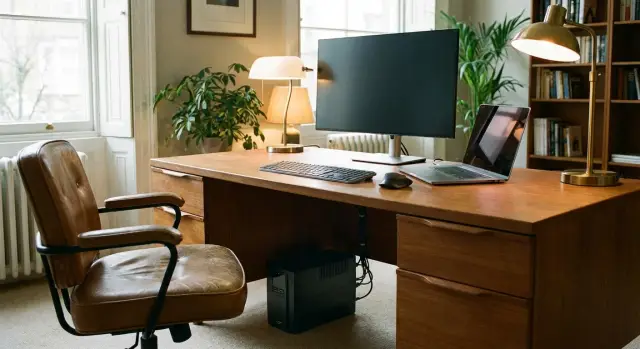
Why a dedicated UPS under the desk for a critical workstation
A critical executive workstation is not just a computer. It's the place where decisions are made, calls happen, documents are signed, and video meetings run. If power goes out even for 30 seconds, you lose more than time: a call with partners can drop, a presentation can freeze, or a file being edited right now can be corrupted.
Risks usually fall into three categories. First, downtime: the executive and assistant literally cannot continue work. Second, data loss: unsaved documents, a corrupted profile, or mail failures. Third, communication failure: a call drops, VPN disconnects, or video freezes. In an office this is especially noticeable: even a short pause in connectivity looks like a problem, even if the server room is fine.
A common mistake is to assume a "power strip with a battery" solves everything. These devices often lack proper regulation, have low capacity, and unclear battery indicators. In a real voltage sag the load can still disconnect, and you find out at the worst possible moment.
A UPS under the desk is a predictable safety net. It should support your real load, give time to save work properly, and allow you to shut down equipment calmly.
Usually it makes sense not to protect everything, but only what makes the workstation "fall over." In a typical office this is the desktop or mini‑PC, at least one monitor, an IP phone (or the cordless base), and small network gear if it sits in the office (router, provider terminal). If the main tool is a laptop, its charging matters too.
Simple scenario: power fails during an important call. Without a UPS the connection drops, documents aren't saved, and redialing takes time. With a dedicated UPS you can continue the call for a few minutes and finish tasks calmly instead of being kicked out mid‑task.
What power issues a UPS actually covers
At an executive's desk power problems often look like short sags, sudden spikes, or a series of disturbances rather than a full blackout. A UPS under the desk is meant precisely for these situations: it absorbs the blow and keeps power stable when something unpleasant happens on the mains.
In practice a UPS addresses four typical problems:
- Full power loss — gives time to avoid losing unsaved work.
- Voltage sags — reduces the chance of reboots and hangs during calls or presentations.
- Spikes and impulses — lowers the risk of errors and sudden PSU shutdowns.
- Noise and a "dirty" supply — helps avoid strange failures without an obvious cause.
At the same time don't expect the UPS to do the impossible. It won't fix the internet if the router in the server room fell, and it won't protect against hardware failure, a bad update, a full disk, or app crashes. But it often saves you from the worst: an unexpected reboot and data loss caused by power.
Another common mix‑up is confusing "time to shut down properly" with "time to keep working." For a critical workstation 5–10 minutes is usually enough: save documents, end a call, and shut down the PC properly. If you want to work for an hour, that's a different battery, different capacity, and typically a different budget.
A UPS is useful only when you immediately understand what's happening. An audible alarm, clear load and battery indicators, and low‑battery warnings help avoid guessing. Example: the office light flickers, the UPS signals, and the assistant sees there are 7 minutes left. That means save files quickly and follow a known plan.
First calculate the load: what the UPS will actually power
To make a UPS under the desk really helpful, decide first what must keep running when power goes out. Error number one is plugging "everything" in and then being surprised that autonomy is only a couple of minutes.
Start with a list of devices critical for your work. Most often this is the desktop or laptop with a dock, 1–2 monitors, an IP phone (or phone charger), and small network gear (router, terminal, mini‑switch). Sometimes add peripherals you cannot finish tasks without, for example a card reader.
Next, determine actual consumption in watts. A label saying "650 W" on a PC PSU is not the same as the PC always drawing 650 W. In office mode it typically consumes much less.
You can check three ways: look at specs, check the sticker on the power adapter, or measure with a wattmeter at the outlet during normal work. For a critical workstation measure‑based values are better: they reflect what you really put on the UPS.
Account for peaks separately. They occur on PC startup, when charging a laptop or phone, when plugging new peripherals, and sometimes when a second monitor turns on. Add a 20–30% margin to the sum of real watts.
Decide in advance what does not need to run from the battery. Heaters, coffee machines, desk lamps, shredders, and laser printers are better left off the UPS. The goal is not to outlast the whole blackout but to preserve work and communications: save documents, send an email, wait for power restore or switch to backup.
If the workstation uses corporate PCs and monitors (for example GSE office deliveries), consumption data is usually in the specs and can be confirmed with a wattmeter on site.
How to choose UPS capacity without overpaying
The UPS must handle the load in your real device mix and not run at its limit. For an under‑desk UPS this is especially important: being nearby means overload quickly becomes noise, heat, and sudden shutdown.
A common confusion is VA vs W. Watts (W) are the real usable power your devices draw. Volt‑amperes (VA) are the apparent power and account for load characteristics. Boxes often highlight VA, but you need to know how many watts the UPS actually provides.
When choosing, look at the active power (W) first, then compare models by VA. Next consider the number and type of outlets (so you don't clutter with adapters) and basic features like AVR and cold start.
To avoid overpaying, include a reasonable margin: 20–30% in watts is usually enough so the UPS doesn't run at 95–100% and can handle short peaks. Example: if the workstation consumes about 240 W (PC 150 W, monitor 60 W, router 10 W, dock 20 W), pick a UPS that provides at least 300–350 W.
Choose UPS type based on network quality and the cost of failure. A line‑interactive unit is usually enough for an office: it helps with sags and short outages and costs noticeably less. An online UPS makes sense when spikes are frequent, equipment is sensitive, continuity requirements are strict, or you want perfectly smooth power without transfers. For some executive workstations that can be justified, but only after an honest assessment of the mains and budget.
Battery and runtime: how not to be disappointed
First define the scenario you cover. For many offices 5–10 minutes is enough: save documents, finish a call, and shut down the PC properly. If your goal is 30–60 minutes of continued work, battery requirements rise sharply: you need a UPS with larger capacity and often support for external battery packs.
Remember runtime always depends on load. Boxes may say "up to 20 minutes," but that is usually at a small load. Under the desk a UPS often powers a full set of gear, and minutes disappear quickly.
What drains the battery fastest
High‑draw devices drain batteries the quickest. A common surprise is a second monitor and a powerful PC, especially under heavy load. Before calculating, confirm which devices must stay on during an outage. Typically that's the desktop/mini‑PC, one monitor (the second sometimes optional), and communications — router or IP phone. Docks and some chargers are often better left off the UPS unless they are critical in the first minutes.
Why runtime falls over time
Even a properly selected UPS may hold less after a year than when new. Battery age, temperature, and actual load matter. If the UPS sits in a closed cabinet and gets hot, batteries age faster. If the load is near maximum, discharge is faster and wear is higher.
External battery modules make sense when you truly need 30–60 minutes or more and have space and budget. They are convenient to increase runtime without replacing the whole UPS. But if the goal is just a safe shutdown, it's often wiser to invest in clear test procedures and timely battery replacement rather than long runtimes.
Under‑desk installation: convenient, quiet, and safe
Placing the UPS under the desk seems simple: it saves space and stays out of sight. But for an executive's office it should be reachable quickly and not become a source of noise, dust, or accidental disconnections.
Start with dimensions and access. The UPS should sit so you can see indicators and press the power button without a "quest" involving a cabinet. If every check requires pulling out a heavy module or removing a cover, checks will stop happening — a direct path to unpleasant surprises.
Next — ventilation. UPS units have vents and sometimes fans that expel heat. If you push it against a wall, cover it with papers, or wedge it between folders it will overheat, run the fan more often, and age batteries faster. Under desks there is usually more dust, so clean around the case and vents every couple of months.
Noise and alarms matter too. In a quiet office you hear everything: fans, relay clicks, short beeps. If calls are frequent, check the alarm volume in advance and whether the indicators are clear so you don't live with constant nuisance beeps.
Cables and safety solve half the problems. Nothing should be stretched, pinched by a chair base, or pulled out by accident.
Minimum that helps in practice:
- Leave 5–10 cm clearance around ventilation openings.
- Secure cables so plugs don't wobble or come loose during cleaning.
- Label which outlets are battery‑backed and which are not.
- Remove power strips from the floor or secure them.
- Keep the power button and indicators easily accessible.
A simple benchmark: if the assistant or executive can mute an alarm, check the status, and safely restart the UPS within a minute, the installation is good.
Step‑by‑step selection and commissioning
A UPS under the desk is bought not for compliance but so that in a real failure you have time to save files, finish a call, and keep access to key systems. It's important to follow a short but strict path: from checking the outlet to a trial blackout.
First, ensure the mains to the point are OK. Offices often have poor grounding or fluctuating voltage on certain lines. This affects UPS type selection and battery life. If possible, test the outlet and check for heavy consumers on the line (AC, heater, coffee machine).
Then proceed step by step:
- Check input power and grounding at the installation point.
- Choose the UPS type for your network: with a "nervous" power supply prefer line‑interactive or online so the UPS switches to battery less often and holds voltage better.
- Calculate the total load of critical devices and the desired runtime, then pick a model by watts, output waveform, and number of outlets.
- Connect only critical devices and configure auto‑shutdown on PCs/workstations so the system shuts down cleanly if power lasts longer than planned.
- Perform a trial power cut, measure real runtime, and record the result (load, minutes of autonomy, behavior of PCs and network).
Don't plug everything: a printer, heater, or desk lamp can unexpectedly eat the reserve and ruin the job the UPS was meant to protect. Label critical plugs and adopt a simple rule: battery outlets are for what the executive needs in the first 5–15 minutes.
Example: the office protects the PC, one monitor, and IP phone/router. If a test shows the UPS holds 12 minutes under that load, record it and set auto‑shutdown at, say, 7–8 minutes. That leaves a safety margin for surprises.
If the UPS is part of corporate infrastructure, have IT or an integrator confirm commissioning and the initial test. For example, the GSE.kz team often performs such checks on site along with workstation setup and ongoing support.
Checks, tests, and battery replacement schedule
A UPS under the desk saves you only if it's working, the battery is healthy, and settings survive relocations and updates. Establish a simple regimen and one responsible person (IT or admin) so checks don't depend on busy schedules.
Minimal check schedule
Frequent small actions are better than rare big checks. This reveals battery degradation and overload issues faster.
- Daily or weekly: quick visual inspection (smell, swelling, dust around vents), check indicators and messages.
- Monthly: short battery test by agreement (1–3 minutes). Do it during work hours to immediately see if the PC, monitor, phone, or router reboot.
- Quarterly: verify actual runtime and switch quality. Compare results with expectations and current load.
- After any changes: added a monitor, dock, mini‑server, or temporary chargers — recalculate load and repeat a short test.
- Every 2–4 years: planned battery replacement (sooner if autonomy noticeably drops or the UPS frequently alarms).
A monthly test also exposes silent mistakes. For example, someone may have plugged equipment into a regular outlet instead of the UPS output.
What to record in the log
The log can be paper or a spreadsheet. The important thing is a consistent entry format.
- Date and time of check
- UPS model and battery age/installation date
- Load (what's connected, approximate wattage or percent shown)
- Test result (runtime, switch quality, any reboots)
- Notes and actions (cleaning, cable tightening, plug relocation, request for replacement)
If you have service support and an on‑call IT team, decide in advance who approves battery replacement and who confirms the workstation is again ready for power failures.
Common mistakes that make the UPS fail to save you
A UPS under the desk is often bought as an "insurance against everything," but in a real failure it can shut off instantly. Usually the reason is not a defect but small mistakes: wrong calculations, incorrect connections, or lack of simple checks.
Common issues:
- Buying capacity "exactly to the limit." On a short peak (monitor wakes, PC updates, laptop charging) the UPS trips and cuts the load.
- Plugging things that shouldn't be on the battery: printers, heaters, extra chargers, and lamps drastically reduce runtime.
- Installing the UPS in heat and confinement. Under the desk is convenient, but covering vents and squeezing the case ages batteries faster.
- Not checking the battery for years. Outwardly everything seems fine, but capacity has dropped. You learn this during an outage when the UPS lasts 30 seconds instead of 10 minutes.
- Turning off alarms and notifications "so they don't bother." Then nobody notices overloads, worn batteries, or that the UPS has been bypassed for a long time.
Example: an executive has a PC, two monitors, and an IP phone. A laser printer was added to the UPS "just in case." At the first print job the power spike overloads the UPS and it shuts down everything, including the workstation.
With a power margin, only critical devices connected, proper ventilation, and a short scheduled test, the UPS will act as insurance rather than a decorative box.
Example: executive office and a real calculation
Imagine a typical office: a PC or mini‑PC, two monitors, an IP phone and a small router. The UPS under the desk is not for hours of work but to let you save documents, finish tasks, and not drop an important call. Target runtime — 10 minutes.
Step 1. Calculate real load in watts
Use working values, not the maximum from specs (a wattmeter is best):
- Executive PC: 200 W
- 2 monitors: 2 x 30 W = 60 W
- IP phone: 5 W
- Router: 10 W
Total: 275 W.
Add margin so the UPS doesn't run at its limit and can handle brief peaks. Usually 25–35% is enough. 275 W x 1.3 ≈ 360 W.
Practical conclusion: choose a UPS that provides at least 360 W, preferably 450–600 W. That avoids situations where the UPS seems to power up but then trips under load.
Step 2. Estimate whether the battery will last 10 minutes
A rough estimate: 360 W × (10/60) = 60 Wh. Some energy is lost in conversion and battery capacity falls under load. Aim for 100–150 Wh of usable energy to be safe.
This usually means a UPS around 1000–1500 VA with a decent watt rating and a battery that the manufacturer table shows will give 10–15 minutes at a 300–400 W load. Look at runtime charts for your specific load, not just the generic "up to 30 minutes" claim.
First month checks to ensure everything works
After installation confirm by testing, not assumptions:
- Check UPS load indicator does not exceed 60–70%.
- Simulate a power cut for 2–3 minutes: a call should not drop and the PC should not reboot.
- Time how long until the low‑battery warning under working load.
- Ensure the PC shuts down cleanly (if auto‑shutdown is set) or that 10 minutes is enough for manual saving.
- Repeat a short test after 2–3 weeks to detect battery or hidden overload issues.
With this calculation and a couple of checks a UPS becomes a reliable safety net for a critical workstation.
Short checklist and next steps
Before buying and right after installation go through this short list. It takes 10–15 minutes but saves hours of downtime when power starts to fluctuate.
Check five things: which devices will be connected and the total power; whether there is a margin so the UPS won't run at its limit; the target runtime (for example 10 minutes to save and shut down, or 30 minutes to wait out a fault); the UPS type suited to your mains (line‑interactive or online); and whether under‑desk placement is convenient — noise, outlet format, cable length, ventilation.
Discipline matters afterwards. A UPS usually fails to save not because of the brand but because tests are forgotten and batteries wear out. The working minimum: a regular short test schedule, a results log, clean air and access, active notifications, and planned battery replacement based on time and measurements.
If you need UPS units not just for one office but reception, multiple offices, and meeting rooms, standardize: identical models, a single test schedule, and unified battery accounting.
Next steps are simple: list devices and desired runtime, do a quick power calculation, choose 1–2 suitable models, and schedule the first test right after installation. If you want a turnkey package including workstations, integration, and ongoing support, the system integrator GSE.kz can help assemble a compatible solution and organize maintenance by the required schedule.
Frequently asked questions
How many minutes of autonomy does an executive realistically need from a UPS under the desk?
Usually enough if your goal is just to finish work properly: save documents, end the call, and shut down the PC without rushing. For an executive’s workstation, 5–10 minutes of runtime is often sufficient, provided only critical devices are connected to the UPS and there is a power margin.
What should definitely be plugged into the UPS in the office and what is better left off?
Connect only what makes the workstation "fall over": the PC or mini‑PC, at least one monitor, and communications (IP phone and/or a small router/terminal if it sits in the office). Anything that does not affect the ability to save work and stay connected in the first minutes is better left off the battery outlets.
How to choose UPS power without overpaying and without risking overload?
Look at active power in watts and choose a UPS so that your real load occupies about 60–80% of its capacity. Add a 20–30% margin to the measured or calculated consumption to survive short peaks when starting the PC, charging devices, or waking monitors.
Why do UPS boxes show VA when I need W?
VA is apparent power, while W (watts) is the real usable power the UPS can deliver to your load. Rely first on watts when choosing, since they determine whether the UPS will support your PC and monitors without overload.
Are AVR and "cold start" necessary for a UPS under the desk?
AVR stabilizes voltage without switching to battery, so it helps through sags and a "floating" network and extends battery life. Cold start lets you power equipment from the battery when there is no mains at all, which can be useful for short outages in the office.
How to decide between a line-interactive UPS and an online UPS?
Line‑interactive units are usually enough for an office if the mains are generally OK and the goal is to survive short drops and allow safe shutdowns. An online UPS makes sense when the power is frequently unstable, the load is very sensitive, or the cost of failure is high and you want perfectly steady power without transfers.
Why does the UPS hold for 30 seconds instead of 10 minutes, although it used to be enough?
Check that only the required devices are on the UPS and see whether load has increased over time due to a second monitor, dock, or chargers. Do a short battery test to measure real runtime; if it fell sharply, the cause is usually aging batteries or overheating from poor ventilation under the desk.
How to install a UPS under the desk to avoid noise and overheating?
Don't hide it in a tight cabinet: it needs air, otherwise it will run hot, be noisy, and age the batteries faster. Place it so indicators are visible and the power button is reachable, and secure cables so plugs are not pulled during cleaning or by a chair.
How to safely test the UPS in the office after installation?
Turn off mains for 1–3 minutes at an agreed time and verify that the PC does not reboot, the monitor does not go completely dark, and communications (phone/router) keep working. Record the load and the real time to low‑battery warning so you can compare results and spot battery degradation.
How often should UPS batteries be replaced and what does it depend on?
On average batteries are replaced every 2–4 years, but it's better to rely on real runtime and operating conditions. If the UPS is in a hot place, frequently runs on battery, or works near its limit, replacement may be needed earlier even if the unit looks normal externally.
