7 min read
Upgrading PCs Without Replacing Monitors: When It Makes Sense
Upgrading PCs without replacing monitors: when it's cost‑effective, which ports and cables to check, and how to avoid issues with resolution, refresh rate and adapters.
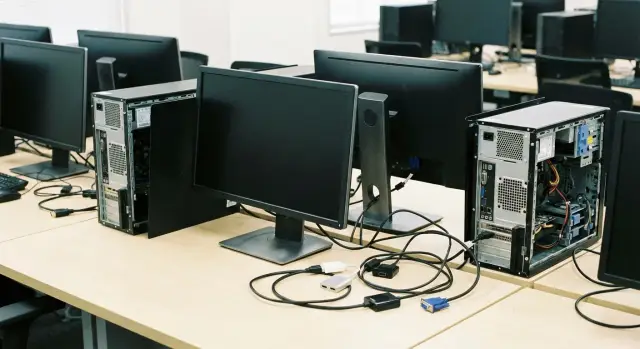
What's the issue when you upgrade PCs but keep the monitors
When system units are upgraded but monitors are left in place, it may seem low-risk: the screen powers on, so it should keep working. In practice, failures often appear on the day of the swap, when there's no time to troubleshoot and workstations must be up immediately.
Usually it’s not the monitor that “breaks” but the chain made of the new PC's video output, the cable, any adapter, and the display settings. As a result, a screen may not turn on, may be intermittent, or may show a noticeably worse image than before.
Typical symptoms include: the image disappears after Windows boots or when waking from sleep; only a low resolution is available (blurry text and wrong proportions); flicker or occasional black flashes appear; a second monitor isn’t detected or keeps changing order. If HDMI/DisplayPort audio is important, it can drop out too.
Monitors are often kept for obvious reasons: budget savings, a uniform look across workstations in an office or classroom, existing VESA mounts and familiar ergonomics. In call centers and training rooms replacing monitors also complicates logistics: remove, transport, re-place and reconnect.
Problems most often arise from changes on the PC side: a new video card with a different set of connectors, a move to mini‑PCs, connection through a dock, or a motherboard replacement with other video outputs. Even if a connector physically fits, the standard version or cable quality may not support the desired mode.
It's especially important to check compatibility in places with many identical workstations and no tolerance for downtime: offices, call centers, computer labs, medical offices. A 30‑minute outage at one desk can quickly become a major disruption when there are dozens of similar seats.
A simple example: an accounting department upgraded PCs to compact models while keeping old monitors that only had VGA. Until the right active converters and suitable cables arrived, some staff worked “blind” or on a single monitor instead of two.
When upgrading PCs without replacing monitors actually makes sense
Keeping monitors is usually justified where they already meet the display needs and the bottleneck is the old system units. This is common for office desks, bookkeeping, training, terminals, call centers and institutional workstations where application responsiveness and stability matter more than perfect color reproduction.
Focus on three things.
First, the monitor must reliably support the required resolution and refresh rate. For documents and spreadsheets, Full HD at 60 Hz is usually enough. But if people complain about small text and constantly increase UI scaling, it may be better to replace the monitor with a larger one than to force comfort via settings.
Second, the connection chain should be predictable. If monitors and new PCs have proper digital ports (HDMI or DisplayPort) and you can use direct cables, the risk is minimal. Issues begin when you have to assemble a “zoo” of adapters, hybrid cables and converters that behave differently with different video outputs.
Third, consider color requirements. If there are no design, video, printing, or color‑critical tasks, old monitors can often stay and the budget is better spent on faster CPUs, SSDs and more RAM.
The most convenient scenario is when the monitor fleet is uniform: same model, same ports, same cables. Support is simpler, spares are easier to keep, and faulty elements can be swapped faster.
Plan to replace monitors up front if at least one of these applies: many screens have only VGA while new PCs lack that output without converters; monitors are visibly worn (flicker, spots, tired backlight); many unstable connectors or damaged panels; you need more desktop space (higher resolution/diagonal); or tasks require accurate color.
Example: an office upgrades system units for accounting but keeps identical Full HD monitors with HDMI. The upgrade yields faster application launches and fewer freezes while support remains straightforward with no surprises in connections.
What to collect in an inventory before the upgrade
To avoid surprises, start with a short inventory. It takes an hour or two and shows where you’ll hit adapter limits, refresh‑rate constraints or “wrong” cables.
Walk the floor and record which inputs are actually available on each monitor and which are currently in use. Offices often have a mix: older panels with VGA or DVI and newer ones with HDMI or DisplayPort. If some monitors have USB‑C, confirm whether it supports video input (not only power/data).
Then check the PC side: how many video outputs, which types, and how many monitors need to work simultaneously at each seat. It’s important to note not only whether “there is HDMI” but how many identical ports are available. Otherwise adapters are unavoidable on some desks.
Collect everything into a single table per workstation: monitor model and its inputs; working scheme (one/two/three displays, extended or mirrored); required modes (resolution and refresh rate, e.g. 1920x1080 at 60 Hz); current cables (type, length, connector condition); special cases like docks, KVMs, extenders and already installed adapters.
Inspect cables manually. Play in the connector, bends near the plug, or a too‑long run without amplification often cause intermittent issues: signal drops or the monitor only comes on after a reboot.
A small example: in accounting one desk had two monitors, one via DVI and the other via VGA. After the upgrade it turned out the new video outputs lacked VGA. That’s not catastrophic, but without a record of which monitor has which input you only discover it on deployment day when there’s no time for a proper fix.
Ports and standards: what really matters
When upgrading PCs it’s less often performance that fails and more often the link between the video output and the display input. Important factors include signal type (analog or digital), supported resolution and refresh rate, and how the signal travels through cables and adapters.
VGA is an analog interface. It’s particularly fussy on long runs: letters can look “wavy”, noise and color shifts can appear. If a monitor is far from the system unit and connected via VGA, the risk of problems after an upgrade is higher even if it “seemed to work” before.
DVI looks simple but has two varieties: DVI‑D (digital only) and DVI‑I (digital + analog). Because of this, adapters might not fit functionally or might not deliver an image. A passive DVI‑D to VGA adapter, for example, will not produce an analog signal from digital.
HDMI and DisplayPort are generally more reliable, but nuances exist regarding standard versions and cable quality. At higher resolutions and refresh rates the limitation may be the monitor or the cable rather than the video card. DisplayPort is often more convenient for PCs, but solid connector retention and a quality cable are important to avoid random dropouts.
USB‑C looks universal, but it requires a video output (Alt Mode) on the PC or dock. Not every USB‑C port supports that, especially on desktops.
Before buying, record: the inputs of each monitor and the outputs of the new PCs; what DVI type the monitor uses (DVI‑D or DVI‑I); the real modes needed (e.g. 1080p 60 Hz); cable length and routing conditions; where an active converter is needed versus a passive adapter. With this recorded, ports stop being surprises and the upgrade proceeds without black screens on deployment day.
Adapters and converters: where the risks hide most often
An adapter seems trivial, but it’s often the thing that breaks the plan. The main trap is simple: some adapters only change connector shape (passive), while others actually convert the signal (active). If you mix them up, the monitor may remain dark or work only in a basic mode.
Passive adapters don't always work. DisplayPort on a PC can sometimes output an HDMI signal (DP++), but this depends on the specific video card or port. If DP++ is not supported, an active converter is required.
Common problem paths are DisplayPort → HDMI (if no DP++ or for 4K/60), HDMI → VGA (almost always needs an active converter), DisplayPort → VGA (usually active and not always stable), and USB‑C → HDMI via hubs (depends on whether the USB‑C port carries video).
Even when everything powers up, a converter can “cut” features: limit refresh rate, disable audio, not support 2K/4K, or introduce flicker on long runs. This is especially noticeable if monitors are old and the new PC tries to set a higher default mode.
When buying, look at specifics rather than “universal”: required resolution and refresh rate; audio support over HDMI if needed; adequate cable quality; and consistent models of converters to avoid creating a zoo of devices with differing behavior.
A simple example: an office keeps VGA monitors while new systems only have DisplayPort. It usually makes sense to plan on an active DP→VGA converter for each monitor and test one or two workstations before mass procurement.
Resolution, refresh rate and image quality after the upgrade
After replacing PCs the image on older monitors can sometimes worsen even though the hardware is more powerful. The cause is usually not performance but the mode negotiated between monitor, cable and video output.
First, find the monitor’s maximum: native resolution and normal refresh rate (often 60 Hz). Then compare that to what the new PC’s output delivers in your scenario: through which port, at what cable length, and whether an adapter is in use.
Mismatches are usually obvious. 30 Hz instead of 60 Hz feels like a stuttering cursor and causes faster eye fatigue. Blurry text appears when the monitor runs at a non‑native resolution or an awkward scaling mode is enabled. A black screen often means a mode the monitor doesn't support or that the signal is lost along the path.
Different monitors in the same setup can behave differently. One may handle 1920x1080@60 fine while another, visually similar unit, runs only at a lower resolution or falls back to 30 Hz. This is especially common in mixed pairs: a new panel paired with an old office monitor.
Cable length matters too. The longer the run, the greater the risk of losses—especially on older HDMI and even more so on VGA. If a cable is routed across ceilings and hasn't been replaced for years, allow time for testing.
Before mass purchase it’s usually sufficient to test one workstation: verify each monitor’s native resolution and refresh rate, check which modes the new PC actually outputs on your cables, confirm signal stability, test a pair of mixed monitors, and check limits on the number of simultaneous displays.
Step‑by‑step plan to upgrade without replacing monitors
If displays stay in place, success depends on matching ports, cables and operating modes. This plan helps avoid having new computers in the office while some workstations sit idle over trivial issues.
5 steps that really save the project
-
Record the current setup: for each workstation note the monitor model, connection type, cable length, resolution/refresh rate and number of displays.
-
Choose PCs to match real port needs. If many monitors use VGA or DVI, decide in advance whether to preserve those lines via converters or to replace some cables and move everyone to digital outputs.
-
Mark where an active converter is required and, where possible, buy identical models. That reduces intermittent problems and simplifies support.
-
Build 1–2 pilot workstations and run common tasks: video calls, 1C (accounting), browsers, remote desktop. Be sure to test sleep/wake, second‑monitor dropouts, flicker, correct refresh rate (for example 60 Hz) and HDMI audio if required.
-
Scale only after the pilot. Keep a table of “what worked”: monitor model, cable/converter, PC port and stable settings. This speeds deployment and support.
Common mistakes and traps when keeping old monitors
The most frequent mistake is buying mini‑PCs with USB‑C and expecting the monitor to connect “like HDMI.” USB‑C varies: sometimes it only carries data and charging, with no video (DisplayPort Alt Mode). On site you may suddenly find you need a different video output or a dock, which affects budget and timing.
Another trap is grabbing HDMI→VGA adapters “on a whim.” If the monitor is VGA only and the PC has only HDMI or DisplayPort, an active converter is almost always required. A passive plug adapter usually yields a black screen.
Cables also betray you. When an office mixes old VGA and new HDMI runs of various lengths and unknown origin, some workstations start flickering, losing signal or only running at low resolution. This often appears after furniture is moved or over long runs.
One more surprise is limits on the number of displays. Even if there are many connectors, a particular video card, integrated graphics or dock may not drive the required number of screens at the desired resolutions and refresh rates.
To avoid discovering these problems during mass deployment, test compatibility on a real monitor from your fleet (preferably the trickiest units) and run a pilot on several workstations rather than “the whole floor at once.”
Short checklist before procurement and deployment
Keep a simple compatibility map in hand for a calm upgrade.
Start with an inventory per workstation: monitor model, input (VGA/DVI/HDMI/DisplayPort), native resolution and the existing cable. For each PC→monitor pair decide in advance whether a direct cable or an active converter is required. Where possible standardize cable types and lengths and label them. Budget a small spare stock (typically 5–10%) for replacements and service.
Then test 2–3 of the most problematic monitors: confirm that the required resolution runs stably at 60 Hz, there is no flicker, and there are no black screens when the cable is moved or after sleep. Separately assess cable lengths: long runs more often have interference and signal loss, especially with older standards.
Practical example: an office upgrades PCs and keeps monitors
An office had 50 workstations. Monitors were bought across different years, producing a heterogeneous fleet: some with HDMI, some only VGA, and a few desks with questionable cables. The task was to upgrade PCs without touching monitors and avoid a flood of helpdesk tickets on day one.
They started not from the most powerful systems but from video outputs. For HDMI desks they planned direct connections without adapters. For VGA desks they chose the lower‑risk approach: where possible select PC configurations with appropriate outputs, and use converters only where unavoidable.
The risk quickly manifested: several VGA desks wouldn’t start with simple adapters. The reason is typical: VGA is analog while modern outputs are usually digital, and conversion requires an active converter. Long or thin VGA cables also produced smeared images and occasional signal dropouts.
They tested carefully: piloted three desks for a week running typical tasks (email, 1C/CRM, video calls, sleep/wake). Then they locked successful pairings and standardized the kit: one HDMI cable type at the right length, an active converter for specific VGA monitors, short quality VGA cables for problem desks and labeling “PC‑cable‑monitor.”
Mass deployment then went smoothly, and the most troublesome VGA monitors were scheduled for replacement in the next budget cycle.
Next steps: lock the result and simplify support
After the upgrade, consistency matters: otherwise support will constantly chase rare cases. Record the final compatibility matrix and keep it with procurement docs. You need concrete pairings: monitor model and input, PC/video card model and output, exact cable (type and length), converter type (active or passive) and a confirmed mode (resolution and refresh rate) validated on a real workstation.
Plan a gradual phase‑out of old interfaces. If many screens only have VGA, don’t stockpile rare adapters; instead move gradually to digital connections and replace monitors in batches, starting with places that cause the most problems: meeting rooms, reception and desks with long cable runs.
A short troubleshooting guide for IT and users helps for common symptoms like a black screen or “monitor not detected”: check the selected input on the monitor, reconnect the cable at both ends, try a different port or a known‑good cable, and if there's a converter check its power and swap it for a tested unit. In PC settings choose supported resolution and refresh rate.
If you are upgrading PCs centrally and want unified configurations, images and straightforward support, coordinate video outputs and cable pairings with your supplier in advance. In systems integration projects this is often done together with the vendor: for example, GSE.kz (gse.kz) can help select workstations and server solutions and at the same time resolve port and consumable compatibility so deployment proceeds without downtime.
Frequently asked questions
Why do old monitors sometimes stop working after a PC replacement?
Most often the issue is not the monitor itself but the chain “new PC video output → cable → adapter/converter → monitor input”. The new computer might not be able to output the required signal type, and an old cable or adapter can limit the mode or produce an unstable connection.
What should I do first if the monitor shows "No signal" after an upgrade?
First, check that the monitor is set to the correct input (HDMI/DVI/VGA/DP) and reconnect the cable on both ends. Then try another port on the PC and a known-good cable; if there is a converter, make sure it is active and, if required, powered.
Can I connect a VGA monitor to HDMI or DisplayPort on a new PC with a simple adapter?
If the monitor only has VGA and the new PC lacks VGA, you almost always need an active converter rather than a passive adapter. A passive adapter does not convert a digital signal to analog and will usually result in a black screen.
Why is only a low resolution available and the text blurred after replacing the PC?
When a monitor is not running at its native resolution or the refresh rate is limited, text becomes blurry and scaling feels off. This is often caused by limitations of the cable/converter or by the system choosing a compatible but suboptimal mode.
How can I tell if a monitor is running at 30 Hz, and how do I fix it?
Check the monitor’s maximum modes and try to set 60 Hz in the display settings, especially for external displays used through adapters. If 60 Hz is unavailable, look for limits in the converter, cable length/quality, or the specific PC port.
What should I collect in an inventory before upgrading PCs?
Inventorying each workstation usually saves the project: monitor model, available inputs, current cable type and length, how many monitors are required and at what resolution. Then choose PCs and accessories so that most connections are direct digital cables rather than a mix of adapters.
Why does USB-C on a mini PC sometimes not output a picture to the monitor?
USB‑C can provide only data and power and may not support video output; it depends on the specific PC or dock. Before purchasing, verify whether DisplayPort Alt Mode is supported or whether there is a dedicated video output—otherwise you may end up with workstations without video on deployment day.
What risks are hidden in converters and adapters?
Even when everything appears to work, a converter may limit refresh rate, maximum resolution or HDMI/DisplayPort audio, and it can cause flicker on long runs. It's safer to pick identical, proven converter models and run a pilot on 1–2 workstations.
How do I check that sleep mode and a second monitor will work after the upgrade?
Test sleep/wake, connecting/disconnecting a second monitor and signal stability by gently moving the cable in the connector. If the screen disappears after sleep or display order changes, try a different cable, avoid suspect adapters or use another port.
When is it truly reasonable to upgrade PCs without replacing monitors?
Upgrading without replacing monitors is reasonable if the monitors support the needed resolution and refresh rate, have proper digital inputs (HDMI/DisplayPort/DVI‑D), and can be connected with direct cables. Plan to replace monitors if many have only VGA, show clear wear (flicker, spots, tired backlight) or users need more screen area and readability.
