8 min read
UEM for PCs and Mobile: Evaluating Intune and Alternatives
UEM for PCs and mobile: a comparison of Intune, Workspace ONE and ManageEngine across policies, inventory, software delivery, offline behavior and audit reporting.
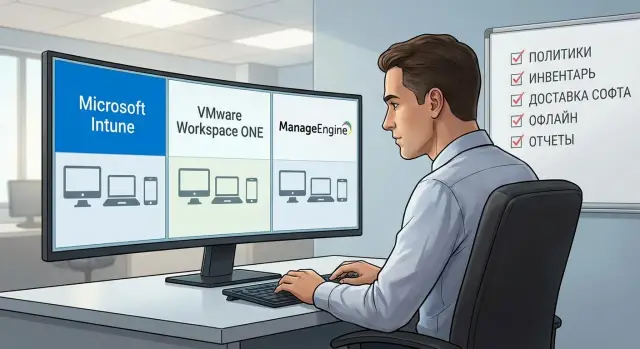
Where to start when choosing UEM and which problems it solves
Start UEM selection not with brands, but with a simple question: what currently hurts in device management? For some it's security and settings control, for others—asset and software tracking, for others—remote support for staff outside the office.
UEM brings several tasks together: who uses what (inventory), what is allowed on devices (policies), how software is installed and updated (software delivery), and how to prove compliance (audit reports). Without it you often get a zoo of tools and manual work: settings applied from memory, apps installed ad hoc, and reports pieced from different sources that still leave doubts about completeness.
Compare solutions for both PCs and mobile from the start. In real organizations there’s almost always a mix: Windows laptops, desktops, Android/iOS phones, sometimes tablets and kiosks. If you pick a tool for only smartphones or only PCs, IT will quickly end up with two consoles, two policy models and separate reports. Workload rises and control weakens.
To prevent evaluation turning into an endless pilot, fix success criteria for 1–3 months in advance. For example: 90% of devices visible in inventory with current data and owners; a standard software set installs without manual steps and shows clear status; basic security policies apply predictably and verifiably; audit reports are produced in minutes, not at the end of the week.
A simple scenario: a new hire arrives. Without UEM their laptop and phone are configured manually, some apps get missed, and accesses are granted on request. With UEM the device enrolls, receives the right policies and apps, and IT/security have a unified view and activity trail. For organizations with supply‑chain transparency and IT asset control requirements this is especially noticeable: managing the fleet, maintaining standards and producing audit evidence becomes much easier.
What to expect from UEM in a real organization: minimum features
UEM for PCs and mobile is not everything about management, but a clear set of tasks that must work reliably every day. Typically the scope includes Windows laptops and desktops, macOS, iPhone and iPad on iOS, and Android phones and tablets. Linux is sometimes added, but often only for basic inventory and a few settings.
Before comparing Intune, Workspace ONE and ManageEngine, agree on the minimum feature set. If a tool doesn’t cover these predictably, you’ll end up with a lot of manual work and disputes between IT and security.
A common baseline looks like this:
- Policies: passwords, encryption, screen lock, blocking risky actions, basic protections.
- Inventory: user, device, serial number, OS and version, installed software.
- Software delivery: installation of mandatory apps and updates, tracking success.
- Remote actions: lock, remote wipe, password reset, device locator.
- Compliance reports: who is out of policy and why.
You’ll almost always discover one extra layer not in the baseline: directory and group mapping, certificate distribution, VPN and mail configuration, conditional access (access depending on device state). In government, banking, education and healthcare these are often requirements, not optional features.
Accept limits upfront: identical behavior across all OSes is unrealistic. What is easy and deep on Windows may be limited on iOS by Apple’s rules, and Android behavior depends on enrollment mode (personal, corporate, fully managed). So define the minimum as verifiable outcomes (for example, encryption enabled and confirmed in a report), not as pretty checkboxes in the UI.
Step-by-step plan to evaluate Intune, Workspace ONE and ManageEngine
Start not with “which product is best” but with what you will manage. Create a single table of devices: Windows and macOS PCs, iOS/Android phones, corporate and BYOD, plus connection scenarios (office with good network, branches with limited bandwidth, field workers on mobile internet). This is the baseline—without it, comparisons are guessing.
Next, describe a small but representative set of requirements. Usually 10–15 key policies (passwords, encryption, screen lock, Wi‑Fi/VPN, block root/jailbreak, OS updates) and 10–15 mandatory apps (office suite, browser, messenger, VPN client, EDR/antivirus, internal apps) are enough. Record not only whether something can be configured, but how predictably it applies.
Agree separately on audit evidence: what proofs are needed and how often. Some need weekly reports on encryption and patches, others require policy-change logs and a list of admins with roles. If this isn’t defined beforehand the pilot will show pretty charts but won’t answer security questions.
To fairly compare Intune, Workspace ONE and ManageEngine, run a 2–4 week pilot with real people and real risks:
- Choose 20–50 devices: some in the office, some in branches, some in the field.
- Fix pass/fail criteria: policy compliance percentage, time to deliver software, inventory accuracy, report quality.
- Plan two checkpoints: after one week and at pilot end.
- Test awkward scenarios: SIM change, reinstall, loss of connectivity, domain leave.
- Record all deviations as incidents with root cause.
Assign owners from the start. Security defines policy and logging requirements, IT operations handles deployment and support, procurement handles licensing and timelines, and the business defines critical apps. This way the pilot result becomes a defendable decision, not just “we liked it” or “we didn’t.”
Policies: how flexible and predictable are they
Policies are the heart of UEM for PCs and mobile. On demos everything looks nice, but in production you need to know how quickly you can craft a rule, who it applies to, and what happens with exceptions and conflicts.
First, see how policies are defined: as separate profiles, templates, or a set of settings with search and guidance. A good sign is being able to see which parameters change and safely test them on a pilot group.
How to test flexibility without pain
Have IT and security together create 3–4 typical policies and apply them to different devices (Windows, iOS, Android). Don’t measure only if it’s possible—count the clicks, the chances to make mistakes, and how explainable the result is.
Quick checks that reveal differences between products:
- Group targeting: departments, roles, device type, corporate vs personal (BYOD).
- Exceptions: a single user, one model, one branch, a temporary one‑week exception.
- Enforcement and compliance: what counts as a violation and what follows next.
- Conflicts: when two policies set different values, which wins and where is that visible.
- Update and baseline security policies: password/biometrics, encryption, screen lock, firewall, OS updates.
Then see how the system explains outcomes. Ideally there is an effective policy: final values on a device and the reason they are set.
Predictability matters more than maximum flexibility
Example: the head office has strict requirements (disk encryption and USB block), while field workers have relaxed settings to avoid disrupting work. A good UEM shows in advance which combination will apply to a user in two groups, not leaves you finding out from a flood of service desk tickets.
Also evaluate how often a device rechecks policies and what happens on intermittent connections: do settings apply at first opportunity, is there a queue, and are change logs preserved? This is critical for organizations with branches and roaming users where connectivity is unreliable but audit/security demands remain strict.
Device and software inventory: accuracy and usability
Inventory is where UEM either saves hours or creates endless reconciliations in Excel. Check not only what the console shows but whether you can trust this data in an audit.
First, see what is collected out of the box: model and specs, OS and build, serial number, disk info and encryption status. Fields should be as uniform as possible across Windows, macOS, iOS and Android. If each OS has a different set, reports quickly fragment and comparing devices across branches becomes manual work.
Software inventory is often more complex than it seems. A good sign is visibility not just of app names and versions but the install source (store, package, corporate catalog) and timestamp. Check if you can tell preinstalled apps from user-installed ones and how updates are shown: as a new version or a separate entry.
A separate test is the speed of inventory updates after changes. Do this test: update an app on a test laptop, toggle encryption (if policy allows), rename the device. Time how long until the console and the report reflect it. If data only refreshes daily, it’s not suitable for investigations and quick reconciliations.
For compliance checks demand export capabilities. Minimum requirements:
- Export to CSV/Excel by device and apps with filters.
- Saved report templates for regular checks.
- Timestamps showing when data was collected.
- Export by group (department, branch, device type).
Finally, check how you tag devices: labels, owner, division, location, criticality. In a healthcare example some PCs are room-bound, others are user-bound. If these fields are awkward to fill or not usable in filters, inventory quickly loses value.
Software delivery: installs, updates and version control
Application delivery usually becomes the main challenge. Policies can be set once, but software changes weekly: patches, new versions, urgent fixes. So check not just whether apps install, but how the lifecycle is managed.
Start with deployment scenarios. A good system must reliably handle silent installs without user interaction, installs on demand from a corporate catalog, and mandatory packages (EDR agent, VPN, office suite). Look for predictability: installs resume after reboot, and users see clear status rather than wondering whether anything happened.
What to test in a pilot
Test with real apps and realistic package sizes, not a single test MSI:
- Silent install and self-heal: what happens if a user removes an app.
- Updates and version control: can you pin a version, do staged rollouts by groups.
- Rollback: is there a quick way to revert to a prior version on failure (and how realistic is it without manual work).
- Large packages: how UEM behaves on branch links—are there schedules, speed limits and maintenance windows.
- App catalog: search convenience, clear descriptions, availability rules.
For large packages evaluate network impact. A frequent issue is everyone updating at once and saturating bandwidth. A good tool lets you stagger delivery, throttle speed or restrict updates to maintenance windows.
Also consider license and entitlement management for vendor suites (Microsoft, Oracle, SAP, etc.). Check how UEM stores assignment info: who can install and how access is removed on termination. In a pilot use a typical app set (office, VPN, corporate client) and verify ease of support across device types.
Offline mode and poor connectivity: test in practice
A strong UEM fails not on a demo but in a branch with weak internet or a traveler’s device. Test offline mode on real devices and networks.
First, understand what happens when a device is offline for an extended period. Tasks usually queue (install, policy change, inventory request) and wait for the next contact. But each command may have a lifetime. If expired, some tasks cancel and others apply late, potentially causing conflicts—e.g., installing an old version over a newer one.
In branch networks check whether policies apply in parts, what happens on interruption, and if retry logic is sensible. Especially important is behavior when multiple settings change at once (password, Wi‑Fi, restrictions, encryption) and connectivity drops mid‑process.
Traffic saving matters: ask about local caching, resumable downloads and options to limit downloads by time or network type (for example, block large updates over mobile data). For some regions this resolves half the problems.
For field users test remote actions. Commands like lock or wipe almost always execute only when the device next connects—that’s normal. The important part is clarity: that the command was accepted, when it was delivered, and what exactly was removed.
Practical mini‑test for a pilot:
- Turn off internet for 24–48 hours and send 3–4 different commands.
- Restore connectivity and measure execution delay and order.
- Force a version conflict (two installs in a row) and observe the outcome.
- Repeat in a branch network with high ping and packet loss.
- Compare logs: admin action time, delivery time to device, policy version, result.
The last point is critical for audit. Reports and logs must show offline work: what was scheduled, what wasn’t delivered, what was delivered later and why.
Audit reports: evidence, frequency, and logs
Audit reports are often an afterthought. Then you find that green indicators on a screen aren’t evidence. Auditors need exports that can be attached to a record and the ability to repeat a report later and get comparable results.
Typical evidence requests
Good systems produce reports over periods: week, quarter, custom date ranges. Check whether you can show trends and exceptions, not just an overall percentage.
Common requests:
- Inventory of devices and installed software (including versions).
- Disk encryption status and key security parameters.
- OS and app update levels, percentage of missing patches.
- Policy compliance (who is non-compliant and why).
- Risk events: password disabled, protection removed, jailbreak/root detections.
Admin activity logs are a separate story. It’s important to see who changed a policy, who deployed an app, who removed a device from compliance and when. Without this, internal control often rejects the report.
Mini audit test in a pilot
Take 50 devices and agree on 5 claims you must prove:
- Encryption is enabled.
- Password/biometrics configured per rules.
- Critical updates installed within N days.
- One or two disallowed apps are blocked.
- Screen lock policy is actually applied.
Run two checks: now and in 2–4 weeks. Compare whether you can produce a period report, export in a clear format (CSV/PDF) and attach it to an audit with change logs. If reports contain many unknowns due to offline or sync issues, record that honestly as a risk.
Integrations and roles: making IT and security work together
UEM rarely exists in isolation. If it’s not tied to accounts, security processes and the service desk, management becomes manual and disputed incidents lack evidence.
Start with integrating the user directory and groups. It’s important not only for single sign-on but for a clear rights model: who can change policies, who can only view, and who has log access. Check whether you can map settings to groups (by department, branch, device type) and how quickly changes apply.
Separation of access without conflict
In the pilot assign roles and verify enforcement:
- UEM administrator: policies, app deployment, device profiles.
- Support specialist: basic actions (password reset, lock, remote help).
- Security analyst: compliance requirements, responses, investigations.
- Auditor: read‑only access, exports and logs.
Also evaluate how the product supports security processes: alerts on violations (encryption off, outdated AV), automated responses (restrict access, quarantine) and where these actions are recorded in logs.
Service desk and infrastructure
UEM should integrate with your service desk. It’s useful if a ticket shows the device, its compliance status and recent events, and common actions can be executed from the ticket and recorded in history.
Practical checks that often surface in networks (especially branches):
- Operation via proxy and restricted outbound traffic.
- Issuing and renewing certificates (Wi‑Fi, VPN, mail).
- Compatibility with your VPN model (per‑app or device level).
- Separate policies for corporate PCs and personal phones.
- Complete logs: who did what and when, and exportability for audit.
If roles and integrations remain grey, comparing policies and app delivery becomes risky: teams will overlap and responsibility blurs.
Example pilot scenario: office, branches and field workers
Imagine a 200‑employee company: head office, 5 branches and some field staff. The fleet is mixed: Windows laptops and desktops, a few macOS machines, corporate and personal phones, plus shared meeting-room devices. The pilot goal is simple: determine whether a UEM will work without surprises in real networks and with real user habits.
Fix pilot requirements and keep them short. Example: 12 baseline policies (password, encryption, screen lock, block unsafe settings, Wi‑Fi/VPN, updates), 8 mandatory apps (office suite, browser, corporate messenger, VPN client, EDR/antivirus, remote support agent, 2 internal apps), and one clear quarterly audit report (what’s installed, who is compliant, what is violated and when).
A pilot gives honest feedback if you use 20–30 varied devices and three user groups:
- Office workers (stable network, standard roles).
- Branches (weaker connectivity, local printers and small exceptions).
- Field workers (often offline, mobile hotspots, personal phones).
Measure outcomes, not just “it works.” Track time to first managed device (from start to policies and app installs), number of incidents (failed installs, lost Wi‑Fi/VPN profiles, update conflicts), and share of devices compliant with your 12 policies. Also note manual admin actions and support tickets.
Decide with a weighted criteria table. For example, give policies and compliance more weight than UI convenience; audit reporting should weigh at least as much as software delivery. If deploying turnkey, assess how the chosen UEM fits your support and audit model, especially for regulated sectors and public procurement.
Common mistakes in selection and deployment
The top mistake is judging a system by a pretty UI and a couple of test policies. Production needs repeatable flows: mass device enrollment, software delivery, audit reports, operation under poor connectivity, and clear logs for reviewers.
Pitfalls that often break a pilot
Problems usually come from how the platform was tested and launched, not from the platform itself:
- Only basic settings are tested, not the full path from device issuance to compliance report.
- No agreement on policy ownership (IT, security or joint) and mandatory audit requirements.
- Mixing pilot and production: enrolling live users without rollback plans and success criteria.
- Underestimating offline and regional connectivity: policies may apply differently outside the office.
- Not fixing a minimum device standard: OS versions, encryption, local admins, base image and startup settings.
Typical scenario: a 30‑user pilot. In the office everything looks perfect, but in a branch updates and installs stall, reports lag, and it’s unclear whether a device is actually protected or just hasn’t synchronized yet.
How to avoid failure
Before starting, set simple rules:
- Define 5–7 mandatory scenarios and run them across different connection types.
- Agree the set of audit reports: what we prove, for what period, where logs are stored.
- Separate pilot and production: distinct groups, distinct policies, clear rollback.
- Approve a minimum device baseline and initial configuration before connecting users.
Quick checklist and next steps
If time is short, a brief check can show whether a UEM fits your reality: device types, network, security and audit needs.
What to check in 15 minutes on a small test group:
- Policies: clear priority rules and visibility into why a setting applied (or didn’t).
- Inventory: model, serial, OS, encryption, versions of critical apps match the device.
- Software delivery: installs and updates without manual work, version control, clear success/fail status.
- Offline: what happens when a device is off the network for 1–2 days and how quickly it catches up.
- Audit reports: can you export evidence and admin logs within a minute.
On a vendor demo ask for live examples, not slides: show a compliance report for encryption, the install history of a specific app, and a change log with the responsible admin.
Before starting the project gather a minimal dataset:
- Device matrix (Windows/macOS/iOS/Android), owners (corporate/BYOD), and critical user groups.
- A list of mandatory security policies and audit requirements (what must be provable).
- A list of applications with install sources, versions and update windows.
- Roles and access: who creates policies, who approves, who views reports.
- Network and proxy/VPN constraints and branch specifics.
Next step: plan a 2–4 week pilot with goals, success metrics, short admin training and draft procedures (device issuance, replacement, offboarding, incidents).
If you want to combine devices, UEM and support into one process, working with a system integrator can help. For example, GSE.kz (gse.kz) as a vendor and systems integrator in Kazakhstan handles corporate supply, deployment and support, which helps align IT and security requirements with real operations and audits.
Frequently asked questions
Where is the best place to start when there are too many UEM products?
Start from the problems you want to solve in the next 1–3 months: no up-to-date inventory, manual software installs, scattered policies, long audit reporting, hard support for remote staff. When the pain is clear, comparing products becomes checking specific scenarios, not “which is more popular.”
Which UEM features are truly mandatory, not just “nice to have”?
A minimal baseline is stable security policies, device and software inventory, app delivery and updates, remote actions (lock/wipe) and compliance reports. If any of these blocks is unreliable, you’ll compensate with manual processes and extra tools.
Why should I choose UEM for PCs and mobile at the same time, not separately?
Because organizations almost always run mixed platforms: Windows and macOS on PCs, iOS and Android on phones, sometimes tablets and kiosks. Using separate tools leads to two consoles, different policy models and different reports, which increases workloads and weakens control.
What success criteria for a UEM pilot should be fixed in advance?
Define measurable results and timelines up front, for example: percentage of devices with current inventory, time to install a standard software set, share of devices compliant with basic policies, speed of producing an audit report. Then run a 2–4 week pilot with real users and network conditions to validate them.
How can I quickly tell that policies will be predictable and not “hit-or-miss”?
Create 3–4 typical policies and test them on Windows, iOS and Android including exceptions and overlaps. The key is not just “can it be set” but whether you can explain the outcome on a specific device: which setting won, why, and how quickly it appears in the console.
What should I look for in device and software inventory to trust it?
Check how consistent the data is across OSes and how fast inventory updates after changes. In the pilot, do simple actions (update an app, rename a device, toggle encryption) and measure when the console and exports reflect them. Long delays make investigations and reconciliations painful.
What must be tested in software delivery so you don’t drown in manual installs later?
Test with real applications and packages, not just a small installer. Installation must be silent and repeatable, status clearly reported, updates roll out by groups, and there should be a manageable rollback path — not a manual fix on every PC.
How do you properly test offline mode and operation over poor connections?
Verify command queues and timeouts: what happens if a device is offline for a day or two and in what order commands execute after reconnecting. Also check behavior on poor links: resume downloads, retry logic, and clear statuses “accepted/delivered/completed”. Auditors need logs that show when a command was scheduled and when it actually ran.
Which reports and logs do auditors usually expect from a UEM?
Auditors typically require exportable evidence over a period: inventory with versions, disk encryption status, update levels, a list of non-compliant devices with reasons, and the admin activity log. A good test is to request the same report now and in a few weeks and ensure results are comparable and attachable to an audit folder.
How do you organize roles and integrations so IT and security don’t step on each other?
Start with roles and permissions: support should perform basic actions, security sees compliance and incidents, auditors have read-only access, and all changes are logged. Then test integration with your user directory so policies apply by department and device type rather than one-off manual assignments. Without this, pilots often look fine but turn into disputes over authority in production.
