8 min read
Two monitors or one ultrawide: choose by tasks
Two monitors or one ultrawide: a comparison for operators, accountants and analysts. Ergonomics, desk space, TCO and video outputs.
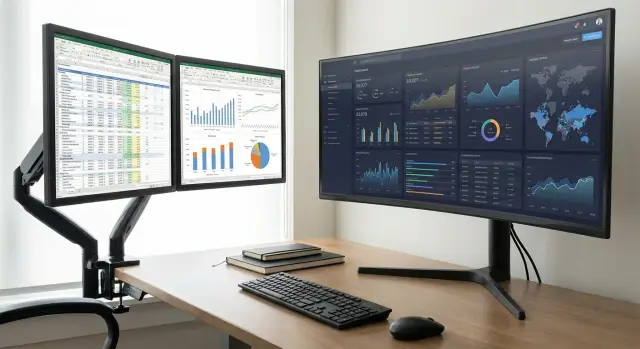
Where the decision starts: screen space and habits
The question “two monitors or one ultrawide” usually comes up for two reasons: you don’t have enough space on the screen for multiple windows, or by the end of the day your neck hurts and your eyes are tired from constant switching. Start not with diagonal or brand, but with how you work every day.
First step — write down 3–5 typical tasks and figure out which windows need to be visible at the same time. An operator often needs one “main” window and a second for a knowledge base, CRM or chat. In accounting it might be 1С and a bank client plus a registry file. An analyst typically keeps tables, charts, mail, notes and sometimes two systems open at once.
Then honestly answer the habits question: do you mostly maximize windows and switch with Alt+Tab, or do you constantly compare two documents side by side? If the latter, what matters is not the “total diagonal” but convenient pairing of two windows side by side without constant resizing.
Quick orientation:
- Two screens are often more convenient when you need different applications in different "zones", need to move windows quickly, or when one screen can be rotated vertically for documents.
- One ultrawide is often better when you want a single field without a bezel in the middle, value a neat desk look, and work a lot with wide tables or timelines.
Next, compare options by four practical factors: ergonomics (neck, distance, height), desk space and cables, total cost of ownership (purchase, energy, failure risks and service), and video output requirements on the PC or laptop (what ports are present and what resolution the GPU can drive).
Tasks by role: operator, accountant, analyst
A good choice starts with a simple question: how many windows do you need to see simultaneously and how often do you rearrange them?
Operators usually need 2–3 apps side by side: a CRM/service-desk form, chat or telephony, and a short instruction or knowledge base. The winning option is where windows are easy to split into zones and left that way all day. Two monitors are convenient because one window can be fixed on the second screen and not moved every minute.
Accountants often need to reconcile numbers between 1С/ERP, a bank client and documents (PDFs, scans), plus it’s useful to keep a chart of accounts or email open. Vertical space matters: documents and forms are often long. An ultrawide helps place a table and a document side by side without a seam. But if there are many scans or printed forms, a second screen for documents is usually easier on the eyes.
Analysts need dashboards, charts, BI tools, SQL and presentations. Here the horizontal space often decides: timelines, wide tables and filter panels. An ultrawide gives a single canvas for data, while two monitors are better if one screen is constantly for results and the other for code, notes or mail.
Who typically fits which option
Typically: operators do better with two monitors (chat + form), accountants often need the “table plus document” scenario (two screens help, especially with a portrait rotation), and analysts often prefer an ultrawide for broad dashboards. Two monitors win where one screen is permanently assigned to one task and the other to another.
A simple test: if you critically need to keep 2–3 applications visible all day, choose the solution that provides that without constant dragging and overlapping windows.
Ergonomics: neck, eyes and window placement comfort
Ergonomics often settles the debate, because fatigue comes not from diagonal but from how you move your head and where you look.
With two monitors you can split tasks by meaning: mail and chat on the left, working system or spreadsheet on the right. The downside is the physical gap between displays. If an important window is often “between” monitors, you start turning your head back and forth. This is more noticeable when the displays are asymmetrically positioned or one is higher than the other.
An ultrawide gives a single canvas without a seam. Ideally you move your eyes more than your neck. But if you place such a screen too close or too low, the edges will force you to turn your head as much as with two displays.
What usually gets tired:
- neck and shoulders, when main content isn’t centered and you constantly turn;
- eyes, when brightness is high, fonts are small, or there’s a lot of glare;
- back, when the screen is too low and you lean forward.
Before comparing models by price, check basic adjustments. The center of the screen should be roughly at eye level or slightly below, and the top edge shouldn’t force you to tilt your chin up. An adjustable stand is useful; even better is tilt and swivel plus VESA mount: it’s easier to set the screen for your posture.
Simple example: an accountant works with 1С and bank software. With two monitors it’s convenient to keep documents on one and payments on the other. An analyst who compares charts and drags windows often feels more comfortable with a single wide screen if it’s centered and set up correctly.
Desk space and tidiness: what’s easier to place
When deciding between two monitors or one ultrawide, start from the real desk dimensions. It’s important not only whether it will fit, but whether there’s room left for hands, documents and peripherals.
By width it’s usually easier to fit a single ultrawide: it has one central zone and you place it dead center. Two monitors often require a wider desk or a compromise: one screen slightly off-center and your posture gradually skews.
Desk depth is equally important. On a shallow desk large screens end up too close to your eyes. A monitor arm can be more useful than any “top” model: it frees surface space, allows you to push the screen back and removes bulky stand legs from the desktop.
Regarding cables: two monitors mean two video cables and two power cords, and often a second power brick. An ultrawide has fewer cables, but tidy cable management is still needed — use clips or a cable channel or the desk quickly looks messy.
Quick checks to ensure daily comfort:
- Leave 10–15 cm in front of the keyboard for wrists.
- Plan document space on the right or left (important for accounting).
- Decide if a laptop will be used as a second screen or placed aside.
- Consider scanner or MFP placement so you don’t reach across the keyboard.
If the workspace is narrow or has partitions, a single screen on an arm often wins: less side “sprawl” and easier to keep the pass-through clear. In a small team an operator benefits from desk space for papers and phone, and an accountant from space for a stack of invoices without snagging cables.
Image quality and reading comfort
For office work the key is not a prettier picture but how easy it is to read text all day. So look at the combination: diagonal + resolution + scaling. On an ultrawide it’s easy to get a lot of space, but if you set a very high resolution with uncomfortable scaling the font becomes tiny and eyes tire faster.
With two monitors it’s often easier to get a comfortable text size: one can be a “working” screen (spreadsheets, explorer), the other for mail, instructions or chat. Conversely, if you want two windows side by side without a bezel and dislike the split look, an ultrawide feels more unified.
Refresh rate is usually secondary for accountants, operators and analysts. But 60 Hz vs 75–100 Hz can feel smoother when scrolling and moving the cursor. It’s not about work speed but subjective comfort, especially with long documents and tables.
For text, matrix type, brightness and anti-glare matter more. Matte anti-reflective screens and even brightness help when there are windows or bright overhead lights. For long sessions you want moderate brightness and even backlight without noticeable spots.
Portrait mode is a strong argument for two monitors. A vertical screen is handy for contracts, correspondence, long reports, code and tall tables. You can approximate this on an ultrawide with window layouts, but you can’t get a true vertical format without a second monitor.
A downside of two screens is differing color and brightness. When moving a window between them, white can look “warmer” or “cooler.” In offices this is rarely critical but irritating. Matching models and simple manual adjustments to brightness and color temperature usually help.
Video outputs and compatibility: what your PC or laptop needs
The choice often comes down to what your PC or laptop can do. Even a great screen won’t perform if video outputs or the GPU limit resolution and refresh.
Common ports are DisplayPort, HDMI, USB-C (with DisplayPort Alt Mode) and Thunderbolt. For high resolutions DisplayPort is often simpler, but it depends on the port version and GPU.
For two monitors you need two independent video outputs. A splitter rarely provides two separate screens; it typically mirrors the image. The real solution is two ports on the laptop/PC or a dock that provides a second independent output.
An ultrawide connects with one cable, but requirements are higher. The desired resolution and refresh on an ultrawide might be unavailable on an old HDMI, integrated graphics, or through a simple USB-C hub.
Before buying check five things: which physical ports are present (on laptop, dock, PC), whether USB-C supports video (Alt Mode) or is just power/data, the maximum resolution and refresh rate each port supports, whether you can run two separate displays simultaneously, and whether there are corporate restrictions on drivers or BIOS (this happens in organizations).
Docks and USB-C help when you need to add ports but can limit modes. A common case: a laptop only drives 4K at 30 Hz via HDMI or “cuts” the second monitor when both are connected. When procuring work PCs in advance, confirm video output configurations to avoid extra expense on adapters and dock replacements.
Total cost of ownership (TCO): purchase, energy, risks and service
Looking beyond sticker price, the debate “two monitors or one ultrawide” is sometimes resolved unexpectedly when you consider ongoing costs. Account for what appears after purchase.
Start with upfront costs. An ultrawide often costs more as a single screen and for surrounding gear. Two standard monitors are often cheaper and easier to replace, though they may require more accessories (for example, a dual stand).
Typical base costs: screen(s) and warranty, stand or mount (dual stands are often needed), dock or adapters (especially for laptops), cables of the right length and standard, delivery and time to set up the workstation.
Next is power consumption. Don’t guess by diagonal. Look at the rated wattage of specific models and estimate annual cost: (W / 1000) x hours used x tariff. Sometimes one large monitor consumes less than two older office screens, but sometimes the opposite is true, especially if the ultrawide is very bright or runs at high refresh.
The most underrated part of TCO is downtime. If an ultrawide fails, an employee loses the whole screen at once. With two monitors you can temporarily work on one, which is critical for accountants and operators during month-end closures.
Service and replacement matter too. A standard 24–27" monitor is easier to keep as a spare and find a match. Ultrawides are less common, harder to source and more likely to mismatch in mount or model.
Finally, fleet upgrades. In a team of 10–20 seats it’s easier to buy identical standard models. This reduces support time and simplifies procurement.
How to choose and set up: step-by-step plan
Start from how you actually work during the day. The goal is simple: keep the necessary windows visible without constant Alt+Tab and unnecessary head turns.
Selection steps
First list 3–5 main applications and pairs of windows that need to be near each other. For example: 1С + bank client, Excel + mail, CRM + script, BI dashboard + notes. This quickly shows whether you need a seam between screens (two monitors) or a single canvas (ultrawide).
Next check the workspace. Measure the desk and distance to your eyes: ultrawides usually require more care for width and seating, while two monitors give more flexibility in angling. If space is tight, a single centered screen can be easier than two side-by-side wings.
A few minutes on video outputs saves money. See what ports the PC or laptop has (DisplayPort, HDMI, USB-C) and which cables you already have. Verify whether the device can drive the required resolution and refresh on two displays or on one ultrawide.
Practical choice logic:
- If you often need two different documents side by side and portrait mode is useful for long tables — choose two screens (one can be rotated).
- If you need wide timelines, large single-line tables and fewer bezels — consider an ultrawide.
- If in doubt — two monitors are usually easier to adapt to height and habits.
Windows setup in 10 minutes
Set the correct monitor order in display settings, choose the same (or similar) scaling, and check which is the “main” display. Learn Win+arrow for snapping windows and configure zones so apps return to their places.
After purchase give yourself a week of testing. Note 2–3 irritants: neck fatigue, small text, missing port, windows “jumping.” These notes make it easier to fix: height/mount adjustment, scaling, a different cable, or a change in window layout. If central IT picks equipment, ask them to verify port compatibility and modes beforehand — this often fixes issues before installation.
Common mistakes and buying traps
The most common trap is buying hardware and then trying to force usability with settings. In the end you have the picture but it’s uncomfortable.
One problem is buying two different discounted monitors. They often differ in stand height, brightness and color; Windows may also need different scaling. Visually it looks like two mismatched workstations: tables and fonts differ in size, the cursor "jumps" in height and eyes tire faster.
People underestimate mounting height. If the top edge sits too high you unconsciously lift your head dozens of times an hour. After a few weeks tension appears in neck and shoulders. It’s more comfortable when the top edge is roughly at eye level or slightly below.
Another trap is expecting a simple splitter to create a second independent screen. If a computer has only one video output, an HDMI splitter usually mirrors rather than extends. For two screens you need a second port or a dock that truly supports multiple displays.
Very high resolution without scaling also hurts comfort. Example: an accountant buys 4K, opens 1С and the bank client, and text becomes so small that they squint after an hour. First check scaling and font size.
Three often-forgotten things before buying: stand footprint (they eat desk space and interfere with documents), a mount (without it height and distance are harder to set), and matching diagonals and panels for a monitor pair.
Quick pre-purchase check: a 2-minute checklist
Before deciding, two monitors or one ultrawide, spend a couple of minutes inspecting the desk and computer. This saves more money and nerves than comparing diagonals.
Check step by step:
- Desk and seating: measure width and depth. Leave space for keyboard, mouse and papers, not just the screen.
- Screen position: the main screen should be centered and the top edge about at eye level. For two monitors, angle the second slightly so you don’t twist your neck all day.
- Connectivity: see which video outputs the PC or laptop has (DisplayPort, HDMI, USB-C) and what inputs monitors support. Make sure you have proper cables of the right version, not just random adapters.
- Readability settings: plan scaling, ClearType, monitor order and quick window layouts. For accountants readable text and tables matter more than extra pixels.
- Failure plan: with two monitors you can keep working on one if the other breaks. With an ultrawide a failure removes the entire screen, so plan a spare or fast service.
Mini test: open mail, a spreadsheet and a document on the current computer and try to arrange them as you work daily. If you constantly overlap windows and search for the right one, a second monitor will likely help more than a wider single screen.
Real example: a small office with an operator and an accountant
Small office: an operator replies to clients in chat and works in CRM, and an accountant keeps records in tables and opens primary documents (scans, PDFs, invoices). The desk is narrow, outlets are few, and laptops have different ports.
An operator usually prefers two 24–27" monitors: chat always on one, CRM and client card on the other. That reduces switching and keeps the gaze steady.
An accountant also benefits from two screens, with one possibly rotated to portrait for documents and the other horizontal for tables. This reduces scrolling and keeps context visible.
An ultrawide wins in another scenario: if the desk is truly narrow and you want fewer cables and a single stand. Then operator and accountant can split the screen into two zones, but this requires disciplined window layout and snapping.
A hidden issue is the second video output. An old PC may have only one HDMI, and a laptop one USB-C without video output. That changes the budget: you need an adapter, a dock, or a workstation upgrade.
In practice a 3-year solution often looks like: operator — two 24–27" monitors and a simple stand; accountant — two 24–27" with one in portrait; if ports are limited — check DisplayPort/HDMI/USB-C in advance and budget for a dock.
What to do next: how to quickly arrive at the right option
You don’t have to predict the “perfect” setup in advance. Reduce the decision to three parameters: tasks, desk size and available video outputs on your PCs or laptops.
First define what people do every day. Operators usually need two separate windows and fast switching. Accountants need comfortable reading of tables and documents without constant scaling. Analysts need a wide horizon for dashboards and supporting windows.
Then follow these steps:
- Describe 2–3 typical scenarios by role (which programs and how many windows).
- Measure the desk: depth is as important as width so the screen isn’t too close.
- Check video outputs on each PC (DisplayPort, HDMI, USB-C) and what cables you already have.
- Decide a standard port and cable across the fleet.
- Run a pilot: 1–2 workstations for a week, then a short comfort survey.
If your PC fleet is mixed, standardization saves more headaches than the exact monitor model. When some PCs have only one suitable output, two monitors may require adapters or docks, while an ultrawide may need higher resolution support and stable connections.
For organizations in Kazakhstan consider service and a unified supply approach. It’s easier when equipment, cables and support come from a single responsible partner. For example, GSE.kz as a manufacturer and system integrator can help pre-check workstation configurations and video outputs for the chosen screen scheme so it works consistently across departments.
Final simple test: if after a week of pilot people don’t want to go back to the old setup, you’ve found the right path.
Frequently asked questions
Where to start: two monitors or one ultrawide?
Start with 3–5 typical tasks and list which windows need to be visible at the same time. If you constantly compare documents side by side, convenient placement of two windows without manual resizing matters more than "more diagonal." Then measure the desk and check the video outputs on the PC/laptop: sometimes the available ports and supported resolutions decide which option will be easier and cheaper to deploy.
What is better for an operator: two monitors or an ultrawide?
Two monitors are often more convenient because you can "stick" chat or telephony on one screen and keep CRM/service-desk on the other. That means less Alt+Tab and lower risk of accidentally covering an important window. If the workspace is narrow, a single centered screen can help, but you will need to be disciplined about arranging windows into zones.
Which option suits an accountant more often?
Accountants usually need 1С/ERP, a bank client and documents (PDFs/scans) visible at once, plus a comfortable vertical space for long forms. Two monitors are often optimal, with one rotated to portrait for documents. An ultrawide also works if you often keep a spreadsheet and a document side by side and want a seamless field without a bezel in the middle, but it doesn’t replace a portrait-oriented second screen.
What should an analyst choose for BI, SQL and dashboards?
For analytics an ultrawide is often convenient because of the horizontal workspace: wide tables, timelines and dashboards are easier to view as a single canvas. This reduces the feeling that data is "torn" by a bezel between screens. Two monitors win if one screen is constantly occupied by results (dashboard) and the other by code, notes or email, and having clear zones for each task matters.
How to reduce neck and eye fatigue with any setup?
It’s more comfortable when the main content is centered and the top edge of the screen is roughly at eye level or slightly below. That way you lift your chin less and strain your neck less. With two monitors, avoid placing the main window on the seam between them. With an ultrawide, don’t place the screen too close — otherwise you’ll end up turning your head to the edges just as much.
What is easier to place on the desk and where are there fewer cable problems?
If the desk is shallow, large screens end up too close to the eyes, causing fatigue even with good resolution. In that case a monitor arm is often more useful than a bigger screen: it lets you push the monitor back and frees desk space. Cabling is usually simpler with a single ultrawide, but two monitors give more flexibility for layout if the desk is wide and you can spread zones out.
Which video outputs are needed for two monitors and for an ultrawide?
For two monitors you need two independent video outputs to get two separate desktops. A simple HDMI splitter usually duplicates the image rather than extending it. An ultrawide uses one cable, but often requires a higher-capacity port and specific modes (resolution and refresh rate). Before buying, check which physical ports exist and what modes they actually support.
Do I need a dock and what pitfalls exist?
A dock helps when the laptop lacks ports, but it can limit available modes, especially if it’s a simple USB‑C hub without full video support. It’s safer to confirm in advance whether the USB‑C supports video output (Alt Mode) and how many independent displays the laptop model allows. If the device fleet is mixed, it makes sense to choose a standard connection and provision compatible cables and docks so you don’t end up with a pile of adapters.
How not to go wrong with resolution, scaling and text readability?
First set scaling and font sizes, then judge whether there’s enough space. Very high resolution without proper scaling makes text tiny and tires the eyes faster, even if the screen is high-quality. In offices matte anti-glare coatings and moderate brightness without hotspots are often more important than maximum refresh rate.
What is more cost-effective regarding TCO and downtime risk, and how to check beforehand?
If an ultrawide fails, the employee loses the entire screen at once and work can stop until it’s replaced. With two monitors you can usually continue working on one, which reduces downtime risk. For teams it’s practical to start with a 1–2 seat pilot for a week and log annoyances. In Kazakhstan it’s useful to have a single partner cover supply, compatibility and support; for example, GSE.kz can pre-check workstation configurations and video outputs for the chosen screen scheme so it works the same across departments.
