8 min read
Training Program for School and Kindergarten IT Coordinators
Training program for IT coordinators: 10–15 topics for schools and kindergartens to resolve common issues on-site, reduce downtime and avoid unnecessary engineer visits.
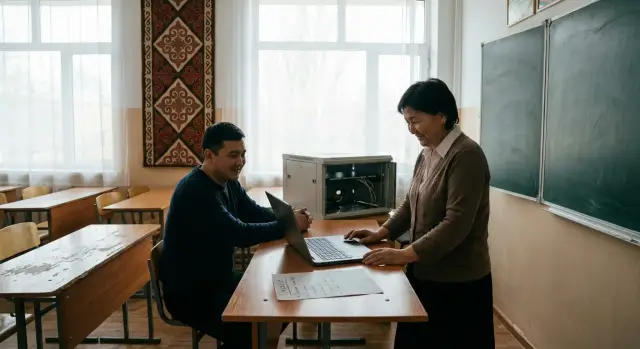
Why train an IT coordinator in schools and kindergartens?
Even a small failure can disrupt a lesson or activity: the computer won't turn on, sound is gone, the projector doesn't get a signal, the printer jams. A teacher waits for help, children lose time, and the administrator has to urgently find "someone who knows".
The problem is usually not that engineers are unnecessary. The problem is that a site visit takes hours or days, especially if the institution is in another district. That means downtime, stress and constant "fires" that are hard to explain to parents and management.
A trained IT coordinator inside the school or kindergarten can resolve many requests on the spot, often in 5–15 minutes. The typical causes of interrupted lessons are almost always the same: a switched-off power strip, a loose power or HDMI cable, the wrong input selected on a monitor or projector, the network "disappearing" after a router reboot or a Wi‑Fi password change, a stuck print queue or wrong default printer, muted sound or reset settings.
This is not about deep engineering. You can realistically teach someone to calmly diagnose a problem, check the obvious in order, record symptoms and perform safe actions: rebooting, checking cables, changing a port, selecting the output device, checking indicators. And most importantly — to know in time when to escalate.
Boundaries of responsibility should be clear. You must not disassemble power supplies, solder, replace components "at random", install dubious software or disable protection on site. If there is the smell of burning, signs of overheating, sparking, repeated power outages or suspicion of a virus, stop work and call specialists. This approach protects people, equipment and the institution's documents.
Role, authority and basic on-site kit
The IT coordinator in a school or kindergarten is the first line of help. Their task is not to "fix everything", but to quickly restore the class or room, rule out simple causes and hand over complex cases to engineers in time. The second part of the role is prevention, to make equipment fail less often and prevent repeated problems.
To act confidently, agree in advance on authorities: what the IT coordinator can do independently and what requires approval. Rebooting, replacing a cable or cartridge is fine. Reinstalling the OS and opening a case — only according to the procedure.
You need an "access folder" (paper or secured electronic) with clear data: contacts for the director, facilities manager, ISP and service support; a list of rooms and equipment (what is where); logins and passwords managed securely (who issued them, where stored, who has access); a simple network diagram by room; warranty documents, serial numbers, purchase dates and responsible persons.
Any training program for IT coordinators works better if you keep an incident log. A few lines are enough: what happened, where, when, what was already tried, what the result was. After a month the log shows where the most frequent pain points are.
A minimal on-hand kit saves hours: spare power and HDMI/DisplayPort cables, a patch cord, a power strip, batteries for remotes and necessary adapters, a simple screwdriver, flashlight, cable ties, marker and labels, cleaning wipes and compressed air, basic printing supplies, a USB stick with vetted utilities (if allowed by the institution's rules).
If equipment is under warranty, keep models and serial numbers at hand (for example, for PCs, all‑in‑ones or servers). This speeds up ticket intake and reduces clarification calls.
How to diagnose a problem without unnecessary actions
The goal of diagnostics in a school or kindergarten is to quickly return equipment to work and avoid harm. Start with safety: turn off power before touching cables, do not open cases, do not use random chargers or power strips. If children are nearby, first remove the risk: secure cables, disconnect a sparking outlet, move equipment out of reach.
Next, follow the principle of simple steps. Check the obvious: is there power, is the correct input selected on the monitor or projector, is the cable fully inserted, is the sound muted, is airplane mode on a laptop off.
Do one check — one conclusion. Don't change many settings at once, otherwise it will be hard to understand what helped.
How to set priorities
If you must choose between "figure it out" and "quickly restore the lesson", usually choose the latter. The typical priority order is:
- safety of children and staff
- continuity of the lesson or activity
- critical services (internet, electronic journal, printing schedules)
- a single room or one PC
The 15-minute rule and escalation
Give yourself 15 minutes for basic checks and simple actions: reboot, check cables, change a port, log in as another user, test on another device. If there is no clear progress in that time, do not dig deeper. Record what has been done and escalate to an engineer or contractor. This saves time and reduces the risk of "breaking it for good."
To speed up help, use a short ticket template:
- where the problem is (institution, room, device)
- what exactly is not working and since when
- what changed (updates, moves, power outage)
- what has already been checked (3–5 items)
- a photo of the error or the exact text on the screen
Example: "Room 12, teacher's PC. No image on the projector since morning, sound is present. Checked power, HDMI, another input, reboot did not help. Projector shows 'No Signal.'"
A 10–15 topic program: what you need to cover 80% of requests
A good training program for IT coordinators does not turn staff into engineers. It teaches them to quickly find the cause and resolve common failures on the spot so lessons are not disrupted and an engineer is needed only in complex cases.
The main block of topics is what breaks most often and is checked fastest: power and startup (outlet, power strip, power supply, indicators), cables and ports (HDMI/DP for video, USB for peripherals, LAN for network), display and projector (signal source and display modes), peripherals (keyboard, mouse, camera, headset), printing and scanning (paper, jams, supplies, print queue).
The next block helps reduce repeat problems: Wi‑Fi and classroom internet, accounts and access (what can be done locally and what only an admin can do), updates and disk space, basic security (phishing, USB drives, password rules), preventive maintenance (dust, fans, cable management to avoid pulled ports).
For the "80% of requests" add a few practical topics: a simple incident log, inventory of equipment and serial numbers, backups of important documents, rules for connecting devices (who may plug what). For example, if the auditorium image disappears, a trained coordinator first rules out the cable and HDMI input, and only then calls an engineer.
Step-by-step: quick checks for PC, monitor, projector and sound
When something "doesn't work", the most important thing is not to panic and not to change ten settings at once. Better to stick to one clear order of actions.
Quick order of actions
- Reboot only the device where the fault occurred: PC, projector, speakers, or router (as appropriate). If there's no image from the projector, start with the projector and PC, not the whole room.
- Check the obvious: power (plug, power strip, device power button), cables (are they fully inserted), selected input (HDMI1/HDMI2/VGA), volume level and Mute.
- Compare with another workstation: connect the same cable to another laptop/PC or connect another monitor to this PC. That quickly shows whether the cable, device or computer is at fault.
- Record the error: photo of the screen or screenshot, exact error text (numbers and codes matter).
- Clarify the scope: is the problem in one room, the whole building or just one PC?
Mini-checklist for different devices
For a PC: check if the power light is on, fans spinning, no BIOS beeps, if the keyboard responds (Caps Lock). If the system is frozen, try a normal reboot from the menu. Forced shutdown is a last resort.
For a monitor and projector: make sure the correct input is selected, the cable is intact and the connector is not loose. Projectors often have Blank mode enabled or the wrong source selected. If the image is present but "doesn't fit", check the PC resolution.
For sound: first check volume on the PC and on the speakers, then the output device (the system can switch to HDMI or Bluetooth). A quick test is to plug in headphones to see if the issue is with the speakers or settings.
Example: in class "no image on the projector." The teacher changes cables and calls an engineer. The IT coordinator checks the projector input (it was on HDMI2), switches to HDMI1, notes the issue recurred after room cleaning and asks to secure the cable. No site visit needed.
Network and internet without panic: actions that help
When the internet "goes away", in 2–3 minutes it's important to find where the failure is: a specific device, the school's network or a user account issue.
If websites fail only on one PC, the device itself is usually at fault (cable, Wi‑Fi, settings). If the whole room is offline, check the access point, router, switch and power. If internet works but a teacher can't access the journal or mail, it's likely an account issue (password, lockout, two-factor).
Quick 5-minute diagnosis
- Compare two devices: one PC and, for example, the teacher's phone on the same Wi‑Fi.
- Check the network icon on the PC: is there a connection, is airplane mode on?
- For wired connections: is the connector fully inserted, is the cable damaged, do the indicators on the network port light up?
- The switch lights say a lot: link should be steady, activity should blink during traffic. If one port is silent, the cable or outlet is often to blame.
Rebooting a router or access point safely
If you suspect the equipment, reboot safely: power off for 20–30 seconds, power on and wait 2–3 minutes. Do not do multiple quick power cycles: that makes it harder to determine the cause and can worsen the situation.
While connectivity is restoring, organize the lesson so it doesn't stop: distribute materials offline (presentation, PDF), switch to tasks that don't require the internet, or provide one PC with teacher's phone hotspot for urgent actions (for example, attendance). These scenarios should be discussed and rehearsed in advance.
Printing and scanning: typical problems and quick fixes
Printing and scanning disrupt lessons and reports mostly not because the printer "broke", but due to the print queue, paper or settings.
If a document is stuck and nothing prints, start with the print queue.
Print queue and "nothing prints"
- Check that the correct printer is selected and "Print to file" is not enabled.
- Open the print queue and cancel stuck jobs.
- Restart the printer (turn off, wait 10 seconds, turn on).
- If the queue freezes again, restart the print service and resend the job.
Jams, cartridges and faint printing
For a jam, don't pull the paper abruptly. Open covers following the instructions on the body, gently remove the paper in the direction of paper travel, check for remnants, then continue. Repeated jams are often due to damp paper, an overloaded tray or misaligned guides.
When printing is faint or has streaks, try shaking the cartridge (if allowed), run the device's cleaning cycle and replace the consumable if needed. Check paper type and print mode.
Suspect a driver issue if the printer prints a test page from its panel but not from the computer, or prints gibberish. Then check whether the system was updated and reinstall the driver on one PC for testing.
To reduce printer problems, place it on a stable surface away from heaters and walkways, keep cable access clear and avoid loose power strips.
Security and data safety: simple rules
Even without a dedicated cybersecurity specialist, basic rules greatly reduce the risk of data loss and downtime.
Minimum for passwords and access
The main goal is to prevent credentials from "floating" in chats and on paper and to make responsibility clear:
- each employee has their own login, not a shared "teacher/12345"
- do not store passwords on sticky notes or send them in messaging apps
- grant rights on a need-to-have basis
- when an employee leaves, close access the same day
- use admin passwords only for admin tasks
Phishing, USB drives and suspected viruses
A common scenario: "an email from a delivery/bank/agency was opened and everything slowed down." A phishing sign is urgency ("pay now", "account blocked") asking to open a file or enter a password.
The USB rule is simple: don't use unknown sticks without checking, and on machines with important documents it's better to block them. If file transfer is needed, provide one or two "service" USB drives and keep them for official use only.
If you suspect a virus, don't "fix" randomly:
- disconnect the internet (cable/Wi‑Fi) without cutting power
- photograph the message/error, note the time and actions before it
- do not insert new media or copy files "just in case"
- notify the IT/responsible support and follow instructions
Backups: a simple storage rule
For teaching materials, a simplified rule is enough: two copies, one not on the same computer. For example: presentations are on the workstation, a copy on a secured shared resource, plus periodic copies on an external drive stored in a safe and connected only for backups. This helps with viruses and hardware failures.
Common mistakes by IT coordinators and how to avoid them
The most common problem is the desire to "fix everything quickly" without thinking about consequences. A couple of habits often lead to extra damage and downtime.
Mistake 1: installing "everything"
Random programs, drivers and "accelerators" make the system unstable: ads appear, printers and projectors conflict, settings break. Keep a short allowed software list and update it by clear rules.
A related mistake is resetting settings "at random." Changing network, sound or account settings can make things worse and be hard to undo. Before any change, record the original state (photo of the screen and a short note: what was, what changed, what happened).
Mistake 2: one shared account for everyone
When everyone uses one account, it's hard to know who changed what and impossible to restrict rights properly. This leads to lost files, reset settings and accidental installation of extra software. Give staff separate accounts and keep admin rights only for those who need them.
Another costly mistake is ignoring early symptoms: fan noise, overheating, freezes, disk error messages. These are signs that failure is imminent, not "we'll deal with it later."
Three simple habits help: keep a small stock of consumables and cables, maintain a short incident log and check cleanliness/cooling on a schedule rather than after a failure. If a problem repeats, record steps and hand it to engineers or the contractor with a clear description.
Example: "projector sometimes disappears" is often solved not by settings but by replacing a worn HDMI cable or adapter. If there's no spare, the room is idle until a specialist arrives.
Short checklist: daily and monthly checks
Regular checks take 5–10 minutes but prevent most common requests.
Before lessons, walk basic points: do PC/monitor/projector power on, are there blinking indicators or a smell of overheating, is the correct input selected, are cables intact and connectors secure, is the correct audio output chosen, does the microphone work, is there network access and do teaching resources open, does a test page print and is the printer error-free.
Once a week and once a month add deeper steps: scheduled updates (preferably after lessons) with a note of changes, checking free disk space and protection, printer maintenance (clear queues, check network printer), inspect power strips and connectors, test restoring one file from backup (not just a note "backup exists").
Incident card to save time:
Место (кабинет/группа):
Дата и время:
Оборудование (модель/инв. номер):
Симптомы (что видим/слышим):
Что уже сделали (шаги по порядку):
Результат (изменилось или нет):
Call an engineer immediately if there's risk to data and safety: suspected virus (popups, file encryption), smell of burning or overheating, sparking, repeated blue screens, missing accounts, leaked passwords, failed backups or disk failure.
Real-life example: one failure you can fix on site
Morning, first lesson: a teacher reports "no internet and printer not working". Often it's one cause showing in two places.
Ask three questions first: is the internet down only on one PC or in the whole room? does printing fail for everyone or just one teacher? what changed since the last lesson (moved furniture, connected a new laptop, unplugged a power strip)?
Then check in order:
- power: is the router/switch powered and do indicators light, is the power strip on
- network cable: is it fully inserted in the PC and outlet/switch (it often gets kicked)
- comparison: does a site open on another PC in the room or on the teacher's phone on the same Wi‑Fi
- printing on the PC: is the correct printer selected, is printing paused, has the queue built up
- printer itself: paper, covers, jam, error indicators
If unresolved, escalate with details so support doesn't have to "interrogate": photos of router/switch and printer indicators, photo of the screen error, room number and time, how many devices affected, printer model and the printer name selected in settings.
To prevent recurrence, establish a simple rule: moving furniture and connecting "temporary" devices only after a quick check of cables and power, and fix power strips and network cables so they can't be accidentally pulled.
Next steps: how to implement the program and lock in results
A good start is 2–4 short sessions of 60–90 minutes with hands-on practice on your school's actual equipment. Participants will see familiar problems and learn to act safely.
To begin:
- appoint one primary and one backup IT coordinator and allocate time for tasks
- hold an introductory session: what can be done independently and what must be passed to an engineer
- organize practical exercises: diagnosis, basic checks, recovery from common failures
- introduce a unified ticket template: what happened, when, on which device, what was already tried
After that, standards — not heroic efforts — matter: checklists, staff roles, a minimal stock of consumables (cables, batteries, cartridge/toner, power strips, adapters), up-to-date support contacts and clear escalation rules.
The result is easy to measure without complex analytics: fewer classroom downtimes, fewer repeat tickets for the same cause, faster recovery, fewer engineer visits for minor issues.
If the same failures repeat, it's a sign to upgrade: equipment can't handle updates, overheats, power supplies fail often, there are not enough ports or Wi‑Fi points, and repair costs more in time and money than replacement.
If you rely on equipment and support from GSE.kz, it's useful to agree on unified accounting rules (serial numbers, incident cards, contacts) and escalation order right away. When the manufacturer and integrator are part of the process, common failures are resolved faster and complex cases don't get "lost" between rooms and contractors.
Frequently asked questions
Why does a school or kindergarten need an IT coordinator?
A trained staff member can quickly fix simple issues: checking power, cables, the projector input, sound, network connection, and print queue. This helps keep the lesson running while an engineer handles a more complex request.
How long does IT coordinator training take?
For a start, 2-4 sessions of 60-90 minutes each, with hands-on practice using the institution’s equipment, are usually enough. After the training, it is useful to provide checklists, support contacts, and a request template.
What topics should be included in the training program?
Start with power, cables and ports, projectors and monitors, sound, networking, printing, user accounts, basic security, and backups. Cover the incident log and escalation rules separately.
What can an IT coordinator do independently?
They can restart a device, check connections, change a cable or port, select the correct signal source, clear the print queue, and replace an approved consumable. All actions should follow a clear procedure.
What should not be done when equipment malfunctions?
Do not open device cases, dismantle power supplies, solder, disable safeguards, or install random software. If there is a burning smell, sparking, overheating, suspected malware, or a disk failure, stop work and call specialists.
What should I do if the projector does not display an image?
First, check the power, cable, and selected input on the projector or monitor. Then restart the projector and PC, and if possible, connect a different cable or device for comparison.
How can I quickly find out why the internet connection is down?
Compare connectivity on two devices. If the problem affects only one PC, check the cable or Wi-Fi, airplane mode, and device settings. If the whole classroom is offline, check the power and indicator lights on the access point, router, or switch.
Why is the printer not printing even though it is switched on?
Check whether the correct printer is selected, whether print-to-file is enabled, and whether the queue is stuck. Then cancel old jobs, restart the printer, and send the document again.
When should a problem be handed over to an engineer?
Allow up to 15 minutes for safe basic checks: restart, power, cables, ports, inputs, and a test on another device. If the cause is unclear or there is a risk of damaging equipment or data, record the symptoms and submit a request to an engineer.
What should be included in a technical support request?
Record the room, date and time, model or inventory number, symptoms, changes before the failure, and the steps already tried. Add a photo of the error or indicator lights so support does not waste time on follow-up questions.
