7 min read
Touch Workstations at the Reception: How to Choose
Touch workstations at the reception: usage scenarios, hygiene and screen protection requirements, and process setup to speed up patient service.
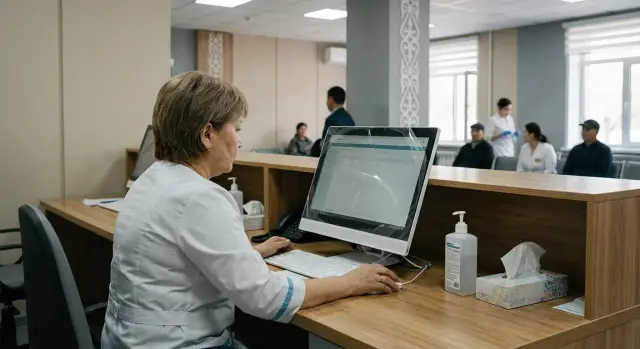
What problems touch workstations solve
Queues at the reception are often slowed not by “slow people” but by unnecessary steps. The staff member switches between windows, searches for the patient using multiple fields, reaches for the printer for a ticket, asks for a signature, checks payment or eligibility, then returns to the record. Each such back-and-forth adds minutes and raises the risk of errors.
Touch workstations are especially useful where speed and simple repetitive taps matter. A touchscreen is often more convenient than a mouse and keyboard when you need to quickly press a large button, choose a doctor from a list, confirm an action, scroll the schedule or show the screen to a patient to verify details. This is most noticeable during busy hours when the receptionist works almost without pauses.
Typical routine steps become faster: find the appointment and open the record by phone number or IIN, select a service or specialist, print a ticket or referral without extra navigation, confirm data or consent on screen, and quickly tell the patient the room and time.
At the same time, a touchscreen does not “fix” the system. If the software freezes, data are incomplete, or forms are overloaded with small fields, the screen alone won't save the situation. Touchscreens also don't remove requirements for personal data protection and clear rules about who can see what at the desk.
Measure the effect with numbers. Compare average patient service time before and after implementation, the number of corrections in records, the share of repeat visits “due to an error” and a simple staff usability rating. Even reducing initial registration from 4 minutes to 3 noticeably affects the queue.
Clinics often choose touchscreen all-in-ones: fewer cables, more desk space, easier daily cleaning. If a unified chassis and stable operation are important, consider touchscreen all-in-one solutions from GSE.kz.
Use cases at the reception
The desk is always crowded: documents, printing, talking to a patient, and calls at the same time. A touchscreen helps keep focus on one window and perform routine actions faster.
Touchscreens are most often used for booking and rescheduling appointments, registering first visits (checking documents, contacts, consents), issuing referrals and printing tickets, and queue management (check-ins, calling the next patient, marking reschedules or no-shows). If the clinic offers paid services, a touchscreen also simplifies creating receipts and closing documents when that is built into the process.
A short example. A patient arrives for a first visit in the morning and doesn't remember the phone number in the database. The receptionist opens the record, makes changes, marks consent for data processing and prints a ticket. The patient quickly goes to the doctor and the queue doesn't “back up” because of a long pause.
For these tasks a touchscreen all-in-one for the clinic is handy: the screen is always in front of you, the surface is easier to wipe, and there are fewer cables. It's important to pick a configuration that matches the reception's load so the interface doesn't freeze during peak hours.
How to choose touchscreen equipment for real tasks
Start not with the brand, but with how the window works: booking, searching records, printing tickets, scanning documents, payment, answering schedule questions. The scenarios determine what will be more convenient and reliable.
First decide what is easier to support: an all-in-one or a combination of a touchscreen monitor + system unit. An all-in-one takes less space, usually needs fewer cables and is quicker to restore after cleaning. The combination may suit places where IT prefers swapping PCs separately or where standard system units are already in use.
Regarding the screen, readability and comfort matter. For a desk where the operator looks from an angle or sometimes from a distance, 21–24 inches are usually suitable. Check viewing angle and brightness: overhead lights and windows create glare, and glare almost always increases error rates.
If staff work in gloves, test the touchscreen in real conditions beforehand. Some panels detect touches worse with thin gloves or after a wet cleaning.
Before purchase, list required connections so it doesn't turn out that “everything works except the printer.” Typically you need USB for a document scanner and barcode scanner, printer/MFP connection for tickets and certificates, a card reader or token for access, audio for calling patients, and a wired network if Wi‑Fi is unstable.
If you plan rollout across several branches, check service and spare parts availability in advance. In Kazakhstan this is easier when the manufacturer and integrator operate locally and take support responsibility. GSE.kz, for example, has its own production and a service network across the country.
Hygiene requirements and daily cleaning
Dirt and microbes accumulate not only on the touchscreen. Frequent contact points include the bezel and edges of the screen, the desk surface, the power button, peripherals, and cables near the floor that are touched during cleaning. The touchscreen surface is often perceived as “one surface,” but problem areas are usually in seams and small gaps.
For cleaning to work in practice you need a short protocol that doesn't interfere with service. Basic principle: wipe more often, but quickly and without excess moisture. Use cleaning agents according to the device manufacturer's instructions: a soft non-abrasive cloth, a solution without aggressive solvents, spray on the cloth not on the screen.
A practical rhythm is: before opening — wipe the screen and desk; during the day — quick wipes every 2–3 hours and immediately after visible soiling; end of shift — a full cleaning including lower surfaces and cables.
Case materials also affect hygiene. Smooth matte surfaces and one-piece panels are easier to clean and scratch less than glossy plastic and parts with deep grooves. When choosing a desk and all-in-one, look for hard-to-reach places around mounts and ports.
To ensure staff follow rules, keep them simple: one place for wipes and gloves, minimal small items on the desk, a short 3–4 step reminder and a named person responsible each shift.
Protecting the screen from scratches, impacts and frequent disinfection
The reception screen is touched hundreds of times a day. Add rings, keys, the badge edge, bottles of sanitizer and regular wiping. Plan protection ahead, not after the first crack.
Film and protective glass solve different problems. Film is thinner, cheaper and faster to replace. It protects well from small scratches and wear from frequent cleaning. Glass better resists impacts and pressure, but it's heavier, more expensive and can reduce touch sensitivity if not chosen correctly.
Anti-glare coating helps when the desk faces a window or bright lights. But a matte surface can make the image less crisp and small text slightly softer. Test it on one workstation before mass purchase.
Frequent disinfection wears out weak coatings fastest. Look for specs that say the screen is compatible with regular cleaning and resistant to chemicals, but remember practice: wiping pressure, liquid getting under the bezel, and using a universal wipe for everything.
Installation also reduces the risk of cracks. An all-in-one should stand firmly without wobble. Visitors shouldn't be able to reach the screen by leaning on the unit, and cables shouldn't hang where they can be grabbed.
Keep consumables and spares: 1–2 replacement protective layers per desk, clear replacement rules, quick access to service, a test kit of protective materials before bulk purchase and dedicated cleaning supplies for screens.
How to speed up service without stressing staff
Speed at the reception starts with equipment that doesn't get in the way. When a screen wakes slowly, freezes or asks for extra confirmations, the operator gets nervous and the queue grows. For touchscreen workstations you need fast start-up, stable operation without hangs and predictable behavior after sleep.
An interface that helps, not distracts
The fewer jumps between windows, the faster the service. A good rule: one action — one screen. Buttons should be large and clear so they can be tapped even with gloves. It often helps to put the 3–5 most common operations on the main screen and move rare functions deeper.
Standardize what you can: templates for typical visits, auto-fill for repeating fields, and pre-set reasons for visits. In the morning the desk usually handles the same scenarios and they should be processed in a couple of taps.
Printing and scanning should work in "one-step" mode: the correct printer and scanner should be chosen automatically without manual switching.
Settings that usually have a noticeable effect include auto-login and quick wake-from-sleep, pinning frequent actions, templates and auto-fill, default print/scan devices and turning off unnecessary notifications.
A backup scenario so the queue keeps moving
Failures still happen. Agree on a plan B in advance: a spare workstation (PC or all-in-one), a simple procedure for a 10–15 minute "manual mode" and a short checklist if printing or the touchscreen fails. That way the operator doesn't improvise in front of the queue.
Ergonomics and data security at the desk
The receptionist works at the same pace all day, so small things quickly turn into fatigue and mistakes. Place the screen so the gaze is slightly below eye level and shoulders stay relaxed. For a touchscreen all-in-one a small tilt toward the operator helps tap without overreaching.
Simple zoning helps: staff zone, visitor zone and a separate spot for signatures and documents. Then the patient doesn't reach across the work area and the receptionist doesn't have to hold a passport and enter data at the same time.
Protecting data from the queue
People often peek from the side: the queue stands nearby, people lean in, children come closer. To avoid showing personal data to the hall, basic measures usually suffice: turn the screen toward the operator, use a privacy filter if needed, enable auto-lock after 1–2 minutes of inactivity, move signature to a separate pad and close the patient record right after printing.
Cables, noise and heat
Hide cables under the desk in a trunk or conduit and secure them. This reduces the risk of someone catching them with a foot, cart or cleaning equipment.
If the booth is small, check noise and heat in advance: printers, UPS units and equipment near the operator can heat up and hum. Check ventilation and leave space for airflow.
Step-by-step rollout: from pilot to the whole clinic
To make touchscreen workstations actually speed up service, start with a pilot on 1–2 desks. The goal is simple: test hypotheses, see the numbers and only then scale.
-
Describe the current process: what operations the receptionist performs and where pauses occur most often.
-
Measure baseline metrics per shift: average service time, share of repeat visits to the desk, number of data errors.
-
Choose pilot desks and prepare the place: a comfortable screen angle, space for documents, quick access to printer and scanner, neat cable routing.
-
Configure the interface for frequent actions and train staff on short scenarios right at the workstation.
-
After a week collect metrics and feedback, fix small issues (brightness, sensitivity, peripheral placement, print templates) and then decide on scaling.
If considering touchscreen all-in-ones, check wake-to-ready time during peak hours. A test in an empty office often gives a false impression that everything is fine.
Common mistakes and how to avoid them
A common mistake is choosing a touchscreen desk as a “pretty screen” rather than a workstation designed for a flow of people, gloves, glare and strict cleaning rules. As a result the equipment doesn't deliver the expected speed and starts to annoy staff.
Error 1: the touchscreen doesn't suit real conditions. Don't skip testing with gloves, don't place the screen under lamps or opposite a window, and don't pick an awkward angle. Solution: test at the actual desk and under real working conditions.
Error 2: chaotic interface and no templates. When the screen has many windows and forms, the receptionist spends seconds searching. Limit the start screen to a few key actions and agree on a standard order of operations for the shift.
Error 3: "we'll clean it somehow." Without rules the screen quickly looks dirty, shows streaks, and coatings can be damaged by unsuitable cleaners. Define what to use, how often, where supplies are stored and who is responsible.
Error 4: no plan B and privacy suffers. A failure with no backup stops service. A screen visible to the queue creates personal data risks. Minimum measures: a spare workstation, correct angle and auto-lock.
When choosing equipment and support, discuss these scenarios with the integrator in advance. GSE.kz, for example, provides not only equipment but system integration and 24/7 technical support, which is useful for handling unexpected situations during peak flow.
Short checklist before going live
Before putting a touchscreen desk into a live queue, spend 30–60 minutes checking the conditions that most often ruin patient impressions and exhaust staff.
Check this in the reception area with overhead lights on: open typical windows of the medical system, print a couple of tickets and run a few documents through the scanner.
- The screen is readable without strong glare, and the touchscreen responds on the first tap (including with gloves if used).
- The protective layer is installed neatly: edges don't catch, there are no cloudy areas, and touch accuracy hasn't shifted.
- There is a kit for daily care: suitable cleaner, soft non-abrasive wipes, gloves. Cleaning rules are short and clear.
- Peripherals are stable: the printer has no delays, the scanner quickly reads documents/barcodes, and readers don't lose connection after sleep.
- Service time is measured: time 10 typical interactions before launch and 10 after, and note frequent blockers (searching for a patient, printing, scanning).
If there will be many such desks, appoint someone responsible for the first week. Their job is to collect short remarks and close them the same day. Sometimes changing the all-in-one angle or brightness noticeably speeds the queue.
A day in the reception with a touchscreen desk — an example
Morning, 08:00–10:00. The busiest flow: patients arrive almost without pauses, many rush to work. The receptionist uses a touchscreen all-in-one: large buttons, minimal navigation, important fields in one place. Booking is done by a short scenario: find the doctor, pick a time, confirm data and print a ticket or referral. The touchscreen helps because actions are faster, especially when hands are busy with documents.
By midday the pace changes. There are rescheduled appointments, contact updates and questions like "when am I in the queue?" On a touchscreen it's easier to keep key windows handy and not lose the thread of the conversation. But some problems remain process-related: if reschedule rules are unclear or there's no unified question template, technology won't remove extra clarifications.
Around 15:00 a complex case arrives: several documents and multiple services to register. A touchscreen interface helps when steps are clear and there are prompts. Non-digital details also matter: where forms are, how to make a copy quickly and who advises on benefits. Often it's useful to assign a separate desk for complex cases so the main queue isn't slowed.
At the end of the week record metrics: average service time during peak and off-peak, share of repeat visits due to errors, patients per shift per staff member, time spent on non-standard cases and any incidents with the screen (scratches, clouding, replacement of protective materials). This breakdown quickly shows where touchscreen equipment speeds work and where rules or flow need to change.
Next steps: preparing purchase and pilot
So the purchase doesn't turn into an argument about "which screen is better," map each desk's workflow step by step. The effect appears when equipment and peripherals match the real patient flow.
Create a short card for each desk: which operations are most frequent, what peripherals are needed, how many staff work per shift, what screen protection is required and who is responsible for daily maintenance.
Then plan a pilot for 2–4 weeks. Take two desks with different loads: one peak (morning, many first-time patients) and one quieter (repeat visits). Set success criteria in advance: average service time, share of times staff switch to "manual mode," number of complaints about the queue or errors, IT tickets and the screen condition after regular disinfection.
For Kazakhstan, separately assess service and logistics. Local production and support across the country simplify part replacement and warranty work. If you need to check both hardware and infrastructure readiness, consider touchscreen all-in-ones and system integration services from GSE.kz in the pilot.
Frequently asked questions
What real problems does a touchscreen workstation solve at the reception?
They reduce unnecessary actions at the desk: fewer window switches, faster confirmations, easier selection of doctor and time, and quicker printing of tickets and referrals. As a result, average service time drops and the number of mistakes caused by rush decreases.
Can a touchscreen fully replace the mouse and keyboard?
No — usually it's an addition, not a full replacement. A touchscreen is convenient for quick repetitive taps, while a keyboard remains useful for long text input, searches by rare parameters and working in non-standard situations.
What touchscreen diagonal is best for a reception desk?
Choose based on the desk conditions: if the operator looks at an angle or from a distance, 21–24 inches is often comfortable. More important than a larger size is readability without glare and a convenient tilt angle.
Which is more practical: an all-in-one or a touchscreen monitor with a separate PC?
An all-in-one is simpler for the desk: fewer cables, more free space, easier daily cleaning and a neater appearance. A monitor + PC setup suits environments where IT prefers to swap system units or where there is an existing standard fleet of PCs.
Will the touchscreen work properly with gloves and after disinfection?
Test the touchscreen with the actual gloves used and after the typical wet cleaning. Some panels recognize touches worse with thin gloves or on a wet surface, so testing one workstation before purchase saves time.
How to organize daily cleaning of a touchscreen workstation?
Basic rule: wipe often, but without excess moisture and without aggressive chemicals. Apply the cleaner to a soft, non-abrasive cloth — not directly to the screen — and don't forget the frame, edges, power button and areas near ports, where dirt accumulates fastest.
What to choose for screen protection: film or protective glass?
For small scratches and wear a film is usually enough — it's cheaper and easier to replace. Tempered glass resists impacts better but can be heavier, more expensive and may slightly reduce touch sensitivity, so check touch accuracy before a mass installation.
How to protect personal data when the queue is close to the screen?
Prioritize screen positioning and settings: turn the display toward the operator, enable auto-lock after 1–2 minutes of inactivity and close the patient record immediately after printing. If the queue stands sideways, a privacy filter and a separate signing/document area help additionally.
What metrics should be checked to know if the touchscreen actually sped up service?
Start with a pilot on 1–2 desks. Compare average service time before and after, number of corrections in records, share of repeat visits due to errors and staff convenience ratings; even saving one minute per patient noticeably eases the queue.
What must be checked about ports and peripherals before purchasing a touchscreen workstation?
Prepare a list of connections in advance: typically you need USB for a document scanner and barcode scanner, a printer or MFP for tickets and certificates, a card reader/token, audio for calling patients, a reliable wired network and, if necessary, a UPS. This reduces the chance that “everything turned on but the printer or scanner doesn't work as needed.”
