8 min read
Touch Calibration Software for All-in-One PCs: Pilot Plan
Touch calibration software for all-in-one PCs: what to test in a pilot so the touch doesn't "float" after idle, updates and screen replacements.
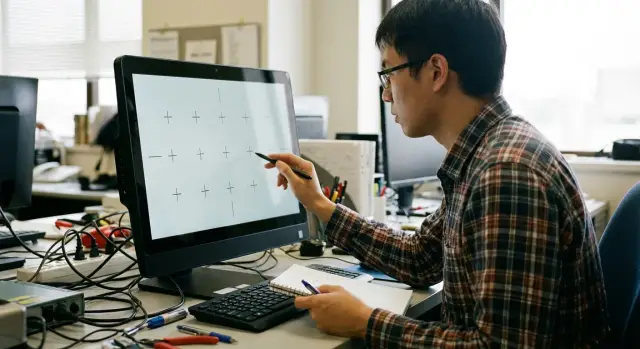
Why touch starts to “float” and how it looks
A “floating” touch usually doesn't present as a complete failure but as small, persistent faults. The cursor or touch point seems to have a mind of its own: you aim at one button, but a neighboring one is activated. Sometimes the finger is still, but the coordinates slightly jitter.
Most commonly you’ll see misses at the screen edges, gestures registering only sometimes, "phantom" touches without contact or, conversely, the screen failing to detect fast taps. On all-in-ones at reception desks, in kiosks or classrooms this quickly becomes user complaints: “it doesn't click,” “it’s lagging,” “it clicks by itself.”
The problem often doesn’t appear immediately. The first days may seem fine, and then after a Windows update, an automatic driver replacement, a few sleep/wake cycles or a change of user profile the accuracy “drifts.” Another common trigger is long operation without reboot, when input services accumulate errors.
From symptoms you can roughly guess where to look. If behavior changes sharply after a driver update and is fixed by rollback and recalibration, it’s usually software: drivers and settings (touch filtering, HID parameters, vendor utilities). If phantom touches appear before login, worsen with heat, depend on power, cables or interference, it’s more like hardware (controller, cable, screen, power, EMI).
To avoid the pilot becoming guesswork, record the fault immediately: which device, which screen area, which application and what actions preceded the issue (sleep, idle, user switch, update). Note the date, uptime, Windows version and touch driver version. Then run a simple repeatable sequence, e.g., 10 taps at the corners followed by swipes and pinch/zoom. The more precisely you describe how the touch “floats,” the easier it is later to prove the cause and verify the fix.
What to check in the pilot: goals and scope
The pilot isn't about "touching the screen" but about catching the conditions when it becomes unstable. First agree where the touch all-in-one will be used: a busy reception, a classroom with frequent user switching, a medical office with gloves, a POS with fast short taps. The same screen can be perfect in one scenario and annoying in another.
Next define success criteria so the discussion isn't subjective. Usually this is accuracy on small UI elements, response delay (the feeling of "stickiness") and stability after sleep or idle. Also specify what counts as a defect: phantom touches, a drifting point, gesture failures, or instability only after updates.
Limit the pilot scope in advance: which OS build and Windows versions, what update policies (automatic updates, deferred patches), whether corporate antivirus is present and what it blocks. Practically, a floating touch often appears not on day one but after a few sleep cycles, a driver change or installation of security software.
Before starting, record a baseline to compare against later, even if devices are from different batches:
- OS and driver versions for touch and chipset, power and sleep settings
- scenarios and applications where touches and gestures are used most
- metrics: acceptable delay, miss rate, failure frequency after sleep
- device matrix: batch, screen revision, touch controller, cable type
- change rules: what can be updated and what requires approval
If you plan to use separate calibration software, check whether it can save results per device and tie them to a specific configuration. This saves time when one unit in a series starts to drift and the others do not.
Criteria for choosing calibration and diagnostic software
When selecting software, look not for a "pretty calibration" but for tools that help identify root causes and repeat problems under the same conditions. On a pilot this saves days: the “hardware or software” argument gets resolved with logs and repeatable tests.
Drivers. Clarify who supplies the driver (panel manufacturer, controller vendor or system integrator) and the update cycle. It's important to be able to install a new version, check gestures and accuracy, and rollback without surprises if phantom taps occur in the kiosk. Also verify whether settings persist after an update.
Diagnostics. Good software shows more than hit/miss: coordinate jitter, missed touches, multitouch hangs, controller errors. Tests for common Windows gestures — scroll, zoom, hold — are also convenient.
Logs and reports. Look for the ability to export timestamped events: HID reconnects, calibration resets, driver changes, sleep/wake, power drops. This helps link “it drifted overnight” to a concrete event.
Permissions. If tests require full admin rights, this often conflicts with institutional policies. It’s better when basic calibration and tests run with limited rights and the "driver level" tasks are separated.
Compatibility with the environment. Kiosk mode, domain policies, antivirus, disk encryption. In government pilots this is critical: the software should operate predictably under strict restrictions and without installing temporary components.
What to request from the software vendor before the pilot:
- supported controllers and Windows versions, update and rollback procedures for drivers
- list of tests (accuracy, multitouch, gestures, coordinate drift) and limitations
- example logs and report format for support
- required privileges, kiosk and domain behavior
- behavior after sleep, reboot and screen replacement (does calibration persist)
Step-by-step pilot plan: from reference to report
A pilot isn't "just installing software" — it’s meant to catch rare touch faults in real conditions. Floating touch often shows only after sleep, overnight idle, driver update or matrix replacement. The plan should record when and how you measure stability.
Start with a reference device: configure one all-in-one as the golden image and have other pilot units match its settings. Lock OS version, touch driver, display parameters (scale, orientation) and power policies (sleep, hibernation, USB power off, idle timers). For devices that run all day and idle at night this is especially important.
2–4 week pilot plan
To make results comparable, predefine "measurement points" and a single reporting form.
- Day 0: install software, record driver versions, perform base calibration and a quick grid accuracy test.
- Week 1: gesture and accuracy tests after user switching and then after sleep (at least 3 cycles).
- Week 2: check after updates (OS and drivers), then rollback driver and repeat tests.
- Nights and weekends: at least 2 long idles (8–12 hours) with follow-up touch checks.
- Finale: repeat all tests on the reference and on 1–2 most problematic devices.
Always record what happened immediately before the issue (sleep, update, peripheral connection), how it manifested (offset, phantom touches, misses) and whether a reboot clears it.
How to agree on evidence and responsibility
Simple artifacts work best: short videos of screen touches, logs from software or the system and a signed test checklist.
- User: notes symptoms and records video using a template.
- IT: keeps a change log (updates, power policy changes, rollbacks).
- Service: checks hardware causes, assists with screen replacement and recalibration.
- Hardware vendor: confirms driver compatibility and recommends the reference image.
The pilot report should include not only pass/fail but also the conditions that triggered instability. This becomes the basis for deployment standards and support procedures.
Testing touch drivers: install, update and rollback
If the pilot includes calibration software, start with the touch controller driver. Floating touch often begins because Windows picked the wrong HID driver or remnants of an old driver remained after a screen swap.
First, record the reference: device model, Windows version, driver version and controller vendor name in Device Manager. This is part of the protocol; otherwise it’s hard to tell what changed later.
Test installation in two modes: a clean install on a fresh image and an install on a working machine. The latter more often reveals conflicts: two similar HID devices, duplicate drivers, or leftover input filters that weren’t removed.
Practical minimum:
- ensure the driver matches the specific touch controller, not a generic driver
- check for duplicate devices (e.g., two "HID-compliant touch screen") and whether their order changes after reboot
- run Windows update (including optional driver updates) and record changes
- rehearse rollback: how long it takes and whether touch behavior returns to normal
- verify security policies do not block driver installation (signing, publisher trust, GPO bans)
Separately test reboots and cold starts. Determine whether filtering parameters (jitter suppression, delay, false touch suppression) persist and whether calibration resets. A realistic scenario: several consecutive reboots, then 30–60 minutes of normal use and another reboot. In classrooms and reception desks this cycle often reveals problems.
Calibration, accuracy and gestures: how to test correctly
Calibration should be verified with repeatable actions. The pilot must answer two questions: how accurately the panel hits the target and whether accuracy drifts under normal load.
Start with accuracy across the whole surface. Problem areas are corners and edges where offset and coordinate jitter appear more often. Create a simple grid (e.g., 5x5) and tap each point 10 times. Look at not only the mean deviation but the spread: if hits wander, it's an early sign of a future floating touch.
Also test multitouch. The goal isn't a record number of simultaneous touches but stability when trajectories cross and no "lost" fingers.
Minimal accuracy and gesture test set
The same sequence on each test device:
- grid points: center, edges, corners; evaluate repeatability
- lines and circles: draw slowly and quickly; look for steps and gaps
- 2–10 touches: simultaneous presses and movements; trajectory crossings
- test Windows gestures and target app gestures: scroll, zoom, drag, swipes
- stress: fast tap sequences, long presses, holds for 10–20 seconds
Different tools and conditions
If the device is used at reception or in medical settings, test with bare finger and stylus, and if gloves are used — test with a glove. Example: an operator in gloves holds an interface element and drags it along the edge; edge failures are common.
Record results consistently: the same drawing app, same brightness, same power mode. It helps if the diagnostic software can save deviation reports and highlight error locations for before/after comparisons.
Idle time and long uptime: sleep, uptime and power tests
Floating touch often appears after idle time: the device wakes, the display returns, but touches become delayed, offset or turn into false clicks. So check not just calibration at the moment but behavior after sleep, lock and long runtime.
Sleep, hibernation and lock: what to test
Run separate sequences for sleep, hibernation and lock screen — drivers can behave differently. Test the same things: accuracy at corners, line stability when drawing, response to fast taps and gestures. Log whether recalibration is required after wake and whether profile persists.
Short minimum to repeat 10–15 times in a row:
- sleep for 5 minutes and wake, then wait 30 seconds before touching
- lock/unlock (Win+L), then 20 quick taps
- hibernate for 30 minutes and return, check edges and gestures
- switch user (if used), then test input in the first app
- disconnect and reconnect power (if allowed), then recheck
Long uptime, overnight idle and power
Plan a 7–14 day run without reboot to catch creeping issues: increased delay, rare coordinate misses, random double taps. Run a short control test each shift and mark results as "normal" or "delay present."
Test overnight idle exactly as it will run in production. If the unit is in kiosk mode, test auto-launch of the needed app after idle, auto-login (if used), return to the home screen and touch behavior in the first window. A good indicator of a problem is "first touch after overnight" not working or registering in the wrong place.
Also check temperature and brightness effects. At max brightness after 2–3 hours of load the screen and controller heat up and errors sometimes appear only in this condition.
Finally, test power and USB. If touch connects via USB, try different ports, a hub and power-saving settings (USB device power off). This is crucial in shift-work institutions where nights are idle and days have heavy usage.
Screen replacement and calibration: how to keep stability
After replacing a screen, floating touch often appears not because the module is bad but because old settings remain. Calibration tools help as a control: they show what changed and help restore predictable behavior.
First separate software from hardware. Quick signs of hardware faults: touch drifts in one corner, phantom touches without pressure, touch points jumping when pressing the bezel lightly. Signs of software issues: problem disappears after reboot, changes after driver update, or appears only in one app.
Before deep calibration run quick checks:
- Device Manager shows no errors, duplicate HID devices or unknown devices
- driver and controller firmware versions match those recommended for this screen revision
- third-party input enhancers in Windows are disabled if installed
- touch behaves the same before and after sleep (important if the problem appears over time)
Screen replacement often changes more than the matrix: the touch layer, controller, firmware and even cable routing can differ. The old calibration profile may interfere.
The post-replacement routine should be the same every time: remove old profiles and calibration records, reinstall or update the driver (and verify rollback), then recalibrate and run grid accuracy and gesture tests (corners, edges, center).
Also check compatibility across batches. On the pilot test at least two units from different shipments: sometimes a seemingly compatible driver causes small offsets or phantom touches after a few hours.
To help service diagnose, record before-and-after replacement:
- device serial number and screen marking (batch, revision)
- driver and OS versions, power and sleep settings
- test results: grid accuracy, gestures, idle behavior
- photos or screenshots of errors and the date they appeared
- what was replaced: full module, touch layer or controller
Common pilot mistakes and how to avoid them
The most frequent reason pilots fail is treating them as a one-off bench test, while touch lives in real modes: sleep, idle, updates, user switches, varying brightness. Problems are usually not the screen itself but that test conditions weren't fixed.
Mistakes that lead to a "floating" touch
- calibration done once and not repeated: accuracy may change after sleep or reboot and no one checked
- drivers from multiple sources (Windows Update, manual install, vendor package) and no version control
- testing only the center: edges and corners more commonly show coordinate shifts, phantom touches and multitouch issues
- not locking power settings: after idle USB or controller power modes may change and the touch starts missing taps
- not collecting logs: the issue becomes "I think it happened" without proof
How to avoid subjective disputes
Immediately record a reference: device model, OS version, touch driver version and installation method. Then require that any change is checked with the same mini test set (calibration, gestures, edges, sleep/wake).
Example: at a reception desk the defect often appears in the morning. Overnight idle, auto-update, then 20 minutes of heavy use. With logs, driver version and power modes recorded, the cause can be proven and reproduced instead of chasing the floating touch randomly.
Quick checklist before accepting the pilot
Before signing off the pilot, collect repeatable results so they can be recreated a month later or after updates. The goal: confirm selected software and procedure yield stable results in your conditions, not only on install day.
Verify and record at minimum:
- OS build and touch driver versions are in the report. There must be a clear rollback method: driver package, restore point or image that can be deployed.
- calibration gives the same result on repeat tests: check center, corners, edges and narrow UI zones (scrollbars, header buttons). Run 2–3 consecutive runs to spot drift.
- gestures and multitouch work in target apps, not only in the test utility: scroll, zoom, hold, fast double tap, simultaneous two-finger actions.
- coordinates do not shift after sleep, hibernation or lock, no phantom touches and no increase in misses. Run sleep cycles 10–20 times if that matches shift end scenarios.
- after 7+ days uptime there is no growth in delay, jitter, or cursor jumps. Compare with day one and save logs.
Also agree on a screen replacement scenario: who performs it, how compatibility is confirmed and how recalibration is done so touch behaves the same as in the pilot after service.
Example scenario: pilot in a shift-work facility
A facility installs touch all-in-ones at the registration desk: 12-hour shifts, tens of users per day, frequent screen locks and quick window changes. They pilot 3 identical devices with a single Windows image and record starting driver, BIOS and power settings.
The pilot simulates real load. One unit runs actively most of the time, the second often locks and sleeps, the third stays on overnight but idle. Logs capture updates, sleep states and HID reconnects.
After a week a symptom appears: one device’s touch drifts after overnight idle — taps are 5–10 mm off, scroll sometimes works, sometimes not, and occasional phantom touches. During the day the problem nearly disappears after a couple of reboots, so it’s easy to dismiss as intermittent.
They compare what changed and under which conditions. A short analysis checks:
- driver versions for touch and chipset before and after Windows updates
- sleep policies: USB power-off, hibernation, fast startup
- event logs for the problem and reference units
- rollback of touch driver to the reference image and repeat overnight idle
Often the root cause is a combination: overnight auto-update plus aggressive USB power saving, so the touch controller wakes in an error state. The final report prescribes rules: perform updates only in maintenance windows, disable auto driver replacement, unify power settings, require recalibration after major updates and a check after idle. They add a service plan: who performs rollbacks, where the reference driver package is stored and what support checks when contacted.
Next steps after the pilot: standards, service and support
After the pilot record the conditions where touch was stable and where it failed. Compile results into one document: device model, OS version, touch driver, controller firmware (if applicable), power modes, usage pattern (shifts, breaks) and what was considered a "floating" touch.
Then formalize a repeatable standard: OS image with fixed driver versions, a clear update policy (what updates automatically and what only after tests), and consistent sleep/power settings. If calibration software participated in the pilot, specify which tool and procedure to use for checks.
To avoid dependence on a single experienced engineer, agree on a simple regimen: who performs calibration and when (after updates, repairs, on complaint), where profiles, logs and reports are stored, what a quick check includes after idle or reboot, and how incidents are logged (time, application, touch or gesture type, power state).
Plan service in advance: spare screens, expected replacement times and mandatory checks after repair (calibration, gestures, idle test, short stress test).
If the pilot covers devices from a single vendor it’s convenient when supply, integration and support are a unified process. For example, with GSE.kz (gse.kz) as a systems integrator you can pre-agree the reference image, update rules and touch verification procedure for series deployments.
Frequently asked questions
What does a "floating" touch mean and how do I know it's that?
Most often it looks like an offset of the touch point, jittering coordinates, missed quick taps or “phantom” touches. The issue commonly gets worse near edges and corners and may appear only after sleep, idle time or a driver update.
How to quickly distinguish a driver issue from a hardware issue?
If the fault is visible before Windows login, depends on heating, power, cables or interference, it’s likely hardware. If behavior changes sharply after an update, is fixed by rolling back the driver and recalibrating, or appears only in one app, the problem is usually drivers or settings.
What should I record when the touch starts to 'float' to prove the cause later?
Record the device, the screen area, the application and the action right before the fault (sleep, idle, user switch, update). Note the date, uptime, Windows version and touch driver version, then repeat the same short test scenario so the problem reproduces consistently.
Which pilot success criteria should be agreed in advance?
Agree the usage scenario (reception, classroom, medical office, kiosk) and success criteria: accuracy on small elements, response delay and stability after sleep/idle. Also define what counts as a defect in advance, for example phantom touches or coordinate shift after an update.
Why is a reference device needed on the pilot and what should be fixed on it?
Start with one reference all-in-one and lock its OS version, drivers, scale/orientation and power/sleep settings. Apply the same settings to other devices and verify any change with the same mini test set.
Which features of calibration and diagnostic software are actually important in a pilot?
It should be possible to manage driver versions and roll back safely, plus collect time-stamped logs (sleep/wake, HID reconnect, driver change). Useful features include detection of coordinate jitter and missed touches and ability to run basic tests without full admin rights.
How to test touch controller driver updates and rollbacks correctly?
Make sure Windows didn’t pick a generic HID driver instead of the correct one and check for duplicate devices in Device Manager. Test Windows updates (including optional driver updates) and practice rollback: how long it takes and whether touch behavior returns to normal.
How to measure accuracy and gestures so the test is objective?
Use a grid across the whole surface (especially corners and edges) and tap each point in series, assessing not only average accuracy but also scatter. Add line and circle drawing tests, multitouch and gestures in target applications, not only in a test utility.
Which sleep, idle and power tests must be included in the pilot?
Run separate tests for sleep, hibernation, lock screen, user switch and long uptime — floating touch often appears after these events. Repeat the same short control test each time and log whether a delay, offset or phantom touches appear at the "first touch after idle."
What to do after replacing a touch screen so the touch doesn't start 'floating' again?
Old profiles and leftover drivers often cause issues after a screen replacement, especially if the controller or firmware changed. Procedure: remove old calibration records, install the recommended driver (and verify rollback), then perform full recalibration and grid-plus-gesture tests and save results for comparison.
