7 min read
Touch all-in-ones for business: where they pay off
Touch all-in-ones for business: where they pay off — reception, registry, front-office and classrooms. Mounts, protection and how to choose.
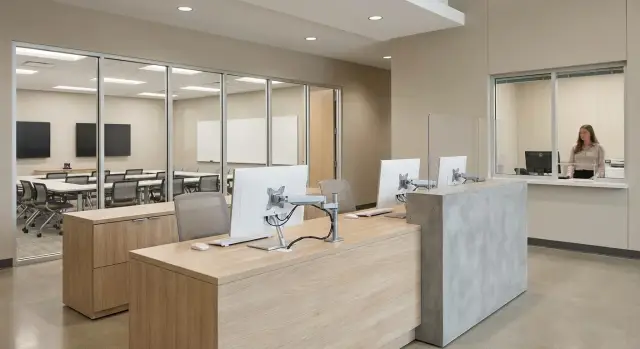
Why a business needs a touch all-in-one — and when it’s not needed
Businesses buy touch all-in-ones not for the "wow" factor but for speed in places where every extra minute creates a queue. They are well suited for repetitive actions: quickly open a client card, choose a service, confirm consent, accept payment, print an electronic queue ticket.
At service points, touch is often more convenient than a keyboard: steps are short and clear, and it’s easier for the administrator to show the visitor where to tap. This is especially noticeable at reception, in registry, front-office counters and classrooms, where interfaces often resemble kiosks.
Touch becomes a hindrance when the work involves long texts and precise tables: a hand covers the screen, wrists tire faster and accidental taps increase. For contracts, accounting and correspondence, a regular monitor with comfortable peripherals usually wins.
When people say a device “pays off”, they mean four things in practice: the point serves clients faster, input errors drop, equipment breaks less often and it’s easier to support a park of identical devices. If a counter performs hundreds of identical operations, saving 10–15 seconds each quickly becomes significant. If traffic is low, touch may not deliver — then it’s wiser to invest in reliability and support.
Reception: faster guest handling and shorter queues
Queues at reception form not because the system is complicated but because of tiny pauses: finding the right form, clarifications, signatures, re-entering data. A touch all-in-one helps when guest check-in can be turned into a short, clear scenario.
The best format is when some steps are done by the visitor and the administrator only verifies and completes them. For example: choose the reason for the visit, fill a short form, confirm data processing consent, receive a ticket or notification.
A typical self-service scenario fits 4–5 steps: select language and visit type, enter full name and contact (sometimes scan an ID, if allowed), confirm visit rules, print a pass or a ticket and show where to go next.
For the administrator, one-handed operation matters: large buttons, minimal fields and clear statuses (accepted, waiting, invited). If the interface forces constant reaches for the mouse and tiny elements, touch won’t speed work up.
Screen characteristics also affect speed: brightness and viewing angles matter so hints are readable from the side, and resistance to glare from windows and overhead lights is important. If the counter faces a bright window, test legibility on site.
Organize the workspace so the screen is accessible to the visitor but doesn't obstruct the staff: height of the counter, tilt, space for signing and safe cable routing are important.
Peripherals usually needed: a QR or barcode scanner, a ticket/pass printer, a card reader (access, bank card, ID) and a small keyboard for rare cases. In GSE.kz projects for reception counters, peripherals and cable management are usually planned in advance so installation isn’t a box of adapters.
Registry: load, hygiene and reliability
In registry predictability matters. Traffic comes in waves, rules are strict, and the cost of failure is measured in queues and nerves. Touch all-in-ones are justified here when they remove extra actions and endure daily use.
Hygiene affects choice more than it seems. The fewer gaps, buttons and seams on the front panel, the easier regular cleaning is. A practical option is a smooth front surface and a housing that doesn’t collect dirt in edges. Decide in advance what cleaning agent will be used and check it doesn’t leave a cloudy film or streaks.
Workstations are often hybrid: screen, scanner, printer, sometimes a reader and a signature tablet. If signatures are drawn on the touchscreen, the interface must be simple and large, and the screen should tilt so the visitor doesn’t have to reach across the counter.
To avoid downtime from small issues, keep a standby kit near the operator: spare power cable, basic printer consumables, wipes and approved cleaner, a simple stylus (if needed), a place for temporary document storage and a short one-page instruction on what to do if the device freezes or the network drops.
For registry it’s critical that help is fast and clear. In Kazakhstan, suppliers with local production and a service network — for example, GSE.kz — are often preferred so you don’t wait weeks for support.
Front-office: operation speed and fewer input errors
In front-office time is counted in minutes: queues grow, staff switch between client, documents and cash, and desk space is limited. A touch all-in-one helps when repetitive actions must be done quickly without losing focus on the conversation.
Typical flow: find a client by phone number or IIN, verify data, accept payment, print a receipt or form. Touch is especially useful if the interface uses large buttons, short steps and places main actions on the first screen.
How to reduce input errors
Errors usually come from haste and small interface elements. Touch works better if you apply simple rules: large touch zones and confirmations for critical actions (payment, cancel, refund), input masks for phone, IIN, date and amount, and limiting fields with hints instead of free-form input. It’s useful to disable pop-ups at the workstation, block unnecessary gestures and provide a quick return to the main screen so staff don’t get lost between windows.
Profiles and templates that save time
Speed comes not only from touch but from software logic. Profiles like “issue certificate”, “re-registration”, “payment” and document templates reduce actions and lower the risk of choosing the wrong form: the employee picks a scenario and the system fills the right fields and steps.
Safety at service windows matters: the all-in-one should sit stably, the screen shouldn’t be accidentally pressed by the client and cables shouldn’t be available as a “lever”. Touch pays off faster when mountings, port access restrictions and a clear interface for typical operations are considered together with the device.
Classrooms: interactivity without extra complexity
A touch all-in-one in a classroom makes sense where action is important: show, mark, correct and let students try immediately. Teachers find it easier to flip materials by touch, annotate diagrams and switch tasks without a mouse.
From the student side, touch is useful for short scenarios: drills, quizzes, map work, simple simulations. If teaching software relies on keyboard and fine mouse control (complex tables, drafting), touch can slow things down.
In classrooms equipment gets more wear and tear than in offices: frequent touches, moving desks, accidental backpack bumps. Therefore choose a stable stand, reliable fixation and neat cable routing so they aren’t tripped over.
Simple rules help control access: separate accounts for students and teachers, block program installations and protect system settings with a password. This reduces downtime from accidentally changed settings.
Comfort is in details. Before purchasing, check readability in daylight and against glare, comfortable tilt and how stable the unit is under pressure, how quickly the screen and body clean after lessons and whether you can quickly restore a workstation to a template.
In schools and colleges in Kazakhstan they often pick touch all-in-ones like the GSE M200 Series to standardize classrooms and reduce variation between models.
How to choose a model for your scenario: step by step
Start with an honest description: who will tap the screen and how often. Touch all-in-ones deliver most where there are many short operations and it’s important to eliminate extra movements — searching for the mouse, switching windows, re-entering repeated data.
Then follow a simple plan agreed with people who will actually work with the device.
-
Define the role: staff workstation, visitor kiosk or mixed mode. Visitors need large interface elements and restricted access to settings.
-
Choose size and orientation for posture: sitting at reception, standing at a counter, through a service window. If the screen is high, buttons must fall into the reach zone of an outstretched arm, not at shoulder level.
-
Plan input and peripherals in advance. A sensor alone is often not enough: registry often needs a barcode scanner, front-office a card reader, sometimes a stylus for signatures and almost always a spare keyboard for long text.
-
Decide how the device will be mounted: on a desk, counter, wall or kiosk. Practical questions arise: where will cables go, will ports be accessible, will the screen block the passage?
-
Clarify operating conditions: dust, humidity, temperature swings, noise and vibration. Near an entrance, robustness and housing protection often matter more than maximum performance.
In clinics you often get two modes in one area: a staff-facing screen on a desk and a separate visitor screen at the counter with limited functions. For these tasks it makes sense to choose different configurations even within the same product line (for example, GSE M200 Series touch all-in-ones).
Mounts and ergonomics: VESA, stands and cables
Even a good touch all-in-one annoys if the screen is “not where it should be”: the employee reaches for it, guests bump the housing and cables hang visibly. Mounting and installation often determine whether a point will work for years without issues.
Before buying a stand or bracket check VESA compatibility. The device manual usually lists hole sizes (e.g. 75×75 or 100×100), allowable load and screw requirements. If there’s no VESA, you’ll need a model-specific stand — the choice narrows and service becomes harder.
Tilt and rotation matter for comfort. At reception the screen is often shown to the visitor, while in registry an operator needs to change the angle quickly to avoid wrist strain. A good guideline: screen at eye level or slightly lower, and touch zone where the hand doesn’t have to reach forward each time.
Stand stability is critical: center of gravity, base width and anti-tip fixation. In high-traffic areas (front-office, pass windows) it’s better if the stand is fixed to the desk or has a weighted base.
Plan cables in advance: hidden routing inside the stand or in a cable channel, strain relief, minimal exposed wires in visitor areas, enough length for screen rotation without kinks, a neat loop at the base and clear power routing.
Also think about port access. If connecting a scanner or running diagnostics requires disassembling half the stand, maintenance will be postponed. Prefer installations where ports are protected from accidental touch but reachable by a technician within a minute.
Protecting the workstation: from impacts to privacy
A touch all-in-one in a waiting area lives where accidents happen daily: bags brush the screen, visitors lean on the counter, someone spills coffee and staff step away leaving windows with sensitive data open. So evaluate not only speed but how the workstation is protected.
Physical protection starts with mounting. If the device sits in an accessible place, provide fixation to the counter or a theft-prevention solution (cable lock or lockable cable compartment). Fewer external wires reduce the risk of accidentally pulling power during a shift.
The screen is the first to suffer. In public areas, impact-resistant solutions help (protective glass or a quality film rated for frequent touches). Agree in advance on cleaning rules: who wipes the screen, what to use and how to replace a damaged protector quickly so the touch response doesn’t degrade.
If liquids are likely nearby, include rules: keep drinks out of the work zone, use safe cleaners and verify that the housing and screen tolerate regular disinfection without clouding or stickiness.
Privacy is usually solved by two steps: correct screen angle and a side-view privacy filter if there’s a queue. In registry it’s often enough to rotate the screen so the visitor only sees the signature field, not the whole record.
Make data access less dependent on user discipline by setting basic protections: auto-lock after 1–3 minutes of inactivity, separate accounts by shift and role, minimal rights for reception and front-office, quick login (card or PIN) instead of a shared password and logging of key actions where possible.
Common deployment mistakes and how to avoid them
Disappointment with touch all-in-ones is often due to installation and maintenance, not the device. Screens start to wobble, staff get tired and visitors see a “worn-out” counter in a few weeks.
First mistake — buying an all-in-one “for the office” and placing it on a high-touch counter. Reception and registry need a sturdy stand or a reliable VESA mount. If the base is light or the fixings weak, play appears quickly.
Second mistake — wrong height and angle. A screen that’s too high forces visitors to reach and staff to hold their hands in the air. It’s good when the touch zone is at a comfortable height and tilt can be adjusted for different roles: operator sitting, visitor standing.
Third mistake — ports and cables left exposed. On a counter they’re easily caught by a bag or stroller, causing accidental disconnections and "network outages" when a cable was simply pulled out.
Fourth mistake — no clear cleaning routine. In public areas the screen quickly covers with fingerprints, and aggressive cleaners damage coatings.
Fifth risk — no plan for failures at peak times. The minimum that saves a queue: a pre-configured spare PC or second all-in-one, a short paper fallback scenario for 30 minutes, support contacts and an administrator’s action list, spare power and network cables and access to accounts without a single-person password.
If a point serves a flow of people, treat it as mini-infrastructure, not a normal workstation.
Short checklist before purchase and installation
Spend 20 minutes on questions that will save days of rework, especially if you choose touch all-in-ones for high-traffic service points where downtime is immediately visible.
Start with the scenario: who taps the screen (staff, visitor or both), how many touches per hour and which operations are most frequent — record search, ticket printing, IIN entry, payment. The clearer the list, the easier it is to pick diagonal, brightness and required ports.
Then check the installation site. A bright window opposite often causes glare and reduces readability. Make sure there is power and stable network nearby and that cables can be routed so they aren’t tripped over by feet and bags.
A printable checklist:
- Scenario: user roles, peak load, critical operations and time per operation.
- Installation: lighting, glare, counter height, access to power and network, cable routing.
- Mounting: is there VESA, can the stand bear the weight, are ports and cables covered.
- Protection: need for privacy filters, anti-shift fixation, screen cleaning schedule.
- Support and procurement: fallback plan (reserve or fast dispatch), warranty, paperwork and availability of a service network.
In registry a screen is touched hundreds of times per shift. If you don’t plan cleaning, privacy and fixation, complaints about dirty screens, exposed data and a wobbly counter appear fast.
For government or large organizations in Kazakhstan, check documentation and service requirements and the availability of 24/7 support and manufacturer quality certificates.
Case study: one counter, two visitor flows
A small medical center had one counter handling two tasks: reception (directions) and registry (registration, documents, payment). During peaks staff constantly switched tasks, queues grew and data errors occurred due to haste.
The solution was simple: install a touch all-in-one at the counter, hide cables inside and add a compact ticket printer. The screen was angled so the visitor could confirm full name and phone on-screen instead of saying them aloud.
The process was arranged in steps: the administrator selects the service and specialist, the visitor confirms data and consents on the screen, a ticket prints with number and room, and payment is made if needed.
After a month they measured results: average service time, number of corrections in records, how many people a shift serves without overtime and how often the queue reached a “red” level. Usually the number of errors drops fastest because visitors spot typos immediately.
They made adjustments: the screen mounted on an adjustable tilt bracket (different heights and counters), added privacy via angle and a filter, and set a cleaning routine with wipes and a responsible person. This quickly restored touch accuracy and reduced staff irritation.
Next steps: pilot, standards and support
To make touch all-in-ones pay off, start with an implementation plan. Pick 2–3 priority scenarios (reception, registry, classroom) and define what must speed up: guest admission, record search, ticket printing, contract processing.
Agree on installation requirements in advance. Often equipment is bought and then it turns out the counter can’t support it, the screen glares from a window or cables run across a walkway. At this stage decide on mounts (including VESA if planning a stand or bracket), screen protection and peripherals: scanner, printer, card reader, headset.
Typical rollout steps:
- List tasks and constraints for each location (users, flow, lighting, power access).
- Approve mounting, cable management, protection and privacy before purchase.
- Run a pilot at one workstation for 1–2 weeks and collect feedback.
- Fix the workstation standard (height, screen angle, peripheral set, cleaning rules).
- Set up support: who replaces consumables, who handles incidents, response times.
After the pilot you often discover that touch is great for navigation, but for entering full names a physical keyboard is faster, and a matte screen is needed because of bright lighting. These details determine whether the queue moves faster.
If local production and service in Kazakhstan are critical, consider GSE M200 Series touch all-in-ones and involve an integrator to set up mounts, workstations and support tailored to your scenario.
Frequently asked questions
Where does a touch all-in-one really bring benefit, and where does it only look modern?
Best where there are many short, repetitive actions: reception, registry, front-office counters, kiosks, and classrooms with interactive tasks. If you save even 10–15 seconds per operation under high traffic, the effect becomes visible in queue length and employee workload.
When is it better not to buy a touch all-in-one?
If the work involves long texts, precise tables and heavy keyboard use (contracts, accounting, correspondence), a touch screen often gets in the way. A practical option: a regular monitor plus a comfortable keyboard and mouse, and keep touch devices for service points or kiosks.
How does a touch all-in-one speed up reception work?
The goal is to eliminate small pauses: finding the right form, extra clicks, repeated input, or showing the client where to tap. A good scenario is when part of the steps is done by the visitor (confirming data and consents) and the administrator only checks and completes the operation — this speeds up service and reduces errors.
What matters for a touch all-in-one in a busy registry?
Consider three things: - Hygiene: a smooth front surface with minimal gaps and seams. - Stability: a sturdy stand or mount so the screen doesn't wobble from hundreds of touches. - Quick contingency plan: spare cables, printer consumables, and a short instruction “what to do if it freezes/loses network”. Also verify that cleaning agents do not damage the screen coating or leave a cloudy film.
How to reduce input errors in the front-office when using a touch screen?
Design the interface for touch: large buttons, short steps, and minimal fields. To reduce input errors use: - input masks (IIN, phone, date, amount); - confirmations for critical actions (payment, cancel, refund); - a quick return to the main screen; - disable unnecessary pop-ups at the workstation. If the interface is small and “mouse-oriented”, touch won’t speed things up.
What peripherals are usually needed with a touch all-in-one?
A typical peripheral set: - QR/barcode scanner; - ticket/receipt/pass printer; - card reader (access or bank cards); - a small keyboard for occasional long text entry. Plan these before procurement so you don’t end up with a tangle of adapters and external cables during installation.
What to look for in mounts and ergonomics (VESA, stands, cables)?
Check VESA compatibility (e.g. 75×75 or 100×100), allowable weight and screw type. Practical guidelines: - screen at eye level or slightly below; - touch zone where the hand doesn’t have to reach forward each time; - stand shouldn’t wobble under pressure. Route cables inside the stand or in a cable channel, add strain relief and leave enough length for screen rotation without kinks.
How to protect a touch workstation from accidental actions and data leaks?
Basic protections: - a stable mount and anti-theft fixation (cable lock or lockable cable compartment); - minimal user rights and separate accounts by role/shift; - auto-lock after 1–3 minutes of inactivity; - proper screen angle so the queue can’t see the full record. When people are nearby, physical angle and a privacy filter often solve more than complex settings.
What mistakes are most often made when deploying touch all-in-ones?
Common mistakes: - buying an “office” model and placing it on a high-touch counter without a solid mount — wobble appears fast; - wrong height/tilt — hands get tired and visitors are uncomfortable; - leaving ports and cables exposed — they get caught and cause random disconnects; - no cleaning routine — the screen gets dirty and the touch response worsens; - no plan for a breakdown during peak hours — queues stop. These are fixed by a workstation standard and a short incident action plan.
How to properly roll out touch all-in-ones: pilot, standards and support?
Run a short pilot at one workstation for 1–2 weeks and set metrics: average service time, number of data corrections, and queue frequency during peaks. After the pilot, fix the standard: screen height and angle, peripheral set, cleaning rules, cable layout and support procedures. If local production and service in Kazakhstan are important, consider GSE M200 Series and involve an integrator to set up mounts, workstations and support as a single task.
