8 min read
Third-Party Patch Management Without SCCM: Offline Deployment and Verification
Third-party patch management without SCCM for browsers, Java and PDF readers: options for isolated networks and how to verify successful installation.
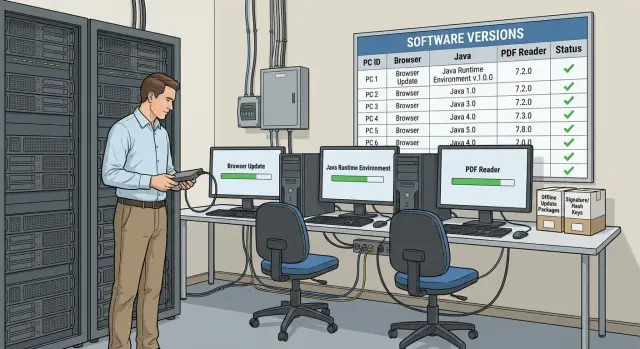
Why you need patch management for third-party software
Most common vulnerabilities on workstations are found not in Windows, but in widely used applications: browsers, Java and PDF readers. They constantly process external content — websites, files, email attachments. A missed patch quickly becomes a real risk: sometimes it’s enough to open a link or document.
Manual “when I have time” updates almost always lead to inconsistencies. One PC gets a different build (x86 instead of x64), another keeps old plugins or extensions, on a third the installer lacks rights and silently rolls back. Reboots and locked files are a separate pain: the user didn’t close the browser, the installer couldn’t replace components, and the version remained unchanged.
In isolated networks you can’t rely on built-in auto-updaters. They usually need access to external repositories, certificate checks, or a background service that downloads updates on a schedule. In a closed contour this either won’t work or will work “partially.” Partial success is worse than complete failure: some machines will update, some won’t, and you’ll learn about it too late.
Practical third-party patch management without SCCM is not just about how to “run the installer.” It’s about four verifiable outcomes:
- delivering the correct package to the intended segment;
- consistent installation on all target PCs;
- verifying success (version, exit code, installation traces);
- reporting: what was updated, what failed and why.
A simple example: you update a PDF reader. It’s important not only to run the installer, but to ensure the old version was actually replaced, that the application won’t try to reach the internet for updates, and that all PCs have the expected version after installation. Without this control, updates turn into a lottery, especially in closed networks.
Define the perimeter and success criteria
To avoid turning the work into an endless “let’s tweak this,” first fix the perimeter: what you update and on which PCs. This saves time and simplifies conversations with auditors or InfoSec.
Start with a list of applications that most often produce critical vulnerabilities and are nearly ubiquitous. These are usually browsers (and their components), Java (if the business actually needs it), PDF readers, plus plugins and helper modules. Agree from the start what counts as an “application”: a browser plugin is also an update object if it can be an entry point.
Then define PC classes. Office desktops and laptops usually tolerate reboots and can be updated on schedule. Kiosks, terminals and 24/7 workstations require maintenance windows, rollback plans and sometimes a separate set of settings (for example, disable auto-updates but allow installation only from your package).
Record environment constraints separately: fully offline, strict proxy, banned external repositories, whitelists, lack of local admin rights. This affects delivery method and what logs you can collect.
Set success criteria quantitatively. Example: the target version is installed and matches the approved one (by file, registry or “Programs and Features” record), the vulnerable build is removed and no parallel old branches remain, installation finished with no errors in logs and events, the application starts and passes a basic check (opens a PDF, launches the browser), and a report explains any failures.
Mini-scenario: in a closed contour you update a PDF reader on 200 office PCs and 20 kiosks. For office machines success = install + reboot at night. For kiosks success = install without changing kiosk mode and without daytime downtime. These are different criteria and should be agreed beforehand.
Basic preparation before updates
Processes tend to fail not during the install but during preparation: it’s unclear what exactly is being updated, to which version, and how to prove everything went well. In a closed contour the cost of error is higher because rollback and re-delivery can take days.
Inventory: what is actually installed on PCs
Collect an accurate list: which browsers, which Java (JRE/JDK, 32 or 64-bit), which PDF readers and plugins, and which PC groups they appear on. Record not only the name but the version, architecture and installation type (MSI/EXE, per-user/per-machine). Often two branches of the same product coexist in an organization, directly affecting your update package.
To avoid drowning in details, keep a simple tracking template: PC group, application and architecture, current version and source of data (Programs panel, registry, file), constraints (need to close browser, stop a service, admin privileges needed), and also criticality and dependencies (for example, an internal portal requiring a specific Java).
Target versions and maintenance window
Choose target versions that are supported and tested for compatibility. That isn’t always the newest version. Define the maintenance window and reboot rules: when apps can be closed, how much time users have, and what to do with machines that were powered off.
Before mass rollout, assemble a test group of representative PCs: one with the largest software set, one “clean” machine, and one with special policies (limited rights, antivirus restrictions). Usually 5–10 machines surface most surprises.
For manageability, assign roles and a report format in advance. The report should always include: what was updated (product and version), where (department or list of PCs), when (date and window), result (success, error, retry required), and notes (is reboot required, were there manual actions, exceptions).
Delivery options for updates in isolated networks
In an isolated contour the task is simple to state and hard in practice: deliver verified packages where there is no internet and keep control over who installed what. Usually you choose one of three schemes based on isolation level and fleet size.
Three practical schemes
If the network is closed but unified, the fastest start is a centralized folder with packages on an internal file resource (SMB). An admin publishes installers and scripts, and PCs pull them on a schedule via GPO, Task Scheduler or your agent.
For a full air-gap, physical transfer usually works best. Packages are brought on an approved secured USB or disk and then uploaded to a local repository inside the segment (on a dedicated PC or server). It’s important that this repository is the single source of truth; otherwise versions will quickly diverge.
If updates are regular, it’s convenient to deploy a dedicated update server in the isolated contour and create an internal cache. Essentially it’s an “internal store”: you download, verify and publish packages once, and clients fetch them over LAN. In large organizations it makes sense to allocate reliable hardware for such a node with capacity to spare — for example, a server from the GSE S200 Series.
In short: SMB share is good for a quick start without complex infrastructure; physical media plus a local repo works when isolation is strict and windows are rare; an internal cache server is best when ongoing delivery and decent reporting are required.
Package access and auditing
Whichever scheme you choose, build access control and operation traces. Separate privileges (who publishes packages vs who only reads and installs), verify installer signatures and hashes before publishing, protect “golden” packages from silent replacement, and collect logs: who uploaded a package, who launched an install, the result and exit code. It’s useful to have a single place for logs inside the contour — even just a file share.
How to prepare update packages safely and repeatably
In an isolated network the main risk is bringing the wrong update or later not being able to explain its origin. Prepare packages so that in a month you can reproduce them with the same steps and get the same result.
Where to get installers and how to record the source
If the vendor has a corporate channel (offline MSI, LTS/ESR branch, admin distributions), use it. For browsers this is often easier and more reliable than online installers, which won’t be able to download required files in a closed contour. For Java and PDF readers, look for offline distributors rather than web downloaders.
Before publishing to the internal repository check two authenticity markers: digital signature and hash. The signature answers “who released it,” the hash — “was it altered in transit.” Make these checks a mandatory part of preparation, not a one-time caution.
Keep a short card with the installer using a single template: version, preparation date and owner; source and licensing notes; silent install command and key parameters; definition of success (where and how you verify the version); rollback plan if applicable.
Mistakes between x86 and x64 and between language builds are the most frequent. Separate such packages physically: different folders or distinct “packages” in your delivery system with clear naming.
Minimal structure and example
A useful structure is “Vendor - Product - Version - Arch - Lang.” For example, for a PDF reader update in a closed contour: separate catalog for x64 ru-RU, another for x64 en-US, plus a folder for documentation.
If you supply PCs and servers to an organization (as system integrators like GSE.kz often do), this order noticeably simplifies support: an engineer can quickly see what was installed, what was verified, and how to repeat the install without improvisation.
Step-by-step: how to deploy updates without SCCM
The logic is the same: prepare a verified package, run the installer in silent mode, collect exit codes and confirm the version after installation. In an isolated network this works equally well if installers are pre-placed on a file resource or in a local repository.
Method A: PowerShell or .bat with silent install
For targeted updates or a pilot, start with a script. For MSI msiexec is usually sufficient; for EXE installers you need the vendor’s silent switches.
MSI is best installed silently with logging. Useful exit codes: 0 (success), 3010 (success, reboot required). EXE switches depend on the vendor — common ones are /S, /quiet, /qn, /norestart. If documentation is missing, check “setup.exe /?” or record the parameters in the package card.
To make the installation repeatable, the script usually does five steps: check current version, run the installer and wait, write exit code and log to a local folder, re-check the version, and specially flag 3010 cases (schedule reboot).
Methods B and C: via GPO or Task Scheduler
If PCs are in a domain, deploying via GPO is convenient: a computer startup script applies the update before user logon, reducing the chance of interruption. In workgroup or standalone machines Task Scheduler often works: a task runs at night under the SYSTEM account and pulls installers from a local share.
Install MSI with msiexec — its logs and return codes are predictable. Be cautious with EXE: the same /S switch may behave differently across vendors.
Plan reboots in advance. Browsers often don’t require a reboot, Java and some PDF readers sometimes do. If you get 3010, schedule the reboot in the maintenance window or at the next shutdown to avoid daytime disruption. In closed contours it’s better to complete updates in a single pass.
Verifying installation success: what to check and how
The key part of the process is proving what updated, where it didn’t, and why. Phrases like “it installed” are insufficient, especially when re-delivery takes time.
1) Version: before and after
Check version by at least two methods: installed programs list (Uninstall registry entries) and the file version of the main executable. This catches cases where the registry changed but the binary didn’t, or vice versa.
For browsers and PDF readers, predefine the expected version and compare it to the machines. For Java check separately that old branches weren’t left behind — a frequent cause of persistent vulnerabilities.
2) Installation status: exit codes and logs
The same-looking outcome can mean different things: “success” with a required reboot, or an install that skipped some components. So monitor exit codes, logs and the actual applied state (post-install version must match the plan).
For MSI enable verbose logging (for example, with /L*v). For EXE use the vendor’s logging options if available. A practical approach in closed networks is to store logs on each PC in a single folder (for example, C:\ProgramData\PatchLogs) and then collect them to a server at the next connection.
Don’t forget to remove vulnerable leftovers. Example: after updating Java ensure old JRE/JDK versions are actually uninstalled rather than left side-by-side.
The final output is a simple summary. A CSV with: PC name, product, version before, version after, exit code, status (OK/Reboot/Fail), time is usually enough. This quickly highlights a few “problem” machines requiring reboot or manual cleanup.
Common mistakes and traps
Failures often look like “everything went fine” while vulnerable components remain on some PCs.
Mixing channels and breaking compatibility
Applications have different channels: regular, corporate, ESR. Mixing channels can break extensions, partially apply policies, and cause version “jumps” on the next update. Fix the supported channel before deployment and update only that channel.
Updating in-place and leaving vulnerable leftovers
A typical case: Java or a PDF reader appears updated, but an older version remains side-by-side (plugin, runtime, separate component). Vulnerability scanners will still flag the machine. Decide in advance whether the install routine must remove previous versions, clean outdated components and prohibit parallel branches.
Ignoring privileges and UAC
Silent mode doesn’t override context. If the package needs elevated rights but runs under a user account, you’ll get an error or worse — a “success” without a real install. Verify in advance: run as SYSTEM or admin, ensure write access to Program Files and registry, and confirm silent install switches.
Not accounting for running applications
A browser or reader might be open, files locked, or services running. The installer may defer file replacement until reboot or skip steps. Plan the window and either close processes beforehand or use modes that handle running applications correctly.
Publishing packages without verification and a pilot
When a package enters a closed contour via transfer, it’s easy to mix up, corrupt or replace it. Minimum discipline: check signature and checksum, pilot on a small group, record expected version before and after, and log exit codes.
A small example: a government organization updated a browser but some PCs received the regular branch instead of ESR. Policies applied partially and users noticed missing extensions. The fix usually requires reverting to the correct channel and reinstalling under unified rules.
Short checklist before and after rollout
Spend 10 minutes before each cycle to verify basics. This saves hours of troubleshooting, especially in isolated networks where re-delivery and log collection are slow.
Before rollout
Confirm the cycle contents: which software and target versions, including edition (e.g., ESR or regular) and supported OSs. Then verify the packages themselves: correct architecture, installer type (MSI/EXE), silent parameters, and signature/hash before transfer into the closed contour. If there’s a gateway or quarantine zone, ensure the file wasn’t repackaged in transit.
Also select the maintenance window and notify users that apps may close and a reboot might occur. Even if you don’t plan a restart, browser updates and WebView components sometimes require one.
Minimum ready items:
- list of software and target versions for the cycle;
- packages verified (signature/hash, architecture, silent parameters);
- agreed maintenance window and notifications.
After rollout
Collect a report you can show InfoSec and operations: how many installed, where installations failed, and why. Usually three facts are enough: application version on the PC, installer exit code (or task status), and whether reboot was needed.
For critical workplaces keep a recovery plan. Ideally rollback to a previous version or a snapshot. Minimum — a clear instruction to quickly restore functionality (remove the problematic update, install a known-good build, temporarily disable auto-start of updates).
Example scenario: updating browser, Java and PDF reader in a closed contour
Context: 200 domain-joined workstations, no internet, monthly updates. Goal: close known vulnerabilities in browser, Java and PDF reader and prove it with numbers.
First collect actual versions. Prepare an inventory script (PowerShell or WMIC) that captures browser version, Java Runtime and PDF reader version, plus PC name, department and date. Save the report as CSV on an internal file resource.
Prepare packages outside the closed contour (on a dedicated machine with internet access), verify checksums, save distributions and silent install parameters. Transfer into the network only what is needed through an approved gateway (media, one-way channel, quarantine zone).
Organize packages so they can be reused next cycle: product/date folders, a single launch point, and a file with target versions.
Rollout in waves to avoid mass disruption. Start with a pilot of 10–15 PCs and observe for 1–2 days, then a first wave covering 30–40% of typical machines, then the remainder, plus a separate window for critical systems. Exceptions (compatibility issues) go to a separate plan.
After each wave collect checks: installed version, exit code, presence of process or service, and whether a reboot occurred if required. For management the report is a table: total PCs covered, updated, lagging and reasons.
For machines that were off or disconnected during rollout don’t do a manual chase. Build a catch-up mechanism: a scheduled task that runs at next power-on, checks version, installs from the internal source and reports the result.
If the fleet is standardized (same PC models and images), waves map to these standards and pilots reveal real differences faster than random machine quirks.
Next steps: how to turn one-off updates into a process
Ad-hoc campaigns quickly become firefighting. To make the process predictable, lock a short regimen and repeat it each cycle.
Set rules once
Agree on periodicity (monthly planned cycle and a separate path for critical updates), roles (who prepares packages, who approves windows, who launches rollout, who accepts results), report format (what counts as success and which metrics to show) and package storage rules (single repository with versions, date, source, checksum and install notes). The less ambiguity, the easier it is to analyze incidents and answer audits.
Automate the minimum that gives the most value
Even in isolated networks you can automate core tasks: inventory collection, deployment and evidence gathering. A convenient scheme is three steps: collect versions (before), deploy, collect versions and logs (after). This quickly shows where updates didn’t apply and why.
If you need to set up infrastructure in a closed contour (internal repositories, control, reporting, support), it can be easier to involve an integrator. GSE.kz as a manufacturer and system integrator can help formalize the regimen and configure the technical part to meet security requirements.
Frequently asked questions
Why are vulnerabilities more often found in browsers and PDF readers than in Windows?
Because browsers, Java and PDF readers constantly process external content: websites, attachments, documents. If a patch is missed, sometimes opening a file or link is enough for an attacker to gain entry.
Where to start: how to define the perimeter for third-party patch management?
Start by defining what counts as an “application” in your inventory: the main product, plugins, runtime components and extensions. Then identify PC groups and environmental constraints (offline, proxy, whitelists, lack of local admin rights) so you immediately know which machines need special rules and maintenance windows.
How to avoid mixing up x86/x64 and different channels (ESR/regular) during updates?
The most common failure is installing the wrong architecture or channel (for example, corporate vs regular). Keep x86/x64 and language builds separated and verify before deployment that the package matches target OS, architecture and product channel.
How to deliver updates to an isolated network without internet?
A practical option is to have a single internal source of packages: a file share, a local repository in the segment, or a cache server inside the contour. It’s important that clients install updates only from that source — otherwise versions will diverge and you’ll lose control.
Should I disable built-in auto-updates for browsers and PDF readers?
By default, it’s better to disable auto-updaters and update via your approved package, especially in a closed environment. This avoids partial updates, unexpected reboots and attempts by the app to access the external internet, and lets you prove results with versions and logs.
How to prove that an update was actually installed on a PC?
The minimum is the installer exit code and a version check after installation. More reliable is to verify the version in two ways: the installed-program record and the main file version, which helps catch cases where the UI shows success but the binaries were not updated.
What logs and data should I collect to quickly troubleshoot failures?
Keep installation logs (for MSI — verbose logs, for EXE — the vendor’s log if available) and record time, PC name, product, version before/after and installer exit code. In closed networks it’s convenient to place logs in a local folder and then collect them centrally inside the contour to quickly analyze failures.
How to handle reboots and running applications during patch installation?
Plan the maintenance window and decide in advance how to handle a “success, reboot required” result. If an application is open and files are locked, the installer may postpone file replacement or skip steps. It’s better to close processes before installation or run updates prior to user logon.
How to update kiosks and 24/7 PCs without causing downtime?
For kiosks and 24/7 machines, define separate success criteria in advance: no daytime downtime, no exit from kiosk mode, and a clear rollback plan. These devices often need a dedicated maintenance window, special startup scripts and stricter checks because “office PC” processes usually won’t work.
How to turn one-off updates into a continuous process without SCCM?
Standardize a repeatable cycle: inventory versions, prepare and verify the package, run a pilot, deploy in waves, and produce a final report with causes for deviations. If you need an internal cache server and stable reporting, allocate a reliable server node (for example, a GSE S200 Series) so the process doesn’t depend on ad-hoc machines.
