6 min read
Technical requirements for monitors for public institutions
Technical requirements for monitors in public institutions: which parameters genuinely affect comfort, lifespan and compatibility, and how to write a neutral, verifiable procurement specification.
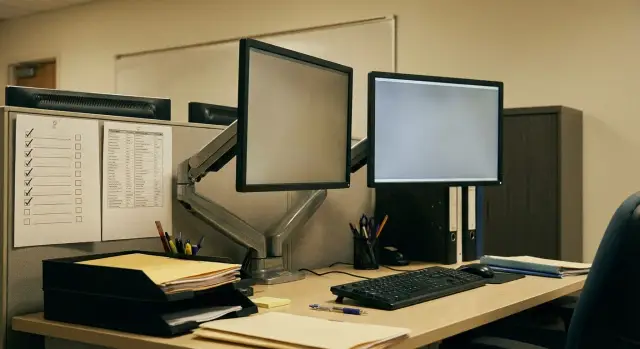
Why public institutions need clear monitor requirements
A monitor is the main tool of a workstation. When requirements are vague, complaints appear quickly: eye fatigue, neck pain from poor posture, glare from windows, and after a year or two some screens end up in repair. This is especially visible in public institutions: monitors operate 6–8 hours a day, and replacing them “as needed” is usually harder than buying suitable ones up front.
Two monitors can look identical — the same diagonal and “Full HD” — but feel different in use. One may flicker at low brightness, another may glare due to its coating, and a third may not allow raising the screen to a comfortable height. These differences are rarely visible in catalog photos but directly affect employee wellbeing and equipment lifetime.
In public procurement the most important criteria are those that can be checked. Formulations should be measurable: ranges (brightness, viewing angles), presence of functions (height adjustment, VESA mount), requirements for supplied accessories and service. Then proposals are comparable, and acceptance becomes a checklist rather than a subjective argument of "like or dislike."
What to base requirements on before writing the spec
Start not with technical specs but with tasks. A monitor for documents and spreadsheets should be comfortable for long reading. For operators who keep many windows open, workspace and clarity matter more. For video calls and citizen service points, a stable picture and simple brightness adjustment under changing lighting are important.
Then assess the workstation: distance to the screen (usually an arm’s length), desk height, seating, windows and fixtures. If the office has bright light or glare, an anti‑glare coating and extra brightness become mandatory.
Consider infrastructure: what video outputs are available on workstations, whether adapters are needed, and whether cable lengths to the PC or dock are sufficient. A monitor may be fine visually but incompatible electrically — turning the procurement into a chain of compromises.
To avoid disputes at acceptance, record what can be verified with numbers and simple actions: usage scenario (e.g., text work 6–8 hours/day), mandatory ports and supplied cables, stand adjustments (height, tilt, swivel), key screen parameters as “not less than,” and clear tests (flicker at low brightness, pixel defects within an accepted tolerance).
Screen: diagonal, resolution and panel type
The screen determines how much information fits on the desktop and how quickly eyes tire when working with documents.
Diagonal and format depend on tasks. For email, text and registers, 23.8–24" (16:9) is often convenient. If an employee keeps two windows side by side (e.g., a document and a sheet), 27" provides more space and reduces constant switching.
Resolution matters together with size. On 24" Full HD (1920×1080) is usually sufficient for documents. For small fonts and large tables, QHD (2560×1440) on 27" is noticeably more comfortable. But too high a resolution without proper scaling can backfire: text becomes tiny.
It is useful to require that a monitor works well with common UI scaling levels (for example 100–125–150%) without loss of sharpness. This helps adapt workstations to different vision needs without replacing the model.
Choose panel type by use. IPS typically wins on viewing angles and uniform image perception, so it suits general offices, receptions and accounting. VA gives deeper contrast and can be useful for dark interfaces, but viewing angles are usually weaker. TN is often cheaper but loses on viewing angles and color; it is rarely the best option for most office stations.
Practical example: where a person verifies scans and fills spreadsheets, a 27" + QHD + IPS combination often reduces strain because rows are readable without constant zooming and scrolling.
Eye comfort: flicker, glare, brightness
For 6–8 hours of daily work, fatigue is caused more by light issues than by colors: backlight flicker, reflections from lamps and inappropriate brightness. These parameters should be fixed so they can be confirmed with documentation and checked at acceptance.
For typical office lighting you need some brightness headroom and an anti‑glare surface. A practical spec text: matte (anti‑glare) screen surface, brightness not less than 250 cd/m². If workstations are near windows or bright fixtures, raise the minimum to 300 cd/m².
Separately require no backlight flicker. Instead of marketing terms, write clearly: “Backlight without PWM flicker in the working brightness range” or “Flicker‑Free (no PWM).” In a quick check flicker can sometimes be seen through a smartphone camera when lowering brightness: if bands appear, PWM may be present.
Describe blue light filtering neutrally: presence of a blue‑light reduction mode with adjustable intensity (software or hardware) without tying to a brand name.
Also consider viewing angles and backlight uniformity. For office tasks request IPS or equivalent viewing angles (for example 178/178). At acceptance, check a gray background: there should be no obvious spots or strong edge glow.
Ergonomics: stand, mounts and adjustments
Ergonomics reduce fatigue and neck complaints. In public institutions this is especially important because workstations are often shared: different people use the same monitor, and adjustments should take minutes and require no tools.
Adjustments that really matter
For offices the basic minimum is height adjustment, tilt and swivel left‑right. Height helps keep the top edge of the screen roughly at eye level. Tilt helps reduce glare and neck strain. Swivel is handy when showing the screen to a colleague or turning the monitor toward a visitor.
Portrait mode (90° rotation) is worth requiring where many long documents are processed: letters, orders, legal texts. In portrait orientation there is less scrolling and it is easier to cross‑check paragraphs and item numbers.
Mounts and usability
VESA mounting support allows using arms and desktop stands. This is useful for small desks, receptions, call centers and places where you need to free workspace. In the spec it is enough to require support for standard VESA holes.
Also think about controls: buttons should be accessible and settings must be retained after power loss. Users must be able to change brightness quickly, and IT should be able to check the active input without extra steps.
Image and motion: what matters and what not to chase
For office tasks a stable image is more important than top benchmark numbers. Over‑specifying leads to overspend with little benefit.
Refresh rate. For documents, email and record systems 60 Hz is usually enough. Requesting 75–100 Hz makes sense where there is a lot of scrolling and movement on screen: dispatch centers, situation rooms, or places with constant navigation of large tables and maps. In a spec it is practical to state “not less than 60 Hz” and put higher refresh rates in a separate line for specific rooms.
Response time. This is not a key parameter for offices. Strict requirements like “1 ms” often push toward gaming monitors without practical benefit. For most workplaces a moderate limit (for example, “no more than 8 ms GtG”) is enough, or skip strict values if comfort and uniformity are more important.
Contrast and color. Dynamic contrast ratios are hard to verify and say little about real quality. It is more practical to specify typical contrast (for example not less than 1000:1 for IPS) and the required brightness. Color reproduction for most tasks only needs to be adequate without noticeable shifts; if color accuracy is necessary, add an sRGB reference and a way to verify it.
Features like HDR, gaming modes and decorative lighting should not be mandatory unless there is a specific use case.
Connectivity and compatibility with workstations
Even a good monitor becomes a problem if it’s hard to connect to standard PCs and docks. In practice issues often start with small details: one room has DisplayPort, another only HDMI, and everything else relies on random adapters.
To keep requirements neutral, list minimally sufficient interfaces and scenarios. A practical rule: require at least two video inputs from an allowed list (e.g., HDMI and DisplayPort) and state that they must support the required resolution and refresh rate.
If laptops with docks are used, require that the monitor accept signal from PCs and docks without mandatory adapters. This reduces costs and support time.
Require a USB hub and audio out only where truly needed (reception desk, hidden PC, token readers). Otherwise they add complexity at acceptance and extra cost.
Also specify the supply contents: cables (type and length), power supply (internal or external), documentation in Russian, and warranty conditions. A useful formulation: the delivery must enable out‑of‑the‑box connection to a typical workstation of the institution.
Reliability and lifetime: what to look for in specs
A monitor can look good but age quickly if it has a weak backlight, overheating or poor assembly. For public institutions this means workstation downtime and extra support requests.
A practical metric is backlight lifetime and brightness behavior over time. Ask for explicit numbers: declared backlight lifetime (hours) and presence of energy saving modes used in offices (auto sleep, proper wake behavior, brightness limiting). For 8–10 hour workdays appropriate thermal characteristics and economical modes are often more important than maximum brightness.
Next, state operating conditions. Offices can be dry in winter, dusty in summer, or hot due to dense layouts. It makes sense to require temperature and humidity ranges for operation.
Serviceability should be described with rules: who collects the device, diagnostics and repair timelines, and what happens during repair.
Keep these clauses neutral: warranty not less than X months; diagnostics and repair within Y working days; local service in Kazakhstan or on‑site maintenance by contract; delivery with serial numbers and warranty documents; replacement with an equivalent model if repair is not possible within reasonable time.
A useful point is shipment uniformity. If possible, request one model and one hardware revision per batch, without quiet substitutions. This simplifies settings and fleet maintenance.
How to write a neutral procurement spec: a formulation scheme
A neutral spec gets the desired result without brand names or excessive maximums that narrow competition and raise price.
-
Segment users into 2–3 profiles by real work. For example: office staff (documents), dispatcher/operator (long shifts and many windows), reception (visitors, wide viewing angles and easy swivel).
-
For each profile set the minimums that affect readability and comfort. Use the “not less / not worse than” format and avoid “highest possible” demands unless tied to tasks.
-
Describe conformity evidence: datasheet/technical description, model and serial number marking, and a simple acceptance test (inputs, resolution, pixel check per regulations, backlight uniformity on a solid background).
-
Specify completeness and packing: required cables, manual, factory packaging and box labeling for inventory.
-
Add compatibility with current PCs and OS: required video inputs, support for the required resolution on standard graphics cards, operation in standard modes without installing special drivers.
Common mistakes in specifications and procurement
A frequent issue is trying to describe a specific model even without naming it. Phrases like “like model X” or “an equivalent with no degradation” usually lead to disputes: the supplier brings something “similar,” while the buyer expects many small matches.
Another mistake is over‑specifying diagonal and resolution “just in case.” A large screen is not always better. If the desk is small and distance short, eyes tire faster. Staff then increase scaling and the benefit of higher resolution disappears.
People also confuse image metrics. Dynamic contrast is rarely useful for office tasks and hard to test. HDR seldom helps in offices and complicates comparing offers.
A source of extra cost is not specifying accessories. A monitor may arrive without the required cable or VESA support, and the department buys them ad hoc. Later it is hard to standardize.
To reduce subjectivity at acceptance, keep minimums measurable: supplied inputs and cables, stand adjustments, anti‑glare surface and brightness, warranty and service format, and pixel/backlight/flicker checks.
Short checklist for acceptance and initial inspection
Small issues often surface at acceptance: wrong connector, wobbling stand, non‑uniform backlight. These checks can be done in 10–15 minutes per unit.
First check what is later hard to prove: packaging and enclosure integrity, supplied cables and documents, model and serial numbers matching the delivery note. Record discrepancies immediately.
Next run a test on a typical workstation. Connect the monitor to a standard PC using the intended cable, without adapters. Verify the required resolution is selectable. Check solid fills (white, black, red, green, blue) for dead pixels, spots and severe backlight non‑uniformity. Assess flicker when lowering brightness under your lighting. Cycle through adjustments (height, tilt, swivel) and check stability: a light touch on the desk should not make the screen sway noticeably.
If the batch will be installed in different rooms, use one reference PC and identical lighting conditions. This helps separate model/lot issues from workstation settings.
Example: three typical workstations in a public body
The same monitor rarely suits everyone. It is easier to specify requirements through typical workstation profiles and include them in one spec.
Scenario 1: accounting and document flow
Readability matters most. Usually 23.8–24" and Full HD are enough, but the key points are matte anti‑glare coating, stable brightness and no flicker (Flicker‑Free). Blue‑light reduction can be an optional feature.
Scenario 2: call center or dispatcher
Two screens are common and neck/eye load increases. Require identical models (or very similar parameters), height and tilt adjustments, VESA and reliable inputs (for example HDMI and DisplayPort). Stability during long shifts and clear replacement rules are important.
Scenario 3: reception or service window
Employees and visitors view the screen from angles. Wide viewing angles and sufficient brightness are important so information is not lost when seen from the side. Also consider a compact stand, swivel capability and tidy cable routing.
Turn these into three requirement sets by using profiles (A, B, C) and for each fix only what truly affects the job: for documents — anti‑glare, no flicker, brightness and basic parameters; for dual monitors — adjustments, VESA, identical diagonal/resolution and required inputs and service; for receptions — viewing angles, brightness and swivel convenience.
Next steps: pilot, standardization and support
Before a full purchase, verify that parameters suit people and workstations.
Run a short pilot for 1–2 weeks: 2–3 models in several typical rooms. Put one variant in the clerical office (lots of text and tables), another in the reception (frequent screen turns toward visitors), and a third where there are many charts and scrolling. Ask staff to note eye strain, ease of adjustments, glare, adequacy of ports and cable lengths.
After the pilot, adopt 2–3 profiles for tasks rather than brands and approve them as the standard. Review profiles every 2–3 years: connectors, energy requirements and model availability change.
Agree profiles with IT and occupational safety: IT assesses compatibility and support, safety assesses ergonomics and lighting. If procurement includes PCs, mounts and workstation setup, it is convenient to work with a system integrator. In Kazakhstan such projects are carried out by GSE.kz: supply and deployment of locally produced workstations and all‑in‑ones, system integration and 24/7 technical support. The monitor spec itself can remain neutral and verifiable, without brand ties.
Frequently asked questions
Where do I start when I need to write a spec for monitors for a public institution?
Start from tasks and the workplace conditions: how many continuous hours people work at the screen, whether there are windows and glare, the distance to the monitor and which ports typical PCs have. Then convert that into verifiable points: diagonal and resolution, matte anti‑glare surface, minimum brightness, stand adjustments, VESA, set of inputs and supplied cables.
What diagonal and resolution are usually optimal for office work?
A practical baseline for documents and record systems is 23.8–24" with Full HD: readable, usually fits well on a desk and does not require complex scaling. If people need two windows side by side or work with large spreadsheets, 27" with QHD is often more comfortable — but check scaling in advance so text does not become too small.
Which panel type is better to specify: IPS, VA or TN?
IPS is usually the best choice for offices, receptions and accounting because of wide viewing angles and more uniform image perception. VA can be useful where higher contrast is required, but the image may shift more at angles. TN is often chosen for cost savings, but for long text work and shared screen viewing it typically performs worse in comfort.
How to correctly require 'no flicker' and how to test it?
Specify absence of PWM flicker in the working brightness range or use the term 'Flicker‑Free' without tying it to brand names. For a quick check at acceptance you can lower brightness and view the screen through a smartphone camera: visible rolling bands can indicate PWM, though final confirmation is by manufacturer measurements.
What brightness and anti‑glare requirements actually work?
For a typical office, 250 cd/m² brightness and a matte anti‑glare surface are usually sufficient. If desks are near windows or under bright fixtures, raise the minimum to about 300 cd/m² so staff do not have to max out brightness and still suffer from glare.
Which stand adjustments are really needed in the office?
For most workplaces the minimum set of adjustments is height, tilt and swivel (left‑right) so the top edge of the screen can sit roughly at eye level and glare can be reduced. Rotation to portrait is useful where long documents are common, because it reduces scrolling and simplifies text comparison. Lack of adjustments often leads to neck and eye complaints faster, even with a good panel.
Why include VESA in the spec and when is it important?
Require VESA mounting support so monitors can be placed on arms or stands without improvised solutions. This is especially useful on small desks, in receptions and call centers where workspace needs to be freed and cables routed neatly. At acceptance, just check for the presence of VESA holes and compatibility with common mounts.
How to phrase input requirements so you don’t end up with adapters?
A practical approach is to require at least two video inputs from an allowed list (for example HDMI and DisplayPort) and state that they must support the needed resolution and refresh rate. Also require that the supplied package enables out‑of‑the‑box connection to typical institutional PCs without mandatory adapters; otherwise costs and problems move to the operation phase.
Do I need 75–100 Hz and '1 ms' for office monitors?
For documents and accounting systems, 60 Hz is usually enough and higher rates rarely bring noticeable benefits. Tight demands like '1 ms' and very high refresh rates often push buyers toward gaming models that cost more without practical office gains. If you have dispatch rooms or other places with constant movement and scrolling, define a separate profile with increased refresh rate.
Which warranty and service points should I add so the monitor fleet is easier to support?
Set a minimum warranty period and clear rules for service and repair turnaround time in working days, and state what happens during repair (for example, replacement with an equivalent). For acceptance, require serial numbers, consistency of model within a shipment and a simple set of checks: inputs, required resolution, no obvious patches on a uniform background and pixel defect testing within an accepted tolerance. If procurement is bundled with workstations and deployment, these processes are easier to manage through an integrator with support in Kazakhstan like GSE.kz.
