8 min read
Moving to domestic PCs: how to unify your fleet without chaos
Moving to domestic PCs: how to standardize images, drivers, accessories and support in a mixed fleet so you don't end up with two sets of rules.
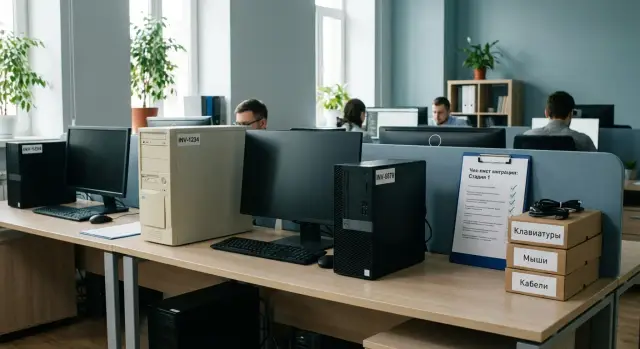
What “two zoos” means and why it's painful
“Two zoos” in IT operations is when two different systems effectively live in the same office: one set of standards for old models and another for new ones, for example when moving to domestic PCs. Formally these are all “just computers,” but in practice images, drivers, utilities, instructions, accessories, spare parts and even diagnostic methods differ.
The problem appears in a mixed fleet because new devices rarely fit into existing processes. The support team starts to "patch things on the fly": manual driver installs here, a separate policy there, a different cable or dock station in another place. After a few months this becomes two sets of knowledge and two sets of common issues.
Users notice the pain first. Typical symptoms look like:
- “After the update the sound/camera/scanner stopped working, my colleague's device is fine.”
- “We need to wait for a different specialist; this one is ‘only for old devices’.”
- “The new model doesn't see the printer or needs a different connection method.”
- “The same ticket is handled differently in different offices.”
- “The warehouse doesn't know which power supplies, keyboards and cables to stock.”
Support pays with time: mean time to resolution grows, repeat tickets increase, mass updates and security control become harder. Any non-standard element multiplies by the number of models.
Hardest to unify are things at the interfaces: peripherals (printers, scanners, MFPs), dock stations and cables, security devices (tokens, smart cards, protection agents), as well as BIOS/UEFI settings and specialized drivers. These small details are often what create the second “zoo.”
Where to start: segment workplaces and requirements
The first step in moving to domestic PCs is to understand exactly what you're migrating. If you try to force everything into a single mold at once, you will almost certainly end up with two parallel support schemes: one for old models and one for new, with different images, drivers and rules.
Start by segmenting workplaces by tasks, not by departments. Groups that typically emerge quickly: office staff, accounting, front-office (desks, service windows), engineering and analyst workstations, meeting rooms and shared areas.
Next, fix the minimum requirements for each group. These are not "nice-to-haves" but what work can't go on without: CPU and RAM, type and size of storage, port set (USB-A/USB-C, video), Wi‑Fi, presence of TPM, support for dual monitors and required resolutions.
Collect software constraints separately. Often the issues are caused not by heavy applications but by small things: old drivers for scanners and MFPs, plug-ins for digital signatures, hardware dongles, label printers, legacy browser versions for a single portal.
To avoid drowning in details, create a short matrix “role — requirements — exceptions” and immediately separate:
- what is standardized right away (office package, VPN, antivirus, printing);
- what allows 1–2 variants (e.g., different monitors in meeting rooms);
- what is treated as an exception with an owner and deadline (e.g., an old scanner with a single driver);
- what needs a pilot before procurement (engineering software and licenses).
Simple example: in a government agency office workstations are standardized on identical desktops (level L200), front-office needs touch all-in-ones (level M200), and accounting must pre-check digital signatures and keys. That gives one base standard and a few clear “roles,” not an endless list of unique PCs.
Hardware standards: fewer models, fewer surprises
If your fleet contains dozens of similar PCs, support becomes guesswork: one has Wi‑Fi working, another needs a different driver, a third lacks ports for a scanner. The solution is simple: reduce variety and fix clear reference configurations.
Usually 2–4 profiles cover most needs: a general office workstation, a higher-performance workstation (many tabs, heavy spreadsheets), a specialized profile (e.g., CAD or medical equipment), and a separate profile for mini-servers/workstations if needed. When migrating to domestic PCs this is especially important so the mixed fleet doesn't turn into "two zoos."
What to standardize
Agree on rules that are the same for all reference configs and record them in a single document. Focus on things that most often break support: minimum memory and storage requirements and a clear upgrade approach, a single class of network adapters and driver requirements, required set of ports (so peripherals connect without a zoo of adapters), unified BIOS/UEFI settings (Secure Boot, boot order) and password handling rules, plus a standard equipment list (power supply, cables, basic mouse and keyboard).
How to align standards with procurement and security
With procurement, fix a rule in advance: buy only from the catalog of reference configurations and their pre-approved substitutions. With security, agree on BIOS/UEFI settings and how passwords are tracked so support doesn't get “locked-out” devices.
Example: branches have old PCs of various brands while HQ chooses domestic models (for example, GSE L200 for office tasks and more powerful workstations for specific units). If you lock in three profiles and identical requirements for ports and network adapters, you won’t need different spare parts sets and instructions for every model.
Unifying OS images: one framework, multiple roles
The main idea is simple: don't build a separate “perfect image” for every PC model and department. In a mixed fleet that quickly becomes dozens of similar copies that are impossible to maintain.
A common approach works: one base framework + roles. One base image makes sense if you have the same Windows version, common security requirements and a single domain. Separate images per role are needed only where requirements truly differ: kiosks, engineering stations with heavy software, or PCs for medical equipment with special conditions.
Put in the framework only what must be everywhere: domain join, basic policies, disk encryption, firewall settings, standard local groups and management agents. It's easier to test once and not debate it on every deployment.
To avoid proliferating copies, separate the base image and application packages:
- base image: clean OS + mandatory security and management components;
- role packages: office, accounting, CAD, training labs;
- settings: printers, network drives, shortcuts, templates;
- permissions: who can install software, who can only run it;
- exceptions: single PCs with unique requirements documented as exceptions, not new standards.
For example, if you buy GSE desktops for offices and keep some old machines, the framework should install the same on both device types. Differences (extra software for procurement or engineering packages) are applied after OS installation following clear rules.
Freeze an update plan in advance. Usually rebuilding the image every 1–2 months and ad-hoc for critical vulnerabilities is enough. Assign an image owner (IT operations) and define approval steps: what is mandatory, who tests on a pilot group, who gives the green light for roll-out.
Drivers without chaos: catalog, versions and installation order
During a move to domestic PCs, most time is spent not on hardware or Windows, but on drivers. If every engineer installs them by memory and “as it happens,” you quickly end up with different versions, different symptoms and different support answers.
Start with a single driver catalog for reference configurations. A reference is a specific PC model and its typical kit (e.g., office workstation or contact-center operator). For each config record not only files but versions, date, source and a short note on “why this is needed.”
It's useful to split drivers into two layers. Base drivers — those without which the system may be unstable: chipset, storage controllers, video, network, audio. Optional drivers — depend on role and attachments: docks, Bluetooth adapters, special keyboards, cameras, additional NICs.
To avoid manual installs, package drivers and install them in the same order. Simple rule: chipset and storage first, then video, then network, and only after that everything else. That reduces missing devices and conflicts.
Minimal rules to discipline updates:
- one catalog owner and a consistent naming format (model, OS, version, date);
- updates only after testing on a pilot group, then on a limited segment;
- a rollback plan for each update (previous version kept and marked as stable);
- disable auto-driver updates on workstations without control;
- a changelog: what was updated, why, and what symptoms were resolved.
Rare peripherals (scanners, printers, digital signature tokens) almost always break the “ideal” picture. Create a separate catalog section by device type and map where each occurs. For critical devices keep two options: the recommended driver and a tested fallback version.
If you work with a manufacturer or integrator who supports the fleet, ask them to provide driver sets for your reference roles and versioning rules. With GSE.kz this is usually easier to discuss in advance so support has one “source of truth,” not guesses.
Accessories and peripherals: standards and compatibility
In a mixed fleet, small items usually break unified processes. If users have different cameras, headsets and cables, support spends time not on OS issues but on finding the right adapter and driver. When moving to domestic PCs, standardize peripherals as strictly as the computer models.
Start with a base kit for each workplace type (office, meeting room, remote work, security desk). Choose devices not by brand but by clear attributes: connection interface, stable Windows operation without rare drivers, and compatibility with your corporate apps.
Minimal standards that actually help
Define what is procured and installed by default: the same connection type for keyboard and mouse (USB or Bluetooth), headsets with a consistent connector and predictable microphone, a webcam that works via UVC without exotic drivers. Keep dock stations only where scenario requires them, and approve one cable set for a typical desk.
Also set rules for monitors and video: what you prioritize (HDMI or DisplayPort), which adapters are allowed, and standard cable lengths to avoid random 10‑meter leads from meeting rooms.
Warehouse, spare parts and inventory
To avoid waiting for deliveries and stopping a workplace, keep a small stock of the most frequent items: mice and keyboards, headsets, power and video cables, 1–2 common adapters.
Don’t forget inventory control. Label accessories (sticker + inventory number) and use a simple rule “take — return to stock” to prevent peripherals from dispersing across offices when people move to new PCs (including workstations or GSE all-in-ones).
Support and service: one process for the whole fleet
A mixed fleet doesn't fail because it has different models; it fails because different rules develop for them. To prevent the transition to domestic PCs from becoming parallel support systems, set a single end-to-end process and uniform SLA expectations.
Describe support as a chain identical for old and new devices: ticket intake via a single form, quick diagnosis with a checklist, then resolution (remote, on-site, replacement unit), restore from image and check drivers/peripherals, and only then close with a clear reason and user recommendations.
Next, standardize ticket categories and ready responses. “No network,” “won't print,” “slow,” “won’t power on” should be named consistently even if internals differ. That way first-line support doesn't waste time guessing and collects correct data.
To avoid debates on every incident, set repair vs replacement criteria in advance. A simple rule often helps: repeated failure of the same component in a short period, critical downtime of a workplace outweighs repair cost, no spare part available in a reasonable time, physical case damage or device failing basic tests after reinstallation.
The knowledge base should have two layers: a common layer (categories, checklists, SLAs, swap rules) and a model layer (driver specifics, BIOS quirks, typical symptoms per series). Interactions with service providers are easier through a single window: clear RMA process, list of replacement configurations, agreed timeframes.
If the manufacturer has 24/7 support and a nationwide service network like GSE.kz, define in advance which cases go to the vendor immediately and which are handled internally by IT.
Step-by-step rollout plan: from pilot to mass-deployment
Plan the move to domestic PCs as a project with clear standards and checkpoints. The goal is one clear path from ticket to workplace, regardless of brand or model.
Start by choosing 1–2 reference configs for each role. Lock in allowed ports, storage types, network adapters and dock station models. The fewer options, the fewer special cases in support.
Then build a base Windows image as the framework and document differences as roles (policy sets, apps and settings). Prepare a driver catalog by models and versions with a clear installation order. Perform a dry run: deploy the image on a clean PC, verify encryption, VPN, printing, cameras, updates and recovery.
Keep the plan as a short route:
- approve reference configurations and a peripheral compatibility matrix;
- assemble a base image and driver catalog, run tests;
- run a pilot with one group (20–50 users), record failures and fixes;
- roll out in waves per departments, release with a quality checklist;
- move to steady-state support: updates, compliance audits, metrics.
Pick a pilot where tasks are typical but there are a couple of complex cases (e.g., accounting plus 1–2 narrow-app workstations). In a mixed fleet it helps to compare the same scenario on old PCs and on GSE L200 to see where drivers, printing or policies break.
After the first two waves lock in metrics: percentage of successful first-time deployments, time to a ready workstation, top-5 ticket reasons. That makes the transition to domestic PCs a manageable process, not a one-off campaign.
Common mistakes during migration and how to avoid them
The most common cause of chaos in a mixed fleet is not the hardware but the absence of rules. Without rules support quickly becomes manual work: different images, different drivers, different cables, and nobody knows what is the standard.
Typical errors and how to preempt them:
- Creating a separate Windows image for every department and losing version control. Fix: one base framework and a set of roles; all changes go through a single changelog and release number.
- Updating drivers without testing and triggering mass failures. Fix: test environment, locked versions, one-click rollback.
- Not agreeing on peripherals and accessories. Fix: 2–3 approved kits per role and a ban on procurement outside the list.
- Not assigning owners for standards. Fix: designate owners for the image, driver catalog, peripheral compatibility and inventory with clear SLAs.
- Running too large a pilot. Fix: a small group with production-like scenarios and critical apps.
If you work with local manufacturers like GSE.kz, request recommended configurations and tested driver versions for your roles. This speeds up standardization and reduces surprises during roll-out.
Quick checklist: are you ready for mass-deployment?
Rollout in a mixed fleet usually fails not at buying hardware but at small details: different images, drivers, cables and support rules. Before scaling the transition to domestic PCs go through this checklist. If at least two items are unresolved, stay in pilot.
Hardware: approved reference configurations with allowed substitutions stored in a clear location.
OS: one base image as a framework and differences packaged as role bundles (accounting, contact center, engineering).
Drivers: catalog with versions, verification dates, update rules (who approves, where tested, when rolled out) and a defined installation order.
Peripherals: standard monitors, dock stations (if needed), keyboards, mice, headsets, cables. Plus a minimum spare parts stock: power supplies, SSDs, cable kits, spare keyboards and mice.
Support: unified ticket templates and an updated knowledge base that applies to old and new devices. Add metrics that show readiness for scale:
- average time to deploy a workstation;
- percentage of repeat tickets;
- top-3 reasons for replacements/returns;
- share of tickets resolved by first line.
If you procure domestic models (for example, PC and all-in-one lines from GSE.kz), agree with their support team in advance which data they need in tickets and which components to stock in spare parts. This speeds roll-out and reduces the operational “zoo.”
Example scenario: how to migrate in a mixed fleet
A company with 600 PCs starts migrating to domestic PCs without replacing everything at once: 200 workplaces move to new machines, the other 400 remain until scheduled retirement. The main risk is not the hardware but two different support rule sets.
To avoid this they lock just three reference configurations by role: “office worker,” “specialist with two monitors,” and “heavy‑software user.” They build one base Windows image (framework with policies, agents, encryption) and move differences to role packages: applications, printer profiles, certificates, add-ons.
They run a pilot on 30 workplaces but pick users with real workloads: accounting, contact center, secretariat, and 1–2 managers. The pilot measures not only "boots/doesn't boot" but also:
- time to provision a workstation (box to domain login);
- number of tickets per 10 users in the first 2 weeks;
- top-5 ticket reasons and their resolution time;
- share of devices that auto-detected drivers/peripherals;
- how many exceptions were required.
Initial tickets repeat: printers (especially old and label printers), headsets and webcams, digital signature tokens and smart cards, second monitors via adapters, and “network drive not visible after profile migration.” They fix these not by manual one-offs but by updating the standard: add a tested driver version, update a role package, add a peripheral to the allowed list.
Then they run 2–3 waves of 50–80 PCs. After each wave they update the base image and packages, while support rules remain the same: identical knowledge base articles, identical diagnostics, identical ticket codes. Eventually old and new machines are supported by one process, with differences limited to predefined configuration options.
If you buy domestic models (for example, PC and all-in-one lines from GSE.kz), request a list of tested peripherals and recommended driver versions for your image in advance. That often saves weeks during the pilot.
Next steps: lock standards and simplify support
To keep a mixed fleet from turning into “two zoos,” document agreements and assign owners. After the pilot it’s especially important: while details are fresh it’s easier to record what is “normal” and what cannot change without approval.
1) Consolidate standards in one place
Create a short, precise document (or a knowledge-base page) with unified rules for all sites and vendors: approved workplace configs and allowed substitutions, base OS image and role bundles, driver catalog with versions and installation order, list of compatible accessories and a minimum spare-parts kit with storage rules.
2) Assign owners and a rhythm for updates
One process needs owners. Assign owners for the image, drivers, peripherals, knowledge base and stock. Set a cadence: monthly update check and quarterly standard review.
Then approve deployment waves: timelines, list of units and readiness criteria for each wave. Example criteria: image installs without manual tweaks, drivers come from the catalog, typical incidents solved by documentation.
If you move to domestic PCs, involve the manufacturer and integrator during the pilot: they can help check peripheral compatibility, prepare driver bundles and agree on the support model. For GSE.kz it's convenient to start by selecting L200 and M200 lines for typical workplaces and agreeing on support format. If needed, contacts and service descriptions are available on gse.kz.
Frequently asked questions
What do you mean by “two zoos” in operations?
“Two zoos” is when old and new PCs end up living under different rules: different OS images, drivers, instructions, accessories and even diagnostic approaches. The problem is that any small non-standard detail scales across dozens or hundreds of workplaces, increasing resolution time and the number of repeat tickets.
Where should I start the transition to domestic PCs so I don't drown in details?
Start by segmenting by tasks, not by departments, and fix the minimum requirements for each role: hardware, ports, security, critical software and peripherals. Then immediately decide what becomes standard, what can have 1–2 allowed variants, and what is handled as an exception with an owner and deadline.
How many reference configurations are realistically needed to keep the fleet manageable?
Usually 2–4 reference profiles cover most scenarios — that is better than dozens of slightly different models. The key is to link profiles to roles and predefine acceptable substitutions so procurement and support don’t diverge.
How to build the OS image correctly: one for everyone or separate for each model/department?
Keep one base image as a framework: OS, domain join, management agents, basic policies, disk encryption and mandatory security settings. Put differences into “roles” after installation: applications, printers, shortcuts, certificates and other settings, so you don't create dozens of nearly identical images.
How do I organize drivers so updates don't break half the workstations?
Create a single driver catalog for your reference configurations and record versions, verification dates and sources. Discipline matters: install drivers in the same order, update only after testing on a pilot group, and keep a verified 'stable' version ready to roll back to.
Why do peripherals and cables often become the main source of chaos?
Standardize peripherals as strictly as the PCs: approve typical cameras, headsets, keyboards, mice and video cables that work predictably without exotic drivers. If dock stations are not needed everywhere, restrict them by role and keep a small stock of common cables and adapters; otherwise the "zoo" appears in the small items.
Which BIOS/UEFI settings are important to standardize in advance?
Agree on a minimum set of settings that is the same across the fleet and record how passwords and access to these settings are handled. If some devices are configured in a way that blocks support or are set differently on site, you'll get inconsistent security levels and different symptoms for the same tickets.
Which pilot to choose and who to include?
A practical pilot size is 20–50 users, but include real production scenarios and a couple of difficult cases, for example accounting with digital signatures and workstations with non-standard printing. The pilot should reveal repeatable causes of tickets and let you fix them in the standard, not with one-off manual fixes.
Which indicators best show readiness for mass rollout?
Look at metrics that show the quality of your standard: how many workplaces deployed first-time, time from box to domain login, number of repeat tickets in the first weeks and the top reasons. If main problems repeat, the fix should go into the image, role package, driver catalog or allowed-peripherals list — otherwise you lock in chaos.
What to do with exceptions and how to work with vendor/integrator?
Record exceptions as managed items: owner, justification, deadline and replacement plan. When working with a manufacturer or integrator, request driver bundles and recommendations for your roles and versioning rules in advance; with GSE.kz it's convenient to do this before mass procurement so support has one "source of truth" instead of guesses.
