7 min read
Standardizing Workplace Deployment: Golden Image Step-by-Step
A step-by-step plan to standardize workplace deployment: build a golden image, separate drivers and software, and set up automated installation.
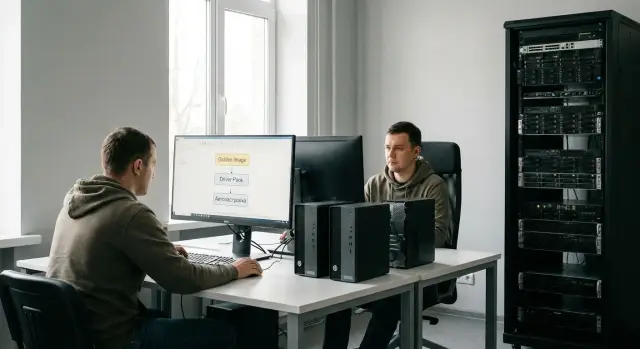
Why standardize workplace deployment at all
Manually configuring each PC almost always becomes a lottery. One technician installs drivers and software 'as usual' today, another does it slightly differently tomorrow, and a month later nobody remembers why half the computers have one setting and the rest another. You pay in time: preparing one workstation takes hours, and a batch of 30–50 PCs can take days.
The most painful part is support. When devices run different driver and software versions, reproducing and fixing any incident gets harder. The user says 'it won't print', and you first need to find out: which model, which driver, which Windows build, which policies, which updates, which antivirus. The greater the variation, the more blind spots and the higher the chance that an update or new program will break part of the fleet.
Standardization gives a simple result: consistent rules instead of improvisation. One reference image, a clear set of baseline components and predictable auto-configuration. The outcome is speed (deploy and it's ready), repeatability (every PC is the same) and control (you know what's installed and why). It's especially convenient when you buy uniform machines: desktop PCs, all-in-ones, workstations. The logic is simple: base image + driver pack per model + role-based application sets (accounting, classroom, reception).
That said, don't expect miracles. A golden image won't replace asset tracking, won't fix a bad network, won't improve old heterogeneous hardware, and doesn't remove the need to test updates. If you have dozens of unique scenarios and non-standard devices, complexity won't disappear — but it becomes manageable.
Basic terms: reference image, driver pack, auto-configuration
These words sound 'admin-like', but in practice they just help you agree on what you're deploying and why the result is repeatable across dozens of PCs.
Reference image (golden image)
A Windows golden image is a preconfigured system installation with baseline settings and required components. It's needed so every new computer starts in the same state.
A reference image is not the same as a backup. Backups are usually taken 'as is' from a specific PC with its unique traces (hardware-specific drivers, caches, temp files, sometimes user profiles). A golden image is made to be as universal and repeatable as possible.
Driver pack
A driver pack is a set of drivers for a particular model or configuration (chipset, network, video, storage). It's useful when you have several similar devices or batches of PCs with different hardware and you don't want to hunt down drivers after the OS install.
Most often driver packs are kept separate from the image: the image stays stable while drivers are updated as models and revisions change.
Workstation auto-configuration
Auto-configuration is what happens after the OS is installed so the user receives a ready workstation without manual fuss. Even without complex platforms you can automate baseline tasks: PC naming by template, domain join, creating shortcuts, connecting network printers, installing required apps, and applying basic policies.
Baseline and role-based packages
A simple rule: keep in the baseline only what everyone needs (OS, required components, security agents, baseline settings). Role-based packages are for specific roles: accounting, call center, engineering. This way a rare app doesn't bloat the standard image, and you prepare PCs for different tasks faster.
Preparation: hardware inventory and image requirements
Before building a golden image, understand the devices it will target. A common mistake is to make an image for one 'ideal' PC and then deploy it to a mixed fleet and hit surprises with drivers, networking, or peripherals.
Start with an inventory and record what's actually present: PC models, wired network adapters, Wi‑Fi and Bluetooth modules, video cards, and critical peripherals (printers, scanners, smart card readers, MFPs). If the fleet is uniform (e.g., a batch of identical desktops or workstations), everything gets noticeably easier.
Next decide the OS platform: Windows edition, language, bitness and a single 'snapshot' of updates. Set a clear rule: patches are added to the image on a schedule (for example, monthly), not 'when someone remembers'. It's easier to trace issues and, if needed, roll back.
Also agree on minimum security settings: screen lock, encryption, firewall settings, local admin rules. Even if main policies come from the domain, the starting state should be identical.
To make this work in a team, lock down a few standards: where images and packages are stored, how you name versions (for example OS-YYYYMM + build number), what counts as a release and which models are supported. Keep a short note 'what's inside' and 'what was tested on'. This discipline saves hours later when someone asks 'why is Ivanov's PC different?'.
Step by step: how to build a reference image (golden image)
Start from the cleanest point possible. It's convenient to build the image on a VM (easier snapshots and rollbacks), then validate on real hardware. If you have many identical PCs, you can build on one reference device.
Step 1: Clean OS install
Install Windows from the official installer and immediately fix the parameters: edition, language, disk layout scheme, boot type (UEFI), basic network settings. Don't install 'everything under the sun'. The fewer exceptions, the more stable the result.
Step 2: System baseline (what must be on everyone)
Bring Windows to the agreed update level, add needed components (for example .NET, remote management tools, corporate certificates). If some services are forbidden or mandatory in your organization, set them in the image so you don't end up with differing states across PCs.
Step 3: Standard workstation settings
Reduce user tweaks to a clear standard: power plan, sleep settings, browser defaults (within policy), baseline security settings. A simple test: a new employee should turn on the PC and start working without visiting the admin for every small thing.
Step 4: Remove unnecessary items
Remove preinstalled vendor apps not needed by the company, test accounts and random shortcuts. Clean temp files, update caches and logs so the image doesn't carry build artifacts and doesn't grow unnecessarily.
Step 5: Versioning the image (image release)
Decide what constitutes a release: Windows version and patch date, list of baseline components, an image build identifier and release notes. Give the image a clear name (for example WIN11-OfficeBase-2026.01) and store a short description next to it: what's inside and which PC models it was validated on. This discipline saves hours of 'why is it different' troubleshooting.
Drivers without chaos: driver pack strategy
Drivers are the most common reason an otherwise identical image behaves differently on various PCs. Basic rule: keep in the image only what's identical for all devices, and put model-dependent drivers into driver packs.
When does it make sense to include drivers in the golden image? Only if the fleet is truly uniform and the hardware doesn't change for months. In all other cases it's safer to apply drivers after deployment by device model. That keeps the image stable and avoids driver-version surprises.
Structure driver packs by model and revision. Even within one product line network adapters or audio chips can differ, so don't mix everything in one folder. If revisions appear in shipments, keep separate packs.
Follow discipline with updates: don't update drivers 'for the version number'. Update when there's a reason (blue screen, sleep/wake issues, security fix, new hardware revision). Test a new pack on a pilot group first and keep the previous version for rollback.
Put rare peripherals (scanners, tokens, specialized printers) into separate role packages so a regular office PC doesn't get unnecessary drivers.
Minimum checks after a driver pack update:
- network (Ethernet and Wi‑Fi, if present)
- sleep and wake behavior
- Device Manager shows no unknown devices
- printing or key peripheral functionality for the role
If you have batches of identical machines this is especially convenient: one image, and the appropriate driver pack is chosen automatically by model.
Separating baseline and application software: packages, versions, rules
To make savings real, the image should be thin: only what's needed by everyone. Everything else should be separate packages installed by role.
The baseline package usually covers security and manageability: management and monitoring agents (MDM/EDR/inventory), required viewers, VPN (if mandatory), corporate certificates, and basic support utilities. Role packages should be per department: accounting, contact center, engineers, doctors, teachers.
A simple test: if an app is not needed by everyone, it shouldn't be in the golden image. The baseline stays uniform and the role adds its programs, printers and specific drivers.
Also introduce a version rule. One release table is enough: application, version, approval date, owner, update plan. Disputes about 'our department does it differently' should be settled by recorded standards, not habit.
For mass installation silent installers are important. If an installer has no silent mode, look for an MSI or repackage the app into a managed format. Agree on exceptions: they must be requested and time-limited, not 'forever'.
Auto-configuration after deployment: minimize manual work
The goal of auto-configuration is that after applying the image the PC becomes a ready workstation: correct name, time, policies and required apps. The technician boots the device, waits for scripts to finish and hands it to the user.
What to automate at first boot
Start with the things most often done manually and most often done inconsistently: PC name by template (site-dept-number), timezone and language, basic network settings, local policies (lock screen, password, update rules). If you have a domain, automate domain join.
Typically there are two scenarios: the PC immediately joins the domain and gets settings via Group Policy, or it works standalone first (for example in a remote office without a reliable channel) and later connects.
Apps, drivers, logs and clear rollback
Install packages based on device model and user role: baseline plus role apps. Pull drivers by PC model to reduce manual fixes.
Don't skimp on observability. Without logs you'll be guessing what went wrong. Minimum: a step log (domain/workgroup, packages, policies, drivers), error codes and execution time, a final status 'OK' or 'needs review' with a reason. For problematic steps implement clear retries: try 1–2 times, then stop and record the reason instead of forcing completion at all costs.
Testing and pilot: ensuring the image actually works
A golden image pays off only after a pilot. Check not just 'did it install' but 'can we deploy 200 PCs tomorrow without surprises' and sustain the result.
Pilot group and acceptance criteria
Assemble a pilot of 10–20 users across roles: office, accounting, contact center, engineer, remote worker. Include 1–2 people who typically have the most peripherals or nonstandard needs.
Keep acceptance criteria short:
- installation proceeds without manual steps (except policy-required actions)
- network, printing and key peripherals work
- required apps start and update per rules
- security policies and encryption (if used) are applied automatically
- the user can start work within 15 minutes without admin help
Testing on models and peripherals
Test on at least 2–3 models from the fleet. If you have multiple form factors (desktops and all-in-ones), run each with typical peripherals: printers, scanners, headsets, docking stations.
Measure more than success/failure: preparation time per PC, share of installs without manual fixes, number of support tickets in the first 7 days, and top recurring issues.
Release images on a schedule and announce change windows in advance. If the pilot reveals a critical issue, freeze the release and fix the root cause rather than continuously tweaking the image and losing predictability.
Common mistakes that stop standardization from taking off
Failure usually starts when the standard turns into a distribution of 'something that kinda works'. The first 20 computers go fast, then exceptions appear, manual fixes pile up and troubleshooting becomes endless.
Five things typically break the process:
- an image that's too fat (all applications included, even rare ones)
- drivers mixed for different models and generations
- no version control (folders like final_final2)
- manual on-site edits that never made it into scripts
- no regular update and testing cycle
A typical case: the organization ordered a batch of identical PCs but some arrived with a different network card due to a hardware revision. If the driver pack isn't tied to the exact model (or at least a family), half the workstations will be left without network after deployment and the 'quick' rollout becomes an emergency.
A simple practice: keep the baseline image minimal, and split drivers and apps into manageable packages with clear versions and update rules.
Short checklist before mass deployment
Before deploying to tens or hundreds of machines, check a few things. This quick control often saves days after launch.
- The list of PC models and critical peripherals is approved and matches on-site inventory.
- The image is labeled (version, build date, approver, change summary).
- Drivers are prepared as model-based packs and tested on clean deployments.
- Baseline is separated from role apps; role packages install by role.
- There is a short test scenario and a clear 'ready' criterion.
A useful habit: do a trial run on 2–3 PCs from the batch but from different rooms or floors. Check not only domain and printing but what users notice in the first 10 minutes: keyboard layout, network drives, update policy, and autostart shortcuts.
Example scenario: quick rollout for a batch of identical PCs
A school or clinic needs 150 workstations ready in 3 days: rooms are wired, the network exists, and there's little time for manual installs. This is a good case for a standard: identical PCs, typical user roles and a defined software set.
Usually one Windows golden image with baseline settings and updates, 2–3 driver packs for hardware revisions and a few role packages are enough. For a classroom it's one set; for a clinic another (for example, medical client and printing drivers), but the baseline is common.
To meet the deadline without night shifts, split the work:
- Day 1: check 3–5 PCs, choose driver packs, run auto-configuration and printing tests.
- Day 2: deploy the image to all PCs and install role packages.
- Day 3: spot checks and short acceptance.
Time savings come from small things: OS and updates are already in the image, drivers are in packs, apps install with consistent versions, auto-configuration does manual tweaks, and fewer errors occur due to repeatability.
To keep PCs identical after rollout, enforce changes only through image or package updates, not by hand. Add regular version checks and configuration audits.
Next steps: lock the process and scale it
To avoid the standard becoming a one-off, start small but finish what you started. Choose the most common PC model, build the first release and get it to the point where a new computer can be prepared without improvisation. That becomes the baseline for other models and departments.
Then document rules briefly: supported model matrix, versions (image, driver packs, baseline and role packages), roles and responsibilities, update windows and acceptance checklist.
When the fleet grows, manual control will break down: branches introduce their own exceptions and updates spread unevenly. That's usually the time to move to more centralized management to keep policies and application sets uniform.
If you build a fleet on identical workstations, maintaining the standard is easier when the hardware is uniform. GSE.kz (gse.kz) as a computer manufacturer and systems integrator can help: supplying identical PCs and workstations, plus integration and support, reduces the 'special cases' that force image rework.
A 30-day plan can be very simple: week 1 — pilot image and baseline packages; week 2 — pilot with users and fixes; week 3 — release 1.0 and documentation; week 4 — scale for that model and plan the next. After that you get a repeatable cycle: release, test, rollout, support — and each subsequent image is faster to create, not from scratch.
Frequently asked questions
When does it make sense to build a golden image, and when is manual installation simpler?
Yes — when you have more than a few dozen PCs or regularly add new workstations. The biggest gains are less manual setup and fewer “this computer is different” cases, which speeds up handover and simplifies support.
How is a golden image different from a regular system backup?
A golden image is a prepared Windows installation with baseline settings and required components, designed for repeatability. A backup is a snapshot of a specific PC with its unique traces and is not suitable for mass deployment across different hardware.
What must be inside the golden image, and what should be kept outside?
Keep only what is identical for everyone: the OS, an agreed update level, baseline components and management/security agents. Anything that depends on the PC model or the user's role should be in separate packages so the image stays thin and predictable.
Where to start if the fleet is mixed and there are many models?
Start with an inventory: which PC models exist, which network adapters, graphics cards and critical peripherals appear. Then fix the Windows edition, language, bitness and update rules so the image is predictable and reproducible.
How to organize driver packs to avoid chaos?
A practical rule is one driver pack per model and, if needed, per revision. Don't mix drivers for all cases, and update packs only for a reason (bug, new hardware revision, security fix). Keep the previous version for rollback.
Can drivers be baked directly into the golden image?
If the fleet is truly uniform and the hardware doesn't change for months, embedding drivers in the image can speed things up. In most other cases it's safer to keep the image stable and apply drivers after deployment by device model to reduce surprises.
What should be automated at first boot after deployment?
Automate the tasks people do manually most often: PC name by template, timezone and language, domain join, baseline policies, and role-based package installation. Always write logs and a clear final status, otherwise troubleshooting becomes guessing.
How to run a pilot and know the image is ready for mass deployment?
A pilot verifies repeatability: installation without manual steps, functioning network, printing and key peripherals, and the user able to start work without admin help. Use 10–20 users across roles and test on at least 2–3 models while measuring time and support calls.
Which mistakes most often break standardization of deployment?
Failures usually come from a “fat” image with everything included, mixed drivers, and no version control. Another common issue is manual on-site fixes that never made it into the deployment scripts, causing the fleet to diverge quickly.
How to maintain the standard over time so it doesn't fall apart after a few months?
Allow changes only through image or package updates, not by hand on endpoints. Follow a simple scheduled cycle: release, test on pilot, rollout, collect feedback and document what changed and where it was validated.
