6 min read
Standardizing laptop updates for a fleet of 200+ devices
Standardizing laptop updates for a fleet of 200+ devices: how to build a process using Dell Command Update, HP Image Assistant and Lenovo System Update.
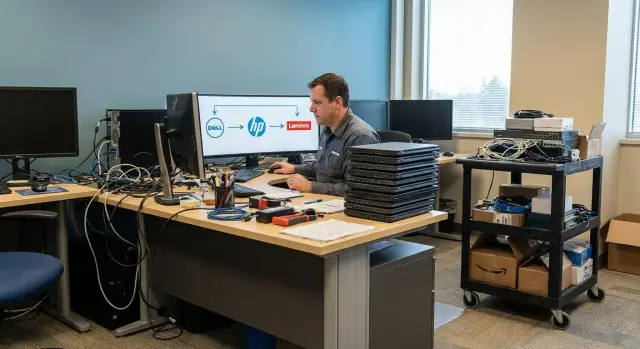
Why standardize updates on a large fleet
When you have more than two hundred laptops, updates stop being a "set and forget" story. One day some devices get a new driver, others stay on the old one, and someone updates the BIOS “at the user’s request.” A month later it’s hard to understand why some devices are stable while others show strange failures.
Chaos usually starts from small details: different models and manufacturing batches, different device ages, different package sources, and different admin habits. Add business travel, remote work and VPNs — and the maintenance window constantly shrinks.
Users notice fast. After a random set of updates you might see overheating and fan noise, Wi‑Fi drops, camera failures, sudden reboots, or a laptop slowing after suspend. Sometimes a driver‑firmware mismatch causes downtime that affects the business, not IT.
In plain terms, standardizing laptop updates means agreeing in advance on rules: what we update, where we get packages, how we verify them, how we roll them out, and how we record results. Not "everyone does their own thing," but one repeatable cycle.
In practice this looks like: identical models have the same BIOS and key driver versions; there’s a pilot group and clear "go to production" criteria; you can see how many devices were updated and where errors occurred; incidents decrease because updates become planned work.
Example: in a fleet of 220 laptops, spot updates cause Bluetooth to stop working on 15 machines. Without a standard you investigate each case. With a standard you quickly see the issue started after a specific driver version on one model, roll back that package and block it until it’s fixed.
What to standardize: an update map
On a 200+ fleet the usual problem isn’t the update tool but the boundaries: what you consider an update, which packages are included, and who decides "deploy" or "wait."
What belongs to vendor updates
Create a single list of what you update via vendor tools: BIOS/UEFI (and any settings those updates change), firmware (docks, controllers, storage), drivers (chipset, graphics, network, audio, Bluetooth), vendor components (power services, hotkeys, device managers), microcode and packages that affect platform security.
Don’t mix these with Windows updates. Windows Update and vendor packages solve different problems and carry different risks. If you glue everything into one "big update" you’ll lose the ability to tell what broke Wi‑Fi or sleep.
When to update and when to wait
You don’t update just because a release appeared — do it when there’s a clear reason: vulnerability mitigation, fixing a widespread failure, supporting new hardware, or a measurable stability improvement.
Critical changes usually include fixes for vulnerabilities (BIOS/UEFI, drivers, security components), fixes for mass-impact problems (blue screens, network drops, overheating, sleep issues), or changes that affect compatibility (new OS versions, corporate VPN, encryption).
Example: users report random reboots and the BIOS notes include “Fix system stability issue under modern standby.” That’s a reason to include the BIOS in the next cycle. Meanwhile, “Minor UI improvements” in a vendor utility can wait.
Roles and rules: don’t let the process rely on one person
If updates depend on a single administrator, illness or vacation becomes a risk. Start by defining roles: who decides, who executes, and who owns the outcomes.
Decision makers and executors
A simple split usually helps:
- service owner (IT or support lead) approves what to update and acceptable risk;
- implementer (engineer/admin) prepares packages, tests and runs deployments;
- security/compliance records minimum requirements for critical patches and BIOS settings;
- business coordinator approves windows and collects feedback;
- service desk handles calls on rollout day and records common issues.
This removes a single point of failure and reduces pressure on the implementer: they don’t "permit" changes alone, they execute an agreed plan.
Set update windows in advance and keep them consistent: for example, "second Wednesday of the month, 19:00–22:00" for office users and a separate window for remote staff. Tell users briefly what to expect (reboot, possible slowdown, where to report if the laptop is needed for a presentation).
Treat exceptions as part of the process, not chaos. VIP users, teams with rare software, or laptops attached to critical peripherals (scanners, medical devices) can be updated later or via a separate scenario — but only by request and with a review date.
Keep a minimal set of documents in one folder: the procedure (frequency, steps, roles, rollback rules), change log, user notification templates, and an exceptions register.
Example: in a bank some laptops work with signing tokens. Those are placed in a separate group: drivers update on schedule, BIOS only after a short pilot and approval from the process owner. More approvals up front reduce post‑incident troubleshooting.
Inventory and grouping before you start
On a large fleet, updates fail more often because of messy source data rather than complex drivers. Before the first cycle, find out what people actually have and which devices can be updated identically.
Collect inventory so each laptop shows model and hardware revision, plus current BIOS, driver and key component versions (chipset, graphics, network, audio). Note the exact platform identifier — different revisions sometimes require different packages.
A minimal helpful dataset: vendor/model/serial/revision, BIOS/UEFI version and date, OS version, critical driver versions (chipset, Wi‑Fi/LAN, graphics), location and owner (office/branch/remote).
Then split the fleet into groups. Groups aren’t for reports — they let each set have its own update tempo and risk threshold. A common combination: vendor (Dell, HP, Lenovo) → model → business criticality → location.
Don’t try to build one “perfect” version for all devices. Define baseline versions per group: target BIOS version, mandatory driver set, and what can remain untouched if the device is stable. A baseline is not the newest release but a version "proven in pilot and compatible with your OS image and apps."
Consider remote users from the start: they need a delivery channel that won’t break connections or require office visits. Often they get a separate group with narrower windows and clear rollback rules.
Keep rare models out of general rules. Put them in a small group and update them on a different plan: less automation, more checks.
Dell Command Update, HP Image Assistant and Lenovo System Update: what each gives you
If your fleet mixes Dell, HP and Lenovo, vendor utilities make maintaining quality easier. The logic should be common: same verification, installation and result recording rules, even if the tools differ.
Dell Command Update
Dell Command Update handles regular installation of drivers, BIOS and firmware on Dell client devices. Its advantage is predictability: you can schedule runs, get lists of available updates and install only chosen categories. Usually you don’t need to manually find packages per model and revision.
HP Image Assistant
HP Image Assistant is useful when you need to quickly check compliance with a baseline for HP lines. Typical use: you have a golden image and then run checks on new shipments or after repairs. The tool shows gaps and suggests a set of updates close to HP’s recommendations.
Lenovo System Update
Lenovo System Update is appreciated for simplicity: it’s user‑ and admin‑friendly and works well for planned Lenovo updates when the goal is to keep the fleet current without extra manual prep.
Document limitations up front: package formats and selection logic differ; silent install and reboot handling vary; logs and reports must be normalized; BIOS and firmware often require extra conditions (power source, BitLocker, maintenance window).
If you manage 200+ devices, include a small wrapper around vendor tools: unified launch rules, common success codes and a single report template.
A repeatable monthly process
To avoid turning updates into heroic one‑offs, split deployment into three rings and repeat the same scenario monthly. Only the packages change.
1) Deployment rings
Use three stages: test (catches obvious problems quickly), pilot (real‑world verification), and mass rollout (the whole fleet). For testing, 5–10 devices per model is often enough; pilot typically adds 10–20 more; the rest goes to mass rollout.
Pick participants to avoid schedule clashes: don’t touch accounting during month‑end, contact centers at peak times, or managers during travel. IT, office managers, some back‑office staff and volunteers that agree to participate often make good pilots.
2) Monthly cycle (fixed sequence)
Keep one routine:
- preparation: device lists per ring, maintenance window, rollback plan;
- prechecks: AC power, minimum battery (e.g. 50%), free disk space, VPN for remote users;
- installation: drivers first, then BIOS (if included), no parallel experiments;
- reboot: one mandatory reboot, BIOS updates may require a second;
- postcheck: network, audio, camera, dock, BitLocker, corporate apps.
Example: in a test group of 12 laptops one enters a reboot loop after a BIOS update. That’s a signal to stop the pilot, record the version, recover the device with standard recovery and exclude that model until the cause is found.
3) Recording results and rolling back
Record the outcome per device in a single format: what was installed (versions and date), result (success/partial/error with code), what broke (symptom and reproduction steps), how you rolled back (driver rollback, BIOS restore, etc.), and the decision (exception, postpone, fix patch).
When records are strict, the next month goes faster: fewer arguments, more predictability.
Deploying to 200+ devices without manual work
If updates are run "one laptop at a time," you’ll hit queues, human error and inconsistent results on identical models. For a large fleet the practical approach is centralized checks and installs, leaving users to reboot when required.
The most practical path is using standard device management tools (MDM/corporate management, group policies, deployment systems). If those are missing or limited, you can wrap vendor utilities in scripts that detect the vendor and run the right actions.
How it looks in practice
You build an "update bundle" and deploy it as a corporate application. Tools (if needed) are installed with unified parameters, updates run monthly during the agreed window, starting with a pilot (10–20 devices) then the main wave. Results and logs are collected centrally so you can quickly spot where and why failures occurred.
Set a reboot rule in advance. For example: "install overnight, reboot by 10:00 the next day." Otherwise BIOS and some drivers may remain only partially applied.
Laptops rarely online
They break any night schedule, so give them a separate mode: run updates at next online event (with AC power and VPN), a clear deadline for the user (e.g. 48 hours), and a small "rarely online" group updated in small batches.
Example: a company has 230 laptops, 40 with traveling staff. The main fleet updates Friday night, and the field devices catch up when they next connect to VPN — no manual calls saying "press Update."
Control and reporting: proving the process works
If updates run regularly but no one sees the results, the process falls apart. Control is not a checkbox — it helps spot risks early: which model often fails on BIOS, where a driver breaks Wi‑Fi, and how long a cycle takes.
Useful metrics
A compact, month‑to‑month comparable set is enough: percent successful installs (BIOS, drivers, utilities), cycle time (pilot to completion), number of post‑update incidents, share of devices "out of standard" (offline or not updated), and the top 2–3 problematic models/series by failure count.
Minimal executive report
Executives don’t need driver versions — they need meaning and risk. A five‑point summary is enough: what was updated (broadly), why (security/stability/compatibility), coverage and reasons for gaps, what went wrong and status, and plan for the next cycle.
To spot patterns, record the link: laptop model, current BIOS, target BIOS, install result, error code and recovery step. After 2–3 cycles you’ll see if a particular batch regularly needs manual rollback.
Store logs and confirmations centrally: cycle plan, target device lists, exported tool results and a short decision journal (why BIOS was skipped, why rollout paused). This simplifies internal audits, especially where configuration changes have strict controls.
Common mistakes that turn updates into incidents
On a 200+ fleet a small mistake becomes widespread quickly. Problems usually stem not from Dell Command Update, HP Image Assistant or Lenovo System Update, but from the surrounding process.
What typically breaks the cycle
Top mistakes: updating the entire fleet at once without a test ring; mixing BIOS and drivers in random order; ignoring power and environment (docks, monitors, USB devices); lacking a rollback plan and a spare device for key users; failing to inform users about reboots and rules during installation.
How it looks in practice
Example: an educational center updated BIOS on all Lenovo devices one evening and in the morning many laptops no longer detected docks in classrooms. The problem was often not the BIOS alone but the need for a USB‑C/Thunderbolt driver update and a full power cycle, not a quick reboot.
To reduce such stories, follow a few rules: test first, then expand in waves; fixed order for BIOS and drivers; validate dock/external monitor scenarios before mass rollout; have rollback steps and an on‑call contact; and send a short user message with timing and support contact.
Short pre‑cycle checklist
Before starting, consistent rules matter most.
Verify the fleet is split into clear groups (e.g. specific models) and each group has baseline versions documented: BIOS, main drivers (chipset, network, graphics) and vendor utilities if needed. The baseline is "proven and approved," not "newest."
Ensure a test group: 5–10% of devices per model, including typical users and 1–2 laptops with unusual conditions (lots of peripherals, dock, VPN, heavy apps). Keep success criteria simple: boots, network/VPN work, audio and camera function, encryption doesn’t ask for keys, and no critical errors.
Before mass rollout check basic conditions: AC power and minimum battery, free disk space, encryption behavior (do you need to suspend BitLocker for BIOS?), and reboot policy (when, how many attempts, what to do with "postponers").
Prepare short user templates in advance: what’s being updated, duration, when not to turn off the laptop, and where to report problems. Also prepare a real rollback plan: who’s on duty during the window, escalation contacts and recovery steps.
A realistic scenario for 200+ devices and next steps
A company with branches in multiple cities: 220 laptops, a third used remotely. The fleet is mixed (Dell, HP, Lenovo) and acquired over several years. The IT team is small, so manual updates quickly become a backlog and nighttime visits.
You can fit one cycle in 4 weeks if rules are agreed up front and you avoid trying to install everything at once. Week 1: testing — several baseline models per brand and checks for typical scenarios (VPN, printers, video calls, corporate apps). Week 2: pilot — 15–20% of users including remote ones to catch connectivity issues. Weeks 3–4: mass rollout in waves by department and branch.
Failures are inevitable but should be manageable. A stuck installation is handled by a scheduled reboot and retry in the next window, not during business hours. A bad driver is fixed by rollback and temporarily excluding the package from the mass wave. If a BIOS causes instability, reset BIOS to defaults and verify the package matches that hardware revision.
The next step is to make update standardization a habit: approve the procedure (windows, stop criteria, who decides rollbacks), lock baseline sets per model and avoid changes mid‑wave, configure report collection, design remote user handling (power, reboots, simple instructions), and assign a process owner and backup.
If you lack resources to set up management, schedules and reporting, consider outsourcing to an integrator. For example, GSE.kz as a vendor and system integrator can help build a supported process for corporate infrastructure and provide 24/7 national support.
Frequently asked questions
Why standardize updates at all if laptops already update?
On a large fleet, "spot" updates quickly turn into a mix of BIOS and driver versions, and later it becomes hard to trace where failures come from. A standard gives you a repeatable cycle: you know what was installed, who received it, where an error occurred and how to roll it back quickly.
What exactly should be included in a laptop update standard?
A standard typically includes BIOS/UEFI, firmware (including docks and controllers), key drivers (chipset, graphics, network, audio, Bluetooth) and vendor-specific components that affect power and input devices. It’s important to decide in advance which categories are mandatory and which can be left alone if a device is stable.
Why not mix Windows updates and vendor drivers/BIOS into one process?
Keep them separate: Windows Update follows its own logic, while vendor packages have different risks and causes of failure. If you merge everything into one “big update”, it becomes hard to identify what broke Wi‑Fi, sleep or the camera, and rollback takes longer.
When should an update be applied immediately, and when is it better to wait?
Update when there is a clear reason: fixing a vulnerability, resolving a widespread failure, noticeable stability improvements, or compatibility requirements with new OS/software. If release notes don’t mention important fixes and the risk of downtime is high, wait for a version that has been proven on other devices.
What roles are needed so updates don’t depend on one administrator?
At minimum, define: who approves the update scope and acceptable risk, who prepares and runs installations, who monitors security requirements, who coordinates windows with the business, and who handles support on rollout day. That way the process doesn’t rely on a single person and responsibilities are clear.
How to begin inventory and grouping the fleet before the first cycle?
Start by collecting accurate inventories: exact model and hardware revision, current BIOS and key driver versions, OS version, location and device owner. Then group the fleet by vendor and model, add business criticality and treat remote users separately — they often need a distinct delivery and reboot scenario.
How do Dell Command Update, HP Image Assistant and Lenovo System Update differ in practice?
Dell Command Update is handy for scheduled installation of drivers, BIOS and firmware on Dell clients. HP Image Assistant is often used to check compliance with a golden image and quickly bring HP devices to the recommended state. Lenovo System Update is valued for simplicity and repeatability when maintaining Lenovo devices.
What rollout process works best for 200+ devices?
A proven approach is three rings: test, pilot and mass rollout, with the same sequence every month. First validate updates on a small test group, then run a pilot in real work scenarios, and only after that deploy to the entire fleet, recording versions and results for each device.
How to handle reboots and updates for remote employees?
Set a simple rule in advance: installation during an agreed window and a required reboot by a certain time, otherwise changes may remain incomplete. For rarely-online users, provide a catch-up mode that runs at next connection with clear deadlines and conditions like AC power and active VPN.
What mistakes most often turn updates into a mass incident?
Typical mistakes include updating everyone at once without a test ring, mixing BIOS and drivers in different orders, ignoring power and encryption, and lacking a rollback plan. Keep stop criteria simple: if the test shows reboot loops, pause the mass wave, record the version and issue an exception until root cause is found.
