8 min read
Standardizing Ports and Adapters for Procurement: A Checklist
Standardizing ports and adapters for procurement: how to choose USB‑C, HDMI and DP, calculate adapters and docking stations so employees can connect on day one.
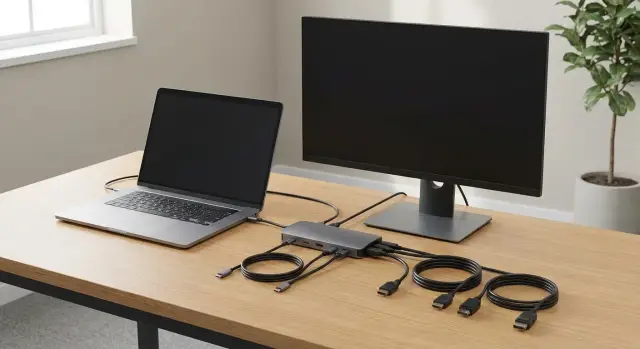
The problem: ports differ, but people need to work immediately
When you buy equipment in bulk it often arrives “as it happened”: some laptops with HDMI, some without; some have USB-C with video, others have USB-C for charging only; and office and meeting-room displays follow their own logic. As a result, on day one people get stuck not on settings but on hardware: cable doesn't fit, no adapter, docking station “won't talk”.
Usually the root cause is the same: ports and adapters weren't standardized before procurement. The devices themselves may be fine, but no one agreed on how they should connect to monitors, projectors, panels and chargers.
A mix of different ports in one batch multiplies exceptions. Today someone moves desks and needs a different cable. Tomorrow a team with different laptops arrives in a meeting room and the presentation becomes “pass the adapter”. The more connector types and special models you have, the higher the chance of downtime and friction: IT doesn't have time to run around floors, and users don't have patience to wait.
This hits visible scenarios hardest: presentations (wrong connector, signal drops when switching), video calls (peripherals connect but external display shows nothing), workstations with a second monitor (screen exists but only via a rare adapter), off-sites (partner's meeting room only has HDMI while an employee suddenly has no way to connect).
Office staff who need a reliable second screen daily and meeting rooms where fast plug-in matters suffer most. Field teams suffer differently: they constantly face others' standards (usually HDMI), and any nonstandard laptop model immediately becomes a problem.
A simple example: procurement bought two laptop series. One has USB-C with video, the other doesn't but has HDMI. A USB-C cable to the panel sits in the meeting room and half the staff can't connect without a dock or adapter. No one is to blame, but everyone loses time. Port diversity is not trivial—it's a hidden procurement cost.
What exactly to standardize and for whom
A port standard isn't about which connector looks nicer. It's about ensuring an employee can connect a screen or join a meeting on day one without hunting for an adapter or calling IT.
Start with an inventory of equipment actually present in the company: desktops and laptops, monitors (including ultrawide and those with USB hubs), meeting-room devices (projector, TV panel, interactive board), docking stations and chargers, and peripherals like webcams and headsets. Consider not only what you buy now, but what's already in meeting rooms and classrooms.
Then fix the “minimum required” ports for workstations and for connected devices. Check not only USB-C, HDMI and DisplayPort, but also what often breaks workflows: USB-A (flash drives, tokens), 3.5 mm audio (if headsets are still wired), and USB-C charging support (for laptops and docks).
Scenarios the standard should cover
Define scenarios in advance and tie them to employee roles. Usually four basic ones suffice:
- single monitor at a workstation without a dock
- dual monitors (common for finance, analysts, operators)
- meeting room: “connect in 10 seconds” to a panel or projector
- remote work: connect at home to a monitor and charge with one cable
If you know some teams need a second monitor, immediately check whether the laptop + dock + monitors combo can handle the required resolution and refresh rate. Decide separately which connector will be the “universal” one for meetings: often HDMI on the room side and USB-C on the laptop side (direct or via a dock).
Who owns the standard
The standard needs an owner, otherwise it will erode. A common scheme: IT defines technical requirements and tests compatibility; procurement includes those in specs and contracts; facilities manage meeting rooms and cables; security checks rules on removable storage and allowed peripherals.
Example: you buy new PCs and monitors, but meeting-room panels only have HDMI. Then the standard must require that every employee who attends meetings has a guaranteed way to output to HDMI (via a dock or agreed adapter). If you buy from a local manufacturer and integrator like GSE.kz, it's convenient to lock this set into standard configurations so it repeats across batches.
USB-C, HDMI and DP — the essentials without theory
USB-C is often seen as a universal connector: plug it in and everything works. But USB-C is a shape; capabilities depend on what a particular laptop or mini-PC supports. One USB-C may charge, another may send video, a third may be data-only. So when standardizing ports and adapters for procurement, look at functions, not just the hole in the case.
The most common surprise: someone brings a new laptop to a meeting room with only an HDMI cable on the table while the laptop has only USB-C. No adapter — meeting starts late.
HDMI is the simplest in everyday life and presentations. It's almost always found on TVs, projectors and many meeting-room systems, so it's often chosen as the room standard: people want to connect quickly without extra devices.
DisplayPort (DP) lives more in the office environment. You'll find it in monitors, docks and video cards. DP is handy where monitors are fixed: workstations, call centers, engineering teams. If your office monitor fleet is mostly DP, building the standard around it makes sense, leaving HDMI for meeting rooms and guest connections.
Common confusions
A few pitfalls break compatibility for no good reason:
- USB-C does not guarantee video. You need support for video output (often called Alt Mode) and sometimes charging over USB-C.
- “USB-C with charging” doesn't always drive a monitor, and “USB-C with monitor” doesn't always charge the laptop.
- MiniDP and microHDMI show up on older or compact devices — they almost always need separate adapters.
- Not every USB-C cable is suitable for video: a charging-only cable may not carry video.
- Docking stations offer different ports (HDMI/DP) and support different numbers of screens — critical for dual-monitor users.
A simple rule of thumb: for workstations, the winning combo is often “laptop with USB-C (video + charging) + dock with DP/HDMI”; for meeting rooms, put HDMI on the table and a spare USB-C-to-HDMI adapter in the cabinet. Then people plug in within a minute instead of hunting for that one cable on day one.
Step-by-step plan: adopt the standard before procurement
Start with a simple rule: the standard should cover 80–90% of daily scenarios without adapters. The rest can be handled case-by-case, but the baseline should be uniform across the office.
Step 1. Describe real places, not a “typical office”
Collect a short inventory by zones: desks, meeting rooms, classrooms, kiosks, reception. Record not just “there's a monitor” but what inputs the screens have and how things are currently connected.
Minimum to record: place type (desk, meeting room, class), screen model or size and its inputs (HDMI, DP), current connection method (direct, via dock, via adapter), and whether power and Ethernet are available at the desk.
Step 2. Fix device port standards
Decide what you'll standardize as the “work unit”: laptop or desktop. If it's a laptop, determine which ports are mandatory on each device (and how many).
A practical office approach: one universal port for video and docking (often USB-C), plus a clear fallback for direct screen connection. That way the employee isn't dependent on a specific meeting room or a “lucky” cable.
Step 3. Choose the main standard for monitors: HDMI or DP
Pick one primary input for office monitors and projectors so table cabling and outlets are consistent. HDMI is simpler for meeting rooms and TVs; DisplayPort is more common in office monitors.
The main point is not to mix “however it turned out”. If half the screens are HDMI and half DP while laptops only have USB-C, adapters appear on day one.
Step 4. Decide where docks are needed
Docks don't need to be at every desk. Classify employees: “stationary” (same desk daily — docks usually justified), “mobile” (often in meeting rooms — uniform room cabling matters more), and “special roles” (lots of peripherals — dock or port extender is needed).
Idea: place docks where they save daily time, not “just in case”.
Step 5. Define the minimal kit of cables and adapters
After choosing standards, list the minimal kit for an employee and for each meeting room. This should be what truly halts work if missing.
Common logic: for an employee — cable to the primary monitor + power (if not via dock) and one backup option; for a meeting room — one main cable and one labeled spare in an obvious place.
Once agreed, this list becomes the procurement spec: what each workstation must include, what each meeting room must have, and what IT keeps in reserve.
How to count cables, adapters and docking stations
Accessories should be counted as rigorously as laptops. Rule: seats + spare + common areas. With a standard, numbers become predictable instead of “gut-feel”.
Basic formula that usually works
Make a table: how many places actually connect to a monitor and peripherals daily. Add spares and list meeting rooms, classrooms and reception separately.
Typical logic:
- workstations: 1 kit per seat (video cable + power if needed)
- spare: 5–10% for quick replacements (closer to 10% for new offices)
- common areas: 1–2 kits per connection point (meeting room, class)
- travel/field: a small separate “bag kit” for trips
Decide which adapters to allow. Good rule: exclude rare variants and chains of two adapters. Keep only the most common scenarios in reserve, e.g. USB-C -> HDMI for projectors and panels, or USB-C -> USB-A for flash drives. Rare items are better kept 1–2 on the shelf than distributed to everyone.
People often skimp on cables. For length: desks usually need 1.5–2 m, meeting rooms often 3 m. Use clearly labeled cables (type, length) and decide who keeps spares: IT, office manager or warehouse. Without an owner, cables “disappear” in a week.
Docking stations: count by scenarios, not people
If a user always has a monitor, keyboard, mouse and network on their desk, a dock is often more convenient than a bundle of adapters. But check whether the dock is single-cable to the laptop or requires separate power and partial peripheral connections. The latter causes more user errors and “something doesn't work” on day one.
Useful spare stock for the first month:
- 2–3 docking stations per 50 workstations
- 5–10 common cables (HDMI/DP/USB-C) in various lengths
- 5–10 simple adapters (USB-C -> HDMI, USB-C -> USB-A)
- 1–2 power bricks and power cables for popular models
- 1–2 “meeting room kits” in a separate box
This will solve most issues without emergency runs to shops.
Special zones: meeting rooms, classrooms, kiosks and reception
Problems with ports surface fastest in special zones: people arrive expecting plug-and-play for a meeting or class. Here standardization must be stricter than for desks.
Meeting rooms
First check what inputs are actually accessible on the panel or projector. Often only HDMI is handy while DisplayPort may be inaccessible. Choose one obvious connection method and make it permanent: one cable on the table and one spare in the cabinet.
Good discipline: attach a short robust cable, label the connector and keep a guest kit. Then even if someone only has USB-C, they won't run across the floor looking for an adapter.
Classrooms
Speed and uniformity matter. If one row is HDMI and another USB-C, the teacher will lose time. Define a standard connection point (e.g., left side of the desk) and a uniform cable length to avoid tripping hazards.
Reception and kiosks
On kiosks keep cables short and secured so they won't be pulled out. Use correct lengths, cable channels and avoid adapter chains.
For high-security areas (medical, finance) reduce external devices and wires. Fewer connectors and adapters simplify inventory, cleaning and control.
For each special zone document the main screen connection type (e.g., HDMI), cable length and routing, where the spare is kept, allowed adapters (no “adapter zoo”), a guest kit, and who is responsible for replenishing supplies.
Example: three meeting rooms each contain the same guest kit (USB-C -> HDMI, HDMI -> HDMI, short power extension) and one dedicated table cable. If you buy equipment and setup from an integrator like GSE.kz, you can include this kit in the delivery spec so rooms arrive ready.
Typical mistakes that cause runs for adapters
Chaos on day one usually comes from decisions based on models and price rather than on how people actually connect to screens and projectors. A standard starts not with an adapter spreadsheet but with verifying scenarios: desk, meeting room, home, travel.
First mistake — buying laptops with USB-C and assuming video works. In practice some USB-C ports support only charging and data while video (Alt Mode) is missing. Result: user plugs USB-C -> HDMI and no image.
Second mistake — relying on adapters instead of proper cables. Adapters get lost, break, and sometimes are finicky with specific monitors. Often it's cheaper and more reliable to place the correct cable on the desk and keep adapters as spares.
Third mistake — mixing HDMI and DisplayPort without rules. For example, monitors are DP, meeting room TVs are HDMI, and docks have a random set of outputs. Without one standard, cables constantly move between desks and rooms.
Fourth mistake — no spare stock or distribution point in the first weeks. Even with a good plan someone will bring their own monitor, move desks, or need a second screen.
Fifth mistake — forgetting dual-monitor seats and resolution. For designers or analysts it's not enough that both screens connect; both must run at required resolution and refresh rate. Otherwise complaints about blur, flicker or limiting to one monitor appear.
Before ordering, check at least:
- whether USB-C on chosen models supports video and which ports specifically
- what default input monitors use (HDMI or DP) and which will be the office standard
- how many dual-monitor seats exist and their resolution requirements
- which cables to place at desks and which to keep as spares
- where spares are stored and who issues them in the first 2–3 weeks
Simple example: if a meeting room has a TV with HDMI and you bought docks that output DP, people will hunt for converters. Better choose a meeting-room rule (e.g., HDMI required) and ensure the room has that cable. When buying from a vendor and integrator like GSE.kz, such scenarios are easier to lock into the spec before delivery so everything arrives ready.
Quick checklist before signing the order
Before final approval check not only prices and delivery but details that later create queues to IT and searches for adapters. Good standardization of ports and adapters for procurement starts with inspecting real infrastructure: monitors, projectors, table cabling and how people connect day to day.
Check compatibility “laptop – screen – cable”
Walk through typical desks and meeting rooms and answer:
- Is there the right cable in the right length (e.g., 1.5 m for desks, 3–5 m for meeting rooms), not “whatever was found”?
- Do laptops/PCs have a proper video port to connect without an adapter (or is there one mandatory adapter)?
- If docks are planned, is dock compatibility confirmed (USB-C/Thunderbolt, support for video output and power)?
- Does the meeting room have a clear diagram “where to plug”, and is the exact needed cable on the table (not a mix of three different ones)?
- Is spare stock planned: 10–15% extra cables and 2–3 spare kits per floor (cable + most common adapter)?
Make it work on day one
Even perfect ports won't help if accessories vanish or are distributed informally. Label cables (type, length, zone) and assign responsibility for issuing and returning them: typically IT stock or a floor service desk.
Acceptance test before signing: take one chosen laptop model and try connecting to two different office monitors and the meeting-room screen with the cables you plan to include by default. If a random adapter is needed, a cable is too short, or the image is unstable, fix the standard before procurement while changes are still easy.
Example: 200-person office with 3 meeting rooms
Imagine an office of 200 people. Sixty have two monitors at their desks (finance, analytics, development), the other 140 have one monitor. There are 3 meeting rooms where people constantly plug in devices.
To avoid arguing about “which port is better”, pick one main method and one fallback that will always be available in meeting rooms.
Primary setup: USB-C (video + charging) as the unified laptop connector, and DisplayPort (DP) as the main cable to office monitors. Backup: HDMI for rooms with TVs or old projectors.
Count consumables by places rather than people: equipment changes but desks and rooms stay put.
For workstations:
- 60 docking stations supporting 2 monitors (for dual-monitor users)
- 140 simple USB-C hubs or docks with one video output (if you want uniform connection)
- 260 video cables to monitors (200 main + 30% spare for moves and replacements)
- 20 spare USB-C -> HDMI kits for unexpected connections
For meeting rooms, provide a single-cable connection. Each room should have a USB-C table cable (sufficient length), a nearby spare HDMI, and one small USB-C -> HDMI adapter as insurance. Then anyone can connect in a minute.
What the employee should receive on day one (and it should be identical for all): power brick (if not integrated into the dock), a USB-C cable for dock or monitor, a short USB-C -> HDMI adapter (emergency), and a one-page 5-line guide: how to connect one monitor, how to connect two, what to do in a meeting room.
Before mass delivery run a pilot for 10 desks: 5 single-monitor, 5 dual-monitor, and check all 3 meeting rooms. Consider it successful when an employee connects without help and without searching for adapters.
Next steps: lock the standard and simplify delivery
After choosing ports and adapters, do two things: test them in real use and formalize the rules. Otherwise exceptions will creep back in.
1) Run a pilot and refine the standard
Select a small group (10–20 desks and one meeting room) and live with it for a week: monitor connections, projector use, charging, peripherals, dock behavior. Record failures: cable length, room needs a second HDMI, some monitors only DP, a webcam needs USB-A.
After the pilot, refine rather than complicate the standard: which ports are mandatory, acceptable alternatives, and which adapters are room-specific.
2) Lock the standard in procurement and IT rules
To ensure deliveries arrive ready, document the standard in two places. A practical format is a one-page table: workplace type, required ports, required cables, acceptable replacements.
Then formalize the process: approve the standard (date, owner, review interval), insert requirements into procurement specs (ports, cables, docks, lengths), describe the user process (where to request rare adapters), assign an owner for the adapter and spare fund (warehouse, reception, IT), and coordinate with meeting-room and AV equipment teams.
3) Assemble kits and simplify distribution
The fastest way to stop chaos is to deliver not “a laptop as is” but a ready kit. Prepare meeting-room kits separately so they aren't borrowed from desks.
A minimal workstation kit typically includes a monitor cable of the right type and length, a universal adapter (e.g., USB-C to HDMI or USB-C to DP per your standard), an appropriate charger, a short spare USB-C cable and a label with who received it and what's inside.
4) Consider turnkey supply and deployment
For large purchases or many zones (offices, classrooms, kiosks), discuss kit assembly, labeling and deployment with the integrator so equipment arrives pre-kitted and with clear connection scenarios.
If you need consistent configurations and an easy support cycle, you can rely on locally produced PCs, all-in-ones and servers from GSE.kz and their integration: this helps fix the standard across deliveries and plan service and spares within one ecosystem.
Frequently asked questions
Where should we start standardizing ports so we don't get lost in details?
Document the standard before ordering: which ports are mandatory on laptops/PCs, which input is the default for office monitors, and which connector is considered universal for meeting rooms. Then test it in 1–2 real rooms and on 5–10 workstations to avoid surprises with cables and docking stations.
Why is there USB-C but no video on the monitor?
Because USB‑C is only the connector shape; capabilities differ by model and even by port on the same device. The procurement requirements should explicitly state support for video output over USB‑C (Alt Mode) and, if needed, USB‑C charging on that same port.
Which should we choose as the standard: HDMI or DisplayPort?
For meeting rooms it's usually simpler to standardize on HDMI since most panels and projectors have it and users understand it. For workstations DisplayPort often makes more sense if your office monitors mainly have DP. The key is to pick one "primary" option and stick to it so cables don't become a lottery.
How to set up meeting rooms so connection takes 10 seconds?
Keep one main cable on the table that fits most laptops, and one guaranteed backup for the room. A practical setup is a main connection cable plus a signed spare cable in a cabinet and a single agreed USB‑C → HDMI adapter for those without direct HDMI.
Does every employee need a docking station?
Not everyone needs one. Docks are justified where an employee connects monitors, power, peripherals and network daily and wants one-cable connection. For mobile workers it's often better to standardize meeting room cables and give a single emergency adapter rather than place a dock at every desk.
How to correctly calculate cables and adapters for the office?
Count from workstations and connection points, not from an approximate headcount: one basic kit per seat plus spare units for quick replacements. Usually a 5–10% spare for common cables and adapters is enough, and meeting rooms should have dedicated kits that don't migrate to desks.
What to check in the procurement spec besides the list of ports?
Ask the supplier to show which physical ports exist and what each USB‑C supports (video, charging, data). Also verify that chosen docking stations can actually drive the required number of monitors at needed resolutions and refresh rates on your typical office monitors.
What mistakes most often lead to people running around for adapters?
The most common issues: assuming any USB‑C supports video; relying on adapters instead of the right cables; mixing HDMI and DP without rules; failing to provide spares and a distribution point in the first weeks; not testing two-monitor setups for resolution and dock compatibility.
How to quickly understand if the standard will actually work on day one?
Before signing the order, test one chosen laptop with two different office monitors and with a meeting room screen using the cables you plan to include by default. If a random adapter is needed, a cable is too short, or the image is unstable, fix the standard before purchase rather than after.
Can we enforce a single standard in deliveries when buying from GSE.kz?
Yes — if you lock the standard in typical configurations and require consistent equipment across batches. With a manufacturer and integrator like GSE.kz you can include required ports, docks and cables for workstations, meeting rooms and counters so equipment arrives ready for your connection scenarios.
