8 min read
SSO for CRM/ERP: AD/LDAP, Role MFA and Pilot Checklist
SSO in CRM/ERP: how to choose between AD/LDAP options, where to enable MFA for critical roles, and what to test during a pilot.
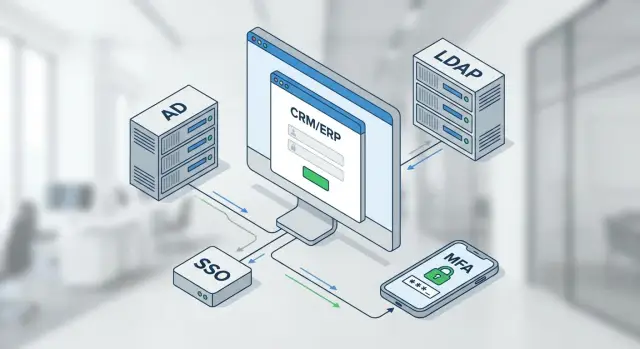
Why you need SSO specifically for CRM and ERP
SSO in CRM and ERP is implemented not for a nicer login screen but to eliminate daily time losses and reduce the risk of mistakes. When an employee has separate passwords for CRM, ERP, portal, email and remote access, confusion is inevitable: they forget passwords, write them down, or request resets. As a result, downtime and support requests increase.
In business systems the stakes are higher than in typical services. CRM and ERP store personal data, finances, commercial terms, procurement and HR information. One erroneous account or an "extra" role can enable critical operations: exporting the customer base, changing prices, making payment orders, or posting documents.
SSO usually fails not at the point of "login succeeded" but at "the right person logged in with the right rights." Enabling login via a directory is relatively simple. The harder part is agreeing how CRM/ERP roles map to AD/LDAP groups, how to handle temporary access, and how to quickly revoke rights during transfers or dismissals.
Almost always at the start the environment is heterogeneous: AD (sometimes multiple domains), a legacy LDAP in one application, local accounts in an older CRM/ERP, contractors and branches. If this isn’t documented in advance, exceptions surface during the pilot and single sign-on turns into a set of manual workarounds.
Before work begins, agree with security and process owners on basic rules: which roles and operations are critical, who owns the role matrix and approves issuance and revocation, which directory groups are the “source of truth” and how often they are refreshed, and how to handle external users, service accounts and integrations.
A simple example: accounting should sign into ERP without extra steps, but payment operations and changing bank details require stronger checks. If this isn’t fixed early, the pilot will show “everything works,” and after launch conflicts will arise between convenience and security.
Minimal concepts: IdP, directory, roles and sessions
From the outside SSO looks simple: you sign in once to your corporate account and then open needed systems without separate passwords. But before the pilot it’s important to agree on terms and rules.
IdP (Identity Provider) is the party that verifies identity and decides whether to allow access. Common examples are AD FS, Azure AD, Keycloak and similar services. SP (Service Provider) is the CRM or ERP itself (or its gateway), which trusts the IdP and accepts sign-ins based on its assertions.
User directory is where accounts and basic attributes (login, full name, department) are stored—most often AD or LDAP. HR systems frequently become the source of truth for position, department and employee status. Decide in advance which fields come from where and who is responsible for their accuracy.
Permissions are rarely assigned directly to people. Groups, roles and attributes—passed from the IdP to CRM/ERP—are used, and the system turns them into access. Examples of mappings:
- group "Sales" → sales manager role
- attribute "department=Finance" → access to financial reports
- group "Admins" → privileged rights and mandatory MFA
A session and a token are what the user receives after sign-in, and they have a lifetime. If it’s too short, users are frequently kicked out and may begin to bypass rules. If it’s too long, risks rise for stolen devices or exposed workstations. In the pilot, check how fast re-authentication occurs, when MFA is requested, and what happens on password change or account lockout.
SSO architecture options with AD and LDAP
SSO in CRM/ERP is usually built around what the company already has: a Windows domain (AD), LDAP directory, cloud accounts, or a mix. It’s important not only to “enable login” but also to understand where the account lives, who issues tokens, and how to disable access in one action.
1) Via AD FS or another on-prem IdP
This approach fits when CRM/ERP are deployed inside the perimeter, data location rules are strict, and users mainly work from the office or through a corporate VPN. The advantage is that policies and accounts remain in AD and SSO can be implemented without outsourcing authentication. The practical downside is that support and high availability are fully your team’s responsibility.
2) Via a cloud IdP (hybrid)
This is suitable when there are many remote users, branches and mobile access, and multiple SaaS services alongside CRM/ERP. The cloud IdP becomes the central sign-on point while AD/LDAP is synchronized or used as the account source. This often reduces VPN dependence and simplifies connecting external apps, but requires a clear scheme: where users are created and what is authoritative for passwords.
3) Direct CRM/ERP integration with LDAP
Sometimes the system can validate login and password directly against LDAP. This is quicker initially but usually offers weaker support for modern policies (conditional access, flexible MFA scenarios, unified sessions), and federation with external accounts is harder to organize.
If there are multiple domains, trust between forests, or contractors shouldn’t be added to the main directory, decide in advance how to grant and revoke access for external users. Otherwise, “permanent” accounts may remain after work ends.
Protocols: SAML, OIDC and Kerberos — how to choose
SAML 2.0, OpenID Connect (OIDC) and Kerberos (Windows Integrated) are commonly used for SSO in CRM/ERP. The choice depends not on trends but on what clients the system has (browser, mobile app, thick client) and on infrastructure constraints.
When each protocol fits
SAML 2.0 is common in corporate CRM/ERP, internal portals and classic web apps. It covers browser sign-in scenarios well and is familiar to many IdPs.
OIDC is typically more convenient for modern web interfaces, mobile clients and APIs. It’s simpler where the application actively works with tokens and you need a single approach for different client types.
Kerberos works well when users use domain-joined Windows devices and access internal systems from the corporate network. But it often fails with remote work, mixed OS environments, access through external proxies, and mobile scenarios.
If you need a quick direction: SAML often fits “web-only”, OIDC fits mobile and API scenarios, and Kerberos fits internal domain/office environments.
How to quickly find what your CRM/ERP supports
Ask the vendor or check the admin panel sections like Authentication, Single Sign-On or Identity Provider. Look for specific terms: SAML 2.0, OpenID Connect, Kerberos/Integrated Windows Authentication, and the ability to map claims/attributes.
Clarify which attributes must be passed so roles and rights can be assigned: unique login (UPN or email), name for the profile, groups or roles (group/role claims), and department or branch if access depends on structure.
A practical example: an accountant signs into ERP via browser—SAML passing the "Finance" group is usually sufficient. A manager approving payments from a phone often needs OIDC plus MFA so mobile sign-in remains unified but better protected.
MFA for critical roles: where to enable it and how to avoid disrupting work
Using the same password across systems usually leads to access spreading further than intended. Apply a second factor not “for everyone” but for roles where risk and cost of errors are higher.
Critical roles often include CRM/ERP and integration administrators, payroll and accounting, procurement and contracting, financial approvers and users with access to personal data.
Where to enable MFA
A simple rule: enable MFA at the IdP. Then the policy applies equally across CRM, ERP and other apps, and you don’t need to maintain separate settings in each product.
Application-level MFA makes sense when protecting a specific action rather than the sign-in—for example, asking for a second factor when exporting the customer database or creating a payment even if the session is active.
If you have SSO, verify that the IdP can send an indicator to the application that MFA was performed. This helps separate ordinary sign-ins from privileged operations.
How not to break processes
Make MFA adaptive: request the second factor based on risk signals. Typical triggers are sign-in from a new device, a different country or network, role elevation, or an attempt to perform a financial action.
Plan a fallback if a phone is unavailable. For a pilot, a combination usually suffices: hardware tokens or USB keys for some staff, backup codes with clear storage procedure, and temporary access via support under strict rules. For service accounts and integrations use a different approach: no interactive MFA, but certificates, IP restrictions, least privilege and log control.
Example: the CFO and accountant always use MFA, while salespeople are prompted only when signing in outside the office. Data exchange between ERP and the warehouse runs through a service account with limited rights and technical keys so nightly jobs aren’t halted by a code prompt.
Access policies: security without unnecessary bans
Even a perfectly configured SSO won’t help if access policies are vague. A good policy is like office security rules: most people should get in quickly, while dangerous areas open only to those who truly need them.
Start with rules that the business understands and support can explain. At minimum agree on five blocks: unified password and lockout requirements, device and geographic rules (and where extra checks apply), session lifetimes (shorter for admins and finance, longer for regular users), default least privilege and a transparent exception process (with an owner and expiry).
Plan for dismissals and transfers. Access should be closed immediately in the directory (AD/LDAP) and quickly reflected in applications: disable accounts, revoke tokens, and terminate active sessions. When transferring an employee, remove old roles as well as add new ones to prevent unnoticed privilege accumulation.
Logs and audit are daily tools, not “just in case.” You should see who logged in, from where, which method (SSO, MFA), what roles were assigned, who changed groups and policies, and why access was denied. Assign an owner for reports: who reviews them, how often, and what constitutes an incident. For system integrators like GSE.kz such requirements are usually fixed in support regulations: without a responsible party audit becomes a formality.
SSO pilot: a step-by-step rollout plan
A pilot verifies real sign-in behavior in CRM/ERP: who lands where, how sessions behave, and what happens if something breaks. The narrower the scope, the faster you get honest answers.
Choose 1–2 processes with frequent sign-ins and immediately visible errors—e.g., handling CRM leads and approving invoices in ERP. For the pilot pick a small group: one department, several managers, 1–2 leaders and a couple of support staff.
Then document the basics: which directory (AD or LDAP), who will be the IdP, which protocol suits CRM/ERP (often SAML or OpenID Connect), and which attributes should be sent. Usually login, email, full name and a group list are enough. The most important decision is how directory groups map to CRM/ERP roles; otherwise permissions will drift and people will search in the wrong place for issues.
Before launching the pilot, prepare a test environment and a rollback plan. Rollback should be simple: temporarily restore local accounts or the old sign-in method without manually editing hundreds of users.
Enable MFA for critical roles during the pilot but carefully: agree which roles require it (admins, financial approvers) and which exceptions are allowed (on-call shift, service accounts). Verify that MFA doesn’t break integrations or fieldwork.
To keep the pilot actionable, plan checks in advance: a short user briefing and one channel for questions, collect feedback on common problems (sign-in, permissions, sessions), record metrics (successful sign-in rate, sign-in time, number of support tickets), and then decide on scaling.
A simple example: if a manager signs into ERP via SSO but can’t see approvals, the cause is usually a wrong group or attribute, not SSO mechanics. Pilots find such issues quickly with limited business impact.
What to test in the pilot absolutely
A pilot catches small failures that later become a flood of tickets. Agree beforehand what qualifies as a successful sign-in: how many seconds until users reach the system, whether extra password prompts appear, and whether transitions between CRM/ERP and IdP break the flow.
Sign-in and permissions
Test the entire sign-in path on different devices and networks (office, VPN, remote). After login a user should land in the expected area, not on an empty start page.
Test permission assignment separately. Pilots often reveal that a role is assigned by a single group, but in reality the user needs a combination of groups or attributes (department, position). Ask the business to describe 5–7 typical profiles: sales rep, accountant, manager, support, administrator.
MFA and resilience
MFA for critical roles must trigger according to rules and not interfere with others. Test not only the ideal sign-in but also recovery: phone change, lost device, vacation without connectivity.
Minimum manual checks to run:
- primary and repeated sign-in (no unexpected second password prompt)
- role assignment (access matches the role matrix)
- MFA triggering (only for required roles and conditions)
- integrations (APIs, background jobs, service accounts)
- audit (visible who, when and how logged in and why access was denied)
Then simulate failures so you don’t learn about them on the first Monday after launch: IdP outage for 10–15 minutes, loss of connection between app and directory, session expiration mid-critical operation.
If event logs are clear and complete, incidents are investigated in hours, not days: you can see whether the break occurred in the IdP, the application, or the access rules.
Short checklist before launch
Before enabling SSO in CRM/ERP make sure people, rules and consequences are clear. Otherwise the first failure will turn into an ownership dispute and users simply won’t be able to sign in.
One to two days before enablement check:
- accounts live in one understandable place (AD or LDAP) and a directory owner is assigned
- critical roles are predefined, MFA is enabled for them and a backup procedure is clear
- there is a simple mapping scheme between directory groups and CRM/ERP roles and a clear change process
- sign-in and error logs are enabled and accessible, and an incident owner is assigned
- support has a short "user can’t sign in" guide, response templates and a rollback plan
Also test non-human access: service accounts, integrations, mail exchange, reporting and APIs. A common scenario: SSO is enabled and a background export fails because it lacked an agreed authentication method.
Typical mistakes and pitfalls
The most common mistake is trying to enable SSO in CRM/ERP plus many other systems at once. Teams begin changing groups and policies in different places, and when something breaks it’s unclear whether the cause is the directory, the IdP or CRM.
Another trap is collapsing roles into a single AD/LDAP group and then manually tweaking rights in the app. That seems fast at first but becomes chaos: new hires get excess rights, old ones keep theirs, and audits become guesswork.
MFA mistakes cut both ways. If you enable MFA for everyone without exceptions, reality will bite: night shifts, warehouses, doctors, field engineers and temporary network outages. Without a backup method (codes, alternate method, recovery process) any phone incident becomes a department outage.
A quiet problem is external users and contractors. Their accounts often live separately, teams change, but CRM/ERP access remains. You need clear rules: who creates accounts, who approves them, and when they’re disabled.
Five things often forgotten in pilots:
- token and session behavior on idle, browser close and password change
- what happens when a user is blocked in AD/LDAP: does access disappear immediately or does the session persist
- service account ownership: password rotation, owner assigned, interactive login disabled
- separation of groups by role (accounting, sales, admins) without mixing
- separate MFA rules for critical roles rather than a one-size-fits-all approach
Example: in a pilot the CFO had MFA enabled while an integration account was left with an old fallback password. As a result the CFO sometimes couldn’t log in without a phone while anyone who found the password could use the integration. Catch such imbalances early while user counts are small.
Example scenario: how it looks in a real company
Imagine a company with three branches. In the head office employees use a Windows domain (AD), while in two regional branches some workstations are off-domain: laptops on the road, contractors, and shared training-room PCs.
Systems: CRM runs in a browser, ERP is a thick client, and there’s a separate approvals portal (purchase requests, invoices, HR documents).
For web systems they choose one scenario: CRM and the portal move to SAML via a single IdP that works with AD and, when needed, LDAP for off-domain users. The user opens CRM, signs in once, and then reaches the approvals portal without a second password.
ERP clients often need a different approach. For domain PCs Windows login (Kerberos/Integrated Authentication) is convenient so users don’t see extra login prompts. For off-domain devices pilots usually keep a second option: a separate ERP login or IdP-based sign-in if the client supports it.
MFA is enabled selectively: for CRM/ERP admins and extended support, for financial approvals in the portal, and for sign-ins from external networks or unfamiliar devices.
Pilot results are usually visible quickly: fewer password resets, faster onboarding, and simpler access revocation on dismissal. You almost always tune details: role mapping (AD groups → CRM roles), session lifetime (so users aren’t kicked mid-approval), and exceptions for branch workstations with poor connectivity.
Next steps after the pilot
After the pilot the key question isn’t “does it work” but “are we ready to scale and under what conditions.” Record conclusions in writing; otherwise the same issues will resurface at scale.
Collect outcome data, not impressions: number of support tickets, sign-in failures, recovery time, roles that most often caused problems, and processes that depended on sessions. Note required fixes: what must be completed before launch and what can wait for a later release.
Next prepare a rollout plan. It’s easier to expand in waves: critical groups and one branch first, then the rest. Predefine owners for access groups and the approval process for changes.
Practical post-pilot steps:
- confirm scope: which systems and roles go in wave one and which stay on the old sign-in temporarily
- formalize processes: issuance and revocation, dismissals, temporary access and incident analysis
- set up support: routing requests, "incident vs request" criteria, and on-call schedules
- plan infrastructure: IdP high availability, redundancy, backups, monitoring and recovery tests
- prepare communications: short user guides and separate admin instructions
If the pilot shows authentication has become critical, don’t postpone infrastructure questions. IdP, proxies and log storage often require dedicated servers and a clear redundancy scheme. In such projects a systems integrator helps, and when local delivery and regional support matter it’s logical to rely on local hardware vendors and service providers like GSE.kz.
Frequently asked questions
Why implement SSO specifically for CRM and ERP if password login already works?
SSO in CRM and ERP reduces time lost to passwords and lowers the number of account and permission errors. In these systems the cost of a mistake is higher: one extra role can grant access to payments, customer data or HR information, so single sign-on should be built together with a clear access model.
What should be the primary source: AD/LDAP, the IdP, or the HR system?
Usually the account directory (AD or LDAP) becomes the “source of truth” for accounts, while the IdP handles identity verification and issues tokens for sign-on. The HR system often remains the authoritative source for position and employee status, but it’s important to agree in advance which fields come from where and who is responsible for keeping them up to date.
How to correctly map AD/LDAP groups to roles in CRM/ERP?
It’s better to grant access via groups and attributes in the directory, and configure CRM/ERP to map “group or attribute → role”. This makes bulk access management simpler, speeds up revocation on transfers or dismissals, and makes audits easier than assigning rights manually to individual accounts inside the application.
Which to choose for SSO: SAML or OpenID Connect (OIDC)?
SAML is often chosen for classic web interfaces where sign-on goes through a browser and attributes/groups need to be passed. OIDC is usually more convenient for mobile clients and APIs because it’s designed for token-based modern apps. In practice the choice is often determined by what your CRM/ERP and chosen IdP actually support.
When is Kerberos appropriate for CRM/ERP, and when is it better to avoid it?
Kerberos is convenient for domain-joined Windows devices in an office network: users can access internal systems without extra login prompts. But it frequently causes issues with remote work, proxies, mixed environments and mobile devices. If you have a lot of remote users and branches, it’s usually easier to rely on SAML/OIDC via an IdP and keep Kerberos for purely internal scenarios.
Where is it better to enable MFA: in the IdP or inside CRM/ERP?
MFA is more logical to enable on the IdP side because the policy then applies uniformly to CRM, ERP and other apps. MFA inside the application makes sense when you need to protect a specific action rather than the sign-in itself—for example, re-prompting for a second factor when exporting the customer database or creating a payment, even if the session is already active. Also verify that the IdP can pass a flag to the application indicating that MFA was performed.
How to enable MFA without stopping accounting, warehouse or night shifts?
Start with critical roles and high-risk scenarios instead of enabling MFA for everyone: admins, finance, access to personal data, sign-ins from external networks or new devices. Always plan a backup procedure for when a phone is unavailable, otherwise any device incident becomes a department outage. For service accounts and integrations, use a separate approach—no interactive MFA, but limited rights, certificates, IP restrictions and logging.
How to start an SSO pilot for CRM/ERP and avoid failing it?
Choose 1–2 clear processes and a small user group for the pilot so you can quickly see real failures in sign-in, permissions and sessions. Before starting, document which attributes and groups will be sent and how they map to roles, and prepare a rollback plan so you can return to the old sign-in method without mass manual fixes. The pilot’s value is that it exposes exceptions before rolling out company-wide.
What must be checked in a pilot besides "was sign-in successful"?
Test sign-in across networks and devices, verify correct roles for typical profiles, and check session behavior on idle, browser close and password change. Also run scenarios for account lockout and fast revocation so access doesn’t persist on an active session. Be sure to test integrations and background jobs—these often fail first when SSO is enabled.
What mistakes are most often made when implementing SSO in CRM/ERP?
Common mistakes include trying to enable SSO for many systems at once while simultaneously changing groups and roles without a single access matrix. Another frequent issue is “eternal” contractor access when no one defined who approves issuance and when to disable accounts. To avoid turning incident investigation into guesswork, enable auditing and assign a process owner; in high-criticality projects this is usually formalized in support regulations and can be implemented with a systems integrator.
