6 min read
SSD and RAM Upgrade: When It’s Better to Upgrade Your PC
Upgrading SSD and RAM can speed up your PC and postpone buying a new one. We explain when an upgrade is more cost‑effective than replacement and how to choose common kits.
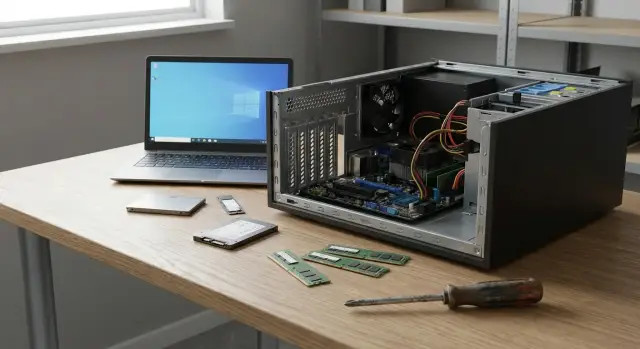
Why upgrade: what problems SSD and RAM actually fix
If your computer has started to “think” longer than usual, it’s not always a reason to buy a new one. Most often the bottlenecks are two: a slow drive and insufficient RAM. Upgrading the SSD and RAM usually gives the most noticeable effect for a reasonable cost.
A slow drive shows itself in simple tasks: Windows boots slowly, apps open with a pause, file copies drag on, and updates can make everything freeze. This is especially noticeable on an old HDD: it physically can’t keep up with dozens of small operations the system constantly performs.
RAM shortage feels different. The PC starts fine, but open a browser with several tabs, mail and a couple of documents and you get stutters. At that point the system swaps data to disk (pagefile), and even a fast CPU won’t save you.
An upgrade usually helps if you see signs like: slow system and app startup, freezes when switching windows, the disk is constantly noisy and busy, or the browser and office apps start to lag under several consecutive tasks.
Why is the effect so noticeable in everyday use? An SSD speeds up boot, search, updates and working with documents because it reads and writes data many times faster. Extra RAM lets the system keep more tasks open without swapping to disk — this is particularly important for browsers, accounting apps like 1С, and video calls.
An upgrade won’t fix everything. It won’t solve overheating due to dust, won’t make a weak CPU fast for heavy calculations, and won’t turn an old GPU into a gaming card. If a laptop shuts down from temperature or the fan is loud, service comes first.
This kind of upgrade is ideal for office, study, accounting and basic home work. An old office PC with 4 GB of RAM and an HDD often feels “like new” after adding an SSD and increasing memory to 8–16 GB for mail, 1С, Excel and the browser — even without replacing the CPU.
How to tell if the bottleneck is the drive or the RAM
“PC got slow” usually boils down to the storage or RAM. If you can tell them apart, your upgrade will hit the right target.
If the issue is the disk, the computer “thinks” during simple actions: Windows boots slowly, Explorer stutters moving between folders, copying or opening large files can hang the system for a few seconds. A typical sign is the cursor moves but the window shows “Not responding”.
If you lack RAM, slowdowns are tied to multitasking. With browser, mail, messenger and a few docs open things are tolerable, but add a video call or a few more tabs and you get stutters. Closing some tabs often immediately helps — that’s a clear signal you’re hitting the memory limit.
A quick check takes a minute in Windows Task Manager on the Performance tab:
- if Disk is often at 90–100% during normal tasks while Memory isn’t full, the bottleneck is usually the drive;
- if Memory is regularly around 80–95% and rises when you open tabs, you need more RAM;
- if Commit (total memory usage) grows during slowdowns and the disk is active at the same time, the system is writing to the pagefile and that causes the stalls.
“System cleaning” can give a short boost because it removes autorun items and junk. But if the disk is old (especially HDD) or RAM is objectively low, cleaning won’t remove physical limits: the PC will still wait for reads from disk or swap to the pagefile.
When upgrading is more cost‑effective than replacing: simple rules
Upgrading SSD and RAM makes sense when the PC otherwise meets your needs: it doesn’t overheat, doesn’t shut down by itself, runs your apps, but has become slow at boot, opening files and working with the browser. In that case modernization often buys 2–3 more years of normal use without a new purchase.
If the goal is to speed up everyday tasks rather than “raise the class” of the PC, upgrades almost always pay off. Replacing an HDD with an SSD makes the system more responsive, and adding RAM reduces freezes during multitasking.
To decide, honestly answer a few questions: does the PC handle your tasks but frustrate you with waiting times? Are you actually limited by CPU or GPU (for example in heavy graphics software)? Can you install an SSD and add RAM given the available slots and memory generation? Are you ready to spend time migrating data and configuring the system, and is the upgrade budget noticeably less than a new PC?
Consider replacement when the CPU is too old for your tasks, the platform limits RAM to a small amount, there are no modern interfaces (USB 3.0, proper ports, NVMe support), the system is unstable due to overheating or errors, or OS/security updates become a problem. In such cases an upgrade may turn into a temporary patch.
Compare total costs: add installation, backups, license transfer and downtime to the price of SSD and RAM. Sometimes a new PC is more expensive on the receipt but cheaper when you account for lost hours.
Organizations also care about non‑financial factors: warranty, uniform configurations, service and procurement rules. In Kazakhstan this is often handled through local manufacturers and integrators like GSE.kz when local support and transparent supply are important.
How to choose an SSD: interface, capacity and compatibility
There are two main SSD connection types: 2.5" SATA (same shape as an old HDD but faster) and M.2 NVMe (a board in a motherboard slot). For office tasks SATA already gives a big boost after replacing an HDD; NVMe is more noticeable when copying large files, working with databases or heavy projects.
First check compatibility. The easiest way is to look up your PC or motherboard specs. If there’s an M.2 slot, clarify whether it supports only M.2 SATA or NVMe (PCIe). Drive length (e.g. 2280) is also important.
A simple guideline: for an old PC without M.2 choose a 2.5" SATA SSD; if M.2 supports NVMe, choose NVMe but don’t overpay for top speeds if your tasks are ordinary. Also check for M.2 mounting hardware and space for a 2.5" drive.
Choose capacity based on habits rather than “bigger is always better.” 500 GB usually fits Windows, apps and documents. 1 TB is sensible if you store many photos, mailboxes and projects. 2 TB is justified if you constantly keep large archives, video or big 1С databases and don’t want to clean the disk.
Look at endurance (TBW), warranty and cooling. A fast NVMe in a tight case can overheat and throttle, especially without a heatsink.
It often makes sense to keep the old HDD as a secondary disk for archives and rare files. That gives a fast system response without extra cost.
How to choose RAM: capacity, generation and configuration
RAM is chosen not only by capacity. If you pick the wrong generation the upgrade won’t fit: DDR3, DDR4 and DDR5 have different keys and motherboard requirements, so DDR4 won’t fit into a DDR3 slot and vice versa.
How many GB do you actually need
Simple guidelines:
- 8 GB — office, study, mail, basic apps and a moderate number of tabs;
- 16 GB — comfortable multitasking, many tabs, light photo editing;
- 32 GB — plenty for heavy spreadsheets, editing and resource‑hungry projects.
If you upgrade both SSD and RAM at once, moving to 16 GB usually removes most pauses when switching tasks.
One stick or two
Two identical sticks are usually faster than one because dual‑channel mode is enabled. So 2x8 GB often outperforms 1x16 GB if you have two slots and don’t plan to quickly expand to 32 GB. But if there are only two slots and you currently have 1x8 GB, it can be smarter to install 1x16 GB and leave room for a second 16 GB later.
Don’t overcomplicate frequency and timings. A reliable strategy is to buy memory of the standard the board supports and not chase the highest numbers. If a module is rated for high frequency, the system can run it at a lower one — that’s fine.
Before buying, check DDR generation, number and occupancy of slots, maximum capacity per slot and total, and form factor (DIMM for desktops or SO‑DIMM for laptops). If in doubt, inspect existing modules and their labels — it’s the fastest way to avoid mistakes.
Typical upgrade kits for different needs
Prebuilt kits help avoid guessing what to buy together. The idea is simple: upgrading SSD and RAM gives the maximum effect when you’ve identified the current bottleneck.
To revive an old HDD PC, a common kit is a 500 GB SATA SSD and 8–16 GB of RAM. For newer PCs with NVMe support, a common office choice is a 1 TB NVMe SSD plus 16 GB of RAM. For heavy spreadsheets, 1С, intensive multitasking and dozens of tabs, RAM often matters more — then aim for 32 GB and a 1 TB SSD (SATA or NVMe depending on compatibility).
Laptops have more nuances: sometimes memory is soldered and you can’t add a module. Before buying a kit check for an available slot and the required memory type.
To avoid overspending, proceed step by step: confirm the bottleneck, do one upgrade and evaluate the result for a few days, then add the second upgrade only if the problem remains.
In organizations where uniform configurations and support matter, teams usually pick standard builds for tasks (office, accounting, classrooms). This simplifies maintenance and replacement.
Step‑by‑step: how to upgrade SSD and RAM with minimal risk
Upgrades usually go smoothly if you mitigate three risks in advance: data loss, incompatibility and static electricity.
-
Protect your data. Even when swapping one disk there may be an error during migration or a power failure. Copy important files to an external drive or corporate storage and verify they open.
-
Check compatibility. Identify the PC or motherboard model and find out what SSDs are supported (2.5" SATA or M.2, and which M.2 variants), the RAM type (DDR3/DDR4/DDR5), form factor and maximum capacity.
-
Prepare the workspace and install components. Power down, discharge static by touching the metal case, and work on a clean well‑lit table. Mount the SSD in a 2.5" bay or M.2 slot, and press RAM modules until they click into the correct slots.
-
Check BIOS/UEFI. After assembly make sure the system detects the new drive and the correct amount of memory.
Then choose a path: system migration (cloning) or clean install. Cloning is quicker but requires care with partitions and bootloader. A clean install takes longer but usually yields a cleaner system.
Finally, reboot a few times, check free space on the SSD, stability and temperatures. If fans suddenly run loudly or temperatures are high, ensure components are seated correctly and nothing blocks airflow.
Common mistakes during upgrades and how to avoid them
Problems usually arise from incompatibility and rushing.
Typical mistakes: confusing DDR3 and DDR4 or choosing the wrong form factor (DIMM vs SO‑DIMM), mixing up M.2 SATA and M.2 NVMe, cloning without preparation (new SSD smaller than old one, or different UEFI/Legacy mode and GPT/MBR partitioning), skipping backups, and ignoring NVMe heating in tight cases.
To reduce risk, note the exact model of the board or PC and verify compatibility against the specs. Back up before installation and decide in advance what you’ll migrate and what you’ll reinstall.
For fleet upgrades, standardization helps: one or two proven configurations, spare kits and a clear post‑installation checklist.
Quick checklist before buying and installing
Before purchase:
- storage: is there M.2 and what does it support (NVMe or only SATA), or do you need a 2.5" SATA SSD; is there space in the case and necessary cables;
- memory: DDR type, how many slots and how many are occupied, maximum capacity, DIMM or SO‑DIMM;
- SSD capacity: add room for updates and growth (if 250 GB is used, consider 500 GB or 1 TB);
- safety: backup important files and a plan in case of reinstall.
After installation:
- the disk is visible in BIOS/UEFI;
- the system boots without errors;
- memory shows the correct total;
- in normal tasks disk load and memory bottlenecks are reduced.
For fleet PCs (government, schools, office) log verification results for each machine. It becomes easier later to choose identical kits and avoid incompatibility.
Real example: how an upgrade extended an office PC’s life
A common case: a 5–7 year old desktop with an HDD and 8 GB RAM. Everything boots, but work is frustrating. Mail opens slowly, with 10–15 browser tabs the PC “starts thinking.” Switching windows stutters and updates and antivirus regularly consume the last resources.
Simple fix: replace HDD with an SSD and increase RAM to 16 GB. The difference is immediate: Windows boots faster, apps start almost without pause, and file searches don’t make you wait. Extra memory lets browser, messenger, mail and spreadsheets run simultaneously without constant freezes and reboots.
Plan about half a day for the job: buy parts, install, migrate data and check peripherals like printers and accounts. If you clone the system add time to verify all apps and settings. A fresh install takes longer but leaves less old clutter and fewer legacy issues.
An upgrade wouldn’t help if the PC must handle modern heavy tasks: contemporary video editing, complex 3D models or software limited by CPU and GPU.
Next steps: upgrade plan or prepare for replacement
First define the goal: speed up boot and program launch, or eliminate freezes during multitasking. That decides the order of actions and budget.
A practical 1–2 step plan:
- if the system boots slowly and apps open slowly — start with an SSD;
- if freezes happen with 10–20 tabs, video calls and large tables — add RAM;
- if budget is limited — install an SSD now and buy RAM later;
- if you often keep many things open and also copy files — consider doing both upgrades at once.
After installation check results on your usual tasks: boot time, app startup, and how many tabs stay open without stuttering. If things feel noticeably better, you’ve bought a few more years of comfortable work.
If the PC still feels outdated (CPU lacks power, missing ports, overheating or instability), prepare for replacement: list requirements for software, memory and SSD capacity, form factor (tower or all‑in‑one) and support needs.
If you don’t want to deal with compatibility and procurement, working with an integrator or manufacturer who can provide standard configurations and support is helpful. For organizations in Kazakhstan this is sometimes handled via GSE.kz — they offer domestic desktop PCs and all‑in‑one series (L200 and M200), plus a service network and 24/7 technical support.
Frequently asked questions
Should I start upgrading with an SSD or RAM?
Start with an SSD if Windows boots slowly, programs open with pauses, and the disk is often at 90–100% in Task Manager during normal tasks. An SSD dramatically speeds up the many small read/write operations that make an HDD slow down the whole system.
How do I know it’s RAM that’s lacking and not disk speed?
Focus on RAM if slowdowns happen during multitasking: many browser tabs, video calls, office documents and messengers. When memory usage reaches 80–95%, the system starts using the pagefile on disk and even a good CPU won’t prevent stuttering.
What SSD capacity should I choose for typical home or office work?
For most home and office users, 500 GB is enough for the OS, applications and documents if you don’t keep large archives on the system disk. 1 TB is more convenient if you have many photos, projects or mailboxes and don’t want to constantly free up space.
Is it worth paying extra for NVMe if I only use browser and office apps?
A SATA SSD is fine for most older PCs and already gives a big improvement over an HDD, especially in boot and program launch times. NVMe makes sense if the board supports M.2 NVMe and you often copy very large files or work with heavy projects; for regular office work the difference versus SATA is smaller than the jump from HDD to any SSD.
How much RAM do I need: 8, 16 or 32 GB?
8 GB — minimum comfortable for basic office and study but quickly becomes tight with many tabs. 16 GB — the most universal choice for smooth multitasking. 32 GB — for heavy spreadsheets, video editing, large databases or if you want a big buffer for the coming years.
Is it better to use one RAM stick or two?
Two identical sticks usually perform better than one because dual‑channel mode is enabled, so 2x8 GB often beats 1x16 GB if you have two slots and don’t plan to grow to 32 GB soon. But if you have only two slots and currently have 1x8 GB, it can be practical to add 1x16 GB and leave a slot free for future expansion.
How can I quickly check SSD and RAM compatibility before buying?
Check the motherboard or laptop model: DDR type (DDR3/DDR4/DDR5), form factor (DIMM or SO‑DIMM), maximum capacity and number of slots. For SSDs, check whether there’s an M.2 slot and whether it supports NVMe or only M.2 SATA, or if you need a 2.5" SATA drive.
Will an upgrade help if my PC overheats, is noisy and sometimes shuts down?
If the PC is overheating, dusty, has a failing PSU, or disk errors causing shutdowns and instability, service and diagnostics should come first. An upgrade speeds things up but won’t fix hardware problems or cooling failures.
Do I need a backup and should I clone the system or do a clean install?
Backups are mandatory: mistakes during migration or a power failure can happen during a simple disk swap. Cloning is faster and preserves your current system, while a clean install takes longer but often yields a cleaner, more stable result.
What should organizations consider when upgrading many work PCs?
For fleets, standardization matters: consistent configurations, predictable compatibility, warranty and fast servicing are often more important than the lowest parts price. In Kazakhstan this is often handled via a local manufacturer or integrator offering service and standardized builds, which simplifies procurement and support.
