6 min read
Sound Quality at Operator Workstations: Selection and Tests
Sound quality at operator workstations: how to choose connectors and codecs, remove background noise and interference, and which headset tests to run before purchasing.
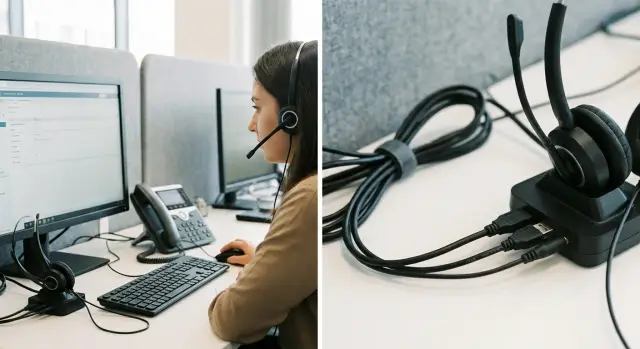
Why operators' audio degrades and how it shows up
When audio quality drops at an operator’s workstation, the headset is usually the first to be blamed. In practice the cause is more often a mix of small issues: the connection, the PC's audio path, nearby cables and power supplies, calling app settings and network stability.
Typical complaints sound like: "hissing", "echo", "microphone too quiet", "voice sounds in a barrel", "words drop out", "robotic voice".
Many symptoms are visible without extra equipment. It’s important to know whether they repeat across different operators and headsets, and whether they correlate with time of day (shift changes, network load, chargers and equipment turned on nearby).
Most often problems appear like this:
- background noise or crackle when the cable moves, when scrolling a mouse wheel, or when a charger is turned on nearby
- clients hear echo, especially if headphones are too loud or "enhancements" are enabled
- the microphone is sometimes quiet and sometimes overloaded due to AGC or wrong mic position
- dropouts and "robot" sound occur under network load or when the PC is busy
- volume "floats" if multiple apps control audio simultaneously
For an operator, clarity and stability matter more than "pretty sound." When a client understands the first time, calls are shorter and fewer repetitions are needed. Comfort is also critical: overly aggressive noise suppression can cut word endings, and an uncomfortable fit constantly shifts the microphone.
A practical approach is simple: first identify what exactly is failing (mic, headphones, or connection), then follow the chain: headset → connector → driver → app → network → workstation.
Connectors and connections: what to choose for workstations
Sound often "breaks" because of the connection, not the headset. If you choose a clear standard in advance and test it on your PCs, you’ll have fewer issues.
Wired: 3.5 mm or USB
The 3.5 mm TRRS jack is simple and cheap; there are many headsets. But the signal is analog, so results depend more on the sound card, internal wiring and jack placement. Front-panel jacks usually pick up more noise.
USB headsets typically deliver more consistent results: digitization happens inside the headset, so you rely less on the PC’s analog stage. For typical sites this is often the safest choice, especially with a mixed fleet of PCs (all‑in‑ones, compact PCs, docking stations).
TRRS combo jacks are important for all‑in‑ones and laptops, but watch out for wiring standards and adapters: the microphone can be quiet or noisy.
Wireless: DECT or Bluetooth
Wireless models aren’t necessary for everyone, but they’re useful if operators move around a lot. DECT is usually more reliable for voice and distance. Bluetooth is simpler but brings surprises more often: interference with Wi‑Fi, quality drops, and profile differences. If you choose wireless, test it in your actual office.
Before mass buying, test connections at a real operator desk: where will the headset plug in (PC, dock, USB hub), which ports are available (USB‑A, USB‑C, 3.5 mm), is the cable long enough without tension or questionable extenders, does the plug wobble, and how everything behaves under parallel load (keyboard, mouse, webcam on the same hub).
A classic example: on an all‑in‑one the operator plugs TRRS into a side jack and hears faint background noise that increases when using the mouse. Switching to a USB headset removes the noise because it bypasses the analog input.
If you outfit desks turnkey (PCs/all‑in‑ones and peripherals), it’s better to standardize one connection type and the same port layout at all desks. Support will stop chasing different causes of noise on every line.
Codec and connection modes: how to keep speech intelligible
A codec is a way to "pack" voice into a digital signal and restore it at the listener’s end. Codec choice affects speech clarity and how audio behaves under packet loss and jitter. In business calls this can matter more than the headset brand.
The same operator may call via a softphone, a browser (WebRTC) or IP telephony. The codec is usually chosen automatically, and the auto‑choice isn’t always ideal: the system can switch to a "heavier" mode and when the network is stressed, speech starts to break up.
For voice, stability matters more than musical quality. Wideband sounds nicer, but on a poor network it’s better to have an even, understandable voice without dropouts.
Where you can accidentally worsen the sound
Quality often drops because of settings, not hardware:
- "enhancements" (noise suppression, AGC) are turned on and the voice becomes metallic
- the browser picks the wrong microphone and it goes through the laptop’s built‑in mic
- system mic mode conflicts with the application
- telephony codec priorities are configured so an unsuitable codec is chosen
Why Bluetooth often fails for calls
Bluetooth is convenient, but in headset mode with mic it often shifts to a narrower bandwidth and compresses audio more. Add latency and people begin to interrupt each other. For fixed desks, wired USB headsets or well‑managed TRRS are usually more reliable.
Where background noise and interference come from: a quick breakdown
If audio suddenly "floats," the culprit is often power, cables and settings on the specific PC.
A steady hum (mesh or 50 Hz tone) usually comes from power and grounding: cheap PSUs, overloaded power strips, chargers on the same outlet as the PC, and power cables near audio lines.
Intermittent noise (appears and disappears) often looks like radio interference: a phone near the headset cable, a Wi‑Fi router under the desk, radio transmitters, or power lines for ventilation and elevators.
Echo, whistling and "pump" are almost always about volume and processing. If headphones are too loud, the mic picks them up. Another common cause is a conflict between echo cancellation and noise suppression in the app and in the driver.
Crackle when turning the head or touching the cable usually points to mechanics: cable wear, a bend at the plug, a loose jack, or bad 3.5 mm contact. Sometimes this appears only on some PCs because of worn jacks.
Quick symptom mapping:
- steady hum across calls: power, grounding, shared outlet with chargers
- wave‑like noise: radio interference, phone near cable, router under desk
- whistle when volume increases: too loud or wrong echo suppression settings
- crackle when turning head: cable, plug or 3.5 mm jack
- problem only in one shift: a different location, different PCs/ports, different load
How to reduce noise at the desk without replacing equipment
If you hear background hiss, crackles, clicks or bubbling, often tidying the workstation and settings is enough. Many issues can be fixed in 30–60 minutes without purchases.
Start with cables. Power cords (PC, monitor, chargers) should not lie next to audio and USB cables. Route them to opposite sides of the desk, remove loops and coils. A cable wound into a loop works like an antenna.
Next, check power and grounding. Floating ground, cheap surge protectors and overloaded strips cause hum and crackle, especially when a printer, kettle or AC is switched on nearby. If noise appears only in one row or room, it’s almost always electrical. Connecting the PC and monitor to a single quality surge protector, temporarily removing a suspicious extension, and keeping PSUs away from headset cables often helps.
Then look at USB. Disconnect nonessentials (lighting, second camera, phone charging from the PC, external drives). Overloaded hubs and cheap extenders add clicks and dropouts. Plug the USB headset directly into the computer when possible.
A quick test: plug the headset into a front‑panel port, then a rear motherboard port and, if available, a dock. If the front panel is noisier, the issue may be front-panel wiring or internal interference.
Settings that really affect sound
Even with perfect wiring you can ruin sound with levels. If mic gain is too high, you’ll hear hiss and the keyboard and fans. If it’s too low, the operator will speak louder and the app’s AGC will raise gain and add noise.
Use one test scenario: 10 seconds of silence, 20 seconds of normal speech, then 5 mouse clicks and 5 key presses. Record and compare before/after at the same workstation.
Selection plan for headsets before mass purchase
To get consistent results, what matters most is consistent test conditions, not the "best model on paper." Otherwise one headset will sound great on one PC and fail on another.
Prepare a unified scenario and identical settings
Fix how operators make calls: which software, which devices, typical call length, and whether they work in noisy environments. Then set baseline parameters the same: mic level, gain, disable "enhancements", and equalize app volume.
For a pilot, 2–3 headset models and 1–2 connection types (for example, USB and 3.5 mm) are enough. Test on identical PCs with the same OS version, then repeat checks in two conditions: a quiet room and actual floor noise. Look not only for pleasantness but for stability: volume drops, clicks, latency, disconnects mid‑call.
Collect consistent feedback from everyone
A simple feedback template removes arguments. Five points are enough: speech intelligibility, volume without distortion, background/interference (when it appears), connection stability, and comfort after 1–2 hours.
A good practice is to record 30–60 seconds of a real call for each "PC + connection + headset" combination and compare recordings blind.
Practical tests with real headsets
Test not on a single "reference" machine but where the headset will actually be used: different desks, ports and noisy halls.
A basic test set can be done in one day:
- short voice recording with fixed mic position (for example, two fingers from the corner of the mouth)
- recording in noise (keyboard, nearby conversations, ventilation)
- "interference provocation": gently move the cable near the PSU, monitor and dock, lightly touch the connector
- prolonged test 2–3 hours during a real shift (fatigue, pressure, heating)
- compatibility check: different PCs, different USB ports, different calling apps
If a model behaves consistently across places, the chance of surprises in a bulk purchase is much lower.
Common mistakes in selection and deployment
The main mistake is comparing headsets in different conditions. If one PC has driver mic boost and another doesn’t, you compare settings, not models.
Another trap is choosing "louder" rather than "more intelligible." A loud mic raises noise: breathing, cable rustle, power hum. The client hears everything except the words, and operators crank levels even higher.
Problems usually become persistent because of:
- buying based on reviews without a short pilot in your premises, telephony and software
- connecting through cheap hubs, extenders and adapters
- mixing batches and revisions (look identical but mic/cable behave differently)
- no consumable plan (ear pads, windscreens, spare cables)
- ignoring jack wear (over time 3.5 mm starts to scratch, USB gets loose)
To avoid this, define a "reference workstation" early: one connection type, identical ports, volume levels and call scenario.
Short checklist before approving a model
Check what will affect daily calls, not "like/dislike." Test on the same PCs and software that will be used in work, and always with real people.
Minimum checks:
- operator voice: silence in pauses, timbre not muffled, volume stable
- client voice: no echo or whistling, no harsh sibilants
- stability: device is recognized immediately and doesn’t drop mid‑call (test incoming call, hold, transfer, hang up)
- mic in noise: typing or nearby talking should not dominate
- comfort and cables: comfortable for at least 2–3 hours, cable does not snag, inline control not pressed accidentally
A quick decision method: record 30–60 seconds of real calls at 2–3 desks and compare blind. If the difference is audible only in silence, choose the more reliable option by connection and fit.
Example pilot scenario before purchasing
Imagine a contact center: 30 operators in an open hall and 10 dispatchers in a separate room with more radios, chargers and power supplies. The goal is to improve intelligibility and avoid mistakes in bulk buying.
A pilot can be done in a week if rules are fixed in advance. Take 3 headset models (two new and one "as is") and test two connections: USB and 3.5 mm TRRS.
Procedure: pick 10–12 desks (some in the hall, some with dispatchers), run both connection schemes at each desk, lock unified settings (mic level, noise suppression, AGC), give brief instructions on what counts as a problem.
Collect metrics related to audibility:
- client complaints: "can’t hear well", "echo", "background", "sounds in a barrel"
- how often the operator repeated a key phrase
- average handling time (AHT) by test group
- internal intelligibility rating based on 5–10 recordings per configuration
In such a pilot two things usually surface: some desks have power interference noticeable especially on 3.5 mm, and different models show different mic levels even with identical settings.
Next steps: lock the standard and keep quality
To prevent audio from "drifting" after a month, agree on rules before purchasing and formalize them as a workstation standard. Start with requirements: which calls (VoIP/telephony/video), which software, how noisy the floor is, how many seats and which PCs are used.
Then don’t leave choices to individuals. Fix a single connection type (for example, USB only or 3.5 mm TRRS via one tested adapter) and a short list of models that passed your pilot.
In the standard, document connection method and ban on random extenders/adapters, OS and app settings (levels, noise suppression, device priority), minimum mic and fit requirements, acceptance tests and responsible persons.
Also plan maintenance: spare consumables, quick swap rules and a short checklist for operators "what to check before contacting IT." If you need turnkey workstation configurations at scale, a systems integrator like GSE.kz can help unify PCs and peripherals and provide 24/7 support so the standard doesn’t drift over time.
Frequently asked questions
Where should I start if an operator complains about "bad sound"?
Start by localizing the issue: is it the microphone, the headphones, or the connection? Quickly check by changing the port and input/output device in the calling app, then make a short test recording on the same PC. If the recording sounds clean but the call has “robotic” breaks and dropouts, the network, codec or PC load is usually to blame.
What to choose for a contact center: USB headsets or 3.5 mm?
USB is usually more stable because the analog-to-digital conversion happens inside the headset, so you’re less dependent on the PC’s analog input and front-panel wiring. 3.5 mm can work well if all workstations are identical and jacks are good, but it’s more susceptible to interference and wear. For mixed PC fleets, standardizing on USB is simpler.
Why does crackling or noise appear when I move the headset cable?
Most often it’s a bad contact in the plug or jack, or a cable bend near the plug. Check whether the noise changes when you gently move the connector and try another port (especially a rear port). If the symptom disappears on USB, the problem is almost certainly in the analog path or the connector mechanics.
Why does the client hear echo even though everything seems fine for the operator?
Echo almost always happens because sound from the headphones or speakers is picked up by the microphone, or because echo-cancellation and noise-suppression conflict between the driver and the application. First, lower headphone volume and disable any "enhancements" in both system and call software. If the client stops hearing an echo, the cause was acoustic feedback or settings, not the network.
How can I tell if AGC and "enhancements" are ruining the sound?
Automatic gain and aggressive noise suppression can raise or chop the level, making the voice "float" or sound metallic. The most reliable approach is to set a clear baseline microphone level and use only one processing stage—either in the app or in the driver, not both. Then record a short clip of speech and ensure peaks don’t clip and the level is steady.
Why do Bluetooth headsets often sound worse for calls?
Bluetooth is convenient, but in headset mode with a microphone it often switches to a narrower bandwidth and compresses speech more, adding delay. In offices it also competes with Wi‑Fi and other devices, so quality can fluctuate. If mobility is needed, DECT is usually more predictable; for fixed workstations, wired USB is preferable.
Where does a constant 50 Hz hum come from and how to fix it quickly?
A steady hum usually comes from power and grounding issues: power strips, chargers and PSUs placed near audio cables, or many devices on one outlet. Separate power and signal cables, remove cable loops, and try connecting the PC and monitor to a single good-quality surge protector. If the issue appears only in one row, it’s almost certainly electrical in that area.
What does "robotic" audio and dropped words mean during a call?
"Robotic" speech or missing words typically indicate connection or resource problems: jitter, packet loss, saturated channel, or a PC overloaded with heavy tasks. Check whether the issue occurs at certain times or specific seats and compare with network load. If closing heavy apps and disconnecting extra USB devices reduces the problem, the bottleneck isn’t the headset.
Which tests should be done before mass purchasing headsets?
Record the same short scenario — silence, speech, keyboard/mouse clicks — on several desks and ports to find spots with interference. Repeat tests in a noisy hall and in a quiet room, because some noise-suppression settings only show issues in real noise. Be sure to test compatibility with your calling application, since clients select and process devices differently.
How to keep audio quality after deployment so it doesn’t degrade in a month?
The most useful step is to lock a single standard: one connection type, identical ports on desks, the same baseline levels, and a ban on random adapters and cheap hubs. Add a short procedure: what operators should check before contacting IT, spare consumables policy, and a quick exchange process for faulty headsets. If you outfit workstations turnkey, it helps when one integrator (for example, GSE.kz) standardizes PCs and peripherals and provides 24/7 support so settings don’t drift over time.
