8 min read
Software Licensing for Classrooms: Rights and Audits
A practical guide to software licensing for classroom environments: academic rights, installation and usage limits, documents for audits, and common mistakes.
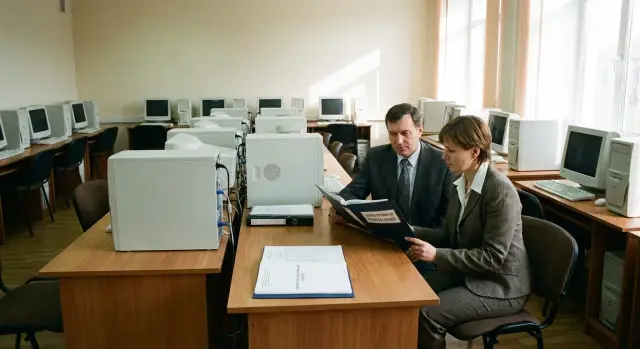
Why software licensing for classrooms comes up at the worst possible time
People usually remember licenses not when it’s convenient, but when it’s urgent: an audit arrives, the school bought new equipment, or a report is suddenly required by the founder. Then it turns out documents are spread across different people, some keys are lost, and some machines run program editions for which no one can produce proof.
Risks go beyond fines. Often the problem becomes downtime: computers may need to be temporarily disconnected from the network, software must be reinstalled in a rush, and lessons get canceled. The school’s reputation suffers too: formally it can look like use of "pirated" software, even if everything was purchased years ago but paperwork was misplaced.
Classrooms attract audits more often for a simple reason: it’s a typical scenario. Many identical workstations, high staff turnover, and frequent updates. When the computer fleet is refreshed (new PCs or all‑in‑ones), it’s easy to mix up what came "in the bundle" and what needs to be purchased separately—especially when the hardware provider and the license vendor are different.
Auditors typically check three things: the right to use (which edition and for whom), the number of installations (how many devices actually use the software), and the supporting documents.
Responsibility in a school rarely rests with a single person. Usually involved are the principal (overall responsibility), accounting (payments and primary documents), IT specialist (installations and records), and procurement or contract manager. If you don’t agree in advance who keeps records and where the unified document package is stored, the issue will almost certainly surface at the worst moment.
Basic terms: what exactly must be licensed
In a classroom you don’t license "the computer" in general but specific programs. Typically there are at least four groups: the operating system (Windows or Linux), the office suite, antivirus, and educational software (testing, language trainers, CAD, programming environments, electronic textbooks). Each group may have its own rules: sometimes a license is tied to a device, sometimes to a user, sometimes to a server or to the number of concurrent sessions.
Don’t confuse a "license" with "activation." A license is the legal right to use software, confirmed by documents and the vendor’s terms. Activation and a key are only technical means to enable the product. A program can be activated but not legally usable by the school (for example, the key was bought for home use). Conversely, you may have the right but the product hasn’t been installed or activated yet.
When documents use terms like "device", "user" and "workstation", they mean different things:
- Device license: installed on a specific PC in the classroom, regardless of who sits at it.
- User license: one teacher or student may work on multiple PCs (if allowed by the terms).
- Workstation: often understood as a single computer station and used in contracts and specs, but always verify what the vendor meant.
A common pitfall is assuming that having an installer or "downloaded from the official site" automatically grants the right to use. Distributions are often publicly available, while legality is determined by the license: who may use it (the school, an individual, a commercial entity), where it may be installed (classroom, library, home) and under what conditions (term, number of devices, update access).
For inventory, it’s useful to list installed software by category and immediately mark which items have confirmed rights and which need clarification.
Academic rights: what they are and what they actually affect
Academic rights usually mean that an educational organization can buy and use software under special conditions: discounts, simplified procurement, or separate rules for use by students and teachers. Typically available to schools, colleges and universities, sometimes to continuing education centers. Exact terms depend on the vendor.
An "academic" license does not mean "everything is allowed because it’s cheaper." Differences from commercial terms are almost always in the details: where the software can be used (only on the organization’s devices or also on teachers’ personal devices), whether it can be used for administrative tasks, whether remote learning is allowed, how installations are counted, and whether the license can be transferred to new hardware.
Proof of educational status auditors may request
You will usually need to prove you are an educational institution. That can be the charter, an education activity license, a letter on official letterhead, business details in the contract, or sometimes a vendor–specific form. Keep these documents close to the contract and invoices so you don’t have to collect them from different offices.
Why you shouldn’t rely on “how the neighboring school does it”
Terms depend on the specific contract, licensing program and product edition—not on rumors. Even different products from the same vendor may have different rules.
A practical example: you refresh a classroom with new PCs and move old licenses. If the academic terms forbid or limit transfer, you’re at risk even if "everyone does it that way." Always verify rights in the documents before installation, not by habit.
Usage restrictions in schools: common mistakes
Licensing mistakes in educational institutions usually come from habit: software is on a school PC, so it’s assumed usable for anything. That’s dangerous.
One frequent confusion is "educational use" versus "administrative tasks." For example, an office suite license may allow use in classroom lessons but not for accounting, paid courses, or printing documents for third parties on the same machines. If a computer lab doubles as an all‑purpose room, the risk of violations grows quickly.
Commercial use and paid services are another risk area. Paid preparatory lessons, renting a classroom, charging for printing or scanning, or helping external users can be treated as commercial activity. Auditors typically care about the fact of paid use, even if the amounts are small.
Home use by teachers and students is also often misunderstood. Sometimes it’s allowed only under specific programs (e.g., via a personal account or a separate license type), and sometimes it’s not allowed at all. Don’t move a school installation to a personal laptop "just to prepare a lesson" unless the right explicitly permits it.
Another pitfall is subscription expiry. A subscription may end mid‑school year, and legally you may lose the right to use the software even if it continues to run.
Finally, virtualization and remote access. If students connect to a server running applications, licensing can be counted by users, devices, or concurrent sessions. That needs to be checked against the vendor rules.
Quick self‑check:
- Where is the software used: only for lessons, or also for administration and paid classes?
- Is home use allowed and how is it arranged?
- Is the license perpetual or subscription, and who monitors expiry dates?
- Are virtual machines, terminal access or remote desktops permitted?
- Does the licensing model match the actual number of devices and users?
Example: a school runs paid evening classes in the same classroom using the same licenses as daytime lessons. If the license only allows institutional educational use, evening paid courses can trigger claims during an audit.
How to choose a licensing model for your real teaching process
Choose a model based on how the class actually works: who uses which workstation, whether rooms or devices move around, whether remote access is needed and how often hardware is refreshed. This is where records often diverge from practice.
If PCs are fixed to rooms and students use those specific machines, device‑based licenses are simpler: 15 PCs — 15 licenses. This suits computer labs, libraries with fixed seats and labs where equipment doesn’t move.
If students and teachers regularly switch between PCs (media class, lab, library), consider user‑based licensing. It’s often cheaper when the same person uses multiple devices, but it requires careful accounting: who counts as a user and how accounts are managed.
Subscription or perpetual license
Subscriptions simplify updates and renewal timing but require budgeting for recurring payments and careful removal of accounts for people who no longer study or work. Perpetual licenses are easier for long‑term use but trickier when hardware changes: transferring rights and proving purchases must be gapless.
Different rules often apply to OS and application software. An academic Windows license may have different terms than an office suite or a programming environment. Auditors look at these separately.
Questions to answer before choosing:
- Are PCs fixed to rooms or frequently moved?
- Does a student have more than one workstation at times?
- Do teachers need software on both school and home devices?
- Are there additional rooms (library, lab, backup classroom)?
- How will you track installations after hardware updates?
Example: a school upgrades to 20 student PCs and one teacher PC. If the classroom is fixed, device‑based licenses are simpler. If teachers teach across different rooms, user‑based licensing may reduce costs but requires discipline in accounts and lists.
Step by step: bring licenses in order in 1–2 weeks
To tidy things quickly, don’t rely on memory. Use facts: an inventory, documents and clear rules. Then an audit becomes predictable.
Week 1: map the current state
Start with a list of all devices used for teaching: classroom PCs, teacher PC, server (if any), laptops for mobile lessons. Then record actual installed software: OS versions, office suites, antivirus, special educational apps.
A practical route:
- Create a list of devices with inventory numbers and locations.
- Collect a list of installed software for each device.
- Gather purchase documents: invoices, delivery notes, license agreements, transfer letters.
- Reconcile "what’s installed" with "what was bought" and mark discrepancies.
Week 2: close gaps and set rules
For each installation, determine which license covers it and under what conditions: device or user, perpetual or subscription, home use allowed or not, virtualization permitted. If there are surplus installations, it’s often cheaper and safer to remove them and document the decision than to explain their origin later.
If rights are missing, decide whether to buy additional licenses, switch to free alternatives, or reduce the number of licensed devices. When upgrading a classroom, remember that old licenses may not transfer to new hardware without conditions.
Assign responsible people (at least one IT specialist and one administrative representative) and create a simple register. Five fields are usually enough: device or user, product and version, license type, supporting document, expiry date and notes on restrictions.
Documents auditors expect and how to collect them quickly
Auditors generally want to see that you legally obtained the right to use specific software on specific computers. The link between purchase documents and a clear inventory matters most.
A folder that usually passes without questions
Prepare a unified package for each purchase (paper and electronic). Usually sufficient are:
- contract (or offer/agreement) with the list of supplied items and terms of use;
- invoice and payment proof;
- delivery note and/or acceptance act (what exactly you received);
- license letter, certificate or registration data if provided by the vendor;
- a cover letter for the package (who is responsible, where keys are stored, how many installations).
If licenses came with hardware, keep hardware documents (serial numbers, delivery notes) next to the software paperwork so the device–usage link is clear.
Don’t keep keys, certificates and activation info only in people’s heads or email threads. Prefer: one responsible person, a shared protected archive, a backup, and a rule that any change is logged (date, who, what changed).
Tracking installations, transfers and disposals
Prepare an inventory sheet per room. Useful fields: room and responsible person, PC model and serial number, installed OS and key programs (name and version), license type and supporting document (contract/act number), installation date or commissioning date and date of last check.
If PCs were moved between rooms, make an internal transfer act (what, from where, to where, who accepted). When decommissioning equipment, create a disposal act and note that the software is no longer used on that device. A short summary of which versions were installed and when the class was updated helps ensure dates in records match reality.
Common mistakes and traps that become expensive later
The worst licensing problems arise from chaos rather than intent. Software in schools is often acquired in pieces: hardware bought separately, office software installed later, and nobody remembers who purchased what and under which terms.
A common trap is a single golden image deployed across all PCs. An administrator creates a master disk image and rolls it out to the whole class, but the license covers fewer devices or a different installation type. Auditors see that as extra copies even if there was no intent to conceal anything.
Mixing roles is another risk. The same computers used for teaching may also be used by accounting or to store personal data. Academic licenses and educational programs can have restrictions on organizational type, users and purposes. Without checking terms in advance, it’s easy to cross permitted boundaries.
Documentation loss can be costly. During moves, staff changes or IT turnover, invoices, acts and keys get lost. Later you may have to repurchase rights simply because you can’t prove prior purchase.
Server and virtualization issues are another error zone. If the class uses remote access, terminal sessions or VMs, you may need licenses not only for client software but also for server components, user access, and sometimes the connection method itself.
To spot weak points in advance, check at least the following:
- Is there a single registry: device, installed software, license type, purchase date?
- Do the number of installations match the purchased rights (including images)?
- Are educational and administrative scenarios separated according to license rules?
- Are primary documents preserved and where are they stored?
- Have servers, RDP, virtual machines and access rights been considered?
Practical example: the school updated a class, some PCs came from one vendor and office licenses were bought from another. Bringing everything into one register quickly shows where rights are missing and resolves the issue before an audit rather than after.
Quick checklist before an internal audit
Before a check, don’t "hunt for papers"—show the logic: what devices exist, what’s installed on them and on what basis.
30‑minute check: what must match
The school should have one up‑to‑date equipment list and one person responsible for its accuracy. Then ensure installations match usage rights and documents are available within minutes, not days.
- Device list is current: inventory numbers, rooms, responsible person, status (in use, in storage, decommissioned).
- For each PC, OS and key programs are clear and the number of installations does not exceed purchased rights.
- The "license folder" is gathered in one place: contracts, invoices, acts, certificates, letters proving academic status.
- Licenses are categorized: which are academic, which are commercial, and why.
- There is a short procedure for changes: new purchase, reinstallation, transfer to another PC, decommissioning.
A mini‑scenario that often appears during audits
A computer lab was updated, some old PCs were decommissioned and the system image was deployed to new machines. If the old devices remain listed as active while new ones are not registered, installation numbers immediately look suspicious even if licenses were purchased legally.
A simple rule helps: after any delivery or replacement, record serial numbers, commissioning dates and what is installed. Then you can show a coherent picture rather than a set of separate files.
Practical example: upgrading a computer lab without licensing problems
A school upgrades its computer lab: 25 student PCs, one teacher PC, a shared printer and a small file/profile server. Previously installations were manual, passwords kept on a flash drive, and licenses scattered in multiple folders.
First they decide what’s actually needed for lessons vs. what is "just in case." The basic set usually includes: OS for each PC and rights to reinstall, office suite (for students and teacher), browser and exam tools (if used), antivirus or protection software (as required), and classroom management software (if any).
Next they choose licensing conditions: which items can use academic rights and which need commercial licenses. Decide whether rights are tied to devices or users. For a computer lab it’s often simpler to license by device so students don’t carry rights between school and home.
Procurement is documented so audits won’t be disputed: the contract and specification list the OS and each program, quantity, license type and binding (device or user).
Migration is done from one master image with tracked installations: one master image deployed to 25 PCs, administrator access limited to the responsible person. Extra installations are blocked by policy so new programs don’t appear "at a student’s request."
Final documentation includes:
- device register (inventory number, room, serial number);
- license register (name, version, quantity, type, purchase date);
- installation and commissioning acts;
- reinstallation rules (who, when and on what basis);
- a source folder: contracts, invoices, delivery notes, certificates or vendor letters (if any).
This way the inventory becomes a clear scheme: what is installed, on what basis and who is responsible.
Next steps: make compliance self‑sustaining
To prevent licenses from becoming a constant emergency, turn them into a routine process like textbook distribution or equipment tracking. The goal: at any time you can show what is installed, why, and who is responsible.
Start with short internal rules. Appoint one person responsible for installations and updates (even if another person actually performs them). Any request for new software should be approved: why it’s needed, in which room, how many seats, and which license type fits. This reduces the risk of someone installing a trial and forgetting it.
Standardization also helps: approve a list of programs for all classes and stick to it. The fewer unique installations, the easier the accounting and the fewer questions in audits. For exceptions (e.g., specialized classes) keep a separate list and documentation.
A minimal regime that usually stays practical without excess bureaucracy:
- keep a single registry: room, PC, installed software, license type, supporting document;
- perform an annual check of installations and documents (and after major upgrades);
- restrict local installation rights for students and most teachers;
- log all changes: what was installed, who did it, when, and under which request;
- when buying new hardware, check OS, office, antivirus and special software in one estimate.
Example: when replacing 20 PCs, if the estimate already includes OS, office and the academic terms (rather than "buying like before"), you avoid a situation where equipment sits in the classroom while licenses are missing.
If the upgrade is turnkey (new PCs, server, access setup, support), it can be easier to involve a system integrator. For example, GSE.kz (gse.kz) as a local hardware vendor and integrator can deliver workstations and servers and help structure infrastructure and support so equipment and paperwork do not scatter across different people.
Frequently asked questions
What do auditors usually check in a computer lab?
Usually they check three things: whether you have the right to use the specific edition for the school, whether the number of installations or users exceeds the purchased rights, and whether you can quickly present supporting documents. If software is installed but there is no evidence or the documents don’t match the number of machines, that’s the main risk.
How is a license different from activation and a key?
A license is the legal right to use software, confirmed by a contract, invoice, acceptance act, certificate or a vendor letter and by the vendor’s terms. Activation and keys are only a technical way to enable the product. A program may be activated but used illegally if the key was purchased for the wrong type of user or purpose.
What should a school choose: device‑based or user‑based licenses?
If PCs are assigned to a classroom and used by different students in turns, licensing "per device" is often more convenient. If the same teacher or student regularly uses multiple PCs, "per user" can be more efficient, but it requires strict record‑keeping of who is considered a user and under what conditions.
What are academic licenses and how do they actually differ?
Academic rights usually give educational organizations special conditions, but they don’t remove restrictions. Check where the software can be used, whether administrative tasks are allowed, whether remote learning is covered, and whether license transfers to new hardware are permitted. Always rely on your contract and the product rules, not on someone else’s experience.
Which documents prove the right to an academic license?
Vendors typically ask for a document proving you are an educational institution and that the purchase was made for it. This can be the charter, an education license, company details on the contract, or a letter on official letterhead. Keep these documents together with the software paperwork to avoid last‑minute searches.
Can software from the computer lab be used for school administration tasks?
Use software according to the license. If it was purchased for educational purposes, do not use those installations for accounting, paid services or third‑party tasks. The safest approach is to separate educational and administrative scenarios by different licenses, different devices, or clear usage rules.
Do academic licenses cover paid evening courses and clubs?
Paid evening courses, renting the classroom, or any paid services can be treated as commercial use, and an academic license may not cover that. It’s safer to check terms in advance and, if necessary, obtain separate rights for paid classes. Don’t assume small fees or after‑hours use are automatically allowed.
Can school licenses be installed on teachers’ home laptops?
Do not install school licenses on personal devices without an explicit allowance in the license terms. Sometimes home use is permitted only via personal accounts or a separate license type; other times it’s strictly forbidden. If the rights aren’t specified, assume home use is not allowed.
What happens if a software subscription expires but the program still runs?
When a subscription ends, the right to use usually stops, even if the program keeps running. Keep a calendar of renewals and a person responsible for dates. Otherwise you may suddenly be without rights in the middle of the school year.
How can I quickly get licenses in order before an internal audit?
You can bring licenses into order in 1–2 weeks if you work from facts, not memory. First list devices and what is actually installed on each. Then collect purchase documents and match them to installations, remove extra copies or buy missing rights, and set up a simple registry with responsible persons. After that, keep changes recorded in the registry to maintain order.
