7 min read
Shared Library PCs: Profiles and Data Cleanup
How to organize shared PCs in a library: profiles, automatic data cleanup, limiting settings without a domain, and clear rules for staff.
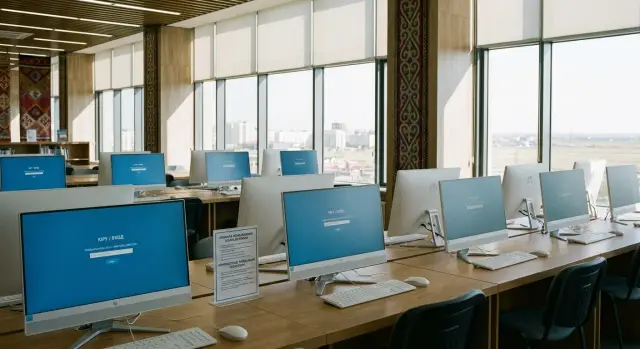
Reading room goals in plain terms
A reading room is a place where dozens of different people use the same computer each day. Shared PCs must behave predictably: a visitor sits down, quickly starts working, and leaves without traces or breaking settings for the next person.
Common problems repeat themselves: other people's files remain in Downloads, browsers save passwords and autofill, shortcuts and folders appear on the desktop. Sometimes a visitor accidentally changes the language, keyboard layout, default printer, or even network settings.
Libraries care about three things: privacy, stability, and a quick workstation start. Visitors shouldn't need a tutorial on "how to use" the PC, and staff shouldn't have to manually clean machines every evening.
There are often constraints: minimal administration, no desire to set up a domain or separate servers, and the IT person may be part-time. So solutions that run locally on each PC and don’t require complex infrastructure are preferable.
For small and medium rooms, a simple set usually suffices: different account types (guest, reader, employee), limited rights for visitors, and automatic data cleanup after each session (at logoff or on reboot). Then if one person tries to "set everything up for themselves," the next user will see a clean, familiar desktop and the same rules.
Common operation modes: Guest, Reader, Employee
To prevent shared computers from becoming a constant "repair after visitors," first choose an operation mode. It defines rules: whether login is needed, what is saved, and who is responsible for order.
Usually three scenarios are enough:
- Guest: the person sits down and starts immediately. Minimal steps and queues. Suitable when speed is essential and no strict logging is required.
- Reader: login by library card or code so basic settings (language, zoom, favorites) persist. Personal data is not stored long: after the session everything is cleared or the profile resets.
- Employee: separate accounts (and often separate PCs). Needed for access to internal services, printers, catalogs, and sometimes to staff folders and mail.
Which model to use depends on visitor flow and requirements. If you have 50–100 short sessions per day, Guest mode usually reduces queues. If the library must record who used a workstation and when, Reader mode is more convenient: login takes a minute, but logging is easier.
Practical example: in a 12-seat room you can make 8 guest PCs for quick tasks (search, print, e-services) and 4 Reader stations for longer work (course projects, training). Allocate 1–2 separate machines for staff so service settings don’t overlap with guest use.
For hardware, reliable office PCs or all-in-ones with easy maintenance are usually enough. When purchasing, consistency of configuration and predictable behavior across all room computers matters more than brand.
Roles and rights: who can do what on a PC
Stability starts with roles. If everyone has different rights, any failure becomes a problem for the whole room.
A clear scheme has three levels. The Administrator configures the system and handles complex cases. The room operator (or librarian) helps visitors, sends print jobs, and reboots PCs but does not change system parameters. The Visitor works with documents and the internet but cannot install programs or change important settings.
Visitors almost always do better without administrator rights. This reduces the risk of installing unwanted extensions, disabling protection, or changing the network so the next person can't open anything.
Two simple approaches for accounts exist: a shared login for all visitors or separate guest profiles. Shared login is easier but requires strict data cleanup and bans on saving. Guest profiles are better for privacy but must be cleaned regularly so the user list doesn't grow.
Post short rules near monitors:
- Do not install programs or extensions.
- Do not change system settings or passwords.
- Save files only to a USB drive or cloud.
- Log out after your session.
- For printing and scanning, ask staff for help.
Example: the operator needs rights for printing and rebooting; everything else is handled by the administrator once a week. This reduces failures and disputes.
Profile approaches without complex infrastructure
For shared PCs in a library, two things are important: the visitor starts quickly, and nothing remains after them. You can do this without a domain or servers by choosing a simple profile type.
Approach A: one shared Guest account with auto-reset
Each PC has a single "Guest" account used by everyone. On logoff the system clears traces: temporary files, browser history, and local folders. Pros: minimal administration. Cons: no personal settings or bookmarks.
Approach B: temporary profiles deleted after logoff
Visitors sign into a temporary account; after the session the profile is removed entirely. This guarantees cleanliness and frees staff from manually checking folders and browsers. Cons: initial login can take longer since the profile is created anew.
Approach C: personal profiles for frequent readers
If you have regular users, create named accounts but with limits: small profile size, no program installation, and auto-clean of Downloads and Recycle Bin. Suitable for clubs, classes, and recurring activities.
Decide in advance where files go and what the user sees on screen. On the desktop keep only necessary shortcuts (browser, office, catalogs). Configure Downloads and temp folders to be cleared at logoff. For Documents choose a clear scenario: only USB/cloud allowed, or a dedicated folder with a defined deletion policy.
Data cleanup and privacy after each session
On shared computers privacy is based on a simple principle: nothing one visitor does should remain for the next. This is critical when people log into email, messengers, and personal accounts.
What to clear as a minimum
Set automatic cleanup at logoff or reboot so you don't rely on staff attention. Minimum usually includes:
- browser history, cookies, cache, autofill, and saved passwords;
- Downloads, Documents, Desktop, temp files, and Recycle Bin;
- sign-outs from web services (including "remember me");
- print queue and recent files list.
With files, choose one clear scenario: a temporary folder with automatic cleanup or a rule "save only to USB/cloud." That avoids "lost" documents on the desktop and questions about where a file went.
Session timer and auto-logoff
Simple time discipline helps: limit sessions (e.g., 30–60 minutes) and auto-logoff after idle time (5–10 minutes). This reduces the chance someone leaves and their session remains open.
For sensitive services (online banking, email, government portals) use short reminders and strict browser settings: private mode, no password saving, and mandatory logout before closing.
Example: a visitor prints a certificate and saves the PDF to Downloads. If that folder is cleared at logoff, the next person sees nothing and staff do not need to manually clean each PC.
Limiting settings without hindering visitors
The aim of restrictions is simple: visitors should quickly open the needed site or document, and the PC should remain the same afterwards.
Start with accounts. Give visitors a normal (non-admin) local account or a shared Guest/Reader account. The admin password belongs only to staff and is not used for visitor logins. This prevents installing programs, drivers, and most extensions.
Then block risky areas: Control Panel, system settings, Registry Editor, and Command Prompt. Without a domain you can do this with local policies on each PC. Also define a fixed set of applications: one browser, a PDF viewer, an office viewer, and a client for the library catalog if needed.
To make restrictions unobtrusive, test practical tasks beforehand: printing (ensure users can print to selected printers), USB use (disable autorun and scan with antivirus), keyboard layout (2–3 languages with clear switching), and browser behavior (no extensions and reset on login).
Simple interface: so visitors don’t get lost
Most visitors sit for 10–30 minutes and want to start immediately. If the screen has ten extra programs they will look for help or click randomly. One clear glance should show where to click.
Usually two modes suffice. For free work—a normal desktop with a minimal set. For repetitive tasks (catalog, e-services, training)—kiosk mode where only one browser or app is available.
A good start screen typically includes 3–6 large shortcuts (catalog, browser, office, print, help), pinned tabs or a start page with key services, and a short 5–7 line instruction: how to log in, how to print, how to end the session.
To keep the interface stable, lock the items that change most often: wallpaper, icon layout, taskbar, and startup apps.
Also consider accessibility: larger default scale and font, clear layout switch (e.g., RU/KZ/EN), simple mouse settings for the elderly. For touch-enabled all-in-ones an on-screen keyboard is useful.
Step-by-step setup: from zero to a ready room
Stability relies on repeatability: the same configuration on each PC reduces odd problems and simplifies support.
- Prepare a base PC image: updates, drivers, required programs (browser, PDF, office viewer), consistent desktop shortcuts, and uniform network and printer settings.
- Create accounts: a shared "Guest/Reader" without install or system-change rights, and a "Staff" account with elevated rights.
- Define data rules: where files may be saved and what is temporary. Decide whether anything is stored locally at all.
- Enable cleanup after sessions: remove temp files, browser history, and contents of folders designated as temporary. Cleanup must run every time.
- Lock down who can change the image, who adds programs, and how to return a PC to a clean state.
After setup, run through a visitor’s workflow: login, web search, download, print, use a USB, and log out. If everything works without staff help, the room is ready.
Managing identical models makes maintaining a single image and repeatable settings much easier.
Printing, USBs and peripherals without chaos
Printing is the most common source of complaints. Problems often start from small issues: someone sends 200 pages, the printer jams, and the queue stops. Another weak point is drivers and visitors trying to "set up" devices themselves.
A working rule for guest seats: one printer, one clear printing path, and one clear way to collect pages. For staff, provide a separate queue (or a separate printer) so service documents do not mix with guest jobs.
USB drives: safe and calm
USB drives are convenient but often bring junk and malware. Even without a domain you can keep order: disable autorun, enable antivirus scanning of media, limit running programs from USB, and decide in advance where writing is allowed (for example, a single "Exchange" folder if truly needed).
MFP and scanner: access yes, settings no
If a multifunction device is available to everyone, visitors quickly find settings and may accidentally change trays, paper format, or other parameters. Better separate access: scanning and copying allowed, device configuration reserved for staff. Practically this means pinned buttons/shortcuts for simple actions and blocking driver installation and parameter changes.
Agree on a simple ritual: where to pick up prints, how to label jobs (e.g., "PC-3, Ivan"), and how to delete the copy. A convenient option is printing only from the session folder that is cleared after logoff.
Updates and security: simple rules for staff
The goal is that PCs stay consistently fast and predictable every day. Discipline matters: when to update, what is allowed to run, and how quickly to return to a working state.
Updates without disrupting the room
Perform updates on a schedule during low-traffic times, for example weekly at the end of the day: start all PCs, run updates, check printing and browser, and reboot.
Useful minimums:
- one responsible staff member and one update "window";
- auto-updates enabled, but reboots only at agreed times;
- after updates check three things: guest login, internet, and printing;
- install drivers and major updates first on one test PC.
Minimal protection and steps on suspected infection
Without a domain, rely on built-in tools: antivirus enabled, updates, and blocking unknown programs. People often bring files on USB drives, so block .exe and scripts from running and open documents in trusted viewers.
If something looks suspicious (popups, browser launching itself, missing shortcuts), follow steps: disconnect the PC from the network, note the workstation number and symptoms, run a full antivirus scan. If in doubt, restoring the PC from a clean image is usually faster and safer than trying to "fix" it.
Keep a simple change log: date, PC number, what was done (updates, configuration), and the result.
Example: a 10–15 seat reading room
A 12-PC room with two staff and peak visits after school. Goal: seat a person within 30–60 seconds and leave no files, logins, or history on the PC after the session.
Workflow can be: the visitor chooses "Guest login" on the start screen and gets the browser and core apps. On logoff or by timer the guest profile is reset automatically. This reduces problems with other people's tabs and accidental settings changes.
Printing is easier via the operator: the visitor saves to USB or hands the file to staff according to room rules, and printing is done from a staff PC. This reduces printer queues and keeps guest PCs free of extra drivers.
Data storage: do not allow permanent use of Documents or Desktop on guest PCs. Post a clear rule: "Save to USB or the file will be removed after logoff." If files must be kept between sessions temporarily, staff place them in a separate folder on their PC and clear it at the end of the day.
Handle disputes in advance. A "forgotten file" is either found in the staff temporary folder (if used) or explained as lost because the guest profile was reset. Staff should not try to restore closed browser tabs to preserve privacy. For a wrong user account, force logoff and start a new guest session.
Typical mistakes and how to avoid them
Big problems rarely come from complex attacks and more often from small daily issues. Any lack of clarity in the rules turns into others' files on the desktop, strange browser toolbars, and complaints about "missing documents."
A frequent mistake is leaving saved passwords and autofill in the browser. A visitor logs into email, the browser offers "remember," and the next person gets access in one click. Use no-data-saving mode: block password saving, clear cookies and history after sessions, and remind users to log out.
Another mistake is giving visitors rights to install software. This quickly leads to ad extensions, "free converters," and conflicts with updates. Visitors generally need only a browser, office viewing, and printing; installation stays with the administrator.
Manual cleanup is also a trap. It depends on staff discipline: today they clean, tomorrow they forget. More reliable is one-time setup of automatic cleanup after each session and periodic profile reset.
Finally, different settings across computers make support endless. One standard image for all seats and a quick post-update test—browser, printing, login/logout, cleanup—helps avoid this.
Quick checks and next steps
A short routine helps spot problems before visitors do.
Before opening, check basics: test login and logout in a guest profile, confirm internet access, see the printer and check the queue, ensure data reset works, test language switching and sound.
After a shift, restart all PCs to apply restrictions and cleanup, and check the print queue. If no automatic cleanup exists, remove extras from the default profile and empty the Recycle Bin.
Consider updating the fleet when PCs take noticeably longer to boot, frequently lose printers/scanners, hang on login, or require daily intervention.
Next steps: choose one workstation standard (one model, same settings, same cleanup rules) and assign responsibilities: who checks mornings, who handles closing, and what to do on failure.
If you’re selecting identical workstations for a reading room in Kazakhstan, you can look at local providers. For example, GSE.kz manufactures desktop PCs, all-in-ones and servers, offers system integration, and provides around-the-clock technical support through a national service network.
Frequently asked questions
Which modes are best for reading room computers?
Usually three roles are suitable: Guest for quick sessions without registration, Reader with a simple login for basic personalization, and Employee for staff tasks. Start with Guest for most seats and add Reader where tracking and slightly more convenience are needed.
What to choose: guest login without credentials or login by library card?
If speed is more important and there is no strict reporting requirement, use Guest mode with automatic cleanup. If you need to log who used a workstation and when, choose Reader mode with login by code or card, and ensure data is cleared after the session.
What rights should visitors have so they don’t “break” anything?
Give visitors standard (non-administrator) accounts and forbid installing programs or changing system settings. Provide staff with separate accounts and, if possible, separate PCs so service settings don’t mix with guest use.
How to guarantee nothing remains after a visitor?
The most reliable method is automatic reset: either delete the temporary profile at logoff or clear key folders and browser data at logoff/reboot. Manual cleanup at the end of the day usually fails because it depends on staff discipline and time.
What exactly needs to be cleared after each session?
At minimum, clear browser history, cookies, cache, autofill and saved passwords, plus Downloads, Documents, Desktop, temporary files and the Recycle Bin. Also clear the print queue and recent files list. Make this automatic at logoff or reboot.
Where should visitors save files so nothing gets “lost”?
Keep the rule simple and honest: save only to a USB drive or to cloud storage, otherwise files will disappear after logoff. If temporary transfer between sessions is needed, use a single clear "Exchange" folder that is automatically cleared.
How to limit settings without a domain or servers?
Start with local restrictions: block program installation, lock key system control panels and provide a fixed set of applications. Also lock the start screen and enable browser reset on login so users can work but cannot permanently reconfigure a PC without admin rights.
How to organize printing so there are no queues and failures?
Create one clear process: one printer for visitors and one described way to print, with staff explaining the steps. Often the operator handles printing from their workstation so guest PCs have fewer drivers and the print queue is less likely to block.
How to work safely with USB drives on shared computers?
Disable autorun, enable antivirus scanning of removable media, and do not allow execution of programs from USB. For visitors, keep it simple: open documents and print or save a copy to a USB drive—do not allow installing anything from the device.
How to keep settings and updates uniform across all computers?
Create a single standard image and apply it to all PCs so they behave the same. Update on a schedule during quiet hours and after updates check: guest login, internet access, and printing. If behavior is odd, restore the clean image rather than spending a long time fixing one PC.
