7 min read
Service Desk and Equipment Inventory: Auto-populating Workplace Configuration
Service Desk and equipment inventory help automatically populate a workplace's configuration into a ticket, speed up diagnosis and reduce the number of follow-up questions.
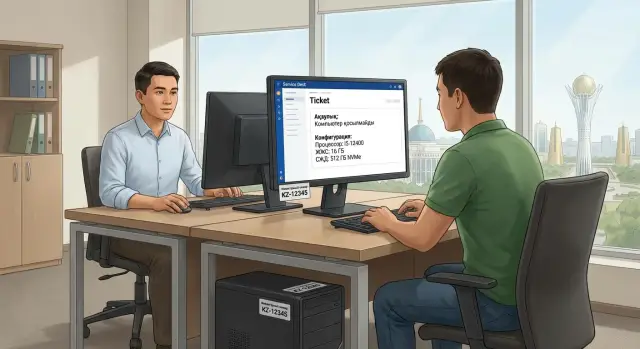
Problem: tickets without workplace data
When the Service Desk receives a ticket like "computer not working" or "won't print", the technician often lacks the most important information: which workplace it is and what components it includes. At best there is a username and a room number. At worst — only a phone number.
This happens because equipment inventory lives separately (Excel, another system, warehouse records), and the ticket form lacks required fields and prompts. The user writes as they can and usually doesn't know exact models, serial numbers or even the proper names of devices.
As a result a standard line of questions begins, wasting everyone's time: which exact PC or all-in-one, which OS, when the problem started, what peripherals are connected, which printer and how it's connected, and what has already been tried. While calls and messages are exchanged, the employee is idle and the queue grows.
Field visits are especially painful: a technician may arrive "blind" and only on site discover that a different cable, cartridge or spare power supply is needed. One visit turns into two.
Auto-populating the workplace configuration directly into the ticket closes this gap: the request immediately contains the linked PC, peripherals and key parameters. The Service Desk ↔ inventory link gives the technician context from minute one, reduces clarifying questions and increases the chance to resolve the incident in a single contact.
What the Service Desk–inventory link is
The Service Desk–inventory link means a ticket automatically pulls data about a user's specific workplace: which computer, its specs, where it is and who it's assigned to. The request stops being "my device doesn't work" and becomes a clear task with context.
Service Desk usually stores data about the incident or request itself: who reported it, what happened, when it started, priority, steps already taken, assigned technician and approval workflow. That's useful for the process, but without hardware information diagnosis often starts with clarifying questions.
Asset inventory answers a different set of questions: what the device is, its inventory or serial number, to whom it was issued, which room or branch it's in, and its lifecycle stage (in use, in stock, under repair).
CMDB in simple terms is a "map" of your IT objects (configuration items) and their relationships. A configuration item can be a workstation, monitor, printer, user account, network point or a whole workplace as a set of components.
If databases are fragmented, there's little effect: Service Desk has one device name, inventory another, and the user writes a third. Time is wasted on reconciliation and searching.
A good link solves this with a single identifier and clear substitution rules. For example, the user selects a "workplace" or a device from a list, the system fills in model, OS, location and assignment, the technician sees related assets (monitor, dock, printer), and ticket history is attached to the same object. Diagnosis starts with checking the actual configuration, not with questions.
Which data to auto-fill in the ticket
Auto-fill should answer two questions for the engineer: where the user is and which specific workplace the issue relates to. If that's visible immediately, there are fewer follow-up calls and less risk of going to the wrong location or checking the wrong PC.
Commonly it's sensible to pull:
- Contacts and context: full name, department, room, work phone (and, if needed, the person responsible for the room).
- Identifiers: inventory number, model and serial number of the desktop or all-in-one, PC name.
- Basic configuration: OS version, CPU, RAM amount, disk type and size — without an exhaustive breakdown of each module.
- Environment: connection point, connection type (Wi‑Fi or cable), IP address or DHCP name.
- Critical software: versions of 2–3 key programs relevant to the user's role rather than a full list of installed software.
For peripherals it is better to pull only what actually affects the incident: which monitor is connected, which printer is assigned to the room, whether there is a dock or headset. This helps the engineer know what to check and which drivers or cables may be the cause.
Example: a user reports "won't print." If the ticket already contains the room, the assigned printer and connection type, the technician brings the right cartridge or cable and checks the specific port instead of asking "which printer?".
The main rule: auto-fill only what helps diagnostics and routing. Keep the rest in the asset card so the ticket doesn't become a long report.
Preparation: bring inventory into a clear structure
Auto-population in Service Desk works only when the asset inventory is "alive." If cards are chaotic, the system will insert garbage and the technician will still start by asking questions.
The first step is to assign assets. Every device should have a clear "who" and "where": user, department, site, room, workplace (if you track it). For shared devices (printers, meeting-room panels, kiosks) use an owner-responsible instead of a user.
Unified rules so data matches
A common problem: different people call the same thing different names. Because of this, auto-search fails to find the asset or substitutes the wrong one.
Agree on naming rules and inventory labels in advance and make them a requirement when accepting new devices. Usually it's enough to:
- have a single device naming format (for example, city-site-type-number), avoiding "PC-1" or "New computer";
- use an inventory number or label that can actually be read on site (sticker, QR code, barcode);
- maintain current statuses ("in use", "in stock", "under repair", "written off");
- record replacements and temporary issues;
- require a minimal set of mandatory fields in the asset card.
Minimum mandatory fields in the card
Don't try to fill everything at once. To start auto-population, usually enough fields are: model, serial number, inventory number, installation location, assigned user or responsible person, status and date commissioned.
Example: an organization uses workstations and desktops, including locally produced models (for example, GSE lines). If after a warranty replacement the old device wasn't marked as "under repair" and the replacement wasn't marked as "temporarily issued", the ticket will pull the previous configuration. The technician will arrive with incompatible drivers or parts and downtime will increase.
When inventory structure is stable, auto-population becomes predictable: tickets contain the correct base for diagnosis, and on site it's about checking symptoms, not discovering which computer the user has.
How to set up auto-population: step by step
Auto-population relies on a single source of truth. In most organizations this is the asset inventory or CMDB. It's important to choose one option, document it in a policy and not "pull" data between systems ad hoc, otherwise trust in the ticket card will quickly disappear.
Practice shows quick results come from settings without complex customizations:
-
Determine the data source. Where current information about PCs, monitors, printers, installed software and replacement history is stored. Define who is responsible for updating records.
-
Configure the mapping chain: user -> workplace -> assets. It's usually easier to bind the workplace to a location and responsible user, and then attach assets (PC, monitor, dock, IP phone) to the workplace.
-
Create ticket templates with an auto-data block. Add fields to the form that are filled automatically (model, serial number, inventory number, OS, network, warranty) and fields the user fills manually (symptom, when it started, urgency).
-
Add auto-population triggers. The most common trigger is selecting the user in the ticket. For field work an alternative trigger by location or by inventory number can be convenient when the technician sees a sticker and quickly finds the asset.
-
Check access rights. Serial numbers, installed software lists and network data aren't needed by everyone. Decide in advance who sees details (for example, only tier-2 and field engineers) and who only needs the model and status.
Example: a school employee reports "computer won't turn on." If the ticket is created on their behalf, the system pulls the workplace, PC and monitor (and even the power supply if it's tracked as a separate asset). The technician arrives already knowing the model and warranty.
How this speeds up on-site diagnostics
When a ticket already contains workplace data, initial diagnosis starts even before contacting the user. The specialist sees the PC model, OS version, network parameters and recent changes. Often that's enough to provide a solution in chat or by phone.
The Service Desk–inventory link is especially helpful for typical scenarios. If the ticket shows an all-in-one with a touchscreen (like M200 Series) and input stopped working after driver updates, support will immediately check driver versions, update policies and potential conflicts with security software. For L200 Series other issues often appear: peripherals, BIOS settings, power supply replacement. Such hints are useful to store as short notes or solution templates tied to model and OS.
Auto-fill also speeds up routing. If the card shows the issue is in the server rack or a specific network segment, the ticket can be sent immediately to the right group.
Field benefits are even more noticeable: it's clear what to bring and how to prepare. If the configuration shows disk type and size, a compatible drive can be taken in advance. If the device is under warranty and the ticket has an exact serial number, replacement is easier without a "photo of the nameplate." If special conditions are noted (medical office, classroom), time and access can be planned ahead.
Finally, the incident history for a specific PC or workplace turns scattered reports into a picture. If the same computer has lost network connectivity three times, the technician will see the pattern and check the outlet, patch cord and switch port instead of chasing random hypotheses.
Common mistakes and pitfalls when implementing
Most disappointment comes not from setup but from data discipline. Auto-population works only as well as the inventory is current.
Typical problems include:
- The ticket pulls an old configuration because inventory is updated quarterly while replacements happen weekly.
- Equipment isn't reassigned after repair or exchange: inventory shows one serial number while the device on the desk is different.
- Ticket cards are overloaded with unnecessary fields: the operator can't see the essentials (model, serial number, location, responsible person and fault history).
A separate risk is mixing personal devices with corporate assets. BYOD is best tracked as a separate asset type with its own support rules.
Before launch decide conflict rules: which has priority, user data or location data. If an employee moved but the workplace remained assigned to the old room, the system should have a defined priority.
Simple rules usually suffice: update the "user-device-location" binding on the day of replacement; auto-fill only 5–7 key fields in the ticket and show the rest under a "more details" button; separate corporate assets and personal devices; fix the priority data source and don't change it case-by-case.
If you have many similar workplaces (for example, fleets of desktops, all-in-ones and servers across branches), these rules are especially important: at scale even small confusion quickly becomes a stream of incorrect tickets.
Pilot and metrics: how to know it works
It's best to check the effect through a pilot. The pilot is not for reporting but to understand whether auto-population helps technicians and doesn't add extra routine.
Choose several different zones: an office with typical PCs, a unit with laptops and field work, a department with non-standard peripherals (scanners, printers, medical equipment). This quickly shows where inventory data is complete and where it lives only in people's heads.
Agree in advance on a short set of fields that truly affect diagnostics. The rule of thumb: if a field doesn't help make the first decision (what to check and what to bring), don't auto-fill it.
For evaluation 2–3 weekly-collectible metrics are usually enough:
- time from ticket creation to the technician's first action;
- share of tickets where configuration was pulled without manual edits;
- number of clarifying calls to the user before a field visit;
- percentage of repeat visits for the same issue.
Add short feedback from field engineers: which data were missing, which fields were distracting, and which common problems started being resolved faster.
The final pilot step is to fix the update rule. After a disk replacement, OS reinstall or workplace move, records should be updated immediately. A good practice: any hardware or critical software change is considered complete only after the asset card is updated.
Checklist before full rollout
Before scaling check not only settings but data quality. If the asset database is "dirty", auto-population will interfere: technicians will stop trusting the information and return to calls.
Useful minimum before launch:
- Every PC has an inventory number and a consistent name format (no "PC-123" in one department and "Ivanov" in another).
- The asset is assigned to a user or to a workplace — and this rule is uniform across the organization.
- Location and department are filled consistently: the same names without abbreviations or duplicates.
- Replacements, repairs and temporary issues are recorded on the same day.
- The ticket template's configuration block is readable: model, serial number, OS, key peripherals, network.
Run a simple test: open any recent ticket and try to understand where the PC is and its basic configuration without further messages. If it takes more than a minute, improve data and templates first.
Practical example: a field visit without extra calls
In accounting, an employee couldn't start an accounting application: the error appeared immediately after double-clicking while other programs worked. Previously these tickets started with many clarifying questions: which PC, where, which Windows, is there a second monitor, has anything been changed recently.
Now the Service Desk–inventory link resolves this at ticket creation. The user selects a category and briefly describes the error; the rest is pulled from the workplace: room, inventory number, PC model (for example, a workstation based on the L200 desktop), serial number, OS version, installed antivirus, computer name, network address, linked devices (monitor, dock, UPS) and change history.
The technician opens the ticket and within a couple of minutes rules out some causes. They see there are no parallel network incidents in the room, an OS update was installed a week ago without errors, and a crypto component required by the application was updated yesterday on that workstation. A clear hypothesis appears and the field visit is prepared without extra calls.
On site the cause is confirmed: local libraries were broken after the crypto component update and the application wouldn't start. The technician restores the component, verifies the launch and records the specific action and result in the ticket.
After resolution they update the inventory: they note the completed change, the installed component version and link the event to the workplace configuration item in the CMDB. Next time a similar error is recognized faster and statistics on causes become more accurate.
Next steps: lock the process and reduce downtime
If you're just starting to link Service Desk and asset inventory, begin with data order. First inventory and clear accounting rules, then auto-population in tickets. Otherwise the system will quickly fill the ticket card with incorrect configuration.
Assign responsibilities in advance: who owns the asset catalog and keeps it current, who manages Service Desk forms and templates, and who on the field team provides feedback about which data truly helps.
A 30–60–90 day plan can be simple:
- 30 days: align identifiers (inventory number, serial number, room) and minimal mandatory fields.
- 60 days: enable auto-population for key ticket types and add data-quality checks (empty fields, duplicates, outdated assignments).
- 90 days: expand coverage to other services and conduct regular checks on data accuracy and speed of initial diagnosis.
When the process stabilizes, standardizing the fleet helps. The fewer the variety of models and configurations, the easier it is to keep the CMDB clean, find drivers and parts faster, and prepare standard instructions.
If you are in Kazakhstan and planning workplace or server infrastructure updates, it makes sense to tie that into asset tracking and support. For example, GSE.kz (gse.kz) as a manufacturer and system integrator works with equipment supply, integration and 24/7 technical support through a service network — useful when you want to reduce downtime through unified configurations and predictable maintenance.
Frequently asked questions
Why link a ticket to a workplace instead of just writing "PC not working"?
Start by ensuring the ticket is always tied to a specific object: a workplace or a device. Then the Service Desk can automatically pull model, inventory/serial number, location and ownership so the engineer immediately knows what to diagnose.
Which fields should be auto-filled first?
Optimal minimum: location (branch/room), assigned user or responsible person, inventory number, model, serial number, computer name and OS version. This is usually enough to route the ticket and begin diagnosis without extra questions.
What should be the data source: Service Desk, asset inventory or CMDB?
Choose a single "source of truth" and make it a rule, otherwise data will diverge and trust in auto-population will disappear. Typically this source is the asset inventory or CMDB; Service Desk then displays the needed fields and records the ticket history.
How to implement auto-population without complex changes?
Keep the mapping simple: user → workplace → assets. In the ticket form let the user select a user or workplace, and the system pulls the linked devices (PC, monitor, printer) and key parameters without manual entry.
How to handle shared devices like a cabinet printer or meeting-room equipment?
For shared devices, assign an owner-responsible and bind the asset to the location (for example, a room or zone). Then tickets like "not printing" or "screen not working in the meeting room" will automatically show the correct printer or panel for that room.
How to account for employees' personal devices (BYOD) to avoid confusion?
The most practical approach is to create a separate asset type for personal devices and separate support rules. The ticket should show whether the device is corporate or BYOD so the engineer immediately understands responsibilities and allowed actions.
How to keep inventory data current so auto-population doesn't insert "junk"?
Simple rule: any change in hardware or critical software is considered complete only after the asset record is updated. If inventory is refreshed monthly, auto-population will pull outdated configurations and you'll return to calls and messages.
What if a user has multiple devices or recently moved to another room?
Allow choosing from multiple devices but add a clear priority, for example by latest assignment or current location. If priority isn't set, the system will keep selecting the "wrong" PC and engineers will start ignoring auto-filled data.
Who should see serial numbers, software composition and network parameters in the ticket?
Limit access to sensitive fields and split visibility by role. Users and first-line staff usually need only model and status, while serial numbers, software details and network parameters can be visible only to engineers who need them.
Which metrics show that auto-population actually speeds up support?
Track metrics that show practical benefit: time to first engineer action, share of tickets where configuration was pulled without manual edits, and the number of clarifying contacts before a field visit. If these improve in the pilot, scaling up usually goes smoothly.
