8 min read
Server Part Numbers: how to quickly compare HPE, Dell, and Fujitsu quotes
Server Part Numbers help quickly compare HPE, Dell and Fujitsu quotes: where differences hide in CPU, RAM, drives, RAID, networking and support.
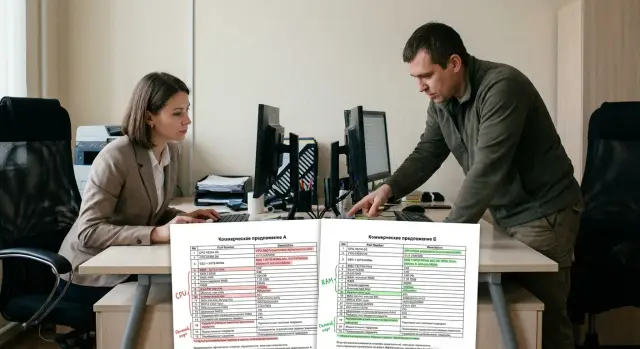
Why check Part Numbers when you compare quotes
Two commercial quotes can look identical: “server 2x CPU, 256 GB RAM, 4x SSD”, yet the price difference may reach 20–30%. Usually it’s not supplier “greed” but different configurations that don’t fit in a single line. If you don’t verify server Part Numbers, you’re comparing different sets and later pay for fixes: buying trays, licenses, cables or urgently expanding memory.
The most common trap in a quote is when the word “server” hides dozens of parameters. For example, one option may include lower‑frequency memory modules or different ranks, while another includes drives with higher write endurance. On paper they almost match, but performance and lifespan differ.
Frequently hidden items include component revisions and generations (CPU stepping, controller version, backplane type), licenses and features (RAID, remote management, virtualization, network options), service and support level (term, response time, spare parts), completeness (rails, cables, adapters, blanking panels, drive trays), and compatibility limits (which slots are occupied and what remains for expansion).
Parsing Part Numbers is useful to several roles at once. Procurement gets a fair quote comparison, IT sees the real architecture and risks, and finance understands exactly what they pay for and where additional charges may appear later. A typical example: two “identical” servers are ordered for a branch, but one lacks rails and extended support. Installation and downtime cost more than the price difference.
Part Number in plain language: what it fixes
A Part Number is the vendor’s item code that uniquely identifies what is being offered. It’s called article, SKU or Part Number in correspondence. The point is not the term but that the code lets you check the contents and correctly compare offers.
The same server solution almost always has multiple Part Numbers. Separate codes exist for the base chassis, each CPU, memory module, drive tray, RAID controller, network card, power supplies and even rack rails. There are also kits — sets of several parts sold under a single code.
CTO (Configure To Order) means the server is assembled to order from chosen options. In a quote this usually looks like a base platform plus a list of added items. So you must compare not only the server model but the entire line‑item list.
When you look at a spec, treat each line as a separate option: code, short description, quantity. For a quick check, note what the server Part Number includes: base model (chassis) and form factor, CPU and frequencies, memory (type, speed, module count), drives and tray type (SFF or LFF), controllers (RAID/HBA), network and power supplies.
If the supplier writes only vague wording without codes, hidden differences are almost inevitable.
What a quote configuration usually consists of
In a commercial quote it’s important to distinguish the base server model from what will actually arrive on site. The base model often describes only the chassis and minimal setup, while all the “insides” are added as separate option lines. So comparing by a single description like “2U server, 2 CPU” is almost always misleading.
A correct quote looks like a builder’s kit: a base plus itemized parts with part numbers. If you see only general wording without codes, comparing Part Numbers becomes impossible and “similar” offers will diverge in price and capabilities.
Delivery typically breaks down into blocks: chassis (series and model) and sometimes drive trays; CPUs, memory, storage; RAID/HBA controller, NICs, modules and adapters; PSUs, fans, cables, rails; separate lines for licenses and service (warranty, support).
Licenses and service are often omitted explicitly. The price looks lower, but later you’re asked to pay for extended warranty or a controller feature.
Another common point — replacements due to EOL or revision changes: Part Numbers change though the description is almost the same. Ask what exactly was replaced and why, and record this in the final spec. For deliveries via an integrator (including through GSE.kz) you can usually request a detailed itemized spec so surprises don’t arrive on site.
CPUs and memory: the most common substitutions
“Looks the same” in a quote often means “not the same” until you open the CPU and RAM lines. Substitutions are caught quickly by Part Numbers: formally the platform is the same, but final performance and TCO differ.
Don’t limit the CPU check to “Xeon/EPYC” and core count. It matters whether the generation and exact model match, base clock, supported instructions, number of CPUs (1 or 2) and TDP limits. Sometimes a cooler or lower‑tier CPU is used to fit the budget, costing you frequency and turbo under load.
For memory the usual differences are type and speed (DDR4 vs DDR5, 3200 vs 4800), and how the capacity is assembled. 8×32 GB and 2×128 GB are not the same: the first uses more channels and gives higher bandwidth, the second uses fewer modules and is easier to upgrade later, but may reduce speed and module‑level fault tolerance.
Ask the supplier to confirm by item: exact CPU models and counts per server; RAM type, speed and mode (e.g., RDIMM/LRDIMM); number of modules, ranks and channel population; maximum supported speed with the chosen CPUs; RAM limits per CPU and per system.
A simple example: two quotes for 256 GB. One uses 8×32 GB so memory runs at full channel width. The other uses 2×128 GB and the system noticeably loses performance under virtualization, even though the capacity is the same.
Drives and trays: where parameters are lost
Drives in quotes often look identical: “2 x 1.92 TB SSD”. But that line can hide a different drive class, interface and even expansion capability. When checking server Part Numbers, spend five minutes on drives — it quickly saves budget and headaches.
First check type and interface. HDD vs SSD is obvious, but NVMe is sometimes substituted for SATA SSD (or vice versa). Details matter: SAS or SATA, and for NVMe — U.2/U.3 and PCIe attachment. Form factor matters too: 2.5" and 3.5" need different trays and chassis.
Next — SSD class and endurance. Vendors label drives as Read Intensive (RI), Mixed Use (MU) or Write Intensive (WI). Two SSDs of the same capacity can differ in endurance by multiples, which becomes a problem for DB logs and virtualization.
A separate trap is the backplane and trays. A quote may say 8SFF but actually include a backplane for only 4 drives, or a variant without NVMe support. Clarify how many drives can actually be installed now and the maximum for future expansion.
Mini checklist for drives:
- Type and interface (SAS/SATA/NVMe, U.2/U.3), form factor.
- SSD class (RI/MU/WI) and endurance (DWPD/TBW).
- Number of slots and backplane type (SAS or Tri‑Mode, NVMe support).
- Raw capacity and usable after RAID.
Example: two quotes “8 x 960 GB SSD” look the same, but one is SATA RI and the other SAS MU. The first is cheaper but will hit endurance limits faster and often loses on performance. In projects where GSE.kz helps assemble server solutions, such differences usually surface when checking trays, backplanes and SSD class.
RAID and controllers: important details in one line
Controllers are often listed in a single line, but they determine whether you get a fast, resilient array or just a bunch of disks. Start with the basics: is it a RAID controller or an HBA?
A RAID controller implements hardware RAID and usually delivers more predictable behavior under load. An HBA basically connects drives directly (often used for ZFS, Storage Spaces, VMware vSAN), with resilience handled by the OS or hypervisor. So two quotes with identical drives may behave differently.
Then check cache and cache protection. Cache speeds up writes, but without a battery or supercapacitor (CacheVault, FBWC and similar options) power loss risks losing unwritten data. In Part Numbers this is often a separate option and easy to miss.
What to verify for the controller: supported RAID levels (at least 1/5/10, sometimes 6/50/60 are relevant), cache presence and size, cache protection, supported drive counts and interfaces (SAS/SATA/NVMe), pass‑through/JBOD modes, and bandwidth limits (e.g., 12G SAS vs 24G).
Another trap is “software RAID” in a quote. Sometimes it’s OS mirroring, other times a licensed controller feature. It sounds similar but differs in cost, performance and support.
Network and PCIe: how to check there are enough ports and slots
Network and PCIe often appear as a couple of lines, but differences here later cause divergent costs and capabilities. When comparing server Part Numbers, don’t stop at the adapter name — check the connection environment.
Start with the network: 1GbE, 10GbE, 25GbE and up are not only speed differences but different port types. RJ‑45 is convenient for copper, while SFP+/SFP28 requires optics or DACs and sometimes separate transceivers that may not be in the quote.
Quick checks to avoid surprises:
- How many ports are actually in the delivery: 2×10G vs 4×10G are different for redundancy and aggregation.
- Port type: RJ‑45 or SFP+/SFP28, and whether transceivers and cables are included.
- Support for required features (e.g., RDMA, SR‑IOV).
- Free PCIe slots after installing RAID/HBA/GPU and NICs.
- PCIe generation and lanes: an x16 card in an x8 slot works but may be bandwidth‑limited; Gen4 in Gen3 can bottleneck.
Example: one quote lists “10GbE” but it’s 2 SFP+ ports without transceivers; the other is 4 RJ‑45 ports on copper. They look similar by name but imply different costs and deployment options.
If you plan future expansion (add a second NIC or an accelerator), record not only the current options but how many and which slots remain free.
Power and completeness: what is often not specified
Even if Part Numbers and main components match, quotes can differ in what’s included in the box — and that quickly becomes extra costs and delays.
The first place differences hide is power supplies. Important is not only the wattage but how many units are included: single (1+0) or redundant (1+1). For many workloads redundancy is not “nice to have” but essential to avoid downtime: with redundant PSUs the server keeps running if one fails and replacement can be done hot. Also ask about power headroom: two CPUs, many drives, RAID and additional cards eat power fast.
Also confirm small details that later become critical: supported voltages and which power cords are included; whether rails and cable management are included; whether a front bezel is provided if needed; and whether fasteners and adapters for chosen trays and drives are included.
Example: two quotes look identical but one lacks rails and a second PSU. On site the server has nowhere to mount in the rack and no redundancy. When an integrator itemizes completeness (as GSE.kz typically does), these issues are easier to catch before sign‑off.
Support and warranty: compare by the same yardstick
Warranty and support are not the same. Warranty usually covers factory defects for a period. Support covers service commitments: response time, who will come, where spare parts are located and what happens if the server fails at night.
Quotes often pack these into one line, but this is where operational surprises start. Even if Part Numbers match, support levels can differ more than the price difference.
Response terms use abbreviations. NBD (next business day) means a visit or delivery the next business day, but during business hours and subject to parts availability. 24x7 means requests are accepted around the clock, but check whether 24x7 applies to the call center only or also to engineer dispatch and part delivery.
The phrase “on‑site” also needs clarification. Vendors often limit coverage by region: big cities get faster service, remote locations have longer times or are serviced via a partner.
To compare HPE/Dell/Fujitsu offers by a single template, ask the same questions: 8x5 or 24x7 and what is actually covered; SLA (response time and restore time, separately); whether engineer dispatch is included or it’s “parts and instructions”; where spares are kept and the policy if parts are missing; any regional limitations for your address.
If you work through an integrator, ask who will service the site and how escalations are handled.
Typical mistakes when comparing quotes
The most frequent problem is comparing a “similar description” rather than the bill of materials. If one quote includes Part Numbers and option breakdowns and another only general wording, hidden differences are almost guaranteed.
Errors that lead to overpayment or to a server not meeting requirements:
- Comparing “server 2xCPU, 256 GB, RAID” lines without exact codes, revisions and options.
- Mixing generations: “Xeon Gold” or “DDR4” sounds the same but clock speeds, supported capacity, PCIe lanes and power differ.
- “Saving one line”: removing RAID cache/BBU, installing 1GbE instead of 10/25GbE, not including needed licenses (e.g., remote management).
- Ignoring compatibility: NVMe listed but tray/backplane only supports SATA/SAS, or not enough PCIe lanes for chosen cards.
- Overlooking small items: rails, power cables of the right length, SFP modules, remote management module.
Example: two quotes “8 drives and 2x10GbE”. In one, 8 bays are NVMe‑capable 2.5"; in the other they’re SATA/SAS only, and the 10GbE is listed without transceivers. At purchase they seem identical, but at deployment you must buy extras and timelines move.
To avoid surprises, request a BOM and fix that you compare the same generations, interfaces and completeness. If you work through a system integrator like GSE.kz, agree on a unified quote template with options exposed.
Step‑by‑step algorithm: how to compare HPE/Dell/Fujitsu without surprises
When two quotes land on your desk they often read the same: “2x CPU, 256 GB RAM, RAID, 10GbE”. Differences usually hide in server Part Numbers and in options that are described in a single line.
Your task is to normalize offers and compare parameters and completeness, not names.
15–30 minute algorithm
- Gather all items into one table: base (chassis) + options (CPU/RAM/drives/cards) + service (warranty, support, dispatch).
- Normalize parameters: CPU model and count, frequency and generation, RAM (DDR4/DDR5, RDIMM/LRDIMM, population scheme), drives (type, capacity, interface, endurance), RAID/controller, network, PSUs.
- Mark mismatches and gaps (where wording is vague). For each point request the exact Part Number and option description.
- Convert configuration to clear metrics: cores and threads, total RAM, usable capacity and RAID level, drive class (SATA SSD vs NVMe), number of ports and their speeds, free PCIe slots.
- Record equivalence in writing: “we consider configurations equal if these parameters match”, and only then compare price and delivery.
A simple example: “2×10GbE” can mean 2 ports on the motherboard in one quote and a separate card occupying a slot in another — which affects available PCIe for HBA or GPU.
If you work through an integrator, ask them to produce a parity table. This is useful where delivery and support transparency matters, for example when selecting solutions across brands.
Short checklist before signing a quote
Before signing, spend five minutes in reviewer mode. Even if the headline model matches, differences are often hidden in one option line and in server Part Numbers.
Request a detailed spec and run through the points below. If any item says “analog” or “availability” that’s a reason to clarify and record the replacement in writing.
- CPU: exact model, number of processors, generation, frequency, TDP.
- RAM: DDR4/DDR5, speed, total capacity, population (how many sticks of what size), how many slots remain free.
- Storage: HDD/SSD/NVMe, interface, capacity and class, trays and backplane (how many bays and what type), RAID (controller model, cache, battery/ supercapacitor).
- Network and PCIe: speeds, port types (RJ‑45/SFP/SFP28), number of ports included, free PCIe slots for expansion.
- Service: term, mode (24/7 or 8x5), response time, what’s included (on‑site, parts, remote diagnostics), where the system is serviced.
If two quotes look identical but one lacks RAID cache or uses a different RAM population, the TCO and risk will differ. Better to catch that before procurement than after deployment.
Real example: two similar quotes but different configs
A common scenario: two quotes both say almost the same: “2×CPU, 256 GB, 8 SSD”. Price differs by 18–25% and the cheaper supplier claims the configuration is identical. In practice such lines hide key differences and Part Numbers are often missing or only partially listed.
You can usually find the real difference in 30 minutes by asking the right questions and getting written answers.
5 questions that quickly reveal substitutions
- What are the exact CPU models (frequency, generation, TDP) and are there any core licensing limits?
- Memory: frequency, type (RDIMM/LRDIMM), number of modules and channel population.
- SSDs: interface (SAS/SATA/NVMe), endurance (DWPD), form factor, and whether the bays are hot‑swap.
- RAID/controller: model, cache and cache protection (battery/supercap), supported RAID levels.
- Network and slots: how many ports are actually provided, what speeds, and which PCIe slots remain free.
Two additional often‑missing clarifications: PSUs (power, quantity, cables) and support level (NBD or 24/7, term, included services).
Typical outcome of a real comparison: “Cheaper because SATA SSDs instead of NVMe, RAID without cache, memory populated differently and a single PSU”. Then the price gap is explained. If there are no differences, you have a strong basis to renegotiate price.
How to document the comparison
Put answers into a table: parameter, Quote‑1, Quote‑2, risk, IT comment, procurement decision. Use this protocol internally and with procurement, including in integration projects (for example when assembling a delivery and support in Kazakhstan).
Next steps: how to lock in transparent comparisons
After you’ve found differences in Part Numbers once, make the process a rule rather than a one‑off. Otherwise the next procurement will repeat “almost the same” trays, controllers and memory.
Make the comparison table a standard. Keep it as a template and require every supplier to fill the same fields. Then you compare identical kits, not attractive totals.
What to ask suppliers to close gray areas:
- A line‑by‑line breakdown of Part Numbers (what’s included in each line).
- Explicit equivalents for substitutions (with parameter confirmation, not just “analog”).
- Separate lines for trays/backplanes, controllers, PSUs, rails, licenses, cables.
- Support conditions: term, response level, what’s covered.
- Final spec in a single format so it can be compared line by line.
If localization or alternative supply is important, include comparison with locally supplied platforms. In Kazakhstan, for example, you can compare configurations with local GSE S200 platforms to evaluate CPUs, memory, storage subsystem, network and service on equal terms.
A good systems integrator not only “matches hardware” but assembles a unified requirements document for the whole stack: servers, network, rack, power, virtualization, backup. Practical example: planning a 3‑node cluster — the integrator will verify that all quotes have identical ports, identical RAID/boot behavior and identical support so infrastructure can handle the load.
Frequently asked questions
Why can two “identical” server quotes differ in price by 20–30%?
Comparing by a single line almost always hides differences in configuration. A Part Number identifies exact CPU models, memory, drives, controllers, trays, network cards and even rails — so by it you can see what you actually pay for and where extra charges will appear later.
What is a Part Number in simple terms?
Part Number (also called article or SKU) is the vendor code that uniquely describes a specific item and its variant. With it you can verify the exact contents of the delivery and compare two quotes as truly equivalent, not just similar on paper.
What should I ask the supplier for if the quote has no Part Numbers?
Request a bill of materials (BOM): separate lines for chassis, CPU, RAM modules, drives, drive trays/backplane, RAID/HBA, NIC, PSUs, rails, licenses and service. If the supplier only gives general text without codes and quantities, you can’t reliably compare quotes.
What does CTO (Configure To Order) mean in a quote?
CTO (Configure To Order) means the server is built to order from selected options. In a quote this usually appears as a base platform plus a list of added items. In CTO quotes you must check not only the chassis model but each option by code, description and quantity.
What to check in CPU and RAM lines so you don't get “the same but worse”?
Common substitutions are exact CPU model and generation, base frequency and TDP limits; for memory — type (RDIMM/LRDIMM), speed and how the capacity is assembled. 256 GB can be built with different module counts and that affects bandwidth, free slots and virtualization performance.
What hidden differences occur in drives and backplanes?
Check interface (SAS/SATA/NVMe), form factor and SSD class by write endurance (RI/MU/WI), because equal capacity does not mean equal reliability and performance. Also verify the backplane: how many real slots are available now and for expansion, otherwise “8 drives” may be only 4 usable or without NVMe support.
How to quickly tell if the RAID/controller in a quote is suitable?
Ask whether it’s a RAID controller or an HBA, which RAID levels are supported, whether there is cache and cache protection (battery/supercapacitor), since that affects write performance and data risk on power loss. Also confirm supported interfaces and modes (JBOD/pass‑through) if the OS or hypervisor manages the array.
Why can “10GbE” in two quotes mean different costs and limitations?
Compare not only “10GbE” but the actual port type (RJ‑45 or SFP) because SFP often needs transceivers and cables that may not be included. Also check how many PCIe slots remain after installing RAID/HBA/GPU and NICs — card x16 in an x8 slot or Gen4 in Gen3 can be bottlenecked.
Which small items are most often left out of a quote?
Most often omitted: a second PSU for redundancy, rack rails, the correct power cables, mounting hardware and adapters for drives. Without these, a server might not fit the rack or lack redundancy, forcing urgent purchases that erase the initial savings and delay deployment.
How to compare warranty and support so you don't later dispute the SLA?
Compare on the same metrics: term, support window (8x5 or 24x7), response time and what is included — on‑site engineer, spare parts, remote diagnostics, and any regional restrictions. Different service levels change downtime risk and the real cost of ownership, so treat SLA as seriously as CPU or drives.
