8 min read
Server for Educational Virtualization: Sizing for 20–60 Students
Server for educational virtualization: how to size CPU, RAM and disks for 20–60 students, set VM limits and avoid common lab mistakes.
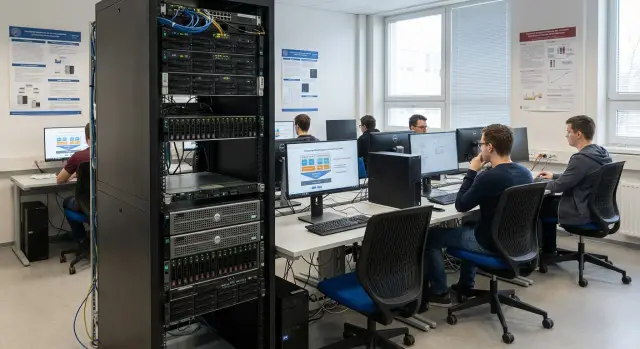
What the department needs and why resources run out
An educational virtualization server almost always “runs out” sooner than expected. The reason is simple: classroom load is bursty. At the start of a lesson everyone boots VMs, logs in, runs updates, opens browsers, IDEs or test databases. Even if each VM looks "light" on its own, together they quickly consume CPU, RAM and the storage subsystem.
Class scenarios vary. If one course runs with uniform tasks, load is easier to predict: same OS, same assignments and predictable peaks. But if multiple subjects share the same day — some students on Linux, some on Windows, some using Docker, some running SQL or simulations — the server must handle multiple load profiles at once. The overall responsiveness suffers, not only the heaviest jobs.
To avoid guessing, fix three things in advance: how many students actually use VMs concurrently (not just “on the roster”), what tasks they perform, and how many VMs are assigned per student (one workstation VM or additional VMs for server, router, domain, etc.).
Typical symptoms of shortage: stalls in the first 10–15 minutes of class, hangs during builds and updates, sudden lack of space due to snapshots and disk clones, storage growth from databases or logs over a few sessions, and network drops during simultaneous logins and image downloads.
Simple example: 30 students simultaneously start a Windows VM and begin a lab with a browser and IDE. Formally this is an “office” load, but at a moment it becomes heavy: memory demand spikes and the disk receives a torrent of small operations. So plan capacity from concurrency and peaks, not average consumption.
Define the load: how many VMs, which OSes and what tasks
The first step is to understand not “how many students are on the roster” but how many virtual machines will actually run at the same time. In class some students are late, some wait for instructions, others already have a running VM that barely uses CPU. Commonly you assume a fraction of concurrent starts: for 20 students this is often 14–18 VMs, for 40 — around 28–34, for 60 — 40–50. If you allow remote access from dorms or home, concurrency approaches the maximum.
Next, define task types. It’s more convenient to think in profiles rather than individual labs:
- Light: Linux, basic commands, networking, small services.
- Medium: Windows, office apps, domain tasks, basic admin.
- Heavy: IDEs, builds, databases, analytics, multiple services in one job.
Important: does each student use one VM or a scenario of 2–3 VMs? Networking courses often need a set: client + server + router/firewall. That increases the VM count drastically, though CPU may not rise proportionally because some machines stay idle. For an accurate estimate, make a simple table: how many VMs per assignment, how many need to be on continuously, and which OSes are used.
Network design affects organization. If groups must be isolated, decide whether to use separate VLANs per subgroup, sandbox networks without campus access, and whether access is only from the lab or also remote (VPN). These choices set requirements for switches, ports and virtual switch configuration.
Finally, storage. Do assignments persist for weeks or are they wiped after class? If everything is reset after the session you can rely on templates and snapshots and keep less persistent data. If students have semester projects, provide separate disks/folders per user and clear policies: what is kept, what is deleted and how backups are done.
Example for a networking lab: each student needs 3 VMs but only 2 run constantly (client and server) and the router is started for 10–15 minutes. For 40 students you plan not 120 "live" VMs but about 70–80 active VMs at peak; size for that peak.
Quick guidelines for CPU, RAM, disks and network
In educational virtualization memory and storage usually run out during simultaneous starts, not the processor. So start with these guidelines and refine them for your tasks.
CPU: vCPU and physical cores
vCPU are virtual threads the hypervisor assigns to VMs. 1 vCPU is not equal to 1 physical core: vCPUs time-slice on the same cores. The overcommit ratio matters. For educational workloads it is usually fine to have total vCPUs 3–6 times the number of physical cores for short tasks (compilation, browser, office). Reduce overcommit for heavy workloads (Docker, databases, analytics).
RAM: the main limiter
Memory runs out fastest because you can’t “wait” for it like CPU. A typical Windows study VM often needs 4–6 GB, light Linux 2–4 GB, plus overhead for the hypervisor and caches. When RAM is tight the host swaps and everything slows catastrophically.
Disk: IOPS matter more than capacity
VMs can be small in GB but when dozens start at once the disk receives a flood of small operations. IOPS and latency matter more than total space. HDDs are particularly painful during the simultaneous start of 20–60 VMs: users see “hangs” even if there is enough free space. For lab benches prefer SSD/NVMe and save on capacity rather than speed.
Network: when 1–2 ports are enough and when you need 10G
If VMs and images are local and traffic is mostly console/VDI and common image downloads, 1–2 gigabit ports often suffice. 10G and separated networks are needed when storage is remote, many concurrent image copies occur, or you want to segregate management, VM traffic and storage for stability.
Key starting points to avoid mistakes:
- CPU: plan vCPU overcommit around 3–6 per physical core for light labs; reduce for heavy tasks.
- RAM: size per-student memory and add buffer; otherwise everything hits swap.
- Disk: choose fast SSD/NVMe, especially if everyone boots simultaneously.
- Network: 1G often suffices; 10G is needed for external storage or mass copies.
- Headroom: keep at least 20–30% free resources for peaks and unexpected VMs.
A good minimum is that the server should handle “the whole class pressed Start at once” without long boot times and disk queues.
Step-by-step: how to calculate a configuration for your group
Steps 1–2: platform and concurrency
Choose the hypervisor you will support (VMware, Hyper-V, Proxmox) and decide where VM disks will reside: locally on the server or on shared storage. For labs local NVMe often wins: fewer dependencies and more predictable speed.
Estimate concurrency. Not all 60 people will create a peak load every minute: some read instructions, some reboot, some submit. Use a concurrency factor of 0.6–0.9 as a rule of thumb and apply it.
Steps 3–6: VM profiles, memory, disks and reliability
Create 2–3 VM profiles for typical labs: light (Linux, network tools), medium (Windows with office/IDE), heavy (AD, DBs, containers, builds). For each profile set vCPU and RAM, and set limits so one VM can’t steal all resources.
Then calculate:
- how many VMs of each profile will be active simultaneously;
- total RAM by profile + 15–25% host and background reserve (cache, services, management);
- CPU with the principle “better fewer vCPUs per VM than constant 100% usage”;
- storage sized for peaks: simultaneous start, logins and updates (IOPS critical for Windows labs);
- fault tolerance and backups: is a server failure an hour-long outage or losing semester results?
Example: 40 students, activity 0.75 gives 30 concurrent VMs. If the “medium” profile is 2 vCPU and 4 GB RAM, that alone requires about 120 GB RAM for VMs, plus host overhead. These calculations quickly show whether one powerful server or two smaller ones are better (easier to split groups and reduce single-point failures).
Example sizing for 20, 40 and 60 students
The numbers below are working guidelines for departments where students run typical lab VMs (Windows or Linux), install software, configure systems and occasionally reboot. The goal is fairness so one user cannot accidentally take all RAM or hit disk limits.
Basic assumptions
For examples we use two profiles: light (1 VM per student, Linux/tools) and medium (2 VMs: client + server, sometimes Windows). Typical starting points are 1–2 vCPU and 2–4 GB RAM per VM. Account for hidden consumers:
- 1–2 instructor/admin VMs (monitoring, assignment server, domain/services);
- template and ISO storage (usually 200–500 GB on fast disk);
- snapshot space: snapshots can consume tens of percent of datastore;
- hypervisor overhead (reserve 10–15% RAM and CPU);
- a small test datastore/pool for validating new images.
Approximate configurations
- 20 students (20–40 VMs): 16–24 physical cores, 128 GB RAM, NVMe/SSD for VMs (min 2–4 TB total), 10GbE recommended. Sufficient for 1–2 VMs per person with moderate tasks.
- 40 students (40–80 VMs): 24–32 cores, 256 GB RAM. RAM often becomes the bottleneck. Separate system and VM storage if possible; slow disks cause long queues and hangs during concurrent operations.
- 60 students (60–120 VMs): 32–48 cores and 384–512 GB RAM are reasonable, but it’s often simpler and safer to split into two nodes (e.g., 30 students per server). This eases failover and lowers the chance a single heavy workload affects everyone.
If you buy for long-term use, choose a platform with clear support and memory headroom. In Kazakhstan departments often work with local integrators — for example, GSE.kz can help match configs to educational profiles and service needs rather than abstract corporate loads.
How to cap resources so everyone gets their share
Often the issue isn’t “not enough metal” but a single misbehaving VM taking resources from others. Set boundaries in advance: how much CPU, memory, disk and I/O each student gets.
CPU: prevent one VM from taking all cores
A common mistake is giving everyone 4–8 vCPUs “just in case.” Then 2–3 heavy VMs saturate the scheduler and others slow down. For labs keep vCPU conservative and enforce limits and priorities.
Minimum hypervisor settings: set a vCPU limit or CPU cap per VM, use shares/priority (equal for student VMs, higher for instructor/infrastructure), and prevent uncontrolled vCPU growth in templates.
Memory: establish guaranteed ranges
Think “each gets N GB guaranteed; more only if free.” Fixed RAM gives predictability. Overcommit is risky in labs: when memory runs out the host will swap and everyone feels the delay.
If you use ballooning or dynamic memory, test it with real assignments. For heavy labs (IDEs, DBs, builds) the simple approach — fewer VMs but guaranteed RAM — often works best.
Disk and I/O: control image growth
Thin provisioning is convenient, but without control it often ends with a full datastore. Use quotas and rules on disk growth for lab VMs and student home folders.
What to enable: disk size quotas and home folder quotas, IOPS/MBps limits for noisy VMs (e.g., an antivirus scan), and a clear snapshot policy: short retention, clear names, periodic cleanup.
Network and isolation: keep groups from interfering
Separate labs by virtual networks or VLANs and limit broadcast traffic. One typical issue: one group runs a network scan and another loses access. Isolation is cheaper than buying more hardware.
If buying a solution, it helps when the server and support are offered as a single package. That encourages preconfigured limits, templates and network schemes so load is predictable from day one.
Lab organization: templates, snapshots and storage hygiene
A stable class relies on two things: minimal manual work and minimal unexpected writes to disk. Even a powerful server won’t help if storage is chaotic and updates run at random times.
Prepare a VM template once per semester: OS, required packages, drivers, network settings, student accounts or domain join. Clone from it for students or groups to save time and ensure consistency.
Before the first class set a few rules: 1–2 golden templates per course (e.g., Windows and Linux), separate VM pools per group, clear naming (group-number-student), a temporary datastore for lab VMs and a separate location for student data (not on the VM system disk).
Snapshots are useful if a student can "break" a system, but they must not be kept indefinitely. Each day they extend change chains and pressure disk space; if storage overflows a lesson can halt.
Practical rules: one pre-lab snapshot, keep 1–3 days, avoid accumulating 5–10 snapshots per VM, and delete snapshots outside class hours.
After class prefer resetting or recreating VMs rather than manual fixes. Keep student work on separate storage: network share, separate virtual disk or dedicated datastore so you can reset systems without losing submissions.
Schedule updates so they don’t create a peak during class: update templates in the evening and recreate clones in the morning. When buying servers/storage from an integrator like GSE.kz, request a storage layout and support SLA so order is built in from the start.
Common mistakes and pitfalls in educational virtualization
The most common reason labs slow down: memory runs out before you expect. When the host enters active swap, all VMs appear frozen even if CPU isn’t saturated.
Second trap: disks. Lab tasks cause many small writes: VM boot, updates, archive extraction, IDE installs. Slow or overloaded storage causes long boots and delays even when CPU and RAM look fine.
Problems often start from “just in case” templates: everyone gets 4 vCPUs and 8–16 GB RAM. Resources sit idle for some and overwhelms others; the hypervisor tries to honor allocations and starts impacting neighbors. Better to start small and increase only where needed.
Another pain point: uncontrolled thin provisioning. Mid-semester the datastore may fill because of snapshots, update caches and home folders. VMs start failing and recovery takes longer than the lab itself.
To catch issues before complaints, monitor a few metrics weekly: memory pressure (swap, ballooning, OOM), disk latency, datastore usage, snapshot growth and forgotten clones, CPU usage over time, and network errors during class start.
Avoid mixing teaching virtualization with other departmental services without priority rules. For example, a backup job might consume disk or network during class. If the environment is shared, set schedules and priorities or allocate a dedicated resource pool for lab VMs.
Short checklist for instructors and admins
A simple protocol clarifies responsibilities and catches issues before 30 students press “Start.”
Before the semester and before each class
Check RAM reserve and free storage (keep noticeable headroom). Test disk speed and RAID/SSD health: if disk queue grows at idle the lesson will suffer. Update and validate VM templates (OS versions, drivers, lab software, accounts). Clean up old snapshot chains. Do a short test: boot 5–10 VMs, log in as a student and open a sample assignment.
During class watch three things: CPU load, memory pressure (when the host starts ballooning/swapping), and disk queue. If many students freeze opening IDEs or browsers, disk I/O is the likely culprit, not lack of cores.
After class and routine checks
Perform cleanup: remove temporary VMs, revert to templates, power off forgotten machines. Produce a brief report: weekly storage growth, top-hungry courses/groups, frequent startup errors. Monthly, run a mass start test (e.g., 30–50 VMs in 5–10 minutes) and record metrics. Periodically test restores from backups on a test VM rather than trusting the existence of copies.
If storage grew by 200–300 GB after a session it’s almost always snapshots and uncollapsed differential disks. Routine cleanup solves that faster than buying new hardware.
A realistic scenario: what it looks like in the classroom
A typical class: two groups of 30 students each, lessons scheduled back-to-back in the same lab. Each student gets two VMs: a “client” (Windows or Linux) and a “server” (Linux or Windows Server). At peak the host runs about 60 concurrent VMs plus several service VMs (domain, repo, monitoring).
To ensure fairness apply uniform rules: fixed vCPU limits per VM (e.g., 1–2 vCPU), fixed RAM and disk quotas per student. This prevents one heavy project from consuming half the class resources.
How storage is organized
Tasks are split by speed: system disks of VMs live on fast SSD, student data (home folders, lab uploads, ISOs) on a separate volume or pool. This simplifies quota control and reduces the chance a single full volume stops everything.
In practice the workflow: clone VMs from templates before class, after class revert or recreate VMs, allow snapshots only as short checkpoints, limit student storage with quotas, and lock VM resource settings so they can’t be changed ad hoc.
Signs it’s time to scale
Problems show up by memory and disk, not CPU. If complaints “everything is slow” come from half the class, check swap/ballooning, VM freezes at login, and rising storage latency and queues. Another sign is increasing VM boot time from the first to the last seat.
If these signs repeat each lesson you need more SSD/IOPS, more RAM, or a second server to split groups.
Next steps: pilot, measurements and procurement
Before buying, gather requirements: how many VMs will run concurrently, what tasks they perform (light: Linux+terminal; medium: Windows+IDE; heavy: DBs, containers), and how much prep time you have.
Run a short pilot over 1–2 lessons. It reveals real CPU, RAM and disk consumption better than theoretical estimates. Ask students to run typical tasks while you record host and VM peaks and averages, and identify the first resource to saturate: memory, disk queue or CPU.
Practical pilot plan:
- Prepare 5–10 representative VMs (10–15 if heavy tasks expected) and one master template.
- Apply identical CPU/RAM limits and the same disk size to all VMs.
- During class log average CPU, RAM usage, IOPS/disk latency and network traffic.
- After class note what caused stalls and when.
- Turn results into a baseline (e.g., “per VM: X vCPU, Y GB RAM, Z GB disk”) and rules for when to increase limits.
Also agree on unified policies: which templates are allowed, update cadence, who creates snapshots and how long they live. This reduces chaos when different instructors manage labs differently and the infrastructure develops its own habits.
Plan support in advance: who upgrades the hypervisor, manages backups and triages incidents ("no one can load VMs", "storage is full"). If you lack in-house staff, budget external support.
Once the pilot yields numbers, hardware selection is easier: you’ll know how many nodes, how much RAM/CPU headroom and where fast disks are required. For turnkey server and deployment consider rack servers from the GSE S200 Series and integration services from GSE.kz (including 24/7 support), so labs don’t depend on a single department employee.
Frequently asked questions
Where do I begin when sizing a server for educational virtualization?
Start with concurrency and task profiles. Fix how many VMs actually run at the same time, which OSes and tasks are used, and how many VMs are assigned per student. Then size RAM and storage for peak starts, and set CPU according to a reasonable vCPU overcommit.
Why does the server “die” in the first 10–15 minutes of a class?
Because load comes in bursts: at the start of class dozens of VMs boot, users log in and updates run. Memory is required immediately and the disk receives a flood of small operations, which causes responsiveness to drop. Average values over the whole lesson usually hide these peaks.
How to estimate real concurrency for groups of 40–60 people?
Use a concurrency factor of 0.6–0.9 multiplied by the number of students rather than the class roster. For on-site classes you’ll often get below the maximum; with remote access concurrency moves closer to 1.0. It’s best to measure during a real lesson and adjust the factor.
Which resource usually runs out first: CPU, RAM or disk?
On educational benches you usually hit RAM and storage first, not CPU. If memory runs out the host will swap and everything slows dramatically. If storage is slow, a mass VM start creates an I/O queue even when CPU looks fine.
What vCPU overcommit ratio is reasonable for educational tasks?
For light and medium labs with short peaks a common overcommit is about 3–6 vCPUs per physical core. For heavy tasks (databases, builds, Docker, analytics) reduce overcommit to avoid sustained 100% usage and latency. In practice keep vCPU per VM conservative and increase only where needed.
How much memory should I plan per virtual machine?
Typical figures: a Windows study VM often needs 4–6 GB of RAM; a light Linux VM 2–4 GB. Add host and cache overhead. Size from the number of active VMs at peak and add at least 15–25% headroom. When RAM is tight, any activity wave triggers swap and mass complaints.
Why are SSDs/NVMe important for lab VMs even if total capacity seems sufficient?
Because IOPS and latency matter more than raw gigabytes. When dozens of VMs boot at once the disk receives many small operations; HDDs suffer noticeable stalls. SSDs/NVMe provide much smoother behavior during mass starts and logins even when total capacity would be enough on HDD.
When is 1G enough and when is 10G really required?
1–2 gigabit ports are often fine if storage is local and traffic is mostly console/VDI and image downloads. 10GbE is needed when storage is remote, many concurrent image copies occur, or you want to separate management, VM and storage traffic for stability. Design so network upgrades are straightforward if unsure.
How to limit resources so one student won’t take the whole class down?
Set strict per-VM limits for CPU, RAM and disk so one VM can’t consume class-wide resources. Avoid giving everyone 4–8 vCPUs “just in case” and don’t leave thin provisioning uncontrolled. Use quotas, snapshot rules and I/O limits for noisy VMs to protect the pool.
How to use templates and snapshots correctly so storage doesn’t fill up?
Templates and clones save time and ensure uniform environments, but storage discipline prevents sudden full datastores. Keep snapshots short: one before the lab, stored 1–3 days, and remove snapshots outside class hours. Store student data separately from VM system disks so machines can be reset without data loss.
