8 min read
Server burn-in test before production: tools and pass/fail criteria
Server burn-in test before production: tools for CPU/RAM/network, pass/fail criteria and rules for recording results for warranty.
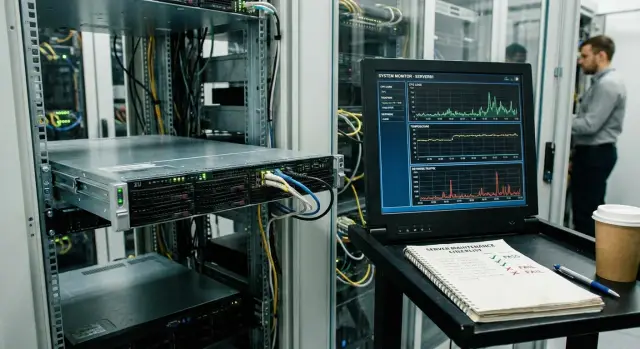
What burn-in checks and why it’s needed before production
A server burn-in is a short but intense run under high load. It helps catch hardware "infant mortality" before real services are moved onto the machine. Even a new server can have a hidden defect that will only show up in production at the worst time: at night, under a load spike, or during an update.
The idea of burn-in is simple: verify stability, cooling and power under conditions close to the worst case. Unlike a basic OS install and a quick run, the important thing here is not that the server boots and sees disks, but that it holds load for hours without errors, throttling, or strange reboots.
Most often burn-in helps reveal problems that later look like "rare and unexplained":
- overheating, faulty fans, poor thermal contact or airflow issues in the chassis;
- unstable RAM and ECC errors that are initially masked as application crashes;
- disk and controller failures (timeouts, rising error rates, failing sectors);
- network problems: packet loss, link flaps, unstable throughput.
Do burn-in after delivery of a new server, after upgrades (CPU, RAM, drives, NICs), after moving a rack, reassembly or any intervention in power and cooling. For infrastructures that can't tolerate downtime (government, finance, healthcare) this is simple insurance: it's better to spend half a day on testing than spend weeks chasing the cause of a single "random" production hang.
Preparation: what to record before start and which conditions matter
Plan burn-in as a separate maintenance window, not as an afterthought. Choose a period when the server definitely won't affect production, and prepare a plan for actions if problems are found: what to do if the test reveals a defect (module replacement, return, change of input).
Before starting stress runs, collect a "passport" of the server. This saves hours during troubleshooting and is very helpful if you later need to open a warranty case.
At minimum record:
- chassis model and serial number, plus serials of key components (if available);
- CPU configuration, RAM capacity and slot population;
- list of drives and controller, RAID level (if configured);
- network adapters and their ports (speeds, connection types);
- versions of BIOS/UEFI, BMC and firmware for controllers and NICs.
Also check the conditions in which the test will run. Burn-in in an ideal lab doesn't always catch issues that will show up in the rack a week later.
Pay attention to:
- server room temperature and available airflow (no blocked vents);
- UPS connection and power mode (single/double power supplies, separate feeds);
- network topology: where the server is connected, which switches, which VLANs;
- basic settings: power profile in BIOS, fan mode, ECC enabled or not.
Duration and mix of loads should match the goal. For typical acceptance 4–12 hours is often enough, but if the server will do heavy computation or run many VMs, emphasize CPU/RAM and network in the scenario.
If this is a new rack server like a GSE S200 Series node for a cluster, decide in advance what matters most for acceptance: stable temperatures at full load or predictable network throughput. That will make the test scenario and pass/fail criteria clearer.
What to monitor during the test: metrics and log sources
During burn-in it's important not only to stress the hardware, but to continuously observe how it behaves. Most issues don't show as a clear "FAIL" in a tool, but as overheating, throttling, rare hardware errors, or unexpected reboots.
Temperature, power and cooling
Start with thermal telemetry: CPU temps, VRM (if available), chipset, drives, plus fan RPMs. On Linux lm-sensors is often enough for basic sensors, and ipmitool is handy for reading BMC data (temperatures, fan RPM, events).
Warning signs:
- CPU frequency drops noticeably under sustained load;
- logs report thermal throttling;
- fans constantly change RPMs while temperature fluctuates;
- power-related events appear in BMC logs.
Hardware errors and system events
Even if tests continue to run, hardware errors can accumulate in the background. On Linux check kernel logs and dmesg for MCE (Machine Check Exception), PCIe errors, device timeouts and driver failures. On Windows check Event Viewer: WHEA-Logger, BugCheck, Disk, Ntfs.
A short list of items to timestamp and record:
- CPU temperatures and frequencies, and any throttling events;
- IPMI/BMC events (SEL): overheating, power, fans;
- dmesg/journalctl or Event Viewer entries for hardware errors;
- SMART data for drives (smartctl) and increases in reallocated/pending/CRC errors;
- reboots, hangs, network dropouts, driver errors.
For example, if MCEs appear after 40 minutes of load followed by a reboot, this is not a "random" event even if some tests completed. Combining metrics + system logs + BMC events helps quickly narrow the cause and provides solid evidence.
CPU toolset: how to stress and what counts as a problem
The CPU test goal is simple: load all CPU cores at 100% for an extended time and ensure the system doesn't fail under heat or power stress. It's important to verify not only that the system "holds load", but that hidden hardware faults don't appear after an hour rather than five minutes.
Common tools fall into several classes:
- stress-ng (quick to run and scales well);
- Prime95/mprime (heavy compute and cache stress);
- Linpack-like packages (very "hot", useful to test cooling and power limits).
To make the load fair, set parallelism to the number of logical CPUs (threads). It's often sensible to leave 1–2 threads for the system, especially if you monitor logs and sensors in parallel. For dual-socket systems run tests pinned to NUMA nodes to catch problems on a specific CPU or memory channel set.
Example commands (adapt N to your server):
N=$(nproc)
stress-ng --cpu $N --cpu-method matrixprod --timeout 2h --metrics-brief
Problems are not just "high temperatures" but signs of instability:
- persistent throttling that significantly reduces frequencies under steady load;
- MCE/WHEA errors in system logs, even if the test didn't crash;
- process crashes, hangs, reboots, kernel panic;
- incorrect computation results (if the tool reports them).
For warranty cases save the tool output, BIOS/microcode versions and an extract of system logs into a dated archive with the server serial. This is simple but often missing when "it failed but now can't be reproduced."
RAM and ECC testing: how to find memory instability
Memory should be tested separately even if CPU and drives look fine. A failing cell, intermittent module, or controller issue may not show up under normal load but appear later in production as random service crashes and database corruption.
Start with out-of-OS tests: Memtest86 (or equivalent bootable test) catches obvious module and timing problems well.
In-system run long memory stress. Common choices are stress-ng in vm mode (allocates and actively writes large amounts of RAM) and, in some cases, y-cruncher, which often exposes borderline instability—especially at high temperature.
For ECC distinguish between corrected and uncorrected errors. A single corrected error over many hours can be noise, but repeat events, rising counters under load, or errors on the same DIMM usually indicate hardware trouble. Check system logs: on Linux dmesg and EDAC/MCE messages often show corrected/uncorrected ECC entries. Windows logs similar events in the system event log.
Typical FAIL conditions for memory:
- any uncorrected ECC error, kernel panic, BSOD or spontaneous reboot;
- repeat corrected ECC errors, especially on the same slot/channel;
- Memtest86 failures, even single ones if they are reproducible;
- y-cruncher crashes or mismatched results under identical settings;
- application crashes and corrupted archives/checksums during long RAM writes.
If testing a new server for deployment (e.g., for virtualization), run memory stress for 4–12 hours and watch ECC counters. If they grow, record the time, temperature and exact module — this makes warranty replacement easier.
Network testing: throughput, loss and stability
Network often looks "fine" until real load begins: backups, VM migrations, DB replication. Network burn-in is needed to catch intermittent port/cable/SFP/config issues before production.
Start with basic link checks. It's important not only whether the interface is up but whether hidden errors might later cause TCP retransmits and throughput collapse.
Check:
- speed and duplex (e.g., 10G/Full), correct autonegotiation;
- interface error counters: CRC, drops, overruns, frame errors;
- NIC driver and firmware (no warnings in system logs);
- presence/absence of flow control pause frames (if unexpected).
Then stress the link with iperf3. Run tests in both directions and with varying numbers of streams: one "fat" session and several parallel streams often reveal different behavior. For stability run longer tests (10–30 minutes) rather than 30-second bursts.
# На принимающей стороне
iperf3 -s

# На тестируемом сервере: 4 потока, 15 минут
iperf3 -c \u003cIP_партнера\u003e -P 4 -t 900

# Обратное направление (сервер передает в ответ)
iperf3 -c \u003cIP_партнера\u003e -P 4 -t 900 -R
For latency-sensitive services (voice, VDI, some clusters) add packet loss and jitter checks. A simple practice is long pings and comparing results "before" and "under iperf3 load."
What to keep for reports and warranty cases: configuration snapshot (speed/MTU), full iperf3 output, interface error counters before and after the test, and TCP metrics (retransmits, throughput drops over time). If a new server’s 10G link shows stable CRC but increasing retransmits on one port, that's strong evidence to replace a cable, SFP or NIC.
Drives and storage (as applicable): quick I/O stress and checks
If the server will host databases, VMs or file services, a CPU run alone is insufficient. Major surprises often come from disks and controllers: under load latencies grow, timeouts appear, and errors that are invisible during simple file copies surface.
For quick I/O stress fio is usually enough. The idea is to apply a sustained mixed workload (read/write) similar to real usage. For DBs use small blocks and random access; for archive/file workloads use large sequential writes. Run the test at the level where storage will operate: single disk, RAID array, LVM, SAN LUN.
Monitor the system: iostat shows device load and latencies; vmstat helps see if you're hitting memory or swap. Also check SMART and drive temperatures before and after the test. Overheating often masquerades as "just slow."
Signals that merit stopping and investigation:
- read/write errors from fio, I/O errors in dmesg or syslog;
- sudden latency spikes and throughput drops without profile change;
- disk or controller timeouts, reset/abort command messages;
- rising SMART errors (reallocated, pending, uncorrectable), even if the test "technically passed";
- overheating of drives or controller beyond the model's norm.
If the server is for critical loads (e.g., a VM cluster), compare results to a reference of the same configuration. Keep that reference as a baseline profile for acceptance.
Step-by-step burn-in scenario for 4–12 hours (example)
Below is an example suitable for most new servers before production. It's convenient to repeat as a standard run and compare results between identical models.
If the server is new or after repair, run burn-in in predictable conditions: normal ventilation, stock fans, closed chassis and stable power.
Example sequence (4–12 hours)
-
Collect the server "passport" and enable log collection: model, serial number, CPU/RAM/drives/NIC configuration, BIOS/firmware versions, date and test location. Configure saving of system logs (dmesg/journal/syslog), BMC/IPMI events and sensor readings.
-
30–60 minutes observation without load. Verify temperatures and fan RPMs are stable, no errors in logs, ECC corrected counters not growing, no strange reboots.
-
Run loads in sequence: CPU stress with monitoring, then RAM stress, then combined CPU+RAM. It's important not only to "load" but to watch for degradation: throttling, sudden temperature jumps, Machine Check errors, test failures, hangs.
-
Network iperf3 runs: both directions, multiple streams, at least 10–15 minutes per configuration (single link, LACP, different VLANs as per your design). If the server will work with storage or DBs add a short I/O stress (fio) on relevant drives or volumes.
-
Final PASS/FAIL and artifact packaging: save logs, utility outputs, sensor screenshots and a metrics table. This greatly helps if an incident or warranty case needs investigation.
Pass/fail criteria: how to decide without guessing
Main rule: compare burn-in results to manufacturer specifications for your CPU, memory, motherboard and cooling. Temperature limits, allowed frequencies, turbo behavior and throttling thresholds differ even between similar platforms.
Assess pass/fail across four axes: stability, log errors, thermal behavior and performance predictability. If any axis fails reproducibly, stop and troubleshoot before production.
Practical checklist:
- FAIL: reproducible hardware errors in logs (ECC/MC, PCIe AER, MCE), even if the server doesn't crash. A rare single WARNING isn't a verdict, but repeatability under the same load is a red flag.
- FAIL: hangs, spontaneous reboots, kernel panic, disappearance of network interfaces or controllers.
- FAIL: sustained throttling at nominal load when ventilation and conditions are normal (clean filters, adequate room temperature, correct fan profile).
- PASS: tests run for hours without critical errors or crashes and metrics remain stable.
- PASS: predictable performance without sudden drops or unexplained frequency oscillations.
Example: you run a new rack server (e.g., S200 class) for 8 hours. If MCEs occur every 20–30 minutes or ECC corrected counters grow, consider the server unfit for production even if apps haven't noticed problems. Conversely, if temperatures and frequencies stay within spec and logs are clean, a "pass" decision is reasonable.
Common mistakes and pitfalls during burn-in
The most frequent mistake is treating burn-in as a "black box": start the stress, walk away, and return to a frozen screen without answering "why". Without monitoring temperatures, frequencies, ECC counters and system logs you waste time and lack evidence for troubleshooting and warranty claims.
Another trap is changing everything at once. Updated BIOS, RAID driver and NIC firmware at the same time and then running a new load makes it impossible to know the cause. Change one thing at a time and record firmware and package versions before and after.
What usually breaks a test
- Stress without observation: no graphs, no logs, no timestamps.
- Mixed loads without a plan: CPU, RAM, network and disks at once and then you can't identify the culprit.
- Ignoring conditions: closed rack, clogged filters, high room temp.
- Weak power or bad PDU: short dips that look like "random" reboots.
- Too short a run: 10–20 minutes won't catch rare memory errors or heating effects under sustained load.
Simple example: a server passes for 15 minutes but throttles after 2 hours due to temperature or starts to log single ECC errors later. If you didn't record syslog/journal and sensor readings, the reproduction argument can drag on.
How to avoid pitfalls
Before starting choose one standard scenario, verify cooling and power, and decide in advance which logs and screenshots you'll keep as proof of the result.
How to record results for warranty cases
When a rare fault appears in production, the argument usually begins not with "what broke" but with "are there proofs". So finish burn-in not just with an "ok" but with a neat artifact package you can attach to support or warranty claims.
Keep a simple report template per server. Start with date/time, install location, serial and exact configuration (CPU, RAM size, drive models, NICs). List BIOS and key firmware versions and any parameters changed before the test (power profiles, XMP, RAID, MTU).
Collect "raw" data to make interpretation unambiguous:
- OS logs:
dmesgand system journal for the test window (with timestamps); - BMC log: SEL dump (for example via ipmitool) and sensor readings (temps, power, fans);
- drives: SMART dumps before and after, plus I/O test results if run;
- stress tool results: final reports, exit codes, error counts (ECC, segfaults, crashes).
Photos are useful too: console screen with running test and time, sticker with serial number, overall rack and cabling photos. This helps confirm the test was run on the specific hardware.
Store everything in an immutable archive, add checksums and the responsible engineer's signature. In practice this saves days of back-and-forth: you attach the full package and the service team can quickly see the timeline and evidence.
Short checklist before production
Before handing a server to real workloads, run a short checklist so you don't argue later about the moment of launch. This list complements burn-in and covers typical risks.
5 checks in 15 minutes
- Record identifiers and configuration: serial, model, CPU, RAM size, drives/RAID, NICs. Note BIOS/BMC/firmware versions.
- Check thermal profile under load: CPU, chipset, drives, fan RPMs. If you see obvious throttling or large fan oscillations, stop and fix before production.
- Review system logs for critical hardware errors: Machine Check, ECC, PCIe, controller errors and overheating. No repeating errors should appear during tests.
- Assess drives: SMART without alarming attributes, no growth in reallocated/pending sectors, no read/write errors.
- Verify network: speed and stability (for example via iperf3), no loss or throughput collapses during sustained runs.
Also save the artifact package for warranty: a dated folder named for the server, command outputs, logs (zip), BIOS/BMC screenshots with versions, and a short PASS/FAIL note signed by the owner.
A practical example: commissioning a new server without surprises
A new rack server was commissioned for virtualization. Storage would be on a separate array, so the main risks were memory and network. To avoid disturbing users they connected the server to a test VLAN and ran burn-in at night with the same network settings planned for production (port speeds, MTU, bonding).
The scenario: 30–60 minutes of basic CPU load to reveal overheating, frequency issues and power errors, then focus on RAM and network. For memory they launched stress-ng (vm and malloc modes) while monitoring ECC logs in dmesg and the system journal. The goal was not just to fill RAM but to ensure there were no repeated corrections on the same DIMM.
For networking they ran several iperf3 sessions in both directions with varying durations (short for peaks, long for stability) and verified no packet loss, retransmits or throughput spikes during long runs.
Final deliverables were prepared so they could be attached to a warranty case immediately:
- one PDF/Doc: configuration, BIOS/firmware versions, test windows and short conclusions with PASS/FAIL criteria;
- an archive of logs: command outputs, system journals, and metric screenshots (temps, frequencies, errors);
- a photo of the serial sticker and labels on components (if available);
- checksum of the archive to ensure no corruption in transit.
If the test failed they didn't replace everything at once. First they repeated the run to exclude transient faults, then isolated components: moved RAM modules between slots, swapped cables/ports, updated firmware. If an error reproduced reliably, they escalated to service with the full evidence bundle.
Next steps: how to embed burn-in in your IT practice
To make burn-in a routine, make it a mandatory acceptance step for new servers and after any risky change: CPU/RAM replacement, firmware updates, RAID configuration, or rack relocation.
A simple rule: without a test report a server doesn't get the "production-ready" status. This reduces disputes between IT, procurement and vendors because decisions are based on measurable facts.
A maintainable process
Assign an owner for the procedure (for example an operations engineer) and create a short regimen: what to test, how many hours, which tools and which metrics are critical. Agree on artifact format: logs, screenshots, firmware versions, serials and a final PASS/FAIL.
Automate result collection: a script that starts tests, gathers logs (dmesg, BMC/SEL, SMART, tool reports), records temperatures and frequencies, then packs a single archive and short report. That package is useful for internal review and warranty claims.
Lock in criteria early, especially for procurement
Before signing delivery agree with the vendor on PASS/FAIL criteria and what counts as a defect: ECC, Machine Check, network degradation, overheating, throttling, instability under load. This saves time and sets clear expectations.
If you plan turnkey delivery, discuss with GSE.kz (gse.kz) how servers and integration will be supplied and what acceptance will look like: burn-in, report package and ongoing support.
Frequently asked questions
Why run a burn-in test on a new server?
A burn-in test puts a server under sustained high load before production services go live. It helps uncover overheating, memory errors, disk, power, and network failures while they can still be fixed without downtime.
How does a burn-in test differ from a standard post-installation check?
A standard post-installation check confirms that the server powers on, detects its hardware, and boots the OS. A burn-in test checks whether it can withstand hours of load without errors, reboots, overheating, or clock-speed drops.
When should a burn-in test be repeated?
Run the test after receiving a new server or replacing the CPU, RAM, disks, or network cards. It is also needed after moving a rack, rebuilding a server, or changing the power or cooling setup.
How long should a burn-in test last?
For standard acceptance testing, 4-12 hours is usually enough. If the server will run virtualization, databases, or sustained high workloads, extend the test and add specialized memory, network, and storage tests.
What should be prepared before a burn-in test?
Before starting, record the serial number, CPU and RAM configuration, disk inventory, network adapters, and BIOS, BMC, and firmware versions. Check the server room temperature, UPS power, airflow, and network connection layout.
Which utilities can test the processor?
For CPU testing, use stress-ng, Prime95 or mprime, and Linpack-like tests. They load all cores and help reveal computation errors, overheating, throttling, freezes, and hardware faults in the logs.
How do you check RAM and ECC?
Start with Memtest86 outside the OS, then add sustained load within the system, such as stress-ng in vm and malloc modes. Check dmesg and the system log for EDAC, MCE, and ECC messages; repeated corrected errors on one module require investigation and usually replacement.
How do you test the network before production?
Check the port speed and duplex, along with CRC, drops, and frame error counters, then run iperf3 in both directions for 10-30 minutes. Compare throughput, packet loss, and retransmissions before and during load.
How do you test disks and RAID under load?
For disks, use fio with a profile similar to the expected workload: random access for databases and virtual machines, sequential access for file workloads. At the same time, monitor latency with iostat, system errors, and SMART data before and after the run.
What results indicate PASS or FAIL?
Consider the server not ready if repeated ECC, MCE, or PCIe errors, freezes, reboots, I/O errors, network outages, or persistent throttling under normal cooling occur. PASS is appropriate when tests finish without critical events and temperatures and performance remain stable.
