7 min read
Self-service software installation via UEM: catalog and control
UEM self-service for software installation: application catalog, approvals, automatic delivery to PCs, fewer L1 tickets and license control.
What problem is solved and why it repeats
L1 support is often overloaded not with complex incidents but with routine installs and reinstalls: office suites, browsers, plugins, VPN clients, updates, and requests like “moved to a new PC — set it up like before.” These tasks are straightforward but they take time. As a result, L1 works as a queue rather than on quality: less time for diagnosis and a higher chance of missing a truly important incident.
Employees are annoyed by waiting and unpredictability. The same request can take 15 minutes or stretch over two days. Some places install one version, others a different one. After manual installs there are usually leftovers: wrong settings, forgotten plugins, different language packs. This is especially noticeable in large organizations and distributed branches.
There are also hidden risks. Manual installs almost always create workarounds: someone brings a USB stick, someone downloads the installer themselves, someone asks an admin to “install quickly, we’ll formalize it later.” That accumulates unlicensed installs and creates gaps in license records.
Self-service via UEM removes routine tasks from L1 and makes the process manageable: users get a clear catalog, IT gets rules and control.
Typically, self-service covers what can be standardized and safely assigned by roles:
- installing approved catalog apps and updating them
- configuring typical components (plugins, fonts, certificates)
- reinstalling a standard software set when replacing a PC
- role-based installs (e.g., accounting, designers, engineers)
Items that require individual checks should be left outside the catalog: rare specialized products, non-standard drivers, software with floating licenses without clear rules, and cases that need a separate contract, clearance or audit.
How UEM self-service looks in practice
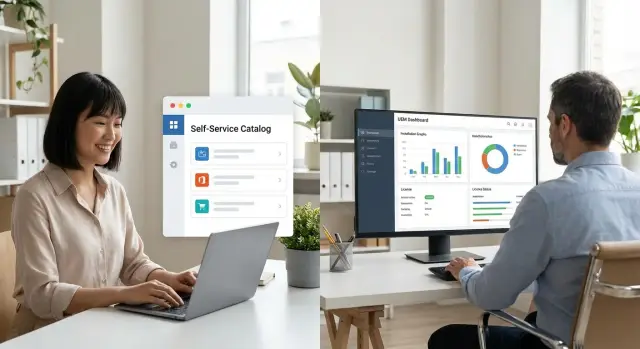
In practice it’s a "storefront" of applications for employees. Instead of emailing IT and waiting in a queue, a person opens the catalog and selects a permitted program. This is not a shop with thousands of items but a compact set of what the company is willing to deploy and support.
The catalog works by roles: an employee sees only what they are entitled to. Then rules apply. A manager or budget owner confirms the need, IT handles packaging and compatibility, security assesses risks, and the license owner ensures there is a free seat and which edition is allowed.
UEM manages installation on various devices: office PCs, laptops, remote devices, and branch machines where there is no local IT. This matters when the estate is heterogeneous: from ordinary office PCs to powerful workstations and all-in-ones.
Automatic delivery solves two problems at once: it reduces L1 load and decreases errors. Instead of "connect, download, install, reboot, check", the system does it and logs the result.
A typical flow looks like:
- the employee selects an app in the catalog and submits a request
- if needed, a short approval triggers
- UEM checks rules (group, device, security policy)
- installation starts automatically and is logged
- license inventory updates: occupied/free, version, entitlement
If an employee leaves or changes role, the app can be removed automatically and the license returned to the pool. This helps keep license compliance without manual reconciliations at quarter-end.
Where to start: inventory, roles and access rules
First decide what goes into the catalog and what stays as requests. Without this, the catalog quickly becomes a mess and L1 keeps doing the same manual installs.
Start with a simple inventory: export L1 requests for the past 1–3 months and mark recurring requests. Typically top items are VPN clients, office apps and plugins, PDF tools, messengers, browsers, print drivers and a few specific utilities. These are quick candidates for self-service.
Then group applications into logical buckets — not “everything for everyone”, but by need:
- standard software for most users
- by role (accounting, engineers, designers, call center)
- by department
- by project (temporary access)
Next, set access rules. The idea is simple: remove unnecessary approvals where risk is minimal and keep control where it matters for security and licenses. For example, standard free or corporate-approved apps can be installed without approval, while paid, rare or sensitive apps require confirmation.
Assign an owner for each catalog item — a person or role responsible for entitlement. This might be InfoSec (for VPN and cryptography), a functional manager (for specialized tools) or ITAM/procurement (for licenses). The owner is responsible for three things: who can install, under what conditions, and what to do if licenses run out.
If you work with enterprise software from major vendors (for example, Microsoft, Oracle, SAP, Autodesk, IBM), these rules are especially important. Better to define in advance which editions are allowed, how licenses are tracked and who approves needs. Then self-service speeds up employees while keeping control.
The software catalog: make it usable so people actually use it
A catalog works only when it’s genuinely easier for an employee to open it than to message or raise a ticket. A good storefront answers two questions: “Will this work for me?” and “Is it allowed?”
Start with plain language. Descriptions without jargon or internal abbreviations. One or two sentences are enough: what the program does, who typically needs it and what result the user will get. If there are restrictions (only for accounting, only on corporate laptops), state them clearly.
Consistent app cards help. A minimal set of fields that reduces L1 load and aids licensing:
- version and type (standard, extended, plugin)
- publisher and license source
- licensing model and limit (device or user)
- owner in IT or business (who manages rules)
- expiration or review date (e.g., quarterly)
To find apps in 10 seconds, think like a user: they search for “PDF”, “signature”, “CRM”, not the exact product name. Tags and simple categories help: role, scenario (documents, video calls, CAD), license type, compatibility.
Consider packages and variants. The same app often needs different versions for different teams: edition, plugins, rights, licenses. It’s better to have two clear catalog entries than one “universal” item that spawns exceptions and manual installs.
Approvals: simple scenarios, not long chains
If approval becomes a five-step quest with three emails, people stop using the catalog and return to L1. A workable scheme relies on a few clear rules and automated checks.
Usually three access levels are enough:
- no approval: free and safe software that many need
- approval required: paid apps or access to sensitive data
- IT ticket only: rare, risky or non-standard cases
Don’t multiply mandatory approvers. Assign only those who actually decide: the manager confirms need, the budget owner confirms spend, InfoSec reviews risk. An IT architect should be involved only when truly necessary (drivers, agents, admin tools). The more frequently an approver doesn’t understand what to decide, the faster the chain breaks.
Move as many checks as possible to automation. Before sending for approval, UEM can verify:
- device suitability (model, OS, encryption, management status)
- whether the employee belongs to the required role or group
- if a free license exists and the licensing type is allowed
- compatibility with already installed versions
- absence of conflicts with security policies
Keep timeouts simple. For typical requests you can set auto-approval if the manager is silent (e.g., within 24 hours) or auto-reject if explicit budget approval is needed. That way license control doesn’t turn into manual spreadsheet work.
Example: an accountant requests a paid PDF editor. UEM sees a managed laptop and the right role, checks license availability, sends a request to the manager. After approval the installation goes to the PC automatically and the issued license is recorded.
Automatic delivery to PCs: how it’s configured
Automatic install in UEM works best when the process is defined as a repeatable "package", not a list of manual steps. The user selects the app and the system delivers it to the device and records the result. This immediately reduces routine L1 traffic: “install X for me”, “I don’t have admin rights”, “it broke after an update”.
1) Packaging and silent install
Set a single standard for packages: naming rules, version, owner, where the installer is stored and how removal is performed. Use silent installation so there are no clicks or elevation prompts. UEM typically installs software using a system account, so the user doesn’t need to elevate.
To keep the package manageable, define upfront:
- the install and uninstall commands
- reboot rules (when required and how to notify)
- dependencies (components, plugins, drivers, correct versions)
- device restrictions (OS, architecture, model, free disk space)
- detection method (how to verify the app is actually installed)
2) Rollback, reinstall and result verification
Install failures are inevitable: not enough space, version conflicts, the laptop went to sleep. Predefine behavior on failure: retry, reinstall "over" the existing one, or rollback to the previous working version. It’s important that L1 sees a clear status in the UEM console instead of guessing.
Verification must be strict: not just "installation started" but "the application is present and matches the version." This is usually done by checking a file, registry key or installed package. Such checks also help with licensing: actual installs can be reconciled with entitlements, and extra installations blocked or routed for approval.
License control and compliance: rules that work
Self-service shouldn’t turn into "download anything you want." The catalog’s point is that each item links to a rule: who can install, why, for how long and who pays the cost (if relevant). Then license control becomes part of the process, not a one-off audit.
Linking catalog and licenses
For each app create a simple access card: roles, justification and duration. For example, "Autodesk — only for engineering department, for the project duration" or "Oracle client — only for accounting, indefinite." The more precise the role, the fewer unnecessary requests and the lower the risk of licenses drifting into the shadows.
Add a limit: installation is allowed only if there is a free slot in the license pool. If the pool is empty, the request should not become an L1 problem. Let it follow a clear path: wait for release, pick alternative or short approval for purchase.
Removal, audit and exceptions
Define removal policies in advance; otherwise licenses rarely return. Three common triggers: termination, role change and project end. In UEM these can be events that automatically remove software or move it to "confirm necessity".
Audits should answer four questions: who requested, who approved, where installed and when removed. These records are important for audits and internal control.
Exceptions are inevitable but formalize them as a separate request type: reason, duration, responsible owner. That way rare cases don’t break the general order and don’t become “permanent temporary permissions.”
What to measure: L1 load, speed and transparency
Self-service makes sense only when the effect is visible in numbers. Otherwise the catalog becomes just another storefront and L1 keeps handling the same requests.
Metrics that quickly show impact
A small set that is clear to IT and business:
- for L1: number of software install tickets, average fulfillment time (MTTR), share of repeat requests for the same install
- for the business: time from request to a ready workstation, hours of downtime due to missing tools, share of installs completed on day one (e.g., for new hires)
- for licenses: actual usage vs installed, count of unused installs older than N days, overspend by product
- for transparency: share of installs from the catalog (not manual), number of installs outside policy on devices
Fix a monthly one-page report: 5–7 metrics, month trend and 2–3 comments on why numbers changed. Ideally data is pulled automatically from UEM and the ticketing system.
Signals worth investigating
Even with a good process, have alerts that require attention:
- sudden spike in installs from one department or branch
- repeated installs and removals of the same app on the same devices
- installs on devices outside the target group or policy
- sharp increase in "unused" licenses after a catalog update
Such signals mean you not only reduce L1 load but also retain control: who installs what, why, and what it costs.
Common pitfalls when launching self-service
UEM self-service almost always reduces routine install tickets. But at startup many teams turn the catalog into a new "problem storefront": inconvenient for users, and IT still manually handles requests and licenses.
First trap — too large a catalog. When it contains dozens of similar programs and “just in case” variants, people don’t know what to choose and revert to support. Better to start with a short set of the most frequent requests and add items based on demand.
Second mistake — approvals for the sake of approvals. Chains without a clear owner and response time stall, and users ask L1 to “help speed it up.” Rule of thumb: one decision owner and a clear timeout. If no answer, the request is either auto-rejected or escalated to a predefined person.
Third trap — no packaging standard. If the same software is installed in different versions, with different settings and manual tweaks, you lose compatibility and license control. You need a single “golden” package: version, language, settings, silent install, identical shortcuts and updates.
Fourth problem — ignoring removal. Programs stay installed, licenses remain occupied, and reports look like everything is needed. Define rules in advance: automatic removal on termination, role change, project end or after prolonged inactivity.
And a dangerous shortcut often chosen “for speed” — giving users admin rights instead of automating. It’s fast but you lose security and compliance. Much better to provide a clear catalog while leaving rights with the system: UEM installs according to rules and records the action.
Quick checklist before launch
Before opening self-service to everyone, verify the basics. This list helps quickly reduce routine L1 requests and keep license control.
For launch pick a small set of apps. A working starting point is the top 20 most frequently installed or updated items by L1: office components, browsers, PDF tools, video conferencing, VPN clients, corporate plugins.
Then lock responsibility. Each catalog item must have an owner (IT or business) and simple rules: who can access, which versions are allowed, what to do on conflict.
Also check approvals. Start with 2–3 scenarios that are clear and repeatable: no approval (for free/standard), manager approval (for paid), InfoSec/IT approval (for elevated rights or drivers).
Run automatic installs on a pilot group and typical PC images before company-wide rollout. Test not only install but update, rollback, reboot behavior and operation on different device models.
Finally, lock control: removal rules and license return, plus installation and license reports. If someone leaves, changes role or the device is replaced, the license should return to the pool automatically.
Mini pre-launch checklist:
- top-20 apps from L1 data
- each item has an owner and access rules
- 2–3 approval scenarios configured
- packages tested on pilot group and typical PCs
- removal and license return configured
- reports on installs and licenses working
Simple example: what it looks like for the employee and IT
A new hire starts at a branch. On day one they need an office suite, corporate messenger and a video conferencing client. Previously they emailed support, L1 asked details, checked rights, looked for an installer and scheduled a time.
With self-service the employee opens the catalog and sees clear cards: what the app is, who needs it, whether it’s free or requires a license, and how long installation usually takes. The office suite is available by default, while the video client is marked paid for some roles.
They click Request for the paid app and choose the target: work laptop. Behind the scenes the system runs checks.
What the employee sees
- selects an app and sends a request
- receives a notification that it's sent for approval
- sees status “Approved” and that installation has started
- gets “Done” notification and can work
What happens in IT
The manager gets a short approval: approve or decline with a comment. After approval the system checks license availability and role/group suitability. If no licenses are free, the request doesn’t get lost in messages: it goes to waiting and IT sees the reason.
UEM delivers packages to the device, installs them in the background and records the outcome (success, error, reason). When an employee moves to a different role some software is removed automatically and the license returns to the pool. L1 spends less time on manual installs and coordination, and software license control becomes clear and auditable.
Next steps: pilot, rules and adoption support
To make self-service truly reduce L1 load, start with a short pilot and agree on rules up front. Otherwise the catalog becomes a formality and requests return to email and chat.
Create a simple roadmap: first 10–20 most frequent apps and 1–2 departments, then expand by roles and units. In the pilot check three things: catalog clarity for users, approval speed and correct installation without manual L1 actions.
Who owns the process
Assign a process owner and several co-owners so decisions don’t stall between teams:
- IT: catalog, packaging, delivery to PCs, support
- InfoSec: security requirements, exceptions and limits
- finance/procurement: license rules, budgets, purchase control
- business owners: priorities by role and department
Then fix standards: how software is packaged, required data in the card (version, purpose, license owner), allowed approval scenarios and reporting on installs and licenses. Also describe exceptions and what happens on termination or role change.
Training and rollout support
Usually 30 minutes is enough for employees: how to find an app, whether approval is needed, where to check status. Managers benefit from a short cheat-sheet: what they approve and why it affects licenses.
If you lack resources for packaging, UEM setup and license reporting, engage a system integrator. In Kazakhstan such tasks, including workplace and server infrastructure as well as 24/7 support, are performed by GSE.kz (gse.kz) as a vendor and system integrator.
Frequently asked questions
Where is the best place to start moving software installs to UEM self-service?
Start by exporting L1 requests for the last 1–3 months and mark recurring installs and updates. Put into the catalog first those items that can be standardized and safely distributed by role: VPN clients, office components, browsers, PDF tools, common plugins and certificates. Anything that requires manual checks or non-standard licensing conditions is better handled via a request so exceptions don’t break the process.
Should I create a large application catalog right away?
No — the storefront should be small and clear. If you add dozens of similar programs and "just in case" variants, employees will get confused and revert to support. A good start is a short list of the most frequent requests, and then expand based on actual demand.
Which approval flows actually work without blocking the process?
Usually three levels are enough: no approval for standard safe software used by many, approval for paid or sensitive items, and an IT request for rare or risky cases. The key is that only people who actually make the decision should approve, and there should be a clear response timeout — otherwise users will try to speed things up through L1.
How should roles and access groups be used in the catalog?
Role determines which apps a person can see and request. This helps both security and licensing: fewer unnecessary installs, fewer disputed requests, and simpler audits. In practice keep roles simple and tied to real tasks: accounting, engineers, call center, project teams with temporary access.
What matters when packaging apps for automatic installation?
A package must install silently and consistently across target PCs without user clicks or granting admin rights. The package should include the install and uninstall commands, dependencies, reboot rules and a reliable detection method to verify the correct version is installed. If a package always requires manual "tweaks", self-service quickly becomes a new stream of incidents.
How does UEM help control licenses instead of just distributing software?
Simple rule: installation is allowed only if a free license is available and the role and device conditions are met. If the pool is empty, the request should follow a clear flow — wait, choose an alternative, or request a purchase — not vanish into chaotic messages. This prevents shadow installations and makes license compliance part of the process rather than a quarterly after-the-fact check.
How to organize automatic removal of software and license returns?
Define triggers in advance that cause removal and license return: termination, role change, project end or prolonged inactivity. In UEM these events can automatically remove software or mark it "confirm necessity." If removal is not automated, licenses almost always remain marked as "in use" while reality differs.
What about installs in branches and on remote laptops?
UEM is especially useful where there is no local IT staff: branches and remote devices. The user gets the same catalog and rules, and installation is performed centrally and logged. This reduces version and configuration drift between locations and cuts down on "make it like the head office" requests.
Which indicators show that self-service actually reduced L1 load?
Minimal metrics: number of software install tickets, average fulfillment time, share of installs via the catalog, and actual license usage for key products. It's important to monitor trends, not just single numbers. If after rollout you see more shadow installs or repeated tickets about the same app, that signals the package, rules or catalog card are inconvenient and need fixing.
What mistakes are most often made when launching UEM self-service?
Common mistakes are: too large a catalog, long approval chains without a clear decision owner, and no standard for packages. Another typical error is granting admin rights "for speed", which destroys control and increases risk. Better to start with a pilot, tune 10–20 most demanded items, and then expand while keeping consistent rules and logging.
