8 min read
Secure remote workstation for remote work: encryption
Secure remote workstation: what to configure for encryption, data storage and peripheral control to reduce leaks and mistakes.
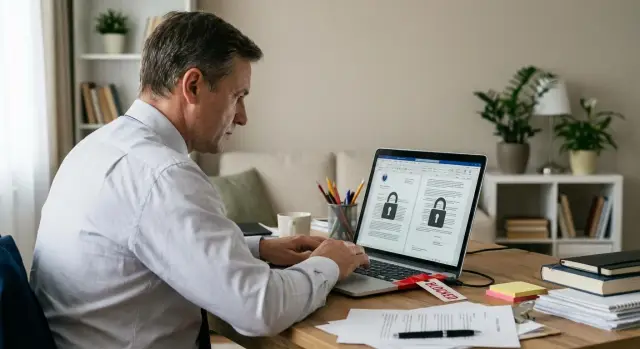
Task: preventing data leaks while working remotely
Remote work almost always increases leak risk — not because people became less careful, but because there are more accidental ways for data to escape. Home Wi‑Fi, personal devices nearby, rushing, messenger calls, sending files "just for a minute" and printing to a home printer create new points where data can end up in the wrong place.
For a public servant the set of sensitive data is usually broader than it seems. It's not only classified documents, but also official correspondence, draft orders, staff lists, citizen data, appeals, financial details, procurement plans, and credentials for internal systems. Personal data, pre‑publication materials and any information that reveals processes and decisions are especially sensitive.
A secure remote workstation simply means that even if a user makes a mistake or a device is lost, the data remains under control. A file does not leak via a USB drive, correspondence is not readable "in transit", a laptop does not become an open hub for home apps, and administrators can quickly check protection status and, if needed, restrict access.
There is no single "magic setting". You need multiple layers, each covering a different scenario: device protection (encryption, accounts, automatic locking, updates), communication protection (secure remote access and email), data rules (where to store files and how to back them up), peripheral control (USB, printers, cameras, Bluetooth) and centralized administration (policies, event logs, incident response).
Practical example: an employee goes on a business trip, takes a work laptop and copies a folder of documents to a personal flash drive "just in case." The drive gets lost. If the workstation had encryption, a ban on unauthorized media and a rule to keep files only in the corporate environment, the problem either wouldn't occur or would remain manageable.
A separate topic is the supply chain and maintenance. If workstations and servers come with documented provenance and service (for example, from local manufacturers and integrators in Kazakhstan like GSE.kz), it's easier to meet requirements for inventory, updates and support. But good hardware alone won't protect you if you don't agree on rules for storage, encryption and peripheral control.
Threat model: what you really need to defend against
A public servant's remote work often happens in a mixed environment: official data sits next to home Wi‑Fi, personal email, family members and household devices. So the threat model should be practical: not "everything at once", but the methods that most often lead to data exposure or push an employee to break rules.
The most common risks are simple and human: a device can be lost or left unattended, passwords can be seen or phished (an urgent "confirm your access" email, a fake login portal), and household users may use the same machine. USB media is a special story: a "found" or "gifted" flash drive can be malicious.
It's useful to agree in advance what counts as an incident even if "nothing leaked." For public organizations consequences often arise simply from violating the security regime. Typical incidents include:
- copying work files to a USB drive or personal cloud
- printing documents at home without accounting and control
- screenshots, screen recordings, photographing the screen with a phone
- sending work files via personal messengers or personal email
- connecting unknown peripherals (flash drives, modems, external disks)
Next, separate scenarios by sensitivity level. For general materials (template letters, public documents, templates) basic controls and clear storage rules are usually enough. For confidential materials (personal data, official correspondence, draft decisions, internal system data) stricter restrictions are needed: store only in authorized locations, minimize local copies, and enforce strict peripheral and printing controls.
It's best to fix the minimum acceptable level with two short lists: allowed and forbidden. For example, allow work only using an organization‑issued account and storing files in an approved repository. Forbid using personal email and moving files to personal devices. If the organization issues a work PC, following such rules is easier: baseline configuration, inventory and IT support are already in place.
Device encryption: disk, containers, external drives
When working from home, the most common risk is losing or having a laptop stolen, or family members accessing files. Encryption addresses this class of problems: even if a drive falls into the wrong hands, the data remains unreadable.
Full‑disk encryption: when it’s mandatory and what it provides
Treat full‑disk encryption as mandatory for any mobile workstation and for PCs outside a guarded office. It's a core part of preventing remote work from becoming a "USB drive full of documents."
Encryption protects data at rest (when the device is powered off or the disk is removed). It does not protect if an attacker gains access to an already unlocked system or if the user intentionally sends a file to the wrong place. So encryption is a necessary layer but not the only one.
Passwords/PIN and boot protection: making encryption effective
Encryption can be weakened by incorrect boot configuration. Unlocking should be tied to the device and require user confirmation.
A short set of practical requirements:
- a strong login password or PIN (not shared among a team)
- enabled Secure Boot/UEFI and disabled boot from external media
- a BIOS/UEFI password so settings can't be changed without IT knowledge
- automatic screen lock with required password on return
At procurement, check whether platforms support modern secure boot mechanisms and hardware key storage.
Separate containers for sensitive files: when that’s more convenient
Sometimes it’s more convenient to keep especially sensitive documents in a separate encrypted container — project drafts, memos, staff lists. A container is easy to close after work, even while the user remains logged in, and can have a different password.
Rules for external media: only encrypted or full ban
USB drives are a frequent source of leaks. A practical rule: either ban them altogether or allow only corporate encrypted media with inventory and clear responsibility.
Example: an employee must transfer materials for a meeting without network access. Only an issued encrypted drive is allowed; copying to personal flash drives is forbidden by policy and controlled by workstation settings.
Communication encryption: remote access, email and the home network
Even if the laptop is fully encrypted, leaks often start in transit: due to insecure remote access, sending files to personal accounts, or weak home Wi‑Fi. Therefore a secure workstation matters not only "on disk" but also in data transmission.
Remote access: VPN and device attestation
Access to government systems should be allowed only via a secure tunnel (VPN) with strong authentication. But a VPN alone is not enough: you must be sure that the connecting device is a corporate device, not a home PC.
In practice this usually means:
- VPN with modern ciphers and disallowed legacy protocols
- two‑factor authentication (token or authenticator app)
- device checks before granting access (updates, enabled protections, encryption)
- device or user certificates to prevent impersonation
- access separation: sensitive systems only from managed workstations
Example: if VPN allows "any device with a password", an attacker who stole credentials can connect. Requiring 2FA and proof of a corporate laptop significantly lowers the risk.
Email, attachments, messengers
For email, corporate tools are usually sufficient: secure access to the mail server and rules for handling attachments. When sending documents externally (to another agency, a contractor), agree on protection methods in advance: an encrypted container or a password‑protected archive with the password shared over a separate channel.
The main rule is simple: do not forward official files to personal accounts or "convenient" chats. Even if a messenger promises encryption, a personal account gives no control over who has access, where copies live, and what ends up in phone backups.
Home Wi‑Fi: the minimum requirements
The home network is often a weak point. Basic hygiene usually covers most risks:
- WPA2‑AES or WPA3 with a long password
- update the router firmware and disable remote administration
- a separate guest network for personal devices and "smart home" gadgets
- disable WPS unless needed
If the organization centralizes equipment procurement, apply managed policies so VPN and email requirements are consistent across all devices, not left to each household setup.
Data storage: where files and backups should live
The main idea is simple: work files shouldn't scatter across laptops, flash drives and personal accounts. With remote work this is critical because leaks often stem from chaotic storage rather than an intrusion.
The rule "data lives in one place"
Choose a single correct place for document work and make it easier to use than any workaround. Typically this is a corporate file store or document platform with access rights, versioning and an activity log.
A healthy scenario: an employee opens a document from the corporate store, edits it and saves it back there. If files default to saving on the desktop, people will do that even if it’s prohibited.
Local storage on a PC is acceptable only as a temporary cache or for offline work. Then apply constraints: device encryption, bans on syncing to personal clouds and a clear retention period (for example, until the end of the shift or the trip).
To reduce risk, set rules in advance: default save locations, categories of data that must not be stored locally, printing rules, who approves access rights, and what to do if a device is lost or suspected compromised.
A corporate store is important not only as a "place" but as a control mechanism. Versioning helps roll back after mistakes or ransomware. Access rights limit who can see a document. An activity log helps investigate incidents: who opened, downloaded or deleted a file.
Backups without surprises
Backups must protect against two problems at once: data loss and unauthorized access. So "backup to an external disk at the employee's home" is almost always a bad idea: it's hard to control and easy to lose.
More reliable is centralized, automated backup with clear retention and recovery checks. Minimum standards:
- scheduled backups without user intervention
- backups stored separately with restricted access
- protection against deletion/overwrite for a defined period
- periodic recovery checks of selected files
- retention periods that meet regulations
Practical example: an employee edits a report offline at home in a protected folder on the work PC; when reconnected, the file syncs back to the corporate store with version history and backups. If the device fails, the document does not "die" with it and access remains manageable.
Peripheral control: USB, printers, cameras and Bluetooth
Even with encryption and secure access, leaks often happen through peripherals. A flash drive, home printer or the intention to "just charge the phone" can easily become a rule bypass. Decide in advance what can be connected and how it will be controlled.
For USB drives, organizations typically use one of two scenarios: full ban or a whitelist. A full ban is simpler but may hinder legitimate work. A whitelist is more flexible: only specific devices by identifier are allowed and everything else is blocked. Require encryption on external media and enable auditing: who copied what and when.
Printing and scanning let data leave the controlled environment. If printing is necessary, make it controlled: print only to approved devices with job accounting and user association. For restricted documents, add visible markers on prints (name and date) and forbid printing from personal apps. If a role does not require printing, banning it is simpler and easier to explain.
Limit cameras, microphones and Bluetooth by context. A good rule: "off by default, enabled when needed." Cameras and microphones are recording channels; Bluetooth can pair with unknown devices. This rule is easy to enforce: keep them disabled unless a task requires them.
Handy short rules:
- USB: banned or only whitelisted devices, preferably encrypted
- printer/scanner: corporate scenarios only, no home devices
- camera/microphone: enable for tasks, otherwise keep off
- Bluetooth: off by default, only approved headsets allowed
- smartphones and cables: charging only, no data transfer
Another risk is unexpected behavior when connecting a phone: it can appear as a mass storage device or a network adapter. Disable MTP/USB‑tethering and allow charge‑only mode to prevent such issues.
Managing the workstation: updates, protection and activity monitoring
Even strong encryption won't help if a workstation is maintained "however it happens": people install games, disable protections for convenience and delay updates for weeks. Remote work starts with disciplined management: who keeps the PC secure every day and how.
First rule — separate work and personal use. Ideally the laptop or PC is for work only. If that’s impossible, create a separate work profile without admin rights and block family access. This reduces the chance someone accidentally installs risky software, plugs in a found flash drive, or opens an email that later affects work files.
Updates and basic protection
Updates must be automatic and scheduled, not "when there’s time." Update not only the OS but browsers, office apps, remote access tools and drivers. Define responsibilities: what the user must do and what IT handles (for example, centralized update policies and status monitoring).
Minimum policy items:
- auto updates for OS and key applications, with no long postponement for critical patches
- enabled firewall and prevention of changing key settings without admin rights
- antivirus or EDR with current signatures and real‑time protection
- disk encryption and recovery keys held by responsible parties
- automatic screen lock and strong authentication on login
EDR is useful because it detects suspicious behavior as well as malware: launching unknown utilities, attempts to disable protection, strange connections. Agree in advance who responds to alerts. If the organization has an on‑call service or external support, escalation rules should be simple: what counts as an incident and how fast to start investigation. GSE.kz, as a system integrator, advertises 24/7 technical support and a country‑wide service network, which is handy when many remote workstations must be handled and incidents need quick action.
Activity logging and alerts
Logs are not for "spying" but to quickly understand and stop a leak. Collect a limited set of events and set alerts only for important ones.
Usually it’s enough to see:
- system logins (successful and failed), password changes, account locks
- USB device connections and attempts to copy to external media
- installation and execution of new programs, especially from unknown sources
- disabling antivirus/EDR, stopping protection services, policy changes
- remote access outside working hours or from unusual locations
Example: an evening event shows protection being disabled followed by copying a large volume of files to a flash drive. Even if accidental, such a sequence requires immediate contact and temporary blocking of the drive or account until clarified.
Step‑by‑step setup: from policy to verification
Start not with technology but with a simple answer: which data can the employee process from home, and which only inside a secured perimeter. This eliminates half the risks because clear rules are easier to follow and audit.
Then proceed step by step.
-
Document the rules in a short policy. Describe document types, approved exchange channels (for example, only corporate stores) and prohibitions (personal email, messengers, copying to personal flash drives). Add home workstation requirements: a separate user account on the PC and no shared family accounts.
-
Prepare the device for remote work. Enable full disk encryption and decide on external media: ban them or allow only corporate encrypted devices. Configure a strong user account, automatic screen lock after a few minutes, and multi‑factor login where possible. Central procurement makes it easier to keep a single configuration standard and maintenance cycle.
-
Configure remote access and permissions. Connections must go through VPN and access must follow least privilege: employees see only needed folders and systems. Enable multi‑factor authentication for mail and portals and restrict logins from unknown devices. Verify that a lost laptop still leaves data inaccessible without recovery keys.
-
Restrict peripherals. Most leaks come through USB, printing and sending files to personal devices. Allow only what’s needed: block unaccounted storage, Bluetooth, unapproved printers and camera recordings unless required.
After setup, perform a short acceptance check and give the employee a one‑page reminder.
- device boots and disk is encrypted (confirm in settings)
- VPN connects and without VPN corporate resources are blocked
- USB drives are not detected or only work in an approved mode
- screen locks automatically, login requires password and a second factor
The reminder should explain in simple terms: where to store files, how to exchange documents, what to do if a device is lost and who to call for support. This reduces mistakes even for people unfamiliar with security.
Common mistakes and how to avoid them
The most common problem with secure remote work is not lack of technology but small "temporary" compromises that become permanent holes.
Mistake 1: encryption enabled but password weak or shared
Encryption won't help if the system login is protected by a weak password or shared account. An attacker then doesn't need to "break the encryption": they only need to obtain or guess the password.
How to avoid: use individual accounts, forbid sharing, enforce strong passwords and add a second factor where possible. For laptops, require automatic screen lock after a short idle time.
Mistake 2: USB allowed "for a minute" and the ban never returned
USB is often enabled for quick file transfer or printer connection and then forgotten. Documents start circulating on flash drives and malicious files can spread.
How to avoid: allow USB only by request and for a limited time, or better, only for trusted devices by identifier. Use a controlled repository for file exchange rather than carrying files in pockets.
Mistake 3: mixing personal and work
Work email on a personal phone, work files in a personal cloud, discussions in household messengers — this is a direct route to leaks. Even without bad intent: auto‑sync, shared family computers and uncontrolled backups cause problems.
How to avoid: separate the contours. Work accounts only on work devices and approved apps. Keep personal accounts separate.
Mistake 4: disabling updates to avoid inconvenience
Uninstalled updates are open vulnerabilities. One postponement turns into months of delay.
How to avoid: set an update window (for example, at night or on Fridays) and ensure it is enforced. Update the OS, browser and office apps.
Mistake 5: files stored only locally
Local storage without backups and access control is dangerous for two reasons: device loss and data loss (failure, ransomware, user error).
How to avoid:
- keep work documents in a managed repository with access controls
- enable versioning or scheduled backups
- forbid a "work archive" on the desktop or downloads folder
- review who really has access to shared folders and resources
Simple example: an employee prints a document at home, puts it on a flash drive and leaves it in the car. If USB is controlled and printing is allowed by policy, the incident either won't happen or will be limited and noticeable.
Checklist and next steps: how to implement without excess bureaucracy
If the goal is a secure remote workstation, start with simple checks. They provide the bulk of the benefit and don't require long approvals.
Before first remote work, check five things:
- the device is corporate, with disk encryption enabled and a login password
- access only through corporate remote entry, with no temporary bypasses
- work files are stored where they can be controlled and backed up (not on the personal desktop or in messengers)
- USB and other peripherals are configured according to rules: what is allowed and what is banned
- updates and antivirus/EDR are enabled and alerts are not ignored
To avoid turning security into a year‑long project, introduce a short weekly self‑check for each employee. It takes two minutes and asks clear questions:
- login password is not simple and not reused with personal accounts
- no extra flash drives, disks or cables are connected to the work PC
- no suspicious emails opened, attachments not executed
- work documents were not sent to personal email, cloud or chat
- after work the screen is locked and the device is not left unattended
If something happens, speed matters more than blame. Lost device — report immediately to support and a manager so accesses are disabled quickly. Suspicious email — do not reply or forward, save the message and send to IT/InfoSec as a phishing suspicion. Inserted an unknown flash drive — unplug it, do not copy files, note the time and report it so the device can be checked.
For the organization: run a pilot with a small group, give brief training "what is allowed and what is not", approve a concise one‑ to two‑page regulation and designate a responsive support channel that actually answers, including outside office hours. When the pilot works, roll out to other units.
Combining supply and setup helps. For example, GSE.kz can supply computers, workstations and servers of Kazakhstani manufacture and provide system integration and 24/7 support. The result is fewer heterogeneous devices and fewer cases where security depends on "how each person set things up at home."
Frequently asked questions
Do I need to encrypt the entire disk if I only work with documents from home?
For remote work on laptops and PCs that operate outside a secured office, full-disk encryption should be considered a baseline requirement. It protects data if the device is lost, stolen, or the drive is removed and accessed separately.
Why is disk encryption alone not enough, and why configure BIOS/UEFI?
Because encryption can be bypassed if someone can boot from a USB drive, change boot settings, or access an already unlocked system. A BIOS/UEFI password, Secure Boot, disabling boot from external media and a strong login password make encryption effective rather than just formal.
When does it make sense to store files in a separate encrypted container rather than just using full-disk encryption?
An encrypted container is useful for particularly sensitive categories of documents when you want the ability to "close" access quickly while remaining signed in. It's an additional layer of protection and convenience, but it does not replace full-disk encryption or rules to keep files in the corporate environment.
What to do about USB flash drives: ban them completely or allow some?
The safest option is a full ban if data transfers are not needed. If transfers are necessary, allow only issued and tracked corporate encrypted drives so a lost flash drive does not become a data breach and IT can control usage.
Is VPN enough for secure remote access to systems?
VPN must be the mandatory channel for remote access, but alone it does not prevent account theft. A normal practice is to add multi-factor authentication and device attestation so that only managed corporate devices with enabled protections and updates can connect.
Can I send work files to my personal messenger or email "just for a minute"?
Adopt a rule: do not send corporate files or correspondence to personal accounts or "convenient" chats. Even if an app promises encryption, the organization cannot control copies, phone backups, or who else has access to a personal account.
What is the minimum to do with home Wi‑Fi to reduce the risk of leaks?
Minimum hygiene: use WPA2-AES or WPA3 with a long password, keep the router firmware updated and disable remote administration, and place personal devices on a separate guest network. This won’t make the home network perfect but removes the most common and simple failures.
Where should I store work files during remote work so they don't scatter everywhere?
Choose one designated place for files that has access controls, versioning and an activity log, and make it easier to use than any workaround. Local copies should be allowed only temporarily and under control; otherwise files quickly spread across desktops, downloads and personal clouds.
Why is "backup to an external drive at home" a bad idea?
Because such backups are hard to control and easy to lose along with the data; access rules are silently violated. It's more reliable to back up centrally and automatically with clear retention periods and recovery checks.
What should I do if I lost my work laptop or suspect a compromise?
Report it immediately to support and your manager so access can be quickly disabled and an investigation started, even if you're not sure a leak occurred. Treat such situations as incidents in advance: organizations often face consequences simply because the regime was violated, and speed of response reduces damage.
