8 min read
Secure printing (pull printing): PIN, cards and audit for government institutions
Secure printing (pull printing) ensures documents are released only to their owner: PIN or card, queue rights, auditing and paper savings for government institutions.
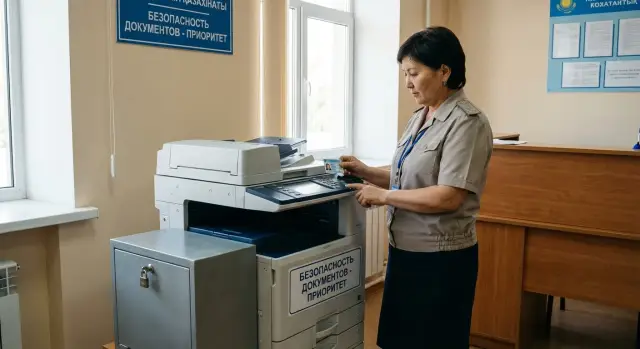
What is pull printing and which problems does it solve
Secure printing (pull printing) changes the usual flow: a document does not come out of the tray immediately after hitting “Print.” It goes into a personal queue and waits until the employee reaches an MFD and confirms release — for example, with a PIN or an access card.
With standard printing, pages are often “lost” not because of theft but for everyday reasons: someone is interrupted, they go to a meeting, the printer is busy, stacks get mixed up, or someone takes another person’s printout by mistake. For government institutions this quickly becomes a real risk: personal data, citizen applications, internal memos and financial documents can end up exposed or in the wrong hands.
Pull printing addresses several needs at once. First, it reduces leaks: only the person who authenticates at the device receives the document. Second, it prevents mis-issuing: fewer “taken by mistake” cases. Third, it cuts unnecessary printing: if someone changes their mind, the job can remain unreleased. Finally, it makes printing manageable: you can see who printed what, when and on which MFD.
Success is usually measured by two metrics: fewer incidents (complaints, investigations, “missing” pages) and less paper (including cancelled jobs and fewer reprints).
The same roles are almost always involved: IT manages queues, drivers and the print server; security defines access rules and audits; HR handles personal data processes; accounting and procurement manage printing costs, cartridges, paper and reporting. Once these teams agree on rules, secure printing becomes a clear daily process rather than “another system.”
Risks and requirements specific to government institutions
In government bodies printing is almost always tied to documents where mistakes are costly. These include not only internal letters but also personal data (applications, certificates, lists), financial documents (invoices, acts, reports) and restricted materials.
A common cause of leaks is simple: the document was already printed and left in the tray, and the wrong person takes it. Devices can be accessed by staff as well as visitors in reception areas, contractors, security or cleaning staff. Even without ill intent, pages get mixed up, taken by mistake, or left overnight.
High-risk locations are usually the same: shared MFDs in corridors, printers near reception windows, stationery rooms with heavy paper flow. The higher the foot traffic and the more people print on the go, the greater the chance someone will see or take another person’s document.
Minimum requirements for secure printing in such an environment:
- user identification before release (PIN, card or both)
- clear release rules (who can release, how long jobs are stored, what to do on error)
- logging: who printed what, where and when, and which jobs were cancelled or not released
Non-functional requirements often forgotten
The system should survive failures without chaos. If the network drops or one server becomes unavailable, users should not be forced to print "around" the system — that would break control.
The second requirement is simplicity. An employee prints an order, goes to the MFD, taps a card or enters a short PIN and immediately sees their queue. If the process is complicated, people will ask colleagues to "pick up for them," share PINs, or leave jobs uncontrolled — and the risk returns.
Release by PIN, by card or both: how to choose
The choice depends on what matters more: device speed, user discipline or maximum protection. The principle is the same: a document does not print until the person confirms they are present and that the job belongs to them.
PINs work where there is no unified access-card system or staff often work across sites. But PINs can become “1234” or a note stuck to the device if rules are not set. Basic minimums: 6+ characters, ban simple sequences, and lock after several failed attempts.
Access cards are more convenient for everyday work: tap and go. Discipline is higher and queues at the device are shorter. The main risk is a lost badge. Fast procedures are important here: blocking a card, issuing a temporary replacement and preventing release of “old” jobs after blocking.
Card + PIN is justified in high-risk zones: HR, secretariat, finance, legal. The card confirms identity, and the PIN protects against cases like “left the badge on the desk and a colleague released it.”
Guest printing is best handled with temporary codes: give a visitor a one-time PIN limited by time and volume (for example, 10 pages for 2 hours). This reduces disputes at reception and prevents uncontrolled printing.
A practical approach usually looks like this:
- if everyone has badges and they can be blocked within minutes — start with card
- if badges are absent or inconsistent across branches — start with PIN
- if personal data and contracts are printed — use card + PIN
- if many visitors come through — prepare temporary codes in advance
Example: HR prints orders only by card + PIN, while a shared office uses card-only release so staff don’t accumulate forgotten prints in the tray.
Print queues and access rights: how not to get confused
A print queue is where a job goes after pressing “Print.” In a classic setup the queue lives on the user’s PC or on the print server. With pull printing jobs are usually stored centrally in the print system until release at an MFD.
To avoid confusion, classify zones and rules first, not devices. For example: "reception," "HR," "finance," "executive." Then assign specific MFDs to zones. A user sends a job to a common queue (e.g., “Secure Print”), and can release it only on devices allowed for their role and physical zone.
Build rights from roles rather than individual names. Maintain two control levels: who can send jobs and where they can release them. This removes chaos in institutions with dozens of MFDs and areas with different access levels.
Common rules that work well:
- a main queue for most staff, release only on MFDs in their zone
- separate queues or restrictions for HR, finance and confidential documents
- ban releases in public areas for sensitive documents
- delegation by role “assistant” with a “by request” note in the log
- job TTL 8–24 hours and automatic removal of expired jobs
Plan delegation in advance. If an assistant prints on behalf of a manager, the system should record two facts: who sent the job and who released it at the device. That preserves accountability and shows the action chain in disputes.
Avoid accumulating forgotten jobs. Auto-delete reduces leak risks and prevents repeated prints when someone “can’t find the document” and resends it.
How to design print points and release at MFDs
Start with a floor plan and people flows. Place release points where a document can be picked up quickly and discreetly: near work areas but not in a public corridor. For risk zones (HR, accounting, reception) choose MFDs that only start printing after on-panel authentication and support card readers.
A card reader matters more than physical tray protection. A tray won’t help if a job already printed and sits there. The correct logic is: the job stays in the queue and printing only begins after PIN or card on the specific MFD.
How to organize release in common scenarios
Usually three clear paths are enough:
- print from a PC to a shared secure queue and release at any MFD in your zone
- print from a self-service terminal (e.g., reception) with mandatory ID and short job lifetime
- print by request (secretariat or duty officer) when the sender cannot approach and you must record who initiated and who released
For night shifts and duty teams set separate rules: fewer available release points, mandatory card and automatic queue cleaning in the morning. This prevents jobs from lingering for days.
What to do in case of failures
A failed MFD must not break the workflow or push people into bypasses:
- keep a spare release point in the same access zone
- allow moving a job to a backup MFD without re-sending
- set clear statuses: “waiting,” “cancelled by timeout,” “released”
- define who can restart a queue and who can see others’ jobs
Example: an HR staff member sends an order to the secure queue, goes to the nearest MFD, taps a card, sees only their jobs and prints exactly what is needed. If the MFD is unavailable, they release the same job at a reserve point and the system records the transfer.
How to reduce paper use without upsetting users
Paper savings almost always run into habits: “it’s more convenient for me” and “I’m in a hurry.” Rules should be simple and have reasonable exceptions. With pull printing it’s easier: a document won’t print by itself and is only produced when the person approaches and confirms release.
Quick wins come from default settings. Users rarely change defaults, especially when rushed.
Default policies that are usually accepted
- duplex printing enabled for everyone, exceptions by role or queue (forms, archives, single-sided requirements)
- color disabled by default or available only to certain groups; others use a separate “Color Print” queue
- deferred printing: a job is stored in the queue and only prints after confirmation at the MFD via PIN or card
- print templates for common tasks: applications, contracts, memos (template sets scale, duplex and B/W by default)
Use quotas and limits as signals rather than walls. For example, a soft limit: after 200 pages per week the system asks for a reason. Hard blocks are for clear anomalies or color printing.
Example: HR prints many document packages. If duplex and deferred printing are enabled, some jobs won’t be released (someone changed their mind or found an error). Color can be reserved only for final copies via a separate queue.
To avoid frustration, agree on simple rules in advance: where single-sided printing is mandatory, who can request color and how quickly to get exceptions when truly needed.
Print audit: which logs are needed and how to read them
Audit in a secure printing system is not about total surveillance but about reducing risks and costs with facts. A good log answers: what happened and who was responsible at print time.
Minimum entries to record in the print log:
- who printed: account, department, role
- what was printed: job name, application, document tag (without storing content)
- where: MFD device, site, zone (floor, department)
- when: time sent to queue and actual release time
- how many and how: number of pages, color or B/W, single- or double-sided
Security events are especially useful: repeated wrong PIN attempts, releasing a job outside its zone, manual device switching when prohibited, frequent cancellations after sending. These often indicate process problems: people rush, don’t understand rules, or devices are inconvenient rather than malicious intent.
Reading logs is easier if you agree in advance which questions to answer. Management often needs a few views: busiest devices, departments by page volume, share of color printing and share of jobs not released (potential savings).
Store logs according to internal and regulatory requirements and restrict access. Administrators should see technical events, security should see incidents, and managers should get aggregated reports without unnecessary personal details.
Example: HR reports potential leaks. Logs show jobs were often released on the nearest MFD in the reception area because it’s faster. The solution could be simple: restrict HR queues to HR devices, add on-screen prompts at the MFD and run a short training.
Step-by-step plan to implement pull printing
Start with an inventory. List all MFDs and printers, their locations, which departments use them, and what drivers and print servers are involved. Mark “dangerous” points: corridors, reception, shared offices where prints tend to remain in the tray.
Next, fix policies before exceptions proliferate. In government settings decide early how employees will confirm print release (PIN, access card or both), how long jobs stay in queues and how to handle special cases (night shifts, remote printing, urgent orders).
Practical sequence:
- inventory devices, users, common document types and current paper costs
- configure rules: identification, job retention, color and duplex limits, list of exceptions
- pilot at 1–2 sites (for example HR or finance, and separately reception)
- set up roles, queues and rights, then run real scenarios (orders, personal files, applications, payments)
- phased rollout: training, short instructions at MFDs, group migration of users, regular metric checks
On the pilot check not only “does it print” but also how convenient it is. In HR it’s important that jobs never print without confirmation, while at reception users must quickly release documents at the nearest MFD.
Final acceptance should rely on criteria:
- security: printing only after confirmation, clear rights, no infinite job retention
- usability: release at several MFDs, minimal “can’t find my print” errors
- savings: fewer forgotten prints and repeats, measurable paper reduction
- audit: logs by user, device, time, document and result (released, canceled, expired)
If you plan to refresh MFDs or servers, align that with the secure printing project to avoid redoing work.
Integration with IT infrastructure and access control
Pull printing often depends less on the MFDs and more on how printing ties to user accounts and access. The fewer manual exceptions, the fewer workarounds and complaints.
Accounts, single sign-on and roles
Start with the source of truth: domain accounts (e.g., AD) or another centralized directory. It’s easier to assign rights by department, job or project from the directory: who can use color, who can release only in their building, who may print in reception.
Practical rule: base print rights on existing roles (department, position, project), not manual lists. HR changes will then auto-update access.
Badges and mapping card to user
Two workable approaches exist. First: the badge is already mapped to the employee in the access control system and the print system uses that mapping. Second: map on first release (employee logs in once and then taps a card).
Define minimum rules in advance:
- one badge — one user (no shared badges)
- actions on lost badges (block and reissue)
- handling temporary badges and contractors
- processing name or department changes
Network, redundancy and logs
Put printing in a separate network segment (VLAN/subnet) and restrict access to queue servers and MFDs. This reduces the risk that an unauthorized device connects to a queue or starts sending jobs directly.
Plan for resilience: what happens if the queue server fails. Government organizations often choose a cluster or hot standby and a clear degraded mode — for example, temporary release only for critical queues.
Estimate log volumes up front: authentication events, job submission, release at device, cancellation, errors. Store logs with access control and tamper protection and retain them per institutional policies.
If you implement secure printing alongside server and endpoint upgrades, involve a systems integrator who can tie printing to directories, network and security policies. In Kazakhstan such tasks, including selecting servers and workstations for queue load, are handled by GSE.kz.
Example scenario: HR and reception area
HR prints orders, applications, employee lists, certificates and other documents with personal data. Nearby there may be a reception area and a shared MFD in a corridor or lobby. In a normal flow someone prints a file, gets interrupted by a visitor — and pages already sit in the tray. Anyone passing by can see them.
With secure printing it’s different. The employee sends orders and lists to the print queue, but nothing prints at the MFD immediately: the job waits. They can come anytime, tap a badge and enter a PIN to release. Only then are the documents printed.
If the employee is interrupted, leak risk drops significantly. The job won’t print by itself or remain in the tray. You can also set a retention timer: for example, jobs older than 2 hours are deleted automatically. That reduces clutter and extra cost when someone forgets a print and resends it.
Sometimes someone asks “print urgently for another department.” Don’t use universal PINs or ask colleagues to log in under someone else’s account. Instead configure delegation: the HR sender designates the recipient, the recipient releases the job with their card and PIN, and the log records who sent, who delegated and who released, plus which MFD was used.
Pre-launch checklist and first 2 weeks
Before launch ensure people have a way to collect prints: PIN, card or both. A common first-day failure is that some employees aren’t in the system, PINs aren’t issued or cards aren’t mapped.
Verify roles and rights match the real organization. An accounting employee should see only queues and devices for their zone, not MFDs in reception. Check temporary roles (leave cover, interns, part-timers) to avoid granting broad access “just in case.”
Review queue settings and job retention. Enable timeouts so jobs don’t become “permanent” and cause confusion: people might grab old documents and the server will accumulate junk.
Check auditing: print logs must be collected and accessible to responsible parties (IT, security, department managers). Minimum: who sent, which device, when printed, how many pages, and whether the job was cancelled or expired.
In the first two weeks keep a short feedback loop. Appoint contacts for floors or departments and gather common issues:
- employees forget PINs or are confused by the MFD procedure
- “I don’t see my print” due to rights or wrong queue selection
- jobs delete too quickly or live too long
- inconvenience printing in areas with different access modes
After a week update a one-page quick guide and the exceptions list. If rules change, document them in settings and text so users don’t lose trust in secure printing.
Next steps: support, scaling and improvements
After launch pull printing becomes routine only if the process has owners and clear rules. Otherwise people look for workarounds and reports stop being reviewed.
Assign responsibilities and define zones of ownership. Usually a small group covers this: IT (queues, drivers, servers, updates, backups), security (access policies and investigations), building admin (print points, badges, physical MFD zones), and finance or procurement (quotas, standards, cost control for paper and service).
Regular reviews matter. Weekly or monthly, spend 30 minutes reviewing reports and incidents. Look not only at "who prints how much" but where risks and excess costs appear: jobs often left unreleased, attempts to print into "foreign" queues, spikes before reporting deadlines, or repeated printing of the same file.
Scale to branches in waves: start with unified rules (PIN/card, job retention, color limits), then standardize queues and roles, and only afterwards expand the MFD fleet. That avoids each building creating its own policy variant.
Use an integrator when there are many sites, complex roles, strict audit and retention needs, or tight ties between print and access control. In such projects plan servers and workstations for realistic queue load. If you need a partner in Kazakhstan, GSE.kz as a vendor and integrator can handle both infrastructure (servers, workstations) and support, including 24/7 service across the country.
Frequently asked questions
What is pull printing in simple terms?
Pull printing is a mode where a job first goes into a personal queue and only prints after confirmation at the MFD (PIN, card, or both). It prevents documents from sitting unattended in the output tray, greatly reducing “picked-up-by-mistake” incidents and printing “just in case.”
Which leaks and incidents does pull printing actually reduce in a government organization?
Most often it eliminates everyday leaks: documents no longer sit in the tray for visitors or other staff to see or take by mistake. It also reduces the chance a printout will be left overnight or mixed into a common stack at the device.
Which is better for release: PIN or access card?
If access cards are issued to everyone and can be blocked quickly when lost, starting with card-based release is more convenient — it’s faster at the MFD and usually promotes discipline. If cards are absent, inconsistent across branches, or blocking is slow, start with PINs and strict PIN rules. For areas with personal or financial data, card plus PIN is commonly used.
Should I create a separate queue per printer or use one shared queue?
Almost always a single universal driver and a common queue such as “Secure Print” suffice so users do not need to pick a device in advance. Release rights are set in the system: who can release and on which devices within their zone. This reduces confusion and makes it easier to move print jobs between MFDs during failures.
How long should jobs be kept in the queue and why is a timeout needed?
Typically jobs are kept 8–24 hours so they don’t linger for weeks and reappear unexpectedly. Reception areas and high-traffic spots usually have shorter timeouts to avoid accumulating forgotten documents and lower the risk. The rule should be consistent and clear: expired jobs are removed automatically.
Is it possible to print for a manager or colleague without losing control?
Yes — if delegation is recorded in advance and the log keeps the chain of actions: who sent the job and who actually released it at the MFD. This avoids sharing PINs or logging in under someone else and preserves accountability. Define in advance which roles may print “on behalf of” others and in which zones.
What logs are mandatory for auditing secure printing?
At minimum record user identity, device, send and release times, print options (pages, color/BW, single/double-sided) and result (released, canceled, expired). Security events such as incorrect PIN attempts, releases outside allowed zones, frequent cancellations, and device changes are also useful. Good audit logs help investigate incidents and identify where paper and repeat prints cost money.
Where is the best place to install MFDs so pull printing actually works?
Don’t place key MFDs in public-access areas where visitors, contractors or heavy foot traffic pass by. Place release points nearer to working areas so people can quickly approach and collect documents after confirming. For high-risk departments, use MFDs that require identification before release and support card readers.
What if an MFD or the print server fails but printing is urgent?
Have a backup release point in the same access zone and allow the same job to be released at a reserve MFD without re-sending. Users should see clear statuses and not resort to bypass printing. For the print server, plan redundancy and a clear degraded mode so critical processes can continue.
How does pull printing help save paper and what infrastructure should be considered?
Default settings often deliver the biggest savings: double-sided printing on by default, color limited, and printing only after confirmation at the device. Many jobs simply aren’t released when people change their minds or spot errors. When implementing, assess queue infrastructure load and provision servers accordingly; in Kazakhstan, GSE.kz can cover equipment and integration including 24/7 support.
