7 min read
Equipping School Workstations: Kit for the Electronic Journal and Communication
Equipping school workstations: a practical kit for the electronic journal, presentations, video calls and printing, with clear steps for implementation.
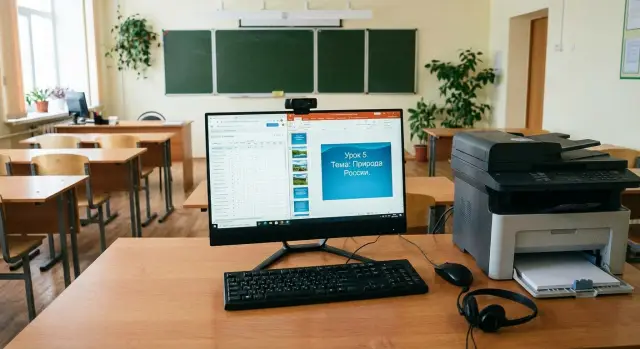
Where to start: goals and problems to solve
Equipping school workstations begins not with picking models, but with understanding daily tasks.
A teacher needs to quickly open the electronic journal, enter grades, show a presentation, play a video, join a video call with a methodologist or parent, print or scan a document. Administration needs the same plus reporting, orders, consolidated tables and handling personal data.
The most common problem is “one computer for everyone.” It almost always creates queues: someone urgently needs to print, someone locks the room during a break, someone doesn’t have time to enter data. As a result data discipline drops (grades and attendance are entered late and with mistakes), and lessons lose pace because the equipment "lags" at the worst moment.
Start with short questions for each room or role:
- What is opened every day (journal, mail, office apps, video calls)?
- How many people use the device and when (lesson, break, after school)?
- Do you need to connect a projector or panel, a camera, a microphone?
- How much printing and scanning per week, and what formats?
- Where are files stored and who controls access?
After that it’s easier to define the minimum set and what can be purchased later. The minimum usually covers speed and reliability: a modern PC or all‑in‑one, a stable internet connection, basic peripherals (keyboard, mouse), a headset for calls and a clear printing scheme.
“Nice‑to‑have” items can wait: a dedicated conference camera, a second monitor, or stronger graphics for specialised rooms.
By task: journal, presentations, calls, printing
When you base decisions on daily tasks, you avoid overpaying for raw “power” and remove the bottlenecks that make teachers lose time between lessons.
The electronic journal and reporting often fail not because of a weak CPU but because of delays and freezes. It’s important the system boots quickly and doesn’t hang when working in a browser, spreadsheets and documents. Practical minimum: an SSD, enough RAM and a stable network connection (for the staff room and administration, prefer wired).
Another common issue is sudden power loss. For key workstations provide basic protection.
Presentations and lesson materials depend on display convenience. Here ports for connecting a projector or panel, screen readability and quiet operation matter more. If a teacher opens presentations, videos and learning platforms, what matters isn’t the top processor but fast startup, no stalls and familiar peripherals.
What keeps video calls from failing
In video conferencing, audio and network usually fail first. A 1080p camera, a decent microphone (or speakerphone) and placement at eye level usually help more than an expensive camera. If the classroom is noisy, provide a separate microphone closer to the speaker.
Printing and scanning slow down work when there’s only one device and it’s placed inconveniently. Queues form due to long warm‑up times, paper jams and manual scanning “into different folders.”
Example: if the staff room has a single MFP for 30 people, it becomes a conflict point at the end of term. Two networked MFPs placed by zone (staff room and administration) and clear printing rules noticeably reduce delays.
Basic teacher workstation kit
A teacher’s workstation must handle the electronic journal, presentations and video calls without pauses or freezes. It’s better to plan a bit of headroom so equipment serves 4–6 years without constant adjustments.
An all‑in‑one is convenient where order and space saving matter: classrooms, offices or crowded staff rooms. It’s easier to install and usually looks tidier.
A PC plus monitor is better when flexibility is needed: replace only the monitor, add a second screen, or upgrade the system unit for heavier tasks.
Typical "no‑excess" specs are usually enough:
- CPU level Intel Core i5 or AMD Ryzen 5
- 16 GB RAM (8 GB often limits tabs, messengers and the journal)
- 512 GB SSD
- Webcam and microphone (built‑in or external if video calls are important)
- Windows and the office suite supported by the school
Pay attention to ports and small details. A teacher usually needs at least 3–4 USB ports (flash drives, mouse, document camera), HDMI or DisplayPort (for projector or panel), stable Wi‑Fi or, preferably, wired Ethernet. A comfortable keyboard and mouse seem trivial but they affect fatigue by the end of the day.
For comfort, choose a matte (anti‑glare) screen: 23–24 inches for staff rooms, 21–23 inches for classrooms, with tilt and height adjustment.
Administration workstations: what's different
Administration tasks differ. The principal needs reports, approvals and video meetings. The secretary handles incoming mail, orders, daily printing and scanning. The deputy head manages schedules, orders, aggregated tables, the journal and constant edits. So administration workstations are usually designed for multitasking and reliability.
Two monitors often help more than a more powerful CPU. One screen can hold the journal or an email, the other a document, spreadsheet or video call. This reduces switching and errors when numbers and names are copied by hand.
Agree in advance where documents are stored and how they are named. If order templates sit on everyone’s desktop, versions quickly diverge. A practical option is a shared folder on a school server or a protected cloud with simple rules: one person responsible for templates, a single naming format and limits on deletion.
Reliability is critical: a secretary’s downtime at the end of term turns into queues and anxious calls. Provide a UPS for PC and MFP, spare cables and peripherals (they break most often), and a backup PC or all‑in‑one for quick replacement.
When buying equipment in batches, check service and spare‑parts availability in your region.
Video calls without overspending: camera, audio, placement
Schools need video calls for staff meetings, district communication, webinars and parent talks. In practice the bottleneck is often not internet speed but the camera, microphone and their placement.
Camera: a built‑in webcam in an all‑in‑one is often enough for one‑to‑one calls. If the teacher needs to be shown at the board or multiple people are in frame, use an external camera. More important than megapixels is a stable picture under typical classroom lighting and decent autofocus. If faces are dark or the image is noisy, additional lighting often fixes the issue more cheaply than a pricier camera.
Audio is even simpler: if you are not heard it means the microphone is too far or catches reflections. A headset fixes this for most teachers, though not everyone likes it for long periods. For rooms with several speakers, a separate microphone or a speakerphone is more convenient.
Practical minimum for one room:
- a camera (built‑in or external for group calls)
- a headset for the teacher (especially in noisy classrooms)
- a speakerphone for calls with 3–6 participants
- a simple lamp directed at the face if the room is dark
Placement rules for a clear image: camera at eye level, not low or off to the side. The teacher should face a window or light source, not sit with their back to it. Place the microphone near the speaker and avoid pointing speakers directly at the microphone to prevent echo.
Example: for a deputy head meeting a single all‑in‑one and a headset may be enough. For a parent meeting in a classroom an external camera and a speakerphone let everyone be heard without shouting.
Printing and scanning: organise to avoid queues
Printer queues in schools usually form for two reasons: the device is in the wrong place and nobody knows who prints what. For practical workstation setup decide in advance where teachers print, where administration prints, and how to quickly scan documents for reports.
Where to place devices: one point or several
The most common setup is one MFP in the staff room. It’s easy for supplies control, but it fills with people in the morning and before lessons. The alternative is to distribute printing by task: one MFP for the staff room, another for administration, and in large schools add a "quick print" point where single urgent pages are most often needed.
If the school is large, don’t guess locations. A simple test: track where and when people print for a week and put devices closer to those points.
Laser or inkjet: what is actually cheaper
For regular school printing a laser is usually more economical: faster, tolerant of idle times and giving predictable cost per page. Inkjet makes sense if printing is rare or color posters are needed, but expect more frequent cartridge changes.
An automatic document feeder (ADF) and duplex scanning save a lot of time for reports and multi‑page documents.
To avoid sudden toner shortages, assign a responsible person and keep a simple inventory: a minimal supply of consumables for each key device, a clear reorder threshold (for example, 20–25% remaining) and a replacement log.
Network and security made simple: keep everything stable
A good school network is invisible. A bad one shows itself quickly: the journal won’t open, calls drop, printing stalls. When equipping workstations check not only the computers but how they connect and how they’re protected.
Internet and Wi‑Fi: signs the network is the bottleneck
People often complain about "slow internet" while the real issue is overloaded Wi‑Fi, weak signal or misconfiguration. Signs include:
- the journal loads slowly only in some rooms
- calls drop when moving around the building
- speed is fine in the morning but drops at breaks
- network printing works intermittently
- the same site opens quickly via cable but slowly over Wi‑Fi
If possible, use wired connections for the staff room, administration and printers. Reserve Wi‑Fi for mobile devices and rooms where cabling is really impractical.
Minimal security measures that help
"One password for everyone" is convenient only for the first two weeks. Then you don’t know who deleted what, who changed settings or why foreign data appears in the journal. Separate accounts: teachers, administrators and guest access. This simplifies control and support.
Backups can be organised without complex systems. Decide what to back up: school documents, templates, local program databases, important spreadsheets, scans. A practical routine: daily copy of key folders to a server or a protected drive, weekly check that the backup opens, and scheduled OS and antivirus updates.
Example: if a secretary keeps all contracts on a single desktop, one virus or accidental deletion stops work for days. Stored in a shared protected folder with copying, the issue becomes an inconvenience, not a disaster.
Step‑by‑step implementation and procurement plan
To prevent workstation setup from becoming chaotic, proceed in small clear steps. Buy only what’s needed and spot weak points early.
Start with an inventory: which roles exist (subject teachers, class teachers, deputy heads, accounting), how many rooms actually use the electronic journal, where video calls happen and where daily printing is needed. Often you can move some equipment closer to those who use it.
Then fix 2–3 typical kits (for example, teacher and administration) and buy them as bundles. This simplifies approval, setup and support: fewer models, fewer surprise drivers and cables.
A simple sequence easy to agree on inside the school:
- Describe roles and rooms that actually need equipment and count the required kits.
- Approve the kit contents by workstation type.
- Check infrastructure: outlets, network points or Wi‑Fi, desk space, lighting, mounts for cameras.
- Run a pilot in 1–2 rooms for a week: journal, presentations, calls, printing, then collect feedback.
- Roll out widely and run a short 30–40 minute training with a cheat‑sheet: how to join a call, where to save files, what to do when something fails.
Pilot example: one computer science room and one standard classroom. If in the classroom the camera is too high and audio is muffled, fix it before mass installation instead of dealing with dozens of complaints.
When buying, include 1–2 spare kits for replacement and clear support terms.
Common mistakes and how to avoid them
The first mistake is buying the cheapest PCs that barely run. The journal opens, but when a browser, presentation and a call run together everything slows down. The solution is a simple spec: headroom in CPU and RAM plus a fast drive. Teachers value stability and responsiveness more than the lowest price.
The second mistake is skimping on audio. The camera can be mediocre, but if the microphone picks up class noise and speakers are quiet, a call becomes "please repeat." A decent microphone (often separate) and correct placement fix this.
The third mistake is trying to solve printing only with hardware. One shared MFP and no rules mean queues, personal printing and lost documents. Distribute devices by zone and set simple rules.
To avoid most failures adopt a few habits: keep 2–3 standard configurations and don’t mix dozens of models, write simple printing rules and priorities, appoint someone responsible for consumables and repairs, test audio and camera in a real call and keep a small reserve of spare devices.
Quick checklist before you start
Before procurement and installation, run through a short list. It helps avoid overspending and missing things that will annoy daily use.
Separate scenarios. A teacher’s workstation revolves around the journal, browser, presentations and calls. Administration needs large tables, document archives, scanning and printing. Trying to cover everything with one “average” kit either overpays or creates inconvenience.
Check performance basics. For the journal and browser the most important things are that the computer doesn’t “think” on every click: enough RAM and definitely an SSD. A simple test: open the journal, mail and a couple of resource tabs, then switch quickly between windows. If it stutters now, it will be worse during term time.
For video calls, don’t trust specifications on paper. Test the camera and microphone in the actual room: noise, echo, distance to the board and where the teacher will stand. Often it’s cheaper to replace the microphone than to tolerate “we can’t hear you.”
Agree printing rules in advance: where printers or MFPs stand, who uses them and who is responsible for paper and cartridges. One clear process beats extra devices in every room.
And enforce "digital hygiene":
- user accounts and access rights
- backups (what and how often)
- unified settings (updates, antivirus, access to school services)
Example: equipping a typical school without overload
A school with 600 students: staff room, principal and secretary offices, one computer lab. The goal: the electronic journal without hangs, smooth presentations, scheduled calls and printing without queues. It’s faster if you immediately split devices by roles instead of buying the most powerful device for everyone.
Suggested sets:
- 25 teacher workstations: basic PC or all‑in‑one, webcams only for those running online lessons
- 6 administration workstations: extra RAM and a second monitor for documents and tables
- 1 computer lab: 15–20 student PCs plus 1 teacher station
- 3 shared access points (library, methodical office, deputy head’s flexible room) for quick tasks
A mixed approach often works best: compact all‑in‑ones in the staff room, standard PCs in classrooms.
Keep printing concentrated: two points with clear rules. One MFP in the staff room covers journals, tests, handouts and scans. Another in administration handles orders, reports, incoming correspondence and scanning. Fewer queues if large print runs are scheduled and requested in advance.
Video calls don’t need a dedicated hall. Two to three kits (camera, microphone, tripod or mount) for key rooms — principal, deputy head and one flexible room for staff meetings — are usually enough.
After a month you typically see fewer failures and disputes because clear rules appear: who prints big jobs and when, where the video kit is stored and how support requests are handled.
Next steps: lock results and simplify support
To prevent purchases turning into constant repairs, formalise routines right after procurement. Workstations run well when there is inventory, standards and clear support.
Make a list of equipment by room: what stands now, what is clearly outdated and what can be reallocated. Often administration has more powerful PCs than needed while a teacher lacks a camera or good audio. After inventory it’s easier to decide what to top up and what to replace on schedule.
Agree standards. You don’t have to buy identical equipment for everyone, but 2–3 standard configurations ("teacher", "administration", "video‑call room") simplify procurement, software setup and repairs.
Support shouldn’t be "call a friend." Decide who accepts requests and how issues are logged. A small regulation removes half the chaos: where a teacher writes a ticket, what is urgent, response times, who handles updates and antivirus, and where the spare kit (mouse, power supply, webcam) is stored.
If you are in Kazakhstan and local supply and nationwide service matter, consider a domestic manufacturer and integrator. For example, GSE.kz produces PCs, all‑in‑ones and servers in Kazakhstan and provides system integration and technical support services, which is convenient for schools without a full‑time IT specialist.
Frequently asked questions
Where should I start when equipping school workstations to avoid buying unnecessary equipment?
Start with tasks by role and by room: what is opened every day (journal, mail, office apps), where presentations are needed, where calls take place, and how much printing/scanning happens weekly. After that it becomes clear where speed, audio and network are critical and where a basic kit is enough.
Why does the electronic journal lag and what matters most when choosing a computer?
Most often the issue is not a "weak PC" but slow startup and freezes caused by the storage and lack of memory, as well as an unstable network. Practical minimum — SSD, enough RAM and a reliable internet connection; for staff rooms and administration prefer wired connections.
What is better for a teacher: an all‑in‑one or a PC with a monitor?
If space and neatness matter, an all‑in‑one is usually more convenient: fewer cables and easier setup. If you need flexibility (replace the monitor, add a second screen, upgrade the system unit) then a PC plus monitor is more practical.
What computer specs does a teacher actually need for the journal, presentations and video calls?
A typical teacher workstation usually needs a Core i5 / Ryzen 5 class CPU, 16 GB RAM and a 512 GB SSD so the journal, browser, presentations and video calls run without pauses. This headroom usually lets the equipment work for several years without constant tweaking.
What should I look at besides CPU and RAM?
Pay attention to ports and convenience: 3–4 USB ports for flash drives and devices, HDMI or DisplayPort for a projector/panel, and a stable network connection (Ethernet or good Wi‑Fi). Small things matter too: a comfortable keyboard and mouse, and a matte screen of an appropriate size.
How do I make video calls work well without costly equipment?
Most failures in calls are about audio and network: the microphone is too far away or catches reflections, and Wi‑Fi is overloaded. The simplest improvements are a headset for the teacher and placing the camera at eye level; for groups a dedicated microphone or a speakerphone works better.
How do administration workstations differ from teacher workstations?
Administrative tasks are different: reporting, spreadsheets, orders and continuous correspondence. Often a second monitor and reliability (including power protection and backups) are more useful than buying the most powerful CPU.
How do I organise printing and scanning to avoid queues?
Queues appear when one device serves everyone and is not located where people actually print, and when there are no rules about who prints what. Splitting devices by zones (for example, staff room and administration) and clear rules for printing and scanning usually solve the problem.
Laser or inkjet MFP: which is better for a school?
For regular school printing a laser device is usually more cost‑effective: faster, tolerant of idle periods and gives predictable cost per page. Use an automatic document feeder (ADF) and duplex scanning to save time on multi‑page documents.
What is the simplest procurement and rollout plan to avoid chaos?
Inventory what you have, define 2–3 typical kits for roles and check infrastructure (network, power, desk space, light). Run a pilot in 1–2 rooms, collect feedback and only then roll out widely. Keep a small reserve of spare kits and a clear support scheme.
