7 min read
Ruckus SmartZone: keeping Wi‑Fi reliable in complex buildings
Ruckus SmartZone helps keep Wi‑Fi stable in complex buildings: centralized management, staged updates, interference detection and peak load control.
Why Wi‑Fi drops in complex buildings
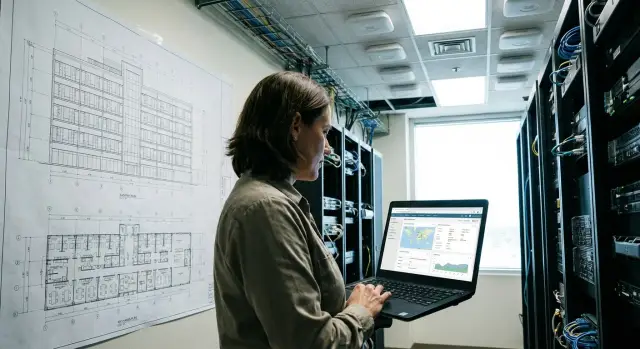
A “complex building” for Wi‑Fi is more than just many floors. Reinforced concrete walls and slabs, elevator shafts, glass partitions and dense clusters of offices all cause problems. Even long corridors interfere: signals reflect and the network starts to “hear itself.”
At peak times the symptoms are usually the same: speed tests may show bandwidth, but pages load in bursts, video calls pixelate, apps “think” and latency rises. Sometimes users reconnect because the nearest AP is overloaded while the next one is almost idle.
The main cause of drops is often not a “slow Internet” but the radio environment and load distribution. In one wing everyone makes calls, in another they run updates, in a third many guest devices join. When APs are configured manually and independently, the network fragments: different channels, different power, different limits. Any small change — a new router in an office or a microwave turned on in the cafeteria — can upset the balance.
Point fixes rarely help because the problem is systemic. Clients hold on to a familiar AP too long, neighboring APs interfere because of wrong power, channels overlap (especially on 2.4 GHz), and access policies differ by floor so you don’t notice until complaints start.
A centralized controller (for example, Ruckus SmartZone) is not for decoration but for control. It gives a single view of all APs, unified policies, change control and fast identification of bottlenecks.
A simple example: in a university building classrooms fill at the same time in the morning. Without centralized control an admin tweaks a couple of APs in a problem zone, but a week later complaints pop up in another wing. With a controller you can see where load grows, which devices cause the peak, and apply consistent behavior across the building instead of treating individual rooms.
How centralized controller management works
In complex buildings Wi‑Fi often drops not because there are too few APs, but because the network is managed in parts. A controller like Ruckus SmartZone centralizes management: rules are defined once and then applied to zones and groups of APs.
Understand the boundaries: the controller manages configuration, policies, monitoring and basic diagnostics, but it doesn’t replace a properly built wired network.
A typical setup includes the controller (physical or virtual), APs, PoE switches, a management network and basic services like DHCP/DNS. If downtime is unacceptable, add redundancy (cluster or hot‑standby).
To avoid the controller becoming a single point of risk, plan addressing and access ahead of time. Often a separate management subnet is used, the controller gets a fixed IP and console access is limited to admin addresses. This also simplifies updates: you can see which APs run which version and which can be updated in waves.
Roles and permissions are another topic. In a live organization one person shouldn’t have to do everything. In practice three levels are enough: an administrator who changes policies and performs updates, a support engineer who checks logs and metrics, and a manager or security officer who receives reports and has read‑only access.
When complaints start at peak times, quickly determine whether the issue is radio, wired, or higher in the chain. Check in order:
- Radio: interference, reassociations, drops in AP‑level throughput.
- Wired: port errors, uplink congestion, wrong VLANs, loops.
- Services: DHCP/DNS failures, slow IP assignment, unstable authentication.
- Internet/Data center: high latency to the gateway or external resources while Wi‑Fi is otherwise normal.
A good sign of well‑structured management is that the controller data shows where degradation began and you fix the cause instead of randomly changing transmit power.
Network policies: SSID, access and priorities without chaos
In complex buildings Wi‑Fi often “falls apart” not because of the radio but because of inconsistent settings. One floor follows old rules, another uses experiments, the third was changed “as requested yesterday.” In SmartZone order starts with templates: define which networks you need and their rules, then apply them consistently to zones.
A practical approach is to keep a few SSIDs, each with a clear role:
- Corporate: authenticated access to internal services.
- Guest: Internet only, with speed and time limits.
- IoT/equipment: isolation and access only to required servers (sensors, terminals, cameras).
Segmentation sounds complex but the idea is simple: different tasks need different rules. So a guest device or an unusual IoT device won’t affect corporate machines and critical systems.
Next are priorities. During peak times it’s more important that calls, medical systems or learning platforms remain stable than that someone’s large download finishes. QoS policies and rate limits handle this: give priority to some traffic and a ceiling to others.
To avoid a zoo of exceptions, keep basic discipline: one policy owner, clear SSID names, minimal exceptions only for fixed reasons, and grouping by zones rather than by “AP number 17.” Test any change in a small area before rolling out by template.
Preparation: what to check before changing settings and updates
Before changing settings or planning updates, capture the current state. Otherwise you won’t know if things improved and you’ll end up treating symptoms. This is especially useful with SmartZone: with baseline data you can distinguish radio issues from client overloads or policy mistakes.
First measure where the network “sinks” — by zones and times, not averaged over the building. Note places with highest person density and peak hours (breaks, lunch, shift start). Collect recurring complaints (“drops”, “slow”, “can’t connect”) and correlate with metrics: channel quality at APs, client counts, types of devices causing most load.
Next you need a simple site map. It doesn’t have to be CAD, but mark thick walls, metal and glass, elevator lobbies and “attraction points” (cash desks, meeting rooms, lecture halls, waiting areas). In a clinic it’s common to have normal coverage in corridors but very poor performance in crowded waiting areas due to density and nearby interference.
Set target metrics so the team speaks the same language: minimum acceptable signal level in working areas, maximum clients per AP at peak, minimum throughput for typical tasks (video, voice, terminals).
Finally, schedule changes. Plan updates and switches only in low‑load windows, have a rollback plan and notify responsible people on site in advance.
Step by step: how to keep stability and not fail at peak times
To prevent Wi‑Fi drops you must not just “turn it on” but plan zones, capacity and rules. In SmartZone this is done with centralized profiles and bulk application of settings.
1) Divide the building into clear groups
Start not from APs but from space types. Offices, lecture halls, lobbies, wards and meeting rooms have different needs: some require density, some a quiet spectrum, some reliability for critical services.
Group APs by zone and assign profiles. An SSID can be the same, but radio parameters and limits often differ.
2) Tune radio to the real layout
Don’t apply a one‑size‑fits‑all approach. Concrete, elevator shafts and glass change propagation. Ensure APs don’t drown each other out: excessive power often worsens quality due to overlap. Choose channels to minimize mutual interference, especially in corridors and large halls.
3) Limit what eats the air
Peaks are often caused not by everyone but by a few heavy scenarios. A basic set of controls that usually helps: limit guest bandwidth or priority, block large background updates during work hours, control sticky clients, and use separate parameters in high‑density zones (lecture halls, assembly halls).
4) Enable monitoring and simple alerts
Pick 3–5 indicators you’ll actually watch: radio load, clients per AP, retransmission share, speed drops, roaming issues. Alerts are most useful when threshold‑based (for example, “AP overloaded for 10 minutes”) rather than noisy notifications for every small event.
5) Test in quiet time and in a “pseudo‑peak”
First run checks when few people are present. Then simulate a peak: gather multiple devices, run video streams, messaging and a few large downloads. If the network holds up without sharp drops, it’s likely to behave more predictably in a real peak.
Updates and patches: a safe schedule with no surprises
Updating APs one by one by hand is risky: version fragmentation appears quickly. Part of the network runs old firmware, part runs new, and behavior becomes unpredictable. Complaints often surface at peak times.
With SmartZone you can keep order by using a ringed rollout: deploy changes in small waves and verify under real load each time.
Update rings that usually work
Start with a test group (2–5 APs) in an area with typical traffic but no critical services. Then expand by floors or wings to keep impact local.
- Ring 1: test zone (a few APs)
- Ring 2: one floor or wing
- Ring 3: entire site
Pause between rings to watch for complaints, statistics and roaming stability.
Always have a rollback ready. Save configurations, record current versions, and decide who calls “stop” and on what grounds (disconnects, throughput drops in a specific zone, rising retransmissions, authentication errors). If problems begin after a firmware update, stop the rollout, revert the affected zone to the previous version and check whether channels or power changed.
Maintenance windows and change logs
Choose maintenance windows when they won’t affect critical teams. In offices that’s often night or early morning. In hospitals or factories it may be safer to update small areas during the day with short pauses and a ready rollback.
Record a minimal change log: firmware version and AP model, date and time, zone (floor/wing/group), verification result and decision (proceed or rollback).
Interference diagnosis: find the source, don’t guess
Interference often masquerades as “bad Wi‑Fi”: full signal on a phone but low throughput, apps stutter, devices reconnect. Another sign is noise that rises and falls without clear cause, especially at certain times.
In SmartZone start with radio facts, not guesses. If clients have good signal but many retransmissions and errors, interference or channel overlap is likely. If errors are few but everyone is cramped, it looks like client overload.
Common interference sources
They are often mundane: neighboring networks (especially on 2.4 GHz), Bluetooth devices, microwaves in the kitchen, wireless cameras and baby monitors, wireless HDMI in meeting rooms. In complex buildings elevator mechanisms and engineering equipment cause bursts of noise near the shaft or machine rooms.
How to tell interference from overload or non‑air problems
Check radio and wired parts together. If one floor or AP fails while neighbors are fine, it’s probably local interference or a bad channel. If everyone is affected, check the uplink: switch port errors, uplink congestion, wrong VLAN or PoE issues.
Useful radio metrics in the controller include channel utilization, errors and retransmissions, frequent modulation changes, throughput drops with stable signal, and heavily used channels.
Then act in small steps:
- Change the channel in the problem zone and compare errors and utilization.
- Lower power if APs interfere with each other.
- Move an AP 2–3 meters away from a noise source (often more effective than fine tuning).
- Add an AP if it’s client overload, not interference.
- Temporarily power off suspected equipment and see if spikes disappear.
Example: in a meeting room the connection dropped only during presentations. Controller data showed rising retransmissions and channel utilization on one channel. The cause was a wireless HDMI transmitter. The fix was simple: move neighboring APs to other channels and position the AP away from the HDMI receiver.
Common mistakes that degrade the network
Wi‑Fi complaints in complex buildings rarely stem from a single big failure. More often they’re the sum of small decisions that look harmless separately. At peak, latency rises, speeds fall and devices constantly reconnect.
Design and radio plan mistakes
One extreme is too few APs — one AP serves too many clients and the air gets full. The other extreme is too many APs too close together. Dense deployments cause co‑channel interference, especially with maxed‑out transmit power.
A typical failure is repeating the same channel in adjacent zones and excessive power. This creates mutual interference and causes clients to cling to a distant AP instead of the nearest one. Another common issue is inconsistent rules between neighboring zones: for example, one wing prefers 5 GHz while the other doesn’t, causing glitches during roaming.
Common problems include:
- overly dense AP placement with high transmit power (more co‑channel interference)
- default or repeated channels in adjacent rooms and floors
- inconsistent SSIDs and access policies without a single standard
- updates during work hours without a window or rollback plan
- no person responsible for changes (edits are made “by request” and forgotten)
Operational mistakes and “forgotten” devices
People underestimate guest networks and small consumers: printers, POS terminals, medical equipment, student laptops. These devices may only support 2.4 GHz or old standards and pull the air down if not put into a separate policy.
It’s also easy to mistake Wi‑Fi problems for Internet or server overload. If SmartZone shows clients connected with normal signals but slowness persists, check WAN utilization and latency to internal services. Diagnose in layers: radio/APs first, then switches, Internet and applications.
Quick checklist: what to check when complaints start
If users say “it’s slow” or “it disconnects,” you can often identify whether it’s overload, interference, coverage gap or wired problems in 10–15 minutes. Use a simple rule: compare peak and off‑peak; otherwise you can draw wrong conclusions.
Open statistics for the problem zone in SmartZone and look at channel utilization. If utilization spikes during peak and is low off‑peak, it’s almost always a capacity issue: too many clients, too wide channels, wrong power settings or insufficient APs.
Then check client distribution. Complaints are often caused not by total device numbers but by a tail of slow clients: someone at the edge of coverage, someone clinging to a distant AP, or many devices stuck on 2.4 GHz in a noisy spot.
Quick checks that usually reveal the cause:
- Compare channel utilization in peak and off‑peak on specific APs and channels.
- See where most clients are and where there’s a high share of low speeds/low MCS.
- Correlate the start of complaints with changes (firmware, SSID policies, limits, nearby work).
- Find APs with many reassociations, errors, long authentication times and disconnects.
- Check uplinks: port errors, drops to 100 Mbps, PoE issues, overheating, reboots.
Then do a short on‑site walkthrough. Follow a typical user path: office, corridor, elevator lobby, meeting room. Measure signal levels and note nearby possible interference: microwaves, wireless cameras, smart hubs, temporary radio bridges, construction equipment.
Finish by stating the conclusion in one sentence: overload, interference, coverage or wired. This keeps actions focused and avoids random tuning.
Example from practice: one building, different zones and loads
Imagine a university building (similar patterns appear in hospitals): mornings drive traffic through lobbies and cloakrooms, then people settle into lecture halls, at lunch activity shifts to the cafeteria, and later an assembly hall or conference room is used. Walls differ (concrete, glass, partitions) and connectivity needs vary.
At peak the network usually fails only in some areas. Lecture halls have many similar clients (phones and laptops), lobbies have dense, mobile crowds, and reception desks need stable access to internal systems. Managing the whole building with one setting will harm every scenario.
It’s better to work by zones. Divide the building into profiles (lecture halls, lobbies, admin offices, event halls), assign radio and network parameters to each, and apply changes via controlled templates so a random tweak doesn’t spread across hundreds of APs.
In practice a combination of simple steps works: separate SSIDs and access policies, limit guest speed and priority, add capacity in dense places and review power, lock channels where auto‑selection fails, and schedule updates in maintenance windows with staged rollouts.
Success is measured simply: fewer handoff drops between zones, steadier latency at peaks and clear reports showing exactly what hit a limit (air, channel, or a specific zone).
Next steps: how to keep stability long term
Stable Wi‑Fi in complex buildings relies on routine: what we measure, who makes changes and how we test during peaks. Centralized management can quickly improve a network, but frequent uncontrolled changes can just as quickly destabilize it.
Start by recording symptoms and metrics. Don’t say “bad Internet” — be specific: where (floor, wing, room), when (which hours), who (guests, staff, a department) and how often. Add measurable signs: rising reassociations, speed drops, video latency, roaming loss.
A safe work plan
Follow “measure — change — test — peak check.” Change one or two parameters at a time and record the effect. If things worsen, revert the profile and investigate.
Change rules and support
Assign responsibilities: who proposes changes, who approves, who implements and who accepts the result. Set maintenance windows and the rule: do not change settings during peak unless it’s an emergency.
If Wi‑Fi is critical (POS, healthcare, learning, call centers), prepare 24/7 support: response scenarios, spare APs and incident closure criteria.
If time or expertise is lacking, engage a systems integrator for survey, setup and ongoing support. In Kazakhstan such projects and support are often provided by GSE.kz — this helps maintain unified network standards and preserve quality as load grows.
Frequently asked questions
When do you actually need a SmartZone controller instead of “just a few more APs”?
If problems repeat during peak hours and move between zones, it’s usually a matter of management and load distribution, not just the number of APs. A controller helps set consistent rules for all APs, quickly spot overloads, interference and client imbalances, and apply changes to groups instead of configuring each AP one by one.
Is the controller a single point of failure? Will Wi‑Fi stop if it goes offline?
No — if the network is designed properly, the controller is not a single point of failure. If the controller becomes unavailable, management and monitoring are affected, but client devices keep operating with the last applied configuration. To reduce risk, plan redundancy (cluster or hot‑standby), stable addressing and restricted console access in advance.
How quickly can I tell whether the problem is Wi‑Fi, the wired network, or the Internet?
Start by separating ‘over‑the‑air’ issues from wired and higher‑level problems. If clients have good signal but retransmissions and channel utilization rise, it’s usually radio interference. If Wi‑Fi looks stable but access to services is slow, check DHCP/DNS, switch uplinks, port errors and gateway latency.
How many SSIDs are appropriate in a complex building to avoid chaos?
Keep SSIDs to a minimum with clear roles. Usually corporate, guest and a separate IoT/equipment network are enough to isolate devices and avoid mixing requirements. More SSIDs mean more management overhead and extra broadcast/service traffic, so add only when necessary.
What’s more important in a complex building: 2.4 GHz or 5 GHz?
Favor 5 GHz by default — it has more channels and fewer overlaps. Leave 2.4 GHz for legacy devices and places that need range, but don’t overload that band. If many devices only support 2.4 GHz, give them a dedicated policy so they don’t drag down the shared air.
Why do devices hold on to a distant AP and lose connection during roaming?
Clients often stick to a far AP because they are ‘sticky’ — they don’t hand off to a closer AP quickly. Fixes include proper transmit power planning, good channel planning and roaming settings so devices prefer better APs. Test roaming behavior along typical user paths to ensure improvements.
How to update APs safely without causing mass complaints?
Update in waves with a clear rollback plan. Start with a small test group, then expand by floor or wing and monitor. This localizes risk and helps you determine whether any degradation is due to firmware, radio settings or policy changes.
Which controller metrics should be monitored continuously?
Pick a few metrics that you’ll actually use during peaks. Typical choices: channel utilization, clients per AP, retransmission rate, roaming issues and time to get an IP/authenticate. The goal is to spot where degradation starts, not to monitor everything at once.
How to find the source of interference when devices show full signal but everything is slow?
Look for signs: high noise and retransmissions despite good signal, sudden spikes in channel utilization at certain times, and degradation confined to one area. Then take small steps: check channel overlaps, temporarily change channel or power in the problem zone, and isolate suspect devices. Often moving an AP a couple of meters away from a noise source helps more than fine tuning.
Where to start if I need to bring Wi‑Fi order to the whole building?
Describe the problem with measurable details: where exactly, what times, which user groups and what breaks (speed, latency, disconnects, authentication). Then make a basic zone map with wall materials and high‑density spots so you configure by scenario, not by “AP number 17”. If Wi‑Fi is critical, engage a systems integrator for assessment, configuration and change management — in Kazakhstan such projects and support are often handled by GSE.kz.
